Ubuntu Linux: Create an ISO Image from CD or DVD

Instructions

Follow these instructions to create an ISO image from a CD or DVD.

  1. Insert CD or DVD.
  2. Run Terminal.
  3. Run the following command:
    cat /dev/sr0 > cd_ISO_output_name.iso
  4. Another command that may work is:
    dd if=/dev/cdrom of=~/cdrom_image.iso

In Ubuntu, you can use the Disks utility to find your drive ID name. In the example above, it is sr0.

The resulting ISO image should show up in your home folder, but you can choose any destination you’d like by placing the path before the file name, such as /home/Desktop.

To test the ISO image, double click on it and view its contents.

Intuit QuickBooks Error – Intuit Sync Manager: There was an error loading the file from path

Problem Summary

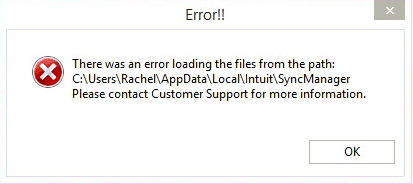
The Sync Manager program included with Intuit Quickbooks may get damaged or accidentally removed. When it does, the following error will appear:

20140918th-intuit-quickbooks-there-was-an-error-loading-the-files-from-the-path

Problem Solution

Follow these instructions to fix the problem.

  1. Exit QuickBooks to make sure it isn’t accessing your company file.
  2. Exit Intuit Sync Manager by right clicking the Sync Manager icon in the System Tray and select Exit Sync Manager from the pop-up menu.
  3. Locate the SyncManager folder and rename it to SyncManager.old. The folder will be found in a different location depending on your version of Windows.
    • Windows 8, Windows 7 and Windows Vista:
      C:\Users\UserName\AppData\Local\Intuit\SyncManager
    • Windows XP: C:\Documents and Settings\UserName\Local Settings\Application Data\Intuit\SyncManager

You can copy and paste the appropriate file folder path location (described above) into your Windows Explorer (not Internet Explorer, but the file viewer for Windows).

Or,  you can browse your folders to find the location, but this will require enabling the viewing of hidden files and folders. Click here to see how to show hidden files and folders.

  1. Start QuickBooks and open Intuit Sync Manager – Sync Manager will automatically recreate the SyncManager folder
  2. Click Sync Now to sync your company data

If this solution does not resolve the issue, you can read discussions and post messages and questions relating to your issue on the Intuit QuickBooks Community site for free. You can contact an agent for additional guidance. Fees may apply.

__________

Source: Intuit Website Document

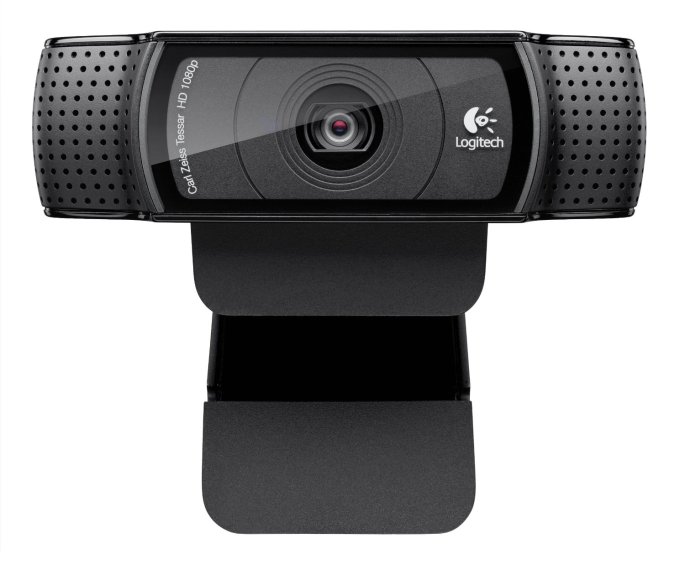
Logitech HD Pro Webcam C920 with 1080p Widescreen

Logitech C920 Webcam

The Logitech HD Pro Webcam C920 is a good choice for a web cam and offers these features. (Buy Now) Thanks to Makur for contributing to this post.

  • Full HD 1080p video calls on Skype with sharpest video-call picture; HD 720p video calls on favorite IM services like Yahoo! Messenger and Gmail Voice
  • H.264 hardware encoding for faster, smoother HD experiences, OS support- Windows XP x32 / x64, Windows Vista x32 / x64, Windows 7 x32 / x64
  • Carl Zeiss optics with premium 20-step autofocus
  • Snap pro-quality pics; fast upload to Facebook, Twitter and YouTube
  • HD video calls on Windows-based PCs or on any HDTV with HDMI connection from a PC laptop

Webcam Benefits

There are many reasons you might want a separate web cam:

  • Some desktop and laptop computers don’t come with a webcam.
  • For computers that do come with a webcam, the video quality may not be as high as you would like.
  • A separate web cam can have better quality audio recording than a built-in web cam.
  • A separate web cam is more easily adjustable and more convenient that trying to adjust a camera built into a desktop monitor or laptop computer.

Product Photos

Below are photos of the Logitech C920 Webcam.

Google Gmail Responsive Design Flaw

While using Gmail, you may receive an email that has a large embedded (such as 1200 pixels wide). The top of your screen will resize as expected and all account controls will show up.

However, the image will not be resized. As a result, the message window (where the message text shows) will be the full fixed width of the image. This will push the reply button and other controls to the far right beyond your viewable window (unless you’re on a high resolution display).

This problem would not occur if the message was drafted within Gmail, but when email clients are used (such as Outlook or Apple Mail) they may use HTML formatting and set a fixed width for the embedded image.

20140913sa-technology-tips-672x372

Your Apple ID was used to sign in to iCloud via a web browser

If you get a message stating, “Your Apple ID was used to sign in to iCloud via a web browser.”

This is an alert from Apple to inform you that your account has been accessed. It includes the date and time that the account was accessed via the web.

What’s alarming about this message is that the time may likely be sometime late at night or early in the morning when you would not have even been awake.

The reason for the time difference is that the time is stated according to the timezone at Apple’s headquarters in Cupertino. You’ll see PDT next to the date and time in the alert.

As of early 2014, these alert messages may have included more information about the computer used to access the account, such as, “Your Apple ID (yourname@icloud.com) was used to sign in to iCloud on a MacBook Pro 15.”

By mid-2014 it seems that these messages no longer include the computer description.

If you don’t recognize the login as one of your own, it would be a good idea to change your password.

20140913sa-technology-tips-672x372

Apple Mac Contacts Address Book Groups and Google Groups

If you’re dependent on using groups for organizing your contacts and sending emails, then be warned that Apple Mac Contacts Address Book and Google Contacts don’t work well together.

New groups created in Apple Contacts will show up as individual contacts in your Google Contacts address book.

Groups and tags for contacts in Google won’t be reflected in your Apple Contacts address book.

20140913sa-technology-tips-672x372

Apple OS X Contacts Address Book Inactive Accounts Delete

Sometimes the list of accounts in the Apple Contacts program will be different than the Internet Accounts listing in System Preferences. This is particularly a problem with accounts marked as Inactive.

To fix this problem, follow these instructions.

  1. Close System Preferences if it is open.
  2. Press the Option key and click the Go menu in finder and select Library to view your user Library.
  3. In the Preferences folder, find the file named com.apple.internetaccounts.plist and move it to the desktop.
  4. Start System Preferences and open Internet Accounts. You should see the previously missing Inactive account from Contacts appear in the list.

20140913sa-technology-tips-672x372

Apple OS X Contacts Don’t Synchronize with Google Gmail

Usually it’s possible to add a Google account to your Apple Mac OS X Contacts and the system will work properly. This is done through System Preferences > Internet Accounts > press + to add an account. You can setup Mail, Contacts, Calendars, Messages, and Notes. However, some people have experienced problems with Gmail contacts and the Apple Contacts program.

It may be, when you click the checkbox next to Contacts in System Settings > Internet Accounts, you won’t see any names show up in your Apple Contacts program. If this happens, you’ll need to configure your Gmail contacts in the following way (for OS X Mavericks):

  1. System Preferences > Internet Accounts > press + to add an account.
  2. Scroll to the bottom of the available account types, and click on Add Other Account.
  3. Choose Add a CardDAV account.
  4. Provide your Username (only the part before the @gmail.com) and password. The server address should be http://www.google.com. If you enter Google.com for the server (as instructed elsewhere on other help pages), you’ll get an unknown error.
  5. The new account will be listed as Www. You can click it and choose Details to give it a better description.

Your contacts should now appear in the Apple Contacts program and should remain synchronized properly.

Additional reading about this issue can be found in the Apple Discussion forums.

20140913sa-technology-tips-672x372

Using Gmail as a Central Unified Online Email Client

Summary

An advantage of using email client software is that all your emails come into a single central system. You can quickly search through multiple inboxes to find information, and check for new mail across many systems instantaneously.

Desktop Email Client Problems

Changes in how email services operate have resulted in various problems with desktop-based email clients. For example, Apple Mail has had difficulty properly handing Gmail messages with incorrectly displaying unread message counts. If you’re on an Apple iPhone, then it’s possible to have live interaction with your Microsoft email account. However, on a desktop computer, it’s only possible to download messages. Any reading, deleting, organizing, or marking as spam will not happen on the Microsoft server. So, work must be duplicated. The multi-platform Thunderbird email client works well with most email systems, yet doesn’t work with Network Solutions email. Anyone saving years worth of emails locally on their hard drive risks losing everything if there isn’t a backup.

Online Email Clients

The problem in the past with online email services is that you needed to login to many different accounts to check your messages. Over time, email services like AOL, Yahoo, Hotmail, and Gmail added the ability to retrieve messages from other systems.

Using Gmail as an Online Email Client

There are several options with Gmail that control interaction with other email systems:

  1. Alias. It’s possible to send messages using an alternate email address such as yourname@yourwebsite.com. Setup requires confirmation that you can access the email account you are sending as, so it must be a real address.
  2. Import. For a one-time import of an email account you plan to close down, or forward from in the future, it’s possible to use the Import feature. This can also import contacts. This is for a one-time import of emails.
  3. Active. Actively checking for and retrieving emails from other accounts is possible. It’s important to note that messages will show up periodically rather than instantaneously.
    1. Delays. There may be a delay of a few minutes or more before new messages actually appear. This won’t be an issue for most people, but for those who use email as a replacement for the phone or texting, and expect nearly instantaneous communications, you may want to consider having messages forwarded from your old email account into Google. This method of pushing messages into Google in real-time is better than fetching emails periodically.

Flagging Incoming Messages

It’s possible to Flag (tag) incoming messages from other accounts so they are automatically organized by account. This makes it easy to have different ‘folders’ or groups for different accounts. The Flagging option is automatically selected when importing or setting up the Active method of email checking. However, it can also be setup later. For example, if you have messages forwarded from your old email account, you can flag all those incoming messages based on the address. Any email addresses in Gmail that are identified as sent to your old address can be flagged by following these steps:

  1. Perform an advanced search of your Inbox by clicking the small faint gray downward pointing triangle in the right of the search box.
  2. Next to the To entry, provide the full email address for your old account that is forwarding emails into your Google account.
  3. In the bottom right of the box, click Create a Filter Based on this Search.
  4. Choose the option to Apply the Label and select a label or create a new one that will identify these messages as being from your old email account.
  5. If you choose the option to ‘Skip the Inbox’ (also called Archiving) the messages will show up in All Messages, but not in your Inbox as something new that needs to be processed. They will also be found under the new Tag you just created. So, if you want all the incoming emails from your old account to be put in a single location without seeing them all in your inbox, you can do this.

Signatures

You can have unique signatures for each of your Alias accounts. This way you can have a signature that matches the account you’re sending as.

  1. Click the Gear in the upper right corner.
  2. Choose Settings.
  3. Under the General tab scroll down to find Signature. Use the dropdown menu to select an alias email account and then enter your signature details.

Send From Account

You can set Gmail to reply to messages using the Alias that matches who they were writing to.

  1. Click the Gear in the upper right corner.
  2. Choose Settings.
  3. Under Accounts and Import, Send Mail As, When replying to a message, choose “Reply from the same address the message was sent to.”

Microsoft Exchange Support

Gmail doesn’t support Microsoft Exchange integration. However, it is possible to forward email from your Exchange account to your Gmail account for a better online experience. For example, those using Google Chrome on Linux will find that the Exchange web interface is very limited. A Google interface is much better.

Best Practices

The best approach to using Gmail depends on your needs, but generally it’s a good idea to Forward messages from your existing and old accounts to Gmail, and create an automatic Filter and Label to automatically organize those messages. Avoid creating Filters and Labels for anything that can be quickly and easily searched on, such as all emails from a certain person.
20140910we-gmail-email-client-online-unified-672x372

Helpful Built-in Windows Utilities and Apps

Here are some helpful built-in Windows utilities and apps.

  • Energy Audit. From the Start menu, search for CMD. When you find it, right click and run as Administrator. At the command prompt, type powercfg – energy and then press enter. Be sure to put the spaces between the words and the hyphen. A report called energy-report.html will be placed in your Windows \ System32 folder. To open the report you need to copy it to another location such as your desktop.
  • Erase Unused Space. This is achieved at the command line by typing: cipher /w:X (the X is the drive letter).
  • GodMode. This is a feature that creates shortcuts for all Windows configuration settings and controls and puts them in a single folder. Simply create a new folder and name it:
    GodMode.{ED7BA470-8E54-465E-825C-99712043E01C}
  • Reliability Analysis. It’s possible to track your computer’s reliability using the View Reliability History utility. To find this utility, go to the start menu and type reliability.
  • Screen Recorder for Diagnostics. Windows includes a screen recorder for diagnostics. It’s called the Problem Screen Recorder. To run it, just type psr at the Start Menu.
  • Window Move / Adjust Shortcut. Here are some shortcuts to adjusting Windows.
    • Maximize. Pressing the Windows menu key, and the up arrow, maximizes the current window.
    • Restore. Pressing the Windows menu key, and the down arrow, restores the current window if it is maximized.
    • Minimize. Pressing the Windows menu key, and the down arrow, minimizes the current window if it is not maximized.
    • Side / Middle Placement. When you want to send a window to the left or right, use the Windows button and the right or left arrow. When used repeatedly these will put your window in the middle of the screen also.
    • Switch Monitors. If you have two monitors, when you press the Windows button and an arrow key (right or left) the window will jump to the other display.