
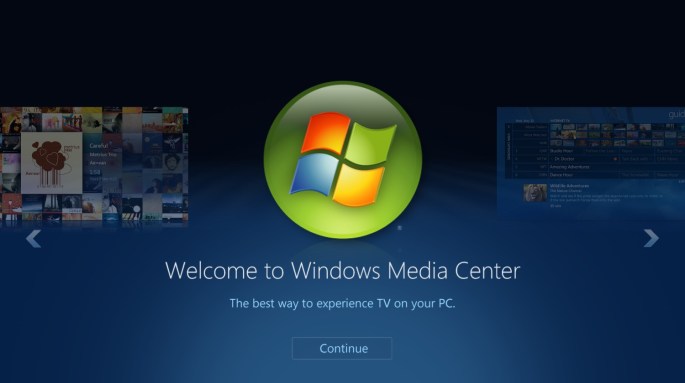
If your Windows computer starts up and shows the Windows Media Center interface instead of the normal Windows desktop icons, you can follow these instructions to correct the problem.
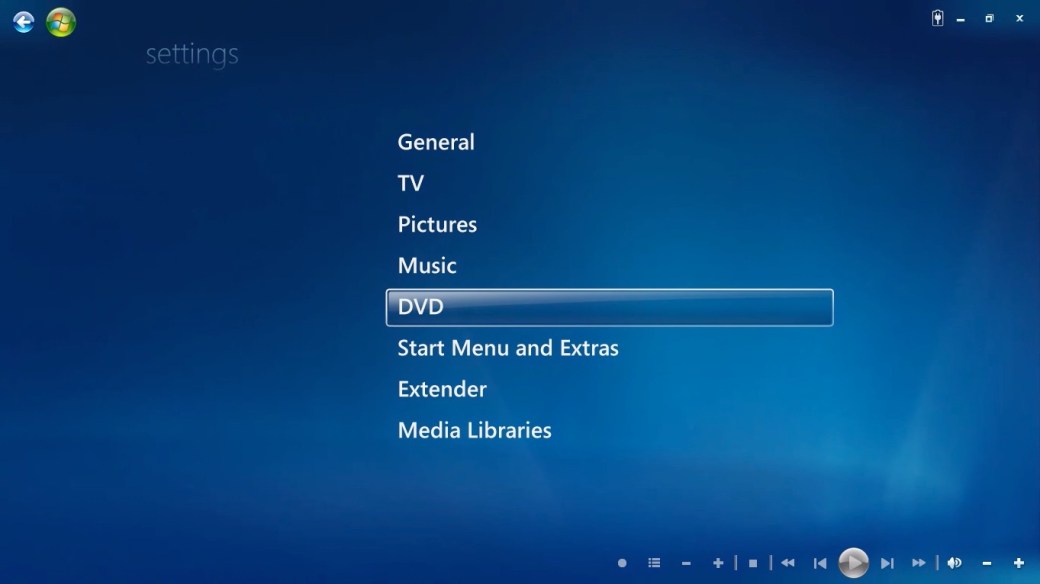
STEP 1 – Settings
From the main screen, scroll down to the settings icon.


STEP 2 – General
From the Settings menu choose General.
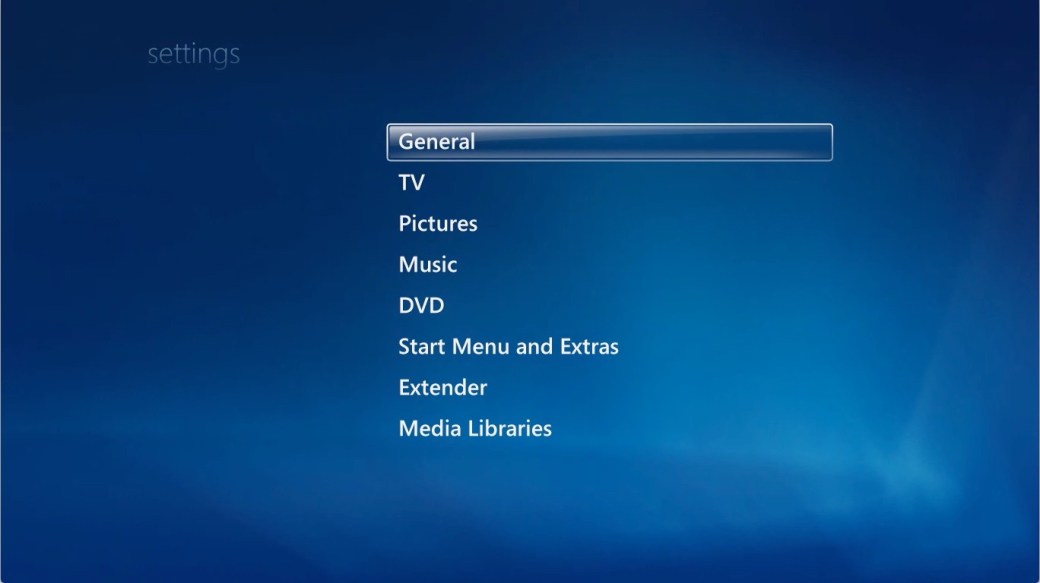
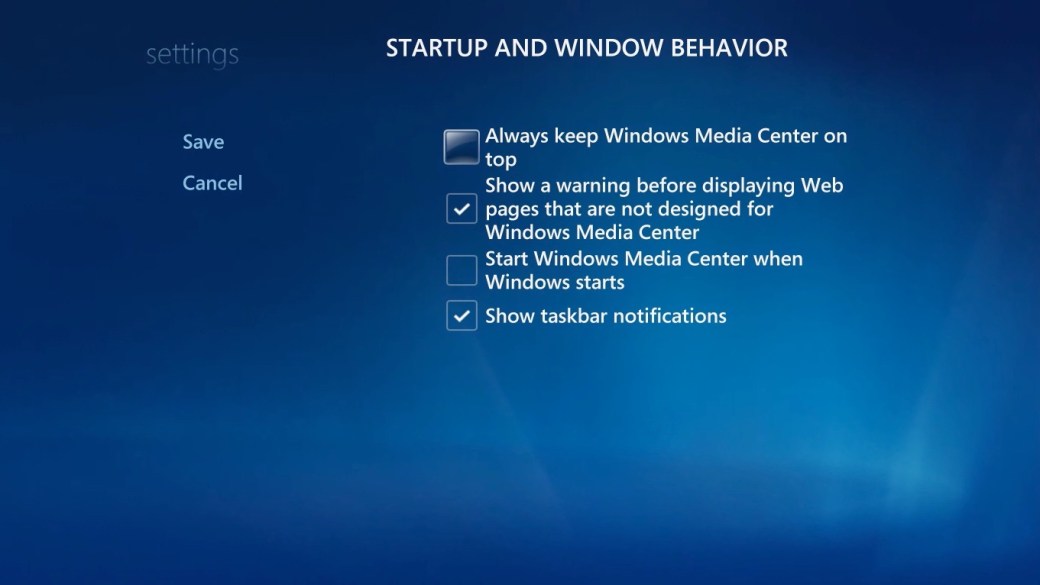
STEP 3 – Startup and Window Behavior
From the Settings > General menu, choose Startup and Window Behavior.

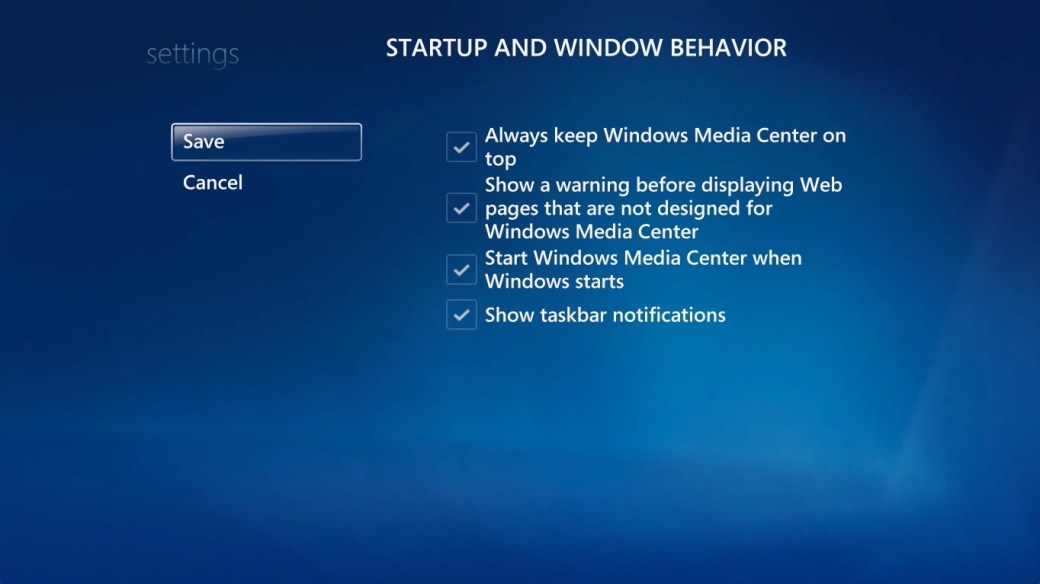
STEP 4 – Disable at Startup
From the Startup and Window Behavior menu, remove the checkmarks next to “Always keep Windows Media Center on top” and “Start Windows Media Center when Windows starts.”
 Iowa City Technology Services