

It’s important when updating Windows to request updates for other Microsoft products that aren’t directly related to Windows. These may include updates to hardware drivers, updates to Microsoft Office, or other software updates that keep your computer safe and running properly.
For some mysterious reason, Microsoft doesn’t suggest these updates by default. So, most users never get them, and suffer the consequences as a result.
Only if someone specifically asks for these updates will they get them.
However, when you click the option to “Get updates for other Microsoft products” you might find that it doesn’t work, even after you try it repeatedly. This is particularly true for a new computer or computer with a fresh installation of Windows 7.
The screen shots below illustrate this problem that has existed for over 5 years and has never been fixed by Microsoft. It’s consistently duplicatable. Click any screen image for a larger view.
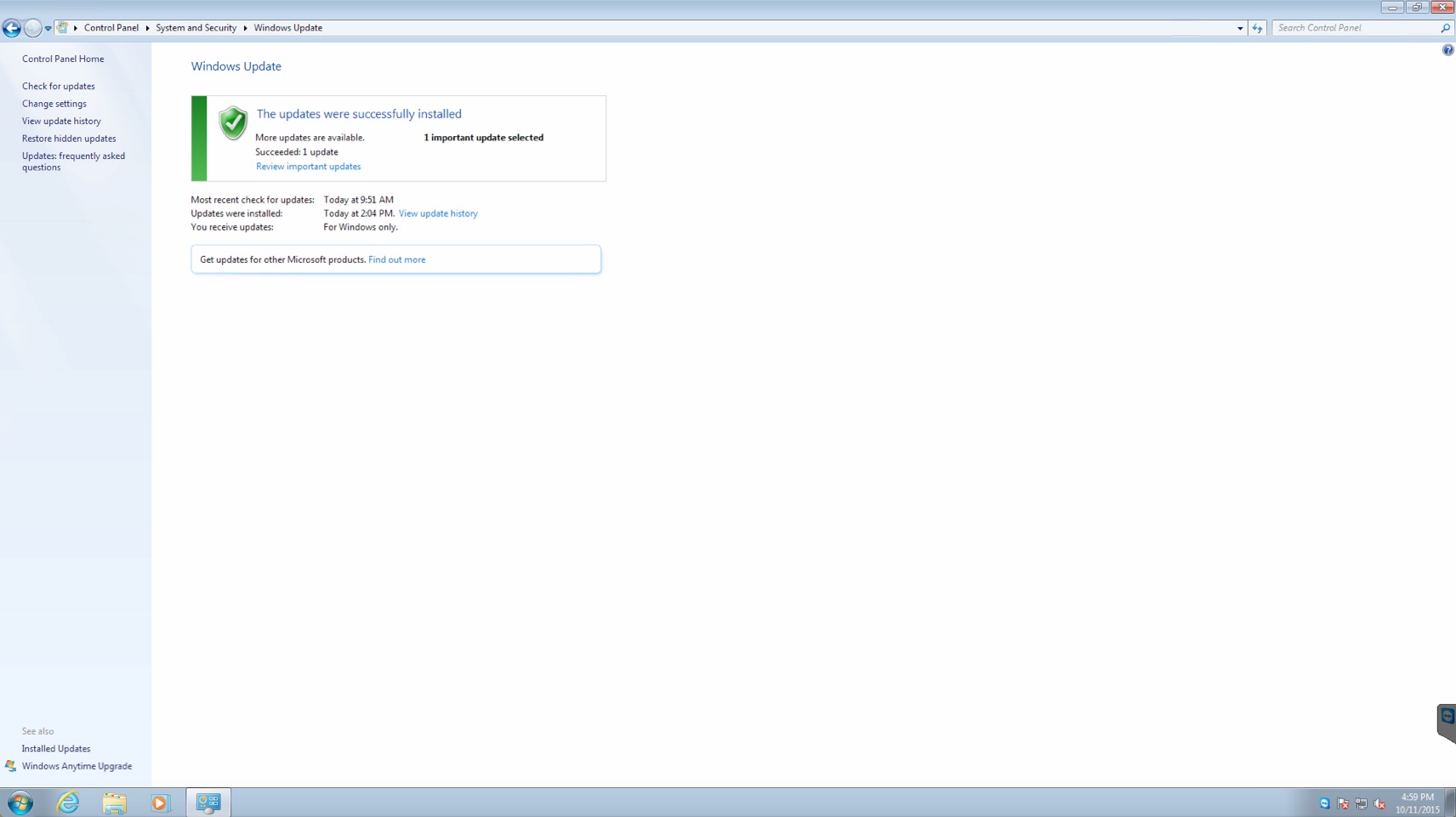
Step #1: Windows Updates Main Screen
Below is the Windows update main screen. You’ll see the option to “Get updates for other Microsoft products” with a link to Find out more.
Step #2: Updates for Other Microsoft Products Web Page
If you click the Find out more link mentioned above, it will take you to the web page shown below. However, with the default installation of Internet Explorer, you won’t see the option to Allow the add-on. Instead, you’ll see only the message to “Use your Start menu to check for updates.” Which you’ll soon realize after some futile effort searching for the updates that you just go back to the Windows Update screen shown above. Nothing has changed. So, the message is misleading. One imagines that something has changed, but it hasn’t.
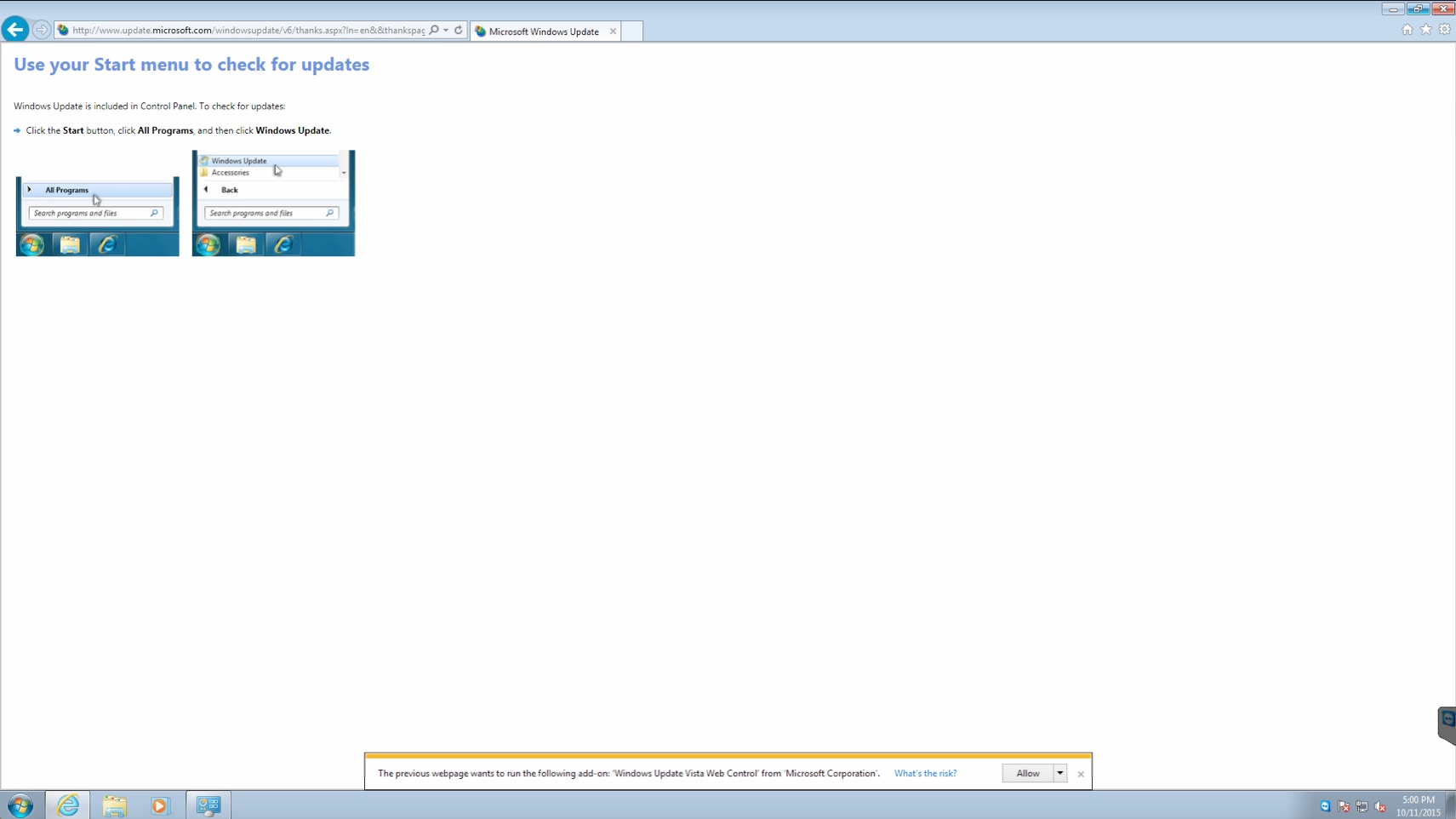
You must click the Gear icon in the upper right corner of Internet Explorer, then choose Internet Options > Advanced, and chose to completely reset the advanced settings and browser settings. Then restart the browser. Then go to step #1 above. Then you’ll return to Step #2 and the message shown at the bottom of the screen will appear. Then click Allow. At that point, you’ll see the following screen.
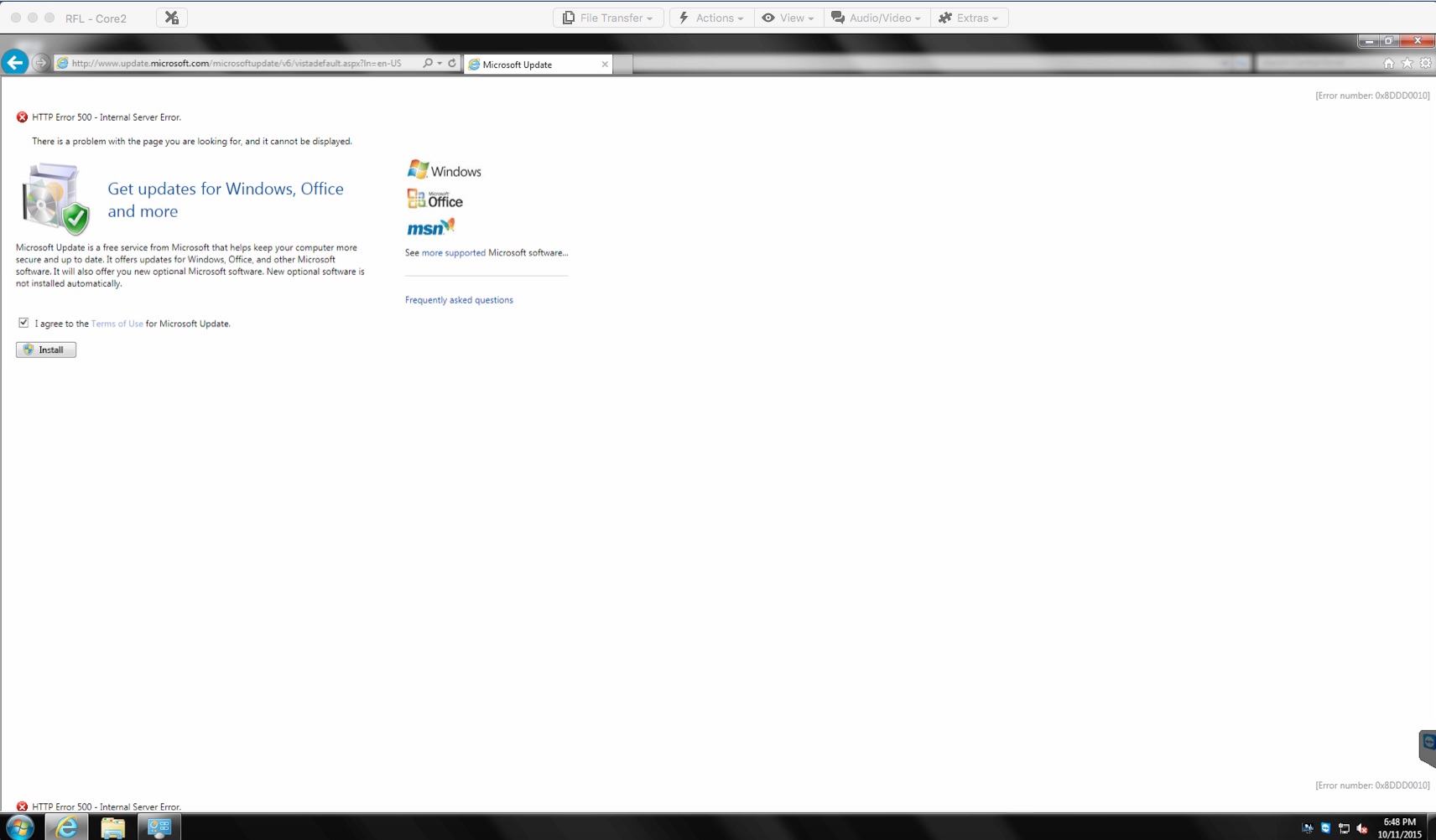
Step #3: Get Updates for Windows, Office, and more
After you reset your browser as described in Step #2, and then return to Step #1 and Step #2 again, you’ll eventually get to a window like the one shown below. Be sure to click on the “I agree” checkmark as shown. Then click Install.
You might notice the HTTP Error 500 – Internal Server Error in the window below. You may get this on your computer. Just ignore it. The process should continue just fine.
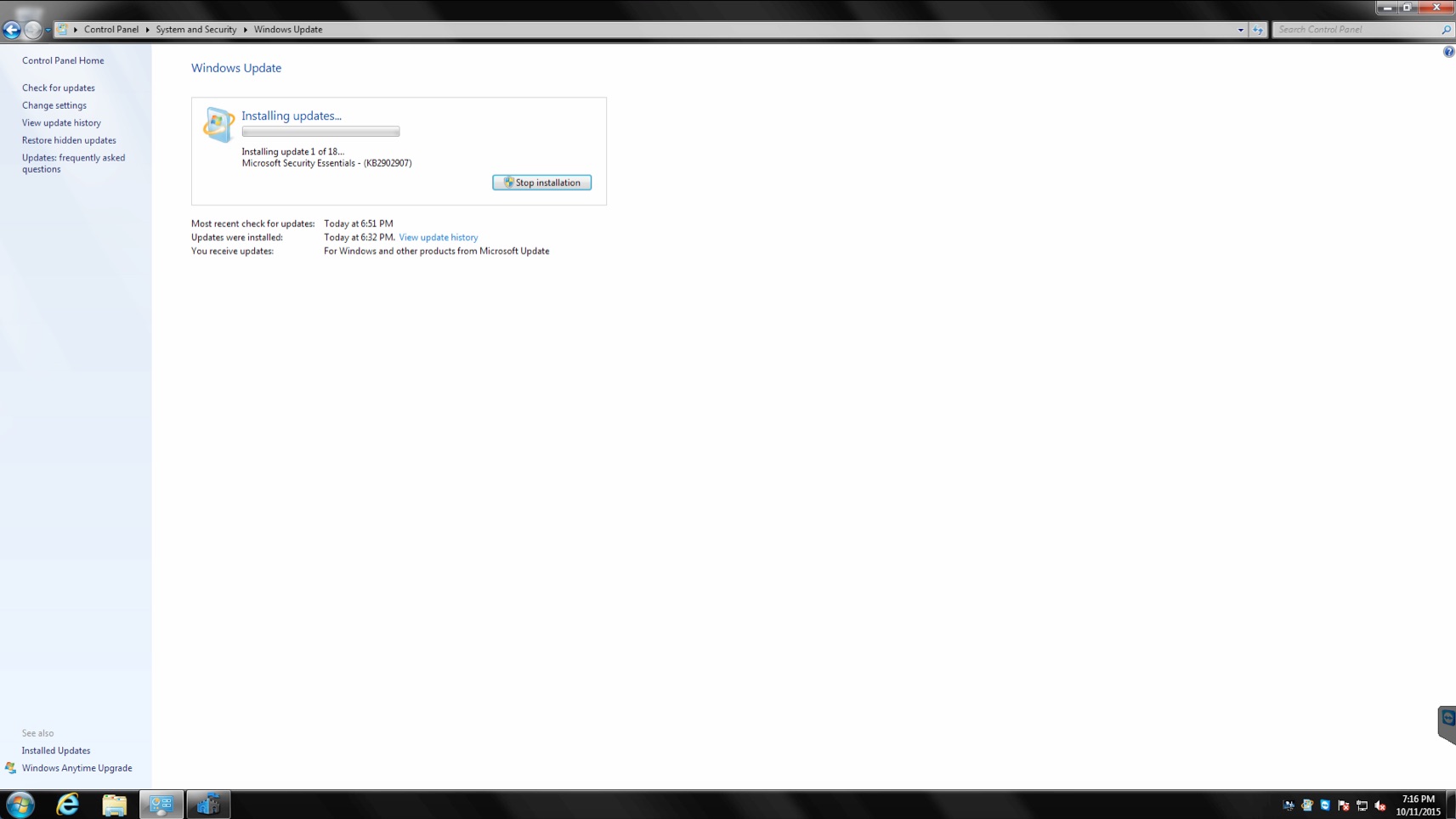
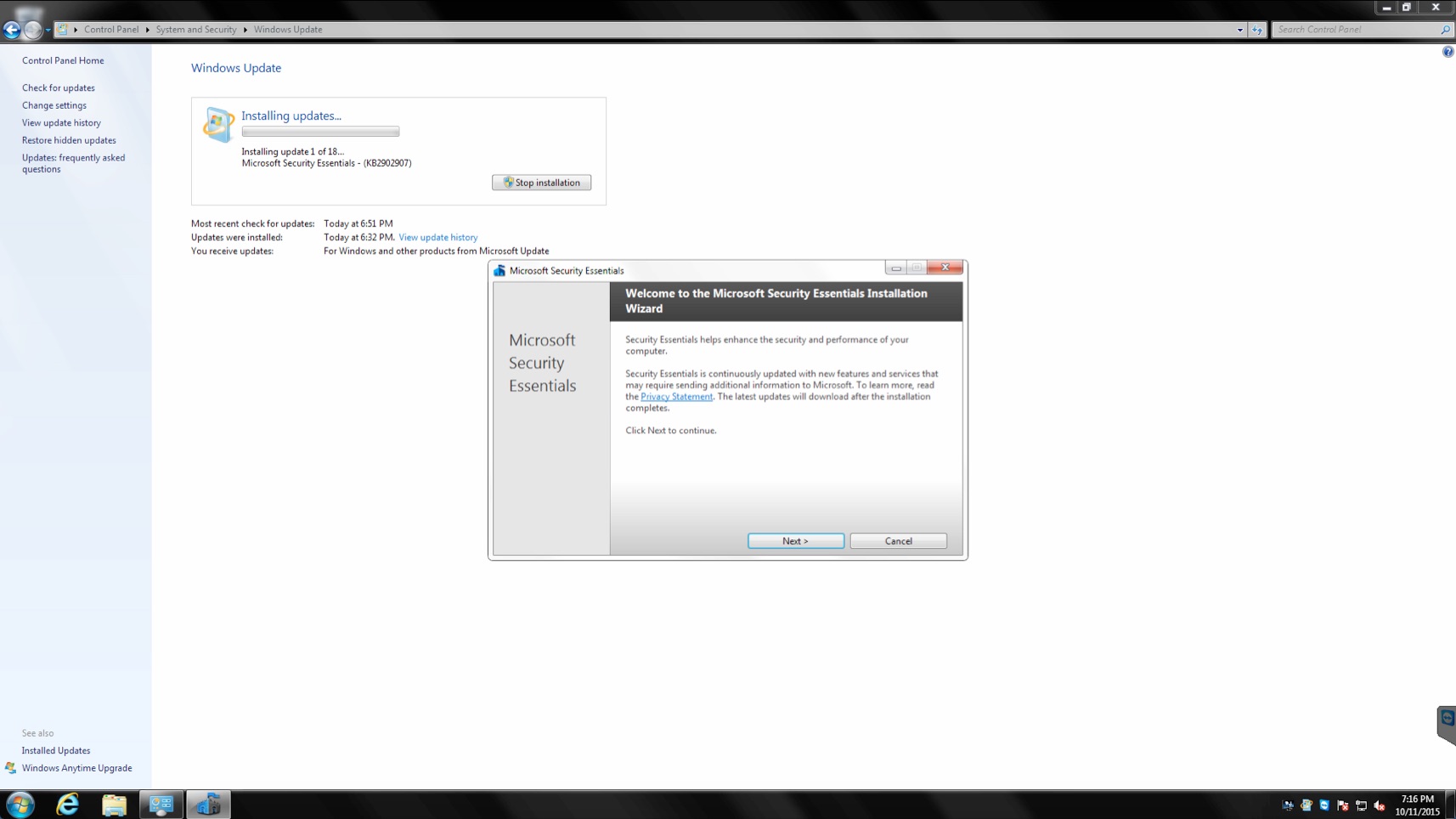
You’ll be taken back to Step #1 again, and this time your computer will check for updates from Microsoft for all their products including some hardware drivers.
 Iowa City Technology Services