News Feed

Disable TeamViewer at Startup on Windows or Apple Mac Computers

What Is TeamViewer?

TeamViewer is a secure and trusted software program that makes it possible to easily provide remote computer support and training.

Cost

TeamViewer is free for occasional users and to those receiving remote support.

Technical support professionals who use it to deliver support services will pay about $1,500 for the software, and then $500 a year thereafter if they want the newest version with more features.

Using TeamViewer for Setup or Maintenance

During the initial setup of computers, or periodic maintenance, it’s useful to enable the setting that allows TeamViewer to run each time the computer is turned on. That way, working on the computer remotely, it’s possible to install updates and perform the necessary restart of the computer without losing a connection. For those who want ongoing regularly scheduled maintenance and checkups for their computer, it’s useful to leave it running. Or, it’s possible to turn it on in preparation for regularly scheduled remote maintenance.

In some cases, a technician will help a customer with the setup of their office computer (for example), and then the customer will continue using TeamViewer to access their office computer from home. In such cases, TeamViewer could be left on and running automatically. However, it’s good to periodically update the software at home and work.

Disabling TeamViewer When Unused

When TeamViewer is no longer being used regularly, it’s a good idea to disable it from starting automatically. As with any other program, it takes up memory while running. At some point, the program becomes outdated, so there’s no reason to keep the old version anyway. Also, given that it’s a program for remote access, having it off when not needed is an extra measure of security. The rest of this document provides instructions on how to disable or remove it. The examples shown below are using screen images from version 10 of the software.

How to Disable TeamViewer for Windows

Follow these instructions to disable TeamViewer from loading when Windows starts:

  1. On your computer, click on the TeamViewer icon visible in the system tray as shown in the example below. It’s the icon on the left.

    20150802su-teamviewer-icon-in-system-tray-windows
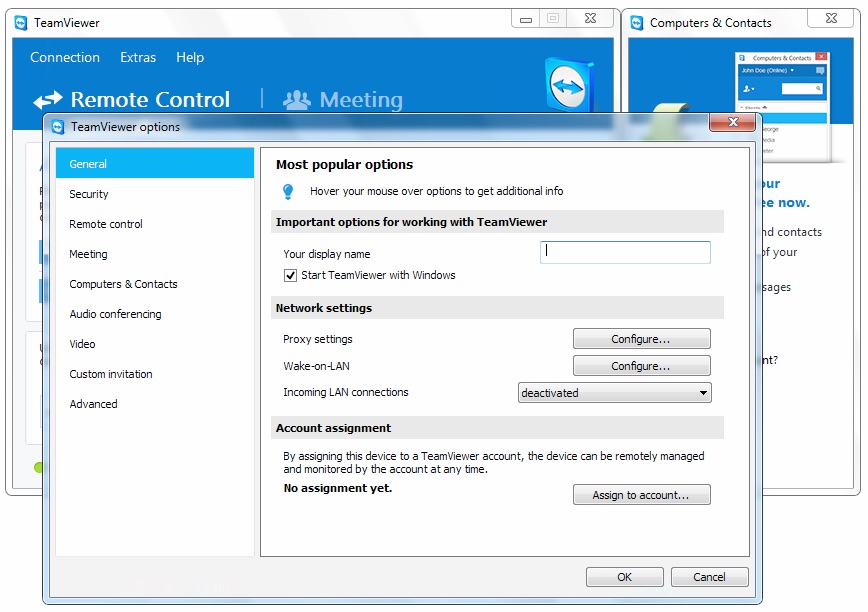
  2. When the TeamViewer window opens, from the Extras menu, choose Options and you should see a window like the one below. You’ll see a checkmark next to “Start TeamViewer with Windows” as shown in the example below. Remove that checkmark and click the OK button. Click the image below for a larger view.
    20150802su-teamviewer-settings-start-teamviewer-with-windows
  3. Optional. If you don’t see the option to disable TeamViewer from running at startup, then simply remove the program. Since TeamViewer is free for non-commercial use, you can remove the software until you need it again. Go to Control Panel and under Programs (or Programs and Features) choose to uninstall TeamViewer.

How to Disable TeamViewer for Apple Mac

Apple computer users can disable TeamViewer from running at startup by following these instructions.

  1. Click on the TeamViewer icon in your Dock as shown in the example below to the right of the Finder icon. Or, you can find TeamViewer in your Applications folder and click on it there.

    20150802su-teamviewer-icon-apple-mac-dock-finder
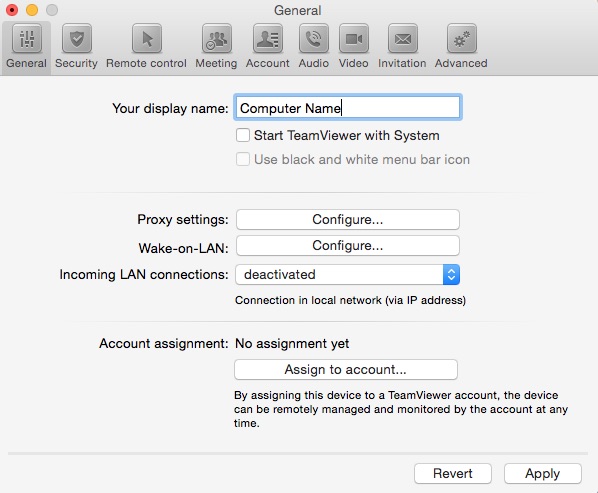
  2. From the TeamViewer menu, choose Preferences. Under the General settings, you’ll see an option to “Start TeamViewer with System.” Remove the checkmark as shown below and then click the Apply button. You can now quit the TeamViewer program. Click the image below for a larger view.
    20150802su-teamveiwer-apple-mac-disable-at-startup-settings-preferences
  3. Restart your computer to verify that the TeamViewer software isn’t running automatically.

TeamViewer Mac – Removal

  1. To remove TeamViewer, turn off the “Start TeamViewer with System” feature shows above.
  2. Download and install CleanMyMac.
  3. Use the Application Removal utility in CleanMyMac to perform a complete removal of TeamViewer. This is necessary for just about any program on Apple computers since there’s not a removal option for most programs.

Note: If you already tried to remove TeamViewer previously by dragging it to the trash, reinstall the latest version and then follow the three steps above to remove it completely.

Microsoft Excel 2016 for Mac – Error Checking Numbers as Text

By default, Microsoft Excel has error checking that will place a warning indicator next to all cells that have numbers in a cell formatted to be text. It’s common to have serial numbers and other entries that will contain text and numbers in the same field, so having a warning about it is unnecessary.

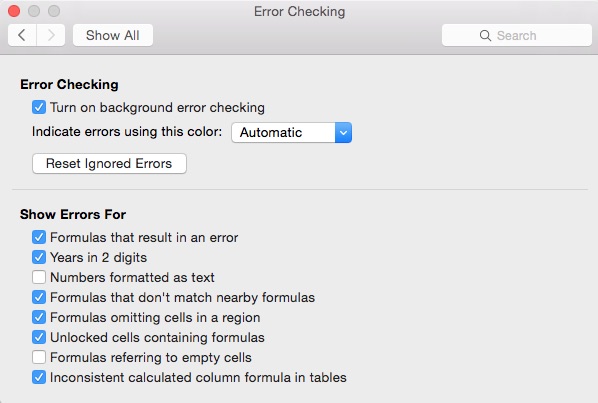
To disable this and turn it off, in the Mac version, go to the Excel Menu and choose Preferences > Error Checking > and remove the check next to “Numbers formatted as text” as shown below.

20150801sa-microsoft-excel-error-checking-numbers-as-text

HP Officejet Pro 8630 e-All-in-One Printer Setup and Support

Overview

This page has general reference information for the setup and support of the HP Officejet Pro 8630 e-All-in-One Printer. The retail price of this printer is about $400. It occasionally goes on sale at Staples for $300. It’s available on Amazon for $239. [Amazon]

Documentation & Manuals

Hardware Setup

Follow these instructions for setting up the printer.

  1. Unbox. Unbox and remove all blue tape that secures the various components of the printer.
  2. Remove Plastic Film. There is thin plastic film over some surfaces of the printer. It’s a good idea to remove this plastic film. You’ll likely overlook some of it since it’s very clear. Important: There is think plastic film on the adjustable paper guide for the document feeder. it’s important to remove these because if you don’t, the film may get stuck in the document feeder input and wheels, causing it to jam.
  3. Power. Connect the power cord.
  4. Internet. Ideally you’ll want to have the printer connected to the Internet using an Ethernet cable instead of wireless. This requires that you have a router with an available data port. The reason you’ll want to connect through your local network instead of using USB is because the printer features are enhanced by accessing the web. Updates to the printer’s firmware are possible with an Internet connection. The printer is referred to as a ‘wireless’ printer and there may not be any mention on the box of Ethernet network cable connection capabilities. You’ll find a yellow ‘plug’ covering and protecting the Ethernet jack on the back of the printer. This is to ensure that people don’t put the fax telephone line into the Ethernet jack/port.
  5. Paper. Install some paper in both paper trays.
  6. Configure. Follow the on-screen configuration steps choosing language, region, and time.
  7. Ink. You’ll be prompted to put in the ink. The ink goes inside a door on the front left of the printer. There is a set of four ink cartridges and another set of three ink cartridges (color only). The set of four ink cartridges includes the three color ‘setup’ cartridges. Use these when initially setting up the printer. On the box in the store, it may not indicate that there are a total of seven ink cartridges total.
  8. Calibrate. After the ink cartridges are installed, close the door and follow the on-screen instructions for printer calibration.
  9. Adjust Display. The printer display screen is adjustable from flat to about 50 degrees. When it’s adjusted properly it’s clearer and easier to see.

Continue below when prompted to connect and install the software.

Software Installation

  1. Download Software. You’ll be prompted to go to the following website to connect the printer and install the software: http://www.hp.com/eprint/ojpro8630. That link will automatically forward you to this page https://123.hpconnected.com/activate/woobe/ojpro8630. When you click on the Download button, you may be told that the download isn’t working. You may need to try again. Alternatively, you can go to the printer product page on the HP website. Click on Software and Downloads, then click the Go button. As of 25 July 2015, the software was at the 12.32 version released on Oct 17, 2014.
  2. Install Software. Once the software is downloaded, double-click the installation file to begin the installation process and follow the instructions. For Apple computers, the download will be a DMG file. Open that file. Within it will be a puzzle piece icon named HP Officejet Pro 8630.
  3. ReadIRIS Software. You’ll also find another icon named Readiris Pro 14 for HP on the . The Readiris software is for OCR (optical character recognition). This allows you to save PDF files that are searchable. When you click the icon, you’ll be taken to a page that has an ftp download link for the Apple Mac software or you can also get the Windows version of the software.
  4. Printer Connection. When you’re installing the printer, at some point you’ll be given a choice to select an IP connection or a Bonjour connection. The Bonjour connection may be more reliable if the printer IP address changes. When you’re at the point of adding the printer, from the Use: dropdown menu, choose HP Officejet Pro 8630 e-All-in-One. AirPrint may have been selected by default.
  5. Register. Register the printer when asked to do so.
  6. Create an HP Account. Setup an account with HP.
  7. Automatic Ink Delivery. The final step of the installation will be to signup for automatic ink replacement from HP. This service offers printing fees at costs from 3 cents per page up to about 6 cents per page. With the service you don’t need to purchase ink. Instead, HP will ship ink to you when the printer needs it. The advertising indicates that you’ll save hundreds of dollars per year. However, if you look up the cost of the high capacity black ink cartridge, it’s about $37 for a yield of about 2,300 pages. That’s about 1.5 cents per page if you choose black only printing. Color XL cartridges are about $30 each ($90 total) and yield about 1,500 pages (6 cents per page). The cost per month for the automatic ink delivery subscription remains the same whether you print or not. There is the option to have ‘rollover’ pages, but that’s limited to your subscription level.

Remote Printing with HPConnected.com

During the setup of your printer, a page will be printed with instructions on setting up your printer with an HPConnected.com account. You can go to HPConnected.com and choose Devices > Add a Device to add your printer to the account. Then you’ll be able to share the printer with anyone, and print from anywhere.

Most Economical Ink Consumables Purchasing

The most economical solution for purchasing ink is to buy the four pack of high capacity (XL) ink cartridges for $117 from Amazon. These are estimated to yield 1,500 pages of mostly color, or 2,300 pages of black ink printing. Using the economical configuration suggestion shown below, your yield may be higher.

Economical Black Ink Draft Printing

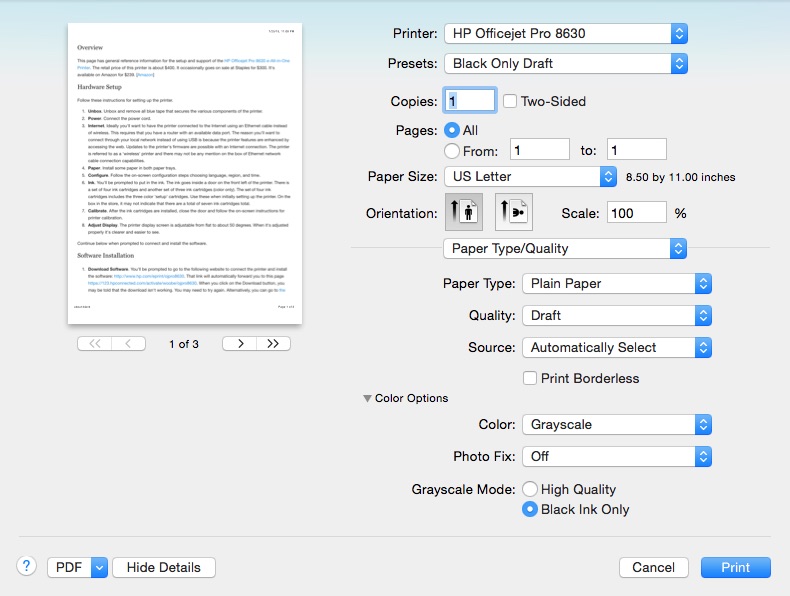
For most printing, color ink isn’t needed. To save money and increase print speed, choose to print in draft mode with grayscale using black ink only. You may need to click the triangle next to Color Options to have additional options shown. You can save these settings as a printing preset (see the dropdown menu next to Presets). Below is an example from the Apple printing dialog. For Windows you’d look for this under print settings. Click the image below for a larger view.

20150725sa-hp-officejet-8630-economical-black-ink-only-grayscale-draft-mode

Product Photos

Below are some product photos.

Higher Education Institutions are the #1 Target of Hackers Worldwide

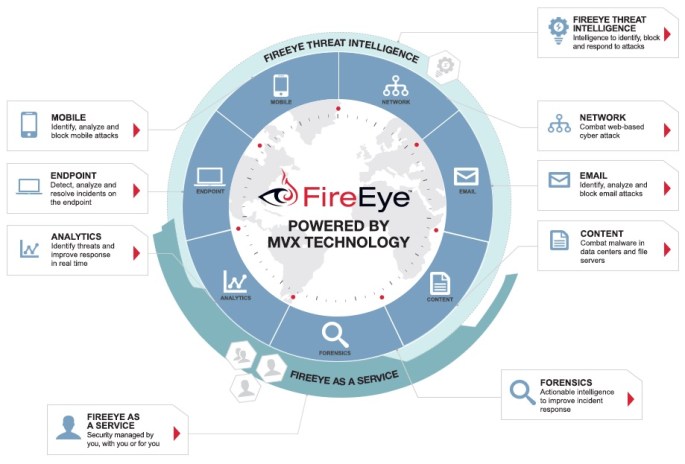
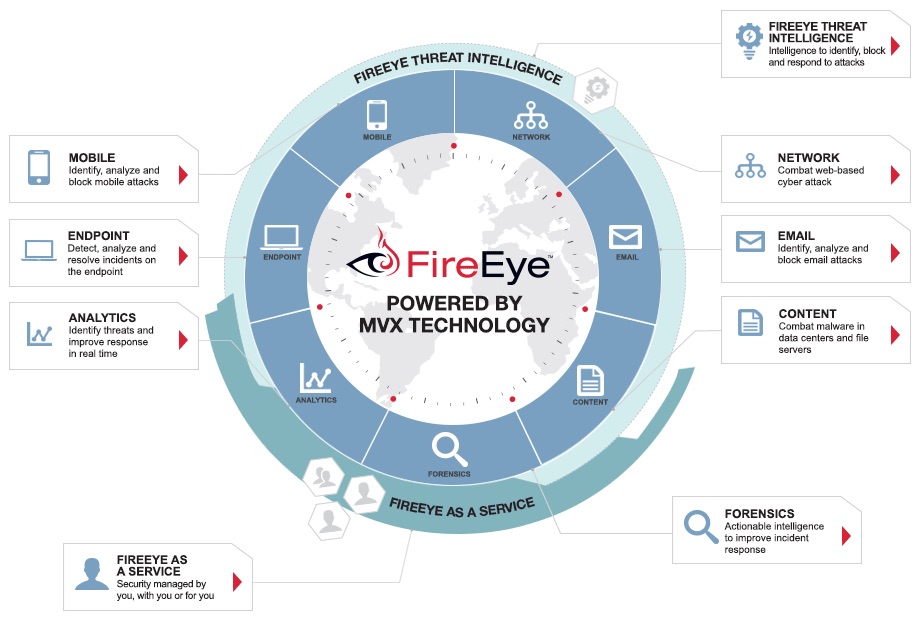
According to a 2013 report published by FireEye.com, higher education institutions are the #1 target of hackers worldwide. Below is the top-10 list. Click here for the report in PDF format or click here for a real-time map showing current attacks.

Top Ten Vertical Targets: Worldwide

Based on the highest number of targeted operations discovered by FireEye threat prevention platforms in 2013, the top ten industry vertical targets are listed below. Each of these verticals possesses substantial intellectual property value, and often plays an important role in national security affairs.

  1. Education: universities are home to cutting-edge research and emerging technology patents; unfortunately, their networks are large and porous.
  2. Financial Services: most financial transactions today are conducted via the Internet, whether between people, businesses, or governments.
  3. High-Tech: some hardware and software are used by millions of people; they can offer attackers an exponential return on investment.
  4. Government: these bodies organize nations, determinepolicy,enforcelaw,andmanage national security affairs.
  5. Services/Consulting: large companies often have long supply chains and large contractor bases; at the political level, this includes think tanks.
  6. Energy/Utilities: in physics, energy is required for any kind of “work,” including starting engines, turning on city lights, or launching a missile.
  7. Chemicals/Manufacturing: chemistry is the study of matter, and bridges all of the natural sciences, including their relationship to energy.
  8. Telecom (Internet, Phone & Cable): this category encompasses all long-distance communications, by electrical signals or electromagnetic waves.
  9. Healthcare/Pharmaceuticals: this category encompasses the development of medications and the provision of medical care.
  10. Aerospace/Defense/Airlines: this category includes the development of spacecraft with myriad commercial and military applications.

20150725sa-fireeye-security-suite-enterprise-business-information-malware-virus-protection

Portable Digital Linear PCM Stereo Audio Recorders: Tascam, Sony, Zoom

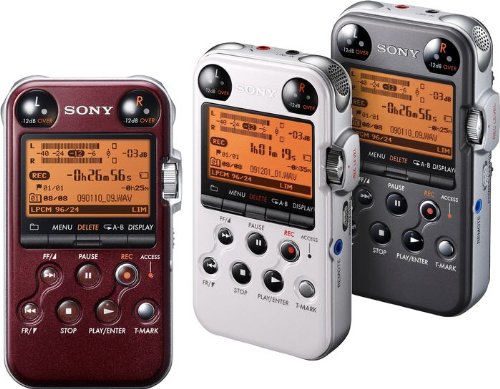
This is a short list of high quality portable digital stereo audio recorders. These would be suitable for music, voice, or other audio sources, and would be useful for recording audio to accompany video recordings. Not all shown below are linear PCM recorders. Click view to see details for each recorder.

  • Sony PCM-D100 Portable High-Resolution Recorder, 3.9 stars / 13 reviews, retail $1,000 / sale $800 [view]
  • Sony PCM-M10 Portable Linear PCM Voice Recorder, 4.6 stars / 69 reviews, retail $400 / sale $250 [view]
  • TASCAM DR-05 Portable Digital Recorder, 4.3 stars / 619 reviews, retail $180 / sale $80, [view]
  • TASCAM DR-100mkII 2-Channel Portable Digital Recorder, 4.4 stars / 116 reviews, retail $600 / sale $300 [view]
  • TASCAM DR-40 4-Track Portable Digital Recorder, 4.4 stars / 376 reviews, retail $137 [view]
  • Zoom H1 Handy Portable Digital Recorder, 4.3 stars / 591 reviews, retail $160 / sale $100 [view]
  • Zoom H2n Handy Recorder, 4.4 stars / 229 reviews, retail $225 / sale $260 [view]
  • Zoom H4n Handy Portable Digital Recorder, 4.5 stars / 641 reviews, retail $250 / sale $200 [view]
  • Zoom H5 Four-Track Portable Recorder, 4.7 stars / 79 reviews, retail $340 / sale $266, [view]

Product Images

Some product images are below.

CleanMyPC Device Cleanup to Remove Apple Spotlight and Trashes Files

When using external hard drives or USB flash drives between Apple and Windows computers, you’ll notice in Windows there are some temporary Apple files visible. The Device Cleanup feature in CleanMyPC software utility suite can easily cleanup unnecessary files as shown below.

Before

20150721tu-cleanmypc-device-cleanup-before

After

20150721tu-cleanmypc-device-cleanup-results

CleanMyPC Main Screen

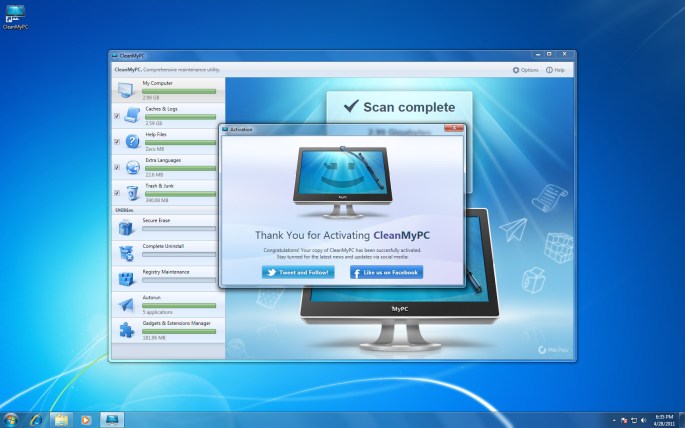
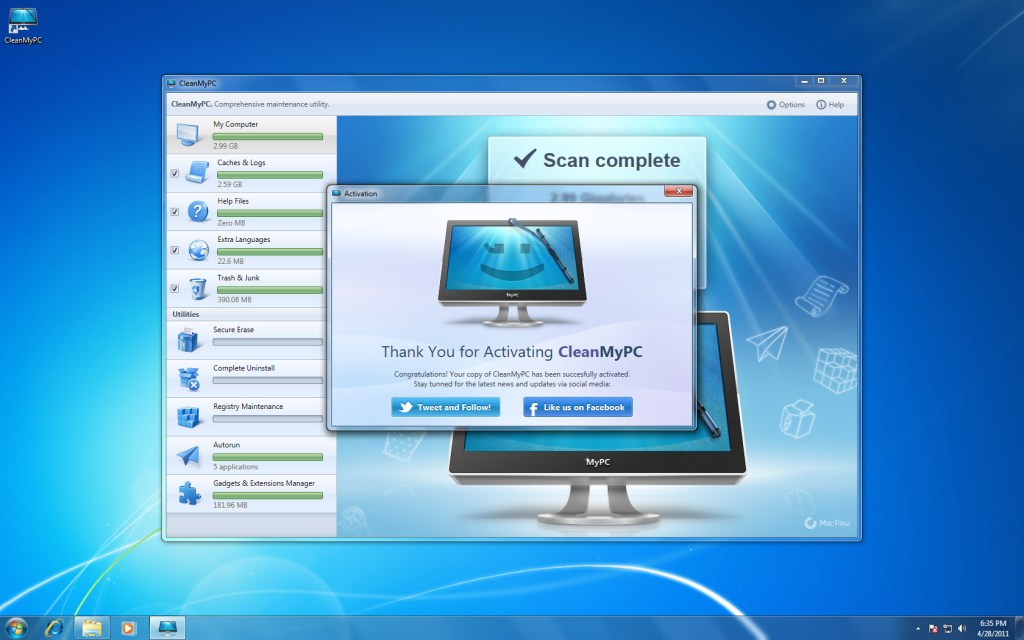
20150722we-cleanmypc

The $200 Computer With a 10-Year Warranty

There are five Goodwill Reboot stores in the nation. Iowa City is fortunate to be home to one of these authorized computer refurbishing  centers. We also have some other good sources of refurbished computers such as Midwest Computer Brokers.

This month, you can purchase a Windows 7 computer for about $200 and then on July 29, download and install the free Microsoft upgrade to Windows 10. (Learn More)

According to the Microsoft Windows lifecycle fact sheet, Microsoft will offer mainstream support for Windows 10 through 2020 and extended support through 2025.

So, theoretically, if your computer keeps running, which it should, you’ll receive the essential updates needed to keep the computer going for ten years.

Instructional Video

Upgrade Requirements

If you don’t see the Get Windows 10 app (the small Windows icon in your system tray), it might be because:

  1. Your device isn’t up-to-date with at least Windows 7 SP1 or Windows 8.1 Update
  2. Windows Update is turned off or is not set to received updates automatically
  3. You’ve blocked or uninstalled the necessary Windows Update functionality.
  4. Your device is not running genuine Windows
  5. Your device is running Windows 7 Enterprise, Windows 8/8.1 Enterprise, or Windows RT/RT 8.1, which are excluded from this reservation offer.
  6. Your device is managed as part of a school or business network. (Check with your IT administrator.)
  7. PCs that we determine cannot run Windows 10 will not see the Get Windows 10 app before July 29th. After July 29th, we’ll enable the icon in the system tray. This is to help ensure that you can easily check your PC’s compatibility if you choose.

SAFCO Wire Mobile File or Equipment Cart

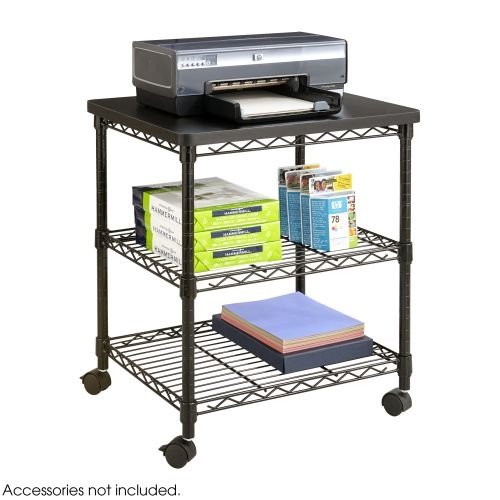
As our world is moving more to digital storage rather than paper storage, old method of filing are less in demand. However, one product that can be quite useful is the SAFCO Wire Mobile File cart. It’s designed to hold hanging files, but if you put the metal wire shelf on the top instead, it works great as a printer stand or moveable surface for other office equipment and supplies.

Product Details

Here are the product details.

  • Wire steel construction
  • Accommodate letter or legal-size hanging folders
  • Four swivel casters (2 locking)
Brand Name Safco
Item Weight 12 pounds
Product Dimensions 24 x 14 x 20.5 inches
Item model number 5201BL
Color Black
Material Type Metal
Number of Items 1
Manufacturer Part Number 5201BL

Product Images

Click either image below for a larger gallery view.

Fixing Slow Loading Startup on Wondershare All-My-Tube YouTube Video Downloader Converter Software Program

If you’re a user of the Wondershare All-My-Tube video downloader and converter software, you may notice long delays in starting the program, and system-wide slowdowns when the program is loading or running.

This typically happens after the Wondershare library listing of videos has become lengthy over many months of use. The software remains aware of the dynamic listing, and the files involved may collectively be many gigabytes in size.

For this reason, it’s important to regularly clear out the list.

Once videos are downloaded, there’s no reason to keep them in the list other than the exceptions mentioned below.

When the list has been cleared, the software should launch quickly and will run without placing excessive drain on your computer.

Note that other issues can cause slowness on your computer. This page offers a suggestion that may help, but you might need to try some other solutions as well.

Purchasing the Software

If you’ve not yet purchased the software, you should seriously consider the lifetime family pack license for about $80 you’ll get the software for five computers. The purchase is for either 5 Windows or 5 Apple Mac computers. [ Windows | Mac ]

Before Removing Video Files

Here are some considerations:

  1. Source URL. You may want to make a note of the URL where each video came from. The source or producer of videos is sometimes not apparent from the video, and sometimes there can be additional information in the description or a related news story that would be good to save with the video.
  2. Save the Videos. You’ll want to make sure the videos are safely put into a long-term archive directory, and don’t just tell the software to delete the downloaded files.
  3. Convert. Frequently videos are downloaded as MP4 (MPEG) format which is very compatible. So, these wouldn’t necessarily need to be converted. Videos that are downloaded as FLV (Flash video) should be converted if you plan to save the video and use it in the future. This is most easily done when the videos are still in the listing within the software.

Software Image

The screenshot below shows you what the software looks like.

20150715we-wondershare-allmytube-youtube-video-downloader-converter-software-apple-mac

Guide to Secure Hard Drive Erasing Files and Sanitizing Computer Data

The Importance of Secure Drive Erasure

Computers are increasingly used to store financial data, healthcare information, and the keys to our personal identity. When files are placed in the recycle bin, and the recycle bin is emptied, those files can still be easily recovered. This is good news if you need to restore a file that was mistakenly deleted. It’s bad news if you donate or discard your computer and someone else recovers files you thought were long gone. It’s not sufficient to just format a hard drive or perform a complete system restoration. There will still be files left on the drive that could be recovered.

Hard Drive Erasing Cost

We provide drive erasing services at a cost of $70 per computer/drive, assuming the drive is installed in a desktop or laptop computer. If you have a drive that’s already removed from a computer, the cost is $50 per drive. We offer a quantity discounts for additional drives.

We set aside about an hour for the following:

  1. Reserve a time slot for the computer drop off, or provide pickup of the computer.
  2. Remove the drive from the computer.
  3. Install drive in docking station.
  4. Perform erase procedure. This can take several hours depending on the speed and storage capacity of the drive.
  5. Confirm the drive has been securely erased by attempting file recovery using advanced data recovery processes.
  6. Install the drive in the computer.
  7. Reserve a time slot for pickup of the computer. Or, provide delivery of the computer.

Do It Yourself

We provide the list of tools and instructions below for those wanting to perform drive erasing on their own.

What You’ll Need

Here’s the list of what you’ll need for erasing a drive.

  1. Computer Tool Kit ($20) – You’ll need the necessary tools to remove the drive from the computer. Depending on the computer, a basic computer tool kit should be sufficient, although some require advanced tips. Additional speciality tool kits are listed at the bottom of this page.
  2. Drive Docking Station ($40) – You’ll need to connect the bare drive to a working computer. A drive docking station is an easy way to do this. The Sabrent external drive bay works well.
  3. Erasing Software (Free – $40) – There are many utilities available for securely erasing a drive, such as Eraser Secure Data Removal Tool by Heidi Software. See below for a more comprehensive list. If you’re using an Apple computer, drive sanitizing is built-in and available under the Disk Utility when erasing (click the Security Options button).
  4. Available Computer ($200) – You’ll need a computer available for the task of erasing drives. While the task could run in the background of a computer you use regularly, it’s best to have a dedicated computer to ensure nothing interferes with the process. It takes a long time to securely erase drives, so whatever computer you choose will be running, and shouldn’t be restarted, until the process is complete. If you use a laptop computer for the task, you’ll have the benefit of the internal battery to keep the process going in the event of a power outage. However, some laptop computers aren’t designed to operate continuously for extended periods of time. So, a desktop computer is probably a better choice. If you use a desktop computer for the task, you’ll want to have a backup power supply listed below.
  5. Backup Power Supply ($100 – $220) – An uninterruptible power supply (UPS) provides a constant source of power for the erasing procedure. A good unit might cost $100 to $200 for a high quality pure sinewave UPS system.
  6. Hard Drive Erasing System ($300 – $400) – As an alternative to items 2, 3, and 4 above, you might consider purchasing a hard drive erasing system. The StarTech 4-bay system is a good choice. Others are also available.

Drive Erasing Instructions

These are the steps for securely erasing a computer hard drive.

  1. Remove the drive from the computer.
  2. Install drive in docking station.
  3. Perform erase procedure. This can take several hours depending on the speed and storage capacity of the drive.
  4. Confirm the drive has been securely erased by attempting file recovery using advanced data recovery processes.
  5. Install the drive in the computer.

Additional Specialty Tools

Here are some useful tool kits for this and other projects. Some computers, like Apple laptop computers, require special drivers.

Alternatives

Here are some possible, but not ideal, alternatives for data sanitizing.

  • Get a free software program to erase unused drive space. However, there may still be existing files or settings that aren’t removed.
  • Physically destroy, smash, or drill through the drive. This method isn’t ‘green’ since the drive isn’t usable again, and parts that might be properly repurposed or recycled may get damaged.

Drive Erasing Software Utility Programs