News Feed

Apple Mac Contacts Address Book Groups and Google Groups

If you’re dependent on using groups for organizing your contacts and sending emails, then be warned that Apple Mac Contacts Address Book and Google Contacts don’t work well together.

New groups created in Apple Contacts will show up as individual contacts in your Google Contacts address book.

Groups and tags for contacts in Google won’t be reflected in your Apple Contacts address book.

20140913sa-technology-tips-672x372

Apple OS X Contacts Address Book Inactive Accounts Delete

Sometimes the list of accounts in the Apple Contacts program will be different than the Internet Accounts listing in System Preferences. This is particularly a problem with accounts marked as Inactive.

To fix this problem, follow these instructions.

  1. Close System Preferences if it is open.
  2. Press the Option key and click the Go menu in finder and select Library to view your user Library.
  3. In theĀ Preferences folder, find the file named com.apple.internetaccounts.plist and move it to the desktop.
  4. Start System Preferences and open Internet Accounts. You should see the previously missing Inactive account from Contacts appear in the list.

20140913sa-technology-tips-672x372

Apple OS X Contacts Don’t Synchronize with Google Gmail

Usually it’s possible to add a Google account to your Apple Mac OS X Contacts and the system will work properly. This is done through System Preferences > Internet Accounts > press + to add an account. You can setup Mail, Contacts, Calendars, Messages, and Notes. However, some people have experienced problems with Gmail contacts and the Apple Contacts program.

It may be, when you click the checkbox next to Contacts in System Settings > Internet Accounts, you won’t see any names show up in your Apple Contacts program. If this happens, you’ll need to configure your Gmail contacts in the following way (for OS X Mavericks):

  1. System Preferences > Internet Accounts > press + to add an account.
  2. Scroll to the bottom of the available account types, and click on Add Other Account.
  3. Choose Add a CardDAV account.
  4. Provide your Username (only the part before the @gmail.com) and password. The server address should be http://www.google.com. If you enter Google.com for the server (as instructed elsewhere on other help pages), you’ll get an unknown error.
  5. The new account will be listed as Www. You can click it and choose Details to give it a better description.

Your contacts should now appear in the Apple Contacts program and should remain synchronized properly.

Additional reading about this issue can be found in the Apple Discussion forums.

20140913sa-technology-tips-672x372

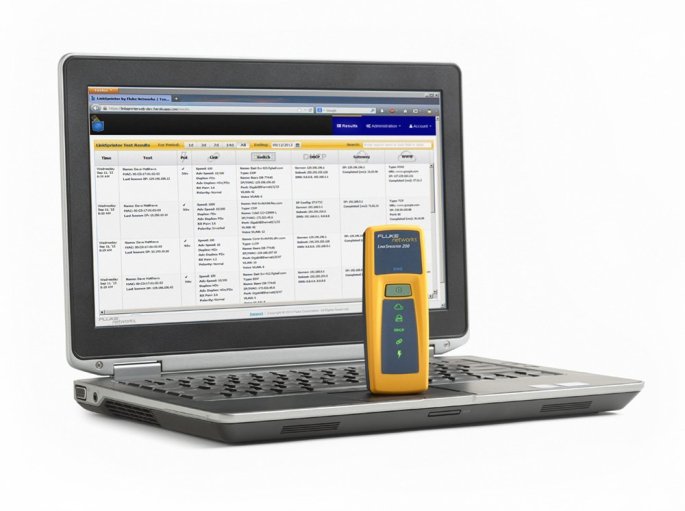
Fluke Networks LSPRNTR-200 LinkSprinter 200 Network Tester with WiFi

Summary

The LinkSprinter 200 Network Tester with WiFi from Fluke Networks is an economical way to get sophisticated network diagnostics and reporting. [Buy]

Product Photos

Below are product photos.

Product Description

This smart network tester fits in your pocket, connects to your phone and stores your network test results in the cloud.

Five essential network tests in the palm of your hand

  • Power Over Ethernet (PoE)
    Check to make sure you can power a phone, security camera or Access Point through a specific port. The LinkSprinter Network Tester can even run without batteries on PoE.
  • Link to the Switch
    Perform a switch test, which will indicate the switch name and port your cable connects to. Know your available speed and duplex settings.
  • DHCP Connection
    Confirm that the DHCP server is running and responsive. Request an IP address, get your subnet information, and identify the default gateway and DNS server.
  • Gateway Connection
    Verify the gateway/router address and reachability by pinging the device three times.
  • Internet Connection
    Confirm cloud connectivity or internal service reachability. Verify DNS server lookup and application port connectivity.

The LinkSprinterā„¢ Cloud Service

Simply connect your LinkSprinter Network Tester to an Ethernet drop and the test sequence will begin automatically

  • Test results can be sent directly to your email
  • Email test results
  • Annotate test results
  • Manage, sort and analyze results
  • Filter results by time, user, network, errors
  • Download firmware updates

View detailed network test results on your mobile device.

The LinkSprinter 200 results can be accessed through the browser of any mobile device with its built-in Wi-Fi access point and web server.

Which network tester is right for you?

LinkSprinter 200
Quick and simple network testing for the advanced troubleshooting professional – with the added benefit of having immediate access to your in-depth test results from any mobile device, anywhere!

  • Embedded Wi-Fi access point for details in real-time using your mobile devices
  • Cloud-based management system
  • Battery/Power over Ethernet (PoE) operated
  • One-button, tri-state LED interface

LinkSprinter 100
For the technician who doesn’t need to fuss with the details immediately – your results are sent straight to the cloud for the network engineer or later review.

  • Cloud-based management system
  • Battery/Power over Ethernet (PoE) operated
  • One-button, tri-state LED interface

Click here for further reading on the Fluke Networks website.

Using Gmail as a Central Unified Online Email Client

Summary

An advantage of using email client software is that all your emails come into a single central system. You can quickly search through multiple inboxes to find information, and check for new mail across many systems instantaneously.

Desktop Email ClientĀ Problems

Changes in how email services operate have resulted in various problems with desktop-based email clients. For example, Apple Mail has had difficulty properly handing Gmail messages with incorrectly displaying unread message counts. If you’re on an Apple iPhone, then it’s possible to have live interaction with your Microsoft email account. However, on a desktop computer, it’s only possible to download messages. Any reading, deleting, organizing, or marking as spam will not happen on the Microsoft server. So, work must be duplicated. The multi-platform Thunderbird email client works well with most email systems, yet doesn’t work with Network Solutions email. Anyone saving years worth of emails locally on their hard drive risks losing everything if there isn’t a backup.

Online Email Clients

The problem in the past with online email services is that you needed to login to many different accounts to check your messages. Over time, email services like AOL, Yahoo, Hotmail, and Gmail added the ability to retrieve messages from other systems.

Using Gmail as an Online Email Client

There are several options with Gmail that controlĀ interaction with other email systems:

  1. Alias. It’s possible to send messages using an alternate email address such as yourname@yourwebsite.com. Setup requires confirmation that you can access the email account you are sending as, so it must be a real address.
  2. Import. For a one-time import of an email account you plan to close down, or forward from in the future, it’s possible to use the Import feature. This can also import contacts. This is for a one-time import of emails.
  3. Active. Actively checking for and retrieving emails from other accounts is possible. It’s important to note that messages will show up periodically rather than instantaneously.
    1. Delays. There may be a delay of a few minutes or more before new messages actually appear. This won’t be an issue for most people, but for those who use email as a replacement for the phone or texting, and expect nearly instantaneous communications, you may want to consider having messages forwarded from your old email account into Google. This method of pushing messages into Google in real-time is better than fetching emails periodically.

Flagging Incoming Messages

It’s possible to Flag (tag) incoming messages from other accounts so they are automatically organized by account. This makes it easy to have different ‘folders’ or groups for different accounts. The Flagging option is automatically selected when importing or setting up the Active method of email checking. However, it can also be setup later. For example, if you have messages forwarded from your old email account, you can flag all those incoming messages based on the address. Any email addresses in Gmail that are identified as sent to your old address can be flagged by following these steps:

  1. Perform an advanced search of your Inbox by clicking the small faint gray downward pointing triangle in the right of the search box.
  2. Next to the To entry, provide the full email address for your old account that is forwarding emails into your Google account.
  3. In the bottom right of the box, click Create a Filter Based on this Search.
  4. Choose the option to Apply the Label and select a label or create a new one that will identify these messages as being from your old email account.
  5. If you choose the option to ‘Skip the Inbox’ (also called Archiving) the messages will show up in All Messages, but not in your Inbox as something new that needs to be processed. They will also be found under the new Tag you just created. So, if you want all the incoming emails from your old account to be put in a single location without seeing them all in your inbox, you can do this.

Signatures

You can have unique signatures for each of your Alias accounts. This way you can have a signature that matches the account you’re sending as.

  1. Click the Gear in the upper right corner.
  2. Choose Settings.
  3. Under the General tab scroll down to find Signature. Use the dropdown menu to select an alias email account and then enter your signature details.

Send From Account

You can set Gmail to reply to messages using the Alias that matches who they were writing to.

  1. Click the Gear in the upper right corner.
  2. Choose Settings.
  3. Under Accounts and Import, Send Mail As,Ā When replying to a message, choose “Reply from the same address the message was sent to.”

Microsoft Exchange Support

Gmail doesn’t support Microsoft Exchange integration. However, it is possible to forward email from your Exchange account to your Gmail account for a better online experience. For example, those using Google Chrome on Linux will find that the Exchange web interface is very limited. A Google interface is much better.

Best Practices

The best approach to using Gmail depends on your needs, but generally it’s a good idea to Forward messages from your existing and old accounts to Gmail, and create an automatic Filter and Label to automatically organize those messages. Avoid creating Filters and Labels for anything that can be quickly and easily searched on, such as all emails from a certain person.
20140910we-gmail-email-client-online-unified-672x372

Helpful Built-in Windows Utilities and Apps

Here are some helpful built-in Windows utilities and apps.

  • Energy Audit. From the Start menu, search for CMD. When you find it, right click and run as Administrator. At the command prompt, type powercfg – energy and then press enter. Be sure to put the spaces between the words and the hyphen. A report called energy-report.html will be placed in your Windows \ System32 folder. To open the report you need to copy it to another location such as your desktop.
  • Erase Unused Space. This is achieved at the command line by typing:Ā cipher /w:X (the X is the drive letter).
  • GodMode.Ā This is a feature that creates shortcuts for all Windows configuration settings and controls and puts them in a single folder. Simply create a new folder and name it:
    GodMode.{ED7BA470-8E54-465E-825C-99712043E01C}
  • Reliability Analysis. It’s possible to track your computer’s reliability using the View Reliability History utility. To find this utility, go to the start menu and type reliability.
  • Screen Recorder for Diagnostics. Windows includes a screen recorder for diagnostics. It’s called the Problem Screen Recorder. To run it, just type psr at the Start Menu.
  • Window Move / Adjust Shortcut. Here are some shortcuts to adjusting Windows.
    • Maximize. Pressing the Windows menu key, and the up arrow, maximizes the current window.
    • Restore. Pressing theĀ Windows menu key, and the downĀ arrow, restoresĀ the current window if it is maximized.
    • Minimize.Ā Pressing theĀ Windows menu key, and theĀ downĀ arrow, minimizesĀ the current window if it is not maximized.
    • Side / Middle Placement. When you want to send a window to the left or right, use the Windows button and the right or left arrow. When used repeatedly these will put your window in the middle of the screen also.
    • Switch Monitors. If you have two monitors, when you press the Windows button and an arrow key (right or left) the window will jump to the other display.

Switching from iTunes to Google Music

Summary

Switching from iTunes to Google Music can offerĀ broader access to your music library from multiple devices and platforms. The player runs as a Google Chrome app on most computers and mobile devices — including Linux computers. The iTunes software isn’t available for Linux users, which makes Google a good choice.

Google Music Advantages

Keep in mind that iTunes is much more than just a cloud music library. It offers video playing, podcasts, and organizing of music files on your local drive. However, for those only interested in a music player, the Google Music service might be sufficient. Ā Google Music is a good choice for people who want mobile access to music in the cloud.

Instructions

Follow these instructions to get your iTunes library moved into Google Music.

  1. Login to your Google account or create one.
  2. Go to http://music.google.com.
  3. Accept the terms.
  4. You can use the basic Google Music for free, or pay $10 per month forĀ all access Google Music.
  5. Click the Add Music button and then click and drag your iTunes music Library folder to the upload area (or use the upload/browse button).

Google Music Manager

For easier and faster uploading of your music collection, Ā you’ll want to download and install the Google Music Manager.

Local Music Library Backup

Keep in mind thatĀ Apple offers synchronization in the cloud for the library stored on your hard drive. By contrast, with Google music, you can’t download your entire library. You can only download one song at a time, andĀ “You can download each track from the web two times.” (source) So, it’s best to keep your music library organized on a hard drive somewhere as a local backup.

20140909tu-google-music-logo

Using Pidgin on Ubuntu Linux for Microsoft Lync Communications

Pidgin is a LinuxĀ chat interface that works as an alternative to Google Hangouts orĀ Microsoft Lync. Follow the instructions below to use Pidgin. These steps have been tested on Ubuntu 14.04 LTS.

  1. From a Terminal prompt, type this command and press enter to retrieve and install Pidgin:
    sudo apt-get install pidginĀ pidgin-sipe
  2. Run Pidgin
  3. Click Add
  4. Select Office Communicator as the Protocol
  5. Provide your Lync credentials.
  6. Confirm and save by clicking the Add button.

The first time you use Pidgin to interact with Lync, the usernames and descriptions may not show up even though the status for each user is showing. Exit Pidgin and start it again. The usernames should then be properly displayed.

20140904th-linux-tips-672x372

Android Has Over 400 Security Vulnerabilities and Leaks Data Almost 100 Times Per Hour

A cryptography firm has identified over 400 security vulnerabilities in the Android operating system widely used in smart phones and tablets. They also identified data leaving Android devices going to various unknown destinations at a rate of about 80 to 90 times per hour. These security concerns are compounded by the fact that rogue cell phone towers (like malicious routers) can take control over devices. Popular Science reports, “Every smart phone has a secondary OS, which can be hijacked by high-tech hackers.”

Read more: “Mysterious Phony Cell Towers Could Be Intercepting Your Calls,” Popular Science 27 August 2014.

20140903we-technology-shutterstock_73347661-2

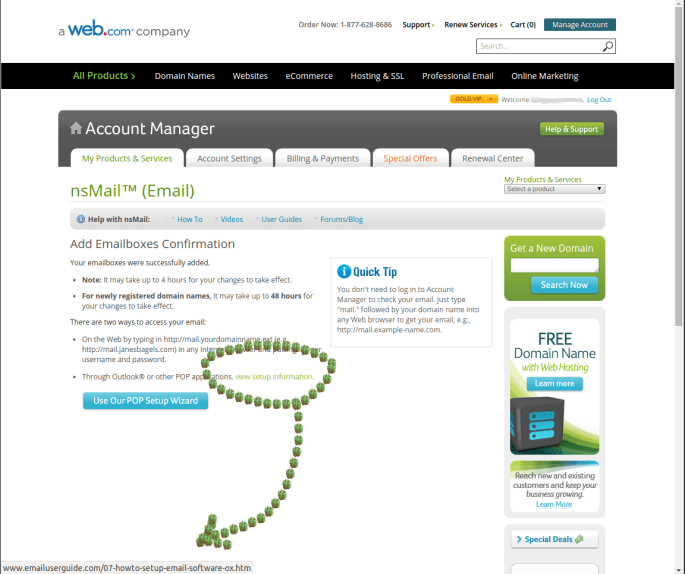
Network Solutions Email Setup Link Broken Page Load Error

If you’ve setup a new email account with Network Solutions, you’ll be taken to the page shown below. Click the image to enlarge.

20140901mo-network-solutions-email-setup-link-error-page

When you click on the link circled above, it takes you to the error page shown below. You can see the destination link in the lower left of the above window.

20140901mo-network-solutions-page-load-error-email-setup-instructions