News Feed

Purchasing and Installing Windows 8.1 From Scratch for a Fresh Installation

20140311tu-windows-8-1-purchase-installation-dvd-usb-upgrade-640x300

Instructions

Here are the basic steps required to purchase and install Windows 8.1 from Microsoft.

  1. Windows 7 Installation. You’ll need a working Windows computer to perform some of the steps below. If you’re wanting to start with a fresh computer installation, find an original Windows 7 Pro installation DVD (assuming you have a recent Dell computer) and use that DVD to perform a fresh installation. Otherwise, continue to the next step.
  2. Microsoft Store. Go to the Windows 8.1 product page in the Microsoft Store.
    • You’ll see a message stating: “Windows 8.1 full version is for Windows 7 users only. Currently running Windows Vista or XP? First upgrade to Windows 8. Upon installation you can update to 8.1 for free.”
    • This notice somewhat misleading. This version of Windows 8.1  doesn’t require Windows 7. The installation DVD that you’ll create from the download (or have shipped to you) should work find for a fresh installation of Windows 8.1 without a required upgrade.
  3. Purchase. Purchase the English Download for $119 if you don’t want to wait for a DVD to arrive. This will give you a WindowsSetupBox.exe file and a license number. There are three benefits to this option:
    • This will provide you with an ISO image that you can burn to DVD.
    • This procedure will also give you the option to create a Windows 8.1 Installation USB flash drive.
    • You can also use this option to upgrade an existing Windows 7 computer (without creating a DVD or USB).
  4. Run Windows Setup. When the purchase process is completed, you’ll have a license number and a Windows Setup file called WindowsSetupBox.exe that you can run. This will actually initiate the download of the full Windows 8.1 installation software.
  5. Burn DVD. Assuming you have access to a computer, burn the ISO image to a DVD. This can be used later for reinstallation, repair, or recovery.
  6. Create USB. Having a Windows 8.1 installation USB flash drive is handy. With it, you can startup your computer to USB for installation similar to using a DVD but typically much faster.
  7. Choosing Upgrade or Install. If you perform an upgrade from Windows 7, your programs, settings, and personal data will be retained. However, any malware, viruses, or other unnecessary files will be retained. So, it may be preferable to backup your files and then startup the computer using the DVD or USB (described above), then format the hard drive (erasing everything) and perform a fresh clean installation of Windows 8.1. This will make your computer like new as if it were purchased from the store.
  8. Begin Installation. Assuming you want to do the fresh installation, and you have backed up your data, start the computer with the DVD or USB. You will be walked through the setup process. If you’re on a Dell computer, you will need to press F12 at startup to display the boot up options. Select the DVD drive from the list if you’re using the DVD.
  9. Upgrade or Custom. At some point you’ll be asked if you’d like to perform an upgrade or custom installation. Choosing custom is helpful because you can format the hard drive and start completely fresh. In doing so, you’ll be presented with a window showing your current drive partitions. There may be a 100MB system reserved partition for Windows 7 and another partition for the operating system. In the advanced mode you can delete these partitions. Then click New to start again. This time, Windows 8.1 will create a 350MB System Reserved partition and then the remaining drive space can be used for the Windows 8.1 installation.
  10. Settings. When you get to a Settings window, you can choose Use express settings.
  11. Sign in to your Microsoft account – NOT. You’ll be asked to sign in using your Microsoft account. This appears to be a requirement of using Windows 8.1. However, it’s not necessary. Don’t click on the Don’t have an account option because you’ll be required to create an account. Instead, click on the option to Create a new account (found under Don’t have an account?). You’ll be taken to the Create a Microsoft account screen. At the bottom of the screen, in faint thin small letters, you’ll see an option to Sign in without a Microsoft account. Choose that option.
  12. Your Account. If you’ve followed the instructions to this point, you should reach a Your account screen. Enter a user name and password just as you might have with the previous versions of Windows.
  13. General Windows Setup. You can now continue with the general Windows setup instructions.
PhoneView by ECAMM Software – Unable to Delete all Photos in Camera Roll

PhoneView by ECAMM Software makes it possible to directly transfer content from your iPhone to your Apple Mac computer such as your call log, text messages, voicemail messages, and camera roll photos.

If you’re using the burst mode photography on your iPhone, this takes many photos in the iPhone and automatically identifies the optimal photo from the batch. You can select other photos from the batch to save.

The PhoneView software is not able to delete these batches of photos. So, after transferring all your photos from the iPhone, if you select all photos in the camera roll and choose delete, some will remain in the phone (the batches of photos). These need to be deleted manually in the phone.


Apple iCloud Backup Storage Management and Buying Expanded Capacity

20140309su-apple-icloud-backup-management-640x300

Introduction

Apple mobile devices like the iPhone and iPad can be backed up to your computer using iTunes, or backed up to the cloud. Many people don’t regularly connect their mobile devices to their computer and take the time to synchronize with iTunes. Months may go by without any backup or synchronization. Perhaps the devices are never backed up or synchronized. So, it’s best to use the Apple iCloud service to actively maintain a backup of your device.

iCloud Management on Computer

These screen shots show how to manage your iCloud storage on an Apple computer. The steps are similar on a Windows computer (by clicking on the iCloud icon in Control Panel).

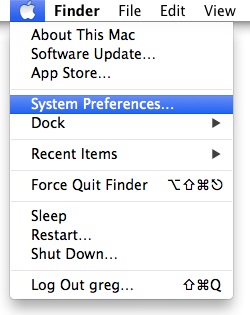
Select System Preferences on your Apple computer. It is found under the Apple menu.

20140309su-system-preferences-apple-computer-menu

From the System Preferences window, choose iCloud as shown below.

20140309su-apple-icloud-backup-storage-01

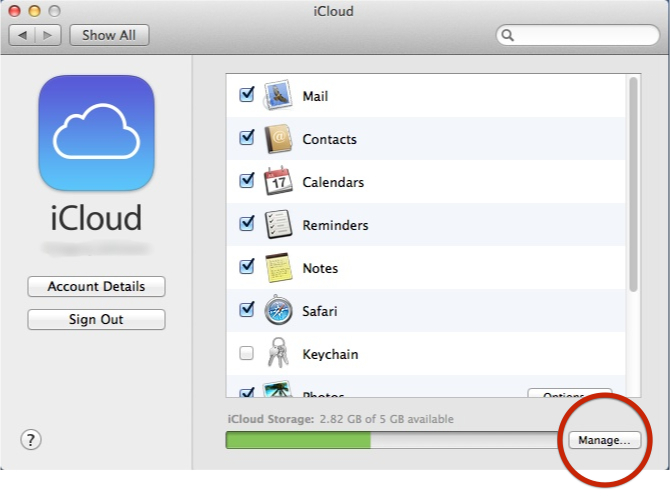
In the iCloud settings window, choose Manage.

20140309su-apple-icloud-backup-storage-02

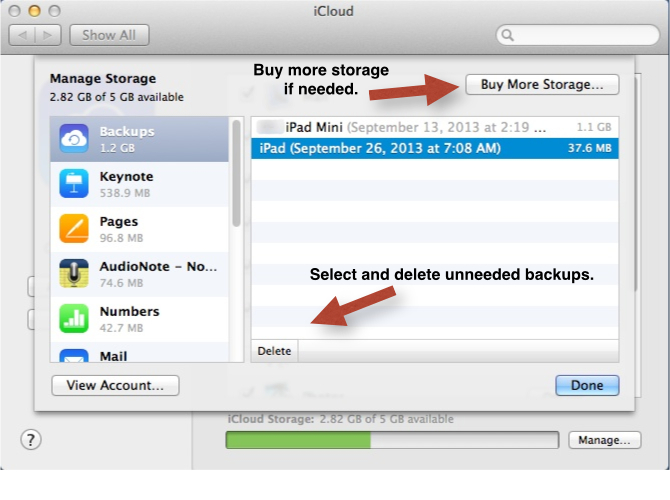
From the iCloud management window, it is possible to buy more storage or delete backups that aren’t needed anymore. For example, when you purchase a new phone the old backup may remain in your iCloud backup system.

20140309su-apple-icloud-backup-storage-03

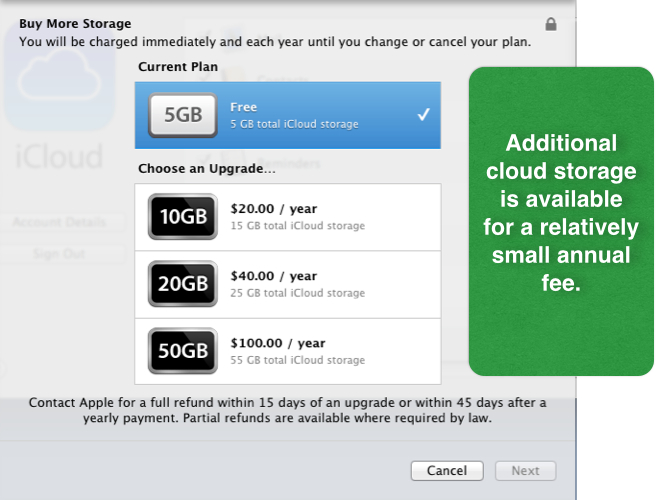
If you’re buying more storage, the pricing is shown below.

20140309su-apple-icloud-backup-storage-04

If you have a 16GB, 32GB, or 64GB device, you might wonder what storage capacity is needed. The backup of your settings and application data will likely be much smaller in size than the overall capacity of your device.

According to Apple, “Your iOS device backup only includes data and settings stored on your device. It doesn’t include data already stored in iCloud, for example contacts, calendars, bookmarks, mail messages, notes, shared photo streams, My Photo Stream, and documents you save in iCloud using iOS apps and Mac apps.” (source)

iCloud Management on iPhone

To manage iCloud storage on your iPhone, the steps are similar to those outlined above.

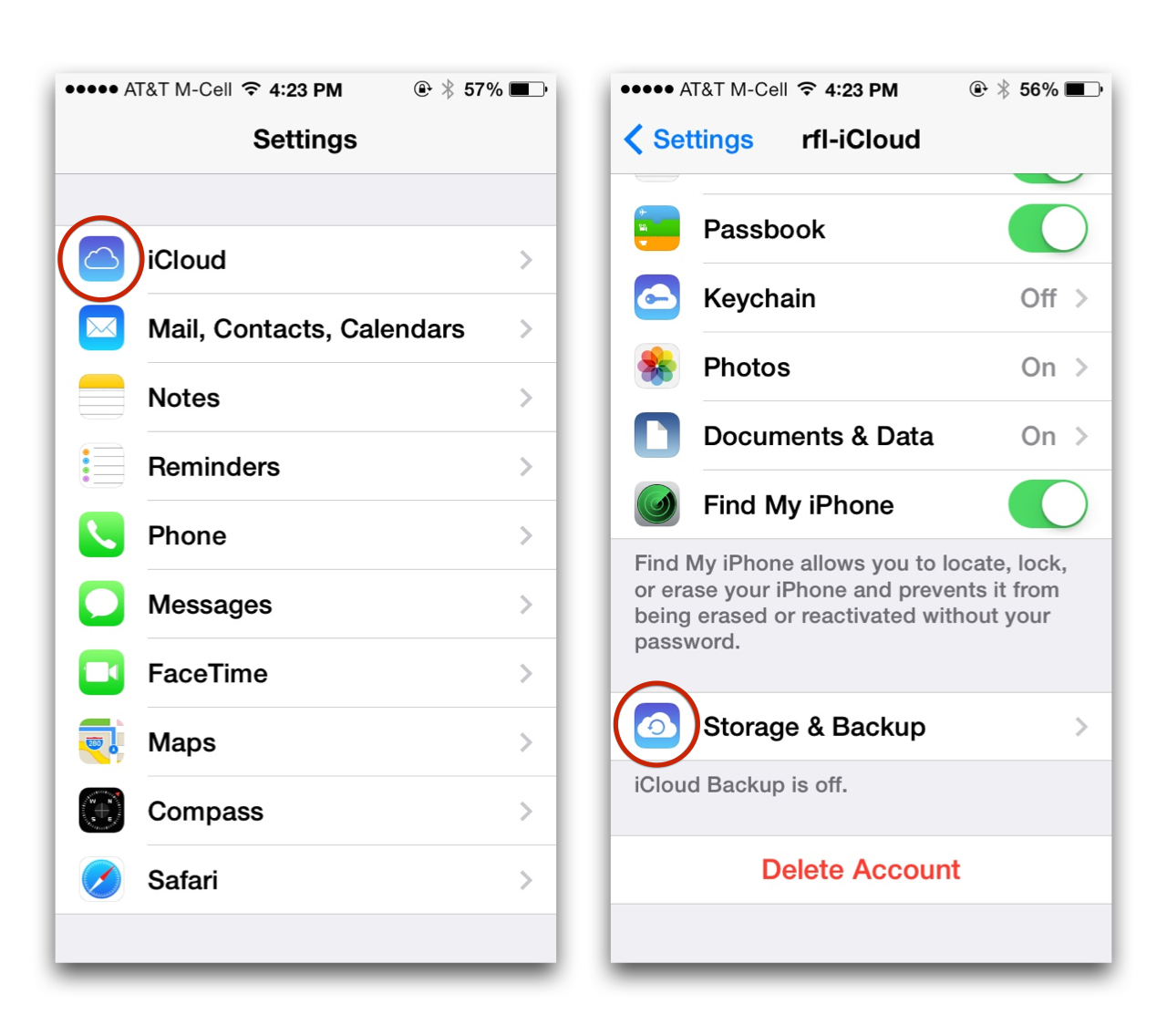
Go to settings and select iCloud. From the iCloud settings window, choose Storage & Backup.

20140309su-apple-icloud-backup-storage-iphone-1280x1136.001

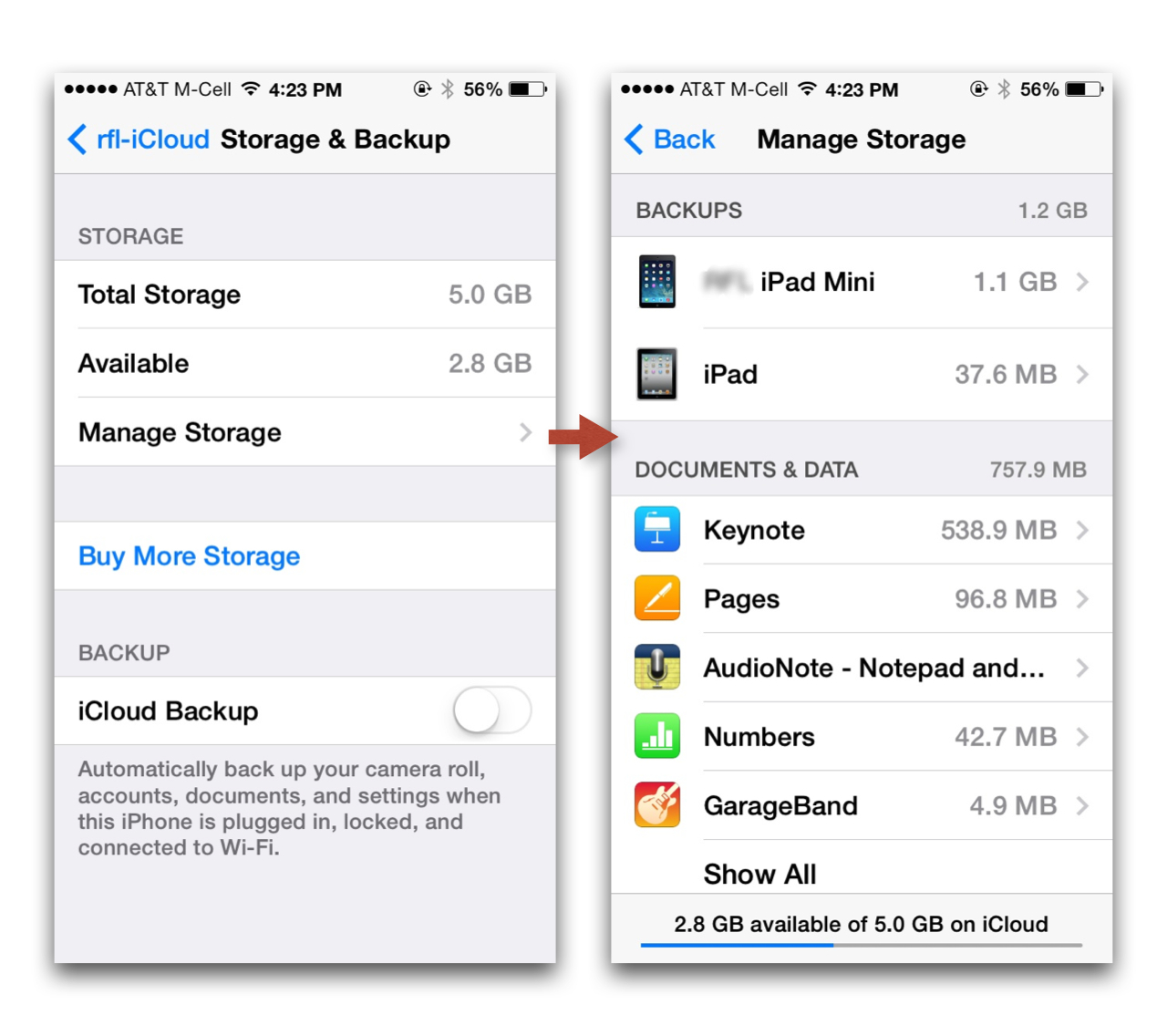
Within the Storage & Backup settings window, choose Manage storage to see how much storage in the cloud is being used by your various devices that are sharing the iCloud storage. The Manage Storage screen will give you a good idea of how much storage your programs are using. The example below is typical. The iPad Mini backup shown below is for an 8GB iPad Mini that is filled to capacity with programs. However, since the programs and operating system are easily installed again from the iTunes store, the only data needed to be backed up would be a the information used by the installed programs.

20140309su-apple-icloud-backup-storage-iphone-1280x1136.002

On the iPhone, under the iCloud Backup option, a description is provided: “Automatically back up your camera roll, accounts, documents, and settings, when this iPhone is plugged in, locked, and connected to Wi-Fi.”

20140309su-apple-icloud-backup-storage-iphone-1280x1136.003

When you select the option to Buy More Storage, a list of options is show.

20140309su-apple-icloud-backup-storage-iphone-1280x1136.004

If you have a 16GB, 32GB, or 64GB device, you might wonder what storage capacity is needed. The backup of your settings and application data will likely be much smaller in size than the overall capacity of your device.

According to Apple, “Your iOS device backup only includes data and settings stored on your device. It doesn’t include data already stored in iCloud, for example contacts, calendars, bookmarks, mail messages, notes, shared photo streams, My Photo Stream, and documents you save in iCloud using iOS apps and Mac apps.” (source)

Additional Reading

WonderShare AllMyTube 5.0.0 Provides New Features and Access

20140307fr-software-news-640x300

Summary

WonderShare AllMyTube is software that allows you to download videos from the web. This allows you to save them, view them on mobile, extract audio, and edit videos for creative or educational purposes. At a cost of about $30, the software is much better than free alternatives that come with advertising and trial-ware.

What’s New in Version 5.0.0

  • Added support for 7 additional popular websites: TV, MLB, Veevr, Adobe TV, Foxnews video, History and PBS
  • Fixed the problem of video downloading from Youku, Crunchyroll, Crackle, NBC, Thedailyshow and ABC
  • Support the downloading of YouTube 4K videos
  • Task scheduler for video downloading
  • Support the downloading of YouTube videos with a 3X faster speed
  • Support wireless transfer of videos to Wondershare Player for Android

Purchasing a New Computer – An Overview of Windows Computers Available from Dell

20140306th-dell-computers-640x300

Summary

This page offers a brief overview for people wondering what Windows computer to purchase. Click on the links below to view the  Dell web page for the computers described.

Brand

Dell continues to be a good brand, and for purposes of this article, to narrow down the options, we’ll choose Dell.

Price

You get what you pay for. Consider stepping up to a slightly more powerful computer or one of higher quality components if your budget allows. This will ensure that two or three years from now the computer will still feel fast and adequate for your purposes.

Model

There are generally two categories of computer class/quality to choose from.

Option 1 – Standard Home Use

The standard home use computer has good performance and reliability. It’s ideally suited for the typical user. Two possible choices would be:

  • Touch Screen – A 20″ Dell Inspiron all-in-one touch screen computer. Takes up less room and has the benefits of a touch display. (View)
  • Traditional – A traditional Dell Inspiron desktop computer with separate components. Some people prefer this design. A benefit is easier access to internal components. There is more expandability for people wanting to install additional cards (not needed for most users). Also, if one component fails, it’s easier to get that one component replaced or repaired without losing access to the entire computer. (View)

Option 2 – Powerful and Reliable

There is a class of computer that utilizes more powerful higher quality components and offers greater reliability when used intensively.

  • Touch Screen – These Optiplex all-in-one computers with touch screen would be more powerful and possibly more reliable. (View)
  • Traditional – A traditional Dell Optiplex desktop computer with separate components. Some people prefer this design. A benefit is easier access to internal components. There is more expandability for people wanting to install additional cards (not needed for most users). Also, if one component fails, it’s easier to get that one component replaced or repaired without losing access to the entire computer. (View)
When purchasing any of the above computers, it’s recommend to choose Windows 8.1 Pro 64-Bit for the operating system instead of Windows 7. This will significantly delay the need for a future operating system update.

Live Webcam Feeds of Iowa City Now Available

(Source: MetaCommunications.com)

Iowa City, IA – March 3, 2014. MetaCommunications has installed two publicly viewable webcams at the Park@201 building, its soon-to-be new headquarters. One of the webcams is capable of high-definition viewing, and will be moved to the rooftop when weather permits, providing a 360 degree panoramic view of Iowa City’s skyline. “At fourteen stories up, it’s going to be amazing watching incoming storms and the stunning view of the city’s skyline day or night.” says Robert Long, President & CEO of MetaCommunications.

The cameras were installed for the enjoyment of anyone with an interest in Iowa City and to help create additional excitement about the area. MetaCommunications hopes that viewers locally and nationally will help drive online traffic to it’s Careers page, where a list of currently open positions is available.

“We have a lot of high tech job opportunities available right here in Iowa City, but unfortunately it’s not well known.” said Long. “We think this is a fresh approach to increasing interest in the community and hopefully increasing the candidate pool, both locally and nationally. The goal is to make sure graduates know of the opportunities and for alumni, that may have left the area after graduation, to get reengaged.”

The cameras have several preset fixed locations for viewing and the hi-definition camera has viewer controllable zoom. MetaCommunications will not record the webcams. To access the webcams, visit www.MetaCommunications.com/webcam

About MetaCommunications

MetaCommunications develops productivity apps for marketing, creative and production. With over 1000 customer sites worldwide, MetaCommunications has the solid experience and range of solutions to quickly help any organization take their productivity to the next level through improved processes, workflows and communications. For more information about MetaCommunications, please visit www.metacommunications.com.

Press Contact

Brian Miller
MetaCommunications
Phone: (319)337-8599 ext 211     Fax: (319) 337-3635
Email: bmiller@meta-comm.com
Web: www.metacommunications.com
Follow us on Twitter: http://twitter.com/metacomm
Follow us on Facebook: http://www.facebook.com/MetaCommunications
Follow us on LinkedIn: http://www.linkedin.com/companies/metacommunications

WonderShare All My Tube YouTube Downloader for Apple Mac Version 5.0.0 Release Notes

What’s new:

These are the WonderShare All My Tube YouTube Downloader for Apple Mac Version 5.0.0 Release Notes.

  1. Added support for 7 additional popular websites: TV, MLB, Veevr, Adobe TV, Foxnews video, History and PBS
  2. Fixed the problem of video downloading from Youku, Crunchyroll, Crackle, NBC, Thedailyshow and ABC
  3. Support the downloading of YouTube 4K videos
  4. Task scheduler for video downloading
  5. Support the downloading of YouTube videos with a 3X faster speed
  6. Support wireless transfer of videos to Wondershare Player for Android

Tools Required to Open an Apple MacBook Pro and Upgrade the Hard Drive: Phillips PH0X40 and Torx T6X40 Drivers

This is a short post regarding the tools required to open an Apple MacBook Pro and upgrade the hard drive.

There are ten screws on the bottom notebook case cover enclosure. These are tiny phillips screws. As you’re looking at the notebook with it upside down and the hinge away from you, the three screws along the hinge end closest to the power connector will be longer screws.

The others are very tiny and short. These tiny screws go in at a slight angle to allow the screw heads to sit smoothly just below the indentation where they go in. This ensures they won’t catch on anything.

The longer screw that is closest to the power connection can have its path obstructed by the video cable pull tab. So, when reassembling the unit, be sure that the tab is away from the screw hole.

The hard drive has two phillips screws in the drive retainer bracket (on the hinge side). Once these two screws are loosened, the bracket will lift up and the drive will tilt upward and out.

Carefully remove the data/power coupler from the drive.

The four retaining screws on the side of the drive can be removed if necessary using the Torx T6X40 driver. This may be needed if you plan to put the drive in an external case for data recovery.

Photos

Below are photos showing a typical drive removal from an Apple MacBook. Click any image to bring up a larger photo gallery.

Update to Windows 8.1 Pro from Windows 8 Pro

20140226we-microsoft-windows-8-support-tips-1024x768

Summary

Windows 8.1 and Windows RT 8.1 build on Windows 8 and Windows RT, to bring you enhancements in personalization, search, apps, the Windows Store, and cloud connectivity, and has the security and reliability features you expect from Windows. It’s fast and made to work on a variety of devices—especially on the new generation of touch devices.

If your PC is currently running Windows 8 or Windows RT, it’s free to update to Windows 8.1 or Windows RT 8.1. And unlike previous updates to Windows, you’ll get this update from the Windows Store.

Source

The instructions below are from a support document on the Microsoft.com website. (source) This is being shared here for easier access and reference.

1. Before you begin

The system requirements for Windows 8.1 and Windows RT 8.1 are nearly the same as the requirements for Windows 8—if your PC is already running Windows 8 (or Windows RT), in most cases, you can get the free update to Windows 8.1 (orWindows RT 8.1).

But before you begin, here are some things to keep in mind.

  • Your files, desktop apps, user accounts, and settings come with you. Windows 8.1 and Windows RT 8.1 come with some new built-in apps, and it will update or replace some of your existing built-in apps. Your existing Windows Store apps don’t come with you, but once the update is complete, you can reinstall all of these apps at once—or just the ones you want. For more info, see the Welcome to the new Windows section of this page.
  • We’ll check your desktop apps and devices for you. As part of the update, we check your current desktop apps and connected devices, and let you know what you’ll need to do to get them ready for the update, or to get them working again after the update. In most cases, you won’t need to do anything—most desktop apps, devices (like printers), and network connections will work normally after the update. If you have particular desktop apps or devices you’re concerned about, you can check their compatibility in the Windows Compatibility Center.
  • Consider using a Microsoft account to sign in to your PC. If you already use a Microsoft account to sign in to Windows 8or Windows RT, you’ll use that same account to sign in to Windows 8.1 or Windows RT 8.1.

    If you don’t, we recommend that you start using a Microsoft account in Windows 8.1 or Windows RT 8.1. Simply put, it’s the glue that holds together so many useful features of the new Windows: the ability to download apps from the Store, automatic syncing of your settings and documents between your PCs, backing up your photos to the cloud so you can get to them from anywhere, and seeing all your contacts from multiple email and social networking accounts together in the People and Mail apps.

    If you already have an account you use with Outlook.com, Xbox LIVE, Windows Phone, or Skype, then you already have a Microsoft account. If you use more than one of these, we can help you figure out which email address to use.

  • You can keep working while the update is installing. Download and installation times vary from about 30 minutes to several hours, depending on your Internet connection speed, and the speed and configuration of your PC, but you can still use your PC while the update is installing in the background. During this time, if you decide to leave your PC unattended, be sure to save your work and close any apps you have open first, in case your PC needs to restart automatically while you’re away. After it restarts, you won’t be able to use your PC for a little while (from about 20 minutes to an hour), while the updates are being applied. After that phase is complete, we’ll walk you through choosing a few basic settings and then Windows will finish applying any final updates that are needed.

2. Prepare your PC

There are a few things you should do before you start installing.

  1. Back up your files. Although your files and apps come with you when you update to Windows 8.1 or Windows RT 8.1, it’s a good idea to make sure that your files are backed up first by setting up File History.
  2. Make sure you have enough free disk space. If you’re currently running Windows 8, you need 3,000 MB of available space to install the 32-bit version of Windows 8.1, and 3,850 MB of available space to install the 64-bit version of Windows 8.1. On a Windows RT device, you need 2,250 MB of available disk space to install Windows RT 8.1. For more info, see Tips to free up drive space on your PC.
  3. Plug in your laptop or tablet. It’s important to keep your PC plugged in throughout the update process, because if you lose power before it’s done, the update might not install properly.
  4. Connect to the Internet. It’s best to stay connected until the update is done. If you don’t, you’ll need to connect again to finish setting up later, and setup will take longer.
  5. Get the latest critical and important updates. There are some updates you might need before you can installWindows 8.1. In most cases, the latest updates will be installed automatically using Windows Update. But if you don’t have automatic updates turned on and you need to check for updates manually, or if you’d like to check to see when the latest updates were installed, you can do this from Windows Update. For more info, see Windows Update: Frequently asked questions.
  6. Temporarily turn off your antivirus program. Some antivirus software might interfere with the installation. After you install Windows 8.1 or Windows RT 8.1, remember to turn your antivirus program back on.

3. Get the free update

Ready? Now you can download the free update from the Windows Store.

  1. Go to the Start screen, and tap or click the Store tile.
    Store tile on Start
    Store tile on the Start screen
  2. In the Store, tap or click the Windows 8.1 or Windows RT 8.1 update. if you don’t see the update on the Store home screen, see Why can’t I find the update in the Store?
  3. Tap or click Download.
  4. The update will download and install in the background while you use your PC to do other things. The installer will check to make sure you have enough disk space, that your apps and devices will work with Windows 8.1 or Windows RT 8.1, and that you have all the required updates.

    In some cases, the installer might find something you need to take care of before you can continue installing the update. If so, you’ll see a message telling you what you need to do.

    Note

    • If the installation is interrupted for any reason, you can restart the update from where you left off by going back to the Store and downloading the update again.

4. Restart

After the update is downloaded and the first phase of the installation is complete (which could take between 15 minutes and a few hours, depending on your system and your connection speed), you’ll see a message telling you that your PC needs to restart. It will give you 15 minutes to finish what you’re working on, save your work, and close your apps, and then it will restart your PC for you. Or you can restart it yourself.

Message warning of restart

Important

  • If you leave your PC before it’s ready to restart, be sure to save your work and close any desktop apps you’re using to make sure you don’t lose anything when it restarts automatically. Your PC might need to restart more than once, depending on how it’s set up, and whether additional updates are needed.
  • Restarting will take longer than usual—from 20 minutes to about an hour—while the update is applied. During this time, you won’t be able to use your PC.

5. Choose your settings

License terms

After your PC finishes restarting, you’ll be presented with the Microsoft software license terms. Review the terms, and then tap or click I accept to continue. If you don’t accept the terms, this cancels the installation of Windows 8.1 or Windows RT 8.1, and your PC will roll back to Windows 8 or Windows RT.

Express settings

You’ll see a list of recommended settings, called express settings. To accept these settings and continue, tap or click Use express settings. You can change any of these settings later, after you finish setting up. If you’d like to change some of these settings now, tap or click Customize.

Express settings shown in setup
Express settings shown during setup

For more info, tap or click Learn more about express settings. To learn about how these settings affect your privacy, tap or clickPrivacy statement.

Sign in

Next, you’ll be asked to sign in.

Signing in during setup
Signing in with a Microsoft account

If you already use a Microsoft account to sign in to Windows 8 or Windows RT, your account name will be filled in for you. If you previously used a local account for this, you’ll need to sign in with your local account first, and then we’ll ask you to set up a Microsoft account, which you can use to sign in to your PC after the update.

Show all

If you already have a Microsoft account

  1. Enter your Microsoft account email address, if needed, and your password.
  2. We’ll send a security code to the alternate email address or phone number you’ve set up for this account, and you’ll need to enter that code to verify that you’re the owner of the account. This helps us protect your account and devices when you access sensitive info. If you don’t have alternate contact info set up for the account yet, you’ll be asked to provide it now.

    Notes

    • If you have more than one Microsoft account, you can get help figuring out which email address to use for your Microsoft account.
    • If you signed in to your PC using a Microsoft account before you installed Windows 8.1 or Windows RT 8.1, then you might not need to enter a security code.

To create a new Microsoft account

  1. Choose Create a new account.
  2. Next, you’ll be asked to choose an email address you’d like to use as a Microsoft account. This can be any email address you use, and isn’t limited to addresses that come from Microsoft. Enter the email address that you use the most. We’ll use it to set up the Mail and People apps for you with email and contacts that you already use every day.
  3. Enter the password you’d like to use, and fill in the rest of the info, including your first name, last name, and your country or region.
  4. Next, you’ll also be asked to provide an alternate email address or phone number where we can reach you by email, phone, or text message (SMS). This helps us protect your account and devices whenever you access sensitive info using this account. After you enter this info, we’ll send a message to you containing a security code, and you’ll need to enter that code to verify that you’re the owner of the account.

SkyDrive cloud storage

If this is your first time setting up a PC with Windows 8.1 or Windows RT 8.1, you’ll see the new SkyDrive options.

If you already have another PC running Windows 8.1 or Windows RT 8.1, and you chose to sync settings on that PC, then yourSkyDrive settings will also sync from your existing PC to this one, and you might not see this screen.

SkyDrive options during setup
SkyDrive options during setup

If you click Next on this screen, your PC will use these default SkyDrive settings:

  • Photos you take with this PC are saved to your camera roll folder on this PC, and a smaller copy of each photo is automatically backed up to your SkyDrive.
  • When you create a new document, the default save location is SkyDrive. But you can always choose to save individual documents locally or on another drive.
  • Windows will save a backup copy of your PC settings to SkyDrive. If something ever happens to your PC and you need to replace it, your settings are saved in the cloud and you can transfer them to a new PC instantly.

You can change any of these settings later in PC settings. If you’d prefer to turn off all of these settings now, tap or click Turn off these SkyDrive settings (not recommended).

Final updates

Because Windows is always being updated, it’s possible that critical updates have become available since Windows 8.1 andWindows RT 8.1 were finalized. Windows checks for these critical updates when you finish setting up Windows 8.1 orWindows RT 8.1 for the first time, and if it finds any, it will download them automatically. Downloading and installing these updates might take a few minutes, depending on the updates you need. Your PC might also need to restart one or more times to complete the updates.

6. Welcome to the new Windows

The new Start screen will appear.

Start screen
The new Start screen

Much of it will look familiar, but if you’d like to explore what’s new and how to get around, check out this Start screen page.

Your desktop apps come with you when you update to Windows 8.1 or Windows RT 8.1, but you’ll need to reinstall your Windows Store apps. You can see all of the Windows Store apps you own in the Your apps section of the Store. From here, you can choose the ones you want to install on your updated PC, and install them all at once.

Installing apps from Your apps page in Store

To reinstall apps from the Store

  1. On the Start screen, tap or click the Store tile to open the Windows Store.
  2. Swipe down from the top edge of the screen or right-click, and then tap or click Your apps.
  3. Select all the apps you want to install, and then tap or click Install.

Notes

  • You can also reinstall apps from the Start screen by tapping or clicking the tiles.
  • You don’t need to wait for the apps to finish installing. They’ll keep installing in the background while you do other things.

Benefits of Using Customer Support Systems for Tracking Customer Service Incidents

20140226we-benefits-of-customer-service-systems-1024x768

Summary

Online Customer Support Systems track the service requests of customers or any other individuals that an organization or business needs to support.

Benefits

Here are some of the benefits gained from using customer support systems:

  • Knowledge Base. Some systems include an online Forum area where people can share ideas, questions, and help support each other. Answers provided by support staff are searchable and accessible to all. So, this creates a helpful online knowledge base.
  • Management. Managers can more easily oversee staff work and progress.
  • Problem Identification. Wide-spread problems are more easily identified.
  • Time Accounting. Individuals and groups can better track how their time is spent.

Systems Available

Here’s a short list of some online help desk support systems worth considering.

  • Desk.com – “Our entire team at Desk.com is passionate about building tools that help small businesses deliver amazing customer service. Desk.com’s products emphasize social networking, flexible pricing, powerful agent tools, and web-based self-service.”
  • FreshDesk.com – “FreshDesk is an enterprise level ticketing system at a fraction of the price of other systems currently on the market. Their innovative approach and rapid development means that new features seem to be appearing every day and the best thing of all is that they actually listen and respond to featured requests.”
  • HelpScout.com – “We built a product that helps companies deliver outstanding customer support. We’re committed to small businesses that love customers, and providing them with a simple product, free data-driven eBooks and ongoing content about customer loyalty.”
  • Kayako.com – “We started in 2001 with a goal: a better customer support experience. Today, Kayako is the leading multichannel helpdesk. Tens of thousands of businesses connect to millions of customers using Kayako.”
  • SpiceWorks.com – “Over 5 million IT pros. 3,000 tech advertisers… all getting their jobs done in one place. What started in 2006 as “the free IT” revolution has turned into a way of life for many in the IT world. How? Spiceworks is the first place people go to share and find info on all-things-IT… so much so that some tech products are now even built in Spiceworks!”
  • SupportBee.com – “SupportBee’s help desk software helps you manage your customer support emails efficiently. Current customer support software is a unnecessarily complicated relic of the desktop software era.”
  • Zendesk.com – “Over 40,000 companies and organizations use Zendesk.com for their customer service tracking including Disney, Vodafone, Xerox, Box, and 20th Century Fox.”
  • ZoHo.com – “Zoho.com offers a comprehensive suite of award-winning online business, productivity & collaboration applications. Customers use Zoho Applications to run their business processes, manage their information and be more productive while at the office or on the go, without having to worry about expensive or outdated hardware or software.”