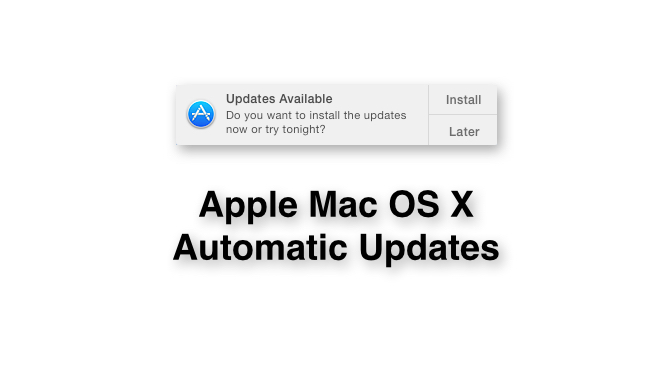
Do Not Allow Automatic Apple Updates

Apple computers running the latest versions of the OS X operating systems, such as Mavericks (10.9) or Yosemite (10.10) will be notified when system updates and software updates are available in the App store, as shown  below.

20141028tu-apple-osx-yosemite-automatic-updates

If you click on the “Later” option, you’ll be given an option to be reminded later, or to have updates installed automatically. It’s okay to choose the ‘remind me later’ options, but it’s not a good idea to choose automatic installation of update because occasionally there are updates that will cause problems for your computer. Below is an example where a software supplier is telling users not to install the available update since it’s known to have a bug. Click the image for a larger view.

20141028tu-apple-osx-yosemite-automatic-updates-dont-update-yet

If automatic updates were turned on, this update would be installed and the software would not work properly.

A day later, the app developer released a new working version of their software. Click the image for a larger view.

20141029we-pdfscanner-apple-mac-app

Those without the automatic updates feature turned on were able to continue doing their work, skipping the defective update, and then getting the correct update when it was released.

Yosemite Error – Sign in to Microsoft Lync Failed

Problem Summary

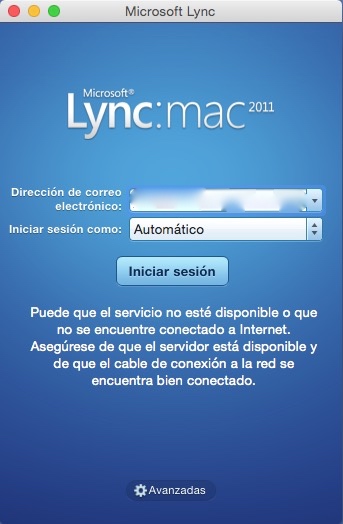
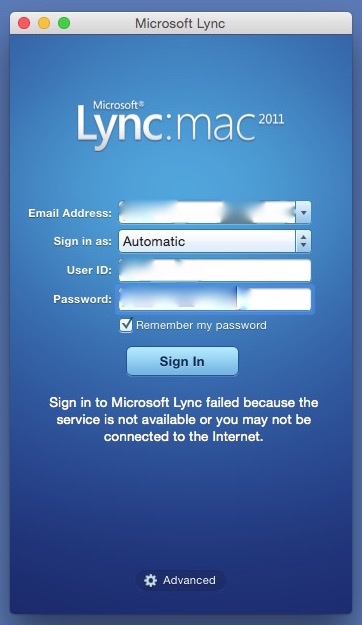
If  you’ve recently upgraded to Apple Mac OS X 10.10 Yosemite, and you attempt to use Microsoft Lync Mac 2001, you may likely get an error stating:

Sign in to Microsoft Lync failed because the service is not available or you may not be connected to the Internet.

This error message is misleading because the cause of it is likely neither of the problems suggested. Instead, it’s very likely due to having an additional language listed in your System Preferences.

Error Message Window

The error message window is like the one shown below.

20141021tu-yosemite-microsoft-lync-lanugage-english-error-fail

Problem Solution

Follow these instructions to fix the problem.

  1. Go to System Preferences – Available from the Apple menu.
  2. Click on Language & Region – It is the flag icon in the top row of icons.
  3. Make sure English is the primary language. If another language is listed, remove it. You need not close Language & Region settings for these modifications to take effect.
  4. Try running Lync again. This time it should work.
  5. You can now add the language(s) back in that you removed in step #3 above. Again, it’s not necessary at this point to close Language & Region settings. Try running Lync again. It should still work.
  6. If you have another language selected as primary, such as Spanish, Lync won’t work. It will fail again as shown below.

20141021tu-yosemite-microsoft-lync-lanugage-spanish-error-fail

Other Causes of Error

You may still get the connection error even after using the work-around fix described above. This can happen if your computer has gone into sleep mode, and then you wake it up. Just click the Sign In button again and it should connect.

User Experience Feedback

From Greg Johnson (17 Dec. 2014):

I was unable to start Lync. Here’s what I did:

  1. I checked my default preferred language in settings at it was already set to English.
  2. In an effort to clear out any previous settings, I added French and set it to the default.
  3. I tried starting Lync, but it still wouldn’t load.
  4. Then I removed French and returned to English as the default.
  5. Lync works fine now.

Apple Mac OS X Quit Programs Still Running in Background

Problem Summary

Apple Mac OS X has a flaw that’s been in several versions of the operating system, including the latest public release of Yosemite. Programs that have been quit will still show up as running in the background when you view the Force Quit Applications window (accessible from the Apple menu or by pressing alt/option + command + esc).

Problem Example

In the example shown below, several programs are running, as is indicated by the black dot under the program icon in the dock. The Preview program doesn’t appear to be running since it has no black dot under it. Yet, it is listed in the Force Quit Applications window.

20141021tu-apple-osx-yosemite-programs-still-running-after-quit

This problem seems to happen on a variety of Apple hardware platforms, and with various versions of OS X. For some reason, it’s still not fixed.

Workaround / Solution

At present, the best workaround seems to be periodically checking the Force Quit Applications window, or restarting the computer to ensure all processes are completely stopped and that memory has been properly released back to the system.

Apple Yosemite Finder Window Controls Missing

When starting a program, such as TextEdit for example, a Finder dialog box opens up. Normally dialog boxes have the familiar red, yellow, and green buttons in the top left that let a person maximize, minimize, or close a window. With Yosemite, these controls are missing as can be seen in the window heading below. Click the image to enlarge.

20141020mo-apple-yosemite-finder-dialog-missing-window-controls

Apple OSX Yosemite Spotlight Design Flaw

In previous versions of OSX, the Spotlight (system-wide-search) feature would produce a list of results in a drop-down listing from the top right corner of the screen.

With Yosemite, Spotlight brings up a relatively small window in the middle of the screen. The window can’t be sized or moved. So, it covers up whatever you were working on, and the preview of results can’t be seen properly. Click the image below to enlarge.

20141020mo-apple-osx-yosemite-spotlight-poor-design-cant-size-move-window

On a display of 1920 x 1200 pixels, the Spotlight search results window is about 680×430 pixels in size. So, it’s not quite large enough to fully see the results if an image or document preview is showing.

The window doesn’t have the standard interface buttons for close, maximize, or minimize.

It’s not right for Apple to insist that others strictly adhere to specific user interface guidelines and elements, yet Apple doesn’t offer them in their own programs and features.


Apple Yosemite Mail Features Topic Not Found

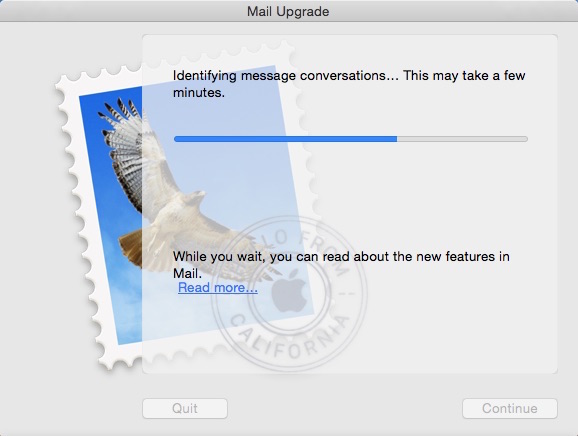
If you’re using Apple Mail after upgrading to Yosemite, the initial setup will require an upgrade of your old email mailboxes. The Mail Upgrade box is shown below.

20141019su-apple-mail-conversion

If you click on the Read more… link to learn about new features in mail, it’s possible you’ll get a message stating, “The selected topic is currently unavailable. The topic you were trying to view could not be found.” This is shown below.

20141019su-apple-mail-new-features-window-not-available

Close this message, and after waiting a little while, try clicking the Read more… link again.

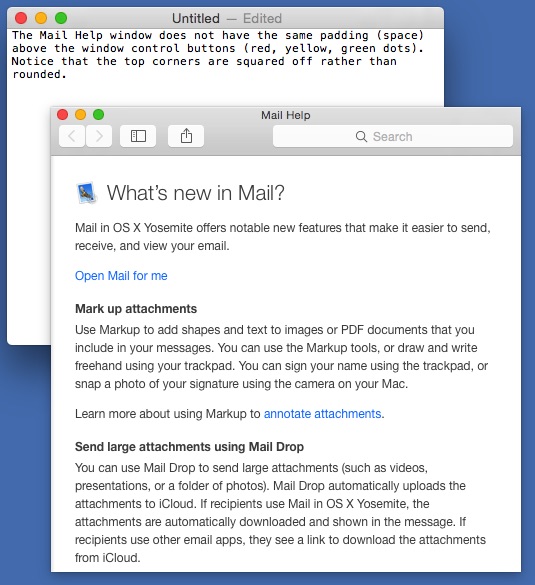
You’ll notice that the Mail Help window does not have the same padding (space) above the window control buttons (red, yellow, green dots). Notice that the top corners are squared off rather than rounded. See below for a visual of this. This is likely an oversight by the programmers.

20141019su-apple-mail-help-window-title-bar-not-rounded