Ubuntu File Sharing with Apple

Ubuntu file sharing with Apple computers over a network is fairly easy. Follow these steps.

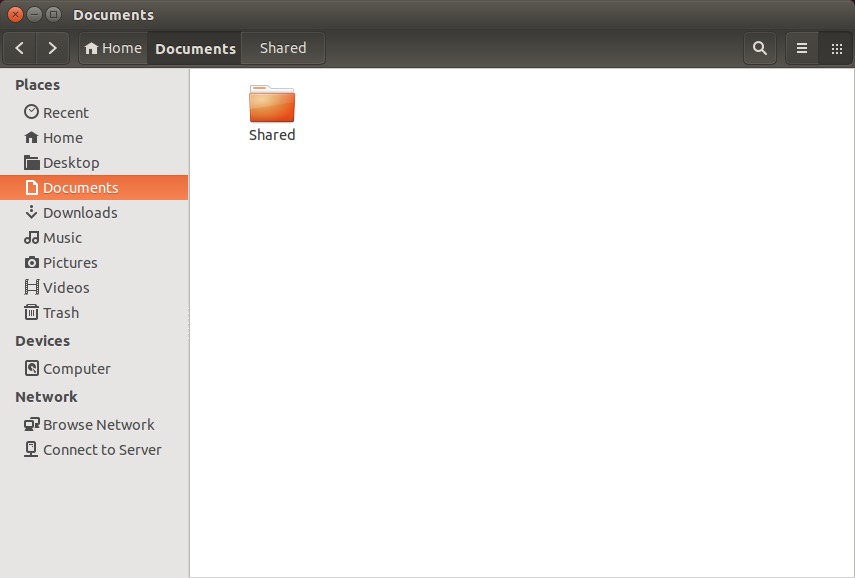
Right click on the folder you’d like to share.

20141108sa-linux-to-apple-file-sharing-001

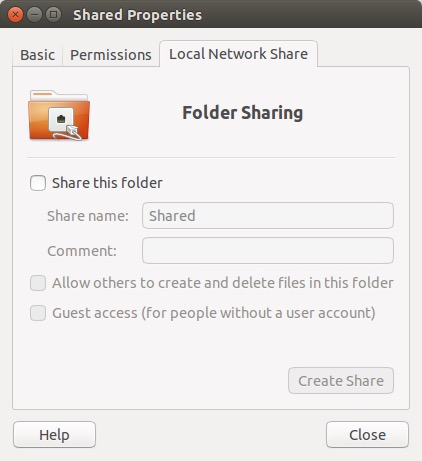
Choose Properties, and then click on the Local Network Share tab.

20141108sa-linux-to-apple-file-sharing-002

When you click on “Share this folder” (for the first time) you’ll get a message stating “Sharing service is not installed. You need to install the Windows network sharing service in order to share your folders.”

20141108sa-linux-to-apple-file-sharing-003

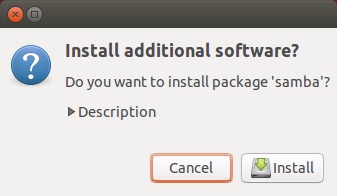
Confirm to install the additional software.

20141108sa-linux-to-apple-file-sharing-004

Provide your password to Authenticate.

20141108sa-linux-to-apple-file-sharing-005

Wait for installation to complete.

20141108sa-linux-to-apple-file-sharing-006

20141108sa-linux-to-apple-file-sharing-007

Once the installation is complete, you can share the folder.

20141108sa-linux-to-apple-file-sharing-009

Currently, something odd is happening between Ubuntu 14.1 and Apple 10.10 (Yosemite). It’s believed that Apple has implemented a version of SMB (file sharing) that does communicate properly with Ubuntu. Normally it would be possible to setup the folder to be accessible based on user accounts. However, attempting to login using one of the Linux user account names and password will fail. If you click on the bottom two boxes above, sharing will then work properly.

Apple Instructions

Follow these instructions to access the shared Ubuntu folder.

  1. On the Apple computer, press command+k (or from the Go menu in Finder, choose Go to server).
  2. Type in //ServerName/SharedFolder and press Enter.
  3. Choose Connect as Guest access (for some reason entering a username doesn’t work).

The shared folder should now be accessible.

Apple Time Machine Backup Failure

If you’re using the Apple OS X integrated Time Machine backup software, at some point you’ll likely get an error message stating: “Backup Failed. Time Machine couldn’t back up to ‘your_drive_name'” — where your_drive_name will be the backup drive you’ve assigned.

20141107fr2159-apple-mac-time-machine-backup-error-009

Thinking it must have just been a one-time glitch, you’ll manually run a backup, but that will result in an error as well.

20141107fr2159-apple-mac-time-machine-backup-error-002

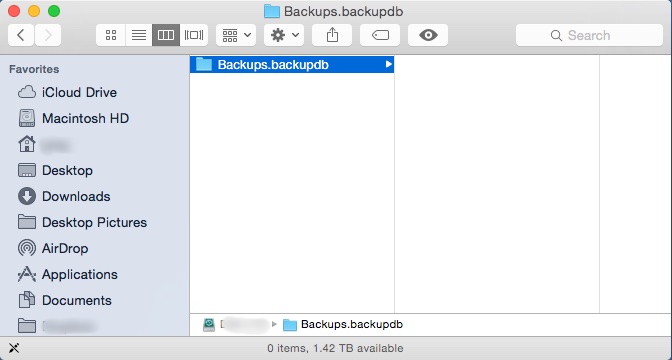
You’ll then check the drive only to discover that although the backup folder exists, its contents are all gone.

20141107fr2159-apple-mac-time-machine-backup-error-001

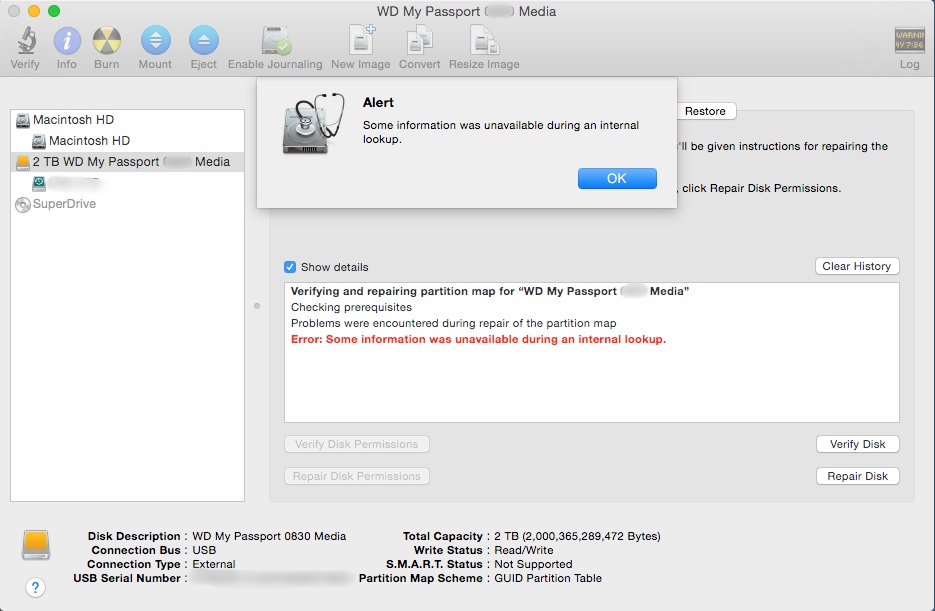
You’ll panic a little, and then consider using Disk Utility to repair the disk. However, upon running Repair Disk, you’ll get a strange alert that says, “Alert. Some information was unavailable during an external lookup.”

20141107fr2159-apple-mac-time-machine-backup-error-003

After some hair pulling, you’ll figure the only option is to start all over again by formatting (erasing) the drive and doing a complete backup again.

However, when you attempt to erase the drive, you’ll get an error.

20141107fr2159-apple-mac-time-machine-backup-error-005

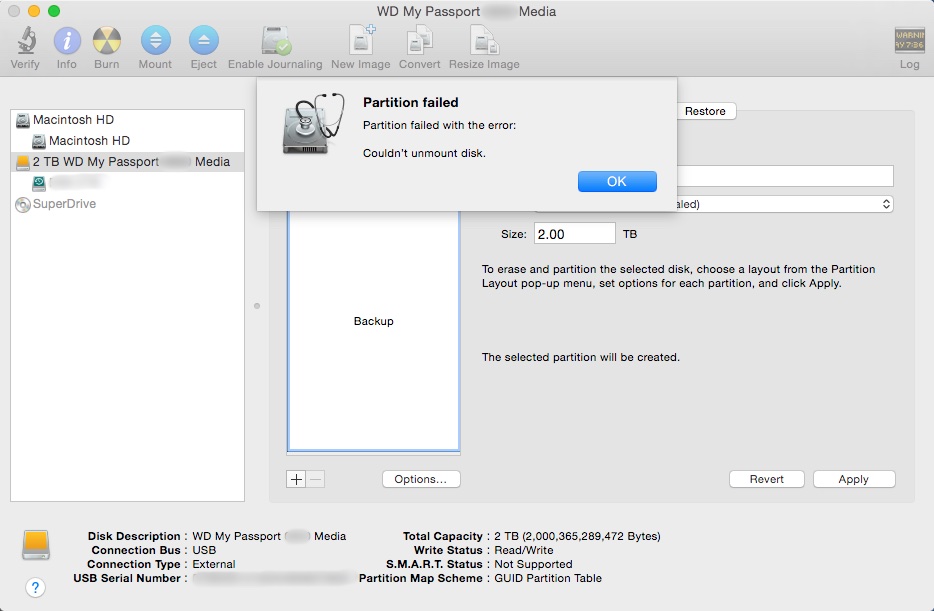
Problems with formatting a drive can be an indication that the partition is corrupted somehow. So, you’ll take things to the next level and attempt to partition the drive, but that will also result in an error.

20141107fr2159-apple-mac-time-machine-backup-error-004

At this point, assuming that the drive is defective, you’ll throw it in the trash can and purchase a new one.

The Time Machine backup program will work fine with the new drive for a while, but then you’ll get the error again stating the backup failed.

You’ll start all over again at the top of this page and get to this paragraph.

Realizing that the problem is likely not repeated failed hard drives, but something very quirky with Apple OS X, you’ll search the web to see if anyone else is having trouble with Time Machine backups. You’ll discover that Apple has dedicated an entire support page to all the things that can go wrong with Time Machine. Apparently you’re not alone.

20141107fr2159-apple-mac-time-machine-backup-error-006

With a mix of joy and frustration, you’ll see a link titled, “Apple Support article: Time Machine stops backing up to external disk.”

Finally your search is over.

You click the link, but it takes you to a page with an error stating, “We’re sorry. We can’t find the page you’re looking for. Please return to the Apple Support homepage.”

20141107fr2159-apple-mac-time-machine-backup-error-007

Assuming it’s a browser issue, you’ll switch from using Chrome to using Safari, and try visiting the support page again. However, this time, the support page won’t even load.

20141107fr2159-apple-mac-time-machine-backup-error-008

You’ll think to yourself, “Great. Apple’s website doesn’t even work with Apple’s browser.”

At this point you’ll want to write a blog article about the above experience, and switch to Linux.

You’ll switch to Linux.

You’ll pull your old backup drive out of the trash can, and out of curiosity, you’ll plug it into your Linux computer to find that it actually isn’t defective, and the files weren’t erased. Unfortunately, Apple’s file system permissions will be set so you won’t have permission to read the files. There’s probably a solution to that, but you’ll save that for another day.

Evernote 5.7 Features

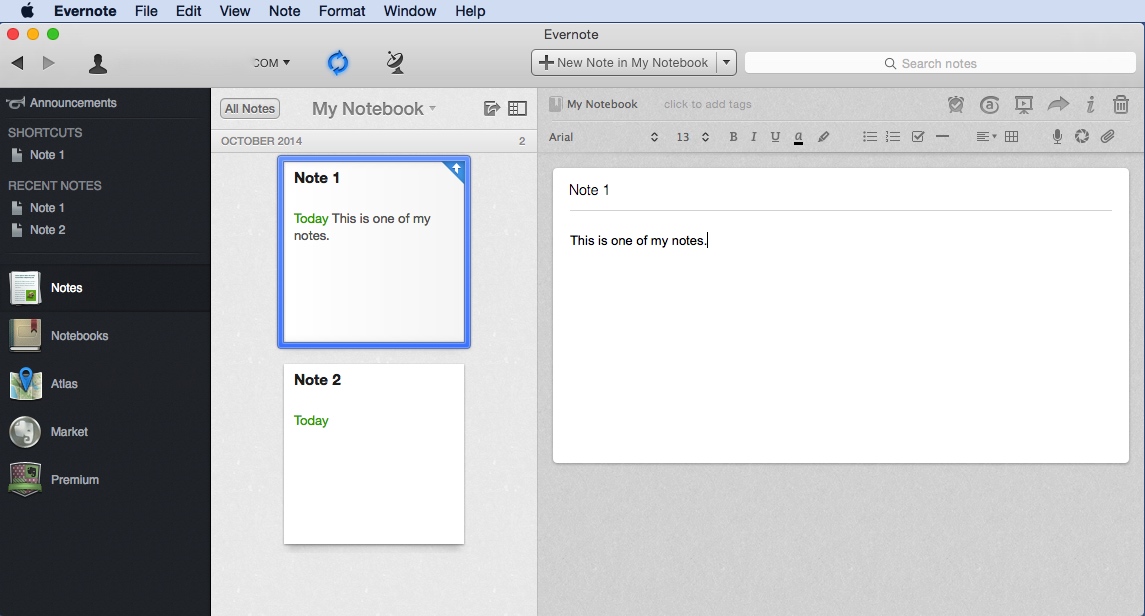
These are the features and enhancements for Evernote 5.7 and some of the other recent updates. So often we install updates without taking a moment to read the details about enhancements that we might want to take advantage of.

Version 5.7.0

Premium feature: Context

  • Context displays notes, articles, and people related to what you’re working on
  • View related articles from The Wall Street Journal and other sources and related people from LinkedIn and your business

Presentation Mode has been improved with a fresh look and new features

  • Use the layout panel to navigate your presentation and add dividers
  • Images are now presented from screen-edge to screen-edge
  • Beautifully styled tables make your information stand out

Other improvements:

  • Send messages to share notes and discuss things you’re working on without leaving Evernote
  • Bug and stability fixes

Version 5.6.2

At Evernote, we believe that speed and stability are essential for productivity. That’s why we’ve completely rewritten Evernote for Mac. It may look familiar but it’s significantly faster, more reliable and consumes less energy than ever before. We’ve also snuck in some new features!

Speed:

  • Sync is more than 3x faster. Users with lots of shared notebooks and Evernote Business users will see the biggest improvements.
  • New notes sync instantly so they’re immediately accessible on your other devices.
  • Share notes without waiting for a sync to complete.
  • Launch and quit times have been reduced dramatically.
  • New keyboard shortcuts have been added to jump to the note list for easy navigation (CMD + |) and you can now tab between the search field, the note list, current note title and note body.
  • Energy consumption when the app is idle has been significantly reduced.

New features:

  • Tables can now be resized, and have configurable background colors and border styles.
  • Images can be resized right in the note editor. Just click an image and drag the handle in the bottom right corner.
  • Search results are now ordered by relevance.
  • Faster notebook selector at the top of the note list remembers your recently used notebooks.
  • Redesigned checkboxes in the note editor are easier to click.
  • Evernote will now stay logged in by default.
  • Search your notes with Spotlight.

Stability:

  • We’ve closed over 500 bugs including more than 150 types of crashes.
  • Our crash reporting system has been completely rebuilt.
  • Removed repeated offline alerts
  • In list view, the relevance column can now be hidden from search results
  • Resolved an issue that caused note conflicts when sharing new notes
  • Squashed bugs related to migration from the Mac App Store version

Version 5.5.2 (07/02/2014) build 402634

  • Various bug and stability fixes

Version 5.5.1 (03/25/2014) build 402628

  • Various bug and stability fixes:
    • Improvements to Descriptive Search
    • Note you are working on stays in focus during sync
    • Improved searching through large documents

Version 5.5 (02/04/2014) build 402491

Version 5.5 (02/04/2014) build 402489

  • New Feature: Descriptive Search
    • Find what you want in the most natural way ever. Search your notes by place (“Tokyo”), file contents (“Documents” or “Images”), date ranges and more.
    • Searches to try:
      • “notes with PDFs”
      • “notes from Paris”
      • “recipes created last week”
    • This feature is currently available in English only.
  • Various bug and stability fixes:
    • Fixed: Screenshots including Quick Note Helper window
    • Fixed: Evernote window issues
    • Business card scanning improvements
    • Fixed: sync issues which may have caused crashing

Version 5.4.5 (01/04/2014) build 402372

  • Bug fixes

Version 5.4.5 (01/04/2014) build 402367

  • Bug fixes

Version 5.4.4 (12/04/2013) build 402282

Stability improvements and bug fixes

Bug fixes:

  • Fixed: Content scrolls when dragging window
  • Fixed: Issues attaching documents in OS X 10.6
  • Fixed: Large notes showing blank spots

Known issue: Spotlight does not index notes created on OS X 10.9. We are working on a fix.

Version 5.4.3 (11/15/2013) build 402231

Improved support for OS X 10.9

New Markup Features

  • Rotate or delete pages from a PDF
  • Add a markup summary page to annotated PDFs
  • Easily clear all markup
  • Flip or rotate images

Other Fixes

  • Improved support for dragging images from web browsers
  • Various bug and crash fixes

Known issue: Spotlight does not index notes created on OS X 10.9. We are working on a fix.

Version 5.4.1 (10/09/2013) build 402013

Bug fixes

Version 5.4.0 (10/03/2013) build 401989

Introducing Evernote Business 2.0

  • Business Home makes your company smarter than ever
    • Get to know your members of your business and learn about their recent activity by browsing their profiles
    • Discover notebooks and notes published by your coworkers, find popular notebooks and top contributors
    • Search and browse notes in every Business Notebook you have access to and preview notes before you join notebooks
  • Expertise Discovery: searching your notes also displays related people and provides access to shared notes in your business
  • Convert personal notebooks to business notebooks

Other New Features

  • Mark up images, PDFs and whole notes from within Evernote

Bug fixes

Version 5.3.0 (09/18/2013) build 401872

New Premium Feature: Presentation Mode

  • Present your notes in a beautifully laid out, full-screen view with one click
  • Dual screen support: Present on one screen while taking notes on the other
  • Display images, documents and attachments in the presentation
  • Use the laser pointer feature to help everyone follow along

Improved Premium Feature: Related Notes

  • See up to five Related Notes at the bottom of the Note Editor

New Evernote Business Feature

  • Easily convert personal notebooks into Business notebooks

Other enhancements

  • Redesigned search highlighting
  • Evernote Food notes are now editable
  • Right-click on a note to convert it to a PDF

Version 5.1.1 (05/21/2013) build 401255

  • New Features
    • Reminders: Never forget important and in-progress notes
      • Adding a reminder pins the note to the top of your note list
      • Add a due date to receive in-app and email notifications
      • Mark notes as Done when you complete them
      • See reminders and get notifications for notes in shared notebooks
    • Enhanced security with XAuth
      • View all applications that access your account from Evernote Web Settings
    • Redesigned vertical list view shows more notes on-screen
    • New text styles: Superscript (CMD Ctrl +) and Subscript (CMD Ctrl -)
    • Edit your Saved Searches
  • Other improvements
    • Copy/paste improvements
    • Numerous stability improvements
    • Various search improvements

Version 5.0.7 (03/12/2013) build 400995

  • This update addresses a security issue that requires you to reset your password. Details on blog.evernote.com
  • Re-designed menu bar Helper called Quick Note: Create a note any time by clicking the helper or CMD+CTRL+N
  • Various bug and localization fixes

Version 5.0.5 (01/24/2013) build 400808

  • New Features
    • Shortcuts are synced with your Evernote account
    • Searches can be scoped to “My Notes” which excludes shared Notes
    • Business users can scope searches to “Personal Notes” or “Business Notes”
    • Notes clipped using Evernote Clearly are beautifully styled
    • AppleScript can create checkboxes in ENML
    • In Expanded Card View, pressing Return opens Notes
    • New button to jump to a Note’s Notebook from the Note Editor
    • Command-click to multi-select Tags in the Sidebar
  • Other improvements
    • Large accounts sync much more reliably
    • Tags from Joined Notebooks now appear correctly
    • Corrected image and link pasting issues
    • PDF printing is more reliable
    • Fixed Snow Leopard Sidebar visual glitches
    • Fixed crash when taking screenshots
    • Korean image indexing is greatly improved
    • Reduced CPU/memory usage
    • Fixes to Saved Searches
    • Various fixes for Evernote Business
    • Improved handling of Tags in AppleScript

Version 5.0.4 (12/12/2012) build 400704

Stability enhancements

Version 5.0.3 (12/06/2012) build 400675

  • Bug Fixes

Version 5.0.2 (12/03/2012) build 400649

New Features

  • New Premium feature: Related Notes in the note editor
  • Drag-and-drop Notes onto Notebooks and Tags in the Sidebar
  • Added an option to show Note counts in the Sidebar
  • Added a Trash button to the Note Editor

Other Improvements

  • Nested tags stay visible
  • Fixed Atlas for Portuguese users
  • Fixed Local Notebook creation
  • Fixed “notebook:” and “tag:” searching
  • Better high-DPI image handling in the Note Editor
  • Reduced CPU/memory usage
  • Various bug and localization fixes

Version 5.0.1 (11/27/2012) build 400591

New Features

  • Drag-and-drop Notes onto Notebooks and Tags in the Sidebar
  • Added an option to show Note counts in the Sidebar
  • Added a Trash button to the Note Editor

Other Improvements

  • Fixed Local Notebook creation
  • Fixed “notebook:” and “tag:” searching
  • Better high-DPI image handling in the Note Editor
  • Reduced CPU/memory usage
  • Various bug and localization fixes

Version 5.0.0 (11/15/2012) build 400539

Evernote 5 has been redesigned with over 100 new features including:

Left Sidebar

  • Shortcuts: Drag notebooks, notes, and tags to the left pane for quick access
  • Recent notes: Lets you quickly get back to notes from anywhere in Evernote
  • Notebooks and Tags view: Organize your Evernote more efficiently

Browsing and Creating Notes

  • Atlas: Browse your notes visually by geographic location
  • Card and Snippet views: A better way to browse notes
  • Scalable note editor: A more elegant way to create notes, both big and small
  • Full-screen single note view: Excellent for composing notes without distractions
  • Change a note’s location: Type a place manually or click the compass arrow in note info
  • Lots of keyboard shortcuts: Learn more on our What’s New page
  • Shared banner: Indicates how many people have access to content in shared notebooks
  • Better simple and plain text handling: Simplify notes to remove complex formatting or convert them to plain text
  • Indent text: Evernote for Mac now supports text indentation
  • Notes created on the Mac are now tagged with location information for Atlas

Smarter Search

  • Type ahead search: Completes your thoughts with suggestions from your account
  • Search Personal and Joined notebooks: Search your entire account from one place
  • Search options: Powerful new feature that lets you easily filter your search

Collaboration

  • Better sharing: Notebooks and shared notebooks are all in one place
  • Mountain Lion notifications: See Evernote activity in Notification Center
  • Joined notebooks can be added to stacks

Other Improvements

  • Lots of stability improvements
  • Sync improvements: Faster, more reliable sync
  • Explore Evernote: First launch experience that helps you get the most out of Evernote

Installing Adobe Flash on an Apple Computer

The gallery of screenshots below shows the process for installing Adobe Flash on an Apple computer.

Your experience may vary depending on the version of OS X that you’re using.

This sequence of screens will show up if you land on a webpage that requires the latest Adobe Flash.

If you’d like to initiate this sequence, visit the Adobe Flash software download page and manually download Adobe Flash.

Do Not Allow Automatic Apple Updates

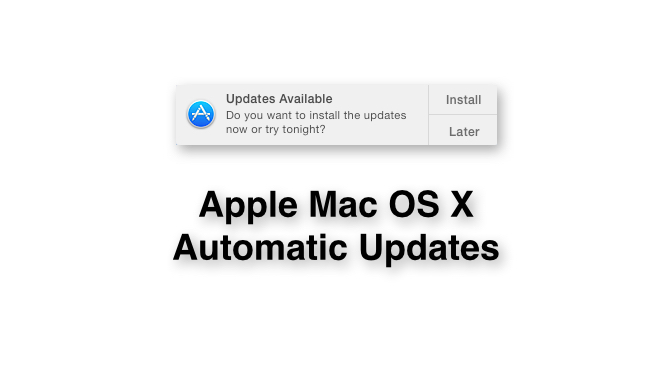
Apple computers running the latest versions of the OS X operating systems, such as Mavericks (10.9) or Yosemite (10.10) will be notified when system updates and software updates are available in the App store, as shown  below.

20141028tu-apple-osx-yosemite-automatic-updates

If you click on the “Later” option, you’ll be given an option to be reminded later, or to have updates installed automatically. It’s okay to choose the ‘remind me later’ options, but it’s not a good idea to choose automatic installation of update because occasionally there are updates that will cause problems for your computer. Below is an example where a software supplier is telling users not to install the available update since it’s known to have a bug. Click the image for a larger view.

20141028tu-apple-osx-yosemite-automatic-updates-dont-update-yet

If automatic updates were turned on, this update would be installed and the software would not work properly.

A day later, the app developer released a new working version of their software. Click the image for a larger view.

20141029we-pdfscanner-apple-mac-app

Those without the automatic updates feature turned on were able to continue doing their work, skipping the defective update, and then getting the correct update when it was released.

Evernote – Unexpected Error Occurred While Synchronizing

While synchronizing Everynote, you may get an error message that states:

“An unexpected error occurred while synchronizing with the Evernote service. The cause is listed below. Check to make sure your computer and network are operating properly. To resolve this error consider exporting any unsynchronized notes then permanently delete the problematic items from Evernote. If the problem persists select ‘Customer Support’ under the ‘Help’ menu.”
Below the message there will be an indication of the error(s). Click on the small triangle to the left of that message to see more details about the error. If there’s a specific item that is causing problems, look for that note and delete it.

It’s possible that you’ll search for the offending file and not find it. It may be impossible to find the file using the Evernote search feature, or by manually browsing all your notes. If the file had previously been deleted, and put in the trash, it will be in the Evernote trash can, so it’s ignored by search requests, yet still exists and still causes problems during the synchronization.

Below are screen shots showing this process.

When synchronizing, the sync indicator should be blue and spinning. It is to the right of your username/email (the example here is blurred out). Click the image for a larger view.

20141026su-evernote-unexpected-error-occurred-while-synchronizing-with-evernote-service-could-not-synchoronize-note-001

If the synchronization fails, there will be a red icon with an exclamation point on top of the sync icon. Click the image for a larger view.

20141026su-evernote-unexpected-error-occurred-while-synchronizing-with-evernote-service-could-not-synchoronize-note-002

Click the error indicator to view the error details as shown in the example below. Click the image for a larger view.

20141026su-evernote-unexpected-error-occurred-while-synchronizing-with-evernote-service-could-not-synchoronize-note-003

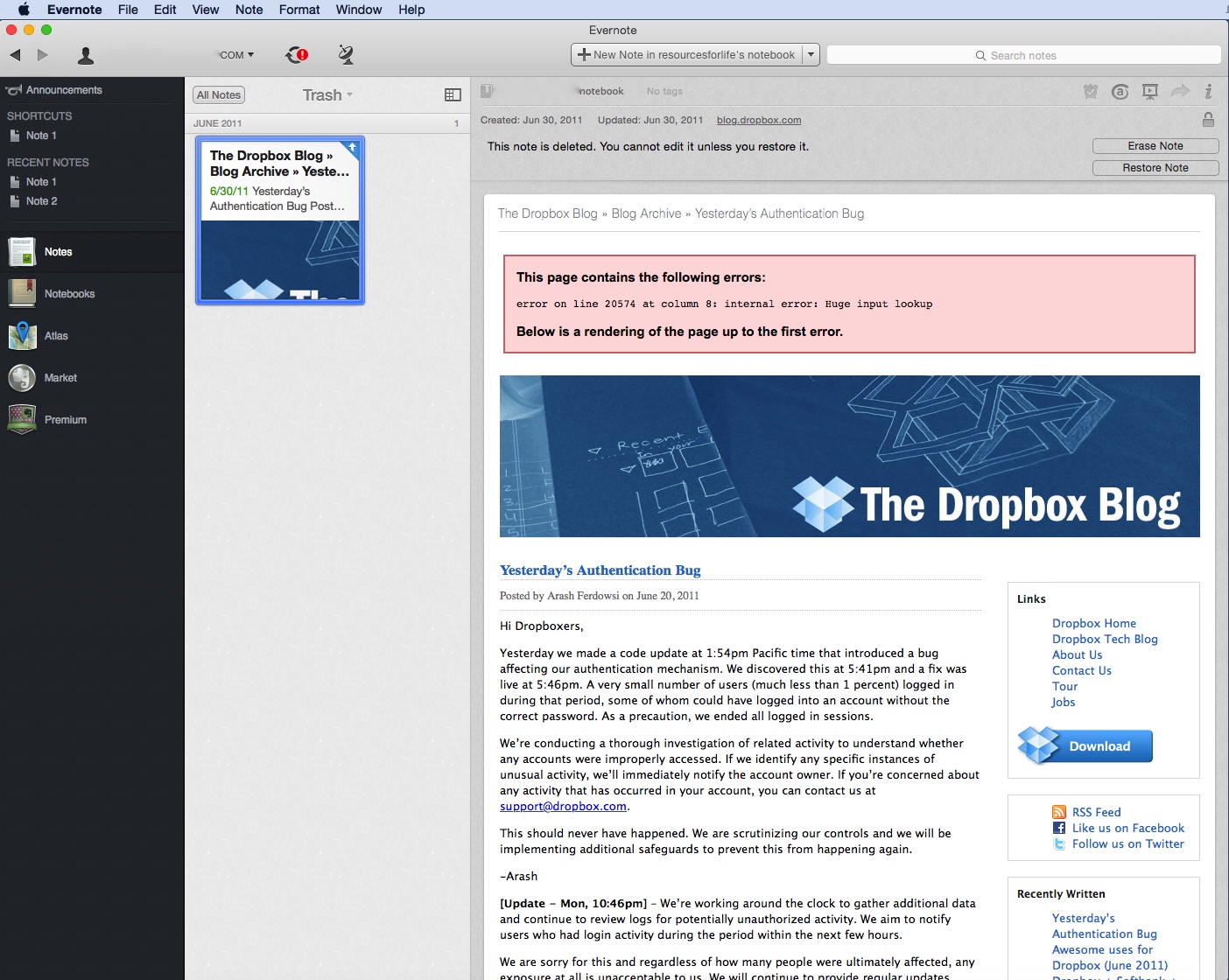
In this example, performing a search on the word “Dropbox” yielded nothing. This is because Evernote doesn’t search the trash. Unfortunately, the error message doesn’t indicate the folder location for the offending note. So, unless you think to check the Evernote trash, you’ll be mystified by this error.

20141026su-evernote-unexpected-error-occurred-while-synchronizing-with-evernote-service-could-not-synchoronize-note-004

In this example, the item shown above from the Dropbox Blog has an error indicating, “error on line 20574 at column 8: internal error: Huge input lookup.”

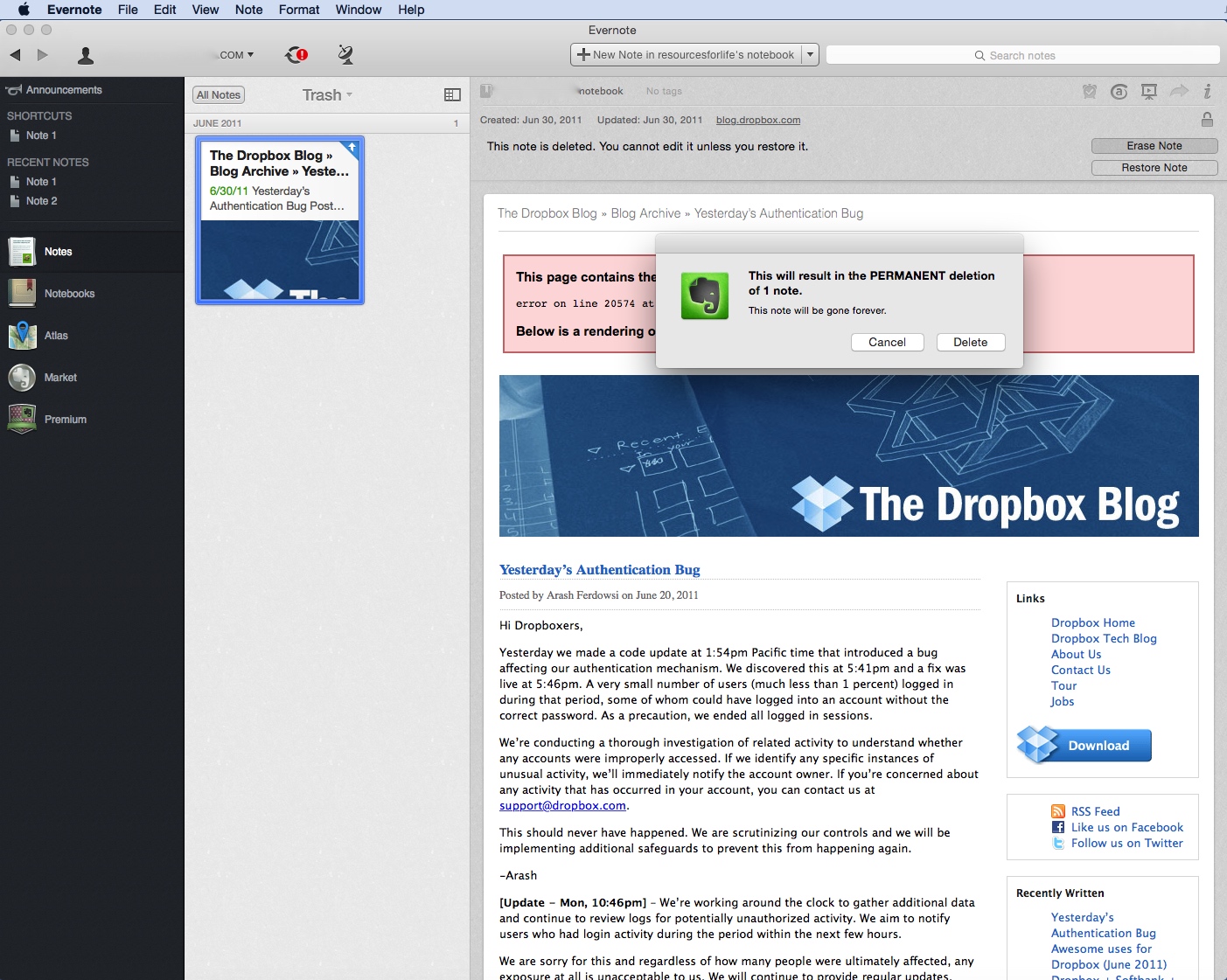
Once you delete this problematic note from the trash (by pressing the delete key), the synchronization process should work just fine.
20141026su-evernote-unexpected-error-occurred-while-synchronizing-with-evernote-service-could-not-synchoronize-note-005

Apple Yosemite Remove Icon from Dock

In previous versions of Apple OS X, users would mistakenly remove items from the dock when clicking on them.

As the icon would move up a smidgen, it would suddenly and without notice pull off the dock and “poof” disappear.

Attempts were made to correct this problem by having a delay before icons would be removed from the dock completely. However, this confused users who were intentionally trying to remove icons from the dock.

20141025sa-apple-osx-1010-yosemite-remove-icons-from-dockFinally in OS X 10.10 Yosemite, Apple has included a label that appears for icons being moved off the dock.

After a short period of time, the word Remove will appear above the icon to indicate it will be removed if not returned to the dock (before letting go of the mouse button).

This is helpful for people who might be organizing their dock icons.

Apple Computer IP Address Fixed IP Stuck Reset to DHCP

Problem Summary

If you have an Apple Airport wireless router, and at some point you set a fixed IP address for your Apple computer under the Network Settings > Ethernet > Advanced > TCP/IP > Configure iPv4 dropdown menu (Manual) and then later return the setting to Using DHCP, the Ethernet port on your computer might stop working properly, and the computer may continue to request the fixed IP address even though you’ve set it to DHCP.

Problem Solution

Follow these instructions to fix the problem:

  1. Begin by setting your computer Ethernet to use DHCP. This is found under under the Apple Menu > System Preferences > Network Settings > Ethernet > Advanced > TCP/IP > Configure iPv4 dropdown menu. Choose DHCP and save/apply.
  2. Run the Airport Utility (found under Applications > Utilities).
  3. Your Airport router should show up. Left click once on the icon to display the settings and then click on Edit.
  4. Click on the Network menu option.
  5. Click the Plus symbol below the DHCP Reservations list.
  6. Enter a Description (your computer name).
  7. Select Reserved Address By using MAC Address.
  8. Enter your Ethernet MAC address. It is found by going to Apple Menu > System Preferences > Network > Ethernet > Advanced > Hardware. Copy (highlight/select) the number/letter sequence displayed next to MAC Address and paste that into the entry for MAC Address in the Airport Utility.
  9. Enter an IPv4 Address such as 10.0.1.50.
    • This will cause the Airport router to override any previous setting that was requested by your computer or device.
    • It’s likely that the previous reservation was somehow preserved in the router and this will fix the problem.
    • Just as in this example, the last number should be a higher number because the lower numbers are automatically issued first starting with 10.0.1.2, 10.0.1.3, and so on, as wireless devices join the network. This numbering scheme is based on the default IPv4 addresses for the router. Other routers use 192.168.0.1 or 192.168.1.1 for the router address (gateway).
  10. When you restart your computer, this new IP address specified in step #9 above will be automatically issued by the router based on the MAC Address of your computer.
  11. This new IP address will supersede whatever had previously been configured.
  12. You can now go back into the Airport Utility, following steps 1-9 above. This time, select your computer in the DHCP Reservations list (step #5) and press the minus key to remove this IP reservation.
  13. Restart your computer. It will probably get the same IP address as it had been issued above. Routers will typically reserve an IP address temporarily for a device until a certain amount of time has passed.

Apple Mac OS X Critical Applications Hidden

Problem Summary

Many of the critical Apple utilities that were previously available in the Applications > Utilities folder are now hidden. These instructions show you how to gain access to them.

Problem Solution

Follow these instructions to gain access to these important system utilities:

  1. Go to the Finder (click on your desktop once or click on the face in the lower left of your dock).
  2. From the Go menu, choose Go to Folder and paste in this address:
    /System/Library/CoreServices/Applications/
  3. This will take you to the folder where the special utilities are located.
  4. You can use this method anytime to access the utilities. Or, to save yourself some trouble, click and drag any of the utilities individually to the Dock.


Yosemite Error – Sign in to Microsoft Lync Failed

Problem Summary

If  you’ve recently upgraded to Apple Mac OS X 10.10 Yosemite, and you attempt to use Microsoft Lync Mac 2001, you may likely get an error stating:

Sign in to Microsoft Lync failed because the service is not available or you may not be connected to the Internet.

This error message is misleading because the cause of it is likely neither of the problems suggested. Instead, it’s very likely due to having an additional language listed in your System Preferences.

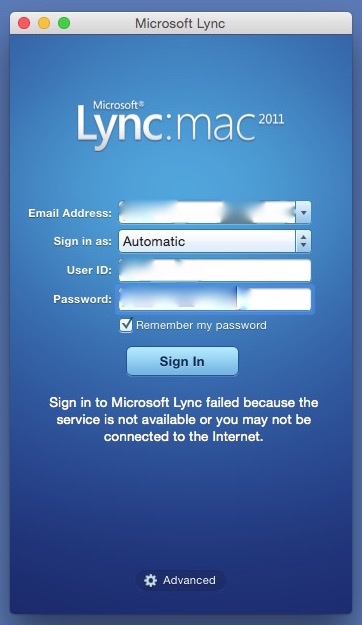
Error Message Window

The error message window is like the one shown below.

20141021tu-yosemite-microsoft-lync-lanugage-english-error-fail

Problem Solution

Follow these instructions to fix the problem.

  1. Go to System Preferences – Available from the Apple menu.
  2. Click on Language & Region – It is the flag icon in the top row of icons.
  3. Make sure English is the primary language. If another language is listed, remove it. You need not close Language & Region settings for these modifications to take effect.
  4. Try running Lync again. This time it should work.
  5. You can now add the language(s) back in that you removed in step #3 above. Again, it’s not necessary at this point to close Language & Region settings. Try running Lync again. It should still work.
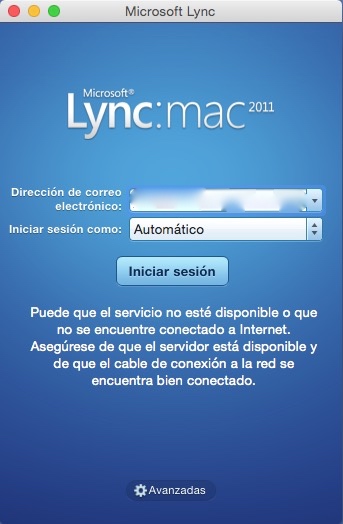
  6. If you have another language selected as primary, such as Spanish, Lync won’t work. It will fail again as shown below.

20141021tu-yosemite-microsoft-lync-lanugage-spanish-error-fail

Other Causes of Error

You may still get the connection error even after using the work-around fix described above. This can happen if your computer has gone into sleep mode, and then you wake it up. Just click the Sign In button again and it should connect.

User Experience Feedback

From Greg Johnson (17 Dec. 2014):

I was unable to start Lync. Here’s what I did:

  1. I checked my default preferred language in settings at it was already set to English.
  2. In an effort to clear out any previous settings, I added French and set it to the default.
  3. I tried starting Lync, but it still wouldn’t load.
  4. Then I removed French and returned to English as the default.
  5. Lync works fine now.