Mactracker Apple Mac Specifications Guide

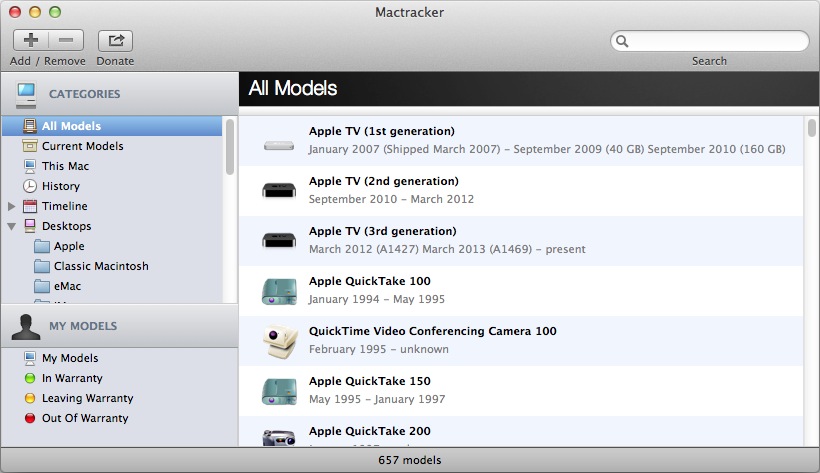
The Mactracker software runs on OSX and iOS platforms, and provides a helpful listing of hardware specifications as well as operating system information. Here’s a description from the developer’s website:

“Mactracker provides detailed information on every Apple Macintosh computer ever made, including items such as processor speed, memory, optical drives, graphic cards, supported OS versions, and expansion options. Also included is information on early Apple systems, Apple mice, keyboards, displays, printers, scanners, speakers, cameras, iPod, Apple TV, iPhone, iPad, Wi-Fi products, Newton, iOS, Mac OS, and OS X versions.”

The latest release, version 7.3.4, has the feature enhancements listed below. Previous versions are also listed.

Please note that this release requires OS X 10.6.8 Snow Leopard or later. Download version compatible with OS X 10.5.8 Leopard.

Version 7.3.4

  • Adds iPhone 6 and iPhone 6 Plus
  • Adds iOS 8
  • Updates Support Status for Apple’s latest Vintage and Obsolete products
  • Other minor changes and additions

Version 7.3.3

  • Adds MacBook Pro (Retina, 13-inch, Mid 2014) and MacBook Pro (Retina, 15-inch, Mid 2014)
  • Adds iMac (21.5-inch, Mid 2014)
  • Adds Apple Lisa and Apple Lisa 2
  • Adds 16 GB configuration to iPod touch (5th generation)
  • Adds details on latest OS X and iOS releases
  • Updates Support Status for Apple’s latest Vintage and Obsolete products
  • Other minor changes and additions
Version 7.3.2

  • Adds MacBook Air (11-inch, Early 2014) and MacBook Air (13-inch, Early 2014)
  • Adds details on latest iOS releases
  • Adds second Wi-Fi ID field to “My Models” for dual-band Wi‑Fi devices
  • Other minor changes and additions

Version 7.3.1

  • Updates iPad (4th generation) and iPhone 5c with latest configurations
  • Adds details on latest OS X and iOS releases
  • Updates Support Status for Apple’s latest Vintage and Obsolete products
  • Other minor changes and additions
Version 7.3

  • Adds Apple I, Apple II, Apple II Plus, Apple III / Apple III Plus, Apple IIe / Apple IIe Enhanced, Apple IIc, Apple IIGS, Apple IIe Platinum, and Apple IIc Plus
  • Adds Apple Monitor III, Apple Monitor II, Apple Monitor IIc, Apple IIc Flat Panel Display, AppleColor Monitor 100, ColorMonitor IIe/IIc and AppleColor Composite Monitor IIe/IIc, AppleColor Composite Monitor, AppleColor RGB Monitor, Apple Monochrome Monitor, and Apple Monochrome Monitor IIe
  • Adds Apple Mouse / Apple Mouse IIc and Apple Mouse II / Apple Mouse IIe
  • Adds typical acoustical performance, where available, to MacBook, MacBook Air, and MacBook Pro models
  • Fixes issue with importing system overview reports created by Apple Remote Desktop to “My Models”
  • Other minor changes and additions
Version 7.2.3

  • Fixes an issue that could cause Mactracker to crash on OS X 10.6.8 Snow Leopard
  • Updates Support Status for Apple’s latest Vintage and Obsolete products

Version 7.2.2

  • Adds Mac Pro (Late 2013)
  • Adds the ability to import system overview reports from Apple Remote Desktop to “My Models”
  • Adds Thunderbolt and 4K display support information to recent Mac models
  • Adds typical acoustical performance, where available, to Mac mini, iMac, and Mac Pro models
  • Fixes issue with importing reports created by System Profiler to “My Models”
  • Other minor changes and additions

Version 7.2.1

  • Adds details on latest iOS releases
  • Other minor changes and additions

Version 7.2

  • Adds MacBook Pro (Retina, 15-inch, Late 2013) and MacBook Pro (Retina, 13-inch, Late 2013)
  • Adds iMac (21.5-inch, Late 2013) and iMac (27-inch, Late 2013)
  • Adds iPad Air (Wi-Fi) and iPad Air (Wi-Fi + Cellular)
  • Adds iPad mini (2nd generation) (Wi-Fi) and iPad mini (2nd generation) (Wi-Fi + Cellular)
  • Adds iPhone 5s and iPhone 5c
  • Adds iOS 7
  • Adds OS X 10.9 Mavericks and OS X Server 3.0
  • Adds additional information on early Mac OS releases
  • Adds case color details to Classic Macintosh, Macintosh Performa, Power Macintosh, and Power Mac G3/G4/G5 models
  • Adds Maximum Battery Cycle Count information to MacBook, MacBook Pro, and MacBook Air models
  • Adds Intelligent Assistant and Processor Architecture information to iPhone and iPad models
  • Adds support for OS X 10.9 Mavericks
  • Updates Support Status for Apple’s latest Vintage and Obsolete products
  • Other minor changes and additions
Version 7.1.5

  • Updates Support Status for Apple’s latest Vintage and Obsolete products
  • Other minor changes and additions

Version 7.1.4

  • Adds MacBook Air (11-inch, Mid 2013) and MacBook Air (13-inch, Mid 2013)
  • Adds AirPort Extreme 802.11ac and AirPort Time Capsule 802.11ac
  • Adds iPod touch 16GB (5th generation)
  • Other minor changes and additions
Version 7.1.3

  • Adds entry to indicate if Power Nap is supported on a particular model
  • Updates name of iPad (4th generation) and iPad mini for consistency with iPhone 5
  • Updates iMac (Late 2012) and iMac (Early 2013) models with new configure-to-order options
  • Fixes an issue where benchmarks were not displayed in Compare
  • Other minor changes and additions
Version 7.1.2

  • Adds iMac (21.5-inch, Early 2013) (Education only model)
  • Includes improvements to “My Models” functionality
  • Adds system requirements to iPod, iPhone, and iPad models
  • Updates Support Status for Apple’s latest Vintage and Obsolete products
  • Other minor changes and additions
Version 7.1.1

  • Updates iPod shuffle (4th generation) with 2012 color lineup
  • Adds pixel density information to Cinema and Thunderbolt display models
  • Fixes an issue that caused Mactracker to crash on launch for some users
  • Fixes an issue with exporting entries in “My Models”
  • Other minor changes and additions

Version 7.1

  • Adds MacBook Pro (Retina, 13-inch, Early 2013) and MacBook Pro (Retina, 15-inch, Early 2013)
  • Adds AppleDesign Powered Speakers, AppleDesign Powered Speakers II, Apple Pro Speakers, and iPod Hi-Fi
  • Updates iPad (4th generation) models with 128 GB configuration
  • Updates Apple TV (3rd generation) with component refresh details
  • Adds the ability to search by serial number for recent models
  • Adds Electromagnetic compatibility (EMC) number for recent models
  • Adds information on maximum number of connected Thunderbolt displays
  • Updates functionality for providing feedback
  • Updates Support Status for Apple’s latest Vintage and Obsolete products
  • Other minor changes and additions

Version 7.0.1

  • Adds iMac (21.5-inch, Late 2012) and iMac (27-inch, Late 2012)
  • System requirements updated to OS X 10.6.8 or later
  • Other minor changes and additions

Version 7.0

  • Adds MacBook Pro (Retina, 13-inch, Late 2012)
  • Adds Mac mini (Late 2012) and Mac mini Server (Late 2012)
  • Adds iPad (4th generation) (Wi-Fi), iPad (4th generation) (Wi-Fi + Cellular) and iPad (4th generation) (Wi-Fi + Cellular Sprint + Verizon)
  • Adds iPad mini (Wi-Fi), iPad mini (Wi-Fi + Cellular) and iPad mini (Wi-Fi + Cellular Sprint + Verizon)
  • Adds iPhone 5 (GSM North America), iPhone 5 (GSM International) and iPhone 5 (CDMA)
  • Adds iPod nano (7th generation) and iPod touch (5th generation)
  • Adds iOS 6
  • Optimized for Retina displays
  • Mactracker is now built with the Cocoa framework
  • Adds marketing tagline, where available, for recent models
  • Adds separate entry for Subscriber Identity Module (SIM) information to iPad and iPhone models
  • Adds environmental requirements to iPad, iPhone and iPod models
  • Fixes an issue that could cause Mactracker to crash on OS X 10.8 Mountain Lion
  • System requirements updated to OS X 10.7 or later
  • Updates Support Status for Apple’s latest Vintage and Obsolete products
  • Other minor changes and additions

20141015we-mactracker-apple-mac-hardware-specifications-operating-systems

Setup Microsoft Windows 8 With Local Account

Summary

It’s helpful to have a local user account on your Windows 8 computer in case something happens to your Microsoft online account. The instructions on this page are applicable for Windows 8.1 and Windows 10.

Benefits of a Local Account

Sometimes we forget our password, or an online account gets hacked into. Usually there are online steps we can follow to try and recover our password or account.

However, with Microsoft Windows, if you are logging into the computer with your Microsoft online account username and password, and the account is compromised you won’t be able to get into your computer. You’ll be locked out of all your files and programs, and you won’t be able to get online to fix the problem.

With a local user account, the login will always work regardless of what’s going on with your online account. Having an extra administrative user account on the computer (as a back door) will let you gain access to the computer if another user account on the computer becomes infected with malware or for some other reason won’t permit a login. So, for this reason it’s important to have a local user account.

Instructions

During the Windows 8 setup process, you’ll be presented with a screen like the one below that asks you to “Sign in to your Microsoft account.” Click the image below to enlarge.

20141011sa-microsoft-windows-setup-local-user-account-01

If you want to use a local user account instead, it won’t be clear what you should do at this point. Click the link that says, “Create a new account.” Even though you don’t want a new account, this takes you to a screen (example below) where you can choose to setup a local account. Click the image below to enlarge.

20141011sa-microsoft-windows-setup-local-user-account-02

Click the link that says “Sign in without a Microsoft account.” Elsewhere this link may be accompanied by a warning that states “Not Recommended.”

You’ll be taken to a screen (shown below) where you can setup a local account. Click the image to enlarge.

20141011sa-microsoft-windows-setup-local-user-account-03

Provide a username, password, and password hint.

Why So Difficult?

At this point, you might be wondering why Microsoft makes it difficult to setup a local user account. The reason is because they would like to get as many people as possible setting up online Microsoft user accounts.

Having a local user account on a computer synchronized with the Microsoft cloud services can be very valuable in terms of accumulating information about each person and computer. This big data has aggregate value — either to advertisers, or to Microsoft for their own research and system development.


HP Pavilion Laptop Computer Boot Order USB

Summary

The following instructions will be helpful if you’re trying to startup your HP Pavilion laptop computer to USB.

Configure for USB Startup

Follow these instructions to configure for USB startup:

  1. Startup the computer.
  2. As soon as the computer is starting up, while the screen is still black, quickly press F10 repeatedly to enter the BIOS settings menu (this may be F2 or F6 on some computers).
  3. Select the Advanced tab.
  4. Arrow down to highlight Boot Order and press Enter.
  5. Use the F5 and F6 keys to move items up and down. Place the USB item at the top.

What is the boot order?

When the computer starts, the system BIOS begins to check a pre-determined list of drives and devices that may contain an operating system such as Windows. The computer can boot an operating system from a hard drive, floppy drive, CD or DVD optical drive, USB storage device, or a network. The order in which the devices are checked is configurable through the BIOS setup menu.

What is the default boot order?

The default boot order settings for the computer are configured in the factory. The default boot order for HP notebook PCs is listed below.
  1. Floppy disk drive
  2. Optical drive (DVD, CD-ROM)
  3. Hard drive
  4. USB device
  5. Network adapter

Reset the boot order to the default settings

To reset the boot order to the default settings, follow the steps below.
  1. Turn on or restart the computer.
  2. While the display is blank, press the f10 key to enter the BIOS settings menu.
  3. Press the f9 key to reset the BIOS to the default settings.
  4. Press the f10 key to save the changes and exit the BIOS settings menu.

__________

Some of the above information was from an HP support page.

Apple Mac Computer Search for All Files of a Certain Kind

Let’s say you’re looking for a spreadsheet on your Apple computer. You may know the filename, but unfortunately the file name is a word or two that are very common and will show up in many different files.

You can search your computer for all spreadsheets by using Spotlight and typing kind:numbers (for example) to see a list of all Apple Numbers files on your computer. Below is a handy chart with some examples (click it to enlarge). To learn more, read “Create good queries in Spotlight.”

20141009th-apple-mac-computer-spotlight-search-files-type-kind

When Windows Updates Crash Your Computer

Problem Summary

Let’s say you recently restored your Windows 8 computer to ‘like new’ condition using the recovery feature that most computers have.

You’ll need to install all of the updates that were released since the computer was new. That could be over 100 updates.

During this process, if you select all of the updates and install them at one time, it may cause some conflict that will result in the computer not starting properly.

Then you’ll get a message stating the computer is reverting to a previous state, and urging you not to turn off the computer. Yet, it never completes this process.

Solution

In general, whenever you see a long list of Windows Updates that need to be installed, it’s a good idea to install them a few at a time.

The updates are numbered with a corresponding KB… number. You can start by installing a few or a dozen of the lower numbered updates. This could be helpful since later updates will likely assume the earlier ones (possibly pre-requisites) have already been installed.

Installing the same batch of updates a few at a time could mean the difference between a working computer or a non-working computer.

Apple Connect to Server Error: The share does not exist on the server.

Introduction

On Apple computers, there’s an option to Connect to Server. This is found in the Go menu of the Apple Finder (file browser). You can also get to this by pressing the Command+K keys. Normally, you would type in a server address, or use a previously saved address to access your files. Sometimes a person will send you a server address to copy and paste into the Server Address box.

Copy and Paste Problem

If in the process of copying and pasting, you mistakenly get additional text, perhaps a line or two of text below the server address, and copy that into the Server Address box, the additional lines won’t be visible.

If you save this pasted address, and it shows up under Favorite Servers, it still will not show that you’ve actually pasted in several lines of text.

Problem Connecting to the Server

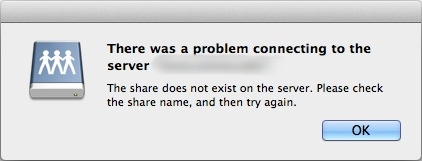
Every time you attempt to Connect to this server address, you will get the following error box:

20141008we-error-there-was-a-problem-connecting-to-the-server-the-share-does-not-exist-on-the-server

Diagnosing the Problem

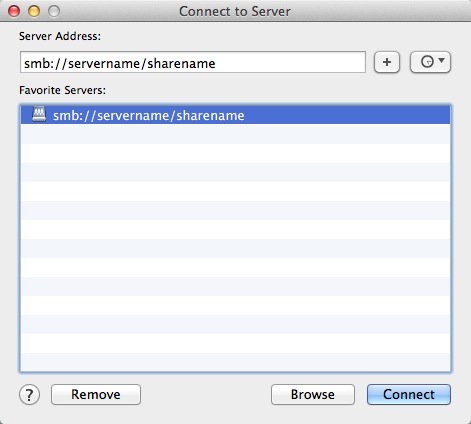
To discover whether or not this has happened to you (additional text was pasted in), open your Connect to Server dialog box as shown below. The Server Address example displayed below actually has two lines of text. There’s a second hidden line of text.

Place your cursor at the end of the typed server address, and press the right arrow key or down arrow key. This will scroll down to additional lines. Alternatively, you can select all (Command+A) and then copy (Command+C) and past (Command+V) into a TextEdit or a Word Processing program to see what’s been previously pasted into the Server Address field.

20141008we-apple-connect-to-server

When attempting to clean up this problem, be sure to select all text in the Server Address field and press delete. Also click / select any saved addresses that don’t work and remove them.

Ubuntu Software Center Search Box Missing

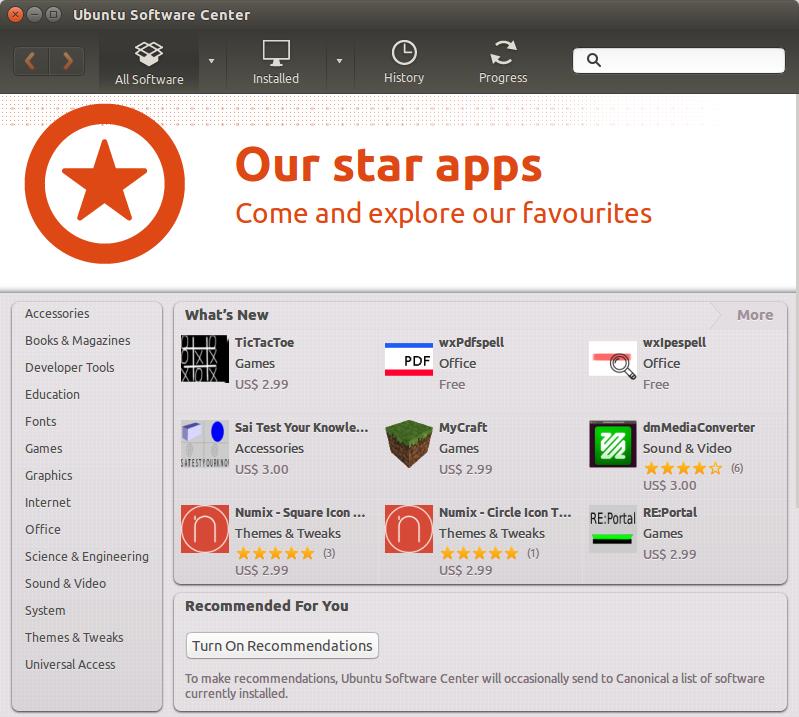
The Ubuntu Software Center normally has a search box in the upper right corner. However, if the window is sized slightly smaller than usual, that search box goes away. This is an error in how the responsive design of the interface was setup.

You can see examples below. The top example is of the window when it’s not sized large enough. The bottom example shows a slightly wider view. Click either image for a larger view.

A better method would be to resize the icons or have a ‘more’ indicator button to expand out and see other options.

20141007tu-ubuntu-software-center-search-missing 20141007tu-ubuntu-software-center-search-visible

4th Dimension 4D Database Excessive CPU Utilization

Some users of the 4D Database software (by 4th Dimension) may experience excessive CPU utilization to the point that the server stops responding at about 78% CPU utilization (as measured by the server software). The utilization may increase over several days until this happens.

This behavior could be indicative of a runaway looped process or poor memory management. However, the problem is caused by a default setting in the server software.

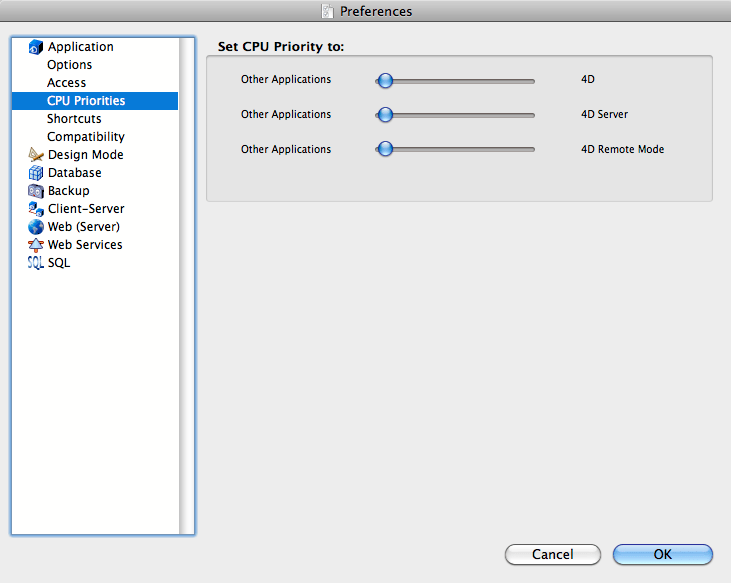
The corrected settings for CPU Priority are shown below. Click the image for a larger view.

20141001we-4th-dimension-database-preferences-cpu-utilization

The default setting is to have all three of the sliders in the middle setting (which causes a problem).

Although sliders are used, these actually don’t slide. There are three possible settings: low, medium, high.

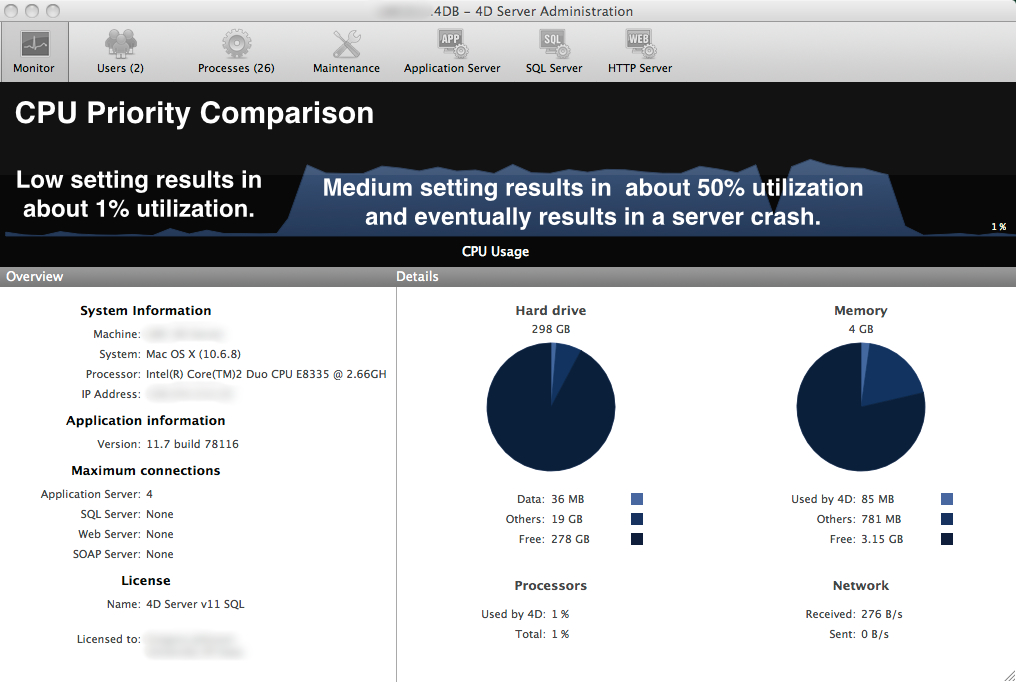
The chart below shows the CPU load difference when the CPU Priority is set to low compared to having the setting on medium priority. Click the image for a larger view.

20141001we-4th-dimension-database-preferences-cpu-utilization-chart-before-after

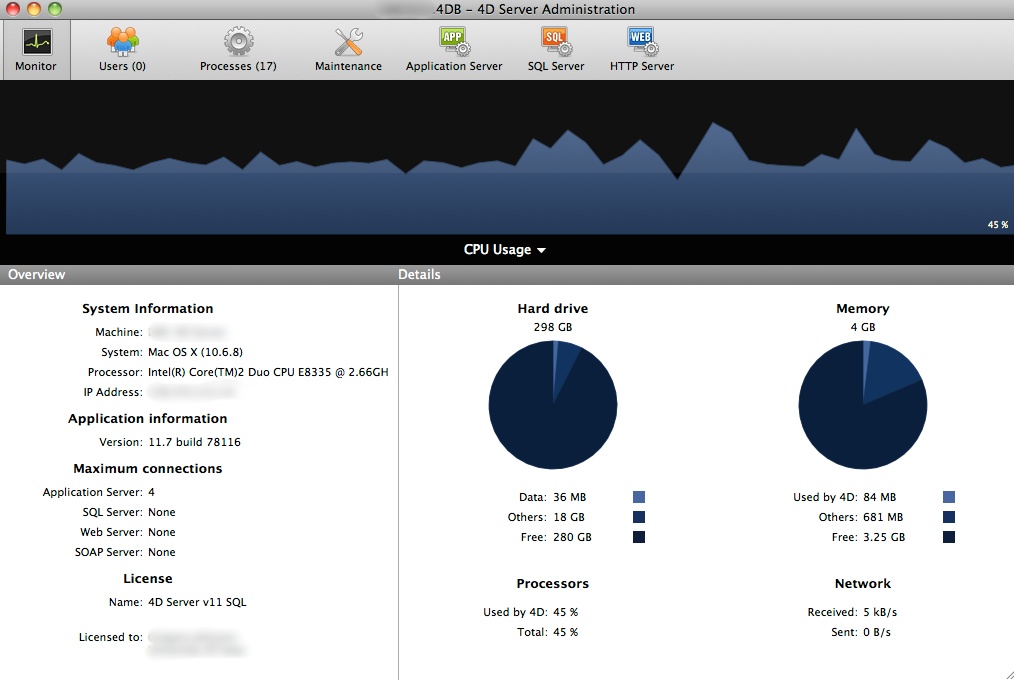
The image below shows the constant CPU utilization when the setting is in the default middle position. Click the image for a larger view.

20141002th-4th-dimension-4d-database-cpu-excessive-utilization

Checking an MD5 SHA-1 Checksum on an Apple Mac Computer

Summary. The MD5 Checksum (Message-Digest algorithm 5) is a cryptographic hash function with a 128-bit hash value. It is commonly used to verify the integrity and authenticity of files.

Instructions. Follow these instructions to confirm the checksum of a file using an Apple computer.

  1. You will need the checksum code associated with the file.
  2. Run the Terminal utility found in Applications > Utilities.
  3. In the Terminal window, type “md5″ and then a space, and then drag the downloaded file from the desktop or downloads folder into the Terminal window. This will cause the name of that file as well as its location to be pasted into the Terminal window.
  4. Press the Return/Enter key. This will generate the MD5 checksum value for that file.
  5. Compare the number generated to the one provided with the downloaded file. They should be identical. Type exit to exit the Terminal session. Then quit the Terminal utility.
Windows. For Windows users, an MD5 checksum utility can be downloaded from http://www.fourmilab.ch/md5/
For SHA on Apple, read this:
Additional reading:

How to get Microsoft Windows 10 Preview Download

There are a lot of lengthy and complicated articles describing how to Microsoft Windows 10.

Here’s a simpler approach to get your copy of Microsoft Windows 10 Preview, and what those other articles aren’t telling you.

You can just go to this Microsoft webpage and follow the instructions:

http://windows.microsoft.com/en-us/windows/preview

or, you can go to this page and download the full ISO (disc image):

http://windows.microsoft.com/en-us/windows/preview-iso

It’s that simple.

Virtual Computing

And to make your life easier, you may want to consider setting up a virtual computing environment for your new Windows 10 installation. This will allow you to test it out and not interfere with your own computing. To learn more about virtual computing, simply search on the terms Virtual PC or VMWare and find the right solution for your computer. Oracle offers a free virtual computing software alternative called VirtualBox.