Tech Q&A: Will the Windows 10 upgrade run on older computers?

Q: Will the Windows 10 upgrade run on older computers?

A: I’ve recently heard from customers of mine, who are self-described as technically challenged, yet were able to upgrade their older computers to Windows 10 with ease. I’ve been really impressed with how easy it’s been for most people to perform the upgrade, and equally impressed that Windows 10 is able to run well on older computers. Below are the full details of what Windows 10 requires to run.

Aside from a few easy to correct bugs for some people, the transition to Windows 10 has gone smoothly. I’ve written some articles on Windows 10 topics for those wanting more information.

Here are the primary Microsoft pages you’ll want to reference for a Windows 10 upgrade:

The challenges people might encounter aren’t necessarily hardware limitations. Instead, challenges arise when trying to use older software or older hardware (such as printers or scanners). There can also be problems for anyone with a computer that’s infected with a virus or having trouble starting for other reasons.

Yet, there are also the surprising stories of computers that were having trouble starting or running, and installing Windows 10 fixed those problems.

The basic hardware requirements for Windows 10 are very impressive. They are the same requirements as Windows 7 which was released in 2009. So, presumably, just about anyone with a 5-year-old computer running Windows 7, Windows Vista, Windows 8, or Windows 8.1 can run Windows 10. It’s a single operating system upgrade that spans over 6 years and four OS releases. That’s millions of computers.

The basic requirements for Windows 10 are 1GB RAM, 1GHz processor, and 16 GB of disk space. More details are below. Obviously, as with any system requirements, you’ll want to have something that’s above and beyond the basic requirements. These days, there are many computers with 4GB RAM and processors at 1.8 GHz or higher that can be purchased for about $100 used. That would more than meet the requirement for Widows 10.

Below are details from Microsoft’s website about Windows 10 requirements.


System requirements

If you want to upgrade to Windows 10 on your PC or tablet, here’s the minimum hardware you’ll need. Read further below to learn about the additional factors that impact upgradeability. For more information about the free upgrade offer1, please visit the Windows 10 Upgrade page for details.

  • Latest OS: Make sure you are running the latest version of either Windows 7 SP1 or Windows 8.1 Update.Don’t know which version you are running? Check here to find out. Need to download the latest version? Click here forWindows 7 SP1 or Windows 8.1 Update.
  • Processor:1 gigahertz (GHz) or faster processor or SoC
  • RAM:

    1 gigabyte (GB) for 32-bit or 2 GB for 64-bit

  • Hard disk space:16 GB for 32-bit OS 20 GB for 64-bit OS
  • Graphics card:DirectX 9 or later with WDDM 1.0 driver
  • Display:800×600

Important notes:

  • Windows 10 Home users will receive updates from Windows Update automatically when it’s available. Windows 10 Pro and Windows 10 Enterprise users will have the ability to postpone updates. The amount of time that Windows 10 Pro users can postpone updates is limited.
  • Small storage devices, like devices with 32GB hard drives or older devices with full hard drives, may need additional storage to complete the upgrade. You’ll see instructions during the upgrade telling you what to do. You may need to either remove unneeded files from your device, or insert a USB flash drive to complete the upgrade.
  • Some devices with either little free space available or smaller hard drives, like 32 GB storage PCs, may have little free space available after upgrading. You may free up disk space and easily delete files like temporary files or your previous version of Windows within the Storage system setting. Files for the previous version of Windows give you the option to remove Windows 10 and go back to your previous version of Windows. These files are automatically deleted a month after you upgrade. To free up space, you can delete them now.
  • An internet connection is required to perform the upgrade. Windows 10 is a large file — about 3 GB — and Internet access (ISP) fees might apply.
  • To check for device compatibility and other important installation information, visit your device manufacturer’s website. Manufacturer contact information can be found on the Contact Information page.
  • The upgradeability of a device includes factors beyond the system specification. This includes driver and firmware support, application compatibility, and feature support, regardless of whether or not the device meets the minimum system specification for Windows 10.
  • Support may vary by device. Find more information on the Windows Lifecycle page.
  • If your PC or tablet is currently running Windows 7 SP1 or Windows 8.1 Update, you can check to see if it meets the requirements by using ‘Check my PC’ in the Get Windows 10 app. To open the Get Windows 10 app, click on the small Windows icon found at the right end of the taskbar. If you don’t see it, visit our Windows 10 Q&A page for more info.
  • Many applications, files, and settings will migrate as part of the upgrade. However, some applications or settings may not migrate.
    • For anti-malware applications, Windows will check to see if your anti-malware subscription is current (not expired) and compatible during the upgrade.
    • If the anti-malware application is compatible and current, your application will be preserved during the upgrade to Windows 10.
    • If the anti-malware application is incompatible, Windows will uninstall your application while preserving your settings. After upgrade is complete, if your anti-malware provider has informed Microsoft that it has made a compatible version available for your active subscription, Windows will notify you to install the latest version available with the settings that were set prior to upgrade.
    • If your anti-malware subscription is not current (expired), Windows will uninstall your application and enable Windows Defender.
    • Some applications that came from your OEM may be removed prior to upgrade.
    • For certain third party applications, the “Get Windows 10” app will scan for application compatibility. If there is a known issue that will prevent the upgrade, you will be notified of the list of applications with known issues. You can choose to accept and the applications will be removed from the system prior to upgrade. Please be sure to copy the list before you accept the removal of the application.
  • Microsoft Family Safety child users with local accounts (accounts tied to the machine) will not have their safety settings migrated to Windows 10 during the upgrade. This means that after the upgrade to Windows 10 is complete, parents would need to setup safety settings for the child user along with a Microsoft account if they do not have one. To find out more about the changes, visit the FAQ page.

Feature deprecation

  • If you have Windows 7 Home Premium, Windows 7 Professional, Windows 7 Ultimate, Windows 8 Pro with Media Center, or Windows 8.1 Pro with Media Center and you install Windows 10, Windows Media Center will be removed. For a limited time (the “eligible period”), on systems upgraded to Windows 10 from one of these older versions of Windows (a “qualified system”), a DVD playback app (“Windows DVD Player”) will be installed. Note: the Windows DVD Player may not be installed immediately; it will be installed after the first successful Windows Update. The Windows DVD Player will be available for purchase from the Window Store for systems that (i) are qualified systems but the eligible period lapsed; (ii) are non-qualified systems; or (iii) were qualified systems but Windows 10 was subsequently clean installed (in this case, Windows Update cannot detect that it was previously a qualified system).
  • MDM functionality will not be available in Windows 10 Home edition when Windows 10 is released.
  • Windows 7 desktop gadgets will be removed as part of installing Windows 10.
  • Solitaire, Minesweeper, and Hearts Games that come pre-installed on Windows 7 will be removed as part of installing the Windows 10 upgrade. Microsoft has released our version of Solitaire and Minesweeper called the “Microsoft Solitaire Collection” and “Microsoft Minesweeper.”
  • If you have a floppy drive, you will need to download the latest driver from Windows Update or from the manufacturer’s website.
  • If you have Windows Live Essentials installed on your system, the OneDrive application is removed and replaced with the inbox version of OneDrive.
  • OneDrive does not support placeholder files in Windows 10. Windows 8.1 displayed placeholders for files available in OneDrive but not locally on the device. In Windows 10, users can choose which folders to sync from OneDrive settings.
  • Snap is limited to 2 apps in Tablet Mode.

Additional requirements to use certain features

  • Cortana is only currently available on Windows 10 for the United States, United Kingdom, China, France, Italy, Germany, and Spain.
  • Speech recognition will vary by device microphone. For a better speech experience, you will need a:
    • High fidelity microphone array
    • Hardware driver with microphone array geometry exposed
  • Windows Hello requires specialized illuminated infrared camera for facial recognition or iris detection, or a finger print reader which supports the Window Biometric Framework. Windows Hello with an Intel® RealSense™ (F200) camera requires a software update to work on Windows 8.1 devices after upgrading to Windows 10. This update is expected to be available soon.
  • Continuum is available on all Windows 10 desktop editions by manually turning “tablet mode” on and off through the Action Center. Tablets and 2-in-1s with GPIO indicators or those that have a laptop and slate indicator will be able to be configured to enter “tablet mode” automatically.
  • Continuum for phones limited to select premium phones at launch. External monitor must support HDMI input. Continuum-compatible accessories sold separately. App availability and experience varies by device and market. Office 365 subscription required for some features.
  • Music and video streaming through the Music or Movies & TV apps is not available in all regions. For the most up-to-date list of regions, please go to Xbox on Windows website. 
  • Xbox app requires an Xbox Live account, which is not available in all regions. For the most up-to-date list of regions, please go to Xbox Live Countries and Regions website 
  • Two factor authentication requires the use of a PIN, Biometric (finger print reader or illuminated infrared camera), or a phone with Wi-Fi or Bluetooth capabilities.
  • The number of applications that can be snapped will depend upon the minimum resolution for the application.
  • To use touch, you need a tablet or a monitor that supports multi-touch. Click here for more info on multitouch hardware requirements.
  • Microsoft account required for some features.
  • Secure boot requires firmware that supports UEFI v2.3.1 Errata B and has the Microsoft Windows Certification Authority in the UEFI signature database.
  • Some IT administrators may enable Secure Logon (Ctrl + Alt + Del) before bringing you to the log in screen. On tablets without a keyboard, a tablet with the Windows button may be required, as the key combination on a tablet is Windows button + Power button.
  • Some games and programs might require a graphics card compatible with DirectX 10 or higher for optimal performance.
  • BitLocker To Go requires a USB flash drive (Windows 10 Pro only).
  • BitLocker requires either Trusted Platform Module (TPM) 1.2, TPM 2.0 or a USB flash drive (Windows 10 Pro and Windows 10 Enterprise only).
  • Client Hyper-V requires a 64-bit system with second level address translation (SLAT) capabilities and additional 2 GB of RAM (Windows 10 Pro and Windows 10 Enterprise only).
  • Miracast requires a display adapter which supports Windows Display Driver Model (WDDM) 1.3, and a Wi-Fi adapter that supports Wi-Fi Direct.
  • Wi-Fi Direct Printing requires a Wi-Fi adapter that supports Wi-Fi Direct and a device that supports Wi-Fi Direct Printing.
  • To install a 64-bit OS on a 64-bit PC, your processor needs to support CMPXCHG16b, PrefetchW, and LAHF/SAHF.
  • InstantGo works only with computers designed for Connected Standby.
  • Device encryption requires a PC with InstantGo and TPM 2.0.

Upgrade editions

We’ll keep you on like-to-like editions of Windows. For instance, if you are using Windows 7 Home Premium, you’ll upgrade to Windows 10 Home.

Windows 72

From Edition To Edition
Windows 7 Starter Windows 10 Home
Windows 7 Home Basic
Windows 7 Home Premium
Windows 7 Professional Windows 10 Pro
Windows 7 Ultimate

Windows 83

From Edition To Edition
Windows Phone 8.15 Windows 10 Mobile
Windows 8.14 Windows 10 Home
Windows 8.1 Pro Windows 10 Pro
Windows 8.1 Pro for Students

“N” and “KN” editions follow the upgrade path of the parent edition (e.g., Windows 7 Professional N upgrades to Windows 10 Pro N).

Some editions are excluded: Windows 7 Enterprise, Windows 8/8.1 Enterprise, and Windows RT/RT 8.1. Active Software Assurance customers in volume licensing have the benefit to upgrade to Windows 10 Enterprise offerings outside of this offer.

See the Windows 10 Editions page to view and compare the key features that are available in each edition of Windows 10: Windows 10 Home and Windows 10 Pro

Windows 10 full localization languages

Arabic (Saudi Arabia), Bulgarian (Bulgaria), Chinese (Simplified, China), Chinese (Hong Kong), Chinese (Traditional, Taiwan), Croatian (Croatia), Czech (Czech Republic), Danish (Denmark), Dutch (Netherlands), English (United Kingdom), English (United States), Estonian (Estonia), Finnish (Finland), French (France), French (Canada), German (Germany), Greek (Greece), Hebrew (Israel), Hungarian (Hungary), Italian (Italy), Japanese (Japan), Korean (Korea), Latvian (Latvia), Lithuanian (Lithuania), Norwegian, Bokmål (Norway), Polish (Poland), Portuguese (Brazil), Portuguese (Portugal), Romanian (Romania), Russian (Russia), Serbian (Latin, Serbia), Slovak (Slovakia), Slovenian (Slovenia), Spanish (Spain, International Sort), Spanish (Mexico), Swedish (Sweden), Thai (Thailand), Turkish (Turkey), Ukrainian (Ukraine)

Additional languages available as Language Interface Packs

1 Windows Offer Details

Yes, free! This upgrade offer is for a full version of Windows 10, not a trial. 3GB download required; internet access fees may apply. To take advantage of this free offer, you must upgrade to Windows 10 within one year of availability. Once you upgrade, you have Windows 10 for free on that device.

Windows 10 Upgrade Offer is valid for qualified and genuine Windows 7 and Windows 8.1 devices, including devices you already own. Some hardware/software requirements apply and feature availability may vary by device and market. The availability of Windows 10 upgrade for Windows Phone 8.1 devices may vary by OEM, mobile operator or carrier. Features vary by device. Devices must be connected to the internet and have Windows Update enabled. Windows 7 SP1 and Windows 8.1 Update required. Some editions are excluded: Windows 7 Enterprise, Windows 8/8.1 Enterprise, and Windows RT/RT 8.1. Active Software Assurance customers in volume licensing have the benefit to upgrade to Windows 10 Enterprise offerings outside of this offer. To check for compatibility and other important installation information, visit your device manufacturer’s website and the Windows 10 Specifications page.

Windows 10 is automatically updated. Additional requirements may apply over time for updates. See the Windows 10 Upgrade page for details.

2 Must be running the latest version of Windows 7 (Service Pack 1) to receive the free upgrade to Windows 10 via Windows Update.

3 Must be running the latest version of Windows 8 (Windows 8.1 Update) to receive the free upgrade to Windows 10 via Windows Update.

4 Also applies to Windows 8.1 country specific editions, Windows 8.1 Single Language, Windows 8.1 with Bing.

5 The availability of Windows 10 upgrade for Windows Phone 8.1 devices may vary by OEM, mobile operator or carrier.

6 A metered Internet connection is when a service provider charges by the amount of data sent and received by your PC. Windows 10 is a large file: about 3 GB. Before you start the download on a metered Internet connection, be sure to:

Check your current usage, and then figure out if this download might result in additional charges.

Allow enough time for the download to finish. Most people with a broadband Internet connection complete the download in an hour or two, but download times will vary based on your connection speed and other factors.
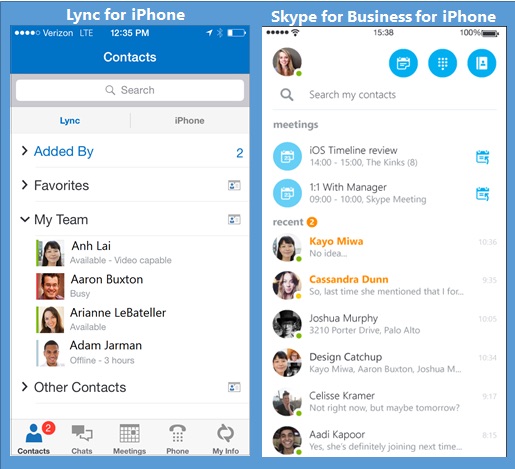
Skype for Business is coming to iOS

Soon Lync for iOS devices (iPhone and iPad) will become Skype for Business. The change brings a fresh new look and simplified controls to all the features and functionality you already know.20151010sa2112-skype-for-business

We realize that you have some questions about what the change means for you. Read on!

Why the change?

This evolution combines the ease and familiarity of Skype with the communication and collaboration features of Lync and enables you to conduct your business through an enterprise-grade secure platform using the devices you already have.

What’s new in Skype for Business for iOS?

Skype for Business for iOS includes a new look and feel, at-a-glance view of your upcoming meetings and conversation history, easy call control, and other improvements. And, if your organization uses Skype for Business Server 2015, the ability to communicate with your Skype contacts using IM, audio call, and video call.

Will the update happen automatically?

A limited set of customers is participating in the technical preview. Those customers will receive an email notification with download instructions. Once the final release becomes available later this year, all Lync users, including technical preview participants, can go to the App Store to download it. (Technical preview participants should delete the preview version before installing the final release from the App Store.)

How can I participate in the technical preview program?

The technical preview program is now closed.

Does Skype for Business run on all versions of iOS?

Skype for Business runs on iOS 8.0 and later. If you’re using Lync on an earlier version of iOS, continue to use it.

I’m using Lync 2013 for iOS but my desktop has Skype for Business

The update to Skype for Business will be available through the App Store to all users with iOS version 8.0 or later. To see which version you have, tap Settings (Settings button on the iPhone and iPad) > General > About. Once the update is installed, your contacts and meetings will be there and will work just like they did in Lync. If you’re using an earlier version of iOS, you’ll continue to use Lync 2013.

I’m using Lync 2013 for iOS and my desktop also has Lync 2013

The update to Skype for Business will be available through the App Store to all users with iOS version 8.0 or later. To see which version you have, tap Settings (Settings button on the iPhone and iPad) > General > About. Once the update is installed, your contacts and meetings will be there and will work just like they did in Lync. If you’re using an earlier version of iOS, you’ll continue to use Lync 2013.

I’m using Lync 2010 for iOS and my desktop also has Lync 2010

You will not be able to update to Skype for Business.

I’ve never used Lync or Skype for Business on my iPhone or iPad. Where do I get it?

To use Skype for Business for iOS you need a Skype for Business or Lync account—typically the same user name and password you use when signing in at work or school. If you’re already using the desktop version of Skype for Business, then you have a Skype for Business account. Once the released version is available, you’ll be able to download it from the App Store. See Download, install, and sign in to Skype for Business for iOS devices for more information.

I don’t have an iPhone or iPad. Is Skype for Business available for Android or Windows Phone?

Skype for Business for Windows Phone is available now. See Download, install, and sign in to Skype for Business for Windows Phone 8.1 for details. Skype for Business for Android is now in technical preview. See Skype for Business is coming to Android for more information.

See Also

[Source: Microsoft]

Software for Working with Copy-protected DRM DVD Videos

The Problem of Copyright Violations

The entertainment industry spends millions of dollars to create the movies and television shows we enjoy. Actors, producers, directors, filming crews, set designers, stunt people, and other contributors get paid. Through theater ticket sales, rentals, and DVD sales, the cost of producing movies is recovered.

When people illegally obtain, copy, and re-distribute videos, it harms the entertainment industry. The costs that might otherwise be spread across many consumers becomes a burden shifted onto those who obey the law. Some pay nothing, and the rest of us make up the difference. It’s simply not fair.

We All Pay the Price for Copyright Violations

Those who skirt the law, console themselves with the notion that they are ‘sticking it to the man’ by not letting their money go to the big corporations and millionaires at the top of the entertainment industry pyramid. It’s certainly disconcerting in any industry to see such large discrepancies between the super rich, and the working poor who’s backs their wealth is made on. However, stealing isn’t the answer.

Fair Use of Movies and Other Media

The remainder of this document is intended to provide information about technologies intended for the fair use of copyrighted movies and other media. Please do not use this guide for illegally copying and distributing media.

Federal law provides for the fair use of media described as follows:

In United States copyright law, fair use is a doctrine that permits limited use of copyrighted material without acquiring permission from the rights holders. Examples of fair use include commentary, search engines, criticism, parody, news reporting, research, teaching, library archiving and scholarship. It provides for the legal, unlicensed citation or incorporation of copyrighted material in another author’s work under a four-factor balancing test:

  1. Purpose. The purpose and character of the use, including whether such use is of a commercial nature or is for nonprofit educational purposes.
  2. Nature. The nature of the copyrighted work.
  3. Amount. The amount and substantiality of the portion used in relation to the copyrighted work as a whole.
  4. Impact. The effect of the use upon the potential market for or value of the copyrighted work.

An example of fair use might be the playing of a short video clip from a longer movie in class. More information is available in the Wikipedia article on Fair Use.

Technological Barriers to Copyright Violations

Because people will inevitably seek out ways to break the law, those in the entertainment industry have sought out ways to make it more difficult to break the law. It would be like the automotive industry making cars that won’t go faster than 80 miles per hour to prevent people speeding beyond the maximum allowable highway speed. So, in the same way technological barriers are put in place to make illegal copying of media very difficult. Unfortunately, this inhibits the legally protected fair use of media.

Technologies are available for those willing to comply with the fair use guidelines above. Keep in mind that a gray area is point #4 regarding the financial impact. For example, it’s conceivable that the production costs of a movie might be recuperated through theaters, DVD sales, television ad revenue, and services like Netflix. Prices are set accordingly, and the various delivery methods are protected.

Personal Viewing of Purchased DVDs on Alternate Media

One of the more common uses of copied media, that isn’t directly addressed in the fair use guidelines is the copying of purchased media for personal use in another form. No profit is being made and presumably it’s not impacting sales.

Here’s the possible argument against making alternate forms of purchased media. If you purchase a DVD and then copy it to your computer to be played on your iPad, you might think you’ve not impacted the financial revenue of the movie. However, the income from streaming delivery sales through services like Netflix produces revenue. Having an alternate viewing experience (on the iPad rather than using a DVD player) is something that the production company may have planned on making money from. So, by not watching a movie on Netflix, and instead copying your DVD to your iPad, you may be impacting revenue.

The counter argument to the above is this… Copying your DVD to your iPad certainly does not have the same financial impact as someone who is copying videos and redistributing them on a massive scale. Given that streaming data speeds are limited, and data plans are very costly, it’s unlikely that anyone would watch a full-length feature movie very far from WiFi. In other words, making one’s own movies for use on an iPad while mobile is not cutting into Netflix or other online streaming video revenue. So, it could be argued that it’s within someone’s right to make an alternate form of a purchased video. Indeed, some DVDs come with free access to a streaming version of the movie — perhaps a copy you can download on the Google Play store or in your Amazon account.

Software for Working with Copy-protected DRM DVD Videos

Give the context and legalities described above, here is a software solution for working with copyrighted media.

  1. Purchase Wondershare Video Converter Ultimate.
  2. Visit the ProtectDVD.com website to obtain the free DRM and DVD copy protection plugin.

* Warning: Inappropriate use of this software could result in prison time and thousands of dollars in fines.

Apple Message: “You need to install the legacy Java SE 6 runtime”

You may get a message similar to the one below indicating that you need to install the legacy Java SE 6 runtime.

20151003sa2325-legacy-java-se-6-runtime

If you click the OK button, the message will go away. If you click the More Info button, you’ll be taken to this page:

https://support.apple.com/kb/DL1572

Here is the information provided on that page.

Java for OS X 2015-001

[Download Link]

Java for OS X 2015-001 installs the legacy Java 6 runtime for OS X 10.11 El Capitan, OS X 10.10 Yosemite, OS X 10.9 Mavericks, OS X 10.8 Mountain Lion, and OS X 10.7 Lion.

This package is exclusively intended for support of legacy software and installs the same deprecated version of Java 6 included in the 2014-001 and 2013-005 releases.

Quit any Java applications before installing this update.

See http://support.apple.com/kb/HT6133  for more details about this update.

See http://support.apple.com/kb/HT1222 for information about the security content of this update.

Keep your software up to date. If you need Java, download the latest version of Java for OS X directly from Oracle https://www.java.com

NOTE: Older versions may be found at:  http://support.apple.com/kb/DL1829

Post Date: Jul 22, 2015

File Size: 63.98 MB

Installation

If you download the Java file and install it, you’ll get this message during installation:

Java for OS X 2015-001 installs the legacy Java SE 6 runtime.

This package is exclusively intended for support of legacy software, and installs the same deprecated version of Java SE 6 included in the 2013-005 release. If you require Java for applets or other non-legacy uses it is recommended you download the latest version of Java from https://java.com.

Please quit any Java applications before installing this update.

See https://support.apple.com/kb/HT6133 for more details about this update.

See https://support.apple.com/kb/HT1222 for information about the security content of this update.

Page Visitors

The maps below show recent visitors to this page. Click any map for a larger gallery view.

Deciding whether or not to use the included software…

Cameras, video recorders, scanners, wireless network adapters, printers, and other devices typically come with included software from the manufacturer. Here’s a quick list of points to consider when trying to decide what software to use.

Types of Software

There are a few types of software that might come with electronics:

  • Limited. Sometimes limited software will ship with a device. This means that it will do most tasks and functions okay, but you may end up wanting to purchase a version with more features.
  • Open Source. An LP turntable (record player), for example, might include Audacity software which is open source. It’s free, but support may be limited.
  • Proprietary. Some vendors include their own proprietary software. Canon or Sony video recorders may come with video transfer and editing software that’s proprietary to those companies. Such software may have nice features which become the determining factor in a purchase. A customer might purchase a Canon video recorder because they really like the included software.
    • Benefits. The benefit is that it’s free and supported by the manufacturer. It’s usually more likely to be compatible with your device. When getting support, the manufacturer will be more willing and able to help if the hardware and software is their own.
    • Drawbacks. The drawback is that sometimes manufacturers discontinue a software program, or switch to a different one — perhaps contracting with a different company to develop a solution. If you need to move to another software program, it might not be easy to get your projects or data transferred.
  • Third-Party. Some vendors will include the full version of commercial software. For example, it’s typical for scanners (or multifunction devices) to come with scanning software from the manufacturer, but the OCR (optical character recognition) software may be a full-version of commercially available software from a third-party (such as Readiris).
    • Benefits. The advantage to using commercial software is that there will likely be future versions released and support may be better. Many commercial software programs are designed to work well with others, so importing or exporting information may be easier. If it’s broadly used, then there may be more resources such as online forums where you can get answers or suggestions.
    • Drawbacks. If you’re using a third-party program with a device and have trouble, you may have difficulty getting support. The hardware vendor may say, “It’s the software you’re using.” The software vendor may say, “We can’t help you. It’s a problem with the hardware.”
  • Trial. Some devices come with trial software that will stop working after a certain time period such as 30 days.
    • Benefits. You get to try some software and see if you like it.
    • Drawbacks. You’ll need to purchase the software to continue using it.
  • Trojan. Sometimes a manufacturer will ship software with a device and the software includes other programs that are installed as well. Usually the vendor gets paid to sneak other software in without the user being aware. There will generally be some fine print explaining that you’re agreeing to other programs being installed on your computer. So, be careful when you’re installing to make sure you’re only installing the necessary software.

Download or CD?

Some equipment comes with software on a CD or DVD. Others require that  you download the software. For many, you get a CD and can also download the software if you wish. With a download, you’re certain to get the latest software that’s ideally suited for your operating system and device. However, on occasion, the downloaded software isn’t as fully featured as the software on the CDs. This may be because third-party providers don’t want their software publicly available for download. For example, a scanner may come with drivers, scanner software, and third party software such as ReadIRIS OCR software. When you download the software from the manufacturer, you’ll get everything except for the ReadIRIS software. For multi-function devices, the downloaded software may include additional software that wasn’t originally included on the CD. So, it really depends on the circumstance.

Types of Devices

Here are considerations for various devices.

  1. Audio Recorder. For a long time, Sony and Olympus audio recorders came with proprietary software from the manufacturers. You couldn’t get the audio off the recorders without the correct software. A problem people would have is that after a few years, the software wouldn’t be supported by the manufacturer and the old software would no longer be compatible with new operating systems. So, you’d be stuck with a non-working audio recorder, or you’d need to stay with Windows 98 in order to keep it working. Newer audio recorders can be read on any computer using a USB cable without any special drivers or software. They record to MP3 audio files, so no conversion is needed.
  2. Cameras. Most cameras don’t need any special software. However, compatibility could be an issue. For example, on Apple computers, you’ll periodically see updates that are intended to allow the computer to recognize more cameras. That’s good news, but it also means there are still some that aren’t recognized. Fortunately, with photos and videos recorded to memory cards, you can access your photos and videos by other means.
  3. Network Cards. Network cards, and especially USB wireless network cards, almost always come with drivers and special software. Often you’ll have a choice when installing to select drivers only, or drivers and software. If you select drivers only, you’ll be using the Windows software to connect to wireless networks. That’s a familiar interface. If you use the manufacturer’s software, you’ll have something new to learn, and it’s one more layer of complexity installed on your computer that could break down. The only reason to use the manufacturer’s software would be to take advantage of some special features. Maybe their software does something special. For example, diagnostics of signal quality and power would likely be better.
  4. Printers. Printers typically come with drivers, software, and third party utilities (if you have a multifunction printer). When you plug your printer in, your Windows or Apple computer should recognize it and allow you to do basic printing with the software you already have as part of your operating system. Some people prefer this because it reduces the software installed in your computer resulting in less to break down. Other people prefer to install all the software available for the printer. Often during the installation process, you can choose how much or how little you’d like to install. Software included with the printer may provide added features for checking ink level and being notified of the printer status.
  5. Scanners. Scanners typically come with drivers, software, and third party utilities. It’s sometimes possible to avoid using all of these. When you plug your scanner in, your Windows or Apple computer should recognize it and allow you to do basic scanning with the software you already have as part of your operating system. Some people prefer this because it reduces the software installed in your computer resulting in less to break down. Other people prefer to install all the software available for the scanner. Sometimes this even includes photo album making software. Often during the installation process, you can choose how much or how little you’d like to install.
  6. Video Recorders. It’s still true that some models of video recorders, such as some from Cannon, require special software. For example, with Cannon, you may need special software and drivers or the camera won’t be recognized on Apple computers. However, most cameras don’t require special software. You can connect them to any computer, and immediately view or edit the MP4 video files. It’s good to check ahead of time about compatibility. The AVCHD video format for HD video is becoming more accepted by various computer programs. In the past, it was a difficult format to work with.

Examples

Here are some specific examples of software to consider for use.

Dell Backup and Recovery Premium

Computers (and external hard drives) often ship with included backup software. The software is free, and typically works okay. With Western Digital hard drives, for example, the free software is full featured and there’s nothing more to buy. However, with Dell, a person must pay for the Dell Backup and Recovery Premium software. What’s ironic is that backup software often doesn’t do anything beyond what the built-in Windows backup program already offers for free.

With any specialty software, you need to ask yourself one simple question. If your computer indeed does crash, and you replace it with another from a different manufacturer, how would you ever get the backup software again? Is it available for sale in the store or online? Typically the answer is no. So, if you want your files back, you’re locked into purchasing from the same manufacture again — in hopes that they still offer the same software they did several years ago.

Ultimately, a person is better off paying for commercial backup software or paying for a backup cloud service if they need some features beyond what Windows already offers for free. Software like Acronis True Image can provide a backup solution with more features than a typical Windows backup.

Below is a screen shot of the offer you’ll see on a Dell computer for the Dell Backup and Recovery Premium software.

20151004su1218-dell-backup-recovery-software

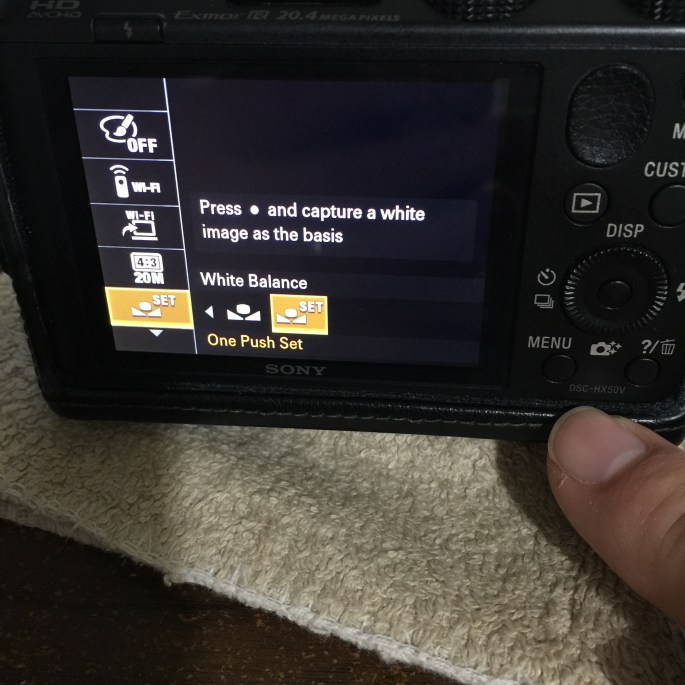
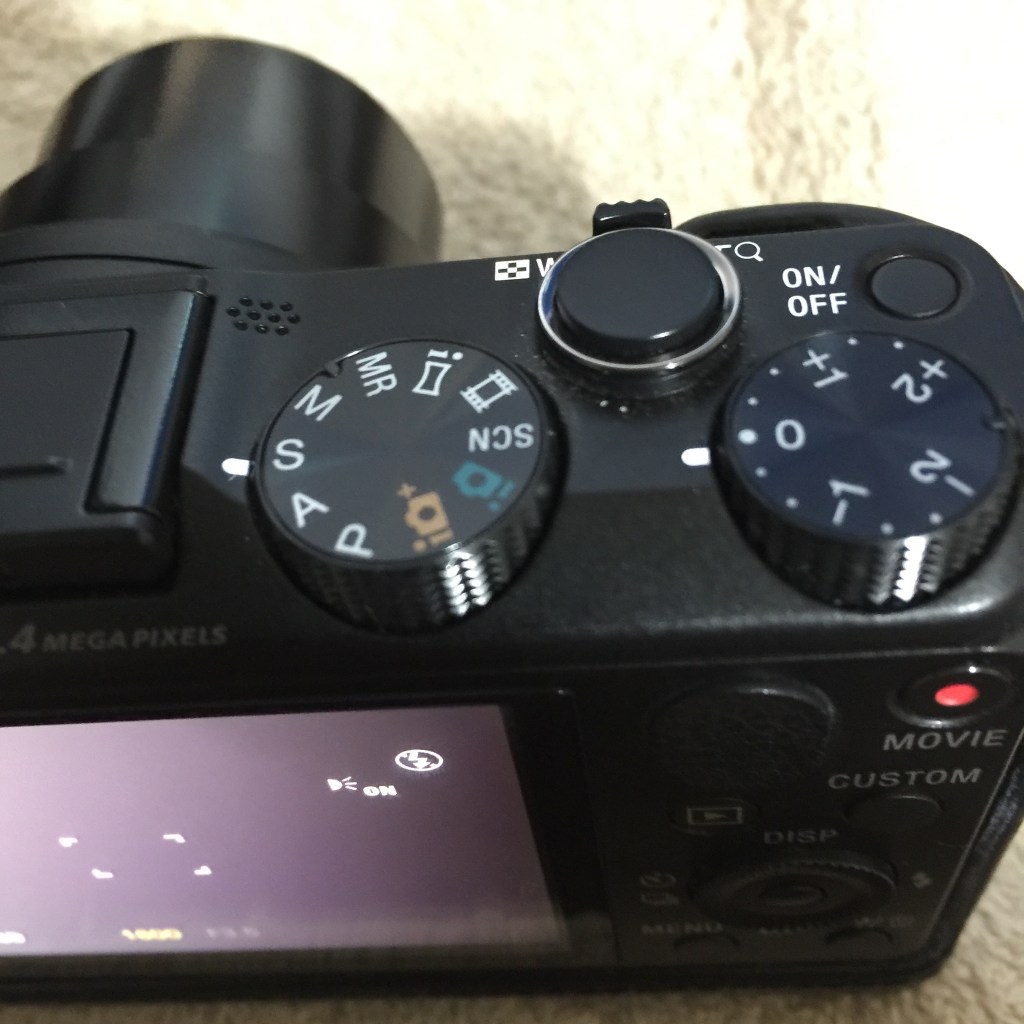
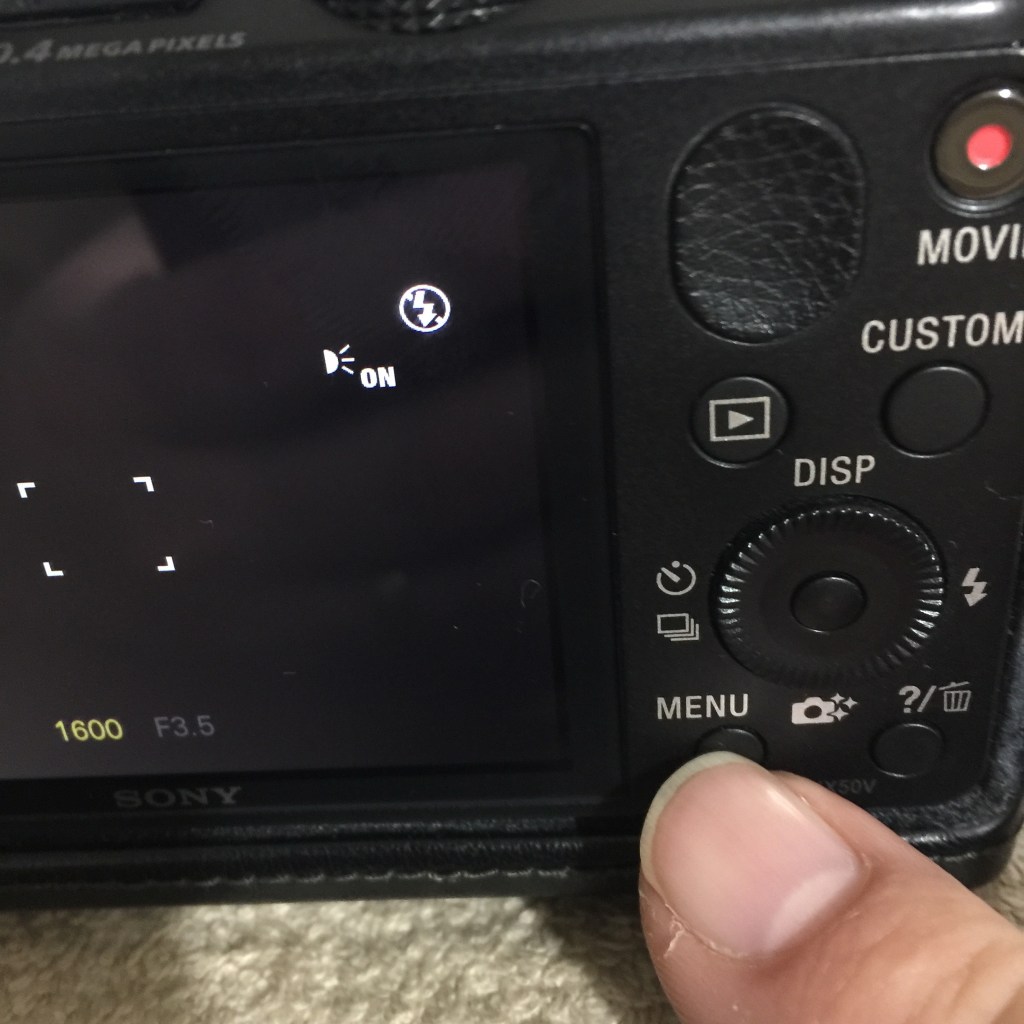
Sony DSC-HX50V Manual White Balance Setting

Follow these instructions to manually configure white balance for the Sony DSC-HX50V.

  1. Set Camera Mode – S. Depending on what mode the camera is in,  the available custom settings change. For example, in the fully automatic mode, when you press the Menu button, the manual white balance setting won’t be available.
    20150927su0041-sony-dsc-hx50v-white-balance-IMG_2059
  2. Press the Menu Button. To access the custom settings for the S Mode, press the Menu button as shown below.
    20150927su0041-sony-dsc-hx50v-white-balance-IMG_2063
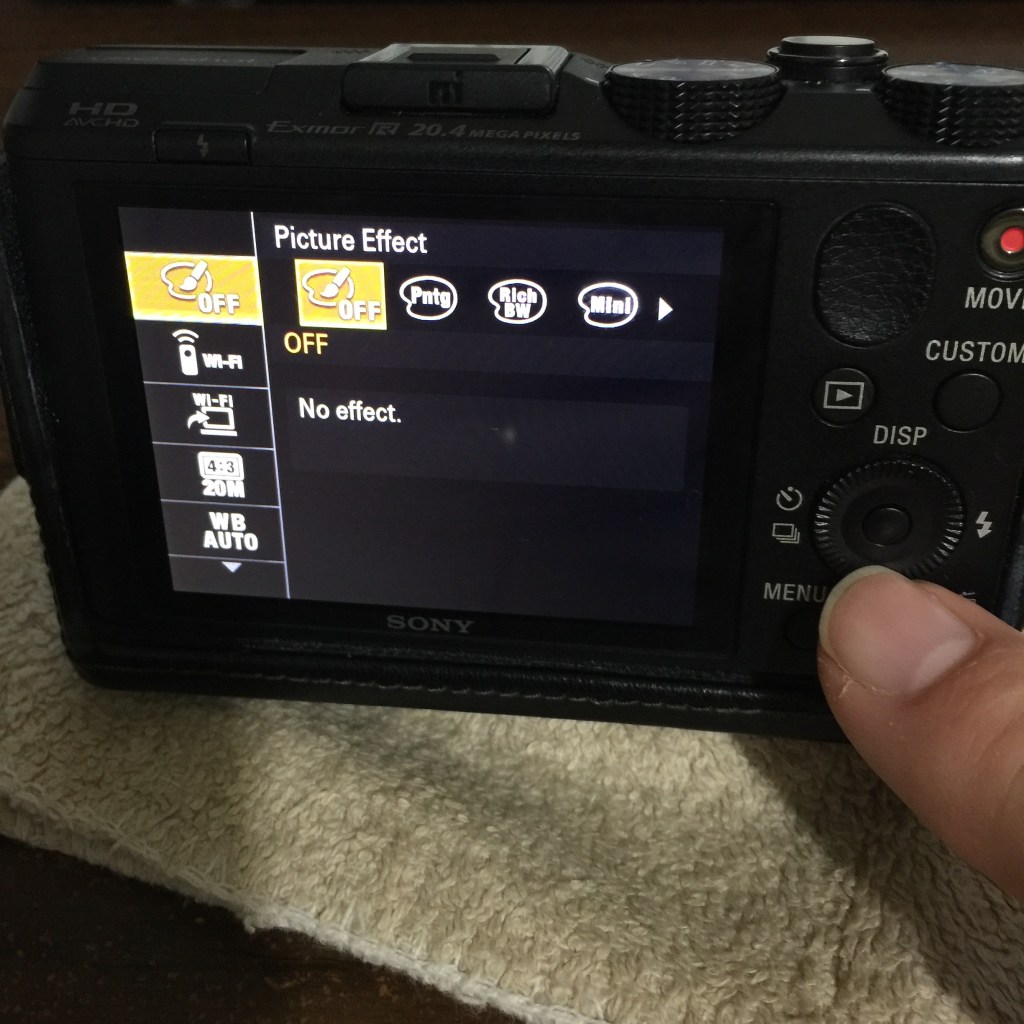
  3. Navigate Options Menu. When the custom options menu appears, the options will be in a column of icons on the left of the screen. You can navigate up and down to select a sub-menu by pressing the top edge or bottom edge of the circular ring. In the example here, you’ll push the bottom of the round ring four times until the highlighted menu is WB AUTO. The name or icon may be different for your camera depending on what mode you’re currently in.
    20150927su0041-sony-dsc-hx50v-white-balance-IMG_2064
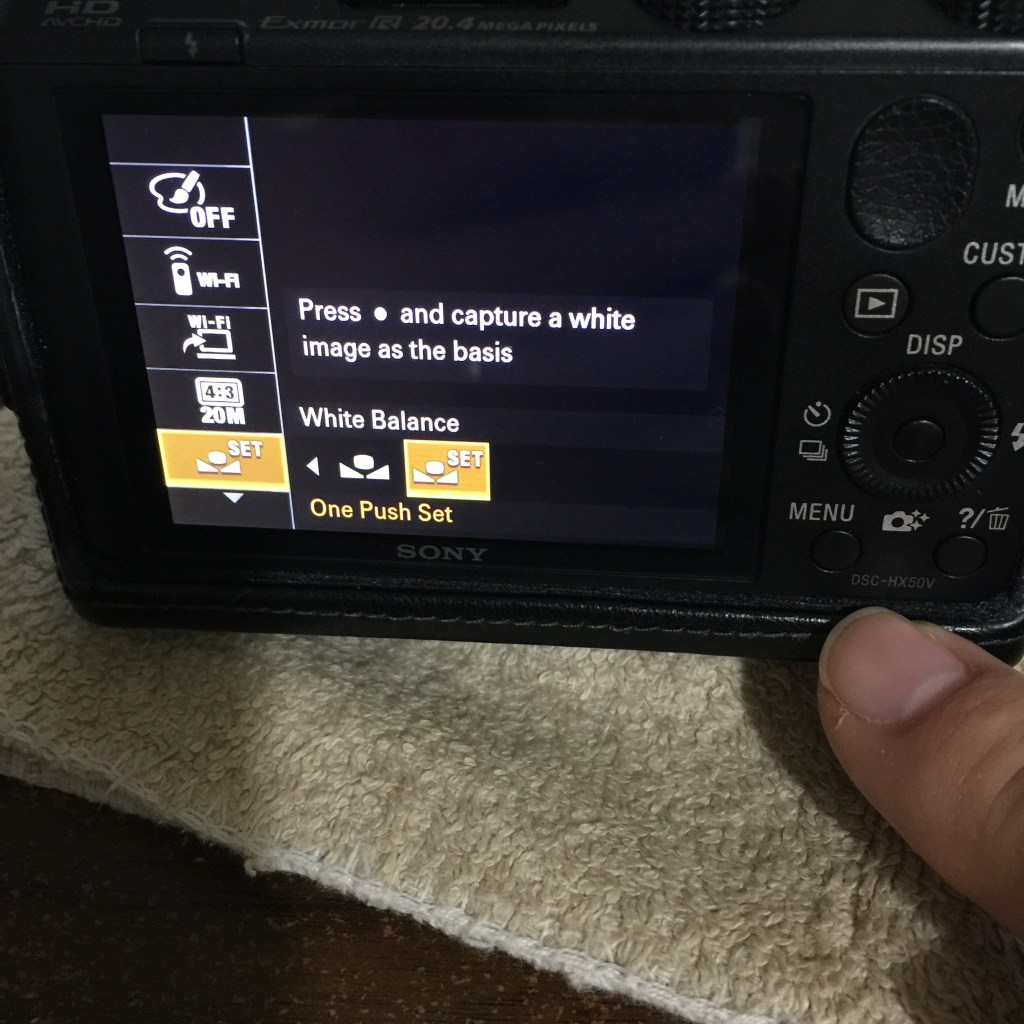
  4. White Balance Options. Once you’ve highlighted the White Balance menu, press the right edge of the selector ring to move right and select the White Balance option you want. In the example below, the last setting on the far right of the available options is the One Push Set option that gives you the ability to frame in a white piece of paper or other solid white matt finished object in the viewfinder and then push the button in the middle of the selector ring. After that, the white balance will be set and the camera will be in One Push white balance mode.
    20150927su0041-sony-dsc-hx50v-white-balance-IMG_2066

Bitdefender Antivirus Total Security Suite 2016 Website Errors and Support Issues

Summary

The Bitdefender suite of antivirus and computer security programs recently received the rating of best product in class for Consumer Reports as well as a number one rating from other software reviewers such as articles in PC Magazine and PC World. Those using the product will enjoy its speed and simplicity. However, there are some errors and problems you’ll likely encounter when using their product and website.

Update: 7 October 2015

We received a nice response from a representative at Bitdefender regarding the concerns we’ve identified below. Hopefully we’ll see some fixes soon. Here’s their response:

7 October 2015

We apologize for any negative experience you have encountered with our products or our support. Your feedback is appreciated, and will be directed to the appropriate team for review, to enable us to improve our support and services.

If you wish to give us another chance, we would be more than happy to assist you and we will strive to provide you with the best support possible. We value all our customers thus you have all our attention if you have any other questions or need additional help.

Thank you for taking the time Greg, and please do not hesitate to contact us if you need further details from us.

Have a nice day!

Best regards,
Ionut Tacu
Bitdefender Support Team

Update: 25 September 2015

We finally received a reply from Bitdefender regarding some of our questions. Apparently the Bitdefender Central and MyBitdefender are two separate portals that do similar things. It’s possible to register with both portals. The other questions on this page remain unanswered. One of our questions was with regard to earning commissions on referrals. We did get an answer to that. So, we’re now an official Bitdefender partner and reseller, which provides some additional motivation to see that the company gets these issues resolved. However, after signing up as an affiliate, the submission confirmation page indicated that we’d receive an email with login information. That never arrived. We’re still waiting for answers to the other questions below.

Your Account Needs to be Activated Error

When you login to the My Bitdefender portal, you’ll likely see a notification stating, “Your account needs to be activated. Click here to receive an email with the activation link.” Most of the time, clicking where indicated doesn’t generate an email. If you ever get an email with an activation link, clicking the activation link never works to activate your account so the notification never goes away. Below is an example of the notification.

20150921mo0137-bitdefender-activate-account

License Transfer Issues

Within the 2015 version of Bitdefender, when you click on the ‘days left’ link, you’d have an option to deactivate a license on a computer that you planned to discard, sell, or give away. However, as of the 2016 version, this is no longer an option. So, a crashed computer or system that you otherwise don’t have access to any longer will result in you losing one of the license installs that you paid for.

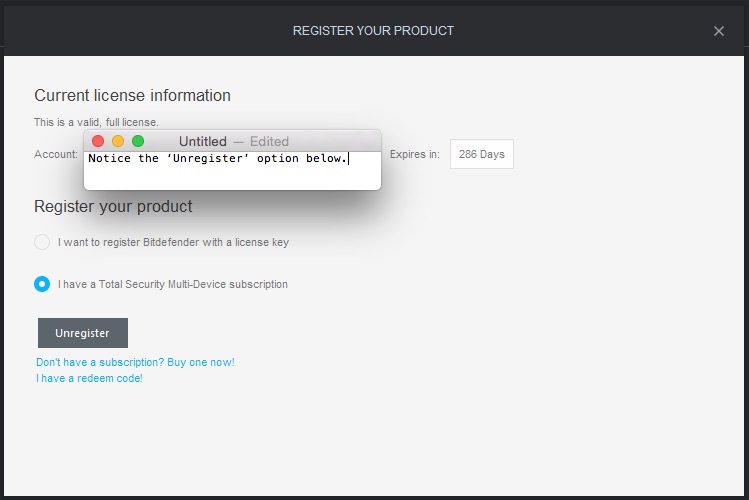
The screen shots below show how you can unregister with the 2015 version.

Click on the ‘days left’ link in the lower left shown here.

20150921mo0229-bitdefender-total-security-2015-days-left-unregister-option

Then click on the Unregister button shown below.

20150921mo0221-bitdefender-unregister-option-missing-in-2016

The Unregister option has been removed from Bitdefender Total Security 2016. Whenever companies remove useful features, consumers generally complain and are frustrated.

Problems Installing Legitimate Programs

As of 11 October 2015, when on an Apple computer with Bitdefender 2016, an attempt to install Skype would not work. When copying the Skype program to Applications as instructed by the Skype installation, the progress bar would remain stuck at 0% complete. No indication was provided to suggest that Bitdefender was blocking the copy/install process. However, when Bitdefender Autopilot was turned off, Skype instantly copied to the Applications folder successfully.

Subscription Days Remaining Error

The screenshot below is from a Bitdefender installation on an Apple computer that has 266 days remaining in the subscription. However, in the lower right corner it’s reported that there are zero days left in the subscription. Some people might think they need to purchase a new subscription, so they will click on the Buy button and mistakenly purchase another subscription.

20151011su0639-bitdefender-subscription-shows-0-days

Bitdefender Central, as shown below, confirms that there are 266 days remaining for the above installation. Bitdefender Central maintains a real-time connection with the Bitdefender client software installed on the computer, so if there were any issues, they should showup in the Bitdefender Central display.

20151011su0639-bitdefender-subscription-shows-266-days

Support Request Page Failure

If you attempt to submit a support request ticket on the Bitdefender contact page you’ll likely be frustrated by the fact that their submit button doesn’t work. The Java code fails. This can be a problem for those wanting support. We’ve tested this on Windows and Apple computers running multiple operating system variations and using different browsers. With some browsers the CAPTCHA authentication works, and a photo-based quiz shows up to confirm you’re not a robot, but on others the CAPTCHA doesn’t work. Even when the CAPTCHA works, the Submit button still doesn’t work. This may happen after you’ve submitted one request successfully and a second request isn’t permitted. However, no message indicates why the submit isn’t working.

Affiliate, Reseller, Partner Program

Bitdefender has an affiliate / reseller / partner program. When you’re approved, you have access to a partner portal. However, the software available through the portal is last year’s software, and there doesn’t seem to be an easy way to generate simple advertisements and links (as with other affiliate programs). On October 5, an email sent to partnerprogram@bitdefender.com received an out-of-office auto reply stating, “Thank you for your message, please note that I will be out of office until 12th October. I will have limited access to my emails and they will not be forwarded.” So, apparently the one person in charge of the partner program is on vacation.

Update: It seems that Bitdefender has a partner program for support and separate affiliate programs for those wanting commissions on sales. At least of the affiliate networks is OneNetworkDirect.com where you can signup and then get advertising links to Bitdefender and other programs.

Password Reset Emails Never Received

If you attempt to login to one of the portals such as central.bitdefender.com and click the reset password link, you’ll be told that an email is going to be sent, but it never gets sent. This was documented on 22 September 2015.

Missing Operating Systems

Some of the glaring errors and oversights with the Bitdefender website make one a bit concerned about whether or not they have sufficient staffing. For example, on the contact page, the dropdown lists of operating systems are about a year old with Apple at 10.9 and Windows at version 8.1 the latest operating systems are missing. This is something that most companies would update as soon as they become available. Below is a screenshot of the operating system dropdown menu.

20150921mo0155-bitdefender-contact-page-computer-operating-systems-dropdown

404 Error – Page Not Found

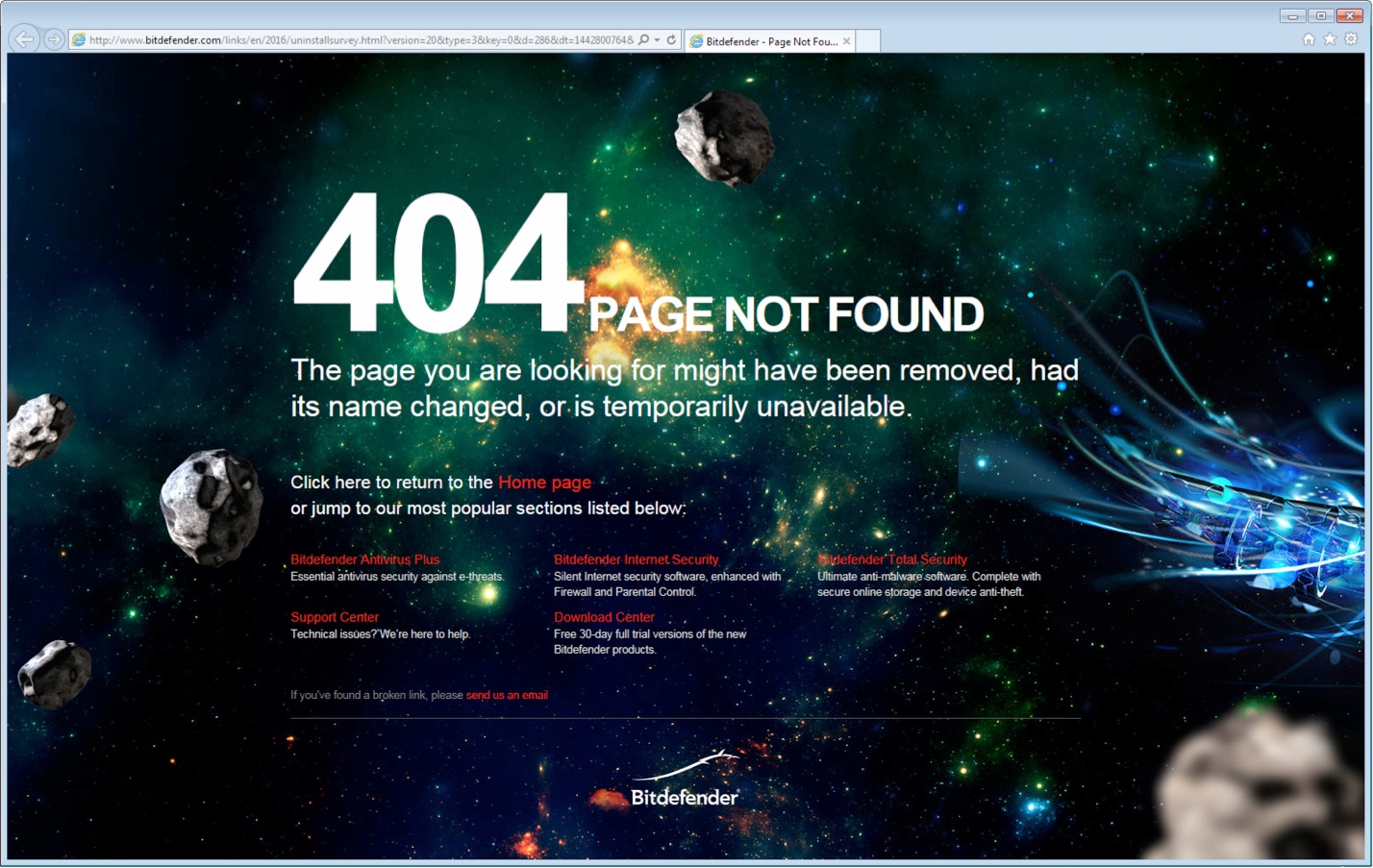
After uninstalling Bitdefender Total Security 2016 in Windows, your browser will launch attempting to take you to a landing page with an uninstall survey for those who’ve uninstalled. However, the landing page isn’t there, so you’ll get an error similar to the one below. Click the image for a larger view.

20150920su2134-bitdefender-uninstall-survey-landing-page-404-error

My Bitdefender or Bitdefender Central Confusion

It’s not clear whether or not a person should be using the My Bitdefender web portal or the Bitdefender Central web portal to manage their account. The Login button on the Bitdefedner.com website currently takes users to Bitdefender Central. However, if you had previously paid for a subscription, it won’t automatically show up there. You’ll be asked to provide a previously purchased license number, but you won’t find any in order confirmation emails or invoices from Bitdefender. The only way to activate the Bitdefender Central portal is to install a copy of Bitdefender on a computer and use your account email and password already on file for the My Bitdefender account.

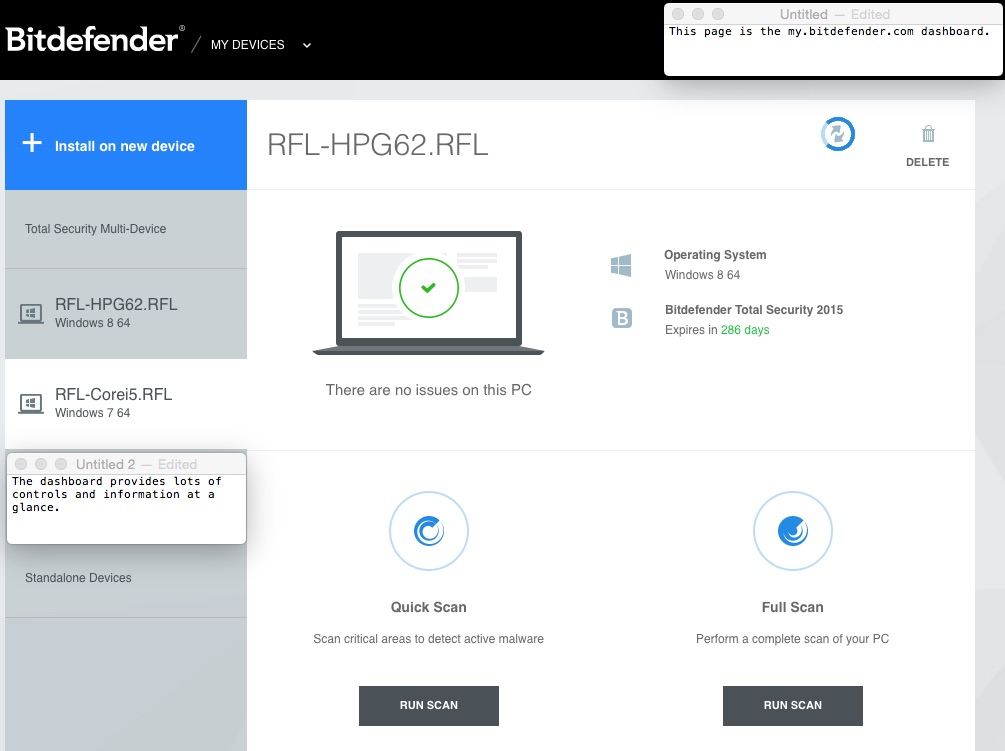
Bitdefender Central is very simplistic compared to the My Bitdefender dashboard. While the My Bitdefender dashboard gives you the option to remove a licensed computer, the Bitdefender Central portal does not have such a feature. So, old computers you’re disposing of will count against your license and (until they get this fixed) you’ll never get those licenses back. They become non-transferable.

Below are some screen shots for comparison. Click any image for a larger view.

Bitdefender Central
Bitdefender Central
My Bitdefender Dashboard
My Bitdefender Device Controls

Here’s Why Apple Makes the Best Windows Computer

Apple computers have the ability to run Windows, Linux, and Apple operating systems. Here are some reasons why purchasing an Apple laptop or desktop computer is a good decision for Windows users.

  1. Design. Apple computers are known for their beautiful design. This makes them pleasant to interact with.
  2. Displays. Apple has always had nice computer displays and the latest computers include Retina display technology in their laptop and high-end desktop computers. With ambient light sensors and keyboard controlled brightness, you can personalize the display making it very easy on your eyes.
  3. Keyboard. The Apple wireless or wired keyboards are excellent for those working long hours on the computer. The keys have short travel, and entry errors are almost non existent. Apple keyboards feature short-travel keys, which means your fingers don’t need to push the keys down as far, and you can type faster with less effort.
  4. Multiple Operating Systems. Using a product like VMWare Fusion, you can run multiple operating systems on an Apple computer. You can have Apple, Windows, and Linux. If you’re a computer and technical support professional, you’ll likely need to support Apple and Windows computers. With virtual computing, you could have Windows 7, Windows 8, and Windows 10 running at the same time.
  5. Portability. The newer MacBook computers are thiner and lighter than previous models. The new MacBook, MacBook Air, and MacBook Pro computers are very thin and light.
  6. Security. Although Apple computers aren’t entirely impervious to viruses, they are much more secure than Windows computers.
  7. Space Savings. Apple iMac computers are slim and accommodate an aluminum wireless keyboard that takes up very little desk space.
  8. Touch Pad. For those concerned about repetitive stress injuries, the Apple touchpad is essential. It’s highly accurate, easy to use, and with multiple gestures that require a very light touch.
  9. Voice Dictation. Apple uses the same Siri voice recognition technology in their desktop/laptop operating system as with the iPhone. It’s quite accurate in a quiet environment.

20150225we-apple-computer-renewable-energy-santa-monica

Finding TeamViewer Remote Support Software in Windows 10

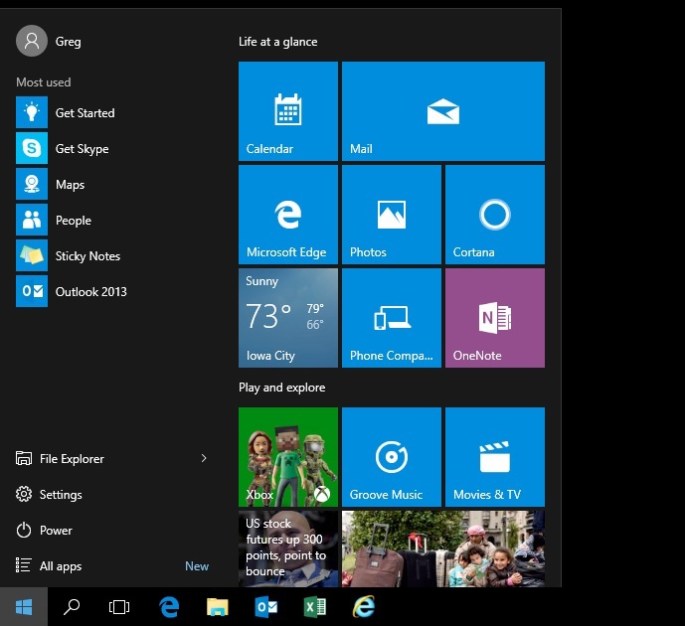
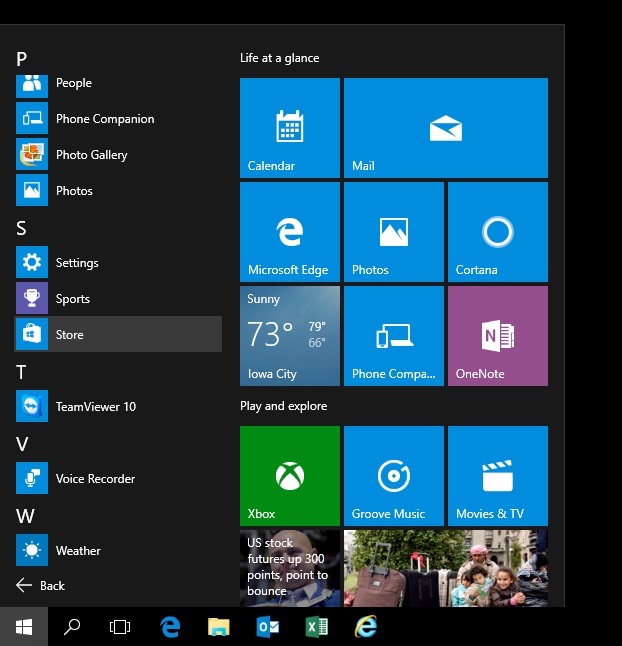
If you’ve recently uploaded to Windows 10, you may need some help finding your way around. The instructions below show how to find and run the TeamViewer program assuming it’s already installed.

The example given in these three steps is the browsing/exploring method. Alternatively you could use the searching method by clicking the start menu icon and then typing the name of what you’re looking for.

Step 1 – Click on the Start Menu

20150708tu-windows-10-finding-programs-step-1

Step 2 – Click on All Programs

20150708tu-windows-10-finding-programs-step-2

Step 3 – Scroll Down the List

20150708tu-windows-10-finding-programs-step-3

Windows 10 Login Screen Password User Key Icon Symbol HRESULT 0x8007ffff Error

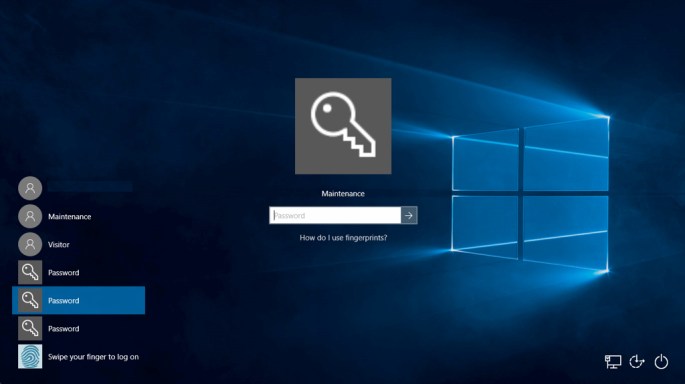
If you’ve recently upgraded to Windows 10, at the login screen, under the listing of user account usernames, you may see some key symbol icons with the word Password to the right of them as shown below.

Presumably this is for those who would like to use a USB key that contains a password keychain. Like a key to your car, a USB drive that contains a long password key can give you access to a computer that’s configured to work with such devices.

However, if you’ve recently created a new user account, but not yet logged in using that new user account, clicking on one of those key icons will results in an error message stating “HRESULT 0x8007ffff.”

Fixing the Problem

You must use the normal login first by clicking on the username and entering the password. Windows will perform the initial account setup. Then logout, and then you should be able to click on the key symbol icon and use that login method.

What’s a bit confusing about this situation is that there’s no way to tell the different key icons apart. They are each associated with a user account, but you won’t know which one until you click on them.

Below are screen shots of this phenomenon.

Windows 10 Login Screen

The top user account name is obscured for privacy. Click the image for a larger view.

20150906su2304-windows-10-login-screen-password-user-key-icon-symbol

HRESULT 0x8007ffff Error Message

Click the image for a larger view.

20150906su2304-windows-10-login-screen-password-user-key-icon-symbol-hresult-0x8007ffff