Create Email Rules for Your Mobile Device

20140328fr-email-rules-for-mobile-device-474-300

Benefit of Email Rules

Email rules are essential for efficiently managing larger volumes of incoming email. They automatically sort your mail based on criteria you define. This can help organize, file, and process communications using the same decision process you would, but it’s done automatically by the computer. For example, emails from certain people, or with certain words in the subject, can be automatically moved into folders. Newsletters from organizations or store emails can get filed for later reading.

Problem with Mobile Devices

Most mobile devices, including the popular Apple iOS devices, don’t have a mechanism for creating and processing email rules. So, when you work on emails at your desktop computer,  you’ll have messages automatically filed for you, but when you’re on your mobile device, you’ll need to wade through hundreds or thousands of new emails to find the essential ones.

Challenges

For most people, their desktop computer (or Laptop) is turned off or falls asleep when not in use. They probably don’t use an email client such as Apple Mail or Outlook to work on emails. They probably just use a web client by going to Yahoo, MSN, or Gmail online. If they do use a desktop mail client, they probably don’t use email rules.

IMAP Synchronization Essential

Email rules only work on your local device for accounts configured as POP instead of IMAP. Some email systems, like MSN / Hotmail don’t allow for IMAP (synchronized real-time mail management) on desktop systems. Oddly, IMAP with MSN/Hotmail does work on mobile devices, just not on desktop devices. So, on your desktop/laptop computer, when you download emails, read them, flag them, or move them around, this is all just happening on your local computer, but nowhere else. With services like Gmail (configured with IMAP), whatever you do with your messages on any device will be replicated across all devices. Having an IMAP or similar synchronized system is essential for email rules to work. It’s also important to have synchronization even if you don’t use email rules, so at least when you delete messages, file them, or mark them as read, this is being pushed out to all your devices.

Solution

As mentioned above, mobile devices typically don’t utilize email rules. The solution to this problem is to leave a computer running with an email client configured to manage emails. Then, your mobile device will magically have emails sorted for you into tidy folders.

Here are some things to keep in mind:

  • You may need to adjust the timing for when your desktop/laptop computer processes mail. More frequently will ensure that your mobile view of emails will be processed already.
  • Some email services allow for server-side email rules that filter incoming messages. If you have this option, it’s even better than using a mail client on your desktop/laptop because it should happen in real-time.
  • Remember that you may need to view an email folder on your mobile device to see the refreshed/current content — even if you have your mail set to push or to check emails automatically.
  • For this to work, you must store emails in folders on the server. If the messages are being stored (moved to) local folders on your desktop/laptop computer, then they won’t be visible anywhere except on that device. However, if your email rule moves messages to folders on the server (email service) then those messages will be viewable by all your devices.

Upgrade From Windows XP to Windows 7 or 8 and Retain Installed Programs with Laplink PCMover

20140326we-windows-xp-upgrade-options-474x300

Summary

After April 8, 2014, Microsoft support for Windows XP is ending. This will result in greater security vulnerabilities. It’s advised to stop using any Windows XP computers and either upgrade them or replace them with Windows 7 or Windows 8 systems.

Upgrade Compatibility Check

It’s helpful to use the Windows 7 Upgrade Advisor to identify potential problems or incompatibilities that you might encounter with hardware or software after upgrading. There is a Windows 8 Upgrade Advisor and also a Windows 8 upgrade FAQ with helpful answers to common questions.

Three Options

There are three primary options for upgrading: (1) New Computer, (2) Vista upgrade path, (3) Laplink PCMover. These options are explained in more detail below.

(1) New Computer

The simplest and least expensive solution for most people will be to purchase a computer that comes with Windows 7 or Windows 8. Then copy your data files to the new computer.

This may require purchasing new versions of your existing software programs if your current versions aren’t compatible with the new operating system, or if you no longer have the original installation disks.

(2) Vista Upgrade Path

It’s not possible to upgrade from Windows XP directly to Widows 7. However, it is possible to upgrade from Windows XP to Windows Vista and then upgrade to Windows 7. This might be the most reliable way to retain your programs and settings through the migration process. If you choose this option, you must find a copy of Vista and Windows 7 that are the same product family (such as Windows home edition 32 bit, or Windows Pro 64-bit, etc.). This is typically the most costly and time consuming option, but it should preserve your programs and software licenses. If applicable, click here for Windows 7 to Windows 8 upgrade instructions.

(3) Laplink PCMover

The PCMover Professional product from Laplink is supposed to easily transfer your data, programs, and settings to a new computer. At a cost of about $60, this option generally will save time and money, but won’t be as reliable as the a Vista migration path (option #2 above). Some programs and settings may not work properly after transfer. This is either because of a compatibility issue, or some underlying problem in the original computer that corrupts the transfer to the new computer. This software should be available from most stores, on from Amazon, or directly from Laplink. Microsoft offers a free copy of PC Mover as a download. However, there is a disclaimer about the free version stating, “The free data transfer will not migrate your apps.” Presumably this is to make people purchase software again rather than transfer it.

Other Considerations

For greater assurance, you may want to perform an Acronis image backup of the older computer prior to any transfer attempts. This will allow you to restore the system to its original state.

Audacity Installation on Apple Mac Computer – Critical Nyquist Files Warning

20140317mo-audacity-critical-nyquist-files-warning

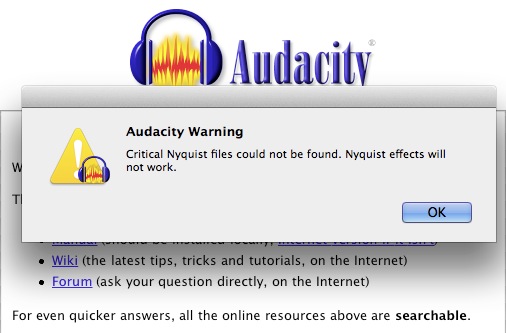
If you receive an error message similar to the one pictured above, it’s likely that Audacity isn’t installed properly on your Apple Mac computer. Follow these instructions to resolve the issue.

  1. Delete (or move) your current Audacity program icon found in Applications.
  2. Download the latest version of Audacity.
  3. Expand the DMG file.
  4. Click and drag the entire Audacity folder into Applications. This contains help files and other files such as the Nyquist files that are required for operation.
  5. Also, be sure to also install the Lame encoder for saving to MP3 format.

Click here for further instructions, including quick-links to the files.

WonderShare AllMyTube Video Downloader – Failed to Download Error Message

When using the WonderShare AllMyTube video downloader software, sometimes all it takes is a single try to download a video.

However, if you receive a message that says Failed to Download, you may want to keep trying the download. Click the retry button in the download queue. It may take 5 or 10 tries before some videos will download. It’s not clear why this happens.

* * *

UPDATE: 23 May 2015

Some reports indicate that Wondershare recently stopped working with Facebook. In the past when there have been compatibility issues, there is an update to correct the problem. Hopefully that will happen soon.

Apple Computer Setup and Installation of Basic Software Programs

20140314fr-apple-computer-basic-setup-guidelines-640x300

Summary

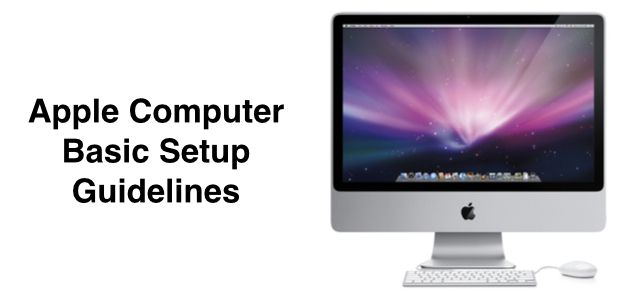
This article offers some basic steps for setting up a new Apple computer. It’s written for the beginner, but an advanced user can quickly skim the points emphasized in bold. This is the general process that a support technician would go through when setting up a new Apple computer.

Glossary

For those new to Apple computers, this glossary provides an introduction to some common terms that will be used in the instructions below.

  • Dock. The Dock is a row of icons that spans the bottom edge of your screen. It can be customized to show up on the left or right edge of the screen. It can also be customized to hide when not being used. The Dock is where you can place icons to commonly used programs, files, or folders.
  • Finder. The Finder is a system browsing tool that lets you explore your files on your computer. It’s similar to Windows Explorer. To access it, click on the face icon in the lower left on the Dock. You are “in the finder” if a menu across the top left of the screen shows Finder, File, Edit, View, Go, Window, and Help as shown below. This can appear when no programs are running and no windows are open. In addition to being “in the finder” you can also have the Finder browser window open when you exploring folder and devices as shown (partially) below. When you click an item on the left, its contents show on the right.
    20140314fr-finder-browser-window

Startup Installation Media

If you’re working with a brand-new computer, then skip to the next section below. However, if you’re reinstalling the operating system, perhaps after installing a new hard drive, or recovering after some other malfunction, then you’ll need the original system media. If you’ve lost the original system discs, you could try these steps:

  1. Internet Recovery. If you have a newer Apple computer (one that came with OS X Lion or later) you can hold down Command-R during startup to use Internet Recovery. This will restore your computer from the Internet (and skip steps #2 and #3 below). If your Apple computer cam with OS X Snow Leopard or earlier, then you’ll need startup media (described in step #2).
  2. Mountain Lion OS X 10.8 Disc. Find someone who has a startup system DVD for Mountain Lion. Put the disc in the drive as you’re turning on the computer while holding down the “C” on the keyboard. This will start to the CD drive media.
  3. Mavericks. Once you’ve installed Mountain Lion, you can go to the App Store and install Mavericks. You’ll need an Apple ID to login to the store, but no payment will be required.

Apple iLife and iWork Software

New Apple computers come with the full suite of iLife and iWork software. The iLife suite includes iMovie, iPhoto, and GarageBand. The iWord suite includes Keynote, Numbers, and Pages. If you installed the operating system from the original discs that came with your computer, any software that came with the computer should be installed again. However, if you recovered the computer using standard OS installation media, then you’ll need to install these software programs separately. If you previously purchased them from the App store, they can be downloaded and installed again for free from the App store. However, if they originally came with your computer and now you’ve lost your originally installation discs, then you’ll need to purchase these from the App store.

Initial Startup User Settings

When you first turn on the computer (or during the installation procedure), you’ll be asked to choose a standard language, provide a profile picture, and enter your Apple ID. The Apple ID is used as a single authentication login for purchases and iCloud data. However, you may want to keep separate accounts for these as explained below.

Import From Backup or Computer

At some point you may be asked if you’d like to import from another Apple computer or TimeMachine backup. If you’ve purchased a new computer to replace an existing computer that is still working, then you can transfer your programs, settings, and data from the old computer to the new one. This can also be done using a TimeMachine backup.

You can import during the initial startup (or rebuild) of a new computer or you can also wait until later and choose the Migration Assistant (found in Utilities). It’s better to wait until later.

It’s likely that the computer you’re importing from has all of the latest updates. A new computer out of the box will require updates before an import can be performed. In fact, this is probably the message you’ll receive if you attempt to migrate.

Make sure the old computer and new computer have any available updates installed.

Apple ID and iCloud User Accounts

It’s best to maintain separate iCloud and Apple ID user accounts. Your iCloud data is personal and unique to you (calendar, contacts, email, tasks, reminders). The Apple ID is used for purchases of hardware, software programs, apps, music, movies, and other products or services.  It’s likely that you’ll want to share these purchases across multiple computers. For example, a family could have several computers all authenticated to the App Store for shared software. However, those same computers might be configured for different iCloud user accounts. In fact, a single computer may have one Apple ID used for software purchases, but several user login accounts that offer each person their own synchronized iCloud data.

Apple Mac Computer Basic User Settings

The following instructions offer some suggested user settings for a new Apple computer. These will help you navigate the computer better.

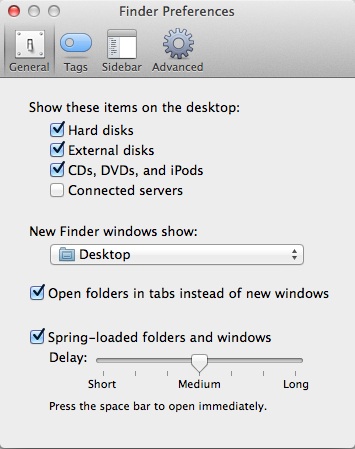
  1. Hard Drive Icon. By default, the hard drive icon is not visible on the desktop or in the finder viewer. External disks as well as CDs, DVDs, and iPods are not displayed either. Many users would prefer to see these devices. To enable these, from the Finder menu, choose Preferences, then select the devices you’d like to have visible on the desktop.
    20140313th-finder-preferences
  2. New Finder Windows Show. By default, when you open a new Finder window, you’ll see the All My Files listing of files. This is a categorized listing of all your files. However, most people are either working with recent files on their desktop or in specific project folders within their Documents folder. To change what folder or location is showing when opening the Finder, go to Finder Preferences and choose Desktop (for example) under the New Finder windows show option. This is shown above.
  3. Show Hard Drive in Finder Window. By default, the hard drive doesn’t show in the Finder browser. You can click and drag it from the desktop into an open Finder window under the Sidebar heading Favorites as shown below. The blue line appears to show where the drive will be listed. Other files, folders, and devices can be placed in the Favorites area of the sidebar. This is identical to the Windows Explorer.
    20140314fr-apple-setup-finder-sidebar-favorites-hard-drive-display-show
  4. Show Applications Folder in Dock. By default, the Applications folder isn’t readily available. So, to run a program, it’s necessary to find it first. It’s much easier to have the Applications folder in the dock. From the Finder browser, click on the Macintosh HD or whatever your hard drive name is. Click and drag the Applications folder to the Dock to the right of the faint divider bar. Then lift up on the mouse button. Click the image below for a larger view.
    20140314fr-drag-applications-folder-to-dock
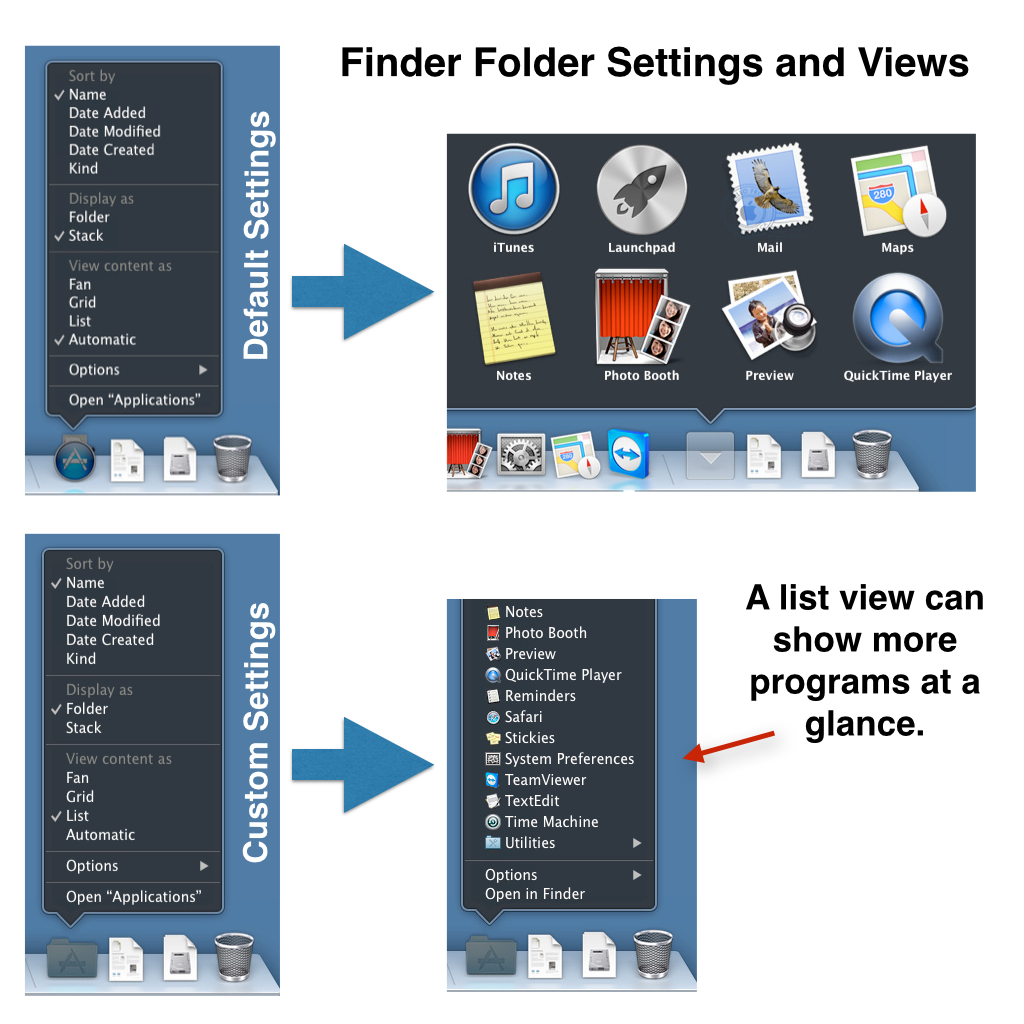
  5. Applications List View. By default, the Applications listing will be a Grid view as shown below. If you switch to Display as Folder and View content as List, it will be possible to see more programs at a glance and easily scroll through them. These settings and the results can be seen below. Click the image for a larger view.
    20140314fr-applications-folder-view-1024x1024
  6. Show Documents Folder in Dock. For many people, the documents folder is a frequently accessed folder. If this is true for you, or if there’s another folder you need access to regularly, use the Finder browser to locate that folder in the hard drive and then drag it to the Dock just as you did with the Applications folder. Also set that folder to Display as Folder and View content as List.
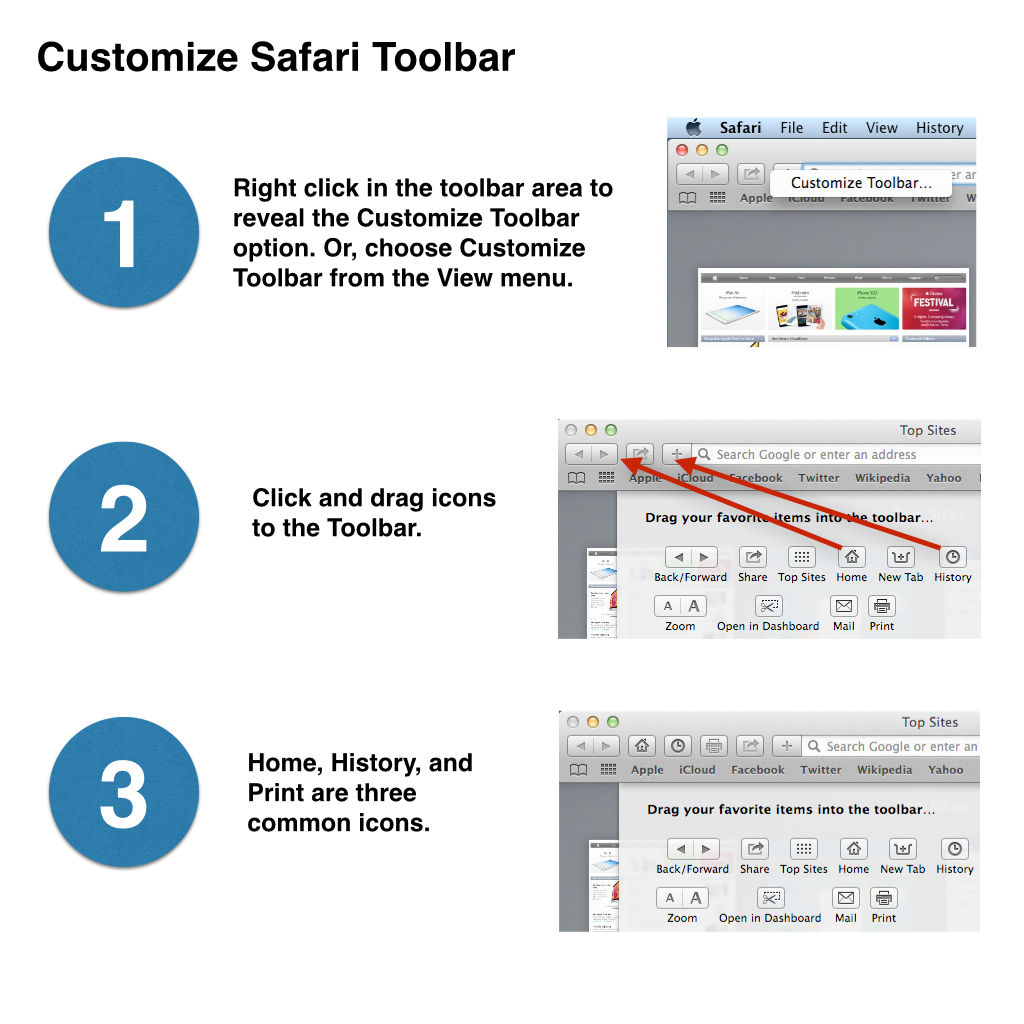
  7. Safari Customize Toolbar. By default, the Safari Toolbar won’t display a History icon. Right click next to the website address display and choose Customize Toolbar as shown below. Then, click and drag the desired shortcut icons to the toolbar as shown below. Click the image for a larger view.
    20140314fr-safari-toolbar-customization1024x1024
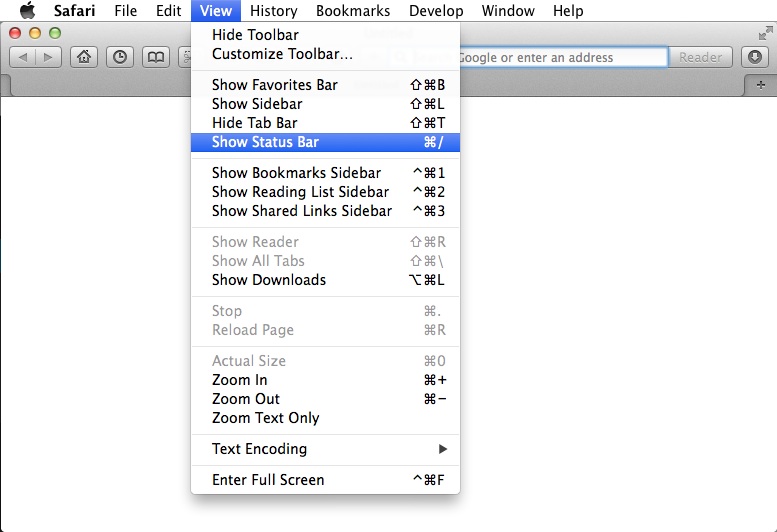
  8. Safari Status Bar. There are times when it’s helpful to know a link URL address (the website address of a hyperlink) without clicking on it and opening the page. The Status bar at the bottom of the Safari browser window makes this possible. Choose Show Status Bar from the View menu (as shown below).
    20140314fr-apple-mac-safari-status-bar-show-777x532
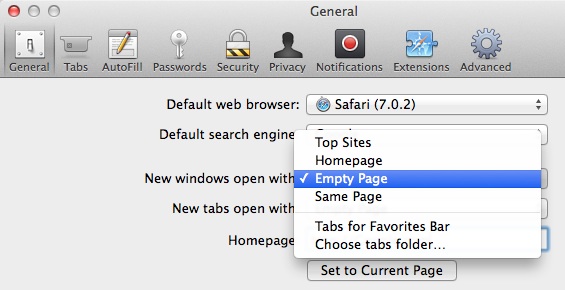
  9. Safari Home Page and Start Page. Safari has three settings that relate to start pages. You can set the home page (the page you go to when you click the home icon). You can define the page displayed when you open a new window. You can also set the page displayed when you open a new tab. Google is a common setting for all of these since often people perform a search when they go to web.
    20140314fr-apple-mac-safari-home-page-tab-new-668x520
    Another possible setting for these options is to choose blank page.
    20140314fr-apple-mac-safari-home-page-tab-blank-565-290

Basic Apple Computer Software

These are some basic operational programs that should be installed on an Apple computer.

  1. TeamViewer. It can take many hours to setup a computer, and much of that time is spent waiting for updates and installations. For this reason, it’s helpful to setup computers remotely; checking in throughout the day to continue with the process. TeamViewer is a free program that lets you access computers remotely.
  2. Adobe Reader. Apple computers come with the Preview utility and the ability to view a wide array of program files even if you don’t own the software used to create those files. However, it’s helpful to have Adobe Reader for additional features when viewing PDF files.
  3. Adobe Flash. Many websites require Adobe Flash to display much of their content.
  4. Microsoft Silverlight. Many Microsoft websites use Microsoft Silverlight. Like Adobe Flash, it’s a platform for development of website animation and other features.
  5. Flip4Mac. Apple computers don’t natively have the ability to play Windows Media Video (WMV) video files.
  6. Mozilla Firefox. Some websites are best viewed using a specific browser such as Mozilla Firefox or Google Chrome. So, it’s a good idea to install these.
  7. Google Chrome. Some websites are best viewed using a specific browser such as Mozilla Firefox or Google Chrome. So, it’s a good idea to install these.
  8. LibreOffice. Libre Office is a free alternative to Microsoft Office.
  9. Microsoft Office 365. At a cost of $100 per year, you can have the full Microsoft Office suite for use on up to five computers (Mac or Windows). This isn’t required, but may be necessary if you absolutely need to use Microsoft Office software products.

FTP Software for Apple Mac Computers

20140311tu-ftp-software-for-apple-mac-computers-640x300

There are several effective and free FTP software programs available for Apple Mac computers. Occasionally you will find that one program works better than another with a particular server or hosting company. The programs listed below are provided with links for more information.

Cyberduck

20140311tu-cyberduck-icon-logo-200x236Cyberduck. Connecting to every server. With an easy to use interface, connect to FTP (File Transfer Protocol), SFTP (SSH Secure File Transfer), WebDAV (Web-based Distributed Authoring and Versioning), Amazon S3, Google Cloud Storage and Rackspace Cloud Files.

Fetch

20140311tu-fetch-ftp-utility-software-apple-mac-275x217Fetch. Fetch is a reliable, full-featured file transfer client for the Apple Macintosh whose user interface emphasizes simplicity and ease of use. Fetch supports FTP and SFTP, the most popular file transfer protocols on the Internet for compatibility with thousands of Internet service providers, web hosting companies, publishers, pre-press companies, and more.

  • Support for FTP, SFTP, and FTP with TLS/SSL (FTPS)
  • Droplet shortcuts for easy uploading
  • Synchronize folders using the Mirror command
  • Support for drag-and-drop of files and folders between servers and your Mac, or between two servers
  • Automatic resume of stalled or failed uploads and downloads
  • Quick Look support for previewing files on servers
  • Edit any kind of file and the changes will automatically be saved back to the server
  • Compatibility with virtually all FTP servers, including VMS, VM/CMS, OS/2, Chyron, and more

FileZilla

20140311tu-filezilla-ftp-utility-software-apple-mac-243x239FileZilla. The FileZilla Client is a fast and reliable cross-platform FTP, FTPS and SFTP client with lots of useful features and an intuitive graphical user interface.

Among others, the features of FileZilla include the following:

  • Easy to use
  • Supports FTP, FTP over SSL/TLS (FTPS) and SSH File Transfer Protocol (SFTP)
  • Cross-platform. Runs on Windows, Linux, *BSD, Mac OS X and more
  • IPv6 support
  • Available in many languages
  • Supports resume and transfer of large files >4GB
  • Tabbed user interface
  • Powerful Site Manager and transfer queue
  • Bookmarks
  • Drag & drop support
  • Configurable transfer speed limits
  • Filename filters
  • Directory comparison
  • Network configuration wizard
  • Remote file editing
  • Keep-alive
  • HTTP/1.1, SOCKS5 and FTP-Proxy support
  • Logging to file
  • Synchronized directory browsing
  • Remote file search

Purchasing and Installing Windows 8.1 From Scratch for a Fresh Installation

20140311tu-windows-8-1-purchase-installation-dvd-usb-upgrade-640x300

Instructions

Here are the basic steps required to purchase and install Windows 8.1 from Microsoft.

  1. Windows 7 Installation. You’ll need a working Windows computer to perform some of the steps below. If you’re wanting to start with a fresh computer installation, find an original Windows 7 Pro installation DVD (assuming you have a recent Dell computer) and use that DVD to perform a fresh installation. Otherwise, continue to the next step.
  2. Microsoft Store. Go to the Windows 8.1 product page in the Microsoft Store.
    • You’ll see a message stating: “Windows 8.1 full version is for Windows 7 users only. Currently running Windows Vista or XP? First upgrade to Windows 8. Upon installation you can update to 8.1 for free.”
    • This notice somewhat misleading. This version of Windows 8.1  doesn’t require Windows 7. The installation DVD that you’ll create from the download (or have shipped to you) should work find for a fresh installation of Windows 8.1 without a required upgrade.
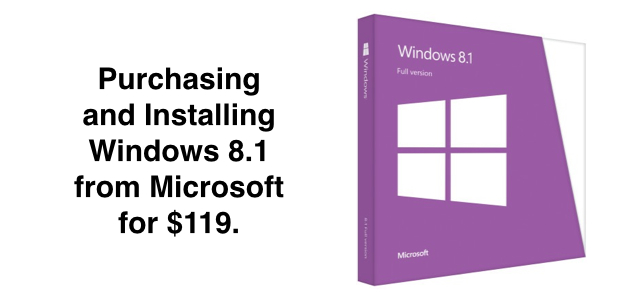
  3. Purchase. Purchase the English Download for $119 if you don’t want to wait for a DVD to arrive. This will give you a WindowsSetupBox.exe file and a license number. There are three benefits to this option:
    • This will provide you with an ISO image that you can burn to DVD.
    • This procedure will also give you the option to create a Windows 8.1 Installation USB flash drive.
    • You can also use this option to upgrade an existing Windows 7 computer (without creating a DVD or USB).
  4. Run Windows Setup. When the purchase process is completed, you’ll have a license number and a Windows Setup file called WindowsSetupBox.exe that you can run. This will actually initiate the download of the full Windows 8.1 installation software.
  5. Burn DVD. Assuming you have access to a computer, burn the ISO image to a DVD. This can be used later for reinstallation, repair, or recovery.
  6. Create USB. Having a Windows 8.1 installation USB flash drive is handy. With it, you can startup your computer to USB for installation similar to using a DVD but typically much faster.
  7. Choosing Upgrade or Install. If you perform an upgrade from Windows 7, your programs, settings, and personal data will be retained. However, any malware, viruses, or other unnecessary files will be retained. So, it may be preferable to backup your files and then startup the computer using the DVD or USB (described above), then format the hard drive (erasing everything) and perform a fresh clean installation of Windows 8.1. This will make your computer like new as if it were purchased from the store.
  8. Begin Installation. Assuming you want to do the fresh installation, and you have backed up your data, start the computer with the DVD or USB. You will be walked through the setup process. If you’re on a Dell computer, you will need to press F12 at startup to display the boot up options. Select the DVD drive from the list if you’re using the DVD.
  9. Upgrade or Custom. At some point you’ll be asked if you’d like to perform an upgrade or custom installation. Choosing custom is helpful because you can format the hard drive and start completely fresh. In doing so, you’ll be presented with a window showing your current drive partitions. There may be a 100MB system reserved partition for Windows 7 and another partition for the operating system. In the advanced mode you can delete these partitions. Then click New to start again. This time, Windows 8.1 will create a 350MB System Reserved partition and then the remaining drive space can be used for the Windows 8.1 installation.
  10. Settings. When you get to a Settings window, you can choose Use express settings.
  11. Sign in to your Microsoft account – NOT. You’ll be asked to sign in using your Microsoft account. This appears to be a requirement of using Windows 8.1. However, it’s not necessary. Don’t click on the Don’t have an account option because you’ll be required to create an account. Instead, click on the option to Create a new account (found under Don’t have an account?). You’ll be taken to the Create a Microsoft account screen. At the bottom of the screen, in faint thin small letters, you’ll see an option to Sign in without a Microsoft account. Choose that option.
  12. Your Account. If you’ve followed the instructions to this point, you should reach a Your account screen. Enter a user name and password just as you might have with the previous versions of Windows.
  13. General Windows Setup. You can now continue with the general Windows setup instructions.

PhoneView by ECAMM Software – Unable to Delete all Photos in Camera Roll

PhoneView by ECAMM Software makes it possible to directly transfer content from your iPhone to your Apple Mac computer such as your call log, text messages, voicemail messages, and camera roll photos.

If you’re using the burst mode photography on your iPhone, this takes many photos in the iPhone and automatically identifies the optimal photo from the batch. You can select other photos from the batch to save.

The PhoneView software is not able to delete these batches of photos. So, after transferring all your photos from the iPhone, if you select all photos in the camera roll and choose delete, some will remain in the phone (the batches of photos). These need to be deleted manually in the phone.


Apple iCloud Backup Storage Management and Buying Expanded Capacity

20140309su-apple-icloud-backup-management-640x300

Introduction

Apple mobile devices like the iPhone and iPad can be backed up to your computer using iTunes, or backed up to the cloud. Many people don’t regularly connect their mobile devices to their computer and take the time to synchronize with iTunes. Months may go by without any backup or synchronization. Perhaps the devices are never backed up or synchronized. So, it’s best to use the Apple iCloud service to actively maintain a backup of your device.

iCloud Management on Computer

These screen shots show how to manage your iCloud storage on an Apple computer. The steps are similar on a Windows computer (by clicking on the iCloud icon in Control Panel).

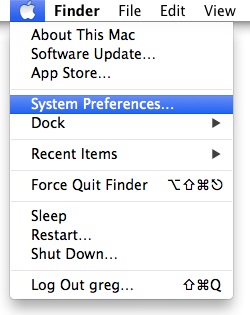
Select System Preferences on your Apple computer. It is found under the Apple menu.

20140309su-system-preferences-apple-computer-menu

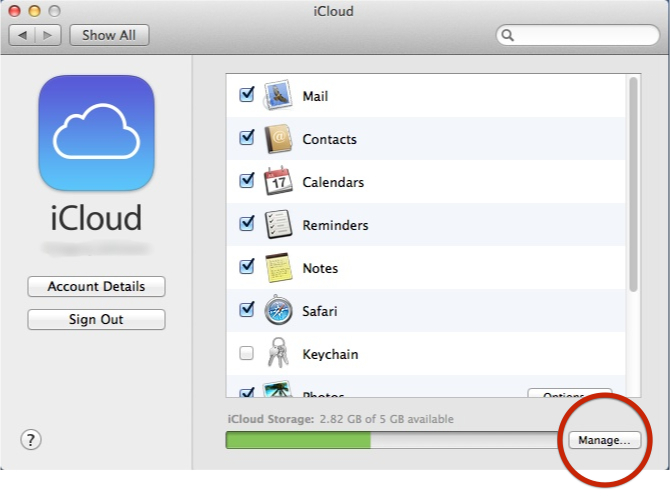
From the System Preferences window, choose iCloud as shown below.

20140309su-apple-icloud-backup-storage-01

In the iCloud settings window, choose Manage.

20140309su-apple-icloud-backup-storage-02

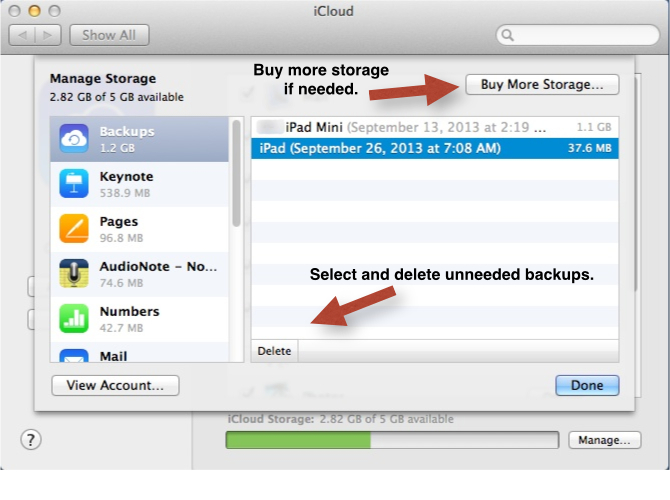
From the iCloud management window, it is possible to buy more storage or delete backups that aren’t needed anymore. For example, when you purchase a new phone the old backup may remain in your iCloud backup system.

20140309su-apple-icloud-backup-storage-03

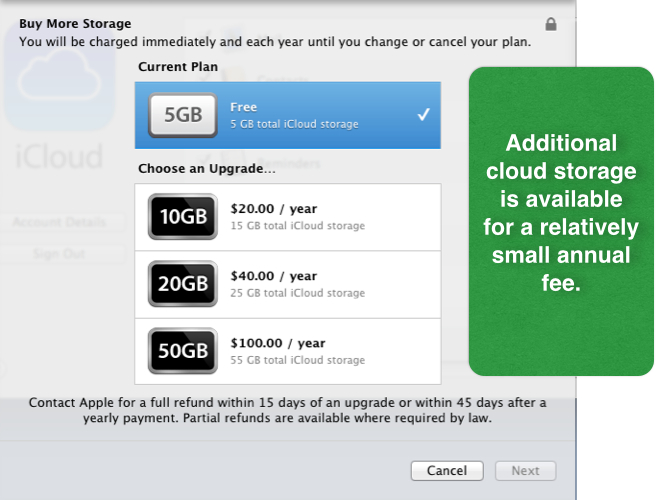
If you’re buying more storage, the pricing is shown below.

20140309su-apple-icloud-backup-storage-04

If you have a 16GB, 32GB, or 64GB device, you might wonder what storage capacity is needed. The backup of your settings and application data will likely be much smaller in size than the overall capacity of your device.

According to Apple, “Your iOS device backup only includes data and settings stored on your device. It doesn’t include data already stored in iCloud, for example contacts, calendars, bookmarks, mail messages, notes, shared photo streams, My Photo Stream, and documents you save in iCloud using iOS apps and Mac apps.” (source)

iCloud Management on iPhone

To manage iCloud storage on your iPhone, the steps are similar to those outlined above.

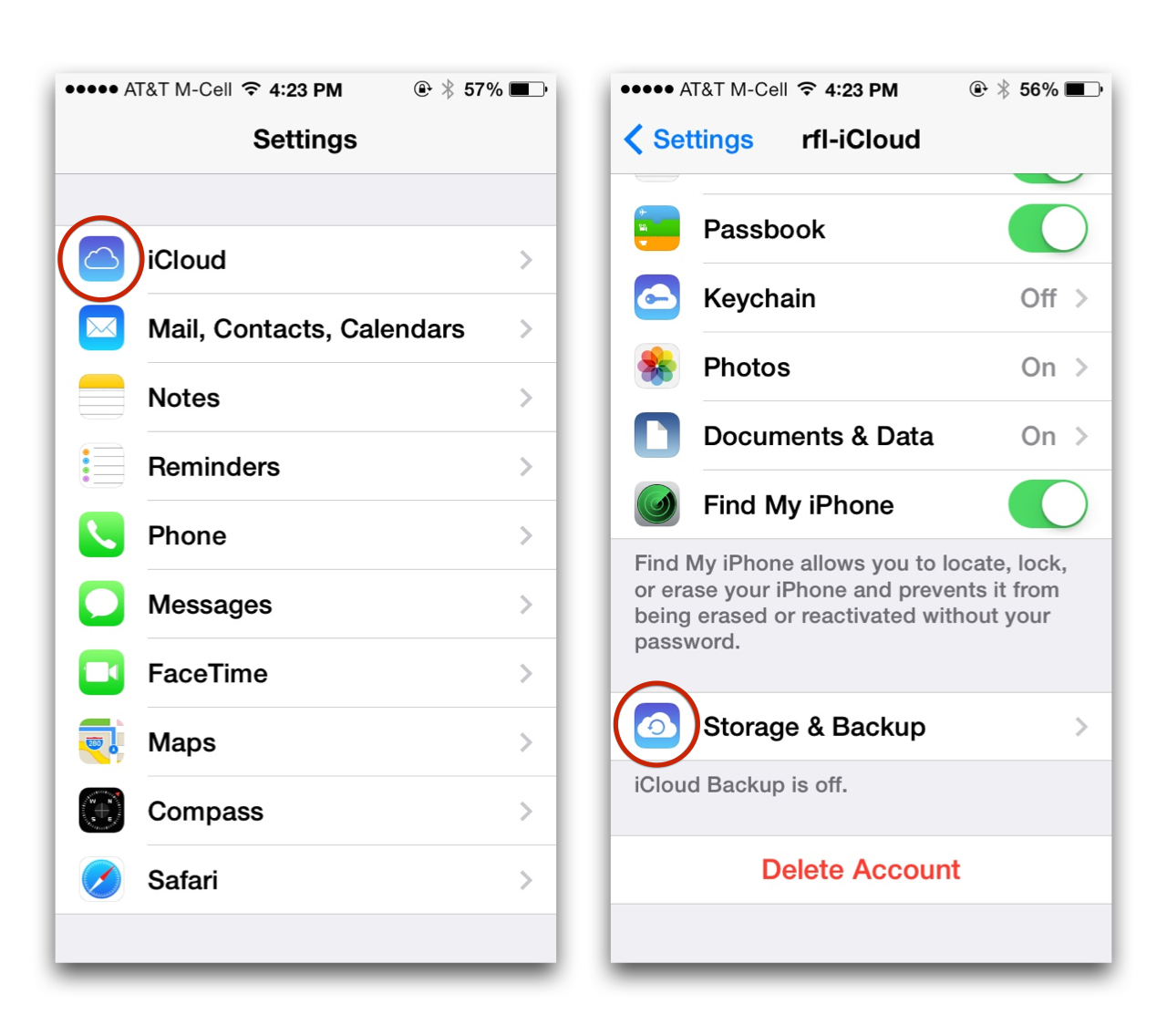
Go to settings and select iCloud. From the iCloud settings window, choose Storage & Backup.

20140309su-apple-icloud-backup-storage-iphone-1280x1136.001

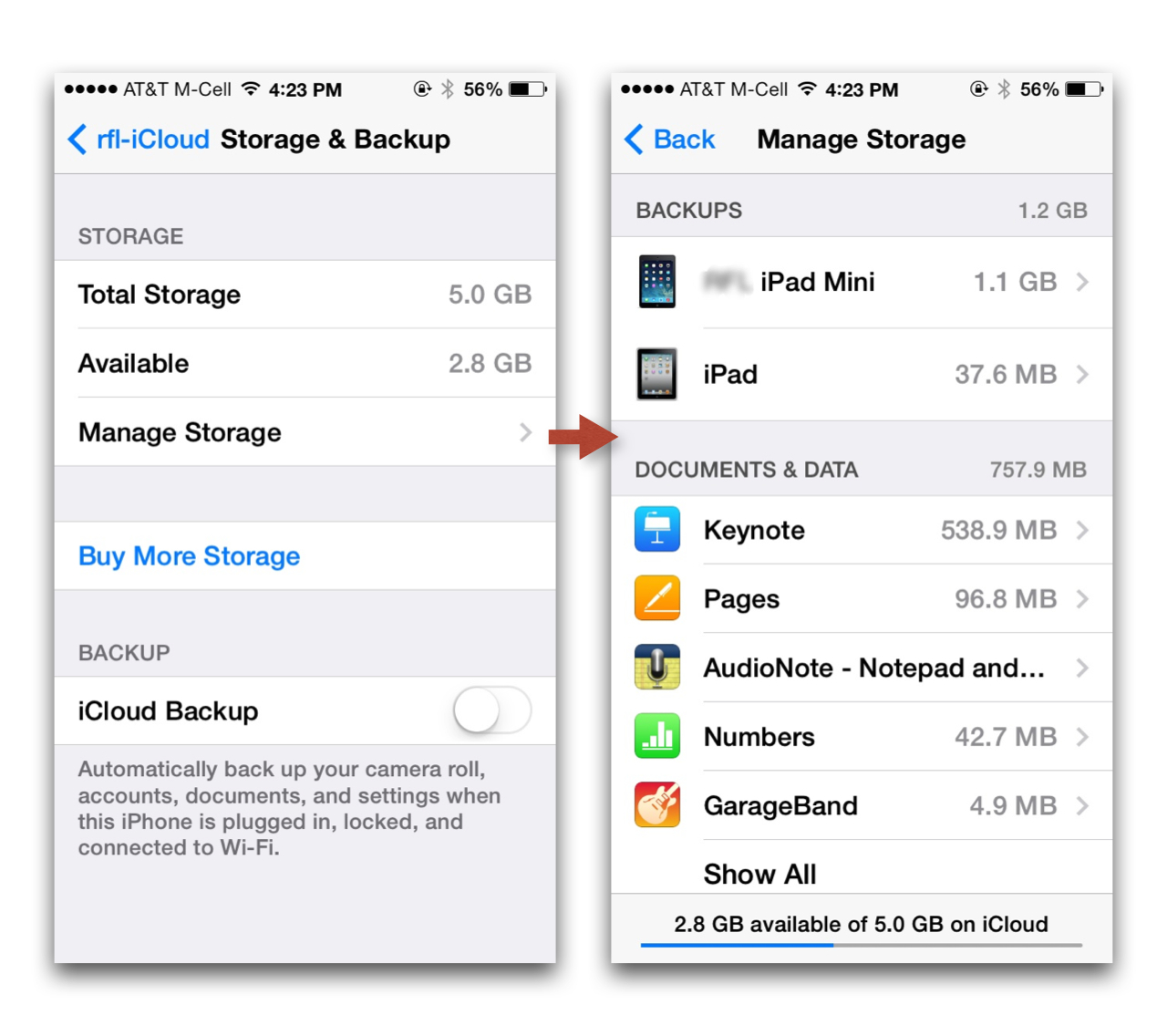
Within the Storage & Backup settings window, choose Manage storage to see how much storage in the cloud is being used by your various devices that are sharing the iCloud storage. The Manage Storage screen will give you a good idea of how much storage your programs are using. The example below is typical. The iPad Mini backup shown below is for an 8GB iPad Mini that is filled to capacity with programs. However, since the programs and operating system are easily installed again from the iTunes store, the only data needed to be backed up would be a the information used by the installed programs.

20140309su-apple-icloud-backup-storage-iphone-1280x1136.002

On the iPhone, under the iCloud Backup option, a description is provided: “Automatically back up your camera roll, accounts, documents, and settings, when this iPhone is plugged in, locked, and connected to Wi-Fi.”

20140309su-apple-icloud-backup-storage-iphone-1280x1136.003

When you select the option to Buy More Storage, a list of options is show.

20140309su-apple-icloud-backup-storage-iphone-1280x1136.004

If you have a 16GB, 32GB, or 64GB device, you might wonder what storage capacity is needed. The backup of your settings and application data will likely be much smaller in size than the overall capacity of your device.

According to Apple, “Your iOS device backup only includes data and settings stored on your device. It doesn’t include data already stored in iCloud, for example contacts, calendars, bookmarks, mail messages, notes, shared photo streams, My Photo Stream, and documents you save in iCloud using iOS apps and Mac apps.” (source)

Additional Reading

Tools Required to Open an Apple MacBook Pro and Upgrade the Hard Drive: Phillips PH0X40 and Torx T6X40 Drivers

This is a short post regarding the tools required to open an Apple MacBook Pro and upgrade the hard drive.

There are ten screws on the bottom notebook case cover enclosure. These are tiny phillips screws. As you’re looking at the notebook with it upside down and the hinge away from you, the three screws along the hinge end closest to the power connector will be longer screws.

The others are very tiny and short. These tiny screws go in at a slight angle to allow the screw heads to sit smoothly just below the indentation where they go in. This ensures they won’t catch on anything.

The longer screw that is closest to the power connection can have its path obstructed by the video cable pull tab. So, when reassembling the unit, be sure that the tab is away from the screw hole.

The hard drive has two phillips screws in the drive retainer bracket (on the hinge side). Once these two screws are loosened, the bracket will lift up and the drive will tilt upward and out.

Carefully remove the data/power coupler from the drive.

The four retaining screws on the side of the drive can be removed if necessary using the Torx T6X40 driver. This may be needed if you plan to put the drive in an external case for data recovery.

Photos

Below are photos showing a typical drive removal from an Apple MacBook. Click any image to bring up a larger photo gallery.