AT&T Visual Voicemail Setup Error

Sometimes when setting up a new phone, or switching to a different phone, the Voicemail feature won’t be configured properly. Any saved or unheard messages will likely be lost in the transition.

When you call to check voicemail (by pressing and holding 1 on your dialer), instead of being taken to your voicemail, or being prompted to setup your new voicemail, you’ll get a message saying something like, “If you have a voice mailbox on this system, please enter your number now.”

When you enter your 9-digit phone number, the system will state that there is no voicemail box with your number.

You can call AT&T to request help with voicemail by dialing 611. The customer support representative will acknowledge the problem — confirming that voicemail was not setup properly when the new phone was configured. They will then fix the voicemail problem.

Now you can press and hold 1 to access your voicemail system and perform the initial setup.

20141108sa-att-visual-voicemail-setup-error-004When you attempt to setup the Visual Voicemail feature, there may still be problems.

Usually, visual voicemail is configured and activated by calling into your voicemail from the visual voicemail app.

The instructions below are what display on the phone for setup.

20141108sa-att-visual-voicemail-setup-error-001

If you follow the instructions above, they should work. After accessing your voicemail, and then exiting, the visual voicemail setup should complete and a confirmation display should indicate the status.

20141108sa-att-visual-voicemail-setup-error-002

However, if visual voicemail isn’t properly activated on your account for your device, you’ll get the error message shown below.

20141108sa-att-visual-voicemail-setup-error-003

At this point, it’s best to call AT&T again and explain what has happened. They will acknowledge the problem and attempt to fix it.

In the example above, when calling AT&T, the customer service person stated that although the phone is capable of visual voicemail, it’s not showing up as an option. They promised to escalate the request. It’s estimated that it will take 10 days to fix the problem.

Installing Adobe Flash on an Apple Computer

The gallery of screenshots below shows the process for installing Adobe Flash on an Apple computer.

Your experience may vary depending on the version of OS X that you’re using.

This sequence of screens will show up if you land on a webpage that requires the latest Adobe Flash.

If you’d like to initiate this sequence, visit the Adobe Flash software download page and manually download Adobe Flash.

Old Plex Servers Still Showing Up – Can’t Reach This Server

If you’ve deleted a Plex media server from your account, or rebuilt one with a different name, you may notice it is still showing up with a message stating: “We’re sorry, but we can’t reach this server.”

20141025sa-plex-server-not-found

This is probably due to cached website information in your browser.

Try using another browser and login to the Plex.tv website. You’ll likely not see the deleted servers anymore. If so, then clearing the cache and web files on your other browser should fix the problem.

Yosemite Error – Sign in to Microsoft Lync Failed

Problem Summary

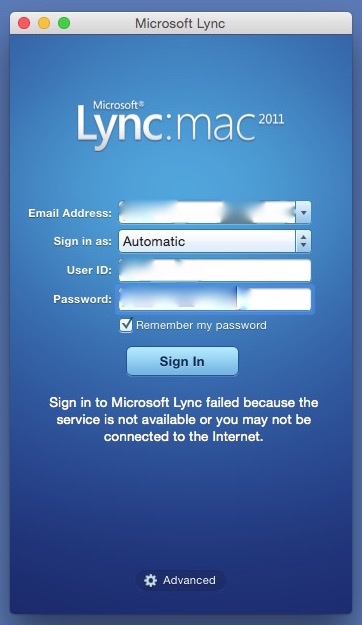
If  you’ve recently upgraded to Apple Mac OS X 10.10 Yosemite, and you attempt to use Microsoft Lync Mac 2001, you may likely get an error stating:

Sign in to Microsoft Lync failed because the service is not available or you may not be connected to the Internet.

This error message is misleading because the cause of it is likely neither of the problems suggested. Instead, it’s very likely due to having an additional language listed in your System Preferences.

Error Message Window

The error message window is like the one shown below.

20141021tu-yosemite-microsoft-lync-lanugage-english-error-fail

Problem Solution

Follow these instructions to fix the problem.

  1. Go to System Preferences – Available from the Apple menu.
  2. Click on Language & Region – It is the flag icon in the top row of icons.
  3. Make sure English is the primary language. If another language is listed, remove it. You need not close Language & Region settings for these modifications to take effect.
  4. Try running Lync again. This time it should work.
  5. You can now add the language(s) back in that you removed in step #3 above. Again, it’s not necessary at this point to close Language & Region settings. Try running Lync again. It should still work.
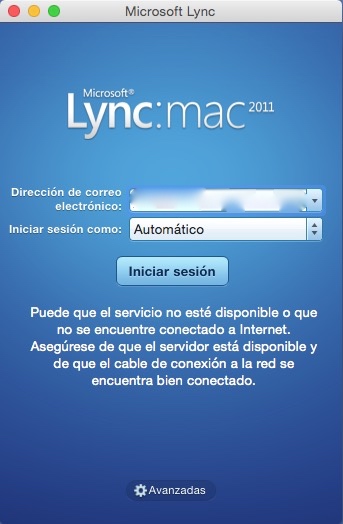
  6. If you have another language selected as primary, such as Spanish, Lync won’t work. It will fail again as shown below.

20141021tu-yosemite-microsoft-lync-lanugage-spanish-error-fail

Other Causes of Error

You may still get the connection error even after using the work-around fix described above. This can happen if your computer has gone into sleep mode, and then you wake it up. Just click the Sign In button again and it should connect.

User Experience Feedback

From Greg Johnson (17 Dec. 2014):

I was unable to start Lync. Here’s what I did:

  1. I checked my default preferred language in settings at it was already set to English.
  2. In an effort to clear out any previous settings, I added French and set it to the default.
  3. I tried starting Lync, but it still wouldn’t load.
  4. Then I removed French and returned to English as the default.
  5. Lync works fine now.

Brother PC Connectable Labeling System (PT2730)

Summary

Brother labeling systems are easy to use and create durable and long-lasting tags for a variety of items. Having computer connectivity and software for creating, designing, and saving label templates can save time. The PT-2730 has the ability to connect to a computer using USB. [Buy]

Product Resources

Features

  • Use as stand-alone labeler, or connect to PC or Mac via USB for added functionality
  • Large, 16-character x 3 line graphical display with vivid backlit design for easy viewing
  • Creates big, bold, durable laminated labels in a variety of colors and sizes – up to 24mm wide
  • New, built-in Label Collection feature offers pre-designed labels for Files, Office Signage, Shipping labels – and more!
  • New Download feature allows access to additional Label Collection files!

Product Description

The PT-2730 is a professional, desktop labeler that prints using 8, built-in fonts. Adaptable – so it can be used “stand-alone” or connected to a PC or Mac for added functionality. Features a large, graphical display with vivid backlight. Print up to 7 lines of text on each label. Create durable, laminated labels in a variety of colors and sizes – up to 24mm wide. Quickly access over 50 pre-designed Label Collection labels with the touch of a button – or use the convenient, Text Reminder feature to recall frequently used words. Includes AC adapter, software, USB cable, and 24mm starter “TZ” tape. PC Connectable Labeling SystemHardware Features: Sleek, modern design with built-in automatic cutter. Large, 16-character x 3 line graphical display with vivid backlit design for easy viewing. Creates big, bold, durable, laminated labels in a variety of colors and sizes -up to 24mm wide. Powered by included AC adapter or 8 “AA” batteries (not included). Complete kit: Includes AC adapter, P-touch Editor software and drivers, USB cable, 0.94″ (24 mm) starter “TZ” laminated tape, User’s ManualSoftware Features: Select from 8 fonts, 10 type styles, and 20 frames. New, built-in Label Collection feature offers more than 50 pre-designed labels for Files, Office Signage, Shipping labels –and more! New Download feature allows access to additional Label Collection files! New Text Reminder feature recalls frequently used words. Prints up to 7 lines of text on each label. Save and print up to 99 of your favorite labelsCarton Contents: PT-2730, AC adapter (AD-24), 0.94″ (24 mm) starter “TZ” laminated tape, USB Cable, P-touch®Editor software and drivers, User’s Manual, Two-Year Limited Warranty

From the Manufacturer

The PT-2730 is a professional, desktop labeler that prints using 8 professional fonts. Very adaptable, it can be used either “stand-alone” or connected to a PC or Mac for added functionality. It features a large, graphical display with vivid backlight, and can print up to 7 lines of text on each label. The PT-2730 lets you create durable, laminated labels in a variety of colors and sizes – up to 1″ (24mm wide)*. You can quickly access over 50 pre-designed Label Collection labels with the touch of a button – or use the convenient Text Reminder feature to recall frequently used words without retyping. Includes AC adapter, software, USB cable, and 1″ (24mm)* starter “TZe” tape.

PT-2730 Product Details

  • Large 16-character x 3-line graphical display, with vivid backlit design for easy viewing
  • Creates durable, laminated labels in a variety of colors and sizes – up to 1″ (24mm)* wide
  • Built-in Label Collection offers pre-designed labels for files, office signage, shipping and more
  • New Download Feature lets you access an even wider assortment of pre-designed labels
  • Prints up to 7 lines of text on each label
  • Choose from 8 professional fonts, 10 type styles, 7 type sizes and 20 framing options
  • Sleek, modern design with built-in automatic cutter
  • Raised keys for quick, accurate typing
  • Powered by AC adapter (included) or six “AA” batteries (not included)
  • Create and print bar codes
  • Easy, top-load drop in “TZe” tape cassettes

What’s in the Box

  • PT-2730
  • 1″ (24mm)* wide black on white starter “TZe” laminated tape
  • AC adapter
  • P-touch Editor software and drivers
  • USB cable
  • User’s manual

* Tape widths are approximate.

PC-connectible for greater design versatility.

Use the PT-2730 keyboard and display to create labels, or get even more creative using your computer to custom design durable labels combining text and graphics.

Choose the right color and size for the job.

Create more visual appeal and differentiation with the PT-2730. Print up to 7 lines of text on each label and create durable, laminated labels in a variety of colors and sizes.

Save time with our Label Collection.

Need a great label fast? Call up one of your 9 saved favorites or browse the built-in Label Collection of over 50 pre-designed labels for files, office signage, shipping and more. Access even more pre-designed labels using our convenient download feature.

Type, layout and preview with ease.

The PT-2730 features a large, 16 character x 3-line backlit graphical display for easy viewing, plus a preview feature that lets you check spelling and layout before printing.

Product Description

The Brother™ PT-2730 Desktop Labeler Is Ideal for Busy Professionals

The Brother™ PT-2730 PC-connectable desktop labeling system was designed for busy office professionals. This feature packed desktop labeler can be used “stand-alone” for desktop labeling, or connected to a PC or Mac for added functionality. The included AC adapter ensures that your labeling can be done at a moment’s notice.

Create durable, laminated labels for indoor or outdoor use in a variety of colors and sizes – up to 24mm wide – using one of 8 fonts, 17 framing options, 10 type styles or an array of symbols.

This advanced PC-connectable desktop labeling system features a sleek, modern design with automatic tape cutter and a large, graphical display with vivid backlight for easy viewing. Print up to 7 lines of text on each label – even preview labels before printing. Store up to 99 labels to memory, or automatically print labels displaying the Time & Date.

Quickly access over 50 pre-formatted Label Collection designs for Files, Office Signage, and Shipping Labels with the touch of a button – or use the convenient, Text Reminder feature to recall frequently printed words. Even use the new Download Feature to access additional Label Collection layouts.

The Brother™ PT-2730 desktop labeler includes 0.94″ (24mm) laminated “TZ” starter tape, AC adapter, USB Cable, software and User’s Manual. Operates on 8 “AA” batteries (sold separately).

Main Features

  • Use as stand-alone labeler, or connect to PC or Mac via USB for added functionality
  • Large, 16-character x 3 line graphical display with vivid backlit design for easy viewing
  • Creates big, bold, durable, laminated labels in a variety of colors and sizes – up to 24mm wide
  • New, built-in Label Collection feature offers pre-designed labels for Files, Office Signage, Shipping labels – and more!
  • New Download feature allows access to additional Label Collection files!
  • New Text Reminder feature recalls frequently printed words – making label creation quick and easy
  • Prints up to 7 lines of text on each label
  • Select from 8 fonts, 10 type styles, and 17 frames
  • Save and print up to 99 of your favorite labels
  • Sleek, modern design with built-in automatic cutter
  • Complete kit: Includes AC adapter, software and drivers, USB cable, 0.94″ (24 mm) starter “TZ” laminated tape, User’s Manual

About Laminated Tapes

The PT-2730 uses tapes from our TZe laminated line, whereby the text is protected by a thin, clear film. They withstand water, grease, fading and abrasion, and can be used in hot and cold environments, as well as outdoors. Choose from a wide variety of TZe tapes to match your application – use Standard Laminated Tapes for general home or home office applications, or use one of our specialty tapes for labeling everything from wires and cables, to files and binders, to company assets.

Choosing Color & Size

Create visual appeal with more elaborate labels made with the PT-2730. Print wide labels, up to 24mm wide, in a variety of colors and sizes. Use one of eight built-in fonts, 17 frames and an array of symbols to create decorative labels with up to 7 lines of text. Switch label types in seconds with the convenient, top-loading machine design. The Auto Tape Detection feature automatically recognizes the size of the installed tape cassette, to make text formatting a snap.

Full Featured Solution

The Brother™ PT-2730 PC-connectable desktop labeling system was designed for busy office professionals. This feature packed desktop labeler can be used “stand-alone” for desktop labeling, or connected to a PC or Mac for added functionality. Use the included P-touch® Editor label design software to create labels with any fonts, symbols or logos resident on your computer. The included AC power adapter and USB cable ensures your labeler will be ready to go at a moment’s notice.

Type, Layout, and Preview

The PT-2730 features a large, 16-character x 3–line graphical, backlit display for easy viewing, plus a preview feature that lets you review spelling and layout before printing…saving time and tape.

Label Collection

Need a great label fast? Call up one of your 99 saved favorites or browse the Label Collection of over 50 pre-designed labels. Print labels for files, office signs, shipping applications, recycling programs, retail environments – even create festive labels for gift tags.

Product Images

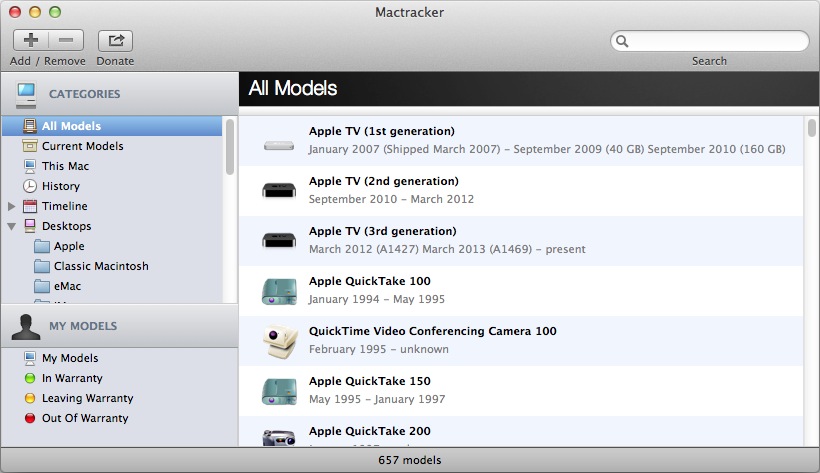
Mactracker Apple Mac Specifications Guide

The Mactracker software runs on OSX and iOS platforms, and provides a helpful listing of hardware specifications as well as operating system information. Here’s a description from the developer’s website:

“Mactracker provides detailed information on every Apple Macintosh computer ever made, including items such as processor speed, memory, optical drives, graphic cards, supported OS versions, and expansion options. Also included is information on early Apple systems, Apple mice, keyboards, displays, printers, scanners, speakers, cameras, iPod, Apple TV, iPhone, iPad, Wi-Fi products, Newton, iOS, Mac OS, and OS X versions.”

The latest release, version 7.3.4, has the feature enhancements listed below. Previous versions are also listed.

Please note that this release requires OS X 10.6.8 Snow Leopard or later. Download version compatible with OS X 10.5.8 Leopard.

Version 7.3.4

  • Adds iPhone 6 and iPhone 6 Plus
  • Adds iOS 8
  • Updates Support Status for Apple’s latest Vintage and Obsolete products
  • Other minor changes and additions

Version 7.3.3

  • Adds MacBook Pro (Retina, 13-inch, Mid 2014) and MacBook Pro (Retina, 15-inch, Mid 2014)
  • Adds iMac (21.5-inch, Mid 2014)
  • Adds Apple Lisa and Apple Lisa 2
  • Adds 16 GB configuration to iPod touch (5th generation)
  • Adds details on latest OS X and iOS releases
  • Updates Support Status for Apple’s latest Vintage and Obsolete products
  • Other minor changes and additions

Version 7.3.2

  • Adds MacBook Air (11-inch, Early 2014) and MacBook Air (13-inch, Early 2014)
  • Adds details on latest iOS releases
  • Adds second Wi-Fi ID field to “My Models” for dual-band Wi‑Fi devices
  • Other minor changes and additions

Version 7.3.1

  • Updates iPad (4th generation) and iPhone 5c with latest configurations
  • Adds details on latest OS X and iOS releases
  • Updates Support Status for Apple’s latest Vintage and Obsolete products
  • Other minor changes and additions

Version 7.3

  • Adds Apple I, Apple II, Apple II Plus, Apple III / Apple III Plus, Apple IIe / Apple IIe Enhanced, Apple IIc, Apple IIGS, Apple IIe Platinum, and Apple IIc Plus
  • Adds Apple Monitor III, Apple Monitor II, Apple Monitor IIc, Apple IIc Flat Panel Display, AppleColor Monitor 100, ColorMonitor IIe/IIc and AppleColor Composite Monitor IIe/IIc, AppleColor Composite Monitor, AppleColor RGB Monitor, Apple Monochrome Monitor, and Apple Monochrome Monitor IIe
  • Adds Apple Mouse / Apple Mouse IIc and Apple Mouse II / Apple Mouse IIe
  • Adds typical acoustical performance, where available, to MacBook, MacBook Air, and MacBook Pro models
  • Fixes issue with importing system overview reports created by Apple Remote Desktop to “My Models”
  • Other minor changes and additions

Version 7.2.3

  • Fixes an issue that could cause Mactracker to crash on OS X 10.6.8 Snow Leopard
  • Updates Support Status for Apple’s latest Vintage and Obsolete products

Version 7.2.2

  • Adds Mac Pro (Late 2013)
  • Adds the ability to import system overview reports from Apple Remote Desktop to “My Models”
  • Adds Thunderbolt and 4K display support information to recent Mac models
  • Adds typical acoustical performance, where available, to Mac mini, iMac, and Mac Pro models
  • Fixes issue with importing reports created by System Profiler to “My Models”
  • Other minor changes and additions

Version 7.2.1

  • Adds details on latest iOS releases
  • Other minor changes and additions

Version 7.2

  • Adds MacBook Pro (Retina, 15-inch, Late 2013) and MacBook Pro (Retina, 13-inch, Late 2013)
  • Adds iMac (21.5-inch, Late 2013) and iMac (27-inch, Late 2013)
  • Adds iPad Air (Wi-Fi) and iPad Air (Wi-Fi + Cellular)
  • Adds iPad mini (2nd generation) (Wi-Fi) and iPad mini (2nd generation) (Wi-Fi + Cellular)
  • Adds iPhone 5s and iPhone 5c
  • Adds iOS 7
  • Adds OS X 10.9 Mavericks and OS X Server 3.0
  • Adds additional information on early Mac OS releases
  • Adds case color details to Classic Macintosh, Macintosh Performa, Power Macintosh, and Power Mac G3/G4/G5 models
  • Adds Maximum Battery Cycle Count information to MacBook, MacBook Pro, and MacBook Air models
  • Adds Intelligent Assistant and Processor Architecture information to iPhone and iPad models
  • Adds support for OS X 10.9 Mavericks
  • Updates Support Status for Apple’s latest Vintage and Obsolete products
  • Other minor changes and additions

Version 7.1.5

  • Updates Support Status for Apple’s latest Vintage and Obsolete products
  • Other minor changes and additions

Version 7.1.4

  • Adds MacBook Air (11-inch, Mid 2013) and MacBook Air (13-inch, Mid 2013)
  • Adds AirPort Extreme 802.11ac and AirPort Time Capsule 802.11ac
  • Adds iPod touch 16GB (5th generation)
  • Other minor changes and additions

Version 7.1.3

  • Adds entry to indicate if Power Nap is supported on a particular model
  • Updates name of iPad (4th generation) and iPad mini for consistency with iPhone 5
  • Updates iMac (Late 2012) and iMac (Early 2013) models with new configure-to-order options
  • Fixes an issue where benchmarks were not displayed in Compare
  • Other minor changes and additions

Version 7.1.2

  • Adds iMac (21.5-inch, Early 2013) (Education only model)
  • Includes improvements to “My Models” functionality
  • Adds system requirements to iPod, iPhone, and iPad models
  • Updates Support Status for Apple’s latest Vintage and Obsolete products
  • Other minor changes and additions

Version 7.1.1

  • Updates iPod shuffle (4th generation) with 2012 color lineup
  • Adds pixel density information to Cinema and Thunderbolt display models
  • Fixes an issue that caused Mactracker to crash on launch for some users
  • Fixes an issue with exporting entries in “My Models”
  • Other minor changes and additions

Version 7.1

  • Adds MacBook Pro (Retina, 13-inch, Early 2013) and MacBook Pro (Retina, 15-inch, Early 2013)
  • Adds AppleDesign Powered Speakers, AppleDesign Powered Speakers II, Apple Pro Speakers, and iPod Hi-Fi
  • Updates iPad (4th generation) models with 128 GB configuration
  • Updates Apple TV (3rd generation) with component refresh details
  • Adds the ability to search by serial number for recent models
  • Adds Electromagnetic compatibility (EMC) number for recent models
  • Adds information on maximum number of connected Thunderbolt displays
  • Updates functionality for providing feedback
  • Updates Support Status for Apple’s latest Vintage and Obsolete products
  • Other minor changes and additions

Version 7.0.1

  • Adds iMac (21.5-inch, Late 2012) and iMac (27-inch, Late 2012)
  • System requirements updated to OS X 10.6.8 or later
  • Other minor changes and additions

Version 7.0

  • Adds MacBook Pro (Retina, 13-inch, Late 2012)
  • Adds Mac mini (Late 2012) and Mac mini Server (Late 2012)
  • Adds iPad (4th generation) (Wi-Fi), iPad (4th generation) (Wi-Fi + Cellular) and iPad (4th generation) (Wi-Fi + Cellular Sprint + Verizon)
  • Adds iPad mini (Wi-Fi), iPad mini (Wi-Fi + Cellular) and iPad mini (Wi-Fi + Cellular Sprint + Verizon)
  • Adds iPhone 5 (GSM North America), iPhone 5 (GSM International) and iPhone 5 (CDMA)
  • Adds iPod nano (7th generation) and iPod touch (5th generation)
  • Adds iOS 6
  • Optimized for Retina displays
  • Mactracker is now built with the Cocoa framework
  • Adds marketing tagline, where available, for recent models
  • Adds separate entry for Subscriber Identity Module (SIM) information to iPad and iPhone models
  • Adds environmental requirements to iPad, iPhone and iPod models
  • Fixes an issue that could cause Mactracker to crash on OS X 10.8 Mountain Lion
  • System requirements updated to OS X 10.7 or later
  • Updates Support Status for Apple’s latest Vintage and Obsolete products
  • Other minor changes and additions

20141015we-mactracker-apple-mac-hardware-specifications-operating-systems

Mediacom Outage Map

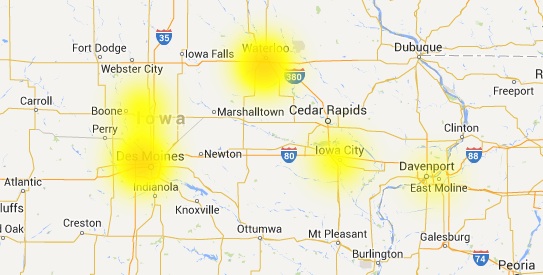
The map below shows Mediacom outages by region. Here we have zoomed into Iowa as of 13 October 2014 @ 10:22 PM.

20141013mo2222-outage-map-mediacom

“At the time of this posting, our Internet has been out for three days. Upon requesting service, we were told there is higher than average call volume and all available technicians are booked until the end of the week. Yet, they claim there are no known outages in our area.” 13 October 2014 @ 10:22 PM.

__________

Note: The map data represents complaints received on the DownDetector.com website. Broadband customers submit reports of outages in their area, and those submitted complaints are represented on the map by provider. It’s not entirely scientific, and some outage reports could be a result of user error. However, the map does provide a helpful guide.

Setup Microsoft Windows 8 With Local Account

Summary

It’s helpful to have a local user account on your Windows 8 computer in case something happens to your Microsoft online account. The instructions on this page are applicable for Windows 8.1 and Windows 10.

Benefits of a Local Account

Sometimes we forget our password, or an online account gets hacked into. Usually there are online steps we can follow to try and recover our password or account.

However, with Microsoft Windows, if you are logging into the computer with your Microsoft online account username and password, and the account is compromised you won’t be able to get into your computer. You’ll be locked out of all your files and programs, and you won’t be able to get online to fix the problem.

With a local user account, the login will always work regardless of what’s going on with your online account. Having an extra administrative user account on the computer (as a back door) will let you gain access to the computer if another user account on the computer becomes infected with malware or for some other reason won’t permit a login. So, for this reason it’s important to have a local user account.

Instructions

During the Windows 8 setup process, you’ll be presented with a screen like the one below that asks you to “Sign in to your Microsoft account.” Click the image below to enlarge.

20141011sa-microsoft-windows-setup-local-user-account-01

If you want to use a local user account instead, it won’t be clear what you should do at this point. Click the link that says, “Create a new account.” Even though you don’t want a new account, this takes you to a screen (example below) where you can choose to setup a local account. Click the image below to enlarge.

20141011sa-microsoft-windows-setup-local-user-account-02

Click the link that says “Sign in without a Microsoft account.” Elsewhere this link may be accompanied by a warning that states “Not Recommended.”

You’ll be taken to a screen (shown below) where you can setup a local account. Click the image to enlarge.

20141011sa-microsoft-windows-setup-local-user-account-03

Provide a username, password, and password hint.

Why So Difficult?

At this point, you might be wondering why Microsoft makes it difficult to setup a local user account. The reason is because they would like to get as many people as possible setting up online Microsoft user accounts.

Having a local user account on a computer synchronized with the Microsoft cloud services can be very valuable in terms of accumulating information about each person and computer. This big data has aggregate value — either to advertisers, or to Microsoft for their own research and system development.


HP Pavilion Laptop Computer Boot Order USB

Summary

The following instructions will be helpful if you’re trying to startup your HP Pavilion laptop computer to USB.

Configure for USB Startup

Follow these instructions to configure for USB startup:

  1. Startup the computer.
  2. As soon as the computer is starting up, while the screen is still black, quickly press F10 repeatedly to enter the BIOS settings menu (this may be F2 or F6 on some computers).
  3. Select the Advanced tab.
  4. Arrow down to highlight Boot Order and press Enter.
  5. Use the F5 and F6 keys to move items up and down. Place the USB item at the top.

What is the boot order?

When the computer starts, the system BIOS begins to check a pre-determined list of drives and devices that may contain an operating system such as Windows. The computer can boot an operating system from a hard drive, floppy drive, CD or DVD optical drive, USB storage device, or a network. The order in which the devices are checked is configurable through the BIOS setup menu.

What is the default boot order?

The default boot order settings for the computer are configured in the factory. The default boot order for HP notebook PCs is listed below.
  1. Floppy disk drive
  2. Optical drive (DVD, CD-ROM)
  3. Hard drive
  4. USB device
  5. Network adapter

Reset the boot order to the default settings

To reset the boot order to the default settings, follow the steps below.
  1. Turn on or restart the computer.
  2. While the display is blank, press the f10 key to enter the BIOS settings menu.
  3. Press the f9 key to reset the BIOS to the default settings.
  4. Press the f10 key to save the changes and exit the BIOS settings menu.

__________

Some of the above information was from an HP support page.

Fluke Networks LSPRNTR-200 LinkSprinter 200 Network Tester with WiFi

Summary

The LinkSprinter 200 Network Tester with WiFi from Fluke Networks is an economical way to get sophisticated network diagnostics and reporting. [Buy]

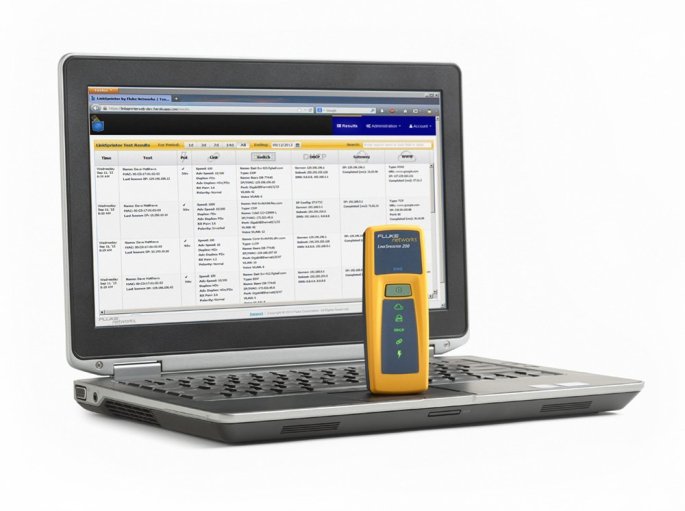
Product Photos

Below are product photos.

Product Description

This smart network tester fits in your pocket, connects to your phone and stores your network test results in the cloud.

Five essential network tests in the palm of your hand

  • Power Over Ethernet (PoE)
    Check to make sure you can power a phone, security camera or Access Point through a specific port. The LinkSprinter Network Tester can even run without batteries on PoE.
  • Link to the Switch
    Perform a switch test, which will indicate the switch name and port your cable connects to. Know your available speed and duplex settings.
  • DHCP Connection
    Confirm that the DHCP server is running and responsive. Request an IP address, get your subnet information, and identify the default gateway and DNS server.
  • Gateway Connection
    Verify the gateway/router address and reachability by pinging the device three times.
  • Internet Connection
    Confirm cloud connectivity or internal service reachability. Verify DNS server lookup and application port connectivity.

The LinkSprinter™ Cloud Service

Simply connect your LinkSprinter Network Tester to an Ethernet drop and the test sequence will begin automatically

  • Test results can be sent directly to your email
  • Email test results
  • Annotate test results
  • Manage, sort and analyze results
  • Filter results by time, user, network, errors
  • Download firmware updates

View detailed network test results on your mobile device.

The LinkSprinter 200 results can be accessed through the browser of any mobile device with its built-in Wi-Fi access point and web server.

Which network tester is right for you?

LinkSprinter 200
Quick and simple network testing for the advanced troubleshooting professional – with the added benefit of having immediate access to your in-depth test results from any mobile device, anywhere!

  • Embedded Wi-Fi access point for details in real-time using your mobile devices
  • Cloud-based management system
  • Battery/Power over Ethernet (PoE) operated
  • One-button, tri-state LED interface

LinkSprinter 100
For the technician who doesn’t need to fuss with the details immediately – your results are sent straight to the cloud for the network engineer or later review.

  • Cloud-based management system
  • Battery/Power over Ethernet (PoE) operated
  • One-button, tri-state LED interface

Click here for further reading on the Fluke Networks website.