News Feed

Get Your Free Upgrade to Microsoft #Windows10

Summary

Windows 10 is scheduled to be released on 29 July 2015. In the past, major upgrades of Windows were complicated to choose from and expensive to purchase. Starting with Windows 10, Microsoft is making it easier to upgrade.

Windows 10 Upgrade Icon

Microsoft has begun placing a Windows 10 upgrade icon in the task bar system tray of Windows 7 computers. You can see it in the image below on the left.

20150612fr-windows-10-upgrade-icon

When this icon appears on your computer it means that you qualify for a free upgrade to Windows 10, which will be pushed out as an update later this summer.

Reserving Windows 10

To reserve your copy of Windows 10, click the icon and follow the instructions as shown in these screen shots. Click an image for a larger gallery view.

Confirmation Email

Once you’ve completed the reservation process, you’ll receive a confirmation email.

Congratulations on reserving Windows 10

Your free upgrade will be available from July 29th, and now that you’ve reserved it, you won’t miss a minute of Windows 10 helping you do great things.

Because you’ve reserved, Windows will automatically take care of the download in advance. Then you’ll get a notification when your upgrade is ready to install. That way you can start using Windows 10 immediately – or schedule a time to install that’s convenient for you. If you have any more questions, check out the upgrade FAQ.

What’s in the “Get Windows 10” app?

You’ve just reserved your free upgrade using the “Get Windows 10” app. You can also use the app to confirm the reservation, check to see if your device is compatible with Windows 10, and un-reserve if you wish to cancel your reservation prior to your Windows 10 upgrade. If you want to return to the app, just click the Windows logo in the taskbar.

Windows 10 is full of great features

In addition to features you may have heard about such as Cortana* and Microsoft Edge, our new web browser, Windows 10 contains lots of other exciting tools to help you do great things. [More…]

Windows is for people who do

Windows is about helping people do great things, so we created a series of videos to show the innovative ways individuals use Windows to realize their potential. These include Mikaila, a young girl working to save the bees, and Kyle, who creates motion capture animations. Doing is part of their DNA, and Windows gives them the tools they need to follow their passion.

More ways to keep up with Windows 10

Want to get periodic emails about Windows 10? If you checked the box to receive emails when you reserved your free upgrade, you’re already signed up. If not, sign up here. You can also keep up with all things Windows 10 on our Social channels, as well as the Windows Blog.

Legal Disclaimer

Here’s the humorous legal disclaimer at the end of the confirmation email:

Our lawyers made us say this: Windows 10 Upgrade Offer is valid for qualified Windows 7 and Windows 8.1 devices, including devices you already own. Some hardware/software requirements apply and feature availability may vary by device and market. The availability of Windows 10 upgrade for Windows Phone 8.1 devices may vary by OEM, mobile operator or carrier. Devices must be connected to the internet and have Windows Update enabled. Windows 7 SP1 and Windows 8.1 Update required. Some editions are excluded: Windows 7 Enterprise, Windows 8/8.1 Enterprise, and Windows RT/RT 8.1. Active Software Assurance customers in volume licensing have the benefit to upgrade to Windows 10 enterprise offerings outside of this offer. To check for compatibility and other important installation information, visit your device manufacturer’s website and the Windows 10 Specifications page. Additional requirements may apply over time for updates. Security and features are kept automatically up-to-date which is always enabled.

Windows 10 Video Highlights Reel

Here’s a quick overview of Windows 10.

[youtube https://www.youtube.com/watch?v=j3ZLphVaxkg]

Windows 10 Preview with Joe Belfiore

This preview video with Joe Belfiore covers more features of Windows 10.

[youtube https://www.youtube.com/watch?v=Wwc5jKc-EgE]

Job Opening @UIOWA: IT Support Consultant

[Tech Jobs]

Summary

The University of Iowa has a job opening for an IT Support Consultant within the College of Liberal Arts & Sciences Technology Services group, which is affiliated with the larger Information Technology Services organization on campus.

Click here now for details on the job opening.

About Work at the University of Iowa

The University of Iowa is considered by many to be one of the best employers in the nation with regard to exceptional benefits, competitive pay, world-class healthcare, career advancement opportunities, a nationally recognized fitness facility, and an exceptional working environment.

About Living in Iowa City

Many people who have traveled the world, come to Iowa City and make it their home. The community has a lot to offer which is why Iowa City is repeatedly recognized as one of the best cities in the nation to live.

Click here to read more about why Iowa City is exceptional.

Videos

Below are some videos about the University of Iowa and the Iowa City community.

About the University of Iowa

A short introductory video.


World’s First LEED Platinum Certified Data Center at the University of Iowa

A video produced by HP about our world-class LEED Platinum data center.


Our Moment: The University of Iowa

A 20-minute video from 2010 covering various aspects of campus life and work.


The University of Iowa Campus from a Student Perspective

Videos showing more about the campus from a student perspective.


Introductory Welcome Video for Mozilla Firefox 38.0.5

[vimeo https://vimeo.com/129896165]

On 2 June 2015, Mozilla released Firefox 38.0.5 with a few new features including:

  • Keep track of articles and videos with Pocket
  • Clean formatting for articles and blog posts with Reader View
  • Share the active tab or window in a Hello conversation

For more about the benefits of Firefox, visit https://www.mozilla.org/en-US/firefox/desktop/

CNET Download Site Uses Misleading Software Installation Utility

The Download.com website managed by CNET has become the primary website for software downloads. Many companies use it as the only portal for delivery of their software. However, the site has been identified to use misleading and potentially harmful advertising. So, it’s important to be careful when using the site.

One of the problems to be mindful of is the software download and installation utility. When using it, if you’re not careful, you’ll agree to having other software installed on your computer and having settings on your computer changed.

If you’re not careful to decline various offers, here are some common changes that you’ll experience on the Apple Mac platform:

  1. Your default search provider would be changed to Yahoo on Safari, Firefox, and Google Chrome.
  2. MacKeeper may get installed.

Be sure to read the small print. You’ll need to click on the Decline and Close buttons whenever asked if you want to install the additional software.

Here are the screenshots you’ll see during installation.

20150529sa-cnet-software-installation-page-1-of-3

Click Next Step to continue to the screen shown below.

20150529sa-cnet-software-installation-page-2-of-3

On this screen, you need to Decline or Accept having Yahoo set as your default search engine. The screen is configured to look like a typical License Agreement or Acceptance of Terms. Most people will just click Accept and not read the fine print. You should click Decline to avoid having modifications made to your search settings. When you click Decline, you’ll continue to the screen shown below.

20150529sa-cnet-software-installation-page-3-of-3

The screen shown above, is written to look like a typical installation screen. However, it’s a confirmation screen to have MacKeeper installed. The Install button will install MacKeeper. The Close button will continue with the installation of the program you intended to install.

The following screens for steps 3 and 4 are relevant for the software installation.

Important Travel Planning: Mobile Phone Voice and Data Service Coverage Areas

Problem Summary

Something to keep in mind when traveling with a non-Verizon phone is that there may be times when you have only voice services or no signal at all — meaning, you’ll be without even the ability to make an emergency phone call. With no signal, if you misplace your phone, you can’t call it to hear it ringing, and it can no longer be located using the ‘find my phone’ features available from most companies. With voice services only, the GPS mapping images won’t download and update. Even if you have data services available on your non-Verizon device, the slower remote service typically can’t keep up with map reloads. Most people don’t discover these things until they are already traveling

So, if you’re traveling to someplace other than a big city, and aren’t a Verizon customer, plan on being without Internet during your travels and when you get where you’re going.

Hotel Wireless Isn’t Reliable

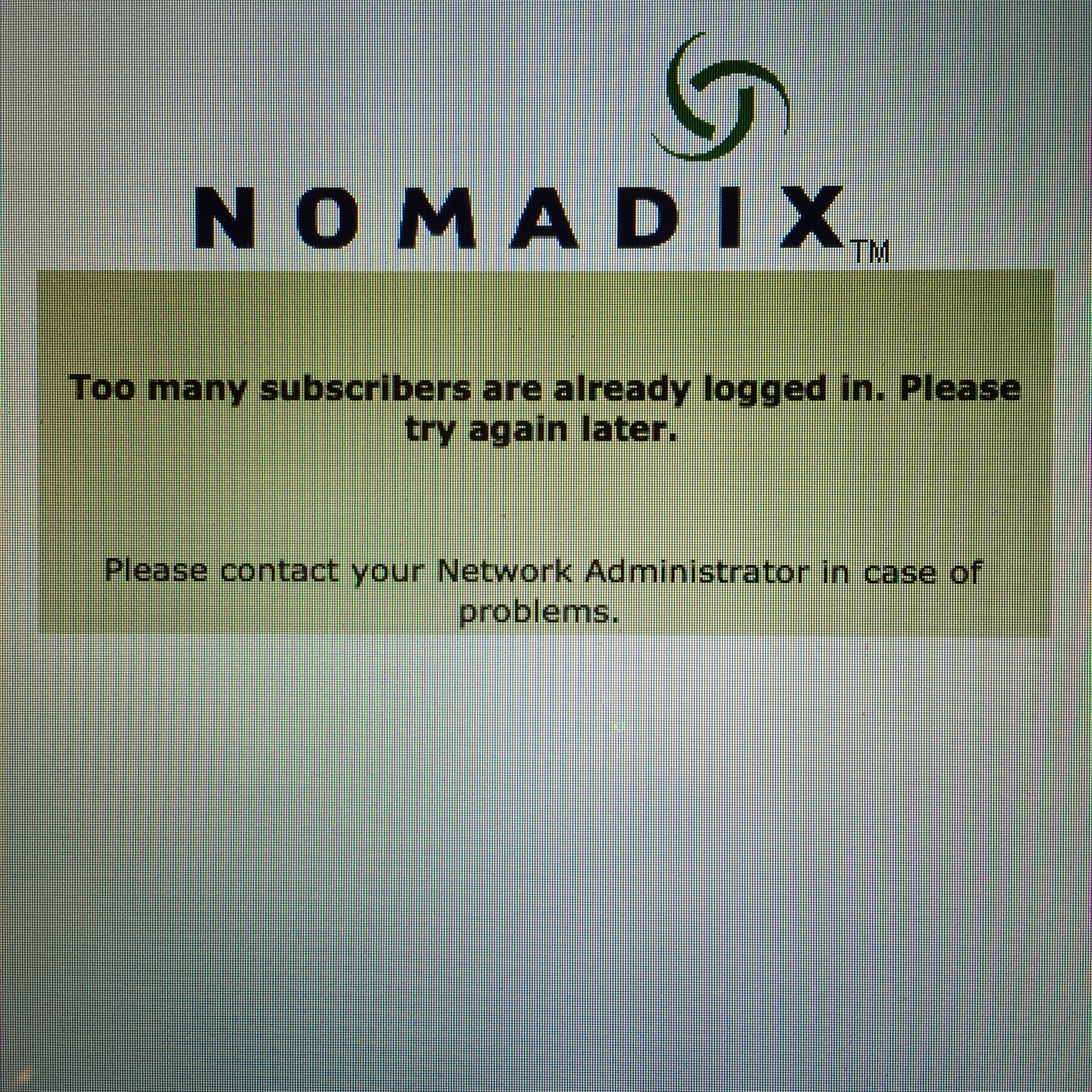
Don’t expect to rely on your hotel’s WiFi service because it will probably be very slow or inaccessible (as shown below).

20150523sa-nomadix-hotel-wireles-wifi-internet-service-not-available-IMG_7126

Need to meet a deadline or catch up on important emails? Sorry. Better luck next time.

Best Verizon Mobile Hotspot

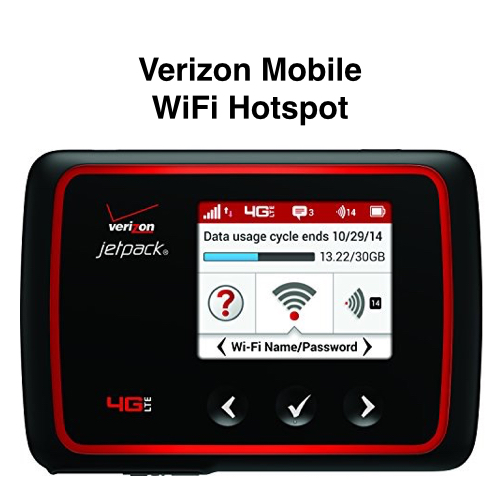
Your best option is to travel with a Verizon MiFi 6620L Jetpack 4G LTE mobile WiFi hotspot (shown below). This will allow you to get data services such as GPS mapping updates and look up important information on the internet. You’ll also be able to make phone calls using Skype, Hangouts, or a similar VOiP (voice over IP) service.

20150523sa-verizon-mobile-hotspot-500x500

Here’s Why Verizon Costs More

Companies like AT&T and Sprint offer lots of shared data and typically lower monthly prices, with relatively good signal coverage in most cities, but they don’t cover rural or remote areas well. This is because they’ve not invested in the additional tower placements (therefore the lower monthly bills). Verizon costs more because they provide service in bigger cities as well as in rural and remote areas. They’ve invested in more tower locations nation-wide.

Hybrid Service Model

A hybrid service model will save money while giving you the services you need when you need them. In other words, rather than paying higher monthly fees for Verizon’s amazing national coverage year-round, pay for it only when traveling (unless you travel all the time or live in a rural area). Then, for your year-round phone service, get a lower priced local service provider.

Cost of a Mobile WiFi Hotspot

The cost of a mobile hotspot is a $200 one-time purchase price (with no contract) and then $50 for 5GB data during any month you’re planning to travel. Other data plans are also available. When you’re not traveling, you can set your Verizon service to dormant and not pay anything until your next trip. There are other lower cost mobile hotspot devices, but they work only with 4G and won’t provide service in 3G areas. Also, they don’t have the large color screen with buttons for navigation and system configuration.

Limitations and Problems

Even if you use a Verizon mobile WiFi hotspot as described above, you’ll still have some limitations with your non-Verizon phone. For example, although the data will work, and you can make outbound calls with Skype, any inbound phone calls or SMS text messages won’t come through (although, Apple iMessage still works).

Click here to learn more or purchase
a Verizon Mobile WiFi Hotspot.

How iPhone and Android Smartphone Apps Track and Access Your Private Information

The following series of four videos from AJ+ presents an introduction to the privacy issues related to using smartphone apps.

How Apps Access Your Private Information

[youtube https://www.youtube.com/watch?v=YNNulgHYAbo?rel=0]

Google Is Tracking Your Every Move

[youtube https://www.youtube.com/watch?v=2HqOdp0u7eE?rel=0]

Free Wi-Fi Terms of Use Are Broad and Invasive

[youtube https://www.youtube.com/watch?v=7hHJevLh59Q?rel=0]

Who’s Really In Control Of Your Phone?

[youtube https://www.youtube.com/watch?v=vqfgcw-v_fA?rel=0]

Multiple Security Vulnerabilities in Apple Mac OS X and Apple Safari

From: State of Iowa – Information Security Office

Date Issued:  May 5, 2015

Maximum Risk Rating/Severity:  High

Brief Summary: All Apple computers (prior to v10.10.3) are vulnerable to the 46 security exploits described below. Update to the latest version of Yosemite immediately.

Overview:

Multiple vulnerabilities have been discovered in Apple MAC OS X and Apple Safari. Mac OS X is an operating system for Apple computers. Apple Safari is a web browser available for Mac OS X and Microsoft Windows. These vulnerabilities can be exploited if a user visits or is redirected to a specially crafted webpage, or opens a specially crafted file, including an email attachment, using a vulnerable version of OS X.

Successful exploitation could result in an attacker gaining the same privileges as the logged on user, remote code execution within the context of the application, and bypass of security systems. Failed attacks may cause a Denial of Service condition within the targeted delivery method. Depending on the privileges associated with the user, an attacker could then install programs; view, change, or delete data; or create new accounts with full user rights. 

Affected Software:

Apple Mac OS X Yosemite prior to v10.10.3

Apple Mac OS X Mavericks v10.9.5

Apple Mac OS X Mountain Lion v10.8.5

Apple Safari v8.0.5, 7.1.5, and 6.2.5

Description:

Multiple remote code execution vulnerabilities have been discovered in Mac OS X that could allow remote code execution. These vulnerabilities can be exploited if a user visits or is redirected to a specially crafted webpage or opens a specially crafted file. Details of these vulnerabilities are as follows:

  • Apple Mac OS X Yosemite prior to v10.10.2 is prone to privilege escalation due to an issue with checking XPC entitlements (CVE-2015-1130).
  • Apple Mac OS X Yosemite prior to v10.10.2, OS X Mountain Lion v10.8.5, and OS X Mavericks v10.9.5 have multiple vulnerabilities in Apache prior to versions 2.4.10 and 2.2.29 including one that may allow a remote attacker to execute arbitrary code (CVEs 2015-1066, 2013-5704, 2013-6438, 2014-0098, 2014-0117, 2014-0118, 2014-0226, and 2014-0231).
  • Apple Mac OS X Yosemite prior to v10.10.2, OS X Mountain Lion 10.8.5, and OS X Mavericks v10.9.5 ATS (Apple Type Services) are prone to multiple input validation issues in fontd which may allow a local user to execute arbitrary code with system privileges (CVEs 2015-1131, 2015-1132, 2015-1133, 2015-1134, and 2015-1135).
  • Apple Mac OS X Yosemite prior to v10.10.2 is prone to a cross-domain cookie issue which may result in cookies belonging to one origin may be sent to another origin (CVE-2015-1089).
  • Apple Mac OS X Yosemite prior to v10.10.2 is prone to a cross-domain HTTP request issue which may result in authentication credentials being sent to a server on another origin (CVE-2015-1091).
  • Apple Mac OS X Yosemite prior to v10.10.2 is prone to an input validation issue which may result in the execution of arbitrary code by visiting a maliciously crafted website (CVE-2015-1088).
  • Apple Mac OS X Yosemite prior to v10.10.2, OS X Mountain Lion v10.8.5, and OS X Mavericks v10.9.5 are prone to a use-after-free issue in CoreAnimation which may result in the execution of arbitrary code by visiting a maliciously crafted website (CVE-2015-1136).
  • Apple Mac OS X Yosemite prior to v10.10.2, OS X Mountain Lion v10.8.5, and OS X Mavericks v10.9.5 are prone to multiple memory corruption issues in the processing of font files, which may result in the execution of arbitrary code by processing a maliciously crafted font file (CVE-2015-1093).
  • Apple Mac OS X Yosemite prior to v10.10.2 and OS X Mavericks v10.9.5 are prone to an issue with NVIDIA graphics driver’s handling of certain IOService userclient types, which may allow a local user to execute arbitrary code with system privileges (CVE-20215-1137).
  • Apple Mac OS X Yosemite prior to v10.10.2 is prone to an input validation issue in the hypervisor framework which may allow a local application to cause a denial of service (CVE-2015-1138).
  • Apple Mac OS X Yosemite prior to v10.10.2, OS X Mountain Lion v10.8.5, and OS X Mavericks v10.9.5 are prone to a memory corruption issue in the handling of .sgi files which may result in the execution of arbitrary code by processing a maliciously crafted .sgi file (CVE-2015-1139).
  • Apple Mac OS X Yosemite prior to v10.10.2 is prone to a memory corruption issue which may allow a malicious HID (Human Interface Device) to cause arbitrary code execution (CVE-2015-1095).
  • Apple Mac OS X Yosemite prior to v10.10.2, OS X Mountain Lion v10.8.5, and OS X Mavericks v10.9.5 are prone to a buffer overflow issue which may allow a local user to execute arbitrary code with system privileges (CVE-2015-1140).
  • Apple Mac OS X Yosemite prior to v10.10.2 is prune to a kernel memory content disclosure issue which may allow a local user to determine kernel memory layout (CVE-2015-1096).
  • Apple Mac OS X Mountain Lion v10.8.5 and OS X Mavericks v10.9.5 are prone to a heap buffer overflow in the IOHIDFamily’s handling of key-mapping properties which may allow a malicious application to execute arbitrary code with system privileges (CVE-2014-4404).
  • Apple Mac OS X Mountain Lion v10.8.5 and OS X Mavericks v10.9.5 are prone to a null pointer deference issue in the IOHIDFamily’s handling of key-mapping properties which may allow a malicious application to execute arbitrary code with system privileges (CVE-2014-4405).
  • Apple Mac OS X Mountain Lion v10.8.5 and OS X Mavericks v10.9.5 are prone to an out-of-bounds issue in the IOHIDFamily driver which may allow a use to execute arbitrary code with system privileges (CVE-2014-4380).
  • Apple Mac OS X Yosemite prior to v10.10.2 is prone to an issue in the handling of virtual memory operations within the kernel which may allow a local user to cause unexpected system shutdown (CVE-2015-1141).
  • Apple Mac OS X Yosemite prior to v10.10.2, OS X Mountain Lion v10.8.5, and OS X Mavericks v10.9.5 are prone to a race condition in the kernel’s setreuid system call which may allow a local user to cause a system denial of service (CVE-2015-1099).
  • Apple Mac OS X Yosemite prior to v10.10.2, OS X Mountain Lion v10.8.5, and OS X Mavericks v10.9.5 are prone to setreuid and setregid system calls not dropping privileges permanently which may allow a local application to escalate privileges (CVE-2015-1117).
  • Apple Mac OS X Yosemite prior to v10.10.2 ICMP redirects were enabled by default, which may allow an attacker with a privileged network position to redirect user traffic to arbitrary hosts (CVE-2015-1103).
  • Apple Mac OS X Yosemite prior to v10.10.2 is prone to an issue processing TCP headers which may allow an attacker with a privileged network position to cause a denial of service (CVE-2015-1102).
  • Apple Mac OS X Yosemite prior to v10.10.2, OS X Mountain Lion v10.8.5, and OS X Mavericks v10.9.5 are prone to an out of bounds memory access issue which may allow a local user to cause unexpected system termination or read kernel memory (CVE-2015-1100).
  • Apple Mac OS X Yosemite prior to v10.10.2, OS X Mountain Lion v10.8.5, and OS X Mavericks v10.9.5 are prone to improper treatment of some IPv6 packets which may allow a remote user to bypass network filters (CVE-2015-1104).
  • Apple Mac OS X Yosemite prior to v10.10.2, OS X Mountain Lion v10.8.5, and OS X Mavericks v10.9.5 are prone to a memory corruption issue in the kernel which may allow a local user to execute arbitrary code with kernel privileges (CVE-2015-1101).
  • Apple Mac OS X Yosemite prior to v10.10.2 is prone to a state inconsistency issue in the handling of TCP out of band data which may allow a remote attacker to cause a denial of service (CVE-2015-1105).
  • Apple Mac OS X Yosemite prior to v10.10.2 is prone to an input validation issue in LaunchService’s handling of application localization data which may allow a local user to cause the Finder to crash (CVE-2015-1142).
  • Apple Mac OS X Yosemite prior to v10.10.2, OS X Mountain Lion v10.8.5, and OS X Mavericks v10.9.5 are prone to a type confusion in LaunchService’s handling of localized strings which may allow a local user to execute arbitrary code with system privileges (CVE-2015-1143).
  • Apple Mac OS X Yosemite prior to v10.10.2 is prone to a memory corruption issue in the handling of configuration profiles which may allow the processing of a maliciously crafted configuration profile to cause unepxted application termination (CVE-2015-1118).
  • Apple Mac OS X Yosemite prior to v10.10.2 is prone to weak key generation in ntpd when an authentication key is not configured which may allow a remote attacker to brute force ntpd authentication keys (CVE-2014-9298).
  • Apple Mac OS X Yosemite prior to v10.10.2, OS X Mountain Lion v10.8.5, and OS X Mavericks v10.9.5 are prone to multiple input validation issue in OpenLDAP which may allow a remote unauthenticated client to case a denial of service (CVEs 2015-1545 and 2015-1546).
  • Apple Mac OS X Yosemite prior to v10.10.2, OS X Mountain Lion v10.8.5, and OS X Mavericks v10.9.5 are prone to multiple vulnerabilities in OpenSSL 0.9.8zc, including one that may allow an attacker to intercept connections to a server that supports export-grade ciphers (CVEs 2014-3569, 2014-3570, 2014-3571, 2014-3572, 2014-8275, and 2015-0204).
  • Apple Mac OS X Yosemite prior to v10.10.2 and OSX Mavericks v10.9.5 are prone to an Open Directory Client issue which may allow an unencrypted password to be sent over the network when using Open Directory from OS X Server (CVE-2015-1147).
  • Apple Mac OS X Yosemite prior to v10.10.2, OS X Mountain Lion v10.8.5, and OS X Mavericks v10.9.5 are prone to multiple vulnerabilities in PHP, including one which may lead to arbitrary code execution (CVEs 2013-6712, 2014-0207, 2014-0237, 2014-0238, 2014-2497, 2014-3478, 2014-3479, 2014-3480, 2014-3487, 2014-3538, 2014-3587, 2014-3597, 2014-3668, 2014-3669, 2014-3670, 2014-3710, 20214-3981, 2014-4049, 2014-4670, 2014-4698, and 2014-5120).
  • Apple Mac OS X Yosemite prior to v10.10.2, OS X Mountain Lion v10.8.5, and OS X Mavericks v10.9.5 are prone to a memory corruption issue in the handling of iWork files which may allow an opened, maliciously crafted iWork file to execute arbitrary code (CVE-2015-1098).
  • Apple Mac OS X Mountain Lion v10.8.5 is prone to a heap buffer overflow which may allow viewing a maliciously crafted Collada file to lead to arbitrary code execution (CVE-2014-8830).
  • Apple Mac OS X Yosemite prior to v10.10.2 is prone to an issue that may allow a user’s password to be logged to a local file (CVE 2015-1148).
  • Apple Mac OS X Yosemite prior to v10.10.2, OS X Mountain Lion v10.8.5, and OS X Mavericks v10.9.5 are prone to an issue that may allow tampered applications to launch (CVEs 2015-1145 and 2015-1146).
  • Apple Mac OS X Yosemite prior to v10.10.2 is prone to a memory corruption issue in WebKit that may result in arbitrary code execution after visiting a maliciously crafted website (CVE-2015-1069).
  • Apple Mac OS X Yosemite prior to v10.10.2, OS X Mountain Lion v10.8.5, and OS X Mavericks v10.9.5 are prone to an issue in Safari that may allow users to be tracked by malicious websites using client certificates (CVE-2015-1129).
  • Apple Mac OS X Yosemite prior to v10.10.2, OS X Mountain Lion v10.8.5, and OS X Mavericks v10.9.5 are prone to an issue in Safari that may allow user’s browsing history in private browsing mode to be revealed (CVE-2015-1128).
  • Apple Mac OS X Yosemite prior to v10.10.2, OS X Mountain Lion v10.8.5, and OS X Mavericks v10.9.5 are prone to an issue in Safari that will cause the incomplete purging of a user’s browsing history (CVE-2015-1112).
  • Apple Mac OS X Yosemite prior to v10.10.2, OS X Mountain Lion v10.8.5, and OS X Mavericks v10.9.5 are prone to multiple memory corruption issues in WebKit that may result in unexpected application termination or arbitrary code execution after visiting a maliciously crafted website (CVEs 2015-1119, 2015-1120, 2015-1121,2015-1122, and 2015-1124).
  • Apple Mac OS X Yosemite prior to v10.10.2, OS X Mountain Lion v10.8.5, and OS X Mavericks v10.9.5 are prone to a state management issue that may result in a user’s browsing history in private mode being indexed (CVE02015-1127).
  • Apple Mac OS X Yosemite prior to v10.10.2, OS X Mountain Lion v10.8.5, and OS X Mavericks v10.9.5 are prone to a an issue in WebKit’s credential handling for FTP URLs that may result in resources of another origin being accessed after visitng a maliciously crafted website (CVE-2015-1126).
  • Security Update 2015-004 (available for OS X Mountain Lion v10.8.5 and OS X Mavericks v10.9.5) also addresses an issue caused by the fix for CVE-2015-1067 in Security Update 2015-002. This issue prevented Remote Apple Events clients on any version from connecting to the Remote Apple Events server. In default configurations, Remote Apple Events is not enabled.

Successful exploitation could result in an attacker gaining the same privileges as the logged on user, remote code execution within the context of the application, and bypass of security systems. Failed attacks may cause a Denial of Service condition within the targeted delivery method. Depending on the privileges associated with the user, an attacker could then install programs; view, change, or delete data; or create new accounts with full user rights.

Solution/Recommendations:

We recommend the following actions be taken:

  • Upgrade to Apple Mac OS X Yosemite 10.10.3 immediately after appropriate testing.
  • Apply appropriate updates provided by Apple to vulnerable systems immediately after appropriate testing.
  • Run all software as a non-privileged user (one without administrative privileges) to diminish the effects of a successful attack.
  • Remind users not to download, accept, or execute files from un-trusted or unknown sources.
  • Remind users not to visit un-trusted websites or follow links provided by unknown or un-trusted sources.

Apple References:

20140226we-apple-computer-security-500x500

Smartphone Hotspot: Getting Internet Access When Mediacom is Not Working

Summary

When it’s working, Mediacom offers some of the fastest Internet service in the Iowa City area. Unfortunately, the service is occasionally down or too slow to be of use. So, for people who can’t be without Internet, temporary alternative options may need to be considered. Test your speed as described below, and if you’re experiencing slow speeds or outages, consider using your smartphone as a Wi-Fi Internet hotspot (described below).

Test Your Internet Speed

It’s important to periodically test your Internet speed. It’s not uncommon for people to be getting much slower speeds than what they are paying for. This may be a temporary problem that can be fixed by a modem reset (described below), or it might be that your service provider is over charging and under delivering. To test your speed, go to the SpeedTest.net website and click the Begin Test button. There may be ads on the page with similarly designed buttons labeled “Start Now.” Ignore those. The speed test will tell you what your download and upload speeds are.

For comparison, here’s a general guide to download speeds, with Mediacom pricing as of early 2015:

  • 3 Mbps is a slower connection that isn’t as common any more. Given today’s media-dense content, It’s generally not adequate for two or more computers. Some people choose this option if available because the cost is about $25 a month.
  • 5 Mbps is a bit better.
  • 10 Mbps is a service offered by CenturyLink. The cost is $35 per month.
  • 15 Mbps is more common for homes and businesses where several computers and devices might be sharing the same connection. This is typically the speed that most people are paying for. The cost might be $30 to $35 a month.
  • 20 Mbps is more desirable and will result in faster Internet related operations. The cost might be $40 to 50 per month.
  • 50 Mbps is best for multiple computers, especially when those computers are downloading media. This is also useful for surveillance systems needing to upload video to the cloud. The cost might be $45 per month.
  • 100 Mbps is helpful for anyone requiring high-speed for multiple devices. It speeds up software downloads for technicians who are setting up multiple computers. The cost might be $55 per month.
  • 150 Mbps is the high end of what’s available for most users. The cost might be $80 per month.

The pricing listed above is introductory pricing from Mediacom, so long-term costs per month may be higher.

Troubleshooting

If you’re experiencing no Internet, or very slow Internet, before going any further, make sure that you’ve performed the basic troubleshooting step of disconnecting your cable modem. This involves removing all of the cords (power, Ethernet, and coaxial cable) for about 5 to 10 minutes. This extended period of time is to ensure that when the equipment is detected again by Mediacom’s servers, it will get a fresh connection to the Internet. This works especially well with slow Internet speeds. Let’s say you’re paying for 50 Mbps, but getting 3 Mbps. This procedure might get you back up to 50 Mbps again. When you connect the cable modem again, test your Internet speed.

Using Your Smartphone as a Wi-Fi Hotspot

Most smartphones have the ability to provide Wi-Fi Internet access. You can ask your mobile phone provider for more details about the cost. Typically the Hotspot feature is enabled and configured in your smartphone settings. For iPhone, it’s called Personal Hotspot and found at the top under settings. When connecting to your smartphone Wi-Fi, you’ll want to make sure you’ve disconnected from your cable modem (Ethernet and/or Wi-Fi connection).

This part is a little confusing, but basically the problem is that your home Wi-Fi router is probably set as the default preferred Internet connection. So, unless you turn it off, your computer will try to connect to that instead of your smartphone. If there’s an Ethernet cord going to your home router, then disconnect that. Only then will your computer prefer the smartphone Wi-Fi hotspot. Otherwise, even if your computer is connected to the smartphone it may continue trying to use the home router, and although it’s connected to the home router, it won’t get an Internet connection.

Keep in mind that your usage will be considered as part of your overall data package (see tips below on reducing data usage). However, as a short-term solution, using your smartphone as an Internet Wi-Fi hotspot should work adequately as an alternate way to access the Internet. When you do this, you’ll turn on the hotspot feature, and note down the name and password for your hotspot. You’ll need Wi-Fi capability on your computer. Laptop computers typically have this built-in. Desktop computers may need a USB Wi-Fi adapter.

Hotspot Pricing

Every mobile service provider is different, but let’s take AT&T as an example. If you pay $100 for the 10GB per month shared data. You’ll get 15GB (due to a special promotion) that you can share among your devices. Devices may be $10 to $40 per month per line (or per device). Verizon has a limit of 2.5 GB of data shared per device even if you’re on their 10 GB plan (as of early 2015). AT&T shares the 10GB across devices without a per-unit limit. There’s no additional cost with AT&T to have your smartphone hotspot feature enabled. The data is used either by your smartphone or through your smartphone to your computer. Limit your data usage (as described below) to avoid paying additional fees.

Limit Your Data Usage

Smartphones are already optimized with data efficiency in mind. For example, your phone may be configured to only download large software updates when you’re connected to Wi-Fi Internet (and not using your phone’s data plan). Laptop and desktop computers typically don’t consider your connection method. So, you’ll want to be careful about not downloading the latest Windows updates or other software updates while using your mobile device. Don’t download movies, music, or large photos. Keep your usage limited to tasks like email and browsing the web.

Choosing Cable or DSL Internet

Due to outages and intermittent slow speed issues, some customers have switched from Mediacom Cable Modem Internet service to DSL service from CenturyLink (the local landline phone service provider). This is generally a more reliable connection, and provides what’s perceived to be better customer service. Because landline phone service is used for alarm systems, medical equipment, and 911 calls, it’s considered to be a higher tier of urgency. Services provided by cable television companies are considered to be less urgent (watching MTV isn’t as important as a 911 call). While CenturyLink advertises Internet speeds up to 1000 Mbps (for some markets), their typical available service speeds for most cities and neighborhoods are about 10 Mbps or slower.

20150226th-apple-mac-ios-yosemite-handoff-computer-iphone-ipod-ipad

Microsoft Outlook Version 15.8 for Apple Mac Crashing on Startup

If you’re using Microsoft Outlook Version 15.8 for Apple Mac and it is crashing on startup. You may want to try following these steps to restore normal operation.

  1. Open the Terminal program.
  2. Type defaults delete com.microsoft.Outlook and press Enter. This will delete the old preferences.
  3. Type killall cfprefsd and press Enter to stop the cached prefs.
  4. Launch Outlook again.
  5. You’ll see the welcome screens as if you’re running Outlook for the first time. If you previously setup Outlook and had imported from the old 2011 version, you can skip that step when prompted.

Motorola Moto X 2nd Gen 32GB Bamboo Smartphone

The Motorola Moto X smartphone ($400 base price) offers a user customizable design with Moto Maker. The cost when fully configured with 32GB memory ($50), bamboo back ($25), the Motorola Turbo Charger ($35), AT&T carrier configuration ($100), and Moto Care Accidental Protection ($85) is about $700. The warranty is transferable and tied to the device’s unique IMEI number.

Moto X 2nd Gen Product Images

Motorola Turbo Charger ($35)

From the Turbo Charger product page:

  • Our fastest charger ever — incorporates Qualcomm® Quick Charge™ 2.0 technology and 15W of power
  • 15 minutes of charging on the latest Moto phones delivers up to 8 more hours of battery life. Other USB-enabled phones and tablets enjoy up to 1.6 amp charging rate.
  • Our optimized battery charging algorithm enables turbo charging while maintaining good battery cycle life.

General Moto X 2nd Gen Specifications

Below are general specifications about the Moto X 2nd Gen.

Operating system

Android 5.0 Lollipop® now available for some carriers

System Architecture/Processor

Motorola Mobile Computing System including 2.5GHz Qualcomm® Snapdragon™ 801 with quad-core CPU (MSM 8974-AC), Adreno 330 @ 578 MHz GPU, Natural Language Processor, Contextual Computing Processor

Memory (RAM)

  • 2GB

Storage (ROM)

  • 16GB*** & 32GB***
  • 64GB*** (Moto Pure Edition only)

Dimensions

  • Height: 140.8mm ( 5.54 inches)
  • Width: 72.4mm ( 2.85 inches)
  • Curve: 3.8-9.9mm ( 0.15- 0.39 inches)

Weight

  • 144 grams (5.08 ounces)

Display

  • 5.2″ AMOLED
  • 1080p FULL HD 1920×1080
  • 423 ppi
  • Corning® Gorilla® Glass 3

Battery

  • 2300 mAh
  • Mixed usage up to 24 hours*

Water Resistant

  • Yes

Networks

  • GSM/GPRS/EDGE, UMTS/HSPA+, 4G LTE

Bands (by model)

Moto X – Pure Edition (GSM Unlocked with T-Mo SIM – XT1095):

  • GSM/GPRS/EDGE (850, 900, 1800, 1900 MHz)
  • UMTS/HSPA+ (850, 900, 1700 (AWS), 1900, 2100 MHz)
  • 4G LTE (2, 3, 4, 5, 7, 17)

AT&T (XT1097):

  • GSM/GPRS/EDGE (850, 900, 1800, 1900 MHz)
  • UMTS/HSPA+ (850, 900, 1700 (AWS), 1900, 2100 MHz)
  • 4G LTE (2, 3, 4, 5, 7, 17)

Verizon (XT1096):

  • GSM/GPRS/EDGE (850, 900, 1800, 1900 MHz)
  • UMTS/HSPA+ (850, 900, 1900, 2100 MHz)
  • CDMA (850, 1900 MHz)
  • 4G LTE (2, 3, 4, 7, 13)

USC (XT1093):

  • GSM/GPRS/EDGE (850, 900, 1800, 1900 MHz)
  • UMTS/HSPA+ (850, 900, 1800, 1900, 2100 MHz)
  • CDMA (800, 850, 1900 MHz)
  • 4G LTE (2, 4, 5, 12, 17, 25)

Rear Camera

  • 13 MP
  • f/ 2.25 aperture
  • Quick Capture
  • Tap anywhere to capture
  • Ring flash with dual LEDs
  • 4K UHD video capture
  • 1080p HD video (30 fps)
  • 4X digital zoom
  • Slow motion video
  • Burst mode
  • Auto HDR
  • Panorama
  • Drag to Focus & Exposure

Front Camera

  • 2 MP

SIM Card

  • Nano-SIM

Connectivity

  • Micro USB, 3.5mm headset jack

Bluetooth® Technology

  • Bluetooth version 4.0 LE

Wi-Fi

  • 802.11a/g/b/n/ac (dual band capable)

Speaker

  • Front-ported

Video Capture

  • 1080p HD and 2160p Ultra HD Video, 30fps (MPEG4, H.264)

NFC

  • Yes

Location Services

  • GPS

Base Models**

  • Black
  • Black with Black Leather
  • White with Bamboo

Backs**

  • Choose from 25 different backs (17 colors, 4 woods, 4 leathers).

Accents**

  • Choose from 10 accent colors on the back and now the front too.

Motorola Turbo Charger ($35)

  • Our fastest charger ever — incorporates Qualcomm® Quick Charge™ 2.0 technology and 15W of power
  • 15 minutes of charging on the latest Moto phones delivers up to 8 more hours of battery life. Other USB-enabled phones and tablets enjoy up to 1.6 amp charging rate.
  • Our optimized battery charging algorithm enables turbo charging while maintaining good battery cycle life.