Transparent, Seamless, and Unobtrusive Administration of Service Delivery

One of the best ways to enhance service delivery is to be committed to journaling service requests and delivery through tracking and accumulating the metrics that help improve services.

However, often the process and mechanics of tracking service delivery can impede the quality and timeliness of service. How often have you called for computer support, only to be told, “I’m sorry, our computer is down.” That’s not very reassuring, and it delays the service delivery.

With mobile devices it’s possible to write notes while in the field. This provides an extemporaneous original field journal with entries that can be easily copied and pasted into whatever help desk system is being used.

Using a note taking system like the one included with Apple’s iOS, it’s possible to have folders for storing current and completed service call notes. These notes can be quickly pasted into any service tracking system prior to being filed away in a folder for completed items. This makes it easy to enter notes whenever and wherever.

20140827we-support-keyboard-672x372

Microsoft Windows 8.1 August Update and Windows Server R2

(Source: “August updates for Windows 8.1 and Windows Server 2012 R2,” Microsoft Windows Blog, 5 August 2014)

In April, we released a bigger, more comprehensive package of improvements to Windows 8.1 called the Windows 8.1 Update. We did the same for Server too, with Windows Server 2012 R2 Update. As we said at the time, our goal is to continue to deliver improvements to Windows through regular updates in order to respond more quickly to customer and partner feedback. After all, we already have a regular monthly update process that includes security and non-security updates.

With the above in mind, rather than waiting for months and bundling together a bunch of improvements into a larger update as we did for the Windows 8.1 Update, customers can expect that we’ll use our already existing monthly update process to deliver more frequent improvements along with the security updates normally provided as part of “Update Tuesday.” So despite rumors and speculation, we are not planning to deliver a Windows 8.1 “Update 2.”

We’ll continue to use our normal channels such as Windows Update (WU), Microsoft Update (MU), and Windows Server Update Services (WSUS) to deliver updates to Windows. These updates will include security updates to help keep you protected, as well as non-security updates that can bring a range of improvements to your PC or tablet running Windows. Examples of some of these non-security updates are the Windows Store Refresh in May and the June update to OneDrive to improve your control of sync. Some of these improvements might be more visible or even new features, while others might be more “behind-the-scenes” that improve things like the performance and reliability of your device. With these monthly updates, we continue to refine and improve Windows 8.1 in a more nimble way, creating a richer experience for all Windows customers.

Following are some of the new features and improvements included in the August 12th Update Tuesday:

  • Precision touchpad improvements – three new end-user settings have been added: Leave touch pad on when a mouse is connected; allow right-clicks on the touchpad; double-tap and drag.
  • Miracast Receive – exposes a set of Wi-Fi direct APIs for Independent Hardware Vendor (IHV) drivers or OEM drivers to develop Windows 32-bit applications that run on all supported x86-based or x64-based versions of Windows 8.1, enabling the computer as a Miracast receiver.
  • Minimizing login prompts for SharePoint Online – reduces the number of prompts with federated use in accessing SharePoint Online sites. If you select the “Keep me signed in” check box when you log on for the first time, you will not see prompts for successive access to that SharePoint Online site.

This update will be delivered automatically via WU and optional through WSUS. Enterprises can take the update anytime. Further details on the update will be included here on August 12th.

For current Windows 8.1 consumers who have elected automatic updates, the rollout will be gradual to ensure all customers receive the update in a timely manner. Those who wish to install the update ahead of automatic updates may do so beginning August 12th manually via Windows Update.

As you might expect, we’re taking the same approach to deliver improvements to Windows Server 2012 R2 as well – go here for additional information.

20140805tu-microsoft-windows-8-1-august-update-server-2012-r2

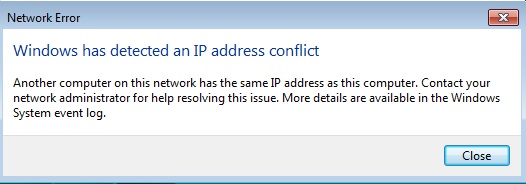
Windows IP Address Conflict Error – “Another computer on this network has the same IP address as this computer.”

20140509fr-windows-network-ip-conflict-

If you get a message similar to the one above, it means that the network (wired and/or wireless) has mistakenly issued the same IP address to two devices.

This can happen when one device goes to sleep, and the router releases that IP address for use again by another device. Then the original computer (or mobile device) attempts to grab the same IP address. The error message will appear.

The problem can also happen if any of the devices on your network have fixed IP addresses. If the device with a fixed IP address wakes up or is turned on, and requests it’s internally defined fixed IP number, but that number is in use by another device, the error will appear.

The best solution is to turn the device off and then back on (restart). In most cases, this will cause the automatic process of requesting and being assigned the next available IP address (DHCP) to fix the problem.

For a server or other device that has a fixed IP address, you may need to turn those devices on first. Let them get their fixed IP addresses assigned. Then turn on other devices.

Apple MacBook iMac Left Mouse Button Not Working Mountain Lion Mavericks

20140226we-apple-support-tips-500x500

If the left mouse button for your Apple computer stops working or suddenly becomes non responsive for no apparent reason, try this trick to possibly fix the problem.

  1. Using the right mouse button, navigate from the Apple (icon) menu to System Preferences and click on Mouse.
  2. Under “Primary mouse button” switch to the Right mouse button and then switch back to the Left. Try this a couple times (keeping in mind that the alternate button will be primary), and return to Left as the primary (or your preferred button).

This may restore the proper function of the left mouse button.

Solution for Gmail Messages in Apple Mail Going to Archive and Unread Message Count Errors

20140226we-apple-support-tips-500x500

The Apple Mail client in Mavericks is reported to have some compatibility problems with Gmail. In some cases, messages are being delivered to the Gmail archive folder and are not showing up in the Inbox. In other instances, the unread / new message count indicator is incorrect. The following steps may help resolve these problems.

  1. Quit Mail if it is running.
  2. In Finder, chose Go > Go to folder.
  3. In the dialog that appears enter “/Library/Application Support/Apple” and press enter.
  4. In the new Finder window that appears there’s a folder called Mail. Drag this folder to the trash.
  5. Restart Mail.
  6. Done!

What these steps accomplish is to delete some of the system settings relating to email. Be sure that you do not delete the Mail folder from your personal user Library. If you’re unsure, get a qualified support person to help you.

__________

Thanks to Makur for discovering the solution to this problem (source discussion thread).

Heartbleed Computer Vulnerability – What you need to know now and how to respond.

20140413su-heartbleed-640x300

On April 13 I had an interview with Justin Andrews of KWWL. We discussed the Heartbleed security exploit and what consumers can do to protect themselves. Click here to view the interview and read the KWWL story. If you have questions about this and other computing security concerns, feel free to contact me. This document was originally posted on April 13 and remains mostly the same as it did originally.

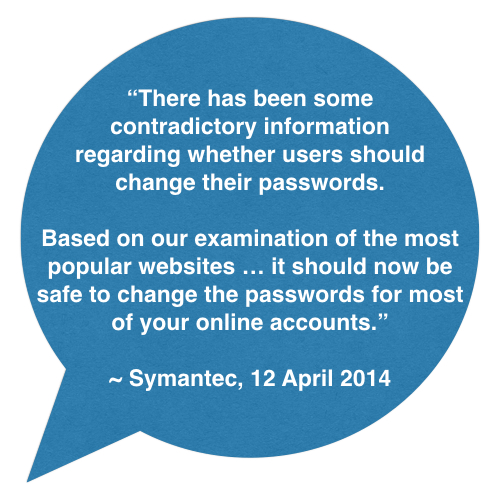
“Considering the long exposure, ease of exploitation and attacks leaving no trace this exposure should be taken seriously.” ~ CodeNomicon
20140418fr-symantec-heartbleed-quote-500x500

Understanding the Heartbleed Vulnerability

Here are some points that should be emphasized regarding the Heartbleed security exploit:

  • Programming Oversight. The Heartbleed exploit was not the creation of hackers. For this reason, it is unlike viruses, malware, spyware, denial of service attacks, and botnets,  It is the result of a programming oversight. Similar security vulnerabilities have been repeatedly discovered in software from Adobe and Microsoft. However, these are usually identified and quickly patched. The Heartbleed vulnerability went undiscovered for two years. This gave hackers a significant window of opportunity to take advantage of the vulnerability and gather information.
  • Impact Unknown. The nature of the exploit, and the fact that it went undetected so long, make it difficult to know the full impact. Organizations and businesses have been reluctant to disclose the impact of the vulnerability because that may expose them to criticism and it also would disclose confidential information about the security and encryption protocols they use. Some companies are coming forward to let consumers know they should change their login credentials.

Taking Action – Summary

This is still a developing story. There’s a growing list of hardware devices that are known to be impacted, such as 50 million Android and Blackberry devices. These will need to be updated or replaced. In general, you should change your passwords on all online user accounts, starting with your email accounts. However, for any system not yet patched, you may want to change your password now and then again after it has been patched.

Change Email Passwords First

As you may have noticed, most online accounts have a “I forgot my password” option that sends a password reset to the email account on file. This means that every website you use can be easily accessed by anyone who has your email account login details. They simply need to review your emails for bank, health, investing, shopping, and other sites. Then, go to those sites and click the password recovery link. It’s that simple. So, your email account is a like master key to all other accounts. For this reason, it should have a very secure password. You may wish to have two or three separate email accounts, with one rarely used that is for higher security purposes. When a security breech like Heartbleed takes place, it’s important to update your email passwords first because updating your other accounts won’t be secure until your email is secure.

Password Manager

Because confidential account information includes authentication questions, account numbers, and other personal identity details, it’s important to have a secure encrypted digital lock-box where this information can be stored. Password managers provide an encrypted database where you can securely store all of your account information. Most have the ability to synchronize data locally (on your local WiFi network) between devices. This makes it more feasible to have complex passwords and diverse authentication questions. An example of a password manager is 1Password by Agilebits.

Strong Passwords

Most systems enforce strong passwords and won’t allow you to use a short, simple, easy to guess, or previously used password. Here are some general guidelines for creating  a strong password.

A secure password should:

  • Be at least 10 characters
  • Have at least two lower case characters
  • Have at least two capital letters
  • Have at least two number
  • Have at least one special character (such as * # % !)
  • Note have multiple identical consecutive characters as a way to make the password longer (such as Password7777777)
  • Not include the account name or account owner name
  • Not be a common password
  • Not be used in the past year
  • Not be the same or similar to any other online account
  • Not be the same as your previous 10 passwords

Tools

These are some of the tools provided to help respond to this bug. It’s reported that 95% of web tools don’t work. So, you shouldn’t rely entirely on these tools, but if one reports that you’re vulnerable that may be a helpful indicator.

Two-Factor Authentication

Some websites now offer two-factor authentication, also known as two-step authentication or multi-factor authentication. These include sites such as WordPress.com and Gmail. In addition to being required to enter your username and password, an additional piece of randomly generated information is required to login. This reduces unauthorized access to accounts.

For example, the Google Authenticator is an app that runs on your smartphone. It is continuously generating random codes that are good for a short period of time before expiring. An active good code is required to access accounts protected by their two-step authentication system.

Websites Impacted by Heartbleed

A few websites have been doing a good job of maintaining lists of websites that were impacted by Heartbleed as well as some that weren’t. There are some websites that we don’t yet have information about. Review the following reports for more details about which accounts may be more vulnerable than others.

Impacted Hardware & Software

A variety of hardware products and systems may be impacted, as well as some software. The articles here offer more information about certain systems that may be impacted. This is not a comprehensive list.

Don’t Be Over Confident

Some companies and organizations have been quick to announce that they aren’t impacted, or that they’ve patched their website.

As you might imagine from the long list of impacted hardware and software above, it’s actually difficult for an organization to have and immediate comprehensive understanding of the impact.

While a company’s website might not have been using OpenSSL, other services they rely on, third party websites, and hardware devices could be vulnerable. That takes time to discover and fix.

Additionally, even if a company’s public-facing website(s) or resources have been patched or weren’t effected, it’s common for users to have the same login and password on multiple systems. So, if they interacted elsewhere with a vulnerable system, the could be impacted.

Regardless of what an organization or company claims, there will likely be some ripple effects and long-term impact of the OpenSSL vulnerability. So, it’s best to be cautious and careful in this regard.

Additional Reading

Further Assistance

If you have questions about this and other computing security concerns, feel free to contact me.

Page Visits

The maps below show recent page visits. Click an image for a larger gallery view.

Apple Mac Computer Slow to Wakeup After Sleep – Progress Bar

20140412sa-apple-computer-sleep-slow-wakup-progress-meter-bar-indicator-640x300

Safe Sleep ensures that data stored in main memory will not be lost should the computer shut down due to the battery being drained completely. Prior to your computer entering sleep, Safe Sleep automatically saves the contents of main memory—such as desktop settings, open applications, and other work in progress—to the hard drive.

There are two situations in which a computer will enter safe sleep:

  1. In the event the battery becomes completely depleted while the computer is asleep, the computer will shut down. But when a power adapter is connected or a freshly charged battery is installed, the computer can be restarted. Press the power button as if turning the computer on and it will automatically return to the desktop state that existed prior to entering sleep. This means that applications and files will remain exactly as they were prior to the computer being put to sleep, making it easy for you to continue with your work.
  2. With the release of the OS X Mountain Lion v10.8.2 supplemental update 2.0, a new feature was introduced to enter safe sleep after four hours of the computer being connected to AC power. This is an effort to comply with the European Energy Standards (ErP Lot6). This will only occur if there is no wireless or Ethernet activity and no activity from external devices such as USB storage devices.

This is normal behavior for the following models:

  • MacBook Pro (Mid 2012 and later)
  • MacBook Pro (Retina, Mid 2012 and later)
  • MacBook Air (Mid 2012 and later)
  • iMac (Late 2012 and later)
  • Mac mini (Late 2012 and later)

(Source: http://support.apple.com/kb/HT1757 from 9 October 2013)

Microsoft Office 2011 Mac Security Vulnerabilities Update

20140410th-microsoft-office-2011-mac-security-update

Introduction

This update resolves vulnerabilities in Microsoft Office that could allow remote code execution if a specially crafted file is opened in an affected version of Microsoft Office.

What You Need To Do

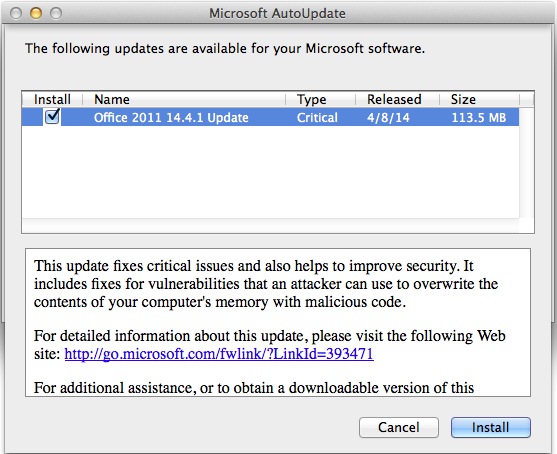
To install this update, simply start one of the Microsoft Office applications, such as Word, and the update dialog (shown above) should appear. Click Install and follow the instructions. The rest of this document goes into more details about the update.

Summary

Microsoft has released security bulletin MS14-017. This security bulletin contains all the relevant information about the security update for Microsoft Office for Mac 2011. To view the complete security bulletin, go to the following Microsoft website:

https://technet.microsoft.com/security/bulletin/MS14-017

In addition to the application improvements that are mentioned here, Office for Mac 2011 is now available as a subscription offering. For more information about subscription, see Frequently Asked Questions.

Details

This update provides the latest fixes for Office for Mac 2011. These include the following:

  • Improves synchronization of blocked senders for Microsoft Exchange Server 2013 and Microsoft Exchange Online accounts in Microsoft Outlook for MacThis update fixes an issue that causes the blocked sender list not to synchronize with the Exchange server when a message is moved immediately after you use the Block Sender action.
  • Improves the ability to recover from certain network errors when you connect by using POP in Outlook for MacThis update fixes an issue that causes Outlook for Mac to re-download the contents of the inbox for POP accounts for certain connection errors.
  • Improves the ability to recover from errors when you try to update the Offline Address Book in Outlook for MacThis update fixes an issue that causes Outlook for Mac not to download the Offline Address Book when certain errors are detected.
  • Improves synchronization of folder hierarchies added by using “Open Other User’s Folder” in Outlook for MacThis update fixes an issue that causes Outlook for Mac to synchronize the folder hierarchies that were added by usingOpen Other User’s Folder too frequently.
  • Increases the data validation control capabilities in Excel for MacThis fix increases the data validation control capabilities from 1,024 entries to 2,048 entries.
  • Improves the ability to respond and recover from certain Exchange server errors in Outlook for MacThis update fixes an issue that causes Outlook for Mac to send too many Exchange server requests when Outlook for Mac receives certain errors from the server.
  • Improves the ability to manage responses for meetings that are sent to distribution lists in Outlook for MacThis update fixes an issue that causes meetings that are sent to distribution lists in which the Request Responses option is not selected to display response options when attendees view meetings in the Calendar view.
  • Improves the ability to create Microsoft Lync for Mac online meetings in Outlook for MacThis update fixes an issue that causes Outlook for Mac to stop responding when you try to schedule an online meeting by using Lync for Mac. This issue occurs when certain information, such as a toll-free number, is missing from the dial-in conference settings.
  • Improves Microsoft Word pointer displayThis update fixes an issue that causes mouse pointers to disappear in sections of documents.
  • Improves the experience for sending encrypted messages in Outlook for MacThis update fixes an issue that causes Outlook for Mac to check Active Directory Domain Services every time for certificates when the application sends encrypted messages in OS X Mavericks, instead of first checking locally cached certificates in the OS X Keychain.

Prerequisites

Before you install the Office for Mac 2011 14.4.1 update, make sure that you have Office for Mac 2011 14.1.0 or a later version installed on your computer. Also, make sure that the computer is running Mac OS X v10.5.8 or a later version of the Mac OS X operating system.

To verify that the computer meets this prerequisite, click About This Mac on the Apple menu.

To verify that Office for Mac 2011 14.1.0 or a later version is installed on your computer, follow these steps:

  1. On the Go menu, click Applications.
  2. Open the Microsoft Office 2011 folder, and then start any Office application. For example, start Word.
  3. On the application menu, click About <application>.
  4. In the About <application> dialog box, notice the version number that is displayed there. It should be 14.1.0 or a later version number.

How to obtain the update

The following file is available for download from the Microsoft Download Center:

Download

Download the Microsoft Office for Mac 14.4.1 Update package now.

Release Date: April 8, 2014

For more information about how to download Microsoft support files, click the following article number to view the article in the Microsoft Knowledge Base:

119591 How to obtain Microsoft support files from online services

Microsoft scanned this file for viruses. Microsoft used the most current virus-detection software that was available on the date that the file was posted. The file is stored on security-enhanced servers that help prevent any unauthorized changes to the file.

Updated files

For a complete list of the files that this update adds or changes, double-click the update installer, and then, on the File menu, click Show Files.

Notes

The Office for Mac 14.4.1 Update is also available from Microsoft AutoUpdate. AutoUpdate is a program that automatically keeps Microsoft software up-to-date. 

To use AutoUpdate, start a Microsoft Office program. Then, on the Help menu, click Check for Updates.

Learn about the resources for Office for Mac 2011

(Source: http://support.microsoft.com/kb/2939132)

Cloud Backup or External Drive Backup? … Choose Both!

20140403th-data-backup-options-1038x675

Cloud backup services and external hard drive backups each have advantages and disadvantages. That’s what makes it hard to decide which one to choose.

By using both systems, you can get all the benefits they have to offer. When you read the list below, you’ll realize that you wouldn’t want to be with only one solution.

Hybrid Backup System

These are the benefits of using a hybrid backup system:

  • Current Data Backup (Cloud & Drive Backup). For people who run an automated backup to an external hard drive on a daily or weekly basis, the most recent data may not always be available. Cloud backup services typically backup and synchronize in realtime as you work. Local backup software can do this as well, but sometimes this isn’t as reliable or could slow down the computer. Larger files, such as videos, may be more likely to get backed up to a local drive sooner than they will with cloud services since uploading gigabytes of data takes time. So, in this regard, both services offer equal benefits.
  • Disaster Recovery (Cloud Backup). In the event of a tornado, fire, flood, or other disaster, it’s important to have an off-site backup. Using a cloud backup service provides this advantage.
  • Image Recovery (Drive Backup). If your computer crashes, how much time will it take to install the operating system, all programs, and reconfigure everything to work again? It could take days, unless you have an image backup in which case it could take about 20 minutes. Image backups are a copy of your entire hard drive at a point in time. When you recover an image, it includes everything on your drive as if nothing ever happened. You can restore an image backup to a brand new drive, even a larger faster drive, and keep working after a hard drive crash. This is what makes an image backup so helpful. You can make an image backup using software like Acronis True Image.
  • Physical Data Security (Drive Backup). If you’re using a cloud service like Dropbox, and have the unfortunate experience of letting go a disgruntled employee, you may wake up to find all of your data is missing — if you’ve not quickly changed the password required to access the cloud account and disconnected any shared access. Or, even in a situation where the login to your cloud storage gets compromised, a malicious hacker could delete all the files. With a local hard drive backup, a person would need physical access to your facility to get at the data.
  • Recovery Speed (Drive Backup). We all know that it can take many hours to download files from the Internet. Recovering an entire hard drive of data can take hours or days depending on your connection speed. Using an attached hard drive is much faster if you’re restoring data after a system crash.
  • Reliability (Cloud Backup). A cloud backup is an independent system and can alert you via email if something is wrong. However, an external hard drive backup can fail for any number of reasons without you necessarily being aware of it:
    • If a user disconnects the drive (by ejecting it in Windows), the back software won’t run as scheduled.
    • If the external drive has the power cord accidentally unplugged, or if the power adapter fails, the backup won’t run.
    • If the external drive data cable becomes disconnected, the backup won’t run.
    • If the external drive fails or crashes, the backup won’t run.
    • If the backup software freezes up, or stops running properly, the backup won’t run.
  • Theft Prevention (Cloud Backup). If someone breaks into  your office or store, and takes your equipment along with your backup drive, you will have lost all your data. In this regard, a cloud backup is helpful.

What’s Required?

To create your own hybrid solution, begin using a cloud synchronization service like Box.com to have a shared folder across your business computers. You could also choose to use a service like Carbonite for cloud backups and share the files through your local network (instead of using cloud-sync sharing). Then, on one of those computers, connect an external drive for backups. You could use the backup software included with Windows or purchase something like Acronis True Image.

Upgrade From Windows XP to Windows 7 or 8 and Retain Installed Programs with Laplink PCMover

20140326we-windows-xp-upgrade-options-474x300

Summary

After April 8, 2014, Microsoft support for Windows XP is ending. This will result in greater security vulnerabilities. It’s advised to stop using any Windows XP computers and either upgrade them or replace them with Windows 7 or Windows 8 systems.

Upgrade Compatibility Check

It’s helpful to use the Windows 7 Upgrade Advisor to identify potential problems or incompatibilities that you might encounter with hardware or software after upgrading. There is a Windows 8 Upgrade Advisor and also a Windows 8 upgrade FAQ with helpful answers to common questions.

Three Options

There are three primary options for upgrading: (1) New Computer, (2) Vista upgrade path, (3) Laplink PCMover. These options are explained in more detail below.

(1) New Computer

The simplest and least expensive solution for most people will be to purchase a computer that comes with Windows 7 or Windows 8. Then copy your data files to the new computer.

This may require purchasing new versions of your existing software programs if your current versions aren’t compatible with the new operating system, or if you no longer have the original installation disks.

(2) Vista Upgrade Path

It’s not possible to upgrade from Windows XP directly to Widows 7. However, it is possible to upgrade from Windows XP to Windows Vista and then upgrade to Windows 7. This might be the most reliable way to retain your programs and settings through the migration process. If you choose this option, you must find a copy of Vista and Windows 7 that are the same product family (such as Windows home edition 32 bit, or Windows Pro 64-bit, etc.). This is typically the most costly and time consuming option, but it should preserve your programs and software licenses. If applicable, click here for Windows 7 to Windows 8 upgrade instructions.

(3) Laplink PCMover

The PCMover Professional product from Laplink is supposed to easily transfer your data, programs, and settings to a new computer. At a cost of about $60, this option generally will save time and money, but won’t be as reliable as the a Vista migration path (option #2 above). Some programs and settings may not work properly after transfer. This is either because of a compatibility issue, or some underlying problem in the original computer that corrupts the transfer to the new computer. This software should be available from most stores, on from Amazon, or directly from Laplink. Microsoft offers a free copy of PC Mover as a download. However, there is a disclaimer about the free version stating, “The free data transfer will not migrate your apps.” Presumably this is to make people purchase software again rather than transfer it.

Other Considerations

For greater assurance, you may want to perform an Acronis image backup of the older computer prior to any transfer attempts. This will allow you to restore the system to its original state.