News Feed

Here’s Why Apple Makes the Best Windows Computer

Apple computers have the ability to run Windows, Linux, and Apple operating systems. Here are some reasons why purchasing an Apple laptop or desktop computer is a good decision for Windows users.

  1. Design. Apple computers are known for their beautiful design. This makes them pleasant to interact with.
  2. Displays. Apple has always had nice computer displays and the latest computers include Retina display technology in their laptop and high-end desktop computers. With ambient light sensors and keyboard controlled brightness, you can personalize the display making it very easy on your eyes.
  3. Keyboard. The Apple wireless or wired keyboards are excellent for those working long hours on the computer. The keys have short travel, and entry errors are almost non existent. Apple keyboards feature short-travel keys, which means your fingers don’t need to push the keys down as far, and you can type faster with less effort.
  4. Multiple Operating Systems. Using a product like VMWare Fusion, you can run multiple operating systems on an Apple computer. You can have Apple, Windows, and Linux. If you’re a computer and technical support professional, you’ll likely need to support Apple and Windows computers. With virtual computing, you could have Windows 7, Windows 8, and Windows 10 running at the same time.
  5. Portability. The newer MacBook computers are thiner and lighter than previous models. The new MacBook, MacBook Air, and MacBook Pro computers are very thin and light.
  6. Security. Although Apple computers aren’t entirely impervious to viruses, they are much more secure than Windows computers.
  7. Space Savings. Apple iMac computers are slim and accommodate an aluminum wireless keyboard that takes up very little desk space.
  8. Touch Pad. For those concerned about repetitive stress injuries, the Apple touchpad is essential. It’s highly accurate, easy to use, and with multiple gestures that require a very light touch.
  9. Voice Dictation. Apple uses the same Siri voice recognition technology in their desktop/laptop operating system as with the iPhone. It’s quite accurate in a quiet environment.

20150225we-apple-computer-renewable-energy-santa-monica

Finding TeamViewer Remote Support Software in Windows 10

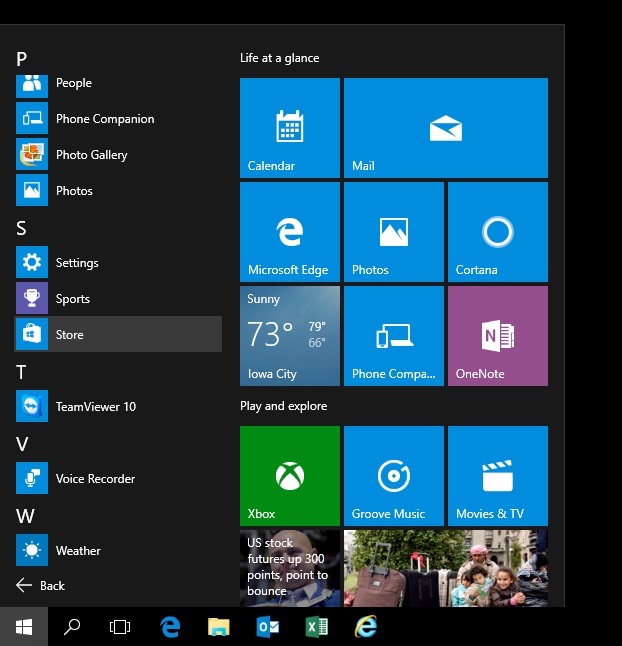
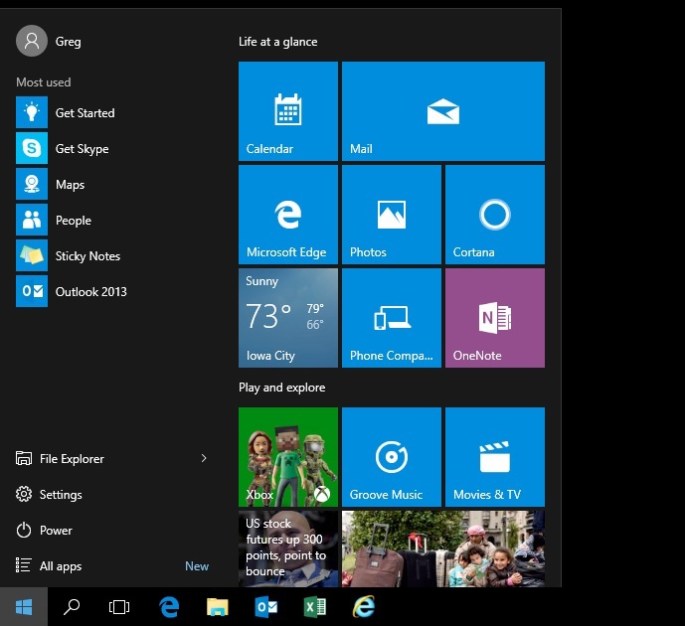
If you’ve recently uploaded to Windows 10, you may need some help finding your way around. The instructions below show how to find and run the TeamViewer program assuming it’s already installed.

The example given in these three steps is the browsing/exploring method. Alternatively you could use the searching method by clicking the start menu icon and then typing the name of what you’re looking for.

Step 1 – Click on the Start Menu

20150708tu-windows-10-finding-programs-step-1

Step 2 – Click on All Programs

20150708tu-windows-10-finding-programs-step-2

Step 3 – Scroll Down the List

20150708tu-windows-10-finding-programs-step-3

Windows 10 Login Screen Password User Key Icon Symbol HRESULT 0x8007ffff Error

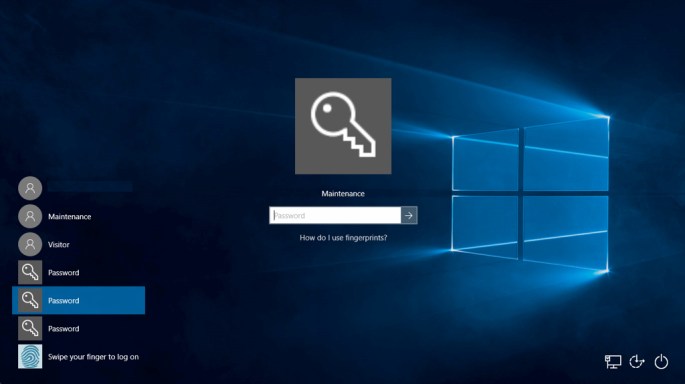
If you’ve recently upgraded to Windows 10, at the login screen, under the listing of user account usernames, you may see some key symbol icons with the word Password to the right of them as shown below.

Presumably this is for those who would like to use a USB key that contains a password keychain. Like a key to your car, a USB drive that contains a long password key can give you access to a computer that’s configured to work with such devices.

However, if you’ve recently created a new user account, but not yet logged in using that new user account, clicking on one of those key icons will results in an error message stating “HRESULT 0x8007ffff.”

Fixing the Problem

You must use the normal login first by clicking on the username and entering the password. Windows will perform the initial account setup. Then logout, and then you should be able to click on the key symbol icon and use that login method.

What’s a bit confusing about this situation is that there’s no way to tell the different key icons apart. They are each associated with a user account, but you won’t know which one until you click on them.

Below are screen shots of this phenomenon.

Windows 10 Login Screen

The top user account name is obscured for privacy. Click the image for a larger view.

20150906su2304-windows-10-login-screen-password-user-key-icon-symbol

HRESULT 0x8007ffff Error Message

Click the image for a larger view.

20150906su2304-windows-10-login-screen-password-user-key-icon-symbol-hresult-0x8007ffff

Microsoft Excel Security Warning Data Connections Have Been Disabled

When using Microsoft Excel, upon opening a file, you may see the following message:

Security Warning: Data Connections Have Been Disabled

This warning message is disconcerting, annoying, and in most cases unnecessary.

While Excel can have active data connections with other files and cloud-based data sources, sometimes there can be old data connections that aren’t necessary.

Perhaps at one point you imported a CSV file into columns on an existing sheet. That import session may be saved under connections, even though there isn’t actually a dynamic real-time connection to the long-ago-deleted CSV file.

Follow these steps to remove unnecessary data connections from Excel files:

  1. Make a backup of your spreadsheet file.
  2. On the Data menu/ribbon click on Connections. A visual of this is below from Excel 2016 for Mac. See the Connections option under the Data tab.
    20150828fr0552-microsoft-excel-2016-apple-mac-data-connections
  3. You’ll see a list of current data connections as shown below. Remove any that aren’t in use. Keep in mind that this probably won’t have any negative impact, unless you’re using a more complex spreadsheet workbook (like at work) that actually uses active data connections. Notice in the example below, there are no locations in the workbook where the data connection is being used. So, it’s just unnecessary at this point.

20150828fr0552-microsoft-excel-2016-apple-mac-data-connections-ribbon

Mozilla Firefox Crashing or Quitting on Enterprise Website Login Panopto

If you’re using Mozilla Firefox for logging into a web-based enterprise resource (such as Panopto) and the browser crashes, you can try going to Help > Troubleshooting Information > and then click the Refresh Firefox button found under the heading “Give Firefox a tune up.”

However, if this does not fix the problem, you’ll need to completely remove Firefox and all settings files.

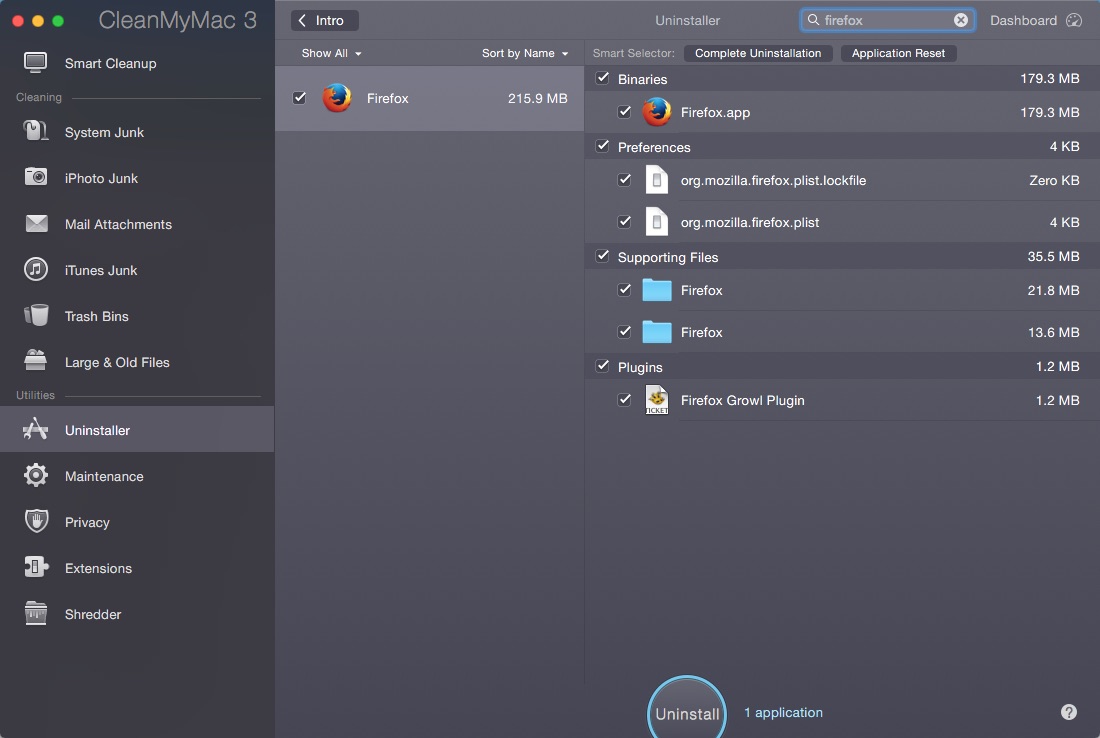
Use a program like Clean My Mac to thoroughly remove Firefox and all program settings. Then install it again. This will fix many website usage issues. However, any related web data data, such as cookies and saved passwords, will be removed.

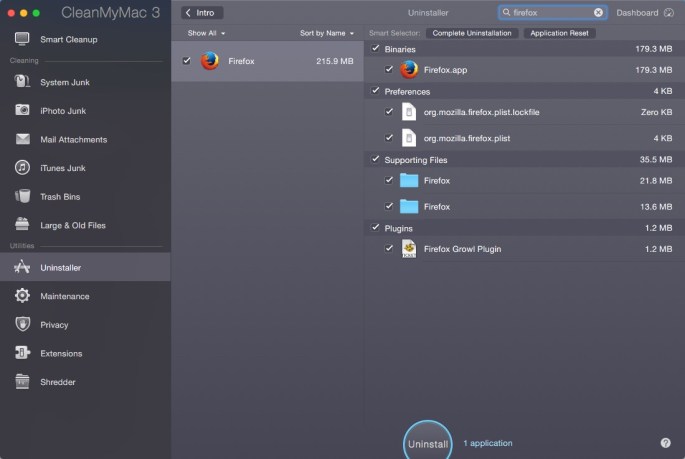
Below is a screen shot of the Clean My Mac Uninstall utility. The related Firefox system files have been identified. Click the image for a larger view. The software conveniently finds and removes the Firefox settings files.

20150817mo0611-mozilla-firefox-complete-removal-settings-files

Microsoft Excel Style Colors Can Result in Lost Date Cell Formatting

Microsoft Excel has some nice pre-defined styles to easily and quickly highlight a group of cells, columns, or rows.

However, if you’re using these to mark your location in a sheet as you’re entering data or for some other temporary reason, a bug in Microsoft Excel 2016 (Apple Mac version) will cause the date formatting to be lost in any columns that were defined to be formatted as dates. So, the dates will be converted into a scientific notation equivalent number.

If this happens, you need to highlight the relevant column and then apply the cell formatting you’d prefer.

To avoid this problem, don’t use the predefined Excel styles. Instead, use the Fill color option found on the Home ribbon just to the right of bold/italic/underline. This can be applied and then removed without impacting the cell formatting.

Rename a Bluetooth Wireless Device on Apple

New Bluetooth devices from Apple may initially have a broadcasted name of their MAC address. This is a uniquely identifiable serial number given to every Bluetooth device. Usually once a device is paired, it’s then given a generic name such as Keyboard.

Follow these instructions to rename a device:

  1. On your Apple computer, from the Apple Menu choose System Preferences > Bluetooth.
  2. With a keyboard for example, presuming it’s not Paired yet, it should be viewable in the list of available devices. Click on the Pair button and type the number displayed on the keyboard. It should then be Paired.
  3. Right click on the device and choose rename from the pop-up context sensitive menu.
  4. Rename and click the Rename button.
  5. To pair it with another device, right click on the item in the list and choose Remove. You’ll be told that to use it again you will need to Pair again. Confirm this message.
  6. If it’s a keyboard, the green light above the CD eject button will blink rapidly. If it doesn’t, push and hold the power button to turn the green light off.
  7. Then, press and hold the Power button as well as the Esc key for about 5 seconds and let go. The green light should begin to blink. This means the keyboard is ready to be paired with a new device. It will connect using the new name.

Note that when a device is paired to an iOS device, renaming isn’t an option. Only through the desktop computer can you rename it.

Considerations for iOS Devices

You may notice that a renamed device still shows up under the old name. Here are the conditions when this will happen and how to correct for it.

  1. On an iOS device, click the information link for a specific Bluetooth device, and click Forget This Device. Then follow the instructions above to rename the device.
  2. After you’ve renamed the device on a desktop Apple computer, your iOS device may still recognize it by the old name because the Bluetooth address (a MAC address serial number) is still the same.
  3. Pair the device.
  4. Use the ‘Forget This Device’ option to remove it.
  5. Pair it again.
  6. This time the new name should be showing up.

Managing and Reducing Smart Phone Apps for iPhone and Android

Too many programs on a computer or mobile device use up storage space. Since mobile devices are generally more limited on storage, there’s even more reason to keep the list of installed apps to a minimum. Mobile devices also use up over-the-air mobile data plan quotas, and the updating process takes time and can slow down your device.

One approach to curating the collection of apps is to do it over time. As you’re notified of pending updates, review the programs that are being updated and consider if each program is really necessary.

Another approach is to conduct a complete inventory of programs installed on your device.

It’s common to ‘try out’ an app by downloading it and using it a little. Consider removing the apps that you tried and never used.

Some apps have duplicate purposes and uses. Consider reducing to the best one of the bunch.

Reducing apps can help declutter your screen, save space, save data usage, and speed up  your phone. You’ll be glad you did.

Windows 10 – Show My Computer Icon on Desktop

For decades, Windows has had the familiar My Computer icon on the desktop as a way to easily get to the hard drive, and with a right-click get access to more options.

With Windows 10, the My Computer icon is absent by default. This is presumably to keep users from accidentally accessing system files and causing problems on their computer. When enabled, the icon is called This PC.

To get the My Computer icon back, follow these steps.

  1. Right click anywhere in the desktop area to view a context sensitive pop-up menu (as shown below) and click on Personalize.

    20150809su-windows10-show-my-this-computer-on-desktop-001

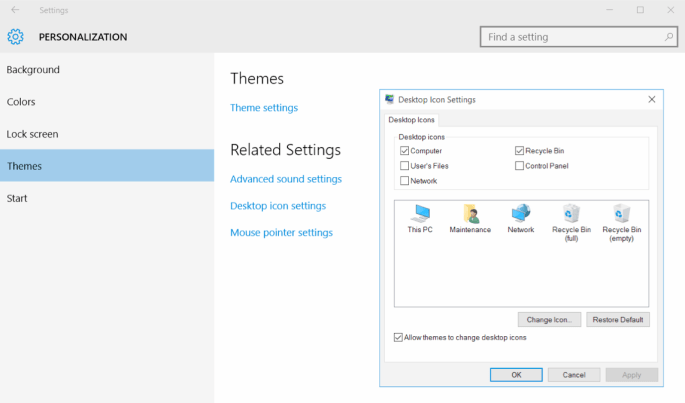
  2. From the Personalization menu, choose Themes > Theme Settings. Click image for larger view.

    20150809su-windows10-show-my-this-computer-on-desktop-002

  3. Select the icons you would like displayed on the desktop for your user account. Click image for larger view.

    20150809su-windows10-show-my-this-computer-on-desktop-003

  4. Click the OK button when done and close out of the Personalization menu.

Windows 7 to Windows 10 Upgrade Considerations

Here are some points to keep in mind when considering an upgrade from Windows 7 to Windows 10.

Backup Before and After

The free upgrade offer for Windows 10 is only available for one year — presumably through 28 July 2016. If your upgraded computer crashes after that date, you’ll need to purchase Windows 10 to get it up and going again. In other words, it won’t upgrade to Windows 10 for free if you restore your computer to its ‘like new’ Windows 7 state. For this reason, it’s a good idea to create an image backup of your computer before and after the Windows 10 upgrade. This is something you’d want anyway, and with Windows 10 it ensures you can restore your computer to a clean Windows 10 installation.

Buy Used – Get Like New

Now is a good time to buy refurbished computers with Windows 7 installed. As long as the Windows 7 to Windows 10 free upgrade offer is in effect, it will be possible to purchase a Windows 7 computer at a significant discount and get it upgraded for free to Windows 10. If you decide to do this, you’ll want to make an image backup of your computer when it’s fresh from the store. This is just in case you decide to return to Windows 7. Then, once you’re done upgrading to Windows 10, make another image backup so you can always go back to the like-new Windows 10 installation. It’s best not to use the computer much or at all when you first purchase it. Instead, do the backups and perform all the essential updates and software installations first. This is explained in the Windows computer setup checklist.

Wait Times May Vary

Depending on your computer, there may be a wait time before Windows 10 becomes available. Then, you’ll need to wait while it downloads. Once it’s downloaded, you can begin the installation. Because there are millions of people at any one moment who all want their free copy of Windows 10, it may take a while for the availability and/or download of the software.