News Feed

New Setup and/or Transferring Mobile Service from iPhone 5s on AT&T to Samsung Galaxy S5 on Verizon

20140421mo-samsung-galaxy-S5-640x300

Overview

These instructions describe the steps involved for setting up a Samsung Galaxy smartphone. This example describes switching from an iPhone 5S on AT&T to a Samsung Galaxy S5 on Verizon.

Warnings and Considerations

Before making a switch from the Apple iOS ecosystem to the Android ecosystem, it’s important to realize that some things that work fine on iOS are poorly implemented on Android or simply don’t work as expected.

  • 1Password. The 1Password app for password management on iOS allows you to enjoy the security of synchronizing your confidential data through a local secure home/work WiFi network. On Android, WiFi sync isn’t an option. So, you’ll need to put your data out in the cloud where it could become compromised.
  • Calendar. In the iOS world, it’s possible to view multiple color coded calendars in one screen/view. The included Android calendar doesn’t permit this. So, you’ll need a third party app to view multiple calendars side-by-side. However, these third party apps don’t support enterprise calendars such as Microsoft Exchange. So, you’ll need a different app for that. However, that other app doesn’t allow viewing multiple calendars at once. So, you’ll be going back and forth between several calendar programs to make this work. For anyone managing multiple calendars, including Exchange calendars, Android is probably not an option.
    • Note that some smartphone manufacturers like HTC will include calendar software that is better than that included with Samsung, but it’s proprietary and only available on devices from those manufacturers.
  • EMail. There are typically two built-in email clients on Android. One is for Gmail and a separate program is for all other email services. The built-in Gmail client doesn’t have a consolidated email inbox, so you’ll need to switch between your Google accounts to view different account inboxes. The other email client doesn’t support enterprise email, such as Microsoft Exchange. So, you’ll need a third email program and an $8 plug-in to make that work. Functionality is limited. For anyone who manages multiple email accounts, including a Microsoft Exchange email, Android is probably not an option.
    • Note that some smartphone manufacturers like HTC will include email software that is better than that included with Samsung, but it’s proprietary and only available on devices from those manufacturers.
  • Fingerprint Sensor. If you’ve been using the iPhone 5S fingerprint authentication to login, you probably noticed it’s very handy to program in multiple fingerprints and unlock the phone, one-handed, with your left or right hand. With the Samsung, this can’t be done. The fingerprint sensor requires that you hold the phone with one hand, and then fully swipe  your finger across the sensor with the other hand. If you have a case (which you should) it will likely make a smooth swipe of your finger more challenging since the sensor/button is near the edge of the phone where most cases have a raised edge. If you’re someone who wants the convenience of one-hand unlock capability and the security of fingerprint authentication, the Samsung Galaxy S5 is probably not for you.
  • Limited Office Suite. If you’re someone who has been relying on the advanced features of the apple productivity software (Pages, Numbers, Keynote), you will find the Android equivalent (Polaris Office) limiting.
  • Multiple App Stores. If you’re used to purchasing music, movies, books, software, and other digital products primarily from a single provider, you’ll find the Android world a bit different. The Google store for digital products is called Google Play. Other programs can be purchased from the Amazon store or the Samsung store. This means that app management isn’t centralized and could get confusing.
  • Removal of SD Card. The Samsung Galaxy S5 has a removable SD card. It would be nice if this were more easily accessible for regularly moving files from the device to a desktop computer (for example). However, to access the SD card, one must snap off the thin (flimsy) back cover of the Galaxy S5. Repeated removal and replacement of the back cover will likely cause it to become less securely attached.
  • Sound. The Samsung phone has a single, small, rear-facing speaker hole. If a finger covers this, the sound is barely audible. Or, this can happen if the device is set flat on a surface or material that might cover the speaker.
  • Water Resistant. There’s a thin gasket that provides “water resistance.” If that gasket isn’t securely seated, the phone won’t be water resistant. As mentioned above, the back cover is quite flimsy and after removing it and replacing it several times it’s likely the gasket won’t serve its purpose as well.

Device Purchase & Service Transfer Process

For the following process you’ll need to have your AT&T account information, including the account passcode which is different than the password. For employee discounts that are offered to some state employees, you’ll need to present an employee ID at Verizon.

  1. Old Voicemail. Once your old phone service with AT&T is cancelled (after porting your phone number to Verizon) you won’t have access to the old voicemail, so be sure to listen to any messages prior to the transfer.
  2. Hardware Purchase Location. Depending on what offers are available, you may find that a Verizon third party agent will have better pricing on devices. In this example, there was a savings of $130 per device when purchasing from Costco ($30 sale on the phone and $100 credit per phone to the Verizon account). You may want to make the initial device purchase at one vendor and then visit the Verizon store if you qualify for a discount that employees of some companies can receive.
  3. Service Transfer. You can request to port (transfer) your old phone number to the new devices and this can be done at any authorized center. However, you’ll need your account security code. This is different than your username and password for accessing your old mobile account. You’ll likely need to provide this information to the Verizon authorized vendor when they transfer your service.
  4. Employer Discount. Employees of some organizations and companies qualify for discounts. You’ll need to visit a Verizon corporate store and present an employee ID card to qualify. Shopping mall kiosks aren’t qualified to assist with this.
  5. Old Phone Rebates. For a 64GB iPhone 5S in good condition, Verizon will pay $350 (as of 21 April 2014). This is a better price than what you might get from Gazelle.com.
  6. Protective Case. The Incipio offering of cases for the Samsung Galaxy S5 are quite good. The DualPro case is a good choice and costs about $30 at a Verizon store. Employees of some companies may qualify for a 25% discount on accessories.
  7. Memory Card. Unlike the Apple iPhone, the Samsung Galaxy S5 allows for the use of a microSDXC memory card to store data. This makes it inexpensive and easy to upgrade the storage capacity on the device. The card is inserted under the back case above the batter, on top of the SIM card. This can be done in the store.
  8. Postpone Google Account Setup. When you initially setup the phone, the sales person will likely ask you to provide your Google Account login credentials (email and password) or create a new account. This will be the primary account for all phone information, communications, cloud storage and synchronization. You may want to skip this step initially until you have more time at home.
  9. Postpone Samsung Account Setup. There is an initial request to setup a Samsung account. You can skip this initially and return to it later. This will save time at the store.

Device Setup

Some steps may be more easily performed while at work and when using a WiFi connection.

  1. Connect to WiFi. The setup process will take less time with a faster Internet connection. Also, this will save on your data plan usage.
  2. Setup Device Login Security. To setup device login security, such as configuring a password, swipe your finger from the top of the screen. Touch the gear icon at the top of the screen (for Setup). Scroll about two pages of options to find Fingerprint (under Personal). Under Settings choose Fingerprint Manager. You can register up to three fingerprints. You will need to enter a password as an alternative for when the fingerprint reader doesn’t work. This needs to be at least four characters and include a letter. It can be all letters, but it’s probably best to create a more complicated login. When done, you will return to the Fingerprint Manager and choose Screen lock. Select Fingerprint as the screen lock authentication/login method.
  3. Setup Google Data Account. You can create a new Google account or use an existing one. This will be the primary account for all phone information, communications, cloud storage and synchronization.  From the main screen, swipe your finger from the top and click the gear (for Settings). Scroll down about two pages to find Accounts. Choose to Add an account.
  4. Setup Google Play Account. It’s helpful to have a single Google Play purchase account shared across multiple devices. You can share this account with family or others you trust to have a single app purchase be shared among devices. Use the other Google account (mentioned above) for everything else. This is similar to the Apple iPhone where you can have one user account for the Apple store and another for iCloud data synchronization. When setting up the shared purchase account, provide a purchasing credit card for the Google store. For this account, it’s not necessary to synchronize App Data, Calendar, Contacts, Drive, or Gmail (unless using a shared email account). However, you will want to sync Books, Movies & TV, Newsstand, and People details.
  5. Configure Amazon. An Amazon welcome screen will appear when you swipe your finger from right to left on the home screen. Enter your Amazon account credentials to setup Amazon functionality on the smartphone including a Kindle reader, Amazon Android Apps, Amazon shopping, and Music.
  6. Location Information. On the home screen you will see a message stating, “Tap here to add a city.” Tap on that message. A message will appear giving you an option to click on Settings. Go to Settings and tap on Google Location Reporting. Under your Google account name, Location Reporting will be off by default. Tap on that message and then slide the switch (upper right) from OFF to ON. This is an example where you’d use your primary Google account (for data) with the location reporting, but not use the secondary (purchase) account. Do the same for Location History. Go back to the main Settings > Location screen and choose My Places (under Location Sources) and set your Home and Work locations based on Map data (preferred). Under Mode you can select High accuracy for very accurate location determination. Once finished with these settings, return to the main screen and tap the “Tap here to add a city” message to have your city automatically identified and listed, then choose it.
  7. Device Name. You’ll likely have multiple phone lines on a single plan (such as a family plan). This is the most economical way to get service. With many “Buy one get one free” (BOGO) offers, it’s likely you’ll have identical phones. To make it easier to identify each phone (for installing apps remotely from the Google Play store), go to Settings (swipe down from top of screen and touch gear). Scroll down about four pages to the very bottom of the list and choose About phone. Touch Device name. Change the name of each device to the name of the primary user of that device (or use some other naming method).
  8. Configure Email Program. Android comes with email software for checking your email account(s). However, Gmail and other email accounts will use two different programs, and the included Gmail software can only display one inbox at a time. Those who want a single unified inbox should consider the free My Secure Email software from Mobile Experts with the My Secure Exchange ActiveSync. The cost of the Exchange compatibility module is $8 per Google Play account. If you have two or more devices sharing the same Google Play purchasing account, the cost is still just $8.
  9. Configure Calendar Software. The included Android calendar software is adequate, but most people will want more advanced capabilities. SolCalendar by SolStudio at Daum is a good choice.
  10. Disable System Sounds. The activity sounds are fun for the first hour or two, but eventually you’ll most likely want to turn them off. Go to Settings > Sound (under Device), Sound Mode, and choose Mute.
  11. Setup Samsung Account. You’ll want to setup a Samsung account for access to advanced features like Find my Phone.

Samsung/Android Features & Advantages

Samsung devices using the Android platform offer some features and advantages over the Apple iOS iPhone. Here are a few.

  • Big Screen. Samsung smartphones offer much bigger screens than what Apple currently offers on iPhone devices.
  • Clear Display. Samsung devices are known for their very colorful, bright, and clear displays.
  • Keyboard. The displayed keyboard shows a full five rows of keys including the numbers and letters (alpha-numeric) options you’d find on a normal keyboard.  On the iPhone it’s necessary to switch between keyboards to access numbers and letters.
  • Operating System. The Android operating system has a lot in common with a desktop computer operating system. In fact, some of the Samsung devices can use a small dock that turns a smartphone into a desktop computer alternative with keyboard, mouse, USB ports, and a large computer display.
  • Removable Battery. Having a removable battery is a nice feature for anyone planning to be away from power for an extended period of time (such as hiking).
  • Removable Memory. Like larger computers, the Samsung Galaxy S5 allows for memory to be removed and easily upgraded.
  • Water Resistant. The Galaxy S5 is designed to be water resistant.  However, care should be given to make sure the USB port remains covered, and the rear cover gasket of the phone needs to be well sealed.

Impact of Changing Service Providers

  • Text Notifications. When you switch service providers, a cancellation message will be sent to the companies that you’ve requested text notifications from. So, for example, text alerts from  your bank will no longer come through. You’ll need to reestablish those subscriptions.

Symantec-Norton Advisory About the Heartbleed OpenSSL Bug

20140418fr-heartbleed-openssl-computer-security-news-675x300

(Source: Public email advisory from Symantec/Norton regarding the Heartbleed OpenSSL Bug, 18 April 2014)

You’ve likely heard of Heartbleed over the past week. We wanted to share a bit about what it is, steps we have taken to protect our customers and steps you can take to protect yourself across the Web.

Some versions of Norton AntiVirus, Norton Internet Security and Norton 360 were impacted. On April 10th, we distributed updates to these impacted products to stop and block Heartbleed. Norton Accounts used to sign into Norton.com were not impacted. Please refer to our FAQ for more information on how we’re defending against this vulnerability.

Why Heartbleed affects everyone on the Internet

Heartbleed is a bug in some versions of OpenSSL, a set of software tools used widely across the Web for security. This bug may reveal your name, passwords and other private information.

If you visited a website that uses a vulnerable version of OpenSSL during the last two years, your personal information may be compromised. You can use this tool: http://safeweb.norton.com/heartbleed to check if a particular website is currently impacted.

How to protect yourself

Due of the complex nature of this vulnerability, changing your passwords before sites update their version of OpenSSL won’t fully protect you. Here are some simple steps you can take as a precaution:

  • Change your passwords on any website that contains sensitive information about you. You should first confirm that the site does not contain the Heartbleed vulnerability by using this tool.
  • If you’ve reused passwords on multiple sites, it’s especially important to change them. To change your Norton Account password, visit manage.norton.com and click Account Information.
  • Beware of phishing emails and type website addresses directly in your browser instead of clicking on a link through an email.
  • Monitor your bank and credit card accounts for unusual activity.

It may take an extended period of time for all the sites affected by Heartbleed to fix this vulnerability. To determine if a website is vulnerable to Heartbleed using this tool. We recommend you only exchange personal or sensitive information such as your credit card number if the site is not affected by Heartbleed.

You can learn more about Heartbleed and its impact to consumers by checking out our FAQ or by following the Norton Protection Blog.

Stay Safe Online

Norton


Early Advisory, 9-11 April 2014

(Source: Symantec.com, 9-11 April 2014)

Heartbleed Bug: What You Need to Know and Security Tips

What is Heartbleed? Symantec is continuing to track this OpenSSL bug discovered recently and its implications for consumers. Symantec has created a site devoted to Heartbleed for further information.

Watch to learn more:

“Heartbleed” a name that security researchers have given to a serious bug found in a very common piece of software used by many websites. The software in question is called OpenSSL and is used to encrypt the information that you send to and from websites, such as your login name and password or other sensitive information. You can usually recognize when websites encrypt information when you see a little closed padlock near the address of the website in your browser.

Unfortunately there are many different software implementations used to implement this encryption and there is no easy way to know whether or not a given website is running the particular version of OpenSSL that this bug is present in. We believe most large websites reacted quickly to the news of the ‘heartbleed’ bug and fixed it, however it will likely take a very long time for every website to do so.

Here are some tips to keep in mind over the coming weeks and months to help ensure the safety of your sensitive information as you surf and interact online:

  • Do not use the same user name and password across multiple sites. Why so? Well think of your password as being a like a door key. In life in general it would be really convenient if we could all use one single key to open every door in our lives… our house, our car, our office etc. Our key-chains would be nice and compact. However, losing that one key to a criminal would also mean that they could potentially freely access every door in your life. Using the same user name and password for every website you use is the online equivalent of having the same key for every door. So although the large websites you use likely reacted to the ‘heartbleed’ bug very quickly, smaller ones may not have, and if you used the same username and password, then if a smaller website you use is compromised that same username and password might be used on one of the larger websites, even if they have already fixed the bug. If you need to access many websites, as most of us do these days, we recommend using a software password manager. Here is a link to ours: Norton Identity Safe, but there are many others on the market today too.
  • Make sure you avoid simple passwords. Use a combination of upper and lower case letter with a few numbers sprinkled in is a good start. Also the longer the better a password is. Here is a link to a password generator that you might find useful.
  • Be especially on the watchout for scams. News like that of ‘heartbleed’ is music to a scammer’s ears. They take advantage of events like this by sending out fake email messages asking unsuspecting users to ‘change your password because of the heartbleed bug’. Such messages are known as phishing messages. They can be very hard to spot. Although Norton products are good a detecting and blocking them if you do get a message asking you to reset a password, we recommend that you don’t click on any of the links in the email but rather navigate yourself to the website by typing the address into your browser by hand.
  • Keep an eye on your sensitive online accounts. It’s always a good practice to to this anyway, but particularly now, pay special attention to online accounts (banks, email etc), as well as bank and credit card statements to check for any unusual transactions.

Finally, if you are looking for something a little more technical on the background to this bug, we’ve got a lot more detail in a blog entry written up by one of our security researchers here: Heartbleed Bug Poses Serious Threat to Unpatched Servers (below).


Early Advisory 9 April 2014

(Source: “Heartbleed Bug Poses Serious Threat to Unpatched Servers,” Symantec, 9 April 2014)

A newly discovered vulnerability in OpenSSL, one of the most commonly used implementations of the SSL and TLS cryptographic protocols, presents an immediate and serious danger to any unpatched server. The bug, known as Heartbleed, allows attackers to intercept secure communications and steal sensitive information such as login credentials, personal data, or even decryption keys.

Heartbleed, or the OpenSSL TLS ‘heartbeat’ Extension Information Disclosure Vulnerability (CVE-2014-0160), affects a component of OpenSSL known as Heartbeat. OpenSSL is one of the most widely used, open source implementations of the SSL (Secure Sockets Layer) and TLS (Transport Layer Security) protocols.

Heartbeat is an extension to the TLS protocol that allows a TLS session to be kept alive, even if no real communication has occurred for some time. The feature will verify that both computers are still connected and available for communication. It also saves the user the trouble of having to reenter their credentials to establish another secure connection if the original connection is dropped.

How does it work? Heartbeat sends a message to the OpenSSL server, which in turn relays that message back to the sender, verifying the connection. The message contains two components, a packet of data known as the payload which can be up to 64KB and information on the size of the payload.

However, the Heartbleed vulnerability in OpenSSL allows an attacker to spoof the information on the payload size. For example, they could send a payload of just one kilobyte in size, but state that it is 64KB.

How an OpenSSL server deals with this malformed Heartbeat message is key to the danger this vulnerability poses. It does not attempt to verify that the payload is the same size as stated by the message. Instead it assumes that the payload is the correct size and attempts to send it back to the computer it came from. However, since it doesn’t have the full 64KB of data it will instead automatically “pad out” the payload with data stored next to it in the application’s memory. If the server received a 1KB payload, it will thus send it back along with 63KB of other data stored in its memory. This could include the login credentials of a user, personal data, or even, in some cases, session and private encryption keys.

The data the application sends back is random and it is possible that the attacker may receive some incomplete or useless pieces of data. However, the nature of the vulnerability means that the attack can be performed again and again, meaning the attacker can build a bigger picture of the data stored by the application over time.

Private encryption keys may be the most difficult thing to steal using this attack. Data is stored in a sequential fashion, with new data stored in front of older data. Encryption keys will usually be stored “behind” the payload in memory, meaning they are less likely to be accessed. Content from current SSL/TLS sessions is the type of data most likely to be at risk.

The Heartbleed bug is the latest in a series of SSL/TLS vulnerabilities uncovered this year. TLS and its older predecessor SSL are both secure protocols for Internet communication and work by encrypting traffic between two computers.

In February, Apple had to patch two critical vulnerabilities affecting SSL in its software. It first issued an update for its mobile operating system iOS, which patched a flaw that enabled an attacker with a privileged network position to capture or modify data in sessions protected by SSL/TLS. Days later, a second update was issued, this time for its desktop operating system OS X, after it was discovered that the same vulnerability also affected it.

In March, a certificate vulnerability was found in security library GnuTLS, which is used in a large number of Linux versions, including Red Hat desktop and server products, and Ubuntu and Debian distributions of the operating system.

GnuTLS is an open source software implementation of SSL/TLS. The bug meant that GnuTLS failed to correctly handle some errors that could occur when verifying a security certificate. This could allow an attacker to use a specially crafted certificate to trick GnuTLS into trusting a malicious website. The vulnerability was immediately patched by GnuTLS.

Heartbleed is by far the most serious vulnerability in SSL/TLS to be uncovered of late. The nature of the bug and the fact that affects one of the most widely used implementations of SSL/TLS means that it poses an immediate risk.

Advice for businesses:

  • This is a vulnerability of the OpenSSL library, and not a flaw with SSL/TLS nor certificates issued by Symantec.
  • Anyone using OpenSSL 1.0.1 through 1.0.1f should update to the latest fixed version of the software (1.0.1g), or recompile OpenSSL without the heartbeat extension
  • After moving to a fixed version of OpenSSL, if you believe your web server certificates may have been compromised or stolen as a result of exploitation, contact the certificate authority for a replacement
  • Finally, and as a best practice, businesses should also consider resetting end-user passwords that may have been visible in a compromised server memory

Advice for consumers:

  • You should be aware that your data could have been seen by a third party if you used a vulnerable service provider
  • Monitor any notices from the vendors you use. Once a vulnerable vendor has communicated customers that they should change their passwords, users should do so
  • Avoid potential phishing emails from attackers asking you to update your password – to avoid going to an impersonated website, stick with the official site domain
  • Stick to reputable websites and services. They are most likely to have immediately addressed the vulnerability
  • Monitor your bank and credit card statements to check for any unusual transactions

UPDATE April 10, 2014: Symantec’s SSL Tools Certificate Checker will check whether a website is vulnerable to exploitation. You can access the Certificate Checker at the following location: https://ssltools.websecurity.symantec.com/checker/

To use the Certificate Checker, click on Check your cerftificate installation and then enter your website URL.


Page Visits

The maps below show recent visitors to this page. Click an image for a larger gallery view.


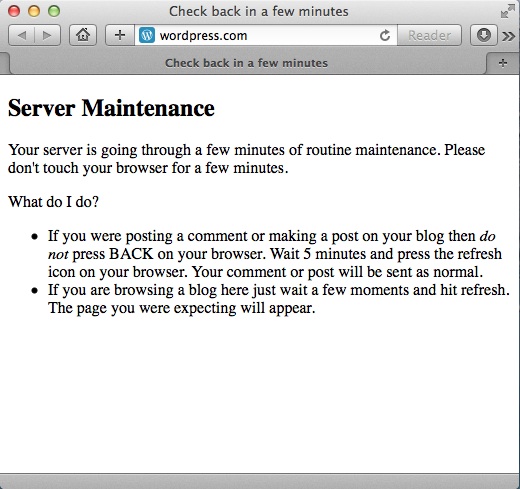
WordPress.com Momentary Outage on 15 April 2014

A momentary outage was observed with WordPress.com and websites hosted through their service. For a few minutes, the site was unavailable.

This may be related to some updating that’s been done recently across the entire WordPress platform (including self hosted sites). In recent days self hosted sites are being updated automatically to version 3.8.3 to “fix a small but unfortunate bug in the WordPress 3.8.2 security release.”

20140415tu-wordpress-dot-com-outage

Solution for Gmail Messages in Apple Mail Going to Archive and Unread Message Count Errors

20140226we-apple-support-tips-500x500

The Apple Mail client in Mavericks is reported to have some compatibility problems with Gmail. In some cases, messages are being delivered to the Gmail archive folder and are not showing up in the Inbox. In other instances, the unread / new message count indicator is incorrect. The following steps may help resolve these problems.

  1. Quit Mail if it is running.
  2. In Finder, chose Go > Go to folder.
  3. In the dialog that appears enter “/Library/Application Support/Apple” and press enter.
  4. In the new Finder window that appears there’s a folder called Mail. Drag this folder to the trash.
  5. Restart Mail.
  6. Done!

What these steps accomplish is to delete some of the system settings relating to email. Be sure that you do not delete the Mail folder from your personal user Library. If you’re unsure, get a qualified support person to help you.

__________

Thanks to Makur for discovering the solution to this problem (source discussion thread).

Heartbleed Computer Vulnerability – What you need to know now and how to respond.

20140413su-heartbleed-640x300

On April 13 I had an interview with Justin Andrews of KWWL. We discussed the Heartbleed security exploit and what consumers can do to protect themselves. Click here to view the interview and read the KWWL story. If you have questions about this and other computing security concerns, feel free to contact me. This document was originally posted on April 13 and remains mostly the same as it did originally.

“Considering the long exposure, ease of exploitation and attacks leaving no trace this exposure should be taken seriously.” ~ CodeNomicon

20140418fr-symantec-heartbleed-quote-500x500

Understanding the Heartbleed Vulnerability

Here are some points that should be emphasized regarding the Heartbleed security exploit:

  • Programming Oversight. The Heartbleed exploit was not the creation of hackers. For this reason, it is unlike viruses, malware, spyware, denial of service attacks, and botnets,  It is the result of a programming oversight. Similar security vulnerabilities have been repeatedly discovered in software from Adobe and Microsoft. However, these are usually identified and quickly patched. The Heartbleed vulnerability went undiscovered for two years. This gave hackers a significant window of opportunity to take advantage of the vulnerability and gather information.
  • Impact Unknown. The nature of the exploit, and the fact that it went undetected so long, make it difficult to know the full impact. Organizations and businesses have been reluctant to disclose the impact of the vulnerability because that may expose them to criticism and it also would disclose confidential information about the security and encryption protocols they use. Some companies are coming forward to let consumers know they should change their login credentials.

Taking Action – Summary

This is still a developing story. There’s a growing list of hardware devices that are known to be impacted, such as 50 million Android and Blackberry devices. These will need to be updated or replaced. In general, you should change your passwords on all online user accounts, starting with your email accounts. However, for any system not yet patched, you may want to change your password now and then again after it has been patched.

Change Email Passwords First

As you may have noticed, most online accounts have a “I forgot my password” option that sends a password reset to the email account on file. This means that every website you use can be easily accessed by anyone who has your email account login details. They simply need to review your emails for bank, health, investing, shopping, and other sites. Then, go to those sites and click the password recovery link. It’s that simple. So, your email account is a like master key to all other accounts. For this reason, it should have a very secure password. You may wish to have two or three separate email accounts, with one rarely used that is for higher security purposes. When a security breech like Heartbleed takes place, it’s important to update your email passwords first because updating your other accounts won’t be secure until your email is secure.

Password Manager

Because confidential account information includes authentication questions, account numbers, and other personal identity details, it’s important to have a secure encrypted digital lock-box where this information can be stored. Password managers provide an encrypted database where you can securely store all of your account information. Most have the ability to synchronize data locally (on your local WiFi network) between devices. This makes it more feasible to have complex passwords and diverse authentication questions. An example of a password manager is 1Password by Agilebits.

Strong Passwords

Most systems enforce strong passwords and won’t allow you to use a short, simple, easy to guess, or previously used password. Here are some general guidelines for creating  a strong password.

A secure password should:

  • Be at least 10 characters
  • Have at least two lower case characters
  • Have at least two capital letters
  • Have at least two number
  • Have at least one special character (such as * # % !)
  • Note have multiple identical consecutive characters as a way to make the password longer (such as Password7777777)
  • Not include the account name or account owner name
  • Not be a common password
  • Not be used in the past year
  • Not be the same or similar to any other online account
  • Not be the same as your previous 10 passwords

Tools

These are some of the tools provided to help respond to this bug. It’s reported that 95% of web tools don’t work. So, you shouldn’t rely entirely on these tools, but if one reports that you’re vulnerable that may be a helpful indicator.

Two-Factor Authentication

Some websites now offer two-factor authentication, also known as two-step authentication or multi-factor authentication. These include sites such as WordPress.com and Gmail. In addition to being required to enter your username and password, an additional piece of randomly generated information is required to login. This reduces unauthorized access to accounts.

For example, the Google Authenticator is an app that runs on your smartphone. It is continuously generating random codes that are good for a short period of time before expiring. An active good code is required to access accounts protected by their two-step authentication system.

Websites Impacted by Heartbleed

A few websites have been doing a good job of maintaining lists of websites that were impacted by Heartbleed as well as some that weren’t. There are some websites that we don’t yet have information about. Review the following reports for more details about which accounts may be more vulnerable than others.

Impacted Hardware & Software

A variety of hardware products and systems may be impacted, as well as some software. The articles here offer more information about certain systems that may be impacted. This is not a comprehensive list.

Don’t Be Over Confident

Some companies and organizations have been quick to announce that they aren’t impacted, or that they’ve patched their website.

As you might imagine from the long list of impacted hardware and software above, it’s actually difficult for an organization to have and immediate comprehensive understanding of the impact.

While a company’s website might not have been using OpenSSL, other services they rely on, third party websites, and hardware devices could be vulnerable. That takes time to discover and fix.

Additionally, even if a company’s public-facing website(s) or resources have been patched or weren’t effected, it’s common for users to have the same login and password on multiple systems. So, if they interacted elsewhere with a vulnerable system, the could be impacted.

Regardless of what an organization or company claims, there will likely be some ripple effects and long-term impact of the OpenSSL vulnerability. So, it’s best to be cautious and careful in this regard.

Additional Reading

Further Assistance

If you have questions about this and other computing security concerns, feel free to contact me.

Page Visits

The maps below show recent page visits. Click an image for a larger gallery view.

Apple Mac Computer Slow to Wakeup After Sleep – Progress Bar

20140412sa-apple-computer-sleep-slow-wakup-progress-meter-bar-indicator-640x300

Safe Sleep ensures that data stored in main memory will not be lost should the computer shut down due to the battery being drained completely. Prior to your computer entering sleep, Safe Sleep automatically saves the contents of main memory—such as desktop settings, open applications, and other work in progress—to the hard drive.

There are two situations in which a computer will enter safe sleep:

  1. In the event the battery becomes completely depleted while the computer is asleep, the computer will shut down. But when a power adapter is connected or a freshly charged battery is installed, the computer can be restarted. Press the power button as if turning the computer on and it will automatically return to the desktop state that existed prior to entering sleep. This means that applications and files will remain exactly as they were prior to the computer being put to sleep, making it easy for you to continue with your work.
  2. With the release of the OS X Mountain Lion v10.8.2 supplemental update 2.0, a new feature was introduced to enter safe sleep after four hours of the computer being connected to AC power. This is an effort to comply with the European Energy Standards (ErP Lot6). This will only occur if there is no wireless or Ethernet activity and no activity from external devices such as USB storage devices.

This is normal behavior for the following models:

  • MacBook Pro (Mid 2012 and later)
  • MacBook Pro (Retina, Mid 2012 and later)
  • MacBook Air (Mid 2012 and later)
  • iMac (Late 2012 and later)
  • Mac mini (Late 2012 and later)

(Source: http://support.apple.com/kb/HT1757 from 9 October 2013)

Symantec: Heartbleed – Reports from the Field

20140418fr-heartbleed-openssl-computer-security-news-675x300

(Source: “Heartbleed – Reports from the Field,” Symantec, 12 April 2014)

It has been now five days since details emerged regarding the “Heartbleed” vulnerability in OpenSSL. During this time we have been researching the impact of the vulnerability, tracking the patch states of popular websites, and monitoring attacks. So what have we learned?

Most popular sites are no longer vulnerable

We have been tracking the most popular websites to see which of them are currently vulnerable to Heartbleed. No website included in Alexa’s top 1000 websites is currently vulnerable. Within the Alexa top 5000 websites, only 24 websites are vulnerable. Overall, within the Alexa top 50,000 websites only 1.8 percent is vulnerable to Heartbleed. Based on this data, chances are that the websites most frequently visited by the average user are not affected by Heartbleed.

It is possible that your data may have been stolen prior to a website being updated. To mitigate against this ensure that you do not reuse passwords across multiple sites.

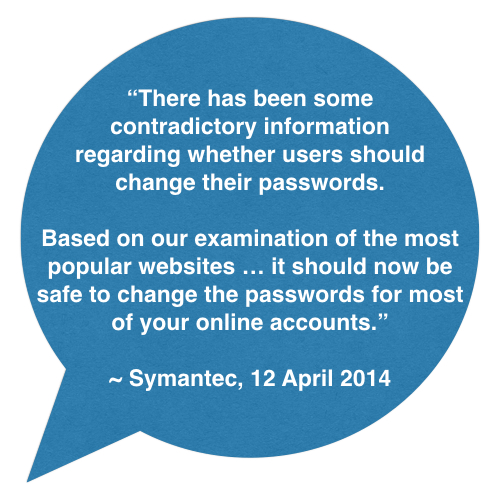
Yes, you should change your passwords

There has been some contradictory information regarding whether users should change their passwords. Based on our examination of the most popular websites above, it should now be safe to change the passwords for most of your online accounts.

If you have any doubt, Symantec offers the following tool to check whether a website is vulnerable to Heartbleed:

If a website is still vulnerable, do not change your password for that site just yet.

The problem is serious, but a doomsday scenario is unlikely

Heartbleed could be used by attackers to steal personal data such as usernames and passwords—and doing so is relatively easy. However one of the biggest concerns is that the vulnerability could be used to steal the private keys which are used to encrypt communications with websites. By stealing these keys, attackers could eavesdrop on communications or set up fake websites which impersonate legitimate websites allowing them access to even more data. As stated in our previous blog, stealing these keys is very difficult. Some researchers have been successful in stealing keys using Heartbleed, but each case required specific circumstances to be met; in particular, keys are more likely to be exposed only at the moment after the web server is started.

Heartbleed is not being widely used by attackers

Our monitoring has shown that while there is widespread scanning for vulnerable websites, most of this scanning seems to be originating from researchers. We have witnessed relatively few mass scans for the Heartbleed vulnerability originating from attackers. Attackers could be targeting specific sites but, fortunately, the most popular sites are no longer affected.

IPS will help block attacks

Symantec IPS signature 27517, Attack: OpenSSL Heartbleed CVE-2014-0160 3, has been released and will detect and block attempts to exploit Heartbleed on vulnerable servers.

Advice remains the same

For businesses:

  • Anyone using OpenSSL 1.0.1 through 1.0.1f should update to the latest fixed version of the software (1.0.1g), or recompile OpenSSL without the heartbeat extension.
  • Businesses should also replace the certificate on their web server after moving to a fixed version of OpenSSL.
  • Finally, and as a best practice, businesses should also consider resetting end-user passwords that may have been visible in compromised server memory.

For consumers:

  • Be aware that your data could have been seen by a third party if you used a vulnerable service provider.
  • Monitor any notices from the vendors you use. Once a vulnerable vendor has communicated to customers that they should change their passwords, users should do so.
  • Avoid potential phishing emails from attackers asking you to update your password. To avoid being tricked into going to an impersonated website, stick with the official site domain.

For further information

For the latest information on Heartbleed, including how to minimize your risk, please visit the Symantec Heartbleed outbreak page:

http://www.symantec.com/outbreak/?id=heartbleed

Apple Mail Compatibility Issues with Google Gmail and Microsoft Live Hotmail

20140226we-apple-support-tips-500x500

Cross Brand Compatibility Issues

In their pursuit of customer loyalty, companies sometimes create proprietary exclusive technologies that don’t work well outside a certain brand ecosystem.

For example, Gmail (from Google) and Hotmail (from Microsoft) work great on their respective platforms:

  • Using a Google Chromebook or Android device (available on tablets and phones) you’ll likely have very few problems with Google’s gmail system.
  • Similarly, using Microsoft’s proprietary email clients found in Windows computers, tablets, or phones, it’s possible to enjoy a quality email experience.

However, using products across competing platforms often produces undesirable and unpredictable results.

According to conservative estimates, thousands of people are currently being inconvenienced by the incompatibility issues between the Apple Mail Client and Google Gmail Mail service.

Apple Devices Produce Unexpected Results

Oddly, when using an Apple iOS device (iPod, iPhone, or iPad), users experience exceptional email client compatibility with all features, folder access, and synchronization working properly. Yet, using Apple Mail on an Apple OS X device (laptop or desktop computer), users experience numerous problems.

Apple Mail and Gmail Issues

Here’s what OS X may experience when using Apple Mail with Gmail:

  • Archiving Error. New emails are delivered to an archive folder rather than the inbox.
  • Unread Count Error. Messages read on another device show up as unread on other devices.
  • Speed Issues. Apple Mail may load slowly.
  • Missing Emails. All messages may disappear from the inbox or other folders and not show up for a few minutes (or longer).
  • Synchronization Latency. Services like Apple iCloud, Microsoft Live, and Microsoft Exchange server all allow Push notification so you’re instantly notified of emails, calendar changes, and updated or new contact information. Gmail, unfortunately, requires a Fetch command in order to receive updates.

Apple Support Documents

Here are some Apple support documents relating to Apple Mail compatibility issues with Gmail.

Google Gmail Support Documents

Google offers a document with suggested IMAP settings for various email clients.

  • Recommended IMAP client settings – “All IMAP clients differ, and you can configure your mail client’s settings to best suit your needs. However, to work optimally with Gmail, we recommend certain settings. Click on your client below to view our recommended configuration.”

Jeff Schuette Configuration Document

There is a lengthy document on this subject, with suggestions from Jeff Schuette on how to best configure Apple Mail to work with Gmail.

  • Setting up Apple Mail to Rock and Roll with Gmail – “OS X 10.9 Mavericks has changed how Mail works with Gmail. This article is now only relevant for older versions of Mail. If you have previously followed these directions and have now updated to Mavericks, please see Apple Mail and Gmail Part Deux.”
  • Apple Mail and Gmail Part Deux – “If you followed my tutorial Setting up Apple Mail to Rock and Roll with Gmail, you will need to make some changes after upgrading to Mavericks.”

Further Reading

The following articles document the above issues and in some cases offer possible resolutions or work-arounds. It’s important when searching for articles to read current ones (within the past few months) since older articles may only be relevant for software that’s been replaced or subsequently updated.

  • Apple mail does not sync with gMail – “Today my Apple Mail no longer provides me with my gMail in the inbox. I can send mail to my gMail address and it shows in the Sent box …but it never makes it to my Inbox. If I log directly into Google Mail the email message is there.”
  • IMAP Gmail messages going directly to Archive folder instead of inbox – “Since upgrading to Mavericks, my Gmail accounts have been acting up in my Mac Mail program. At first it was just extremely slow to download the IMAP mail (my other POP email accounts continue to work just fine). However, in the past couple of days, I’ve noticed that incoming mail through the Gmail account randomly goes to my Inbox or to the Archive folder. This is very frustrating and can lead me to missing emails that I need to see. I haven’t changed any settings in Gmail or in the Mac Mail program.”
  • Mavericks Mail App and Gmail folders – “I have installed Mavericks on my MBA. Now in the mail app, when I drag messages from the inbox to a gmail folder, they leave the inbox. But if I click off of the inbox and then click back on it – they reappear in the inbox.”
  • Even after OS X 10.9.2 Mavericks update, users still complaining about Mail issues – “Mail in OS X Mavericks has been the new operating system’s least impressive point. Since launch, users have been complaining about issues relating to Gmail accounts, stability, and overall synchronization. Apple first attempted to patch up these bugs with a fix in early November of last year…”
  • Mail App crashes after OSX 10.9.2 update – “Updated to 10.9.2 today, now mail app crashes, Activity Monitor is showing it using 100% usage. It also makes my MacBook Air 2013 very hot.”
  • Apple posts workaround for Mavericks Mail sync issues, no permanent fix yet – “There’s good news and bad news for users of Apple’s Mail app who have been plagued by problems since updating to OS X Mavericks. Apple has acknowledged that users are still having trouble despite multiple updates since a new version of Mail first released with the updated operating system, but the suggested fix is only a temporary workaround.”

Microsoft Office 2011 Mac Security Vulnerabilities Update

20140410th-microsoft-office-2011-mac-security-update

Introduction

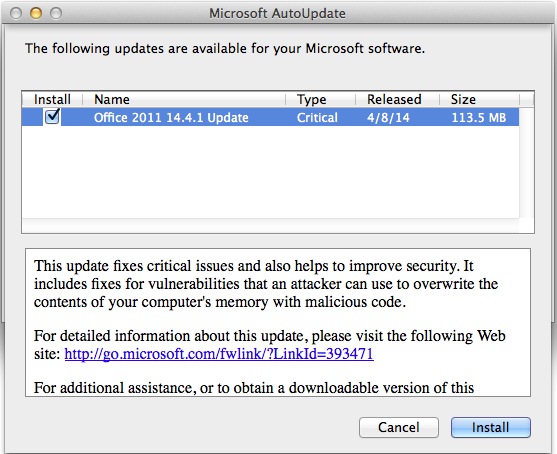
This update resolves vulnerabilities in Microsoft Office that could allow remote code execution if a specially crafted file is opened in an affected version of Microsoft Office.

What You Need To Do

To install this update, simply start one of the Microsoft Office applications, such as Word, and the update dialog (shown above) should appear. Click Install and follow the instructions. The rest of this document goes into more details about the update.

Summary

Microsoft has released security bulletin MS14-017. This security bulletin contains all the relevant information about the security update for Microsoft Office for Mac 2011. To view the complete security bulletin, go to the following Microsoft website:

https://technet.microsoft.com/security/bulletin/MS14-017

In addition to the application improvements that are mentioned here, Office for Mac 2011 is now available as a subscription offering. For more information about subscription, see Frequently Asked Questions.

Details

This update provides the latest fixes for Office for Mac 2011. These include the following:

  • Improves synchronization of blocked senders for Microsoft Exchange Server 2013 and Microsoft Exchange Online accounts in Microsoft Outlook for MacThis update fixes an issue that causes the blocked sender list not to synchronize with the Exchange server when a message is moved immediately after you use the Block Sender action.
  • Improves the ability to recover from certain network errors when you connect by using POP in Outlook for MacThis update fixes an issue that causes Outlook for Mac to re-download the contents of the inbox for POP accounts for certain connection errors.
  • Improves the ability to recover from errors when you try to update the Offline Address Book in Outlook for MacThis update fixes an issue that causes Outlook for Mac not to download the Offline Address Book when certain errors are detected.
  • Improves synchronization of folder hierarchies added by using “Open Other User’s Folder” in Outlook for MacThis update fixes an issue that causes Outlook for Mac to synchronize the folder hierarchies that were added by usingOpen Other User’s Folder too frequently.
  • Increases the data validation control capabilities in Excel for MacThis fix increases the data validation control capabilities from 1,024 entries to 2,048 entries.
  • Improves the ability to respond and recover from certain Exchange server errors in Outlook for MacThis update fixes an issue that causes Outlook for Mac to send too many Exchange server requests when Outlook for Mac receives certain errors from the server.
  • Improves the ability to manage responses for meetings that are sent to distribution lists in Outlook for MacThis update fixes an issue that causes meetings that are sent to distribution lists in which the Request Responses option is not selected to display response options when attendees view meetings in the Calendar view.
  • Improves the ability to create Microsoft Lync for Mac online meetings in Outlook for MacThis update fixes an issue that causes Outlook for Mac to stop responding when you try to schedule an online meeting by using Lync for Mac. This issue occurs when certain information, such as a toll-free number, is missing from the dial-in conference settings.
  • Improves Microsoft Word pointer displayThis update fixes an issue that causes mouse pointers to disappear in sections of documents.
  • Improves the experience for sending encrypted messages in Outlook for MacThis update fixes an issue that causes Outlook for Mac to check Active Directory Domain Services every time for certificates when the application sends encrypted messages in OS X Mavericks, instead of first checking locally cached certificates in the OS X Keychain.

Prerequisites

Before you install the Office for Mac 2011 14.4.1 update, make sure that you have Office for Mac 2011 14.1.0 or a later version installed on your computer. Also, make sure that the computer is running Mac OS X v10.5.8 or a later version of the Mac OS X operating system.

To verify that the computer meets this prerequisite, click About This Mac on the Apple menu.

To verify that Office for Mac 2011 14.1.0 or a later version is installed on your computer, follow these steps:

  1. On the Go menu, click Applications.
  2. Open the Microsoft Office 2011 folder, and then start any Office application. For example, start Word.
  3. On the application menu, click About <application>.
  4. In the About <application> dialog box, notice the version number that is displayed there. It should be 14.1.0 or a later version number.

How to obtain the update

The following file is available for download from the Microsoft Download Center:

Download

Download the Microsoft Office for Mac 14.4.1 Update package now.

Release Date: April 8, 2014

For more information about how to download Microsoft support files, click the following article number to view the article in the Microsoft Knowledge Base:

119591 How to obtain Microsoft support files from online services

Microsoft scanned this file for viruses. Microsoft used the most current virus-detection software that was available on the date that the file was posted. The file is stored on security-enhanced servers that help prevent any unauthorized changes to the file.

Updated files

For a complete list of the files that this update adds or changes, double-click the update installer, and then, on the File menu, click Show Files.

Notes

The Office for Mac 14.4.1 Update is also available from Microsoft AutoUpdate. AutoUpdate is a program that automatically keeps Microsoft software up-to-date. 

To use AutoUpdate, start a Microsoft Office program. Then, on the Help menu, click Check for Updates.

Learn about the resources for Office for Mac 2011

(Source: http://support.microsoft.com/kb/2939132)

Cloud Backup or External Drive Backup? … Choose Both!

20140403th-data-backup-options-1038x675

Cloud backup services and external hard drive backups each have advantages and disadvantages. That’s what makes it hard to decide which one to choose.

By using both systems, you can get all the benefits they have to offer. When you read the list below, you’ll realize that you wouldn’t want to be with only one solution.

Hybrid Backup System

These are the benefits of using a hybrid backup system:

  • Current Data Backup (Cloud & Drive Backup). For people who run an automated backup to an external hard drive on a daily or weekly basis, the most recent data may not always be available. Cloud backup services typically backup and synchronize in realtime as you work. Local backup software can do this as well, but sometimes this isn’t as reliable or could slow down the computer. Larger files, such as videos, may be more likely to get backed up to a local drive sooner than they will with cloud services since uploading gigabytes of data takes time. So, in this regard, both services offer equal benefits.
  • Disaster Recovery (Cloud Backup). In the event of a tornado, fire, flood, or other disaster, it’s important to have an off-site backup. Using a cloud backup service provides this advantage.
  • Image Recovery (Drive Backup). If your computer crashes, how much time will it take to install the operating system, all programs, and reconfigure everything to work again? It could take days, unless you have an image backup in which case it could take about 20 minutes. Image backups are a copy of your entire hard drive at a point in time. When you recover an image, it includes everything on your drive as if nothing ever happened. You can restore an image backup to a brand new drive, even a larger faster drive, and keep working after a hard drive crash. This is what makes an image backup so helpful. You can make an image backup using software like Acronis True Image.
  • Physical Data Security (Drive Backup). If you’re using a cloud service like Dropbox, and have the unfortunate experience of letting go a disgruntled employee, you may wake up to find all of your data is missing — if you’ve not quickly changed the password required to access the cloud account and disconnected any shared access. Or, even in a situation where the login to your cloud storage gets compromised, a malicious hacker could delete all the files. With a local hard drive backup, a person would need physical access to your facility to get at the data.
  • Recovery Speed (Drive Backup). We all know that it can take many hours to download files from the Internet. Recovering an entire hard drive of data can take hours or days depending on your connection speed. Using an attached hard drive is much faster if you’re restoring data after a system crash.
  • Reliability (Cloud Backup). A cloud backup is an independent system and can alert you via email if something is wrong. However, an external hard drive backup can fail for any number of reasons without you necessarily being aware of it:
    • If a user disconnects the drive (by ejecting it in Windows), the back software won’t run as scheduled.
    • If the external drive has the power cord accidentally unplugged, or if the power adapter fails, the backup won’t run.
    • If the external drive data cable becomes disconnected, the backup won’t run.
    • If the external drive fails or crashes, the backup won’t run.
    • If the backup software freezes up, or stops running properly, the backup won’t run.
  • Theft Prevention (Cloud Backup). If someone breaks into  your office or store, and takes your equipment along with your backup drive, you will have lost all your data. In this regard, a cloud backup is helpful.

What’s Required?

To create your own hybrid solution, begin using a cloud synchronization service like Box.com to have a shared folder across your business computers. You could also choose to use a service like Carbonite for cloud backups and share the files through your local network (instead of using cloud-sync sharing). Then, on one of those computers, connect an external drive for backups. You could use the backup software included with Windows or purchase something like Acronis True Image.