Get $14,000 in Software for $99 with Microsoft Office 365

Overview

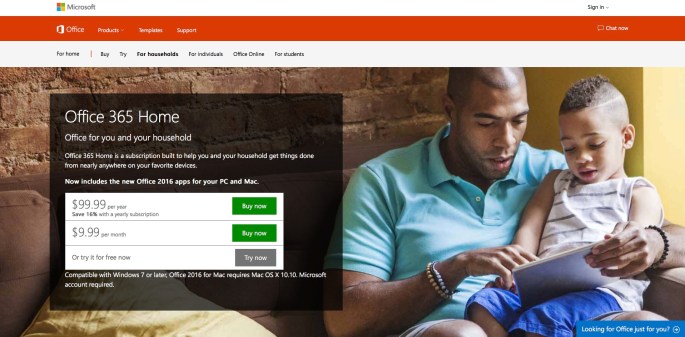
You’ve probably heard of Microsoft Office 365, the $99 per year subscription service that includes the full suite of Microsoft’s latest Office 2016 software, plus some other software.

Is an Annual Subscription a Good Deal?

Most people think of subscription services as a rip-off. Instead of paying annually, they’d rather purchase Microsoft Office for about $130 as a one-time purchase and keep it forever. However, every 2 or 3 years Microsoft releases a new version and it’s generally a good idea to stay current.

Here’s what you get for the $99 per year subscription fee to Office 365.

  • Word, Excel, PowerPoint ($125 on Amazon)
  • Outlook ($220 on Amazon)
  • Publisher ($240 on Amazon)
  • Access ($110 on Amazon)
  • One Note
  • 1,000 GB of cloud storage with OneDrive
  • Email services with Outlook online

TOTAL COST SOLD SEPARATELY: $695

But Wait, There’s More

Using the Microsoft Office 365 subscription, you can install the above software on 5 computers (a $3,475 value), or share the subscription with four other people (or any mix of installs and shares). When you share with others, they can install on 5 of their own computers or devices.

So, if you use the purchasing user account for one of the installations (required), then share your Office 365 subscription with four people, there can be a potential for a total of 21 computers to have the full suite of software listed above.

That’s 21 computers with $695 in software
for a total of $14,595 in value for only $99 per year.

Limitations

Keep in mind that the intention of the Office 365 license is to share among people in the same household or family. It’s not for business use or sharing with acquaintances. Each person with a shared account needs to login on their 5 computers with their own Microsoft account to activate the software. Other than this limitation, for those who are able to take full advantage of the subscription, it’s a great deal.

Video Overview of Office 365 Features

The video below provides an overview of Office 365 features.


How to Adjust Brightness on Secondary Apple Mac Display

If you have an Apple Mac computer with a second Apple display attached, you can adjust the brightness using the following keyboard key combination on an Apple keyboard:

Hold the control key while pressing the brightness up or down keys (F1 / F2)

This only works with Apple displays and may not work on all Apple computers. This is typically an issue for people with MacBook laptop computers since the common configuration is to use the built-in display and also an external Apple display.

20160118mo0801-adjust-brightness-on-secondary-apple-mac-cinema-27-inch-display

Using Groups for Address Book Contacts

Most email systems and email software (clients) have the ability to organized contacts into groups. Each system works in a slightly different way. For this reason, if you ever need to move your contacts from one system to another, you’ll need to consider how this will impact groups.

For example, let’s say you’re moving contacts between Gmail and Apple Mail. Those two systems approach groups in different ways. So, your contacts would copy over and import okay (with some exceptions), but the groups wouldn’t appear.

To implement a more universal method of grouping contacts, consider using category codes for groups of contacts.

Each time a contact is added to your address book, consider which group(s) that person belongs to. Then use category keys in the notes, such as “mycustomers” or “localrestaurants” being sure to not put any spaces. In this way, you can easily search in the future on those unique keywords and quickly see a listing of contacts by these keywords or tags. Always use the same spelling for these category names.

To maintain an alphabetical listing of the categories, create a contact called A – Categories (or something like that) and use the notes area to put all your categories for easy reference.

If you need to create a spontaneous group for email distribution, just search on any keyword, then add the resulting items to a temporary group for sending.

Because notes are common across multiple systems (Gmail, Apple, Yahoo, MSN), when you move your contacts from one system to another they will be preserved. This is also helpful if you’re using Apple Mail (for example) to access Gmail or a work email account like Office365.

Avoid Repetitive Stress With These Seven Technologies

It’s common for most people to do the majority of their computing and communications using a desktop computer or a smartphone. For some people, their time is largely spent with one device or another. Someone with a desk job might spent 8 hours on a desktop computer. Others may read text messages, write emails, and follow Facebook using a smartphone. For many people, their time spent using technology may be 12 or more hours per day.

Here are five technologies you should consider using to diversify the stress placed on your body by today’s technology.

#1 Touch Screen

For part of your workday, using a touch screen computer or tablet device, helps get your hands away from the repetitive use of mice and keyboards. The light touch controls of touch screens are easy on the hands. This technology is especially well suited for reading and browsing the web.

An Apple iPad or Android tablet can be an excellent relief from smartphone overuse. Single-handed smartphone use places a repetitive stress on the hands as some fingers curl to hold the phone while other uncomfortably stretch to reach keys.

With a touch screen, regardless of whether we’re left handed or right handed, it’s possible to easily use both hands for interacting with the computer. This isn’t necessarily the case with a mouse or pen.

#2 Touch Pad Pointer

There are a number of touch pads available as alternatives to using a mouse. A touch pad offers a low-impact interface for navigation that’s similar to a touch screen in terms of placing minimal stress on the hands. Larger more sensitive track pads with multiple gestures are ideal. Touch pads specifically designed for Windows may offer greater support and programability. For Apple computer users, the Apple trackpad has a large surface, sensitive touch, and multiple gestures.

With a touch pad pointer, regardless of whether we’re left handed or right handed, it’s possible to easily use both hands for interacting with the computer. This isn’t necessarily the case with a mouse or pen.

#3 Stylus

A capacity stylus works with a variety of touch surfaces as an alternative to using your fingers. An additional benefit of a large trackpad like the one described above is that you can use a stylus as an additional alternate pointing device. A stylus can also be used on an iPad or other tablet device.

#4 Light Weight Mouse

More expensive mice offer more features, but they can sometimes be heavier than the chapter models. For about $8, Dell has a simple USB optical mouse that is very light weight and includes mouse buttons that require very little force to click. The Apple Magic Mouse is a wireless bluetooth mouse that’s a bit heavier than the Dell, but the surface is touch sensitive allowing for light touch interactions.

#5 Short-Travel Keyboard

Traditional keyboards have long-travel keys that require more effort to type on. In recent years, short-travel keyboards have become popular, especially in laptop computers as a space saving measure. Wired USB or wireless bluetooth keyboards can be purchased that will offer a less stressful typing experience. Apple keyboards offer an excellent design in this regard and the new Magic Keyboard has an even shorter key travel. Popular Windows keyboards typically have short-travel keys.

#6 Voice Recognition Dictation

In recent years, voice recognition and transcription has made voice to text dictation possible with greater accuracy. By speaking rather than typing, it’s possible to write the equivalent speed of 80 to 100 words per minute with close to 100% accuracy depending on the vocabulary you’re using. Spending some of your day dictating emails can provide an excellent alternative to typing. Combine this with walking and it’s possible to get some great exercise in as well. Voice recognition is common in smartphones. The newer Apple operating systems include dictation built-in. So, taking to type is possible even while at the desktop.

#7 Drawing Pad

Drawing pads are fairly inexpensive and they can be a good alternative pointing device that gets your hands off the keyboard or mouse by using a pen as an alternative.

Critical Failure of Crowd Sourcing Email Spam Filtering

Summary

Systems like Yahoo, Gmail, Microsoft Outlook and others partially rely on their users to identify spam. This helps automated systems become more effective. Even so, these hybrid systems (human + automation) have shortcomings.

Spam Variations

Traditional unsolicited emails (or spam) are simply an annoyance. They try to get people to buy something, or support some cause. Many of these can be easily detected based on the fact that millions are being sent out, with an identical message, and certain senders can be identified as sources of spam.

An early attempt to get around spam filters involved having the message body contain the spam message, but then below a random snippet of text from a novel, or other random characters, would appear. Spam filters saw these as unique emails and not bulk emails. So, other measures had to be developed for identifying those more complicated spam campaigns.

Some spam is obvious, such as emails from Wells Fargo Bank with a return address email and website links that aren’t Wells Fargo, being sent to millions of people. Most systems are smart enough to filter those out.

There’s another kind of spam known as spear phishing. This occurs in smaller batches, or individual emails, crafted to be more effective at tricking you into clicking something or divulging your private information. Some of these are more automated, utilizing databases of information about people. Other attempts may be manually crafted by individuals. It’s these kinds of campaigns that may be difficult or impossible for a traditional email spam filter system to detect. This is where hybrid models of email spam filtering are useful.

How Crowd Sourcing Email Filters Work

With crowd sourcing, email service providers add a link, sometimes near the Reply/Forward button that lets you notify them of emails that are spam or phishing. Spam messages are perceived as an annoyance, but not as potentially dangerous as phishing messages which might result in account information being divulged. They are also handled differently. So, this is why Google (Gmail) provides a distinction for reporting.

In theory, the information provided by individuals helps build a smarter and more effective system utilizing human input combined with automated systems.

How Crowd Sourcing Email Filters Fail

The problem with crowd sourcing is that, like any democratic process, there can sometimes be failures. Sometimes the majority of people are just wrong, maybe due to lack of accurate information, awareness, or education/training. If people aren’t trained on how to properly use the spam and phishing response buttons, and don’t really know how to properly identify emails, then the system fails.

If you’re a Gmail user, take a look at your Spam folder sometime. You might be surprised by what you find. Along with the expected spam, you’ll notice some important genuine emails from well established and trusted businesses and organizations.

The reason for this is because those organizations send out bulk emails to their members. These are mostly ‘opt-in’ emails, meaning that people at one point, maybe a year ago, clicked a box indicating they wanted correspondence. Or, in some cases, the checkbox was already selected by default and they didn’t uncheck it.

What’s happening millions of times per day is this…

  1. People receive a legitimate email from Bank of America, United Way, Old Navy — or some other provider that they at one point in the past agreed to receive email from.
  2. They agreed to receive these, and haven’t been doing anything about it for a year.
  3. One day they get upset about receiving the emails, so instead of taking 3 seconds to click the unsubscribe link, they click the spam or phishing notification buttons.
  4. Another 10 million people do the same thing that day with similar emails.
  5. Eventually, the system determines from people’s feedback that emails from the ‘Save the Earth Foundation’ (or whatever legitimate source) are spam. So, it begins sending all messages from that organization or business into the spam folder.
  6. So, that’s why, now when you go to your spam folder you’ll find some emails there from legitimate businesses and organizations.
  7. Gmail has a mechanism in place to correct for this problem. In your spam folder there is a button labeled Not Spam. When you click this, you’re helping the system learn that these aren’t spam.
  8. However, at this point, unfortunately, the masses of millions of people who either don’t know, are apathetic, or are too lazy to unsubscribe outnumber the people who know how to use the system.
  9. It’s partially not the fault of the masses because most of the systems implemented today aren’t intuitive, aren’t usability tested, and don’t have proper documentation, tutorials, or user guides.

So, this is why when you keep clicking the Not Spam button on your legitimate desirable emails, future ones continue to end up in your spam folder.

What You Can Do

Here are some suggestions of what you can do about the predicament described above.

  1. Check your spam folder weekly, and use the Not Spam button where appropriate. This may help correct the system and stop false positives (emails mistakenly considered to be spam).
  2. When you receive undesirable emails from legitimate organizations, use the unsubscribe button. Make sure it’s actually legitimate by checking what email address it came from. Also, hover your mouse over any links in the email (such as the unsubscribe link) and make sure the address they go to is the sender’s website (or a known source like Mailchimp or Constant Contact).
  3. Make sure that desirable senders are in your address book.
  4. Create rules that override the spam filters. Such as, “emails from this sender should always go to my inbox.” Such email rules are configurable in Microsoft Outlook software or other email clients, and some online email services (like Gmail) allow you to have rules. These are sometimes called filters. It’s an automated way to have your email sorted or managed.

DIY Data Recovery for Crashed Drives

At Iowa City Data Recovery, one of our service groups, we get a lot of support requests from people who describe their drives as crashed.

Sometimes the failures are mechanical, but often the drive is just not starting up because the operating system or file structure is corrupted.

In these cases, it’s fairly easy for someone to get their files back by following these steps.

Decide Your Approach

If you have a relatively new and fast computer, you may want to be careful during this process so you can reassemble everything later. You’ll need your recovery software to reinstall everything.

This process works best if you just purchase a new drive for the computer. You may want to purchase a new SSD (solid state drive) for your computer. This will help it run faster, and you can save your defective drive just in case there are files on it that you don’t want to accidentally erase.

If the computer is older, you may want to just purchase a new computer, and continue with the steps below.

If you have a second, working computer, then you can continue with the steps below, and once you’re sure you have all the files, and if you think the drive isn’t mechanically damaged, you can consider reusing it after you’ve recovered your files — but reusing it will erase the data on the old drive so be careful, or just get a new drive.

Recovery Process Overview

Once you remove your drive (discussed below) and connect it to a working computer using a dock or adapter (described below), you’ll attempt to read your files from the drive. If the operating system was Windows 7 or later, then you probably have a folder in the Users directory/folder. You’ll want to check all user folders since you may have used other logins.

If the drive isn’t immediately readable, you may be able to use data recovery software to access the files. Or, you might try using a friend’s Apple computer to read the drive — since file corruption that stymies Windows computers might not be a problem for Apple.

Additional supporting information is found below.


Remove the Drive

For most people this is the hardest part, and it’s important to do this properly so as to not damage your computer or drive. Be sure to use the right tools.

  • Desktop. In general, with desktop computers, you’ll most likely need a phillips screwdriver, but some systems don’t require tools. Be sure to take pictures of how everything is connected, and label cables. Also, be sure to unplug the computer before beginning. Then, as you’re working, keep a hand or rest your bare arm on the metal case so any static is neutralized.
  • Laptop. Some newer laptops have non-removable solid-state drives (SSD technology). You may want to search YouTube for instructions that are for your model computer. Some Dell computers have only one or two screws that are removed, then the drive slides out. Other computers may require that the bottom of the computer be removed. If you’r not careful, you could take things apart and not be able to assemble later.


Get an External USB Drive Adapter

With a USB drive adapter you can connect your drive and hopefully read it on another working computer. If it has a virus  you’ll want to make sure that doesn’t spread to the working computer. You could also use a new drive to reassemble your old computer, and then once it’s working, use the USB adapter to get your files back — therefor not needing a second computer. Below is information on the various options for connecting an internal drive by USB.

External Drive Docks and Adapter Kits

There are two general types of systems for connecting an internal drive externally.


Drive Dock

The drive docks these days are usually for SATA drives that just plug into the dock. You’ll probably want one with the faster USB 3 standard. [Details]
20151129su0834-inateck-drive-dock-usb3-clone-function-duplicator


Drive Adapter Cable

The drive adapter cables take up a little less room. Some are dedicated to SATA drive connections like the one shown below. [Details]
20151129su0840-startech-sata-adapter-usb3-cable
Other adapter kits can accommodate older style drive connectors such as the kit shown below. [Details] This kit can handle 2.5″ and 3.5″ IDE as well as ESATA drives. [Buy]
20151129su0847-ide-sata-drive-adapter-usb-kit-cable

Eight reasons why your computer is slow

I hear from a lot of people who are experiencing slowness on their Apple or Windows computers. Slowness can be caused by a variety of factors:

  1. Insufficient Memory. What seemed like enough memory when you first purchased your computer is no longer enough.
  2. Memory Management. Computers that don’t properly manage memory, and release available memory when a program is exited, may become slow because your computer that came with 8GB or 16GB of RAM is reduced to running on 2GB or less. This pushes currently used files and program data onto the much slower hard drive.
  3. Old Drive Technology. Those using computers with older internal hard drives that aren’t solid state drive (SSD) technology will experience slower operation.
  4. Hard Drive Failure. Computers with failing hard drives will start to run slower. This typically happens when mechanical hard drives begin to have mechanical failures. This kind of mechanical breakdown isn’t an issue with solid state hard drive (SSD) technology.
  5. Defective Programs. With Apple or Windows, there are sometimes periods of months or longer where some program, task, or process may be causing problems. For example, if you do a Google search on “apple mail slow” as you type those words you’ll see that the third most popular thing people are searching on is “apple mail slowing down computer.” That problem has been around for a while. For someone with a slower computer, it will become almost unusable. However, for someone who purchased the faster computer, you can still get work done.
  6. Anti-Virus Software. The complex anti-virus software that’s required today is increasingly spreading its tentacles into every area of our computers and even our local networks to ensure there are no viruses or hackers. This slows down computers.
  7. Using Too Many Programs. These days, people tend to have more programs open simultaneously, drawing from multiple files and websites to complete a task, and sometimes being easily distracted into starting multiple unrelated tasks at one time — call it multitasking or ADHD, the results are the same.
  8. The Internet is More Complex. In the past, reading content on the web involved loading pages full of text. Now, browsers are like independent operating systems that run mini programs. Google Chrome for example can run programs and apps that you purchase from their app store just for the browser. Java and Flash are typically used to run processor intensive tasks.

The options are either to speed up the existing computer by addressing each of the above issues separately, or purchase a new computer.

With Windows computers, typically purchasing as much as  you can afford is the best choice. For the money, desktops usually have more powerful processors than laptop computers. So, they are a good choice for people who don’t have a lot of money to spend.

For suggestions on what computer to purchase, specifically for those wanting an Apple laptop computer, read “Here’s Why You Need to Buy the Fastest Computer Possible.”

Here’s Why You Need to Buy the Fastest Computer Possible

Causes of Computer Slowness

I hear from a lot of people who are experiencing slowness on their Apple or Windows computers. Slowness can be caused by a variety of factors, as explained in the article “Eight reasons why your computer is slow.”

  • Insufficient Memory. What seemed like enough memory when you first purchased your computer is no longer enough.
  • Memory Management. Computers that don’t properly manage memory, and release available memory when a program is exited, may become slow because your computer that came with 8GB or 16GB of RAM is reduced to running on 2GB or less. This pushes currently used files and program data onto the much slower hard drive.
  • Old Drive Technology. Those using computers with older internal hard drives that aren’t solid state drive (SSD) technology will experience slower operation.
  • Hard Drive Failure. Computers with failing hard drives will start to run slower. This typically happens when mechanical hard drives begin to have mechanical failures. This kind of mechanical breakdown isn’t an issue with solid state hard drive (SSD) technology.
  • Defective Programs. With Apple or Windows, there are sometimes periods of months or longer where some program, task, or process may be causing problems. For example, if you do a Google search on “apple mail slow” as you type those words you’ll see that the third most popular thing people are searching on is “apple mail slowing down computer.” That problem has been around for a while. For someone with a slower computer, it will become almost unusable. However, for someone who purchased the faster computer, you can still get work done.
  • Anti-Virus Software. The complex anti-virus software that’s required today is increasingly spreading its tentacles into every area of our computers and even our local networks to ensure there are no viruses or hackers. This slows down computers.
  • Using Too Many Programs. These days, people tend to have more programs open simultaneously, drawing from multiple files and websites to complete a task, and sometimes being easily distracted into starting multiple unrelated tasks at one time — call it multitasking or ADHD, the results are the same.
  • The Internet is More Complex. In the past, reading content on the web involved loading pages full of text. Now, browsers are like independent operating systems that run mini programs. Google Chrome for example can run programs and apps that you purchase from their app store just for the browser. Java and Flash are typically used to run processor intensive tasks.

The options are either to speed up the existing computer by addressing each of the above issues separately, or purchase a new computer.

With Windows computers, typically purchasing as much as  you can afford is the best choice. For the money, desktops usually have more powerful processors than laptop computers. So, they are a good choice for people who don’t have a lot of money to spend.

Purchasing a Fast Apple MacBook Pro

I’ve noticed with Apple computers these days, the faster models are really required to get ‘snappy’ and responsive performance. The iMac computers are a good value, but for those who need portability the new MacBook Pro computers are a good choice. http://www.apple.com/macbook-pro/

I’d recommend the 13-inch (13.3″) for anyone who wants something smaller for portability, or the 15-inch (15.4″) if that size would still be easy enough to carry around. That is, of course, personal preference.

It’s important to note that the 15-inch MacBook Pro is capable of a much faster and more powerful configurations.

The 15-inch screen is really much bigger and better to work with for anyone spending a lot of time on the computer. The 15-inch computer is about 1 pound heavier.

Some people want a very thin light laptop they can carry every day. Those people are typically willing to have a smaller screen for portability.

If you’re going to get the 13-inch model, I’d suggest the one with 512GB storage (SSD – solid state hard drive) that’s $1,799 on this page:

http://www.apple.com/shop/buy-mac/macbook-pro

Or, for the 15-inch, you’d want the $2,499 model (further down) on that page.

The 13-inch model has options to upgrade to a faster Core i7 processor ($200) and 16GB of RAM ($200) which brings their price to $2,200. You’d want these upgrades.

The 15-inch model (at $2,499) already comes with 16GB RAM and 512GB of storage. However, unlike the 13-inch model, the 15-inch model can be upgraded to a quad-core Intel Core i7 processor for $200 more. This makes a huge difference in terms of processing power and longevity of the computer. The price would be $2,699 for the 15-inch model upgraded.

Because Apple computers are typically more expensive than Windows computers, the small marginal increase in price to get the more powerful Apple models ends up being an economical choice because the faster models may last a year or two longer — and will be much faster during the entire time of ownership.

Tech Q&A: Why do scammers create fake Facebook accounts?

Q: Why do scammers create fake Facebook accounts?

A: They have a few goals:

  1. To build fake personas on Facebook which can be sold on the black market for big money.
  2. To buy or use fake personas on Facebook to sell or promote things.
  3. Once trust or acceptance is garnered, they use the profiles to post links to malicious websites that will infect people’s computers and/or steal passwords.
  4. To launch social engineering campaigns via Facebook asking friends to ‘answer these ten questions about yourself’ — in order to gather personal information about people for the purpose of identity theft or hacking into people’s accounts.

There may be other reasons as well.

What You Can Do

Fake users may ask to be friends with you on Facebook. Even if you have friends in common, be careful not to friend anyone until you’ve spent at least a few minutes checking their profile. You may want to send the person a message and ask them why they were wanting to connect. If you identify a fake account, click the three dots menu icon and select Report to report the user account as shown below. By spending a few minutes, you can protect hundreds of social media friends and contacts.

20151030fr1045-facebook-report-user

Identifying Fake Profiles

Here are signs of a fake profile:

  • Their profile has only a few posts on the timeline.
  • There are spammy advertising-like posts on their timeline.
  • Their About page has very little information.
  • They claim to work for Facebook on their About page.
  • Although you supposedly have friends in common, you’ve never heard of the person.
  • You’re a middle-aged man and the person you’ve never met who wants to friend you is an attractive girl in her 20s or 30s.
  • The person has only a few profile pics.
  • The profile pics are suggestive.
  • The person has multiple profile pics, but of different people.
  • Their Facebook friends have unusual or seemingly fake names.