News Feed

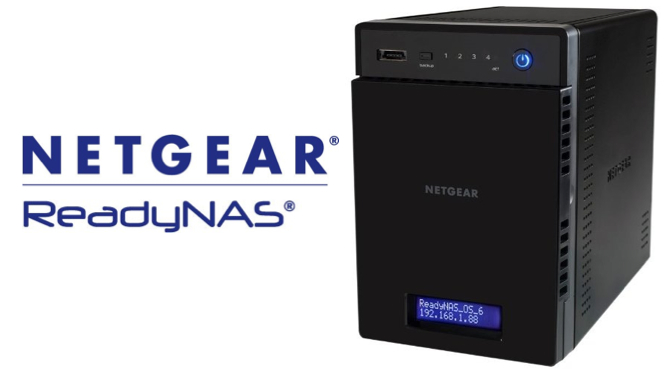
Home Made Linux NAS vs NETGEAR ReadyNAS

Here are a few reasons you may want to build your own Linux computer and enable file sharing instead of using a NETGEAR ReadyNAS:

  • Cloud Backup – Most consumer and business NAS systems are adequate for serving up files, but don’t have much power for server side processes such as those required by CrashPlan and other cloud synchronization co-location backup services. Using a stand alone computer with file sharing on will allow you to have the system backed up to the cloud for extra assurance.
  • Ease of Use – With a NAS system, you’re restricted to what it will allow you to do through the web interface. Using a desktop computer instead will allow you to have easier control.
  • Expansion – A larger tower computer case can typically have four or five drives installed. In addition, it’s also possible to connect an eSATA drive tower that can hold even more drives for greater expansion. Most NAS systems can’t handle so many additional drives. Having all these drives on a single computer makes it possible to have all that data backed up using a cloud service such as CrashPlan.
  • Recoverability – Let’s say 5 years from now your ReadyNAS has a hardware failure. The only way to get the drives up and running would be to plug them into an identical NAS, but by that time nothing similar would be available.
  • Software – The NETGEAR ReadyNAS connects with an online App Store to install programs. Unfortunately, only a few programs are available. If you’re running a Linux system, you will have thousands of programs available.
  • Speed – The NETGEAR ReadyNAS may take more than a day to prepare four drives for RAID use. By contrast, a Linux computer can prepare the same four drives for RAID use in about 4 hours.
  • Temperature – Most NAS systems are contained in a small box that doesn’t allow for much airflow. Here’s a test you can perform on your own: shut down your NAS system and then remove a drive to feel how hot it is. Although temperature monitors will tell you the temperature, feeling the drive really gives you an idea of how hot the drives get when continuously running and not having adequate airflow. An NZXT brand computer case (for example) has multiple fans and plenty of airflow over all the installed drives. This ensures fewer failures due to overheating.

NETGEAR ReadyNAS Setup

These are the basic setup instructions for using the NETGEAR ReadyNAS. Before starting, you should have already purchased the NAS system and four identical hard drives.

  1. Install drives using the fast and easy drive bay system that requires no tools and no screws for quick swapping of drives.
  2. Power on the ReadyNAS.
  3. Go to ReadyCloud.NetGear.com and click on Discover to find your local ReadyNAS device. Follow the on-screen instructions. Although the ReadyNAS can be setup as only a local NAS, you’ll benefit from having a ReadyNAS cloud account for remote management and access.
  4. You’ll eventually be taken to the web interface control center for your ReadyNAS.
  5. You’ll want to setup the genie+ Marketplace to register your NAS and be able to install additional features. Go to genie.netgear.com and setup an account. This account will also be used as your support login for my.netgear.com.

__________

Note: This document may be updated as further information is available.

Neat Receipts Cloud QuickBooks Integration

The online cloud version of Neat Receipts now offers integration with QuickBooks from Intuit. Here are a few of the new features:

  • Connect to QuickBooks Online and utilize new mapping screens for quick setup
  • Sign in to Neat with your Intuit login credentials
  • Send expense reports as Bills or Checks to QuickBooks Online for reimbursement of out-of-pocket expenses
  • Send receipts to a credit card account in QuickBooks Online to be matched against imported data from financial institutions
  • Send Invoices to QuickBooks Online as Bills to be paid

AT&T Visual Voicemail Setup Error

Sometimes when setting up a new phone, or switching to a different phone, the Voicemail feature won’t be configured properly. Any saved or unheard messages will likely be lost in the transition.

When you call to check voicemail (by pressing and holding 1 on your dialer), instead of being taken to your voicemail, or being prompted to setup your new voicemail, you’ll get a message saying something like, “If you have a voice mailbox on this system, please enter your number now.”

When you enter your 9-digit phone number, the system will state that there is no voicemail box with your number.

You can call AT&T to request help with voicemail by dialing 611. The customer support representative will acknowledge the problem — confirming that voicemail was not setup properly when the new phone was configured. They will then fix the voicemail problem.

Now you can press and hold 1 to access your voicemail system and perform the initial setup.

20141108sa-att-visual-voicemail-setup-error-004When you attempt to setup the Visual Voicemail feature, there may still be problems.

Usually, visual voicemail is configured and activated by calling into your voicemail from the visual voicemail app.

The instructions below are what display on the phone for setup.

20141108sa-att-visual-voicemail-setup-error-001

If you follow the instructions above, they should work. After accessing your voicemail, and then exiting, the visual voicemail setup should complete and a confirmation display should indicate the status.

20141108sa-att-visual-voicemail-setup-error-002

However, if visual voicemail isn’t properly activated on your account for your device, you’ll get the error message shown below.

20141108sa-att-visual-voicemail-setup-error-003

At this point, it’s best to call AT&T again and explain what has happened. They will acknowledge the problem and attempt to fix it.

In the example above, when calling AT&T, the customer service person stated that although the phone is capable of visual voicemail, it’s not showing up as an option. They promised to escalate the request. It’s estimated that it will take 10 days to fix the problem.

Ubuntu File Sharing with Apple

Ubuntu file sharing with Apple computers over a network is fairly easy. Follow these steps.

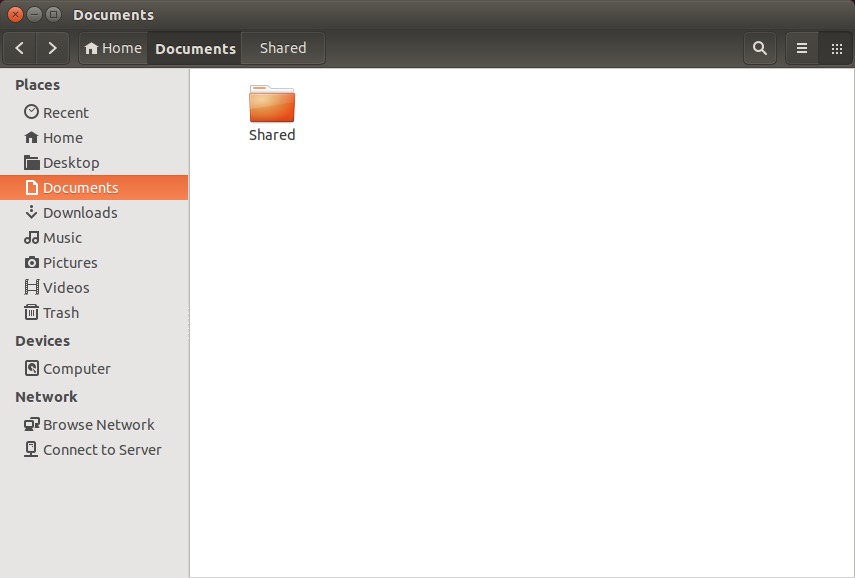
Right click on the folder you’d like to share.

20141108sa-linux-to-apple-file-sharing-001

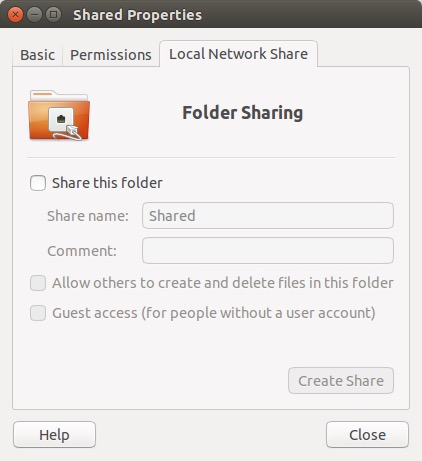
Choose Properties, and then click on the Local Network Share tab.

20141108sa-linux-to-apple-file-sharing-002

When you click on “Share this folder” (for the first time) you’ll get a message stating “Sharing service is not installed. You need to install the Windows network sharing service in order to share your folders.”

20141108sa-linux-to-apple-file-sharing-003

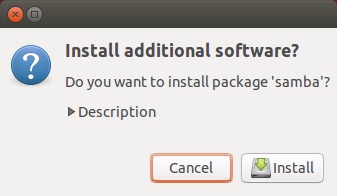
Confirm to install the additional software.

20141108sa-linux-to-apple-file-sharing-004

Provide your password to Authenticate.

20141108sa-linux-to-apple-file-sharing-005

Wait for installation to complete.

20141108sa-linux-to-apple-file-sharing-006

20141108sa-linux-to-apple-file-sharing-007

Once the installation is complete, you can share the folder.

20141108sa-linux-to-apple-file-sharing-009

Currently, something odd is happening between Ubuntu 14.1 and Apple 10.10 (Yosemite). It’s believed that Apple has implemented a version of SMB (file sharing) that does communicate properly with Ubuntu. Normally it would be possible to setup the folder to be accessible based on user accounts. However, attempting to login using one of the Linux user account names and password will fail. If you click on the bottom two boxes above, sharing will then work properly.

Apple Instructions

Follow these instructions to access the shared Ubuntu folder.

  1. On the Apple computer, press command+k (or from the Go menu in Finder, choose Go to server).
  2. Type in //ServerName/SharedFolder and press Enter.
  3. Choose Connect as Guest access (for some reason entering a username doesn’t work).

The shared folder should now be accessible.

Apple Time Machine Backup Failure

If you’re using the Apple OS X integrated Time Machine backup software, at some point you’ll likely get an error message stating: “Backup Failed. Time Machine couldn’t back up to ‘your_drive_name'” — where your_drive_name will be the backup drive you’ve assigned.

20141107fr2159-apple-mac-time-machine-backup-error-009

Thinking it must have just been a one-time glitch, you’ll manually run a backup, but that will result in an error as well.

20141107fr2159-apple-mac-time-machine-backup-error-002

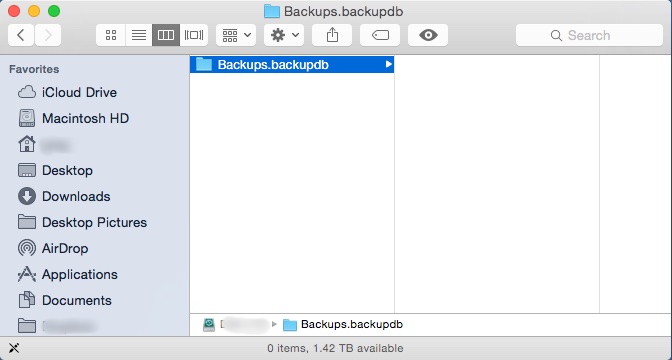
You’ll then check the drive only to discover that although the backup folder exists, its contents are all gone.

20141107fr2159-apple-mac-time-machine-backup-error-001

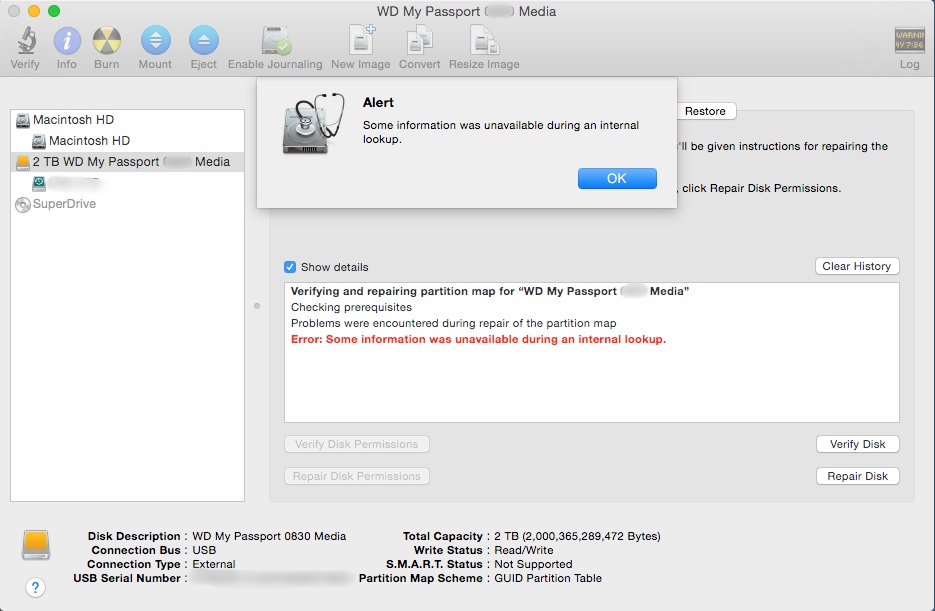
You’ll panic a little, and then consider using Disk Utility to repair the disk. However, upon running Repair Disk, you’ll get a strange alert that says, “Alert. Some information was unavailable during an external lookup.”

20141107fr2159-apple-mac-time-machine-backup-error-003

After some hair pulling, you’ll figure the only option is to start all over again by formatting (erasing) the drive and doing a complete backup again.

However, when you attempt to erase the drive, you’ll get an error.

20141107fr2159-apple-mac-time-machine-backup-error-005

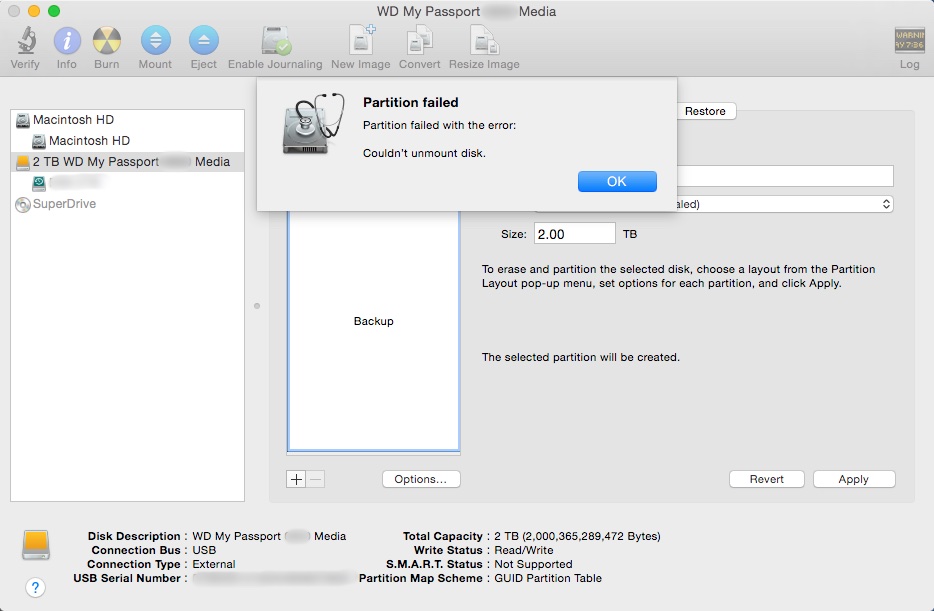
Problems with formatting a drive can be an indication that the partition is corrupted somehow. So, you’ll take things to the next level and attempt to partition the drive, but that will also result in an error.

20141107fr2159-apple-mac-time-machine-backup-error-004

At this point, assuming that the drive is defective, you’ll throw it in the trash can and purchase a new one.

The Time Machine backup program will work fine with the new drive for a while, but then you’ll get the error again stating the backup failed.

You’ll start all over again at the top of this page and get to this paragraph.

Realizing that the problem is likely not repeated failed hard drives, but something very quirky with Apple OS X, you’ll search the web to see if anyone else is having trouble with Time Machine backups. You’ll discover that Apple has dedicated an entire support page to all the things that can go wrong with Time Machine. Apparently you’re not alone.

20141107fr2159-apple-mac-time-machine-backup-error-006

With a mix of joy and frustration, you’ll see a link titled, “Apple Support article: Time Machine stops backing up to external disk.”

Finally your search is over.

You click the link, but it takes you to a page with an error stating, “We’re sorry. We can’t find the page you’re looking for. Please return to the Apple Support homepage.”

20141107fr2159-apple-mac-time-machine-backup-error-007

Assuming it’s a browser issue, you’ll switch from using Chrome to using Safari, and try visiting the support page again. However, this time, the support page won’t even load.

20141107fr2159-apple-mac-time-machine-backup-error-008

You’ll think to yourself, “Great. Apple’s website doesn’t even work with Apple’s browser.”

At this point you’ll want to write a blog article about the above experience, and switch to Linux.

You’ll switch to Linux.

You’ll pull your old backup drive out of the trash can, and out of curiosity, you’ll plug it into your Linux computer to find that it actually isn’t defective, and the files weren’t erased. Unfortunately, Apple’s file system permissions will be set so you won’t have permission to read the files. There’s probably a solution to that, but you’ll save that for another day.

Samsung Fingerprint Reader Design Flaw

Samsung includes biometric security in their premium smartphones through a fingerprint reader on the home button. Unfortunately, the system requires two hands to operate. Holding the phone in one hand and trying to swipe the thumb (for example) typically won’t work. Also, their system only learns a maximum of three fingers.

If fingerprint biometrics is a convenience you’d like, you may want to consider an Apple iPhone.

Apple first introduced biometric security in their iPhone 5S. A really nice feature about the Apple implementation of a fingerprint reader is that you simply need to touch the home button, and it reads your fingerprint — and it does it quite consistently with great accuracy. This means that you can hold the phone with one hand and unlock it — while carrying something, holding hands with your date, or while riding a bicycle (for example).

Apple also allows you to record up to five fingerprints, enough to accommodate those you choose to share your phone with.

Evernote 5.7 Features

These are the features and enhancements for Evernote 5.7 and some of the other recent updates. So often we install updates without taking a moment to read the details about enhancements that we might want to take advantage of.

Version 5.7.0

Premium feature: Context

  • Context displays notes, articles, and people related to what you’re working on
  • View related articles from The Wall Street Journal and other sources and related people from LinkedIn and your business

Presentation Mode has been improved with a fresh look and new features

  • Use the layout panel to navigate your presentation and add dividers
  • Images are now presented from screen-edge to screen-edge
  • Beautifully styled tables make your information stand out

Other improvements:

  • Send messages to share notes and discuss things you’re working on without leaving Evernote
  • Bug and stability fixes

Version 5.6.2

At Evernote, we believe that speed and stability are essential for productivity. That’s why we’ve completely rewritten Evernote for Mac. It may look familiar but it’s significantly faster, more reliable and consumes less energy than ever before. We’ve also snuck in some new features!

Speed:

  • Sync is more than 3x faster. Users with lots of shared notebooks and Evernote Business users will see the biggest improvements.
  • New notes sync instantly so they’re immediately accessible on your other devices.
  • Share notes without waiting for a sync to complete.
  • Launch and quit times have been reduced dramatically.
  • New keyboard shortcuts have been added to jump to the note list for easy navigation (CMD + |) and you can now tab between the search field, the note list, current note title and note body.
  • Energy consumption when the app is idle has been significantly reduced.

New features:

  • Tables can now be resized, and have configurable background colors and border styles.
  • Images can be resized right in the note editor. Just click an image and drag the handle in the bottom right corner.
  • Search results are now ordered by relevance.
  • Faster notebook selector at the top of the note list remembers your recently used notebooks.
  • Redesigned checkboxes in the note editor are easier to click.
  • Evernote will now stay logged in by default.
  • Search your notes with Spotlight.

Stability:

  • We’ve closed over 500 bugs including more than 150 types of crashes.
  • Our crash reporting system has been completely rebuilt.
  • Removed repeated offline alerts
  • In list view, the relevance column can now be hidden from search results
  • Resolved an issue that caused note conflicts when sharing new notes
  • Squashed bugs related to migration from the Mac App Store version

Version 5.5.2 (07/02/2014) build 402634

  • Various bug and stability fixes

Version 5.5.1 (03/25/2014) build 402628

  • Various bug and stability fixes:
    • Improvements to Descriptive Search
    • Note you are working on stays in focus during sync
    • Improved searching through large documents

Version 5.5 (02/04/2014) build 402491

Version 5.5 (02/04/2014) build 402489

  • New Feature: Descriptive Search
    • Find what you want in the most natural way ever. Search your notes by place (“Tokyo”), file contents (“Documents” or “Images”), date ranges and more.
    • Searches to try:
      • “notes with PDFs”
      • “notes from Paris”
      • “recipes created last week”
    • This feature is currently available in English only.
  • Various bug and stability fixes:
    • Fixed: Screenshots including Quick Note Helper window
    • Fixed: Evernote window issues
    • Business card scanning improvements
    • Fixed: sync issues which may have caused crashing

Version 5.4.5 (01/04/2014) build 402372

  • Bug fixes

Version 5.4.5 (01/04/2014) build 402367

  • Bug fixes

Version 5.4.4 (12/04/2013) build 402282

Stability improvements and bug fixes

Bug fixes:

  • Fixed: Content scrolls when dragging window
  • Fixed: Issues attaching documents in OS X 10.6
  • Fixed: Large notes showing blank spots

Known issue: Spotlight does not index notes created on OS X 10.9. We are working on a fix.

Version 5.4.3 (11/15/2013) build 402231

Improved support for OS X 10.9

New Markup Features

  • Rotate or delete pages from a PDF
  • Add a markup summary page to annotated PDFs
  • Easily clear all markup
  • Flip or rotate images

Other Fixes

  • Improved support for dragging images from web browsers
  • Various bug and crash fixes

Known issue: Spotlight does not index notes created on OS X 10.9. We are working on a fix.

Version 5.4.1 (10/09/2013) build 402013

Bug fixes

Version 5.4.0 (10/03/2013) build 401989

Introducing Evernote Business 2.0

  • Business Home makes your company smarter than ever
    • Get to know your members of your business and learn about their recent activity by browsing their profiles
    • Discover notebooks and notes published by your coworkers, find popular notebooks and top contributors
    • Search and browse notes in every Business Notebook you have access to and preview notes before you join notebooks
  • Expertise Discovery: searching your notes also displays related people and provides access to shared notes in your business
  • Convert personal notebooks to business notebooks

Other New Features

  • Mark up images, PDFs and whole notes from within Evernote

Bug fixes

Version 5.3.0 (09/18/2013) build 401872

New Premium Feature: Presentation Mode

  • Present your notes in a beautifully laid out, full-screen view with one click
  • Dual screen support: Present on one screen while taking notes on the other
  • Display images, documents and attachments in the presentation
  • Use the laser pointer feature to help everyone follow along

Improved Premium Feature: Related Notes

  • See up to five Related Notes at the bottom of the Note Editor

New Evernote Business Feature

  • Easily convert personal notebooks into Business notebooks

Other enhancements

  • Redesigned search highlighting
  • Evernote Food notes are now editable
  • Right-click on a note to convert it to a PDF

Version 5.1.1 (05/21/2013) build 401255

  • New Features
    • Reminders: Never forget important and in-progress notes
      • Adding a reminder pins the note to the top of your note list
      • Add a due date to receive in-app and email notifications
      • Mark notes as Done when you complete them
      • See reminders and get notifications for notes in shared notebooks
    • Enhanced security with XAuth
      • View all applications that access your account from Evernote Web Settings
    • Redesigned vertical list view shows more notes on-screen
    • New text styles: Superscript (CMD Ctrl +) and Subscript (CMD Ctrl -)
    • Edit your Saved Searches
  • Other improvements
    • Copy/paste improvements
    • Numerous stability improvements
    • Various search improvements

Version 5.0.7 (03/12/2013) build 400995

  • This update addresses a security issue that requires you to reset your password. Details on blog.evernote.com
  • Re-designed menu bar Helper called Quick Note: Create a note any time by clicking the helper or CMD+CTRL+N
  • Various bug and localization fixes

Version 5.0.5 (01/24/2013) build 400808

  • New Features
    • Shortcuts are synced with your Evernote account
    • Searches can be scoped to “My Notes” which excludes shared Notes
    • Business users can scope searches to “Personal Notes” or “Business Notes”
    • Notes clipped using Evernote Clearly are beautifully styled
    • AppleScript can create checkboxes in ENML
    • In Expanded Card View, pressing Return opens Notes
    • New button to jump to a Note’s Notebook from the Note Editor
    • Command-click to multi-select Tags in the Sidebar
  • Other improvements
    • Large accounts sync much more reliably
    • Tags from Joined Notebooks now appear correctly
    • Corrected image and link pasting issues
    • PDF printing is more reliable
    • Fixed Snow Leopard Sidebar visual glitches
    • Fixed crash when taking screenshots
    • Korean image indexing is greatly improved
    • Reduced CPU/memory usage
    • Fixes to Saved Searches
    • Various fixes for Evernote Business
    • Improved handling of Tags in AppleScript

Version 5.0.4 (12/12/2012) build 400704

Stability enhancements

Version 5.0.3 (12/06/2012) build 400675

  • Bug Fixes

Version 5.0.2 (12/03/2012) build 400649

New Features

  • New Premium feature: Related Notes in the note editor
  • Drag-and-drop Notes onto Notebooks and Tags in the Sidebar
  • Added an option to show Note counts in the Sidebar
  • Added a Trash button to the Note Editor

Other Improvements

  • Nested tags stay visible
  • Fixed Atlas for Portuguese users
  • Fixed Local Notebook creation
  • Fixed “notebook:” and “tag:” searching
  • Better high-DPI image handling in the Note Editor
  • Reduced CPU/memory usage
  • Various bug and localization fixes

Version 5.0.1 (11/27/2012) build 400591

New Features

  • Drag-and-drop Notes onto Notebooks and Tags in the Sidebar
  • Added an option to show Note counts in the Sidebar
  • Added a Trash button to the Note Editor

Other Improvements

  • Fixed Local Notebook creation
  • Fixed “notebook:” and “tag:” searching
  • Better high-DPI image handling in the Note Editor
  • Reduced CPU/memory usage
  • Various bug and localization fixes

Version 5.0.0 (11/15/2012) build 400539

Evernote 5 has been redesigned with over 100 new features including:

Left Sidebar

  • Shortcuts: Drag notebooks, notes, and tags to the left pane for quick access
  • Recent notes: Lets you quickly get back to notes from anywhere in Evernote
  • Notebooks and Tags view: Organize your Evernote more efficiently

Browsing and Creating Notes

  • Atlas: Browse your notes visually by geographic location
  • Card and Snippet views: A better way to browse notes
  • Scalable note editor: A more elegant way to create notes, both big and small
  • Full-screen single note view: Excellent for composing notes without distractions
  • Change a note’s location: Type a place manually or click the compass arrow in note info
  • Lots of keyboard shortcuts: Learn more on our What’s New page
  • Shared banner: Indicates how many people have access to content in shared notebooks
  • Better simple and plain text handling: Simplify notes to remove complex formatting or convert them to plain text
  • Indent text: Evernote for Mac now supports text indentation
  • Notes created on the Mac are now tagged with location information for Atlas

Smarter Search

  • Type ahead search: Completes your thoughts with suggestions from your account
  • Search Personal and Joined notebooks: Search your entire account from one place
  • Search options: Powerful new feature that lets you easily filter your search

Collaboration

  • Better sharing: Notebooks and shared notebooks are all in one place
  • Mountain Lion notifications: See Evernote activity in Notification Center
  • Joined notebooks can be added to stacks

Other Improvements

  • Lots of stability improvements
  • Sync improvements: Faster, more reliable sync
  • Explore Evernote: First launch experience that helps you get the most out of Evernote

Installing Adobe Flash on an Apple Computer

The gallery of screenshots below shows the process for installing Adobe Flash on an Apple computer.

Your experience may vary depending on the version of OS X that you’re using.

This sequence of screens will show up if you land on a webpage that requires the latest Adobe Flash.

If you’d like to initiate this sequence, visit the Adobe Flash software download page and manually download Adobe Flash.

iPhone iOS 8 Contacts Search Results Display Error

When performing a search of your contacts on the iPhone using iOS 8, you may notice that the name at the bottom of the list can’t be seen or selected if the search results fill more than a screen. The last contact in the results will be hidden below the viewable area on the screen.

You can move the search results page up (by pushing it up), but it snaps back again and the last name on the list again returns below the viewable screen area.

In the example below, a search for “wireless” in contacts produces many results. The last few results at the bottom of the list are shown.

By pressing up on the list (scrolling down), the hidden result shows.

The only work-around for this at present would be to create a contact entry that will show up at the very bottom alphabetically for the search result.

Click the image below to enlarge.

20141102su-apple-iphone-search-results-scroll-display-error-1024x768