How to Find Your Lost iPhone, iPod, iPad, or Apple Computer

Summary

Most mobile devices these days have built-in tracking features that are very convenient for a variety of reasons. For example, health and wellness apps that monitor your activity require location tracking to be turned on. Location tracking can help find lost or stolen devices.

Because of privacy concerns, location tracking is typically an ‘opt-in’ service. Those who decide to not permit location tracking for their devices will not be able to have them easily located and recovered.

For users of Apple mobile devices, you’ll need to enable location tracking prior to attempting to find a lost device.

Instructions

These are the steps you can follow to find a device:

  1. Go to http://www.iCloud.com
  2. Login using your Apple ID.
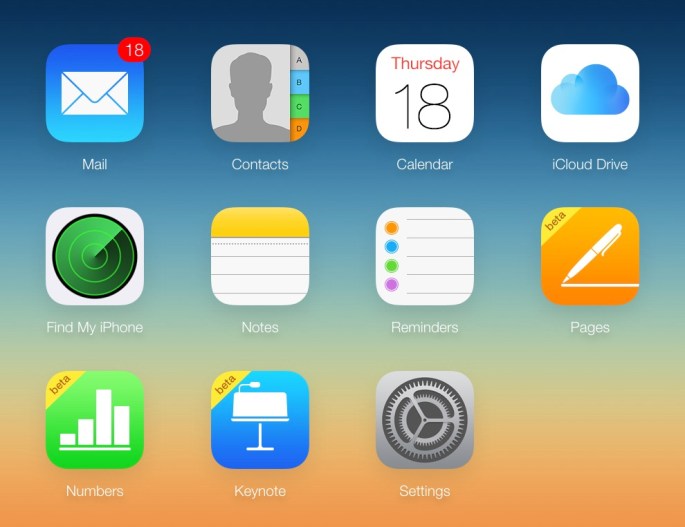
  3. Click on the Find My Phone icon as shown below.
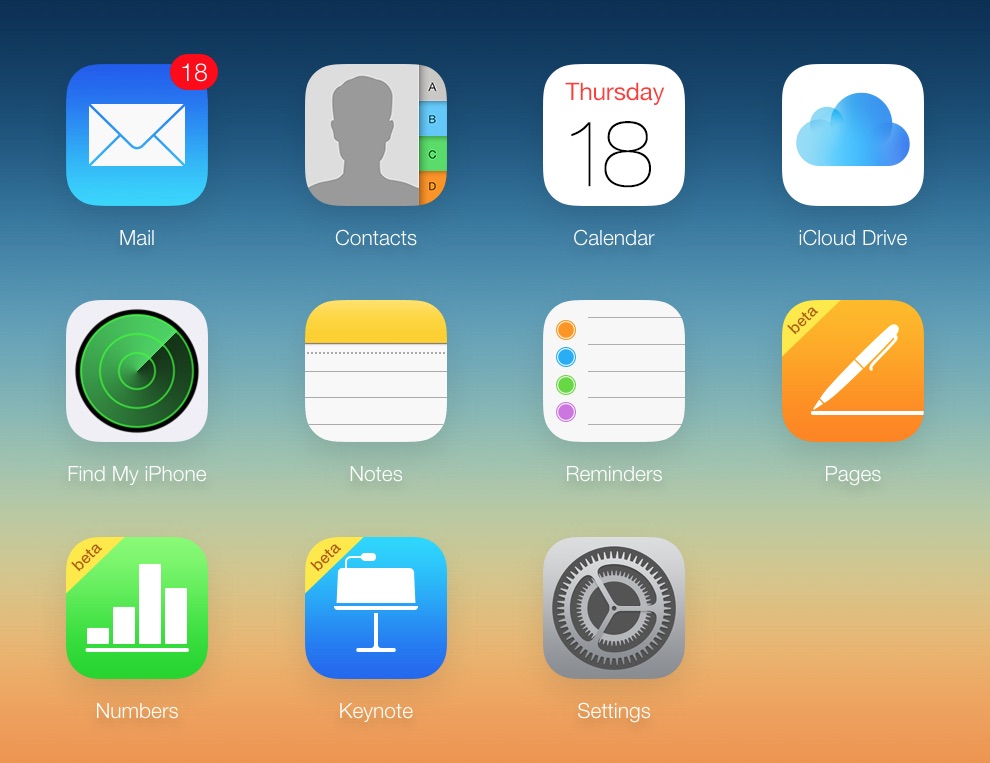
    20141218th-find-my-phone
  4. The Find My Phone service will display a map with your device or devices indicated on the map with dots. in the example below there are no devices displayed, but when you use the service hopefully your device will show up. Under the All Devices drop-down menu, your available devices
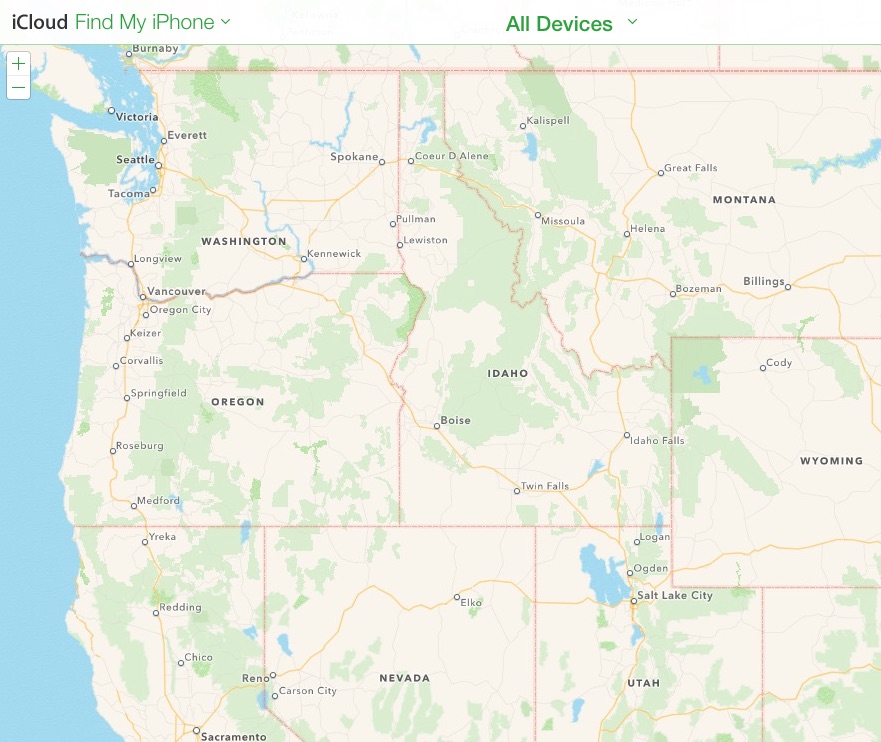
    20141218th-find-my-phone-apple-iphone-ipad-ipod-macbook

Motorola Moto X for $140 off on Cyber Monday

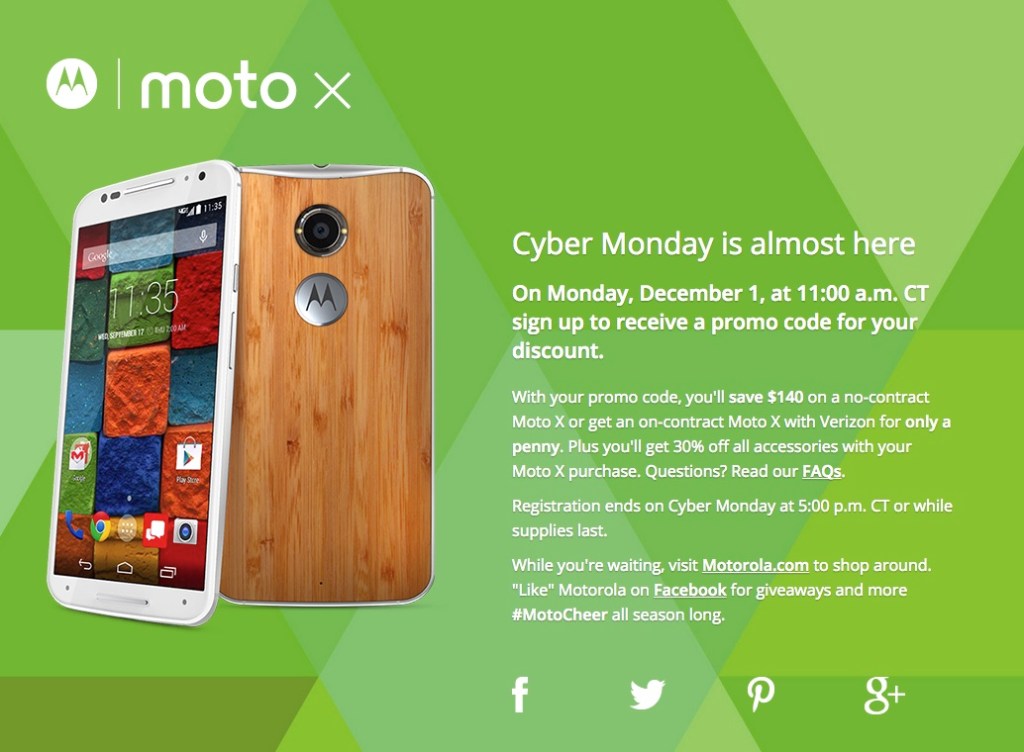
On Monday, December 1, at 11:00 a.m. CT sign up to receive a promo code for your discount.

Click here to register for the $140 discount promo code.

With your promo code, you’ll save $140 on a no-contract Moto X or get an on-contract Moto X with Verizon for only a penny. Plus you’ll get 30% off all accessories with your Moto X purchase. Questions? Read our FAQs.

Registration ends on Cyber Monday at 5:00 p.m. CT or while supplies last.

While you’re waiting, visit Motorola.com to shop around. “Like” Motorola on Facebook for giveaways and more #MotoCheer all season long.

20141129sa-moto-x-coupon-code-140-off

__________

Note: The above message is not a paid ad or promotion. We simply thought the product and savings were worth sharing.

Motorola Moto G Back Cover Removal

Back Cover Design

The back cover of the Moto G has some exceptional benefits. Along the top and long edges of the phone, where the back cover snaps on, there’s a very tight seal that you’ll have a hard time inserting a fingernail or anything else in. This smooth tight design makes the phone feel smooth in your hand and it keeps out dust and debris.

Back Cover Case Removal

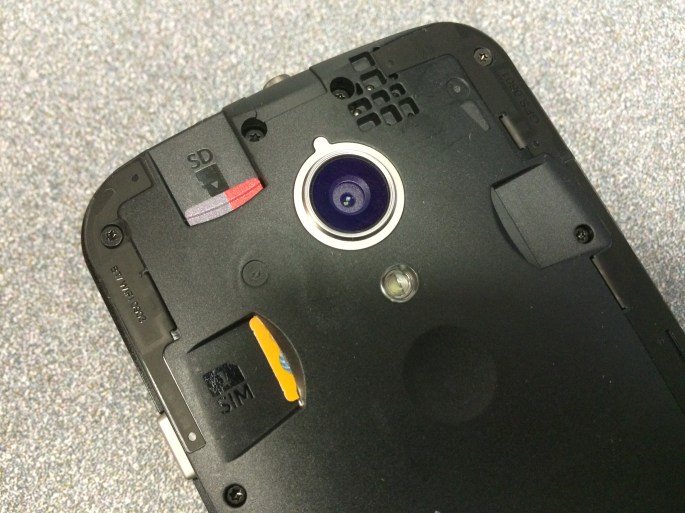
On the bottom of the phone, where the Micro USB connector jack is, it’s possible to insert a small object to twist and separate the back cover from the phone. An ideal object would be something like a wooden clothespin (the side you press with your fingers). This fits in the Micro USB opening and is soft enough not to damage or mar the phone.  You don’t want to jam anything all the way into the Micro USB port. Just twisting 1/16th of an inch inside that opening is enough to open the back cover. Then, using a fingernail, you can carefully pry the rest of the cover off.

20141114fr-motorola-motog-microsd-sim-back-open-case-cover-IMG_0179

MicroSD and SIM Cards

The SIM card is spring loaded. When inserting it, you’ll feel resistance until it’s all the way in, and then as you let go, it will come back and lock in place. To remove it, simply press in with your fingernail to release the lock mechanism and it will come out.

The MicroSD card is held in by friction only. To remove it, use your fingernail to grab the top ridge and pull it directly out.

So, in summary, pull to remove the MicroSD card, but push in to remove the SIM card.

AT&T Visual Voicemail Setup Error

Sometimes when setting up a new phone, or switching to a different phone, the Voicemail feature won’t be configured properly. Any saved or unheard messages will likely be lost in the transition.

When you call to check voicemail (by pressing and holding 1 on your dialer), instead of being taken to your voicemail, or being prompted to setup your new voicemail, you’ll get a message saying something like, “If you have a voice mailbox on this system, please enter your number now.”

When you enter your 9-digit phone number, the system will state that there is no voicemail box with your number.

You can call AT&T to request help with voicemail by dialing 611. The customer support representative will acknowledge the problem — confirming that voicemail was not setup properly when the new phone was configured. They will then fix the voicemail problem.

Now you can press and hold 1 to access your voicemail system and perform the initial setup.

20141108sa-att-visual-voicemail-setup-error-004When you attempt to setup the Visual Voicemail feature, there may still be problems.

Usually, visual voicemail is configured and activated by calling into your voicemail from the visual voicemail app.

The instructions below are what display on the phone for setup.

20141108sa-att-visual-voicemail-setup-error-001

If you follow the instructions above, they should work. After accessing your voicemail, and then exiting, the visual voicemail setup should complete and a confirmation display should indicate the status.

20141108sa-att-visual-voicemail-setup-error-002

However, if visual voicemail isn’t properly activated on your account for your device, you’ll get the error message shown below.

20141108sa-att-visual-voicemail-setup-error-003

At this point, it’s best to call AT&T again and explain what has happened. They will acknowledge the problem and attempt to fix it.

In the example above, when calling AT&T, the customer service person stated that although the phone is capable of visual voicemail, it’s not showing up as an option. They promised to escalate the request. It’s estimated that it will take 10 days to fix the problem.

Samsung Fingerprint Reader Design Flaw

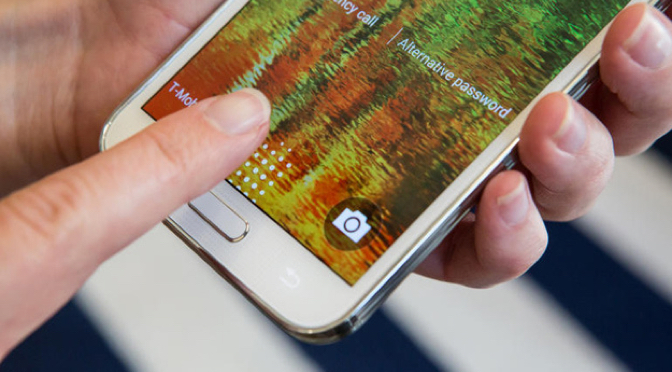
Samsung includes biometric security in their premium smartphones through a fingerprint reader on the home button. Unfortunately, the system requires two hands to operate. Holding the phone in one hand and trying to swipe the thumb (for example) typically won’t work. Also, their system only learns a maximum of three fingers.

If fingerprint biometrics is a convenience you’d like, you may want to consider an Apple iPhone.

Apple first introduced biometric security in their iPhone 5S. A really nice feature about the Apple implementation of a fingerprint reader is that you simply need to touch the home button, and it reads your fingerprint — and it does it quite consistently with great accuracy. This means that you can hold the phone with one hand and unlock it — while carrying something, holding hands with your date, or while riding a bicycle (for example).

Apple also allows you to record up to five fingerprints, enough to accommodate those you choose to share your phone with.