Fixing Slow Loading Startup on Wondershare All-My-Tube YouTube Video Downloader Converter Software Program

If you’re a user of the Wondershare All-My-Tube video downloader and converter software, you may notice long delays in starting the program, and system-wide slowdowns when the program is loading or running.

This typically happens after the Wondershare library listing of videos has become lengthy over many months of use. The software remains aware of the dynamic listing, and the files involved may collectively be many gigabytes in size.

For this reason, it’s important to regularly clear out the list.

Once videos are downloaded, there’s no reason to keep them in the list other than the exceptions mentioned below.

When the list has been cleared, the software should launch quickly and will run without placing excessive drain on your computer.

Note that other issues can cause slowness on your computer. This page offers a suggestion that may help, but you might need to try some other solutions as well.

Purchasing the Software

If you’ve not yet purchased the software, you should seriously consider the lifetime family pack license for about $80 you’ll get the software for five computers. The purchase is for either 5 Windows or 5 Apple Mac computers. [ Windows | Mac ]

Before Removing Video Files

Here are some considerations:

  1. Source URL. You may want to make a note of the URL where each video came from. The source or producer of videos is sometimes not apparent from the video, and sometimes there can be additional information in the description or a related news story that would be good to save with the video.
  2. Save the Videos. You’ll want to make sure the videos are safely put into a long-term archive directory, and don’t just tell the software to delete the downloaded files.
  3. Convert. Frequently videos are downloaded as MP4 (MPEG) format which is very compatible. So, these wouldn’t necessarily need to be converted. Videos that are downloaded as FLV (Flash video) should be converted if you plan to save the video and use it in the future. This is most easily done when the videos are still in the listing within the software.

Software Image

The screenshot below shows you what the software looks like.

20150715we-wondershare-allmytube-youtube-video-downloader-converter-software-apple-mac

Guide to Secure Hard Drive Erasing Files and Sanitizing Computer Data

The Importance of Secure Drive Erasure

Computers are increasingly used to store financial data, healthcare information, and the keys to our personal identity. When files are placed in the recycle bin, and the recycle bin is emptied, those files can still be easily recovered. This is good news if you need to restore a file that was mistakenly deleted. It’s bad news if you donate or discard your computer and someone else recovers files you thought were long gone. It’s not sufficient to just format a hard drive or perform a complete system restoration. There will still be files left on the drive that could be recovered.

Hard Drive Erasing Cost

We provide drive erasing services at a cost of $70 per computer/drive, assuming the drive is installed in a desktop or laptop computer. If you have a drive that’s already removed from a computer, the cost is $50 per drive. We offer a quantity discounts for additional drives.

We set aside about an hour for the following:

  1. Reserve a time slot for the computer drop off, or provide pickup of the computer.
  2. Remove the drive from the computer.
  3. Install drive in docking station.
  4. Perform erase procedure. This can take several hours depending on the speed and storage capacity of the drive.
  5. Confirm the drive has been securely erased by attempting file recovery using advanced data recovery processes.
  6. Install the drive in the computer.
  7. Reserve a time slot for pickup of the computer. Or, provide delivery of the computer.

Do It Yourself

We provide the list of tools and instructions below for those wanting to perform drive erasing on their own.

What You’ll Need

Here’s the list of what you’ll need for erasing a drive.

  1. Computer Tool Kit ($20) – You’ll need the necessary tools to remove the drive from the computer. Depending on the computer, a basic computer tool kit should be sufficient, although some require advanced tips. Additional speciality tool kits are listed at the bottom of this page.
  2. Drive Docking Station ($40) – You’ll need to connect the bare drive to a working computer. A drive docking station is an easy way to do this. The Sabrent external drive bay works well.
  3. Erasing Software (Free – $40) – There are many utilities available for securely erasing a drive, such as Eraser Secure Data Removal Tool by Heidi Software. See below for a more comprehensive list. If you’re using an Apple computer, drive sanitizing is built-in and available under the Disk Utility when erasing (click the Security Options button).
  4. Available Computer ($200) – You’ll need a computer available for the task of erasing drives. While the task could run in the background of a computer you use regularly, it’s best to have a dedicated computer to ensure nothing interferes with the process. It takes a long time to securely erase drives, so whatever computer you choose will be running, and shouldn’t be restarted, until the process is complete. If you use a laptop computer for the task, you’ll have the benefit of the internal battery to keep the process going in the event of a power outage. However, some laptop computers aren’t designed to operate continuously for extended periods of time. So, a desktop computer is probably a better choice. If you use a desktop computer for the task, you’ll want to have a backup power supply listed below.
  5. Backup Power Supply ($100 – $220) – An uninterruptible power supply (UPS) provides a constant source of power for the erasing procedure. A good unit might cost $100 to $200 for a high quality pure sinewave UPS system.
  6. Hard Drive Erasing System ($300 – $400) – As an alternative to items 2, 3, and 4 above, you might consider purchasing a hard drive erasing system. The StarTech 4-bay system is a good choice. Others are also available.

Drive Erasing Instructions

These are the steps for securely erasing a computer hard drive.

  1. Remove the drive from the computer.
  2. Install drive in docking station.
  3. Perform erase procedure. This can take several hours depending on the speed and storage capacity of the drive.
  4. Confirm the drive has been securely erased by attempting file recovery using advanced data recovery processes.
  5. Install the drive in the computer.

Additional Specialty Tools

Here are some useful tool kits for this and other projects. Some computers, like Apple laptop computers, require special drivers.

Alternatives

Here are some possible, but not ideal, alternatives for data sanitizing.

  • Get a free software program to erase unused drive space. However, there may still be existing files or settings that aren’t removed.
  • Physically destroy, smash, or drill through the drive. This method isn’t ‘green’ since the drive isn’t usable again, and parts that might be properly repurposed or recycled may get damaged.

Drive Erasing Software Utility Programs

System Crashes: New York Stock Exchange, United Airlines, and Wall Street Journal

With the past few days, there have been multiple coordinated attacks on our national technology infrastructure. According to a report by the Washington Post, “FBI officials believe the attacks required expertise.”

report in USA Today states: “Repeated and successful attacks on fiber-optic cables in California have security experts warning the Internet’s physical infrastructure is ‘basically unsecured’ and vulnerable to both casual and determined attackers.”

The map below, provided by 9 News, shows numerous Comcast outages across the nation.

201530tu-comcast-national-internet-outage

Here’s a video that describes the outages:

[youtube https://www.youtube.com/watch?v=LHnG-n0-o9c?rel=0]

Today, New York Stock Exchange was taken offline, the Wall Street Journal website was taken down, and United Airlines was shut down with flights grounded from coast to coast.

One would hope that it took a sophisticated army of cyber criminals to bring down United Airlines. Yet, United Airlines claims that the nation-wide outage was due to a router failure. If we are to believe them, it’s more troubling is to think that a single point of failure, of a single component, caused a major airline to shut down.

If our infrastructure is so shoddy and fragile that it fails without any human intervention, what would happen if people tried to take it down?

The same can be said for the New York Stock Exchange and the Wall Street Journal website. It would be more comforting to know that those outages were part of a coordinated attack.

Further Reading

Here’s What You Can Do To Help

Given the rise in high-profile attacks, it would be wise for everyone to increase their own security efforts for personal and business computing.

You may think that you’re a much less important target for hackers than an air traffic controller, bank president, or nuclear power plant worker. However, any hacked account or computer is typically only a few relationships removed from a high level target. It’s estimated that we’re all about six degrees of separation from anyone else. Which means that every target is equally important to a hacker. Additionally, hackers work on building aggregate networks of hijacked computers for launching attacks on critical infrastructure.

Here are some resources for proactive security measures you can take:

  • Account Security. Be sure your accounts are setup with complex passwords and two-step authentication. Read our document on Email Safety and Online Account Security.
  • Data Redundancy. Make sure your critical data is in three places: local hard drive, backup hard drive, and cloud storage. Make sure you have a regular backup plan and don’t leave your backup drives connected to any computer since new viruses attack files on all attached drives. Be sure to have more than just a backup of your current files. Keep backup of your file versions in the event that current files become corrupted and then overwrite your only backup.
  • Computer Security. Use a high quality paid subscription antivirus and security program such as Bitdefender or Kaspersky.
  • Credit Card Security. A debit card that pulls directly from your bank account, can leave you with no money in the bank if it’s stolen. That can result in bounced checks and other fees. However a credit card creates a firewall between you and thieves. If your card is stolen, you can report it and have it cancelled.
    • Consider having several credit cards so you can use one for online transactions and higher risk purchasing while traveling. Use one for regular monthly bills. It’s less likely to get stolen if it’s only used for a few recurring monthly bills. That way, if a more exposed travel/high-risk card is stolen. You simply need to cancel it, but won’t need to contact a dozen merchants to provide them with a new number.
    • For an extra measure of security, consider purchasing no-fee American Express Prepaid Reloadable credit card for online purchases. In this way, you won’t need to give out your primary credit card numbers. You can use these cards for one time payments, or refill them for ongoing use.
  • Email Security. Follow best practices with regard to email security. Read our document on Email Safety and Online Account Security.
  • Financial Security. Use a service like Equifax to monitor your credit activity.
  • Identity Security. Use a service like LifeLock to secure your personal identity.
  • Password Safety. Consider using a password manager like 1Password that uses local encrypted storage of your password list. Do not store this in the cloud and do not synchronize through the Internet. Synchronize through your local network only. Maintain a copy of your passwords on your computer and also on a mobile device with biometric security (fingerprint reader). Alternatively, you can write your passwords and account information on paper and store them in a fireproof and waterproof safe. Using a multi-function home copier, you could make a backup copy and leave it in a safe place.
  • Redundancy. Maintain a second computer with a backup of your essential files and contacts. Have it configured to function for printing, network, email, and other functions in the event that your primary computer goes down. Create a non-computer-reliant system for your daily tasks. In other words, for all the tasks you rely on your smartphone or computer, figure out a pen and paper solution.
  • Social Media Security. Be vigilant when using social media. Don’t accept friend requests from people you don’t really know. It would mislead your friends into accepting a friend request from a person they think you know and approve of.

iPhone Won’t See and Can’t Setup or Recognize FitBit One Bluetooth

If your iPhone mysteriously can’t find your FitBit One activity tracker, you may think it’s your phone, and you might try restarting the phone, resetting the phone entirely, removing the software, or some other method of fixing the problem.

However, there’s an easier and quicker solution worth trying first.

You simply need to restart the activity tracker device, and you’ll very likely discover that everything starts working again and the phone will recognize the device again.

The restart instructions are found here:

http://help.fitbit.com/articles/en_US/Help_article/How-do-I-restart-my-tracker

There are unique steps for each device, but generally you’ll want to plug it in, and then press and hold a reset button or action button for about 3 to 10 seconds (depending on the device). Follow the instructions linked above for your particular unit.

Setting your device to synchronize throughout the day can help you ensure that your steps and activity will be uploaded regularly. Then, if the unit fails at some point, you won’t loose an entire day’s worth of data. You’ll just be without the data from the time that it failed.

Here are the reset instructions for the FitBit One:

  1. Plug your charging cable into your computer.
  2. Plug your One tracker into the charging cable, making sure that the gold contacts on your tracker align with the gold contacts in the inside of the charger.
  3. Hold down your tracker’s button for 10-12 seconds.
  4. Remove your tracker from the charging cable and press its button until the screen turns on.

Dell XPS 13 Ultrabook Battery Replacement Video and Required Tools List

The Dell XPS 13 battery comes with a 1-year warranty. As a result, many users are finding they need to replace the battery after a year of use. The video below provides a good presentation of how to remove the battery, but details on the specific tools are missing. More details about the tools needed are found below.

Tools Needed

The video states, “You’ll need a philips head screw driver and a size T5 star screwdriver.”

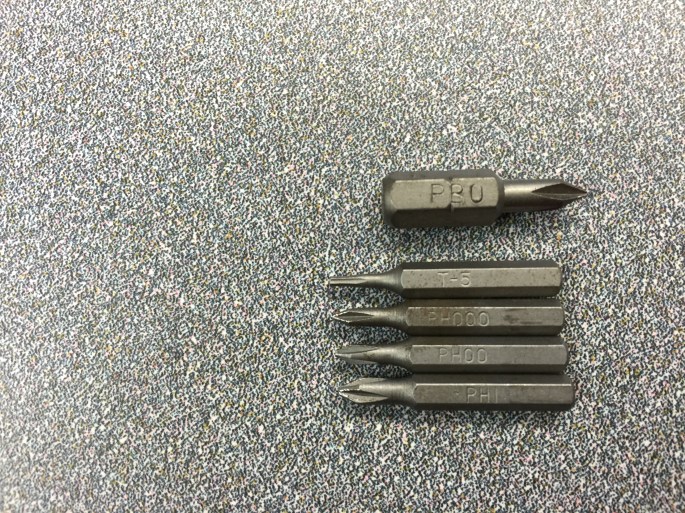
We went through many tips before we found a working phillips tip that would work on screws holding the battery in place. The one that finally worked was marked PB0. It needed to be small, but broad.

The ‘star’ bit is actually a Torx T5.

Other useful tips would be the PH000, PH00, and PH1. These are shown below.

You may also need something to carefully pry the battery and other parts away from the computer.

20150615mo-screwdriver-tips-torx-t5-phillips-ph000-ph00-ph1-IMG_8413

Tool Kits Available on Amazon

Here are some useful tool kits for this and other projects:

__________

Thanks to Makur for contributing to this article.

Find Your Dell Computer Service Tag Serial Number to Lookup System Configuration Information and Drivers

This is a simple and useful process for obtaining your Dell computer service tag (serial number) and lookup your system configuration.

Obtain the Service Tag (Serial Number)

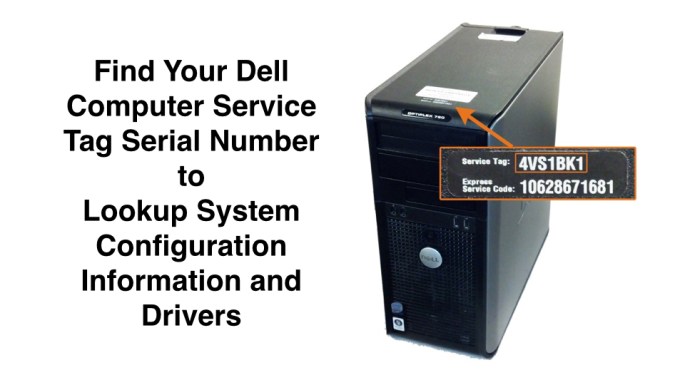
The Service Tag (serial number) should be printed on the bottom of your computer. If it is missing, scratched off, or not readable, there’s an automatic way to look it up.

With any computer purchased used on eBay, Craig’s List, from a pawn shop, or other source with unknown history, it’s possible that the Service Tag may be incorrect. If the system board (mother board) has been swapped out, you won’t know the Service Tag number for sure unless you run this process.

  1. From the Start Menu type CMD and press Enter.
  2. From the Command Prompt, type: wmic bios get serialnumber
  3. Press Enter
  4. The serial number should be displayed.

Lookup the System Configuration

On the Dell website, you can lookup the system configuration based on the computer serial number. A quick lookup will reveal the original system configuration. There’s also a utility on Dell’s website that will scan your system and give you the latest configuration information.

  1. Go to http://www.dell.com/support/
  2. Look for this text “Enter a Service Tag or Express Service Code” and enter your Service Tag there.
  3. Click Submit.
  4. On the resulting page there is a lot of information available by clicking on the various tabs and links.

__________

Note: Thanks to Makur for assisting with the above article.

Apple ID Two-step Verification

Two-step verification is now available for Apple ID account holders. The information below is an overview from the Apple website. You need to sign-in to see these instruction on the Apple site, which you probably can’t do if you’re having trouble with logging in.

Two-step verification for Apple ID.

With two-step verification, your identity will be verified using one of your devices before you can make changes to your account, sign in to iCloud, or make iTunes or App Store purchases from a new device.

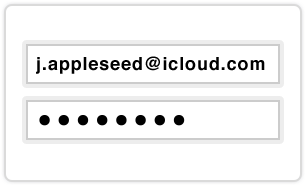
(1) You enter your Apple ID and password as usual.

step 1

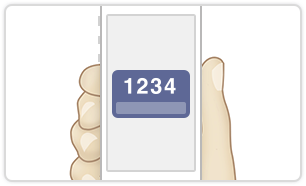
(2) We send a verification code to one of your devices.

step 2

(3) You enter the code to verify your identity and complete sign in.

step 3

You will also get a Recovery Key for safekeeping which you can use to access your account if you ever forget your password or lose your device.

Simple and more secure.

Once enabled, the only way to make changes to your account will be to sign in with two-step verification.

  • There will be no security questions for you to remember or for other people to guess.
  • Only you will be able to reset your password.
  • If you forget your password, you can reset it with a trusted device and your Recovery Key.

For more information, read the FAQ.

Important things to remember.

Please make sure you understand the important security policies below before you turn on two-step verification.

  • With two-step verification enabled, you will always need two of the following to manage your Apple ID:
    • Your password
    • A trusted device
    • Your Recovery Key
  • If you forget your password, you will need your Recovery Key and a trusted device to reset it. Apple will not be able to reset your password on your behalf.
  • App-specific passwords will be required to use iCloud with any third party mail, contacts, or calendar apps.

CNET Download Site Uses Misleading Software Installation Utility

The Download.com website managed by CNET has become the primary website for software downloads. Many companies use it as the only portal for delivery of their software. However, the site has been identified to use misleading and potentially harmful advertising. So, it’s important to be careful when using the site.

One of the problems to be mindful of is the software download and installation utility. When using it, if you’re not careful, you’ll agree to having other software installed on your computer and having settings on your computer changed.

If you’re not careful to decline various offers, here are some common changes that you’ll experience on the Apple Mac platform:

  1. Your default search provider would be changed to Yahoo on Safari, Firefox, and Google Chrome.
  2. MacKeeper may get installed.

Be sure to read the small print. You’ll need to click on the Decline and Close buttons whenever asked if you want to install the additional software.

Here are the screenshots you’ll see during installation.

20150529sa-cnet-software-installation-page-1-of-3

Click Next Step to continue to the screen shown below.

20150529sa-cnet-software-installation-page-2-of-3

On this screen, you need to Decline or Accept having Yahoo set as your default search engine. The screen is configured to look like a typical License Agreement or Acceptance of Terms. Most people will just click Accept and not read the fine print. You should click Decline to avoid having modifications made to your search settings. When you click Decline, you’ll continue to the screen shown below.

20150529sa-cnet-software-installation-page-3-of-3

The screen shown above, is written to look like a typical installation screen. However, it’s a confirmation screen to have MacKeeper installed. The Install button will install MacKeeper. The Close button will continue with the installation of the program you intended to install.

The following screens for steps 3 and 4 are relevant for the software installation.

Smartphone Hotspot: Getting Internet Access When Mediacom is Not Working

Summary

When it’s working, Mediacom offers some of the fastest Internet service in the Iowa City area. Unfortunately, the service is occasionally down or too slow to be of use. So, for people who can’t be without Internet, temporary alternative options may need to be considered. Test your speed as described below, and if you’re experiencing slow speeds or outages, consider using your smartphone as a Wi-Fi Internet hotspot (described below).

Test Your Internet Speed

It’s important to periodically test your Internet speed. It’s not uncommon for people to be getting much slower speeds than what they are paying for. This may be a temporary problem that can be fixed by a modem reset (described below), or it might be that your service provider is over charging and under delivering. To test your speed, go to the SpeedTest.net website and click the Begin Test button. There may be ads on the page with similarly designed buttons labeled “Start Now.” Ignore those. The speed test will tell you what your download and upload speeds are.

For comparison, here’s a general guide to download speeds, with Mediacom pricing as of early 2015:

  • 3 Mbps is a slower connection that isn’t as common any more. Given today’s media-dense content, It’s generally not adequate for two or more computers. Some people choose this option if available because the cost is about $25 a month.
  • 5 Mbps is a bit better.
  • 10 Mbps is a service offered by CenturyLink. The cost is $35 per month.
  • 15 Mbps is more common for homes and businesses where several computers and devices might be sharing the same connection. This is typically the speed that most people are paying for. The cost might be $30 to $35 a month.
  • 20 Mbps is more desirable and will result in faster Internet related operations. The cost might be $40 to 50 per month.
  • 50 Mbps is best for multiple computers, especially when those computers are downloading media. This is also useful for surveillance systems needing to upload video to the cloud. The cost might be $45 per month.
  • 100 Mbps is helpful for anyone requiring high-speed for multiple devices. It speeds up software downloads for technicians who are setting up multiple computers. The cost might be $55 per month.
  • 150 Mbps is the high end of what’s available for most users. The cost might be $80 per month.

The pricing listed above is introductory pricing from Mediacom, so long-term costs per month may be higher.

Troubleshooting

If you’re experiencing no Internet, or very slow Internet, before going any further, make sure that you’ve performed the basic troubleshooting step of disconnecting your cable modem. This involves removing all of the cords (power, Ethernet, and coaxial cable) for about 5 to 10 minutes. This extended period of time is to ensure that when the equipment is detected again by Mediacom’s servers, it will get a fresh connection to the Internet. This works especially well with slow Internet speeds. Let’s say you’re paying for 50 Mbps, but getting 3 Mbps. This procedure might get you back up to 50 Mbps again. When you connect the cable modem again, test your Internet speed.

Using Your Smartphone as a Wi-Fi Hotspot

Most smartphones have the ability to provide Wi-Fi Internet access. You can ask your mobile phone provider for more details about the cost. Typically the Hotspot feature is enabled and configured in your smartphone settings. For iPhone, it’s called Personal Hotspot and found at the top under settings. When connecting to your smartphone Wi-Fi, you’ll want to make sure you’ve disconnected from your cable modem (Ethernet and/or Wi-Fi connection).

This part is a little confusing, but basically the problem is that your home Wi-Fi router is probably set as the default preferred Internet connection. So, unless you turn it off, your computer will try to connect to that instead of your smartphone. If there’s an Ethernet cord going to your home router, then disconnect that. Only then will your computer prefer the smartphone Wi-Fi hotspot. Otherwise, even if your computer is connected to the smartphone it may continue trying to use the home router, and although it’s connected to the home router, it won’t get an Internet connection.

Keep in mind that your usage will be considered as part of your overall data package (see tips below on reducing data usage). However, as a short-term solution, using your smartphone as an Internet Wi-Fi hotspot should work adequately as an alternate way to access the Internet. When you do this, you’ll turn on the hotspot feature, and note down the name and password for your hotspot. You’ll need Wi-Fi capability on your computer. Laptop computers typically have this built-in. Desktop computers may need a USB Wi-Fi adapter.

Hotspot Pricing

Every mobile service provider is different, but let’s take AT&T as an example. If you pay $100 for the 10GB per month shared data. You’ll get 15GB (due to a special promotion) that you can share among your devices. Devices may be $10 to $40 per month per line (or per device). Verizon has a limit of 2.5 GB of data shared per device even if you’re on their 10 GB plan (as of early 2015). AT&T shares the 10GB across devices without a per-unit limit. There’s no additional cost with AT&T to have your smartphone hotspot feature enabled. The data is used either by your smartphone or through your smartphone to your computer. Limit your data usage (as described below) to avoid paying additional fees.

Limit Your Data Usage

Smartphones are already optimized with data efficiency in mind. For example, your phone may be configured to only download large software updates when you’re connected to Wi-Fi Internet (and not using your phone’s data plan). Laptop and desktop computers typically don’t consider your connection method. So, you’ll want to be careful about not downloading the latest Windows updates or other software updates while using your mobile device. Don’t download movies, music, or large photos. Keep your usage limited to tasks like email and browsing the web.

Choosing Cable or DSL Internet

Due to outages and intermittent slow speed issues, some customers have switched from Mediacom Cable Modem Internet service to DSL service from CenturyLink (the local landline phone service provider). This is generally a more reliable connection, and provides what’s perceived to be better customer service. Because landline phone service is used for alarm systems, medical equipment, and 911 calls, it’s considered to be a higher tier of urgency. Services provided by cable television companies are considered to be less urgent (watching MTV isn’t as important as a 911 call). While CenturyLink advertises Internet speeds up to 1000 Mbps (for some markets), their typical available service speeds for most cities and neighborhoods are about 10 Mbps or slower.

20150226th-apple-mac-ios-yosemite-handoff-computer-iphone-ipod-ipad