Apple Yosemite Mail Features Topic Not Found

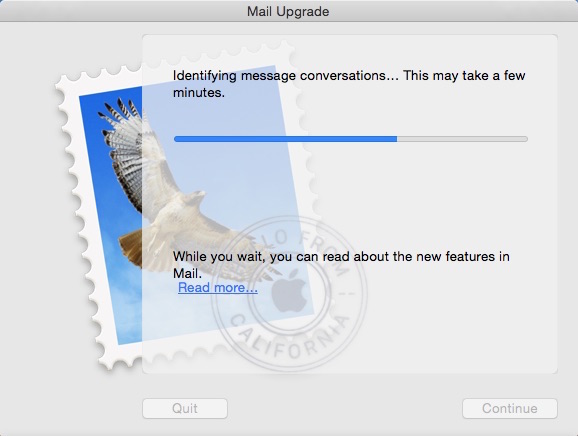
If you’re using Apple Mail after upgrading to Yosemite, the initial setup will require an upgrade of your old email mailboxes. The Mail Upgrade box is shown below.

20141019su-apple-mail-conversion

If you click on the Read more… link to learn about new features in mail, it’s possible you’ll get a message stating, “The selected topic is currently unavailable. The topic you were trying to view could not be found.” This is shown below.

20141019su-apple-mail-new-features-window-not-available

Close this message, and after waiting a little while, try clicking the Read more… link again.

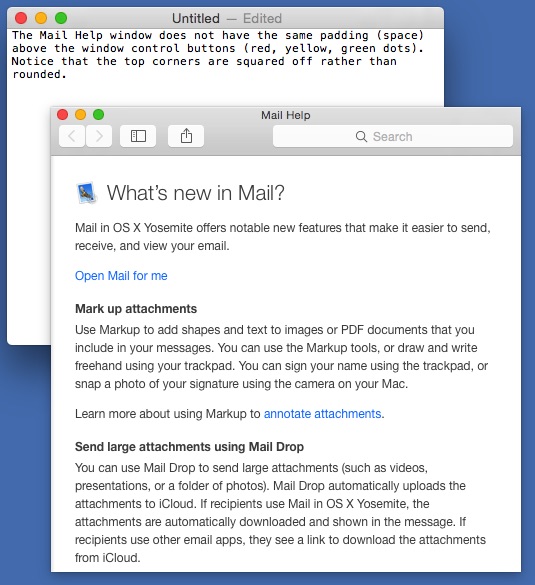
You’ll notice that the Mail Help window does not have the same padding (space) above the window control buttons (red, yellow, green dots). Notice that the top corners are squared off rather than rounded. See below for a visual of this. This is likely an oversight by the programmers.

20141019su-apple-mail-help-window-title-bar-not-rounded

Migrating Favorites/Bookmarks From Windows to Apple Mac

If you’re a user of Internet Explorer on Windows and moving to Apple, follow these instructions to get your Favorites/Bookmarks moved over.

Google Cloud Solution

It’s possible to use Google Chrome to transfer your bookmarks by following these steps:

  1. Using Google Chrome, you can sign-in using your Google/Gmail login. Usually Chrome will ask you to sign-in, or you can find it on the menu (three lines found at top right).
  2. Once you’re signed in, the Bookmarks will automatically synchronize with your Google account to any Chrome browser.
  3. So, using the Import Bookmarks and Settings (found under Bookmarks in the Chrome menu) import bookmarks from Internet Explorer and Firefox.
  4. Then these will be synchronized and accessible on any computer or device where you are logged in with Chrome.

Manual Transfer

To manually transfer your Bookmarks follow these instructions:

  1. Go to Chrome, and from the menu choose Bookmarks > Import Bookmarks and Settings.
  2. Select Internet Explorer and/or Firefox as needed for importing.
  3. Then, once all bookmarks are imported, go to Bookmarks > Bookmark Manager > Organize > Export Bookmarks to HTML file.
  4. Put that file on a USB flash drive and put it on your Apple computer.
  5. In Google Chrome, from the Menu, choose Bookmarks > Import Bookmarks and Settings.
  6. On the From dropdown selection menu, select Bookmarks HTML File, then click Choose File.
  7. Select the file you exported in step 3 and 4.
  8. The Bookmarks will be imported and put in a folder called Imported from IE or Imported from Firefox.

Java 8 Update 25 for Apple Max OSX 10.10 Yosemite

Summary

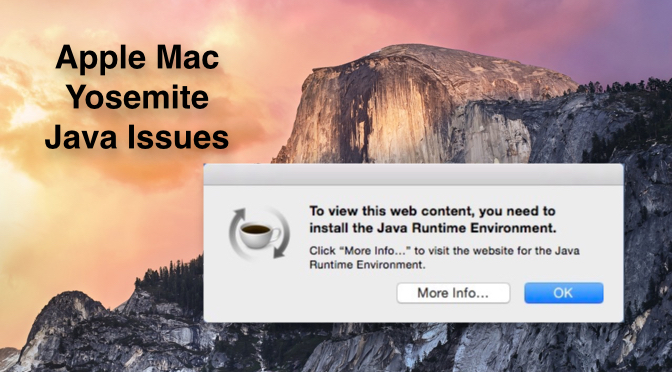
If you If you update to Apple Max OSX 10.10 Yosemite, and you’re using Google Chrome, SPSS, Creative Suite CS4 applications, or other Java dependent software, you may get a message similar to the one below stating that you need to install Java Runtime Environment.
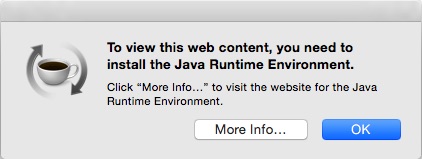
20141018sa-to-view-this-web-content-you-need-to-install-the-java-runtime-environment

You can read this entire page to familiarize yourself with the options available to you and what their impact is. Or, you can begin at the top with the latest information and solutions.

Update 30 August 2017

After three years working with various scenarios, a pattern of success is emerging. Today, on a computer running OS X 10.11 El Capitan, the above error message was appearing when trying to run SPSS. After installing Java SE 6 Runtime, SPSS ran without a problem. So, that simple installation seemed to resolve the problem and may work to resolve the issue for other software and other versions of OS X. You can get the Java SE 6 Runtime installation file here.

Update: 23 April 2015 – Java for OS X 2014-001

For months, if you tried to run the Deltawalker file comparison software, a message like the one above would appear and it would fail to run. However, as of 23 April 2015, if you go to the Java for OS X 2014-001 page on Apple’s website, and click on the Download button, then install that Java update, it fixes the problem and then Deltawalker will run. Let’s hope this resolves other issues.

Update: 20 March 2015 – Java Version 8 Update 40

As of 20 March 2015, if you click More Info on the button shown above, you’ll be taken to a page on the Java website to install the latest Java update which is Version 8 Update 40. Follow the instructions to download and install the Java update. If you’d like to download the file directly, click here. This update should resolve the problem described on this page below.

Revised 16 January 2015

This page was initially posted on October 18, 2014. After a few months, Apple and Sun/Java finally worked out the problems with these updates (described further down the page).

Here are the steps required to install the Java update that will eliminate the notification shown above.

  1. Click on the More Info button in the notification that appears on your screen (example below).
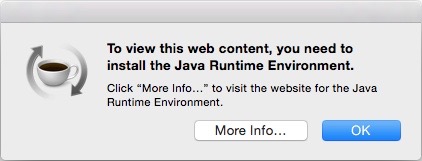
    20150116fr-apple-java-runtime-environment-installation-error-notification-001
  2. On the resulting page (shown below) click the Agree and start Free Download button.
    20150116fr-apple-java-runtime-environment-installation-error-notification-002
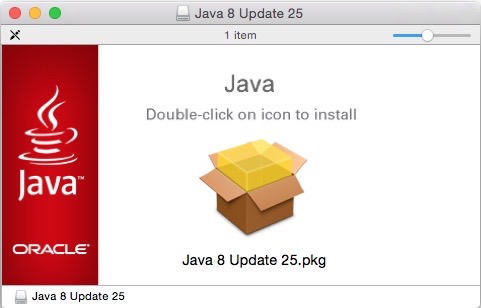
  3. Open the downloaded file if it doesn’t open automatically. You’ll see a window like the one below. Double-click on the icon as indicated to install Java 8 Update 25.pkg
    20150116fr-apple-java-runtime-environment-installation-error-notification-004
  4. In the installation window, click the Continue button (as shown below).
    20150116fr-apple-java-runtime-environment-installation-error-notification-005
  5. You’ll be asked for your computer user account username and password as shown below.
    20150116fr-apple-java-runtime-environment-installation-error-notification-006
  6. You’ll probably be asked for the drive to install on, then the Installation Type window will appear as shown below. Click the Install button.
    20150116fr-apple-java-runtime-environment-installation-error-notification-007
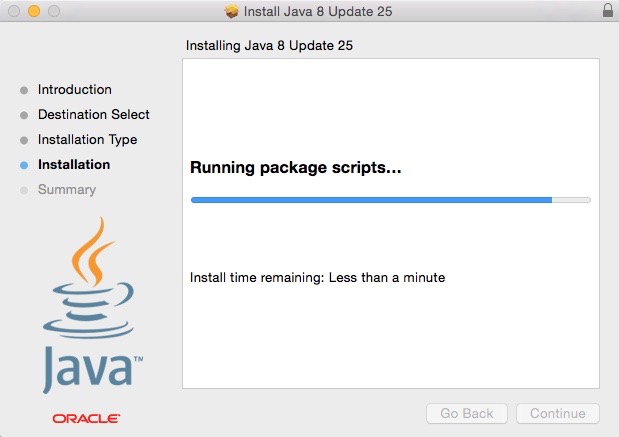
  7. The installation will begin and a progress window will appear as shown below.
    20150116fr-apple-java-runtime-environment-installation-error-notification-008
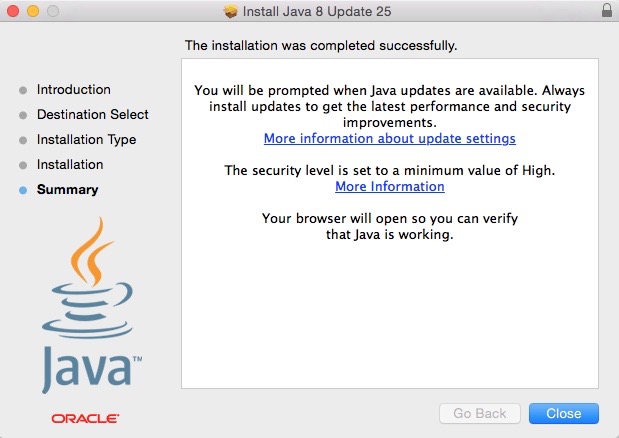
  8. When the installation is completed, a window will appear as shown below.
    20150116fr-apple-java-runtime-environment-installation-error-notification-009
  9. Your browser window should open to a page like the one below.
    20150116fr-apple-java-runtime-environment-installation-error-notification-010
  10. When you click the Verify Java version button, you should see a confirmation message as shown below.
    20150116fr-apple-java-runtime-environment-installation-error-notification-011

If There Are Problems

There had previously been problems with the installation of this Java update. If you have problems, the information found below may be helpful.

Java 6 from Apple

Apple has provided a version of Java 6 that installs properly on Yosemite. You can download and install that version. Click here to visit the download page on Apple’s website. It’c conceivable that some programs or websites might be looking for elements of Java 6 to confirm that Java is present. Even if you have newer versions of Java (such as 7 or 8) you may still get a message indicating you need Java if you don’t have 6 installed.

Safari Quick Fix

Follow these instructions for a quick fix to this issue:

  1. Begin with all programs closed. You may want to just restart your computer to ensure you begin fresh.
  2. Using the Yosemite Safari browser, visit the Java verify page here:
    https://www.java.com/verify/
  3. This should cause Safari to invoke a launch of the Java update.
    20141020mo-java-7-update-71-software-update-apple-mac-yosemite
  4. Then, perhaps before you can press the Install Update button, another window will open to confirm the installation of the Java update. This is the dialog box to confirm the Java Detection you requested in step #2 above.
    20141020mo-java-7-update-71-software-update-apple-mac-yosemite-confirm-security
  5. Click Run. Then click Install Update in the other window. You may be prompted for your username and password.
    20141020mo-java-7-update-71-software-update-apple-mac-yosemite-installation-username-password
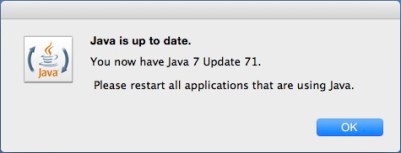
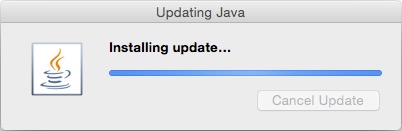
  6. You will then see the series of dialog boxes shown below. Click the appropriate buttons to continue and then restart any programs that use Java.

20141020mo-java-7-update-71-software-update-apple-mac-yosemite-ready-to-install

20141020mo-java-7-update-71-software-update-apple-mac-yosemite-installing

20141020mo-java-7-update-71-software-update-apple-mac-yosemite-retart

This process will update Java for all Yosemite programs that are able to use the updated Java.

Google Chrome Shortcut

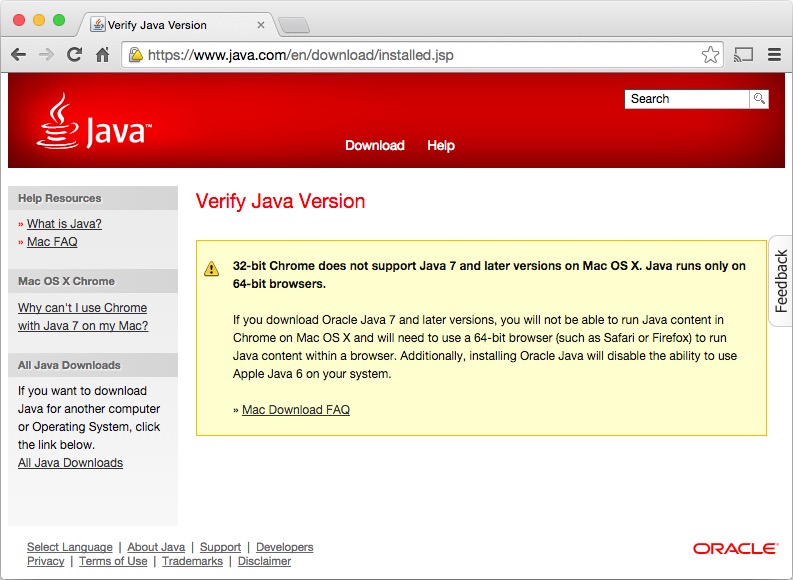
Apparently Google Chrome doesn’t work with Java 7 Update 71. The message below explains this, and it’s the page that shows up when you’re in Chrome and try to update Java. Click the image to enlarge.
20141020mo-java-7-update-software-update-apple-mac-yosemite-compatibility

You can install the untested 64-bit version of Google Chrome Version 39, then go directly to the correct download page and download Java 8 (jre-8u25-macosx-x64.dmg) or keep reading to learn more about the cumbersome process most people go through to get to the correct download page. However, if you install Java 8, the necessary Java 7 might not install because the installation will identify a newer version of Java.

The window below will likely show up if you try to download Java for Mac OS X. Click the image to enlarge.

20141018sa-java-for-mac-osx-1010-yosemite-legacy

If you click the “More Info…” button, you’ll be taken to a download page like the one shown below. Click the image below for a larger view.

20141018sa-download-java-8-25

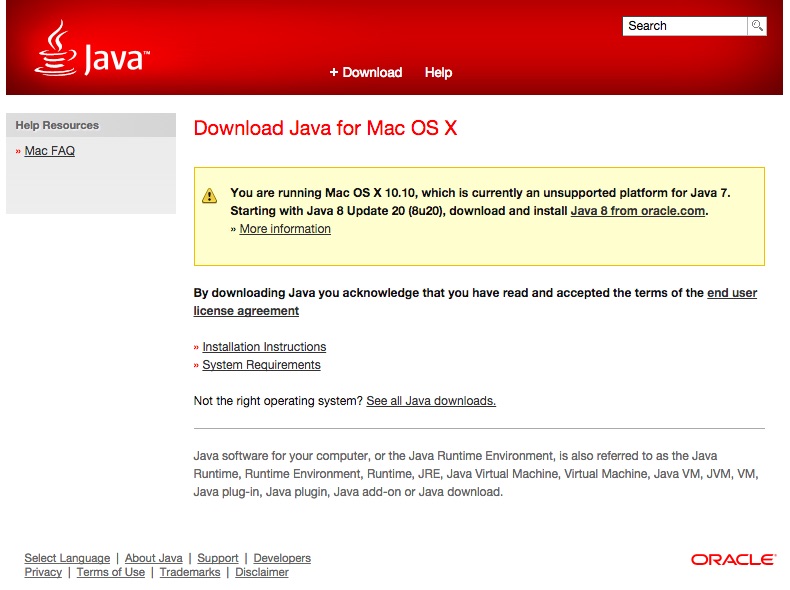
When you click the download button, it will take you to a web page like the one shown below with the message, “You are running Mac OS X 10.10, which is currently an unsupported platform for Java 7. Starting with Java 8 Update 20 (8u20), download and install Java 8 from oracle.com. ” Click the image below for a larger view.

20141018sa-java-for-mac-osx-1010-yosemite-legacy

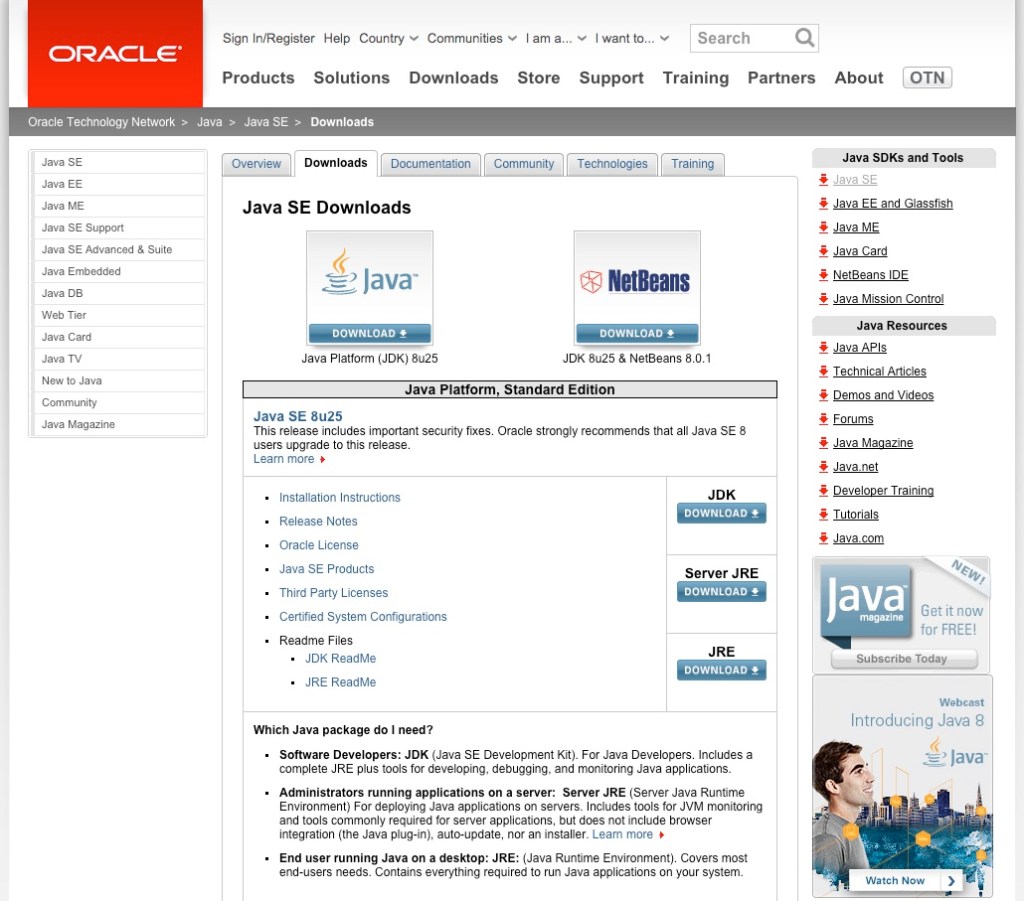
If you click the More information link, it takes you to the How do I install Java on Mac OS X 10.10 page. However, this isn’t the page you want, instead you should click on the Java 8 from oracle.com link. You’ll be taken to the Java SE Downloads page shown below that may not be easy to follow for most users. Click the image below for a larger view.
20141018sa-java-se-downloads-page-8u25

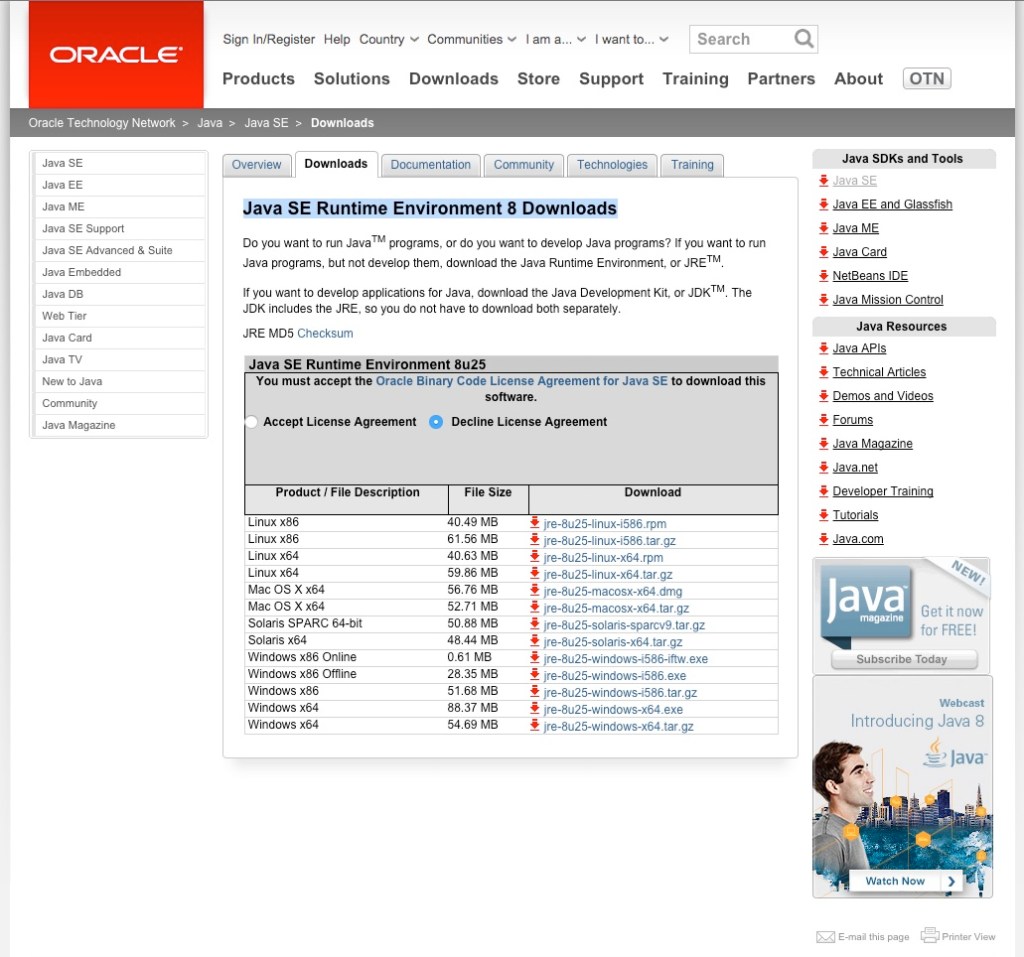
You’ll want to click the JRE Download button. This will take you to the Java SE Runtime Environment 8 Downloads page shown below. Click the image below for a larger view.
20141018sa-java-se-runtime-environment-8-downloads

Click the white circle on the left of Accept License Agreement. From the list of available downloads, choose the one described as:

Mac OS X x64 …….. 56.76 MB …….  jre-8u25-macosx-x64.dmg

Double-click on the downloaded file and follow the on-screen instructions to install Java.

Compatibility Warning

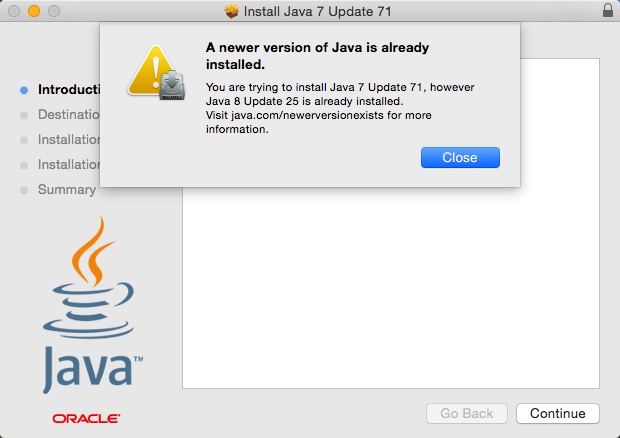
Once you download Java 8 Update 25, you won’t be able to install Java 7 Update 71 (see message below). So, you may want to directly install Java 7 instead of Java 8, since some programs may look for 7 and not recognize 8 yet.
20141018sa-java-7-wont-install-if-java-8-is-installed

Global Impact

The maps below show recent visitors to this page who have been impacted by this issue. These are just our own page visitors, so you can imagine the thousands of people impacted by this issue.


Creating a Bootable Installation USB of Apple Mac OS 10.10 Yosemite

Summary

Follow these instructions to create a bootable USB installer for Apple Mac OS 10.10 Yosemite.

Prepare the USB Flash Drive

Insert a blank USB flash drive of 8GB or larger, but not unnecessarily too large since it would be wasted space. Run the Disk Utility program found under Applications in the Utilities folder. Then follow these steps.

  1. In Disk Utility, select the USB flash drive.
  2. Click on Partition.
  3. Choose Partition Layout of 1 Partition.
  4. For the Format choose Mac OS Extended (Journaled)
  5. For the Name, type YosemiteUSB.
  6. Click the Options button and choose GUID and click the OK button.
  7. Click the Apply button to make these changes to the USB flash drive.
  8. When asked if you are sure, click the Partition button.
  9. Exit the Disk Utility program.

Download Yosemite

In the following steps, you’ll download the Yosemite files from the App store, but stop before clicking Continue when the installer starts.

  1. Go to the Yosemite page in the App store on your computer.
  2. Click Download.
  3. It will take a while for the download to complete. If you want to view a progress meter, during the download, click on the Updates tab in the App store.
  4. Once the download is complete, an Installer will run and there will be a Continue button. Don’t click that just yet. Instead, continue to the steps below. Then, once the installer is on a USB, you can store the USB somewhere safe and continue with the guided installation from the App Store installer.

Copy Yosemite to USB

In the following steps, Yosemite will be copied to the USB flash drive and it will be made into a bootable drive.

  1. Run the Terminal program found under Utilities.
  2. Select, Copy and then paste the following command into your Terminal window. Although the text wraps here, it will be copied and then pasted as a single command.
    sudo ‘/Applications/Install OS X Yosemite.app/Contents/Resources/createinstallmedia’ –volume ‘/Volumes/YosemiteUSB’ –applicationpath ‘/Applications/Install OS X Yosemite.app’ –nointeraction
  3. Press Enter/Return after pasting in that command.
  4. You’ll be asked for your password. Enter it to continue. The process of copying the files may take 10 to 15 minutes depending on how fast or slow your computer is.
  5. The process will complete and you should see something like this in your Terminal window.

ComputerName:~ UserName$ sudo ‘/Applications/Install OS X Yosemite.app/Contents/Resources/createinstallmedia’ –volume ‘/Volumes/YosemiteUSB’ –applicationpath ‘/Applications/Install OS X Yosemite.app’ –nointeraction
Password:
Erasing Disk: 0%… 10%… 20%… 30%…100%…
Copying installer files to disk…
Copy complete.
Making disk bootable…
Copying boot files…
Copy complete.
Done.
ComputerName:~ UserName$

If everything went okay, then type Exit and press Enter/Return to end your Terminal session. Then quit the Terminal program.

You now have a USB bootable installer for Yosemite. To use this, when starting an Apple computer hold down the Option key and then choose the drive. For now, you can eject it and keep it safe for whenever you need it.

Continue Yosemite Installation

If you’d like to continue the installation of Yosemite that was automatically launched after download from the App Store you can do that now by clicking Continue. Or, you can quit that installer and return later (it’s in your Applications). Once installed, the Yosemite installation files will be automatically deleted. This is why it’s important to create the USB bootable installation drive before you continue with the installation from the App Store.

__________

There were a variety of sources used to create the above non-visual instructions. The most helpful article was on iClarified, and it includes images for those who find that useful.

System Extension Cannot Be Used – AppleUSBEthernetHost.kext

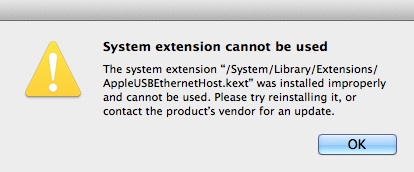
If you’re using an Apple computer, you may get the following error message:

20141014tu0839-system-extension-error

The text of the message reads (provided for screen readers):

System extension cannot be used
The system extension “/System/Library/Extensions/AppleUSBEthernetHost.kext” was installed improperly and cannot be used. Please try reinstalling it, or contact the product’s vendor for an update.

This problem is apparently the result of a recent iTunes update and it is impacting many people.

Follow these instructions to fix the problem:

  1. Disconnect your iPad, iPod, or iPhone from the computer.
  2. Download the latest iTunes software.
  3. Using Finder, navigate to the System folder, then Library, then Extensions and find the AppleUSBEthernetHost.kext file. Move it to your desktop. This will remove it from Extensions.
  4. Install iTunes using the download from step #2 above.
  5. From the Utilities folder in Applications run the Terminal program.
  6. Enter the following command to update the extension. This should all be typed on the same line and then press enter/return. There is a space between kextload and /System…
    sudo kextload /System/Library/Extensions/AppleUSBEthernetHost.kext

Restart the computer just to make sure all changes are saved.

Additional Reading


Mediacom Outage Map

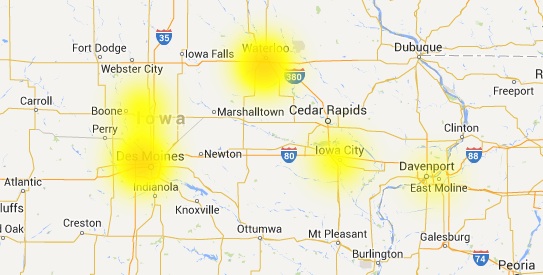
The map below shows Mediacom outages by region. Here we have zoomed into Iowa as of 13 October 2014 @ 10:22 PM.

20141013mo2222-outage-map-mediacom

“At the time of this posting, our Internet has been out for three days. Upon requesting service, we were told there is higher than average call volume and all available technicians are booked until the end of the week. Yet, they claim there are no known outages in our area.” 13 October 2014 @ 10:22 PM.

__________

Note: The map data represents complaints received on the DownDetector.com website. Broadband customers submit reports of outages in their area, and those submitted complaints are represented on the map by provider. It’s not entirely scientific, and some outage reports could be a result of user error. However, the map does provide a helpful guide.

Apple Mac Computer Search for All Files of a Certain Kind

Let’s say you’re looking for a spreadsheet on your Apple computer. You may know the filename, but unfortunately the file name is a word or two that are very common and will show up in many different files.

You can search your computer for all spreadsheets by using Spotlight and typing kind:numbers (for example) to see a list of all Apple Numbers files on your computer. Below is a handy chart with some examples (click it to enlarge). To learn more, read “Create good queries in Spotlight.”

20141009th-apple-mac-computer-spotlight-search-files-type-kind

When Windows Updates Crash Your Computer

Problem Summary

Let’s say you recently restored your Windows 8 computer to ‘like new’ condition using the recovery feature that most computers have.

You’ll need to install all of the updates that were released since the computer was new. That could be over 100 updates.

During this process, if you select all of the updates and install them at one time, it may cause some conflict that will result in the computer not starting properly.

Then you’ll get a message stating the computer is reverting to a previous state, and urging you not to turn off the computer. Yet, it never completes this process.

Solution

In general, whenever you see a long list of Windows Updates that need to be installed, it’s a good idea to install them a few at a time.

The updates are numbered with a corresponding KB… number. You can start by installing a few or a dozen of the lower numbered updates. This could be helpful since later updates will likely assume the earlier ones (possibly pre-requisites) have already been installed.

Installing the same batch of updates a few at a time could mean the difference between a working computer or a non-working computer.

Apple Connect to Server Error: The share does not exist on the server.

Introduction

On Apple computers, there’s an option to Connect to Server. This is found in the Go menu of the Apple Finder (file browser). You can also get to this by pressing the Command+K keys. Normally, you would type in a server address, or use a previously saved address to access your files. Sometimes a person will send you a server address to copy and paste into the Server Address box.

Copy and Paste Problem

If in the process of copying and pasting, you mistakenly get additional text, perhaps a line or two of text below the server address, and copy that into the Server Address box, the additional lines won’t be visible.

If you save this pasted address, and it shows up under Favorite Servers, it still will not show that you’ve actually pasted in several lines of text.

Problem Connecting to the Server

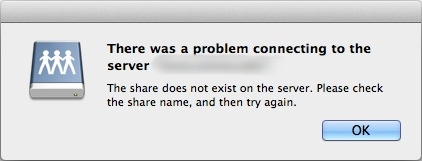
Every time you attempt to Connect to this server address, you will get the following error box:

20141008we-error-there-was-a-problem-connecting-to-the-server-the-share-does-not-exist-on-the-server

Diagnosing the Problem

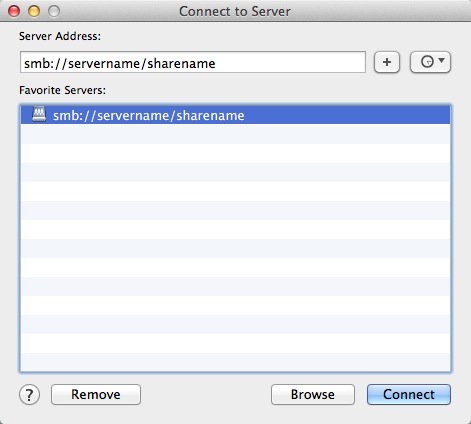
To discover whether or not this has happened to you (additional text was pasted in), open your Connect to Server dialog box as shown below. The Server Address example displayed below actually has two lines of text. There’s a second hidden line of text.

Place your cursor at the end of the typed server address, and press the right arrow key or down arrow key. This will scroll down to additional lines. Alternatively, you can select all (Command+A) and then copy (Command+C) and past (Command+V) into a TextEdit or a Word Processing program to see what’s been previously pasted into the Server Address field.

20141008we-apple-connect-to-server

When attempting to clean up this problem, be sure to select all text in the Server Address field and press delete. Also click / select any saved addresses that don’t work and remove them.

MSI Z87I AC Motherboard Essential Guide

Summary

The MSI Z87I AC motherboard has several advantages: it’s small, has plenty of I/O ports, has two Ethernet ports, has integrated video, and comes with powerful wireless capabilities (the AC model includes 802.11ac wireless rather than 802.11n in the Z87I). The information and suggestions on this page are specific to the Z87I AC, but would generally apply to other motherboards.

BIOS Problems

As of October 2014, the motherboards are shipping with version 1.5 of the BIOS that was originally released on 7 January 2014. This is several revisions out of date and has various problems associated with it that are described on this page. The most recent version of the BIOS at this point is version 1.8 released on 18 July 2014. For the most current BIOS, visit the MSI BIOS download page for the MSI Z87I AC.

BIOS Update Instructions

For the reasons described further down on this page, it is essential to update your BIOS. To update your BIOS, follow these instructions.

  1. Visit the MSI BIOS download page for the MSI Z87I AC.
  2. Download the most recent BIOS.
  3. Double-click the file to expand/open it and find the BIOS file. It should have a name like E7851IMS.180 (for version 1.8).
  4. Put that file on a USB flash drive.
  5. Startup your computer and press DEL to enter the BIOS settings mode.
  6. Click on the M-FLASH menu option to view the BIOS flash update menu.
  7. Click on “Select one file to update BIOS and ME.”
  8. Choose your USB flash drive from the list.
  9. Select the file from the list.
  10. Follow the remaining on-screen instructions and watch the computer closely to ensure the process goes smoothly. The computer may automatically restart once the BIOS update is complete.

MSI Z87I AC Restart Problems

With BIOS version 1.5 the computer will shut down properly. However, if you choose the Restart option from within your operating system, or from within the BIOS, it won’t restart. It will just go to a blank screen and not do anything further. This problem is solved by upgrading the BIOS from 1.5 to 1.8.

Won’t Wake on Keyboard Input

Once the computer goes into sleep mode, it won’t wake with keyboard input or mouse activity. This is actually a default setting and can be changed in the BIOS settings. Follow these instructions:

  1. Startup your computer and press DEL to enter the BIOS settings mode.
  2. From the Settings menu, choose Advanced.
  3. Choose Wake Up Event Setup.
  4. Resume from S3 by USB Device is set to Disabled by default. Click this and choose Enabled.
  5. Click the ‘X’ in the upper right corner to Exit the BIOS settings and be given an option to save configuration and restart.

BIOS Clock System Time is Incorrect

You may notice that the BIOS System time appears to be incorrect, and no matter how many times you attempt to reset it, the time is incorrect again. For example, if you’re on Central Daylight Time, you the system time may be five hours ahead. This is actually not an error. Central Daylight Time is UTC -5 hours and the system time is set to display UTC (Universal Time Coordinated or Coordinated Universal Time). So, the time is always automatically setting itself to UTC.

Optimal BIOS Settings

Here are a few settings you may want to set or confirm:

  • Settings > Advanced > Intel Rapid Start Technology. This should be enabled for the fastest startup times.
  • Settings > Advanced > Power Management Setup > Restore after AC Power Loss. Click this and choose Last State or Power On if this is a computer that should be always on. If the power is interrupted, the computer will restart automatically when the power is restored.
  • Settings > Advanced > Windows 8/8.1 Features. This should be enabled if you are running Windows. Otherwise, leave it disabled (if you’re using Linux, for example).
  • Settings > Advanced > Wake Up Event Setup > Resume from S3 by USB Device. You will probably want the ability to wake the computer (or turn the display on from sleep mode) by using the keyboard or a mouse click. This feature is off by default. Click and choose Enabled.

You can learn more by visiting the MSI Z87I AC webpage.

Features

  • Supports 4th Gen Intel® Core™/Pentium®/Celeron® processors for LGA 1150 socket
  • Supports DDR3-3000(OC) Memory
  • USB 3.0 + SATA 6Gb/s
  • Military Class 4: Top Quality & Stability
  • Military Class Essentials: Total Protection for Military Class Motherboards
  • OC Genie 4: Overclock in 1 Second
  • Click BIOS 4: Easily Fine-tune Your System
  • 4K UHD Support: Ultra-high Definition Visual Experience
  • 3 Digital Display Outputs: DisplayPort/HDMI/DVI Support
  • PCI Express Gen 3: World’s 1st PCI Express Gen 3 Motherboard Brand
  • USB Audio Power: A Break Through in USB Audio Quality
  • Command Center: Control & Customize Your PC Settings
  • Fast Boot: Quickly Boot Up & Enter OS in A Few Seconds
  • Wi-Fi 802.11ac, Bluetooth 4.0, Intel® Wireless Display

Photos

Below are photos of the MSI Z87I AC motherboard.