News Feed

Apple Notes Program Undo Delete or Recycle Bin

The Problem

Most programs have a built-in trash or recycle bin so that deleted items can be recovered. It’s very disconcerting if you’re using a program that doesn’t have an undo feature or trash/recycle folder where deleted items can be recovered from. The Apple Notes program is an example of a program without an undo feature or trash/recycle folder.

The Solution

The solution to this problem is to create a folder called trash and instead of deleting items, move them to the trash folder.

Setup and Use Apple Mac Handoff in iOS and OS X Yosemite

Handoff is one of the new Continuity features introduced in iOS 8 and OS X Yosemite, letting users begin a task on one device and seamlessly pick it up on another.

To use Handoff, you must login to iCloud on your Apple computer and iOS device first and have the feature turned on. On Apple computers, this is found under Settings > General. On Apple mobile devices, this is found under Settings > General > Handoff & Suggested Apps.

Handoff may already be on by default. If so, you may have noticed alerts for incoming phone calls on your computer screen or you may have noticed a small icon in the lower left corner of your iPhone (or iPad/iPod) lock screen. This icon indicates that a supported app/program is running on your desktop Apple computer and you can access the same app and whatever file or task you were doing in the identical spot. On the desktop computer, you may notice an additional icon to the left of the Dock.

There are probably many specialized programs on either your computer or iOS mobile device. The Handoff feature only works with selected programs that are on both systems such as Pages, Keynote, Numbers, and the Safari or Chrome browsers (for example).

Video

Below is a video by MacRumors showing how to setup and use Handoff.

Economical Standing Workstation Computer Desk Solution

The JustStand.org website lists many proven clinical health benefits of standing more at work.

The cost of an adjustable standing workstation can be hundreds of dollars, and many companies are spending thousands of dollars to purchase adjustable standing workstation conversion kits for all of their employees.

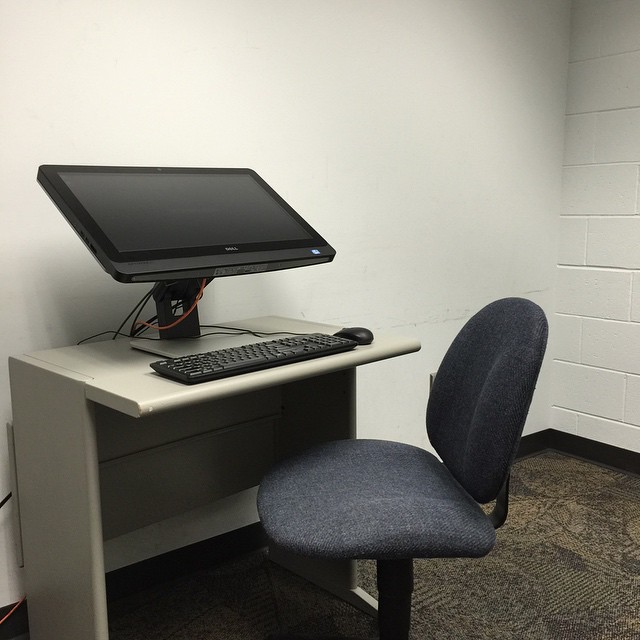
An option that may be more practical and cost-effective would be to consider all-in-one touchscreen computers like the one shown here that can accommodate working while standing up or sitting down. The model shown here is a Dell All-In-One 9010. The current version of this computer is the 9030 model for $900 (there’s currently a $385 discount off the $1285 price).

No other expensive equipment or office furniture is required. These work well with existing office furniture. With the screen tilted up it is possible to use the onscreen keyboard and the touchscreen replaces the need for a mouse. When sitting it is possible to switch back to the traditional keyboard and mouse interaction. This approach could save hundreds of dollars per person, and the health benefits would be significant.

Another health benefit of this workstation configuration is that by using the touchscreen display the left and right hands are engaged in the touchscreen activity rather than having a very narrowly defined mouse clicking action performed solely by one hand — which can lead to repetitive stress injuries.

20150225we-economical-standing-workstation-computer-desk-solution

Consumers Pay the Cost of Frivolous Apple Lawsuits

Sophisticated intellectual property and patented technologies sometimes take many years and many hours to develop. Companies that take the risk and make the investment required to develop new innovations should be rewarded and have the opportunity to recuperate their costs and enjoy the profits of hard work and innovation.

Unfortunately, there are some ‘companies’ spending more time engaging in frivolous lawsuits than they spend on development of innovation.

Recently one company has tried to take Apple, Google, Samsung, and HTC to court over what they claim is patent infringement.

When a technology is so widely used that it’s incorporated in the devices of multiple manufacturers, one must wonder how unique that technology is.

Part of the problem is with the original patents being too vaguely worded, broadly defined, or allowing patents to be issued for relatively common sense, generic, and obvious designs. These things create a context for conflict.

Based on these poorly conceived patents, companies are now trying to take advantage of the patent system and court system.

A spokesperson from Apple described one of their recent court battles this way:

“[The company that is suing us] makes no products, has no employees, creates no jobs, has no US presence, and is exploiting our patent system to seek royalties for technology Apple invented. We refused to pay off this company for the ideas our employees spent years innovating and unfortunately we have been left with no choice but to take this fight up through the court system.”

This is, of course, only one side of the story, but if true, it illustrates the wide-spread problem we’re seeing repeatedly today.

The company suing Apple for $533 million is self described on their website as “an innovative technology development and licensing corporation that owns an expanding portfolio of foundational patents….” This description sounds more like an organization established as a patent broker.

Surprisingly, this company that is suing Apple for $533 million has only a simple five page template website using stock photos that was copyrighted back in 2013.

Ultimately consumers pay the cost of all these lawsuits, and as with war, there often are no winners, only losers, as all the expense, stress, and effort doesn’t go toward creating solutions for a better world, but instead only drains our valuable scarce resources.

20150225we-apple-computer-renewable-energy-santa-monica

Transcription, Subtitles, and Captioning Made Easy

The demand for transcription, subtitles, and captioning is in the rise. As people are increasingly watching television and other video sources in noisy venues, or quiet venues, we’re not able to rely on the soundtrack that accompanies videos. There’s also the need to meet accessibility requirements for those unable to hear audio.

Challenges

  • Automated voice to text systems, like the captioning service provided by YouTube, typically have too many errors to provide a meaningful and effective text description of what’s being said.
  • Paying for transcription or captioning services is very costly.
  • Doing the work yourself is time consuming and can require expensive software (although free options exist).

Better Audio Quality

One of the problems with Google or any voice to text system is that there are difficulties with playing back poor quality recordings of spoken words. While recorded speech may sound fine to us, it lacks the original nuances that software needs for better accuracy. When interpreting speech, our brains are able to correct for a lot of background noise. The audio quality standards that may have been adequate in the past, are now not sufficient for automated captioning. A solution is to use the best microphones and audio possible, including clip-on microphones, that will clearly pick up as many subtleties as possible from the person speaking.

Realtime Parallel Translation Transcription

In the past it was necessary to purchase expensive voice to text dictation software, along with a high quality microphone, and spend a considerable amount of time training the software to recognize your voice. Even then, the results were often not very accurate.

With the introduction of Siri (on the iPhone), dictation from voice to text was made available for free, to everyone, without any training required. Anyone could speak into an iPhone and see their words typed. This is because the audio of your spoken words are being sent over the Internet to a very powerful computer and returned as text.

“The technology behind Siri was actually first developed by SimulScribe to convert telephone voicemail messages to text. Sometime around the year 2007, in speaking with the president of the company, I asked if they were using a technology similar to echelon. He told me that it wasn’t similar to echelon, but in fact was echelon. They were renting computing time on the government surveillance supercomputers that were so powerful they could convert any speech to text. This is how the transcription could be so accurate.” ~ Greg Johnson

While Siri works well with live speech, it’s not so effective with recorded speech.

For anyone wanting quick transcription, here’s a quick, easy, and inexpensive solution. Put on some headphones and as you’re watching the video you want transcribed, simply talk into your iPhone word-for-word everything that’s being said in the video and enjoy the convenience of nearly 100% accurate transcription! This works for videos or audio-only recordings.

Laptop Computer 2.5″ Solid State Hard Drive (SSD) Options

SSD Drives as of 2017

As of 7 Mar 2017, the latest technology for SSD drives is the Crucial MX300. Click the size offerings below for the product page. Click here for the latest solid state drive offerings.

The information below was current as of 2015 and remains here for reference purposes.

SSD Drives as of 2015

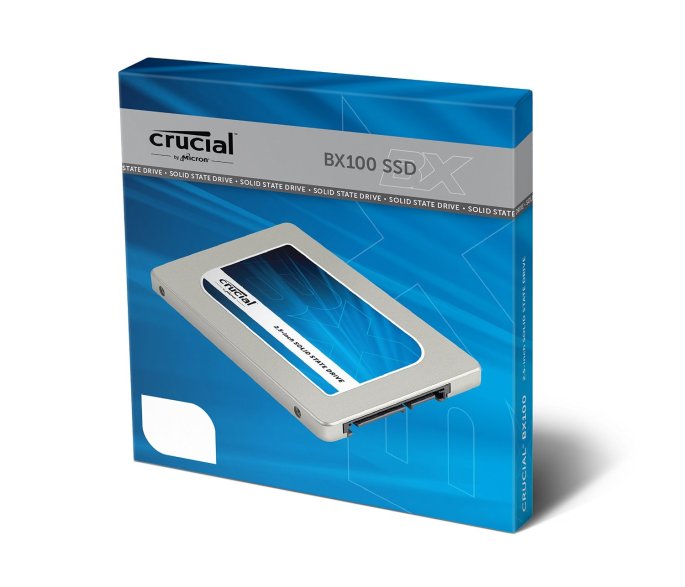
There are many 2.5″ solid state hard drives available. Crucial offers an excellent selection of solid state drives that offer speed, value, and reliability.

The MX200 model is the newest model as of January 2016. It is faster, uses less power, and has a longer lifespan. Prices shown below are as of 8 January 2016. [Buy Now]

  • 250GB ($89)
  • 500GB ($165)
  • 1TB ($351)

The MX200 also has many other reliability and security features included.

The BX100 is an older model that is slower, uses less power, and has a shorter lifespan. Prices shown here are as of 23 Feb 2015. [Buy Now]

  • 128GB ($68)
  • 250GB ($99)
  • 500GB ($184)
  • 1TB ($379)

Product Photos

The images below are for the BX100 but are similar to the MX200.

__________________

Document History

  • 7 Mar 2017 at 8:54 AM CST. The models and pricing were updated on 7 Mar 2017.
  • 23 Feb 2015 at 8:59 PM CST. This document was first published on 23 Feb 2015.

Apple iPhone 6 Plus Clear Cases

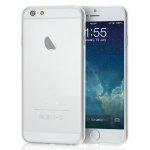
There are a variety of cases available for the iPhone 6 Plus. One of the best values is the Insignia clear case (shown below) available at Best Buy for about $15 or available from Amazon as the Flexion case for about $13.

Design Benefits

Here are some of the benefits of this case design:

  1. Slim. This case design is light, slim, and contoured so it retains the very thin design of the iPhone 6 Plus.
  2. Protective. It is thick enough to prevent scratches to the surface.
  3. Screen Care. There is a slightly raised edge on the face of the cover to protect the glass surface if the phone is placed face down.
  4. Secure Grip. The case has just the right amount of grip so the phone doesn’t slip out of your hand, yet slides into a pocket easily.
  5. Modifiable. As with just about any case, the power and volume buttons aren’t as easy to push with the case on. Fortunately with this case, a modification can be made by using a box cutter or similar sharp cutting tool to very carefully cut out a hole for easier access to the power button. Volume buttons are less of a concern since volume isn’t adjusted as frequently.

For the price, this is an excellent case. If you need something with more protection, you can view ruggedized cases on Amazon.

Insignia Clear Case

Click any image below for a larger gallery view. Click here to buy.

Flexion Clear Case

Click any image below for a larger gallery view. Click here to buy.

Instruction Guide for Replacing an iPhone

Follow these instructions if you’re upgrading or replacing an iPhone.

  1. Backup. Backup your current (old) phone using iTunes. You may already have an iCloud backup, but a local backup will be a faster method. This will require synchronizing the phone which may involve transferring purchased or upgraded apps to or from the phone. You may also be prompted to perform any updates for the phone. It may be faster to use iTunes (and a fast Ethernet connection) to download the latest updated apps. Once everything is updated in iTunes and on the iPhone, and backed up, you are ready for the next step.
  2. Logout of iCloud. Logout of your iCloud account on the iPhone. Without doing this, Apple will still have a record of the phone as being assigned to your iCloud account and nobody else will ever be able to use the phone until it is deauthorized and disconnected.
  3. Secure Erase. From Settings > General > choose to Reset all data and settings.
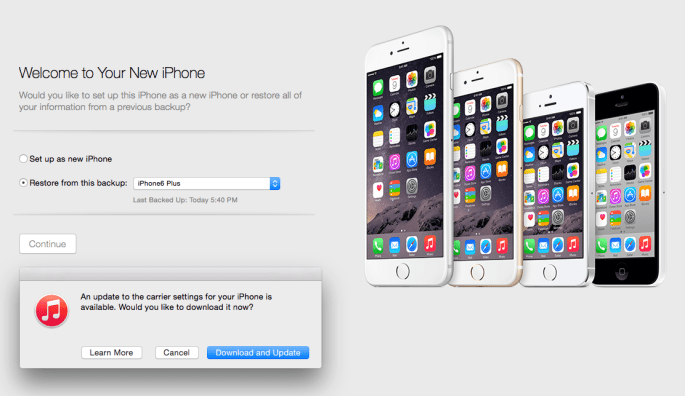
  4. Restore Backup to New iPhone. You can now restore the backup made in step #1 to the new replacement iPhone. Start iTunes and connect the phone. You’ll see a message in iTunes stating “Welcome to Your New iPhone” and “Restore from this backup” will have the most recent backup selected. You may also see a message stating that an update is available for the phone. You screen may look like the one below. Click the image for a larger view.
    20150219th1942-iphone-setup-itunes-restore-from-backup
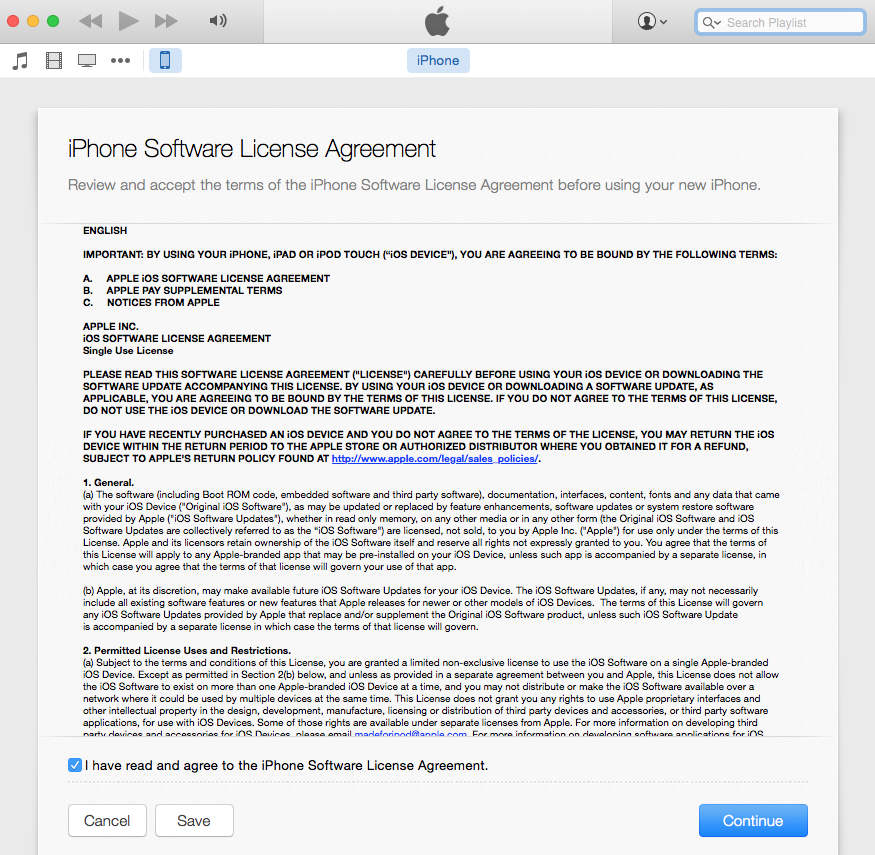
  5. License Agreement. Accept the license agreement by checking the box and clicking Continue as shown below. Click the image for a larger view.
    20150219th1945-iphone-setup-license-agreement
  6. Restore Progress. You’ll see a message, “Restoring iPhone from backup” with the estimated time remaining as shown below. The time remaining may fluctuate during the restore process since it is an estimate based on the current transfer process.
    20150219th1947-restoring-iphone-from-backup-time-remaining
    20150219th1950-restoring-iphone-from-backup-time-remaining
  7. Restart. After the iPhone is restored, it will be restarted.
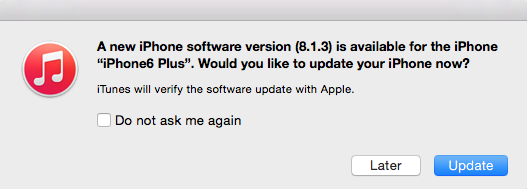
  8. Available Updates. Even though the phone is new, you may be reminded of available updates. It’s common that new computers and devices need updates after purchase. Examples of update notifications are below. You can ignore or cancel these for now. If you have an option to download only, you can choose that.
    20150219th2008-new-iphone-software-version-8-1-3-is-available
    20150219th2009-update-carrier-settings-for-iphone-available
  9. Initial Setup Wizard. When your phone has restarted, it will still say “Hello” as if it’s a brand new phone. This is because the initial startup sequence hasn’t run yet. Walk through the navigated guide to perform the initial setup. You can setup the touch ID (fingerprint access) during the phone setup process, or you can do it later.
  10. Account Passwords. You’ll be asked to enter the passwords for all your email accounts, social networks, and other online accounts. This is to avoid someone restoring your backup to a device and having full access to any  accounts with saved passwords.
  11. Synchronize Apps. The restoration process will involve copying all apps from iTunes back to the iPhone. The reason this happens is because the iPhone backup does not seem to make an extra copy of the apps during the backup process (since they are already in iTunes or available in the cloud). So, the iPhone backup contains your unique user settings and data. The synchronization process may take a while if you have many apps and/or larger apps.
  12. Google Accounts. For Gmail accounts that have additional security measures enabled, you may need to generate a password from the app passwords generator. These are found under your Google Account security settings. You can delete (revoke) any previous access codes generated for your old phone.
  13. Facebook. For Facebook accounts that have additional security measures enabled, the Facebook app may prompt you to enter a uniquely generated password key that will be sent via SMS.
  14. Update. After your phone has completed the initial synchronization, this would be a good time to perform the iOS update if available. Even if your old phone had the latest iOS, your new phone, even though restored from a backup, may not have the latest iOS, and since this isn’t part of the backup/restore image the update will need to be done manually. You can perform an iOS update from within the phone under Settings > General > Software update. Or, you can do it from within iTunes under the iPhone page.
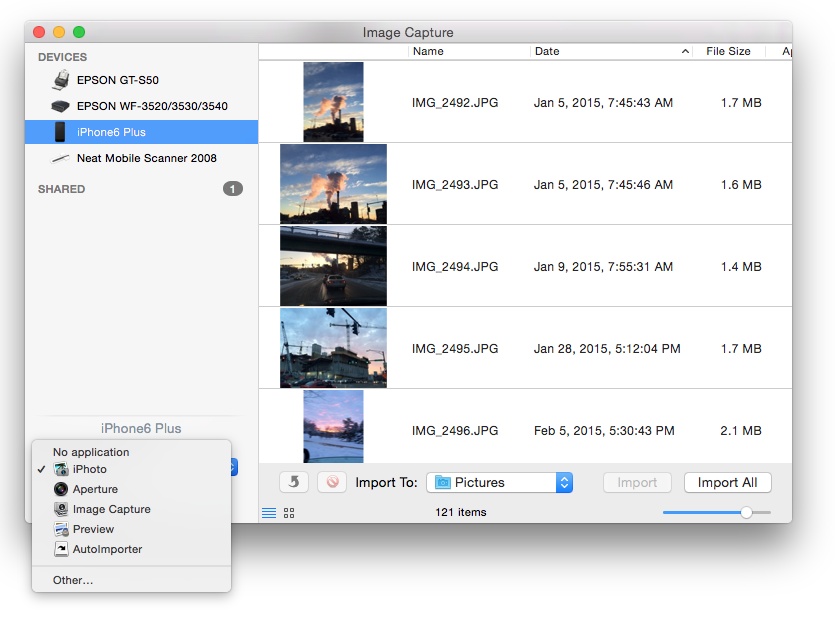
  15. Disable iPhoto Launch. By default, your phone may automatically launch iPhoto when it is connected to your Apple computer. To disable this, close out of iPhoto and open Image capture from the Applications list. Select your device, and then expand the options window in the lower left corner by clicking the tiny triangle in the box as shown below. Click the image for a larger view.
    20150220fr0148-image-capture
    20150220fr0153-iphone-image-capture-connecting-iphone-opens-application-01
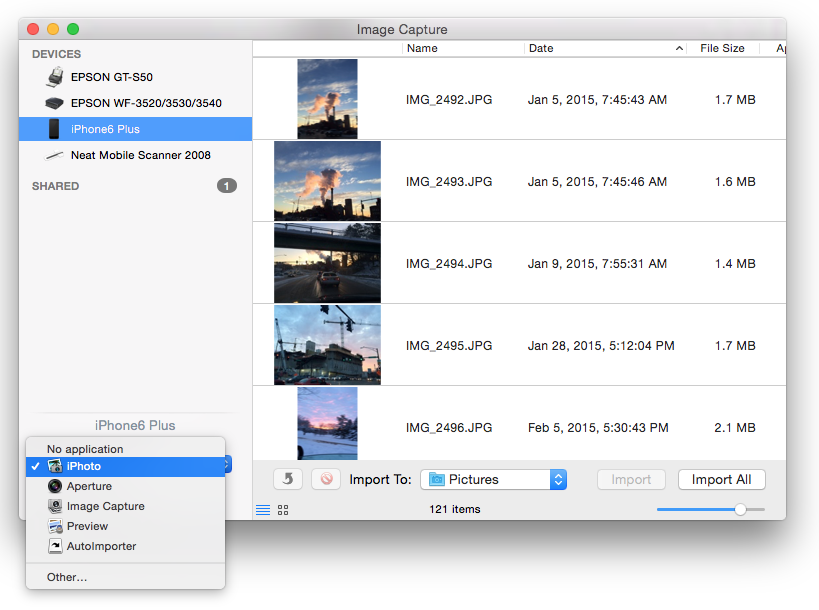
  16. From the options menu, under “Connecting this iPhone opens” choose “No Application” from the drop-down menu as shown below. Click either image for a larger view.
    20150220fr0153-iphone-image-capture-connecting-iphone-opens-application-02
    20150220fr0153-iphone-image-capture-connecting-iphone-opens-application-03
  17. Connection Error. At some point along the way you may see a connection error like the one below. If so, click the OK button. Exit iTunes and start again. You should be able to connect. Make sure the phone is on and logged in when starting iTunes.
    20150220fr0158-iphone-synchronization-error-itunes-could-not-connect-iphone-invalid-response-received-from-device
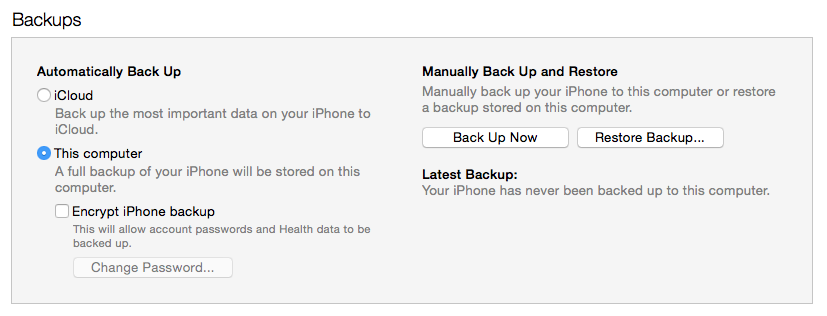
  18. Backup. After performing all of the above steps, you may not yet have a backup of your new device. From within iTunes, on the device page, under Backups, choose to backup to ‘This computer’ and click on the ‘Back Up Now’ button under ‘Manually Back Up and Restore.’ Click the image below for a larger view.
    20150220fr0202-iphone-backups-this-computer-backup-now

At this point, you new phone should be setup, backed up, and ready to use.

Outlook Setup for Enterprise Use of Office 365

If you’re using an enterprise computer system that’s automatically configured to work with Outlook Exchange servers,  you’ll find that the setup process fails upon launching Outlook. This page describes what to do for first time use of an account.

You’ll need to cancel and quit out of the automated process, and then follow these steps.

  1. Go to Control Panel.
  2. Search for (or click on) the Mail icon.
  3. An account may have been automatically generated. It’s the one that failed to setup properly. You can delete that one (assuming you’ve never used it and this is a first-time setup).
  4. Add an account.
  5. Provide your email address and password.
  6. Outlook should properly configure for you and automatically identify that you’re using an Office 365 enterprise email account.


Duo Two-Step Authentication: Changing Smartphone Devices

Summary

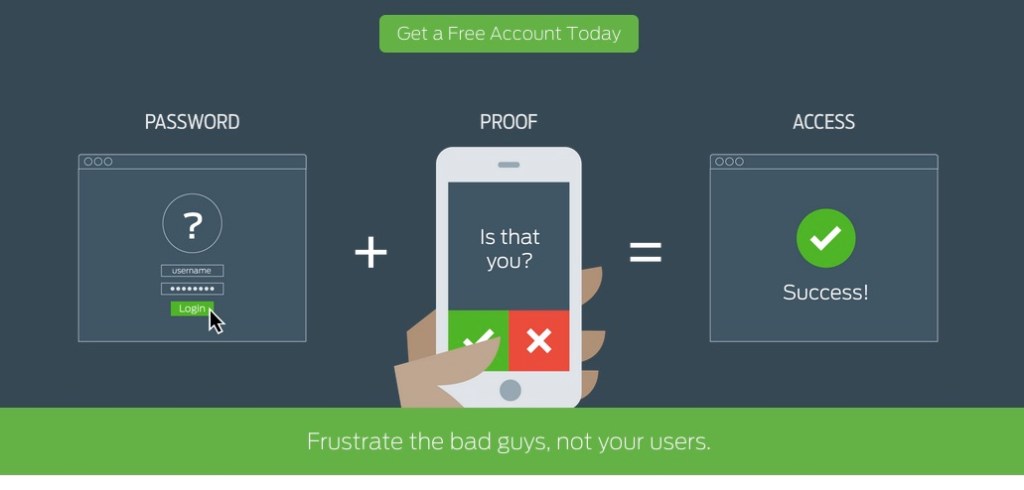
If your organization or business uses Duo two-step authentication, you have likely setup a smartphone with the Duo software. This page describes how to switch to a new phone after you’ve discarded, sold, lost, or traded in an older phone.

Before Adding Your New Device

Because you no longer have access to the phone that was previously setup for Duo access, you won’t be able to login as you have in the past to setup a new Duo device.

However, when you go to login, usually there’s an option to authenticate via a phone call. If you’ve setup a new phone with your same phone number, then you can authenticate and login that way.

Once you login, you’ll see your old device listed as the primary/default device. There won’t be an option to delete it.

You’ll likely, intuitively, attempt to add an additional device. However, this won’t work because your new device has the same phone number as your old device, so the system will generate an error when you try to add it again under the same phone number.

You might think that you could setup the Duo app on your replacement phone, but that won’t be possible because once a device is setup, there doesn’t seem to be a way to generate the barcode to setup the software again.

There may be a link stating, “I need to reset/replace this device.” However, if that link isn’t present under your old smartphone description, you’ll need to follow these additional steps to replace it.

To Delete Your Old Device

What you’ll need to do is add an additional authentication method such as ‘phone call’ to a phone you have access to, and set it as the default device.

Then, and only then, will you be able to remove your old device by clicking on its description link, and then pressing the Delete Device button.

At this point you can follow the steps below to add your new device.

Add Your New Device

  1. At this point, you can choose the ‘Add additional device’ option to add the new replacement smartphone.
  2. Provide the phone number, preferred authentication method (the Duo app), and a description.
  3. Continue to view the barcode.
  4. Start the Duo software on your smartphone.
  5. Choose Add Account.
  6. Scan the barcode displayed on your computer screen.
  7. Test the Duo authentication.
  8. Approve the test login request on your smartphone.
  9. You should get a message on your computer stating the test was successful. Close that window.
  10. You’ll see your list of devices.
  11. Click the description link for your new smartphone. Choose to make it the Default.
  12. If you used a telephone number temporarily as a default device as described above,  you can remove it now. Click on the description link and press the Delete Device button.

20150217tu-two-factor-dual-duo-authentication-login-app-software-website

20150217tu-two-factor-dual-duo-authentication-login-app-software