
- Go to Control Panel.
- Go to Network Sharing Center
- Click on Advanced Sharing Settings
- Expand the Home or Work profile settings and choose to turn Password Protected Sharing on or off. It is on by default to only allow access to those you give permission.
News Feed
Determining Apple Mac Computer Usage from System Console Log Files
For labs, office environments, and public workspaces, it’s sometimes necessary to quantify computer usage for purposes of budgeting and planning.
The following steps (originally documented in 2011) can be used to pull usage data from the system log files on an Apple Mac computer.
- Review the document “Preserving Apple Console System.log Events File for Usage Analysis – Preventing Turned Over Purged Erased Data” to ensure that your log files aren’t erased frequently.
- Refer to the document “Using Apple Mac Console Event Log Files to Report Login and Logout Times for Calculating Computer Usage” to complete the reporting process.
Input Method Editors (IMEs) for Asian Script Language Input Fonts and Characters
Overview and Description
Because Windows 2000 and Windows XP allow the user to enter multiple languages using a variety of input methods, the system needs to know which in put method should be active for a particular language. These associations are called “installed language and method pairs,” or “input languages” (called “input locales” in Windows 2000). During installation, the default input language for the language version of the operating system, along with English, is installed for each user. The user can then define the list of input languages to be made available for his or her own account and usage. For example, on the same machine, one user can have an English keyboard layout and a Japanese IME installed, and another user can have both French and Arabic keyboard layouts installed. This customization is done by adding or removing input languages and using them on the fly from the Regional And Language Options property sheet, provided that the language support of the target language has already been installed.

Figure 1: Each user can add and remove input languages from the Languages tab of the Regional And Language Options property sheet.
The default input language is the input language that is active when a new application thread is started. Switching to a different input language is done on a per-thread basis; you can have two different input languages in two different applications. The taskbar indicates which input language is currently active. For example, in Figure 5-2, English is the input language that is currently active. When the user clicks the language indicator in the taskbar-each language is represented by its two-letter abbreviation-Windows 2000 and Windows XP present a list of alternatives such as Japanese, French (Canada), and so on.

Figure 2: List of available input languages, with English being the one that is currently active for this particular user.
The shortcut keys iterate through the list of installed language and method pairs in the order in which they were added via the Regional And Language Options property sheet. If the user has selected Left Alt+Shift in the Advanced Key Settings dialog box, Left Alt+Shift will allow the user to toggle between different installed input languages.

Figure 3: Switching between various input languages in Windows XP.
Having gained an understanding of how the user can customize a list of input languages and switch from one input language to another, you’ll now see the most efficient ways to work with input languages from a developer’s standpoint. Taking advantage of system support will go a long way toward making your job easier.
Input Method Editors
IMEs are components that allow the user to enter the thousands of different characters used in East Asian languages using a standard 101-key keyboard. The user composes each character in one of several ways: by radical, by phonetic representation, or by typing in the character’s numeric code-page index. IMEs are widely available; Windows 2000 and Windows XP ship with standard IMEs that are based on the most popular input methods used in each target country, and a number of third-party vendors sell IME packages.
An IME consists of an engine that converts keystrokes into phonetic and ideographic characters, plus a dictionary of commonly used ideographic words. As the user enters keystrokes, the IME engine attempts to guess which ideographic character or characters the keystrokes should be converted into. Because many ideographs have identical pronunciation, the IME engine’s first guess isn’t always correct. When the suggestion is incorrect, the user can choose from a list of homophones; for more advanced IMEs, the homophone that the user selects then becomes the IME engine’s first guess the next time around. This process is summarized in Figure below:

Figure 4: The process through which an IME engine converts keystrokes into ideographic characters.
East Asian Writing Systems
Chinese, Japanese, and Korean writing systems all offer some interesting complexities not found in Latin writing systems. To put things in clearer context, it will be useful for you to have an idea of what these complexities entail.
Chinese: Three forms of ideographic characters are commonly used today in the world: Traditional Chinese, Simplified Chinese, and kanji (which is used for Japanese). Traditional Chinese characters, which are thousands of years old and have kept their original shapes, generally contain more strokes than other ideographic forms, and are more pictorial. These characters are typically used in Taiwan. Simplified Chinese characters, which are based on Traditional Chinese characters, were developed in mainland China to make reading and writing easier to learn. Although Traditional Chinese and Simplified Chinese share some characters, the simplified characters, of which there are less than 7,000, are composed of fewer strokes and in most cases are distinct from their original counterparts. This is why software products developed for the Chinese-speaking market are usually released in two editions-one for the Traditional Chinese script and one for the Simplified Chinese script.
Japanese: Japanese characters are called “kanji.” Japanese mixes kanji characters with characters from two syllabaries, collectively called “kana.” The two forms of kana are referred to as “hiragana” and “katakana.” Hiragana is a cursive script, commonly used in Japanese text to represent ending inflections for verbs and to write native Japanese words that have no kanji equivalent, such as “and,” “of,” and “to.” Katakana is chiefly used to represent words borrowed from other languages. All kana symbols, except for single-vowel characters and the character “n,” represent a consonant followed by one of five vowels. Hiragana and katakana both represent the entire Japanese script of sounds.
Korean: The Korean written language uses two types of characters: hangul and hanja. A hangul character is a single syllabic character created by combining one or more consonant signs and a vowel sign. There are 24 basic elements (14 consonants and 10 vowels), or phonemes, used to denote these signs; these elements are called “jamos.” You can create up to 51 jamos by combining two or more basic elements to form additional vowels or consonants, called “compounds.” Compounds and basic elements together comprise 21 vowels (10 basic vowels and 11 compound vowels) and 30 consonants (14 basic consonants and 16 compound consonants). A hangul character (syllabic) consists of an initial consonant, a medial vowel, and sometimes a final consonant. Nineteen of the 30 consonants can be initial consonants. All 21 vowels can be medial vowels, and 27 of the 30 consonants can be final consonants. This means that 11,172 hangul character combinations are possible, though far fewer are actually used. The Korean language also adopted hanja characters from Chinese and uses them for more formal written communication and to represent personal names. Most daily communication is written in hangul.
Ways to Enter Ideographs with an IME
With an IME you don’t have to use a localized keyboard to enter ideographic characters. While East Asian keyboards can generate phonetic syllables (such as kana or hangul) directly, the user can represent phonetic syllables using Latin characters. In Japanese, Latin characters that represent kana are called “romaji.” Japanese keyboards contain extra keys that allow the user to toggle between entering romaji and entering kana. If you are using a non-Japanese keyboard, you need to type in romaji to generate kana.
The best way to learn how an IME works from the user’s perspective is to try using it and to take advantage of the extensive Windows Help files. As a reference, the following sections look at how the Japanese IME that ships with Windows XP works.
The Standard Japanese IME for Windows XP
The Japanese IME for Windows XP, called “Microsoft IME 2002” (see Figure 5), has six standard input modes, listed in Table below. Additionally, IME 2002 contains an IME Pad that allows for alternative methods of input, and several other tools for handling both conversion into kanji and voice input. Although you will usually see IME 2002 the way it appears in Figure 5-8, it also has a drop-down menu that lists various input modes.

Figure 5: The Japanese IME Language bar.

Table 1: The Japanese IME input modes

Figure 6: IME 2002 on Windows XP. The input modes are listed in the drop-down menu. The last input mode, called “direct input,” turns off the IME, and keystrokes are sent to the application directly without being converted into phonetic syllables.
Input of Japanese Characters
In order to begin entering Japanese characters in an application running on Windows XP, you need to activate the IME by selecting it from the list of input languages. When you activate the IME, the floating Language bar changes to the Japanese IME toolbar as you saw earlier. The table below shows what happens when you enter Japanese characters into an application running on Windows XP.

Table 2: How the Japanese IME works
You can form a number of kanji characters before pressing Enter. The IME engine will attempt to convert your keystrokes into a “determined string” based on Japanese grammar rules. There are four different conversion modes that allow you some control as to where the IME gets its data to convert. (See Table 3 below.)

Table 3: Japanese IME conversion modes

Techniques for Handling Input Languages in Win32
The Microsoft Developer Network (MSDN) documentation (found athttp://msdn2.microsoft.com) and programming APIs represent input languages with a variable type called “input locale identifier,” formally known in older documentation as “Handle to the Keyboard Layout” (HKL) and still used as the type identifier. HKL is an archaic name from a time when the only input was from a keyboard. The input locale identifier name is a 32-bit value composed of the hexadecimal value of the language identifier (low WORD) and a device identifier (high WORD). (See Figure 7 below.) For example, U.S. English has a language identifier of 0x0409, so the primary U.S. English layout is named “00000409.” Variants of the U.S. English layout (such as the Dvorak layout) are named “00010409,” “00020409,” and so on. The device identifier is not limited to keyboards and IMEs; data can now be entered by more sophisticated mechanisms such as voice- and text- recognition engines. For instance, Microsoft Windows Text Services Framework (TSF) – a system service available on Windows XP-enables advanced, source-independent text input. (For more information on TSF, see Text Services Framework).

Figure 7: The HKL variable, which represents input languages.
The easiest way to handle input languages is to use the standard controls that the operating system provides whenever you are expecting user input. For example, by using Unicode edit controls or rich edit controls, you enable your application to handle multilingual text input. The operating system automatically handles input languages in a way that is transparent to your application. Text APIs uses a standard multiline edit control, which eliminates the hassle of dealing with input languages.
Advanced applications (such as a text editor) that need to have full control over how input languages are handled should monitor-and should be able to respond to-the user’s changes. When a user selects an input language by clicking on the language indicator of the taskbar or by pressing Left Alt+Shift, the input language is not automatically changed-either action generates a request that the active application must accept or reject. In response to the hot-key combination or the mouse click on the language indicator of the taskbar, the system sends a WM_INPUTLANGCHANGEREQUEST message to the window of focus, as figure below illustrates. If the application accepts the message and passes it to DefWindowProc, the system initiates switching the input language, sending a WM_INPUTLANGCHANGE message. The process is slightly different when the input method is a part of the Text Services Framework (TSF), in which case only a WM_INPUTLANGCHANGE is sent. When the system successfully completes the change, it generates a WM_INPUTLANGCHANGE message. The lParam variable of the WM_INPUTLANGCHANGE message contains the input locale identifier (that is, the HKL) of the new input language.

Figure 8: WM_INPUTLANGCHANGEREQUEST and WM_INPUTLANGCHANGE message propagation flowchart.
An application that does not support multiple languages will reject the WM_INPUTLANGCHANGEREQUEST message. It might reject any or all WM_INPUTLANGCHANGEREQUEST messages, or it might perform a couple of tests first. For example, the wParam variable of this message is a Boolean value-bLangInSystemCharset -that indicates whether the requested input language can be represented in the current system locale. Representing input languages is not a worry when dealing with Unicode applications, but non-Unicode applications should, in fact, monitor this value, or they will display the wrong characters.
Similar to the system generating a WM_INPUTLANGCHANGEREQUEST message in response to a user request, applications can also initiate input language changes by calling the ActivateKeyboardLayout API. This allows a user who is editing a document containing Latin and Greek text to automatically activate the Greek input method when moving the insertion point from the Latin text to the Greek text. (See Table 4 below.) Likewise, when this user moves the insertion point back to the Latin text, the application will activate the default Latin-based input method.
Figure 9: When the cursor is positioned in a Greek text stream, the active keyboard layout should switch to Greek.
Other Win32 APIs that handle input methods are shown in Table 4 below:

Table 4
When you design functionality to allow the user to switch keyboard layouts, keep in mind that because the letters on keyboards vary from layout to layout, the keys used to generate shortcut-key combinations might also vary. For example, the French keyboard defaults to the AZERTY layout, whereas the English layout follows a QWERTY mapping. Therefore, it is suggested that you use numbers and function keys (F4, F5, and so on) instead of letters in shortcut-key combinations.
In addition to enabling your application to handle varying input languages, you will also need to enable it to support IMEs. (Keep in mind that if you use standard APIs for input, your applications will automatically handle IMEs.) By enabling IME support, you allow the user to enter ideographs, for example, from various East Asian writing systems. The following sections explore what an IME does-with practical examples and technical solutions on the best ways to support IMEs.
How the IME System Works
The IME module in Windows 2000 and Windows XP fits into a larger mechanism for passing user input to applications and, like other input methods, the easiest and safest way of handling input is by using standard system controls such as edit fields and rich edit controls. Unless you are writing an IME package or customizing your IME user interface (UI), all of the IME complexities are taken care of for you if you use standard input APIs.
Whether an input language uses an IME or a keyboard to enter a language is something that is entirely transparent to the user. The procedure is the same whether the user is switching IMEs or Western keyboard layouts. Both actions are accomplished by clicking the language indicator on the taskbar or by entering a shortcut-key combination. Furthermore, it does not matter to an application which input method is used because switching IMEs generates the same messages as switching keyboard layouts: WM_INPUTLANGCHANGEREQUEST (if the IME is not part of TSF) and WM_INPUTLANGCHANGE. Applications can activate specific IMEs by callingActivateKeyboardLayout. The IMM manages communication between IMEs and applications, serving as the go-between. When the user is typing with the IME, each keystroke posts a WM_IME_COMPOSITION message with the GCS_COMPSTR flag to indicate that there is an update to the composition string. The message’s WPARAM value returns the first character of the string, and the rest can be retrieved via the ImmGetCompositionString API with the same GCS_COMPSTR flag. Then when the user presses Enter or clicks a character to place it in a document, the IME, by default, posts a WM_IME_COMPOSITION message with the GCS_RESULTSTR flag. (You can retrieve the committed string with the same API and the GCS_RESULTSTR flag.) If the latter WM_IME_COMPOSITION message is sent to DefWindowProc, then for each character in the committed string it posts a WM_IME_CHAR message containing the actual character. For a non-Unicode window, if the WM_IME_CHAR message includes a double-byte character and the application passes this message to DefWindowProc, the IME converts this message into two WM_CHAR messages, each containing one byte of the double-byte character. If the application ignores either message, it falls through to the application’s DefWindowProc, which in turn notifies the IMM that the message has been ignored. The IME then resends the character or string byte-by-byte via multiple WM_CHAR messages. For Unicode windows, WM_IME_CHAR and WM_CHAR are identical.
Discussed in the following sections are the three discrete levels of IME support for applications running on Windows: no support, partial support, and fully customized support. Applications can customize IME support in small ways-by repositioning windows, for example-or they can completely change the look of the IME UI.
No IME Support: IME-unaware applications basically ignore all IME- specific Windows messages. Most applications that target single-byte languages are IME-unaware.
Applications that are IME-unaware inherit the default UI of the active IME through a predefined global class, appropriately called “IME.” This global class has the same characteristics as any other Windows-based common control. For each thread, Windows 2000 and Windows XP automatically create a window based on the IME Global class; all IME-unaware windows of the thread share this default IME window. When IME-unaware applications pass IME-related messages to the DefWindowProc function, DefWindowProc sends them to the default IME window.
Partial IME Support: IME-aware applications can create their own IME windows. Applications with partial IME support can use this application IME window to control certain IME behavior. For example, by calling the function ImmIsUIMessage, an application can pass messages related to the IME’s UI to the application IME window, where the application can process them. The following code (with proper error handling and possibly more messages handled) would appear in the window procedure of the application’s IME window:
HIMC hIMC;
LPVOID lpBufResult;
COMPOSITIONFORM cf;
DWORD dwBufLen;
if (ImmIsUIMessage(hIMEWnd, uMsg, wParam, lParam) == TRUE)
{
switch(uMsg)
{
case WM_IME_COMPOSITION:
if (lParam & GCS_RESULTSTR
{
hIMC = ImmGetContext(hWnd);
dwBufLen = ImmGetCompositionString(hIMC,
GCS_RESULTSTR, NULL, NULL) +
sizeof(TCHAR);
lpBufResult =? malloc(dwBufLen);
if(ImmGetCompositionString(hIMC, GCS_RESULTSTR, lpBufResult, dwBufLen) > 0)
{
// …
// process the text in lpBufResult
// …
}
else // a negative error value was returned
{
// …
// handle an error
// …
}
free(lpBufResult);
ImmReleaseContext(hWnd, hIMC);
}
break;
}
}
return 0;
}
The same window procedure could call SendMessage either to reposition the status, composition, or candidate windows, or to open or close the status window.
SendMessage(hIMEWnd, WM_IME_CONTROL,
IMC_SETCOMPOSITIONWINDOW, "cf);
Other API functions that allow the application to change window positions or properties areImmSetCandidateWindow, ImmSetCompositionFont, ImmSet-CompositionString,ImmSetCompositionWindow, and ImmSetStatusWindowPos. Applications that contain partial support for IMEs can use these functions to set the style and the position of the IME UI windows, but the IME dynamic-link library (DLL) is still responsible for drawing these windows-the general appearance of the IME’s UI remains unchanged.
Full IME Support In contrast, applications that are fully IME-aware take over responsibility for painting the IME windows (the status, composition, and candidate windows) from the IME DLL. Such applications can fully customize the appearance of these windows, including determining their screen position and selecting which fonts and font styles are used to display characters in them. This is especially convenient and effective for word processing and similar programs whose primary function is text manipulation and which, therefore, benefit from smooth interaction with IMEs, creating a “natural” interface with the user. The IME DLL still determines which characters are displayed in IME composition and candidate windows, and it handles algorithms for guessing characters and looking them up in the IME dictionary. FULLIME, which is an example of a customized IME UI, can be found in the Microsoft Windows Platform SDK, available at http://msdn2.microsoft.com.
Applications that are fully IME-aware trap IME-related messages in the following manner:
- They call GetMessage to retrieve intermediate IME messages.
- They process these messages in the application WindowProc.
- They call TranslateMessage (part of the IMM) to pass the messages to the IME DLL. The IME needs to remain synchronized in the same way that keyboard drivers need to remain synchronized with dead keys. Remember that partial IME support is taken care of for you if you use standard input calls like those to Rich Edit.
You’ve made sure your application can handle different input languages and methods. Another task in ensuring your application can support multilingual input, output, and display is to meet the inherent demands that complex scripts present. In the sections that follow, you will see various linguistic traits that are associated with complex scripts, and you will learn about Windows support for working with complex scripts.
__________
The above document is taken from the Microsoft Developer Network website here:
http://msdn.microsoft.com/en-us/goglobal/bb688135.aspx
It was posted here for archival purposes, and also to ensure that the document is easy to find when searched for.
Apple Mac – Using iCal or Microsoft Office 2011 Outlook Calendar to Open Another Person’s Shared Calendar and Share Your Calendar
Microsoft Office 2011 Outlook Calendar
If you’re using Microsoft Office 2011 on an Apple Mac computer, and want to open a calendar that someone else has shared, or share your own calendar, you’ll find that the menu options and user interface are somewhat non-intuitive.
Here are the necessary steps to open a shared calendar:
- You don’t need to be viewing the Calendar or in the Calendar module to proceed. This works from within email or anywhere else in Outlook.
- From the File menu, choose Open > Other User’s Folder
- For Folder Type, choose Calendar. Outlook will default to the Exchange server you’ve connected to as the source for names and shared folders.
- Type in the person’s last name, then first name, or username, or search on any part of their name. The resulting list may be long if you are in a larger institution, business, organization, or enterprise.
- Click/highlight the person’s name and then press the Select button. This will add their calendar under Shared Calendars and synchronize their calendar events to Outlook, assuming they have given you rights to view their calendar.
Here are the steps to sharing your calendar:
- Go to the Calendar view/module.
- Under My Calendars, right click on the calendar name associated with the Exchange server account you’re using.
- Click on Sharing Permissions.
- From the resulting menu, you can click Add User, then search for available users. Make sure the person has already followed the instructions above to share their calendar with you.
Apple iCal Calendar Software
If using Apple iCal calendar software, the Delegates are selected in the Accounts menu.
Note: The iCal calendar software has two Account menus. If you go to the Calendar menu and click on Accounts, this will take you to the System Preferences Accounts settings and not the preferences for the iCal accounts. Instead, follow the instructions below.
Follow these steps to share your calendar with someone else:
- Click on the Calendar menu, then Preferences, then Accounts to adjust the Delegates and shared calendars.
- To share your calendar with others, use the Edit button found below the “Accounts I can access” list of users. Then add users to the list with the plus sign, then enter their name.
Follow these steps to view a calendar someone has shared with you:
- Click on the Calendar menu, then Preferences, then Accounts to adjust the Delegates and shared calendars.
- Use the Plus symbol to add the users who have given you rights to view their calendar.
__________
This article was developed by MG.
Tech Job Listing: UIOWA, Instructional Technology Analyst or Consultant

(Source: Jobs@UIOWA Listing 63690)
Position Title INSTRUCTIONAL TECHNOLOGY ANALYST OR CONSULTANT
Advertising Ends on: Wednesday, December 25th, 2013
Advertising Started on: Wednesday, December 11th, 2013
Organization: Information Technology
Department: ITS-Instructional Services
Salary: $43,000.00 to Commensurate
Pay Grade: 4A
Description
The Information Technology Services (ITS) organization, a campus-wide provider of technology services for academic, research, and service missions, is seeking to fill a full time position in the Instructional Services department. The person in this position is an integral part of a team that works with campus course management system, lecture capture, student response systems, digital media solutions, web conferencing, wiki, and online interactive courses.
This position provides project management, consulting and support for software and enterprise instructional technology services.
KEY RESPONSIBILITIES and DUTIES:
• Providing direct user support, consultation, guidance and training to technical and non-technical users for complex enterprise level instructional technology applications.
• Communicating changes in hardware and software in supported teaching and learning tools to the campus community.
• Providing leadership for medium to large scope projects and services.
REQUIRED QUALIFICATIONS for the IT Support Analyst (PIC1):
• Experience, typically 6 months-1 year, providing technology support in an academic environment
Basic level proficiency with:
o Experience supporting information technology
o Experience working on cross-functional teams
o Experience providing customer service to technology users of varying abilities
o Strong interpersonal, verbal and written communication skills; the ability to explain computing concepts to non-technical staff
o A proven track-record in helping support technology projects
o A proven track-record of completing projects
o Working proficiency with Microsoft Office Suite
o Proven record of technical curiosity and problem solving skills
REQUIRED QUALIFICATIONS for the IT Support Consultant (PIC2) in addition to above:
• Working level proficiency with:
o Professional support experience (typically 1-3 years) providing technology support in an information technology environment
o Experience supporting educational technology
o A proven track-record in initiating and managing technology projects
o Experience creating and presenting training sessions for instructional technology applications within one-on-one, small group and large scale training sessions
DESIRED QUALIFICATIONS for the IT Support Analyst (PIC1):
• Basic level proficiency with:
o Knowledge of or assisted with creating and presenting training sessions for instructional technology applications within one-on-one, small group and large scale training sessions
o Experience supporting technology in a higher educational setting
o Experience leading instructional technology projects
o Demonstrated ability to quickly learn and adapt to new technologies
o Knowledge of current trends and issues impacting academic technology in higher education
o Experience updating online content via a content management solution
o Experience with lecture capture tools (such as Panopto, echo360, Tegrity, etc.)
o Experience with course management systems (such as Desire2Learn, Moodle, Sakai, Blackboard, etc.)
o Experience with Adobe Creative Suite (or equivalent web, photo and image editing software)
o Experience evaluating new and emerging technologies and their potential applications specific to teaching and learning
DESIRABLE QUALIFICATIONS for IT Support Consultant (PIC2):
• Working level proficiency with:
o Experience supporting technology in a higher educational setting
o Experience leading instructional technology projects
o Demonstrated ability to quickly learn and adapt to new technologies
o Knowledge of current trends and issues impacting academic technology in higher education
o Experience updating online content via a content management solution
o Experience with lecture capture tools (such as Panopto, echo360, Tegrity, etc.)
o Experience with course management systems (such as Desire2Learn, Moodle, Sakai, Blackboard, etc.)
o Experience with Adobe Creative Suite (or equivalent web, photo and image editing software)
o Experience evaluating new and emerging technologies and their potential applications specific to teaching and learning
o Master’s degree in Instructional Technology, Computer Science, Library Science or other related degree
PROFICIENCY LEVELS are defined as:
• Basic – Uses basic understanding of the field to perform job duties; may need some guidance on job duties; applies learning to recommend options to address unusual situations (as noted below in requirements). This proficiency level typically applies to the IT Support Analyst (PIC1).
• Working – Successfully completes diverse tasks of the job; applies and enhances knowledge and skill in both usual and unusual issues; needs minimal guidance in addressing unusual situations (as noted below in requirements). This proficiency level typically applies to the IT Support Consultant (PIC2).
Palm PDA Organizer Device, Erasing All Data with Factory Reset

Summary. Before discarding any old Palm organizers, it’s a good idea to erase the content from the device. The instructions below describe how to do this.
1. Initiate Reset
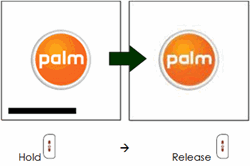
When you power on your Palm device, as you see the progress bar indicating the operating system is loading, press and hold the power button.
2. Confirm Reset
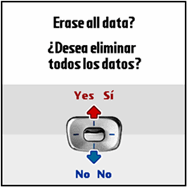
You should then receive a confirmation message asking if you want to erase all data. Typically pressing up on the navigation buttons or ring will indicate YES and down will indicate NO.
3. Guided Initial Setup
You will then be guided through the initial setup of the device, including language choice, time zone, date/time settings, and more.
One Coin for All of Your Cards – Digital Card Device
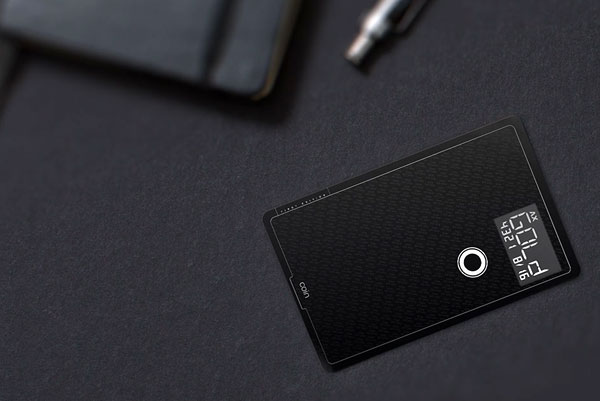
Coin is a credit-card size device similar to the Proteân Echo that retains multiple cards in its memory. As of November 2013, it’s currently in the crowd-source funding phase, but is reported for availability in 2014.
There are many card storage apps for the iPhone and other mobile devices. These will keep track of your card numbers and details. At many retail stores, the clerk will enter your number by hand (if you have it stored with these apps for easy retrieval), or bring it up by your phone number.
However, credit cards and some rewards cards need to be scanned. That’s where this device will be useful. Apparently it can mimic your cards through a dynamic magnetic strip. It’s programmed by scanning existing cards in the same way some smart Universal Remotes can learn from the original. After the Coin smart card is programmed, it can be swiped in a reader.
Security Risk
A potential security risk of this and other devices is that it may allow people to capture physical credit card data and then reuse it without the owner knowing their card has been stolen (since they will still have the original card in their possession. This could happen any time the card is out of someone’s possession for even a moment (at a drive through or restaurant for example). Most credit cards have a number of ways for merchants to know it’s the original card and you are the original owner (photo, signature, and computer chip).
Video
Watch the video below for more details.
Further Reading
- “Could This One Card Replace All Your Other Credit Cards?,” Slate, 15 November 2013
- “Coin Card Maker Adds Security Features to Digital Wallet,” Tom’s Guide, 20 November 2013
- Proteân Echo – Universal Digital Card (similar device)
Great Job/Career Opportunity – Requires Advanced Microsoft Word Skills

Summary
This is a great opportunity to work with an award winning professor of law who has provided education and training to health care agencies, programs and facilities in over thirty states and the District of Columbia.
Work Required
You’ll be providing assistance with the final formatting and layout of a lengthy report that includes numerous tables and charts. The document will need an appendices, table of contents, and appropriate use of styles for headings to provide automated updating of table of contents.
Timeframe
This assignment will begin in the second or third week of December and may run several weeks. Additional work may be assigned.
Pay
Pay is negotiable.
Location
Computer and office space in the Iowa City area are provided.
Application
Those interested should send an email to technology@resourcesforlife.com or complete the form below.


Free Unlimited Live Tech Support 24/7 and 365 Days-Per-Year with Amazon Kindle Fire HDX Tablet Computer

Raising the Bar on Technical Support
Amazon has just raised the bar on what consumers will expect with technical support:
“Live instantaneous on-screen tech support and instruction 24 hours-a-day and 365 days-per-year anywhere in the world. All for the low price of free.” (Click Here to Learn More)
A More Economical Technology Choice
When you buy an inkjet printer these days, the real cost of ownership is found in the cost of regularly replacing the ink cartridges. In fact, for most devices, it’s not the purchase price, but the ongoing support costs that are so expensive. Considering the high cost of low quality tech support, complicated interactive phone menus, long hold times, off-shore call centers, and impersonal instructions over the phone that requires that you do the work, the Amazon free unlimited support plan makes the Kindle Fire HDX tablet computer an obvious choice for consumers.
Kindle Fire HDX Tablet Computer Has Many Uses
If you’re seeking a computing platform for browsing the web, checking emails, reading books, watching movies, working with spreadsheets, using Skype, posting to Facebook, managing calendars, printing documents, and working with various programs, you may want to consider the Kindle Fire HDX tablet computer. (Buy Now)
Better Performance Through Better Support
It doesn’t matter how powerful your computer is if it’s not working due to a virus or other unknown problem, and if you can’t get someone to fix the system, it’s useless. Amazon’s new tablet computing system has a super powerful 2.2GHz quad-core processor, but what really makes it perform better than any other computing device is that the system includes ongoing 24/7 support 365 days-per-year.
Instantaneous Live Support
Within seconds, a live support technician will appear on your screen and can guide you through tasks or provide instruction. They can also perform infrequent tasks for you if you’d rather not take the time to learn.
This amazing support contract is included in the purchase price of the tablet ($229 for the 7″ model and $379 for 8.9″ model)
Video Demonstration
The video below offers a videos demonstrating the new Kindle Fire HDX features including the live on-screen support.
Iowa City Tech Support and Services – A Preventative Approach
History
The Technology Services Resource Group was founded in Iowa City by Greg Johnson in the early 1980s as Public Interest Computer Consulting (PICC). In the early 1990s, the name was changed to PC-DOC. By the year 2001, the name was changed to Technology Services Resource Group (TSRG) in an effort to convey the broad range of support available. Although services are provided beyond Iowa City, having a familiar domain name of Iowa City Technology Services helps to identify TSRG as a local resource.
Prevention Services
The term “tech support” is generally used to convey hardware repair or some other kind of computer help.
A “tech support” mindset is generally reactive rather than proactive in responding to computer problems. When something breaks, you call tech support.
However the term “technology services” can include not only problem fixing, but problem avoidance by offering services such as user training, implementing data backup plans, and installing antivirus and security software. Technology services can include integration of different devices (mobile, desktop, and other).
By contrast, tech support is usually there for you when things go wrong. Proper setup, support, and training should help avoid problems.
So, deciding on the name Technology Services, seemed to be a better fit.

 Iowa City Technology Services