Ubuntu File Sharing with Apple

Ubuntu file sharing with Apple computers over a network is fairly easy. Follow these steps.

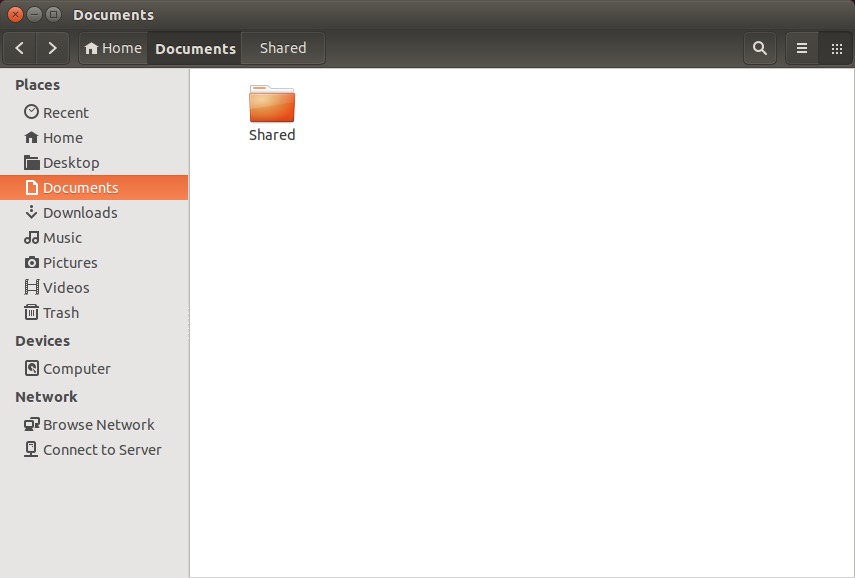
Right click on the folder you’d like to share.

20141108sa-linux-to-apple-file-sharing-001

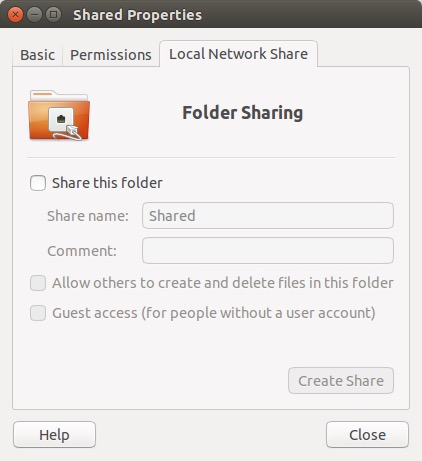
Choose Properties, and then click on the Local Network Share tab.

20141108sa-linux-to-apple-file-sharing-002

When you click on “Share this folder” (for the first time) you’ll get a message stating “Sharing service is not installed. You need to install the Windows network sharing service in order to share your folders.”

20141108sa-linux-to-apple-file-sharing-003

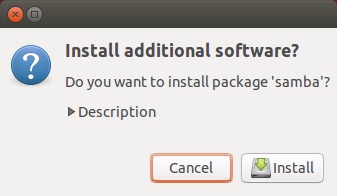
Confirm to install the additional software.

20141108sa-linux-to-apple-file-sharing-004

Provide your password to Authenticate.

20141108sa-linux-to-apple-file-sharing-005

Wait for installation to complete.

20141108sa-linux-to-apple-file-sharing-006

20141108sa-linux-to-apple-file-sharing-007

Once the installation is complete, you can share the folder.

20141108sa-linux-to-apple-file-sharing-009

Currently, something odd is happening between Ubuntu 14.1 and Apple 10.10 (Yosemite). It’s believed that Apple has implemented a version of SMB (file sharing) that does communicate properly with Ubuntu. Normally it would be possible to setup the folder to be accessible based on user accounts. However, attempting to login using one of the Linux user account names and password will fail. If you click on the bottom two boxes above, sharing will then work properly.

Apple Instructions

Follow these instructions to access the shared Ubuntu folder.

  1. On the Apple computer, press command+k (or from the Go menu in Finder, choose Go to server).
  2. Type in //ServerName/SharedFolder and press Enter.
  3. Choose Connect as Guest access (for some reason entering a username doesn’t work).

The shared folder should now be accessible.

Apple Time Machine Backup Failure

If you’re using the Apple OS X integrated Time Machine backup software, at some point you’ll likely get an error message stating: “Backup Failed. Time Machine couldn’t back up to ‘your_drive_name'” — where your_drive_name will be the backup drive you’ve assigned.

20141107fr2159-apple-mac-time-machine-backup-error-009

Thinking it must have just been a one-time glitch, you’ll manually run a backup, but that will result in an error as well.

20141107fr2159-apple-mac-time-machine-backup-error-002

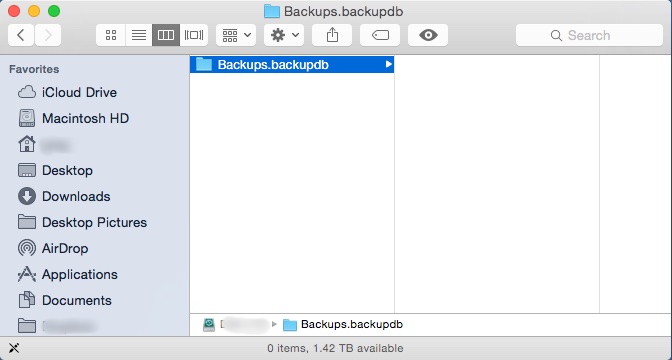
You’ll then check the drive only to discover that although the backup folder exists, its contents are all gone.

20141107fr2159-apple-mac-time-machine-backup-error-001

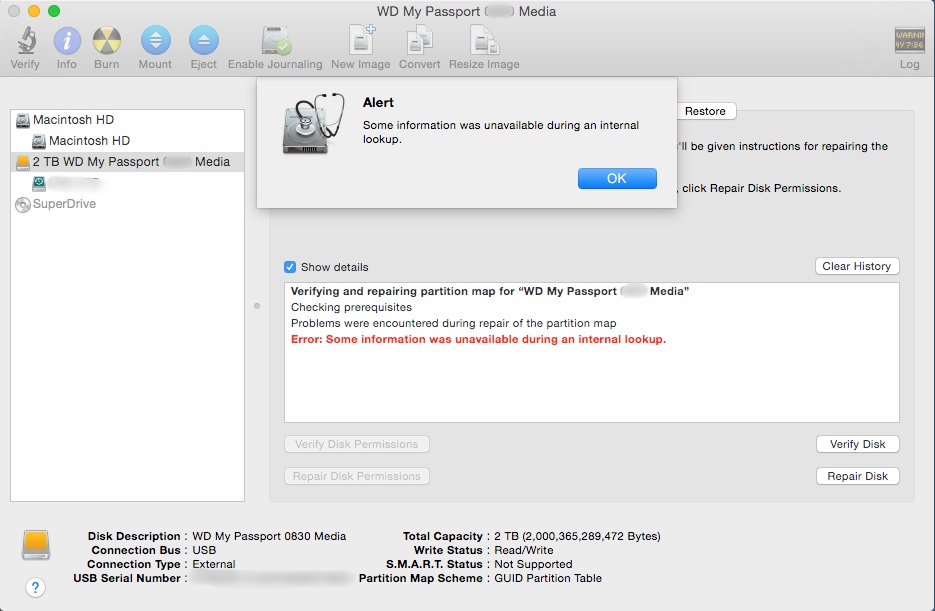
You’ll panic a little, and then consider using Disk Utility to repair the disk. However, upon running Repair Disk, you’ll get a strange alert that says, “Alert. Some information was unavailable during an external lookup.”

20141107fr2159-apple-mac-time-machine-backup-error-003

After some hair pulling, you’ll figure the only option is to start all over again by formatting (erasing) the drive and doing a complete backup again.

However, when you attempt to erase the drive, you’ll get an error.

20141107fr2159-apple-mac-time-machine-backup-error-005

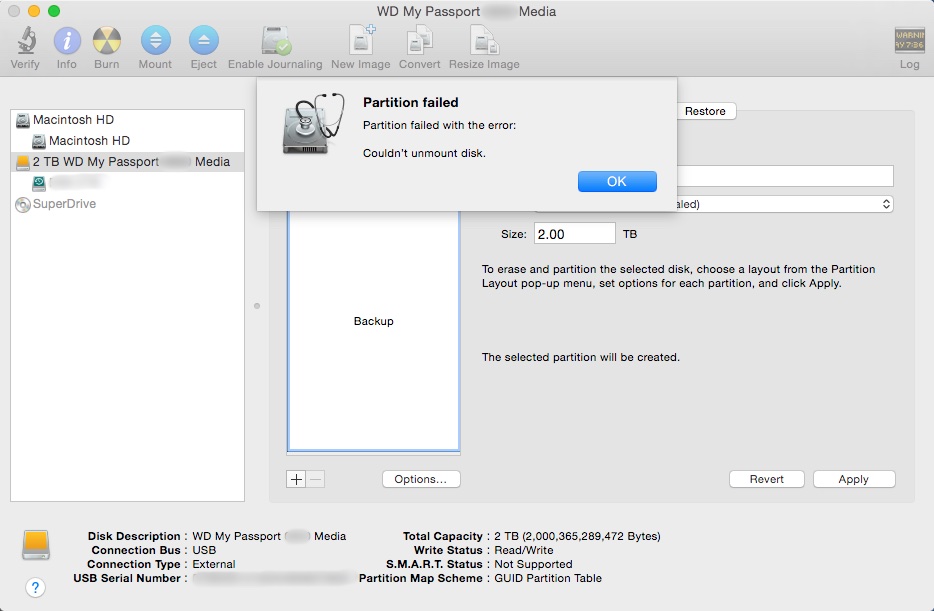
Problems with formatting a drive can be an indication that the partition is corrupted somehow. So, you’ll take things to the next level and attempt to partition the drive, but that will also result in an error.

20141107fr2159-apple-mac-time-machine-backup-error-004

At this point, assuming that the drive is defective, you’ll throw it in the trash can and purchase a new one.

The Time Machine backup program will work fine with the new drive for a while, but then you’ll get the error again stating the backup failed.

You’ll start all over again at the top of this page and get to this paragraph.

Realizing that the problem is likely not repeated failed hard drives, but something very quirky with Apple OS X, you’ll search the web to see if anyone else is having trouble with Time Machine backups. You’ll discover that Apple has dedicated an entire support page to all the things that can go wrong with Time Machine. Apparently you’re not alone.

20141107fr2159-apple-mac-time-machine-backup-error-006

With a mix of joy and frustration, you’ll see a link titled, “Apple Support article: Time Machine stops backing up to external disk.”

Finally your search is over.

You click the link, but it takes you to a page with an error stating, “We’re sorry. We can’t find the page you’re looking for. Please return to the Apple Support homepage.”

20141107fr2159-apple-mac-time-machine-backup-error-007

Assuming it’s a browser issue, you’ll switch from using Chrome to using Safari, and try visiting the support page again. However, this time, the support page won’t even load.

20141107fr2159-apple-mac-time-machine-backup-error-008

You’ll think to yourself, “Great. Apple’s website doesn’t even work with Apple’s browser.”

At this point you’ll want to write a blog article about the above experience, and switch to Linux.

You’ll switch to Linux.

You’ll pull your old backup drive out of the trash can, and out of curiosity, you’ll plug it into your Linux computer to find that it actually isn’t defective, and the files weren’t erased. Unfortunately, Apple’s file system permissions will be set so you won’t have permission to read the files. There’s probably a solution to that, but you’ll save that for another day.

Samsung Fingerprint Reader Design Flaw

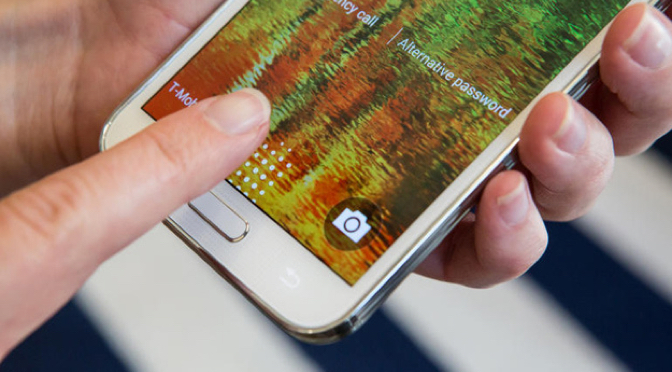
Samsung includes biometric security in their premium smartphones through a fingerprint reader on the home button. Unfortunately, the system requires two hands to operate. Holding the phone in one hand and trying to swipe the thumb (for example) typically won’t work. Also, their system only learns a maximum of three fingers.

If fingerprint biometrics is a convenience you’d like, you may want to consider an Apple iPhone.

Apple first introduced biometric security in their iPhone 5S. A really nice feature about the Apple implementation of a fingerprint reader is that you simply need to touch the home button, and it reads your fingerprint — and it does it quite consistently with great accuracy. This means that you can hold the phone with one hand and unlock it — while carrying something, holding hands with your date, or while riding a bicycle (for example).

Apple also allows you to record up to five fingerprints, enough to accommodate those you choose to share your phone with.

Evernote – Unexpected Error Occurred While Synchronizing

While synchronizing Everynote, you may get an error message that states:

“An unexpected error occurred while synchronizing with the Evernote service. The cause is listed below. Check to make sure your computer and network are operating properly. To resolve this error consider exporting any unsynchronized notes then permanently delete the problematic items from Evernote. If the problem persists select ‘Customer Support’ under the ‘Help’ menu.”

Below the message there will be an indication of the error(s). Click on the small triangle to the left of that message to see more details about the error. If there’s a specific item that is causing problems, look for that note and delete it.

It’s possible that you’ll search for the offending file and not find it. It may be impossible to find the file using the Evernote search feature, or by manually browsing all your notes. If the file had previously been deleted, and put in the trash, it will be in the Evernote trash can, so it’s ignored by search requests, yet still exists and still causes problems during the synchronization.

Below are screen shots showing this process.

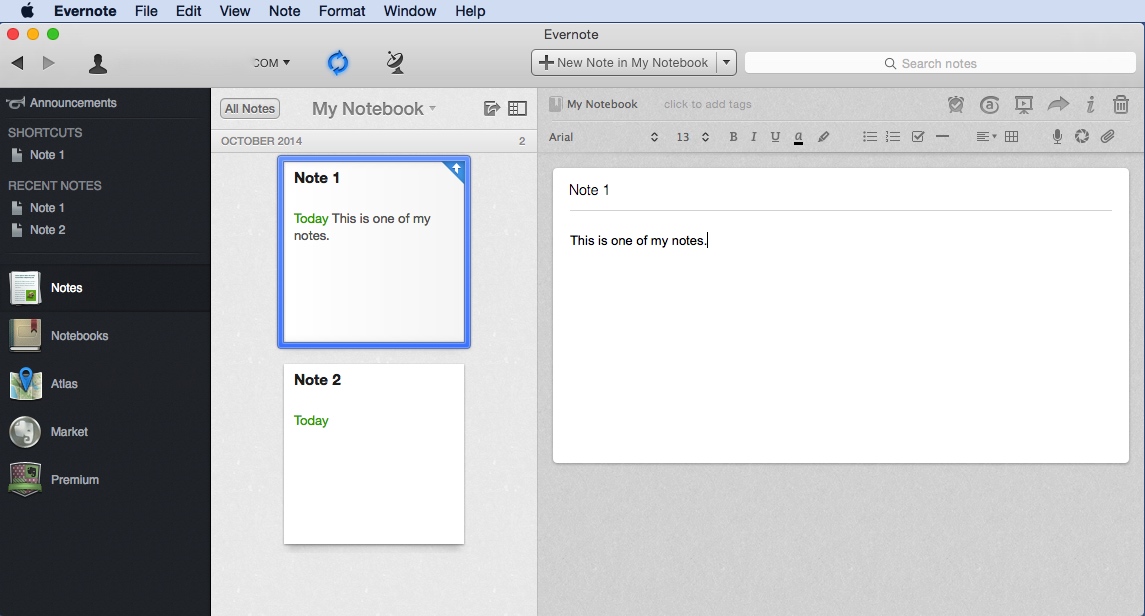
When synchronizing, the sync indicator should be blue and spinning. It is to the right of your username/email (the example here is blurred out). Click the image for a larger view.

20141026su-evernote-unexpected-error-occurred-while-synchronizing-with-evernote-service-could-not-synchoronize-note-001

If the synchronization fails, there will be a red icon with an exclamation point on top of the sync icon. Click the image for a larger view.

20141026su-evernote-unexpected-error-occurred-while-synchronizing-with-evernote-service-could-not-synchoronize-note-002

Click the error indicator to view the error details as shown in the example below. Click the image for a larger view.

20141026su-evernote-unexpected-error-occurred-while-synchronizing-with-evernote-service-could-not-synchoronize-note-003

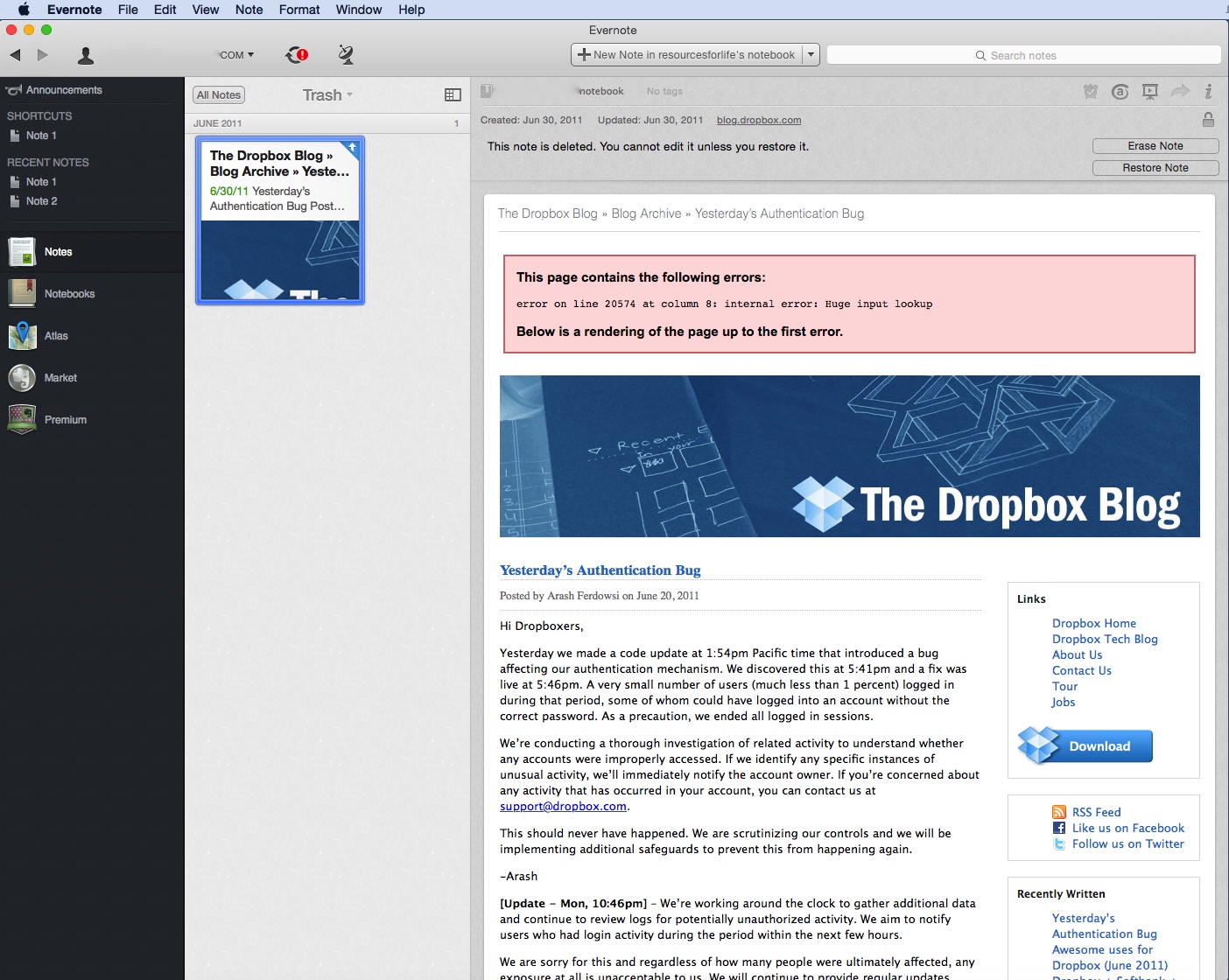
In this example, performing a search on the word “Dropbox” yielded nothing. This is because Evernote doesn’t search the trash. Unfortunately, the error message doesn’t indicate the folder location for the offending note. So, unless you think to check the Evernote trash, you’ll be mystified by this error.

20141026su-evernote-unexpected-error-occurred-while-synchronizing-with-evernote-service-could-not-synchoronize-note-004

In this example, the item shown above from the Dropbox Blog has an error indicating, “error on line 20574 at column 8: internal error: Huge input lookup.”

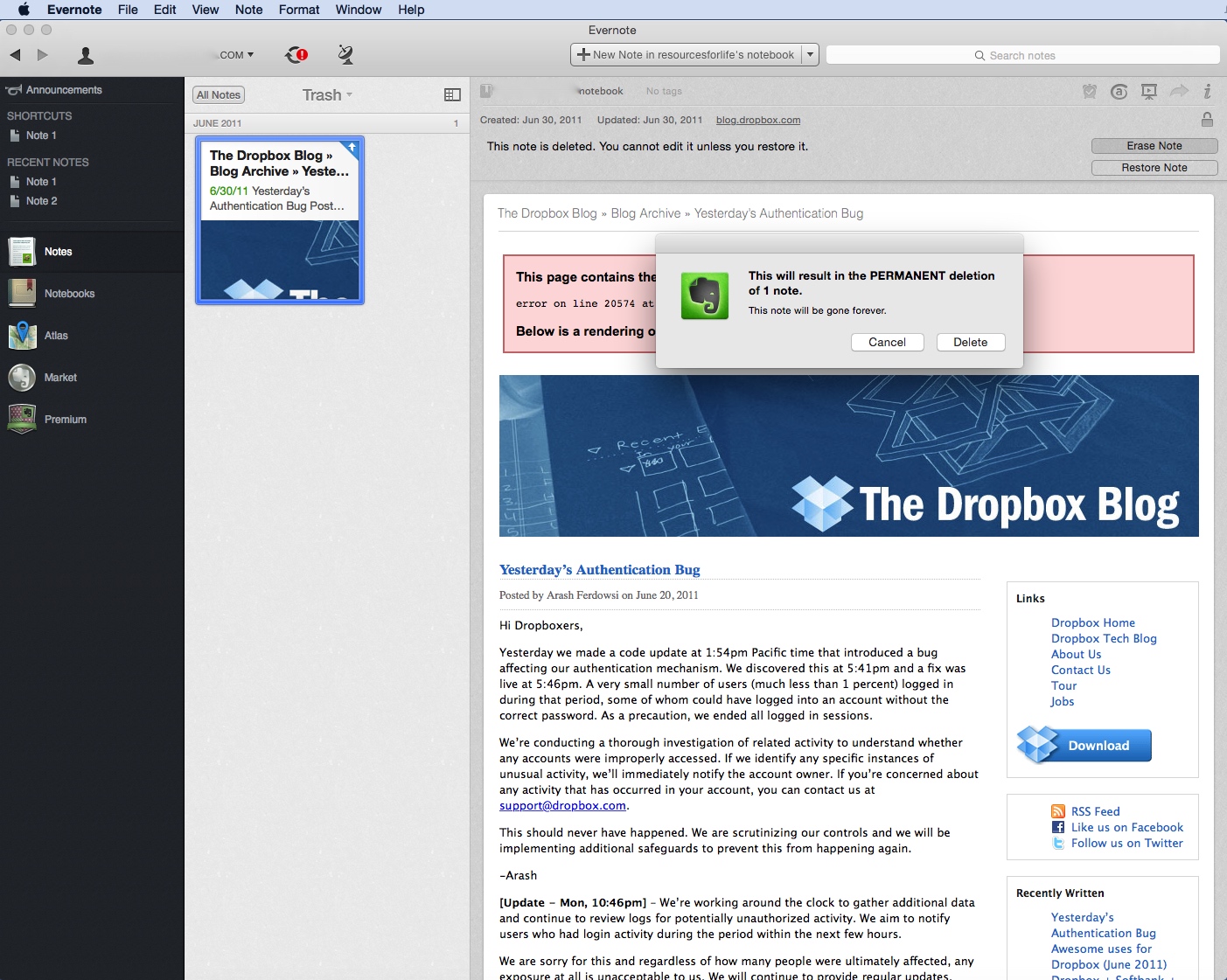
Once you delete this problematic note from the trash (by pressing the delete key), the synchronization process should work just fine.

20141026su-evernote-unexpected-error-occurred-while-synchronizing-with-evernote-service-could-not-synchoronize-note-005

Yosemite Error – Sign in to Microsoft Lync Failed

Problem Summary

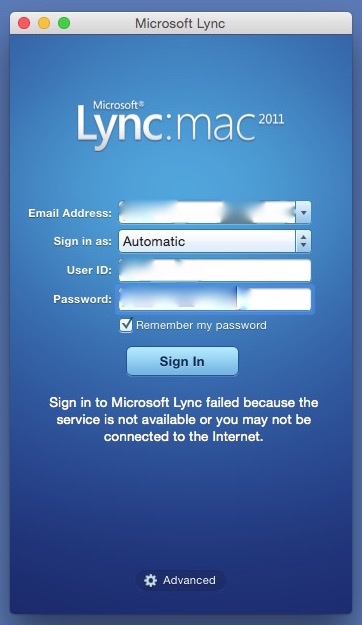
If  you’ve recently upgraded to Apple Mac OS X 10.10 Yosemite, and you attempt to use Microsoft Lync Mac 2001, you may likely get an error stating:

Sign in to Microsoft Lync failed because the service is not available or you may not be connected to the Internet.

This error message is misleading because the cause of it is likely neither of the problems suggested. Instead, it’s very likely due to having an additional language listed in your System Preferences.

Error Message Window

The error message window is like the one shown below.

20141021tu-yosemite-microsoft-lync-lanugage-english-error-fail

Problem Solution

Follow these instructions to fix the problem.

  1. Go to System Preferences – Available from the Apple menu.
  2. Click on Language & Region – It is the flag icon in the top row of icons.
  3. Make sure English is the primary language. If another language is listed, remove it. You need not close Language & Region settings for these modifications to take effect.
  4. Try running Lync again. This time it should work.
  5. You can now add the language(s) back in that you removed in step #3 above. Again, it’s not necessary at this point to close Language & Region settings. Try running Lync again. It should still work.
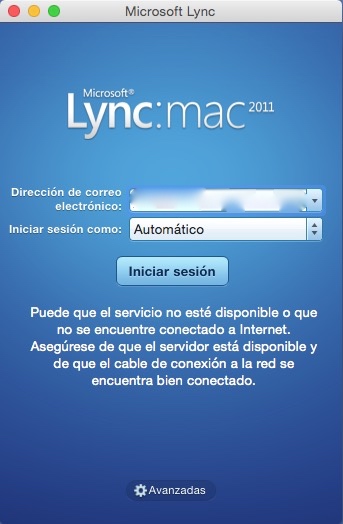
  6. If you have another language selected as primary, such as Spanish, Lync won’t work. It will fail again as shown below.

20141021tu-yosemite-microsoft-lync-lanugage-spanish-error-fail

Other Causes of Error

You may still get the connection error even after using the work-around fix described above. This can happen if your computer has gone into sleep mode, and then you wake it up. Just click the Sign In button again and it should connect.

User Experience Feedback

From Greg Johnson (17 Dec. 2014):

I was unable to start Lync. Here’s what I did:

  1. I checked my default preferred language in settings at it was already set to English.
  2. In an effort to clear out any previous settings, I added French and set it to the default.
  3. I tried starting Lync, but it still wouldn’t load.
  4. Then I removed French and returned to English as the default.
  5. Lync works fine now.

Migrating Favorites/Bookmarks From Windows to Apple Mac

If you’re a user of Internet Explorer on Windows and moving to Apple, follow these instructions to get your Favorites/Bookmarks moved over.

Google Cloud Solution

It’s possible to use Google Chrome to transfer your bookmarks by following these steps:

  1. Using Google Chrome, you can sign-in using your Google/Gmail login. Usually Chrome will ask you to sign-in, or you can find it on the menu (three lines found at top right).
  2. Once you’re signed in, the Bookmarks will automatically synchronize with your Google account to any Chrome browser.
  3. So, using the Import Bookmarks and Settings (found under Bookmarks in the Chrome menu) import bookmarks from Internet Explorer and Firefox.
  4. Then these will be synchronized and accessible on any computer or device where you are logged in with Chrome.

Manual Transfer

To manually transfer your Bookmarks follow these instructions:

  1. Go to Chrome, and from the menu choose Bookmarks > Import Bookmarks and Settings.
  2. Select Internet Explorer and/or Firefox as needed for importing.
  3. Then, once all bookmarks are imported, go to Bookmarks > Bookmark Manager > Organize > Export Bookmarks to HTML file.
  4. Put that file on a USB flash drive and put it on your Apple computer.
  5. In Google Chrome, from the Menu, choose Bookmarks > Import Bookmarks and Settings.
  6. On the From dropdown selection menu, select Bookmarks HTML File, then click Choose File.
  7. Select the file you exported in step 3 and 4.
  8. The Bookmarks will be imported and put in a folder called Imported from IE or Imported from Firefox.

Java 8 Update 25 for Apple Max OSX 10.10 Yosemite

Summary

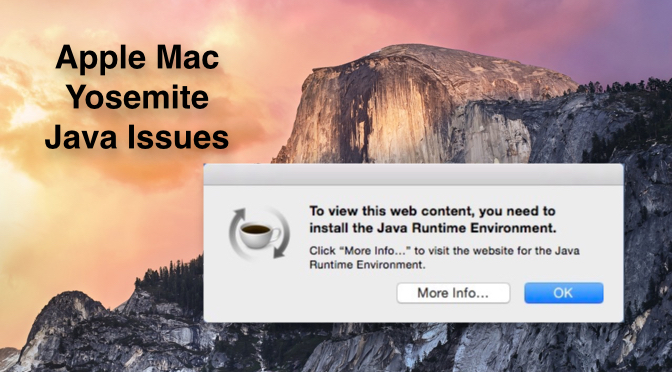
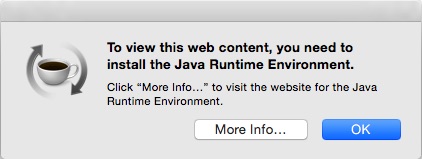
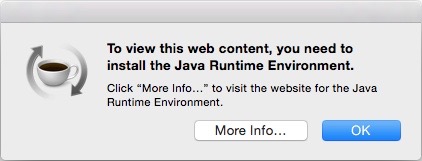
If you If you update to Apple Max OSX 10.10 Yosemite, and you’re using Google Chrome, SPSS, Creative Suite CS4 applications, or other Java dependent software, you may get a message similar to the one below stating that you need to install Java Runtime Environment.

20141018sa-to-view-this-web-content-you-need-to-install-the-java-runtime-environment

You can read this entire page to familiarize yourself with the options available to you and what their impact is. Or, you can begin at the top with the latest information and solutions.

Update 30 August 2017

After three years working with various scenarios, a pattern of success is emerging. Today, on a computer running OS X 10.11 El Capitan, the above error message was appearing when trying to run SPSS. After installing Java SE 6 Runtime, SPSS ran without a problem. So, that simple installation seemed to resolve the problem and may work to resolve the issue for other software and other versions of OS X. You can get the Java SE 6 Runtime installation file here.

Update: 23 April 2015 – Java for OS X 2014-001

For months, if you tried to run the Deltawalker file comparison software, a message like the one above would appear and it would fail to run. However, as of 23 April 2015, if you go to the Java for OS X 2014-001 page on Apple’s website, and click on the Download button, then install that Java update, it fixes the problem and then Deltawalker will run. Let’s hope this resolves other issues.

Update: 20 March 2015 – Java Version 8 Update 40

As of 20 March 2015, if you click More Info on the button shown above, you’ll be taken to a page on the Java website to install the latest Java update which is Version 8 Update 40. Follow the instructions to download and install the Java update. If you’d like to download the file directly, click here. This update should resolve the problem described on this page below.

Revised 16 January 2015

This page was initially posted on October 18, 2014. After a few months, Apple and Sun/Java finally worked out the problems with these updates (described further down the page).

Here are the steps required to install the Java update that will eliminate the notification shown above.

  1. Click on the More Info button in the notification that appears on your screen (example below).
    20150116fr-apple-java-runtime-environment-installation-error-notification-001
  2. On the resulting page (shown below) click the Agree and start Free Download button.
    20150116fr-apple-java-runtime-environment-installation-error-notification-002
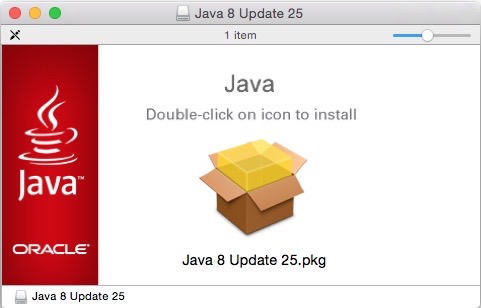
  3. Open the downloaded file if it doesn’t open automatically. You’ll see a window like the one below. Double-click on the icon as indicated to install Java 8 Update 25.pkg
    20150116fr-apple-java-runtime-environment-installation-error-notification-004
  4. In the installation window, click the Continue button (as shown below).
    20150116fr-apple-java-runtime-environment-installation-error-notification-005
  5. You’ll be asked for your computer user account username and password as shown below.
    20150116fr-apple-java-runtime-environment-installation-error-notification-006
  6. You’ll probably be asked for the drive to install on, then the Installation Type window will appear as shown below. Click the Install button.
    20150116fr-apple-java-runtime-environment-installation-error-notification-007
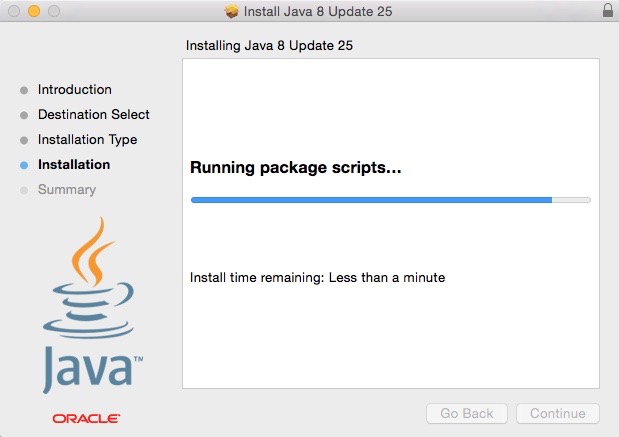
  7. The installation will begin and a progress window will appear as shown below.
    20150116fr-apple-java-runtime-environment-installation-error-notification-008
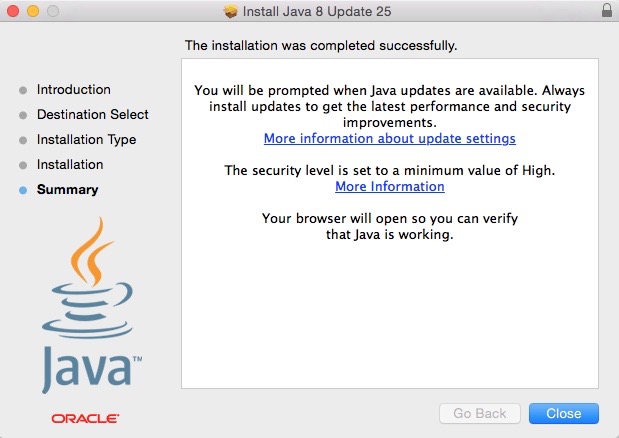
  8. When the installation is completed, a window will appear as shown below.
    20150116fr-apple-java-runtime-environment-installation-error-notification-009
  9. Your browser window should open to a page like the one below.
    20150116fr-apple-java-runtime-environment-installation-error-notification-010
  10. When you click the Verify Java version button, you should see a confirmation message as shown below.
    20150116fr-apple-java-runtime-environment-installation-error-notification-011

If There Are Problems

There had previously been problems with the installation of this Java update. If you have problems, the information found below may be helpful.

Java 6 from Apple

Apple has provided a version of Java 6 that installs properly on Yosemite. You can download and install that version. Click here to visit the download page on Apple’s website. It’c conceivable that some programs or websites might be looking for elements of Java 6 to confirm that Java is present. Even if you have newer versions of Java (such as 7 or 8) you may still get a message indicating you need Java if you don’t have 6 installed.

Safari Quick Fix

Follow these instructions for a quick fix to this issue:

  1. Begin with all programs closed. You may want to just restart your computer to ensure you begin fresh.
  2. Using the Yosemite Safari browser, visit the Java verify page here:
    https://www.java.com/verify/
  3. This should cause Safari to invoke a launch of the Java update.
    20141020mo-java-7-update-71-software-update-apple-mac-yosemite
  4. Then, perhaps before you can press the Install Update button, another window will open to confirm the installation of the Java update. This is the dialog box to confirm the Java Detection you requested in step #2 above.
    20141020mo-java-7-update-71-software-update-apple-mac-yosemite-confirm-security
  5. Click Run. Then click Install Update in the other window. You may be prompted for your username and password.
    20141020mo-java-7-update-71-software-update-apple-mac-yosemite-installation-username-password
  6. You will then see the series of dialog boxes shown below. Click the appropriate buttons to continue and then restart any programs that use Java.

20141020mo-java-7-update-71-software-update-apple-mac-yosemite-ready-to-install

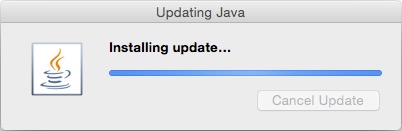
20141020mo-java-7-update-71-software-update-apple-mac-yosemite-installing

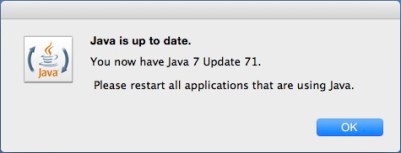
20141020mo-java-7-update-71-software-update-apple-mac-yosemite-retart

This process will update Java for all Yosemite programs that are able to use the updated Java.

Google Chrome Shortcut

Apparently Google Chrome doesn’t work with Java 7 Update 71. The message below explains this, and it’s the page that shows up when you’re in Chrome and try to update Java. Click the image to enlarge.

20141020mo-java-7-update-software-update-apple-mac-yosemite-compatibility

You can install the untested 64-bit version of Google Chrome Version 39, then go directly to the correct download page and download Java 8 (jre-8u25-macosx-x64.dmg) or keep reading to learn more about the cumbersome process most people go through to get to the correct download page. However, if you install Java 8, the necessary Java 7 might not install because the installation will identify a newer version of Java.

The window below will likely show up if you try to download Java for Mac OS X. Click the image to enlarge.

20141018sa-java-for-mac-osx-1010-yosemite-legacy

If you click the “More Info…” button, you’ll be taken to a download page like the one shown below. Click the image below for a larger view.

20141018sa-download-java-8-25

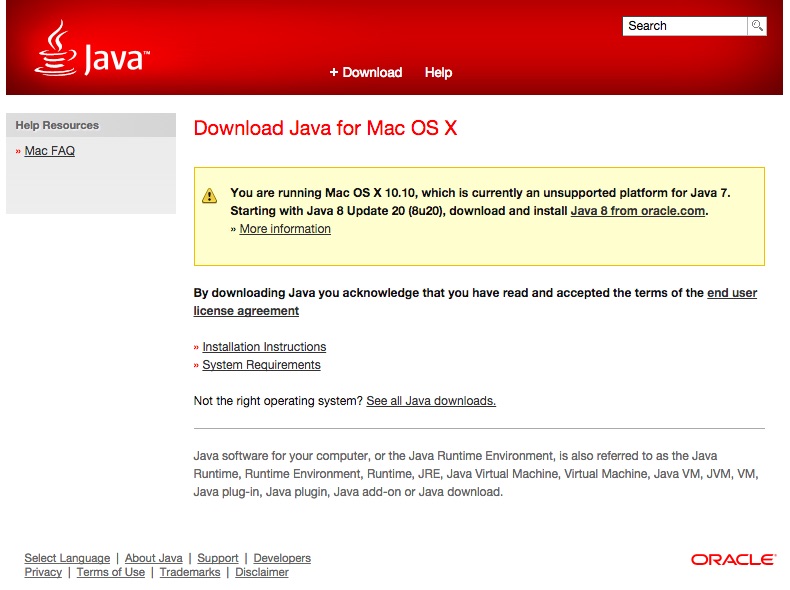
When you click the download button, it will take you to a web page like the one shown below with the message, “You are running Mac OS X 10.10, which is currently an unsupported platform for Java 7. Starting with Java 8 Update 20 (8u20), download and install Java 8 from oracle.com. ” Click the image below for a larger view.

20141018sa-java-for-mac-osx-1010-yosemite-legacy

If you click the More information link, it takes you to the How do I install Java on Mac OS X 10.10 page. However, this isn’t the page you want, instead you should click on the Java 8 from oracle.com link. You’ll be taken to the Java SE Downloads page shown below that may not be easy to follow for most users. Click the image below for a larger view.

20141018sa-java-se-downloads-page-8u25

You’ll want to click the JRE Download button. This will take you to the Java SE Runtime Environment 8 Downloads page shown below. Click the image below for a larger view.

20141018sa-java-se-runtime-environment-8-downloads

Click the white circle on the left of Accept License Agreement. From the list of available downloads, choose the one described as:

Mac OS X x64 …….. 56.76 MB …….  jre-8u25-macosx-x64.dmg

Double-click on the downloaded file and follow the on-screen instructions to install Java.

Compatibility Warning

Once you download Java 8 Update 25, you won’t be able to install Java 7 Update 71 (see message below). So, you may want to directly install Java 7 instead of Java 8, since some programs may look for 7 and not recognize 8 yet.

20141018sa-java-7-wont-install-if-java-8-is-installed

Global Impact

The maps below show recent visitors to this page who have been impacted by this issue. These are just our own page visitors, so you can imagine the thousands of people impacted by this issue.


Creating a Bootable Installation USB of Apple Mac OS 10.10 Yosemite

Summary

Follow these instructions to create a bootable USB installer for Apple Mac OS 10.10 Yosemite.

Prepare the USB Flash Drive

Insert a blank USB flash drive of 8GB or larger, but not unnecessarily too large since it would be wasted space. Run the Disk Utility program found under Applications in the Utilities folder. Then follow these steps.

  1. In Disk Utility, select the USB flash drive.
  2. Click on Partition.
  3. Choose Partition Layout of 1 Partition.
  4. For the Format choose Mac OS Extended (Journaled)
  5. For the Name, type YosemiteUSB.
  6. Click the Options button and choose GUID and click the OK button.
  7. Click the Apply button to make these changes to the USB flash drive.
  8. When asked if you are sure, click the Partition button.
  9. Exit the Disk Utility program.

Download Yosemite

In the following steps, you’ll download the Yosemite files from the App store, but stop before clicking Continue when the installer starts.

  1. Go to the Yosemite page in the App store on your computer.
  2. Click Download.
  3. It will take a while for the download to complete. If you want to view a progress meter, during the download, click on the Updates tab in the App store.
  4. Once the download is complete, an Installer will run and there will be a Continue button. Don’t click that just yet. Instead, continue to the steps below. Then, once the installer is on a USB, you can store the USB somewhere safe and continue with the guided installation from the App Store installer.

Copy Yosemite to USB

In the following steps, Yosemite will be copied to the USB flash drive and it will be made into a bootable drive.

  1. Run the Terminal program found under Utilities.
  2. Select, Copy and then paste the following command into your Terminal window. Although the text wraps here, it will be copied and then pasted as a single command.
    sudo ‘/Applications/Install OS X Yosemite.app/Contents/Resources/createinstallmedia’ –volume ‘/Volumes/YosemiteUSB’ –applicationpath ‘/Applications/Install OS X Yosemite.app’ –nointeraction
  3. Press Enter/Return after pasting in that command.
  4. You’ll be asked for your password. Enter it to continue. The process of copying the files may take 10 to 15 minutes depending on how fast or slow your computer is.
  5. The process will complete and you should see something like this in your Terminal window.

ComputerName:~ UserName$ sudo ‘/Applications/Install OS X Yosemite.app/Contents/Resources/createinstallmedia’ –volume ‘/Volumes/YosemiteUSB’ –applicationpath ‘/Applications/Install OS X Yosemite.app’ –nointeraction
Password:
Erasing Disk: 0%… 10%… 20%… 30%…100%…
Copying installer files to disk…
Copy complete.
Making disk bootable…
Copying boot files…
Copy complete.
Done.
ComputerName:~ UserName$

If everything went okay, then type Exit and press Enter/Return to end your Terminal session. Then quit the Terminal program.

You now have a USB bootable installer for Yosemite. To use this, when starting an Apple computer hold down the Option key and then choose the drive. For now, you can eject it and keep it safe for whenever you need it.

Continue Yosemite Installation

If you’d like to continue the installation of Yosemite that was automatically launched after download from the App Store you can do that now by clicking Continue. Or, you can quit that installer and return later (it’s in your Applications). Once installed, the Yosemite installation files will be automatically deleted. This is why it’s important to create the USB bootable installation drive before you continue with the installation from the App Store.

__________

There were a variety of sources used to create the above non-visual instructions. The most helpful article was on iClarified, and it includes images for those who find that useful.

Brother PC Connectable Labeling System (PT2730)

Summary

Brother labeling systems are easy to use and create durable and long-lasting tags for a variety of items. Having computer connectivity and software for creating, designing, and saving label templates can save time. The PT-2730 has the ability to connect to a computer using USB. [Buy]

Product Resources

Features

  • Use as stand-alone labeler, or connect to PC or Mac via USB for added functionality
  • Large, 16-character x 3 line graphical display with vivid backlit design for easy viewing
  • Creates big, bold, durable laminated labels in a variety of colors and sizes – up to 24mm wide
  • New, built-in Label Collection feature offers pre-designed labels for Files, Office Signage, Shipping labels – and more!
  • New Download feature allows access to additional Label Collection files!

Product Description

The PT-2730 is a professional, desktop labeler that prints using 8, built-in fonts. Adaptable – so it can be used “stand-alone” or connected to a PC or Mac for added functionality. Features a large, graphical display with vivid backlight. Print up to 7 lines of text on each label. Create durable, laminated labels in a variety of colors and sizes – up to 24mm wide. Quickly access over 50 pre-designed Label Collection labels with the touch of a button – or use the convenient, Text Reminder feature to recall frequently used words. Includes AC adapter, software, USB cable, and 24mm starter “TZ” tape. PC Connectable Labeling SystemHardware Features: Sleek, modern design with built-in automatic cutter. Large, 16-character x 3 line graphical display with vivid backlit design for easy viewing. Creates big, bold, durable, laminated labels in a variety of colors and sizes -up to 24mm wide. Powered by included AC adapter or 8 “AA” batteries (not included). Complete kit: Includes AC adapter, P-touch Editor software and drivers, USB cable, 0.94″ (24 mm) starter “TZ” laminated tape, User’s ManualSoftware Features: Select from 8 fonts, 10 type styles, and 20 frames. New, built-in Label Collection feature offers more than 50 pre-designed labels for Files, Office Signage, Shipping labels –and more! New Download feature allows access to additional Label Collection files! New Text Reminder feature recalls frequently used words. Prints up to 7 lines of text on each label. Save and print up to 99 of your favorite labelsCarton Contents: PT-2730, AC adapter (AD-24), 0.94″ (24 mm) starter “TZ” laminated tape, USB Cable, P-touch®Editor software and drivers, User’s Manual, Two-Year Limited Warranty

From the Manufacturer

The PT-2730 is a professional, desktop labeler that prints using 8 professional fonts. Very adaptable, it can be used either “stand-alone” or connected to a PC or Mac for added functionality. It features a large, graphical display with vivid backlight, and can print up to 7 lines of text on each label. The PT-2730 lets you create durable, laminated labels in a variety of colors and sizes – up to 1″ (24mm wide)*. You can quickly access over 50 pre-designed Label Collection labels with the touch of a button – or use the convenient Text Reminder feature to recall frequently used words without retyping. Includes AC adapter, software, USB cable, and 1″ (24mm)* starter “TZe” tape.

PT-2730 Product Details

  • Large 16-character x 3-line graphical display, with vivid backlit design for easy viewing
  • Creates durable, laminated labels in a variety of colors and sizes – up to 1″ (24mm)* wide
  • Built-in Label Collection offers pre-designed labels for files, office signage, shipping and more
  • New Download Feature lets you access an even wider assortment of pre-designed labels
  • Prints up to 7 lines of text on each label
  • Choose from 8 professional fonts, 10 type styles, 7 type sizes and 20 framing options
  • Sleek, modern design with built-in automatic cutter
  • Raised keys for quick, accurate typing
  • Powered by AC adapter (included) or six “AA” batteries (not included)
  • Create and print bar codes
  • Easy, top-load drop in “TZe” tape cassettes

What’s in the Box

  • PT-2730
  • 1″ (24mm)* wide black on white starter “TZe” laminated tape
  • AC adapter
  • P-touch Editor software and drivers
  • USB cable
  • User’s manual

* Tape widths are approximate.

PC-connectible for greater design versatility.

Use the PT-2730 keyboard and display to create labels, or get even more creative using your computer to custom design durable labels combining text and graphics.

Choose the right color and size for the job.

Create more visual appeal and differentiation with the PT-2730. Print up to 7 lines of text on each label and create durable, laminated labels in a variety of colors and sizes.

Save time with our Label Collection.

Need a great label fast? Call up one of your 9 saved favorites or browse the built-in Label Collection of over 50 pre-designed labels for files, office signage, shipping and more. Access even more pre-designed labels using our convenient download feature.

Type, layout and preview with ease.

The PT-2730 features a large, 16 character x 3-line backlit graphical display for easy viewing, plus a preview feature that lets you check spelling and layout before printing.

Product Description

The Brother™ PT-2730 Desktop Labeler Is Ideal for Busy Professionals

The Brother™ PT-2730 PC-connectable desktop labeling system was designed for busy office professionals. This feature packed desktop labeler can be used “stand-alone” for desktop labeling, or connected to a PC or Mac for added functionality. The included AC adapter ensures that your labeling can be done at a moment’s notice.

Create durable, laminated labels for indoor or outdoor use in a variety of colors and sizes – up to 24mm wide – using one of 8 fonts, 17 framing options, 10 type styles or an array of symbols.

This advanced PC-connectable desktop labeling system features a sleek, modern design with automatic tape cutter and a large, graphical display with vivid backlight for easy viewing. Print up to 7 lines of text on each label – even preview labels before printing. Store up to 99 labels to memory, or automatically print labels displaying the Time & Date.

Quickly access over 50 pre-formatted Label Collection designs for Files, Office Signage, and Shipping Labels with the touch of a button – or use the convenient, Text Reminder feature to recall frequently printed words. Even use the new Download Feature to access additional Label Collection layouts.

The Brother™ PT-2730 desktop labeler includes 0.94″ (24mm) laminated “TZ” starter tape, AC adapter, USB Cable, software and User’s Manual. Operates on 8 “AA” batteries (sold separately).

Main Features

  • Use as stand-alone labeler, or connect to PC or Mac via USB for added functionality
  • Large, 16-character x 3 line graphical display with vivid backlit design for easy viewing
  • Creates big, bold, durable, laminated labels in a variety of colors and sizes – up to 24mm wide
  • New, built-in Label Collection feature offers pre-designed labels for Files, Office Signage, Shipping labels – and more!
  • New Download feature allows access to additional Label Collection files!
  • New Text Reminder feature recalls frequently printed words – making label creation quick and easy
  • Prints up to 7 lines of text on each label
  • Select from 8 fonts, 10 type styles, and 17 frames
  • Save and print up to 99 of your favorite labels
  • Sleek, modern design with built-in automatic cutter
  • Complete kit: Includes AC adapter, software and drivers, USB cable, 0.94″ (24 mm) starter “TZ” laminated tape, User’s Manual

About Laminated Tapes

The PT-2730 uses tapes from our TZe laminated line, whereby the text is protected by a thin, clear film. They withstand water, grease, fading and abrasion, and can be used in hot and cold environments, as well as outdoors. Choose from a wide variety of TZe tapes to match your application – use Standard Laminated Tapes for general home or home office applications, or use one of our specialty tapes for labeling everything from wires and cables, to files and binders, to company assets.

Choosing Color & Size

Create visual appeal with more elaborate labels made with the PT-2730. Print wide labels, up to 24mm wide, in a variety of colors and sizes. Use one of eight built-in fonts, 17 frames and an array of symbols to create decorative labels with up to 7 lines of text. Switch label types in seconds with the convenient, top-loading machine design. The Auto Tape Detection feature automatically recognizes the size of the installed tape cassette, to make text formatting a snap.

Full Featured Solution

The Brother™ PT-2730 PC-connectable desktop labeling system was designed for busy office professionals. This feature packed desktop labeler can be used “stand-alone” for desktop labeling, or connected to a PC or Mac for added functionality. Use the included P-touch® Editor label design software to create labels with any fonts, symbols or logos resident on your computer. The included AC power adapter and USB cable ensures your labeler will be ready to go at a moment’s notice.

Type, Layout, and Preview

The PT-2730 features a large, 16-character x 3–line graphical, backlit display for easy viewing, plus a preview feature that lets you review spelling and layout before printing…saving time and tape.

Label Collection

Need a great label fast? Call up one of your 99 saved favorites or browse the Label Collection of over 50 pre-designed labels. Print labels for files, office signs, shipping applications, recycling programs, retail environments – even create festive labels for gift tags.

Product Images

System Extension Cannot Be Used – AppleUSBEthernetHost.kext

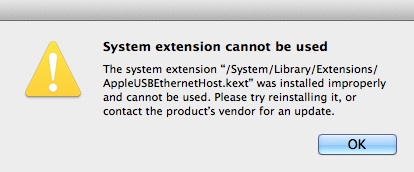
If you’re using an Apple computer, you may get the following error message:

20141014tu0839-system-extension-error

The text of the message reads (provided for screen readers):

System extension cannot be used
The system extension “/System/Library/Extensions/AppleUSBEthernetHost.kext” was installed improperly and cannot be used. Please try reinstalling it, or contact the product’s vendor for an update.

This problem is apparently the result of a recent iTunes update and it is impacting many people.

Follow these instructions to fix the problem:

  1. Disconnect your iPad, iPod, or iPhone from the computer.
  2. Download the latest iTunes software.
  3. Using Finder, navigate to the System folder, then Library, then Extensions and find the AppleUSBEthernetHost.kext file. Move it to your desktop. This will remove it from Extensions.
  4. Install iTunes using the download from step #2 above.
  5. From the Utilities folder in Applications run the Terminal program.
  6. Enter the following command to update the extension. This should all be typed on the same line and then press enter/return. There is a space between kextload and /System…
    sudo kextload /System/Library/Extensions/AppleUSBEthernetHost.kext

Restart the computer just to make sure all changes are saved.

Additional Reading