Ransomware Malware Virus Prevention, Protection, and Recovery

About Ransomware

Ransomware malware viruses infect a computer and make the user’s files inaccessible by encrypting them. In some cases the computer is left only partially usable. The user is given some instructions on how to get their files back. Usually this involves communicating directly with someone who will ask you for money before they will let you have access to your files again. They may also promise to fix the computer so that it will function again.

It is estimated that there are presently over 250,000 kinds of ransomware viruses. In 2013, just one of these viruses alone resulted in the extortion of an accumulated $3 million from all its victims before it was taken down by authorities. (source)

Ransomware Prevention

Some antivirus software providers, such as Kaspersky, promise that their software can protect against ransomware. This statement is on the Kaspersky website:

“To protect your computer from ransom malware, download and install Kaspersky Internet Security 2015. The application provides high-level protection against ransom malware.” (source)

Avoid Pop-Up Messages. Another important prevention measure is to be very careful with any unusual pop-up messages. Avoid clicking until you can be certain that the message is legitimate, or simply shut down the computer and restart.

Take Email Precautions. One way of getting ransomware is clicking on links in spam emails. Services like Gmail from Google examine all emails flowing through their system and monitor for malicious activity. So, for example, let’s say there is a fake message claiming to be from FedEx about a package that couldn’t be delivered. Google would likely identify that email as not having authentically been sent from Federal Express. So, it would end up in your spam folder with a notice, “We couldn’t verify that this message was really from the claimed sender” or “We’ve identified other messages like this one that are malicious.”

Use AntiVirus Software. Most antivirus software should prevent virus-like activity even from viruses that were previously unknown. Comprehensive Antivirus software can warn you of known malicious websites. In this way, they make browsing the web safer.

Use an Apple Computer. There are currently over 17 million known Windows computer viruses. The current number of Apple viruses are currently very limited. Apple computers are susceptible to security problems found in Adobe Flash and Java, so it’s important to stay updated. There have been a few fake Apple programs people have been deceived into installing, such as Mac Defender. A report of Apple viruses over the past 10 years is only a few pages long. (source) So, while Apple computers are not completely immune to viruses, they may be a better choice for security minded people.

Ransomware Protection

As described above, there are some preventative measures you can take. Ransomware protection are measures you can take to protect and limit the potential damage of a Ransomware attack.

Backups. Some backup programs run daily to maintain a backup of all your files. This is helpful, except in cases where your files have become corrupted or maliciously encrypted. In some cases, a good backup can be overwritten by a bad one. Also, a connected backup drive is accessible to viruses that might try to erase or encrypt files. In these cases, it may be best to maintain a separate manual backup of your files on a drive that remains disconnected from your computer in a safe place.

Cloud Synchronization. If you use a service like Dropbox to maintain a synchronized cloud copy of your files, make sure you have the ability to access previous versions of your files in the event they get damaged.

Ransomware Recovery

The most recent update about ransomware is an article from Sophos on 30 January 2015. (source) The article states:

Crypto-Ransomware is a family of malware that takes files on a PC or network storage, encrypts them, and then extorts money to unlock the files. … These encryptor malwares will encrypt pictures, documents, and videos, and then leave a ransom note in each directory after encrypting at least one file in that directory. They also typically attempt to do this to mapped network drives [or attached backup drives] as well. … Ransomware-encrypted files for most variants cannot be recovered at all. The encryption keys are not stored on the system. There is one variant which can be recovered, which is discussed below. … W32/VirRnsm-A infects files and changes them to .exe files, including the virus code. It still allows the file to open initially so it has a chance to spread. After a while it locks out the files. The good news is that these files, unlike most ransomware, can be recovered and cleaned by Sophos. A full system scan will fix and recover your files.” (source)

With so many variations of ransomware, it’s unlikely that encrypted files could be recovered unless they happen to be the result of the W32/VirRnsm-A variant.

Yet, some tools from Kaspersky (listed below) suggest that decryption may be possible if you have an original file that’s not encrypted and can compare this to an encrypted file.

Further Reading

Below are ransomware information pages from various sources.

Software Tools

Here are some software tools that might help with removal and/or recovery of files.

  • Kaspersky WindowsUnlocker – The Kaspersky WindowsUnlocker utility is designed to disinfect registries of all operating systems installed on the computer (including operating systems installed on different partitions or in different folders on one partition) and disinfect user registry trees. Kaspersky WindowsUnlocker does not perform any actions with files (in order to disinfect files you can use Kaspersky Rescue Disk).
  • RakhniDecryptor – utility for removing Trojan-Ransom.Win32.Rakhni
  • RannohDecryptor –  If the system is infected by a malicious program of the family Trojan-Ransom.Win32.Rannoh, Trojan-Ransom.Win32.AutoIt, Trojan-Ransom.Win32.Fury, or Trojan-Ransom.Win32.Cryakl, all files on the computer will be encrypted. To decrypt files affected by Trojan-Ransom.Win32.Rannoh, Trojan-Ransom.Win32.AutoIt, Trojan-Ransom.Win32.Fury, Trojan-Ransom.Win32.Crybola or Trojan-Ransom.Win32.Cryakl, use the RannohDecryptor utility.
  • RectorDecryptor – Kaspersky Lab specialists have developed a special utility for decrypting the data encrypted by Trojan-Ransom.Win32.Rector. Cybercriminals use Trojan-Ransom.Win32.Rector for disrupting normal performance of computers and for unauthorized modification of data making it unusable. Once the data has been “taken hostage” (blocked), its owner (user) receives a ransom demand. The victim is supposed to deliver the ransom in exchange for pirate’s promise to send a utility that would restore the data or repair the PC.
  • XoristDecryptor – There is a utility to confront malware of the family Trojan-Ransom.Win32.Xorist, Trojan-Ransom.MSIL.Vandev – XoristDecryptor. Malware of the family Trojan-Ransom.Win32.Xorist, Trojan-Ransom.MSIL.Vandev is designed for unauthorized modification of data on a victim computer. It makes computers uncontrollable or blocks its normal performance. After taking the data as a “hostage” (blocking it), a ransom is demanded from the user. The victim is supposed to deliver the ransom to the pirate, who is promising to send in return a program which would release the data or restore normal performance of the computer.

Instructional Videos

These videos refer to variants of ransomware. They may not be specific to your own experience, but the general information presented should be helpful. These videos provide an insight into the variety of ransomware and what the recovery solutions might be.

[youtube https://www.youtube.com/watch?v=_dKBXeoLIFo] [youtube https://www.youtube.com/watch?v=w_7wUXzhRD8] [youtube https://www.youtube.com/watch?v=WJagR2txHJU] [youtube https://www.youtube.com/watch?v=LKy9X–ffw8] [youtube https://www.youtube.com/watch?v=Zcj9RKO3e38]
Computer Won’t Startup – Freezes on Bootup

You may have a problem with your Apple or Windows computer where you startup the computer and it will hang on startup. With Windows computers, this may happen immediately after the POST (power on self test screens). With an Apple computer, this may happen before you see the Apple icon at startup.

This problem can be caused by a faulty USB device or USB Hub. For example, some connected hard drives may result in the system hardware attempting to identify the drive, or possibly scan the drive to determine its configuration. Multi-function devices can be perceived as external drives of they have memory card readers.

Try unplugging all unnecessary USB devices, then startup the computer, and then connect the devices again. This may speed up the startup process.

Something else that may slow down the startup process are synchronization applications for services like Dropbox, Box, Google Drive, and Microsoft OneDrive. Try configuring these mini-apps to not load at startup. That will likely speed up the startup process. You may want to choose just one synchronization drive service.

How to Find Your Lost iPhone, iPod, iPad, or Apple Computer

Summary

Most mobile devices these days have built-in tracking features that are very convenient for a variety of reasons. For example, health and wellness apps that monitor your activity require location tracking to be turned on. Location tracking can help find lost or stolen devices.

Because of privacy concerns, location tracking is typically an ‘opt-in’ service. Those who decide to not permit location tracking for their devices will not be able to have them easily located and recovered.

For users of Apple mobile devices, you’ll need to enable location tracking prior to attempting to find a lost device.

Instructions

These are the steps you can follow to find a device:

  1. Go to http://www.iCloud.com
  2. Login using your Apple ID.
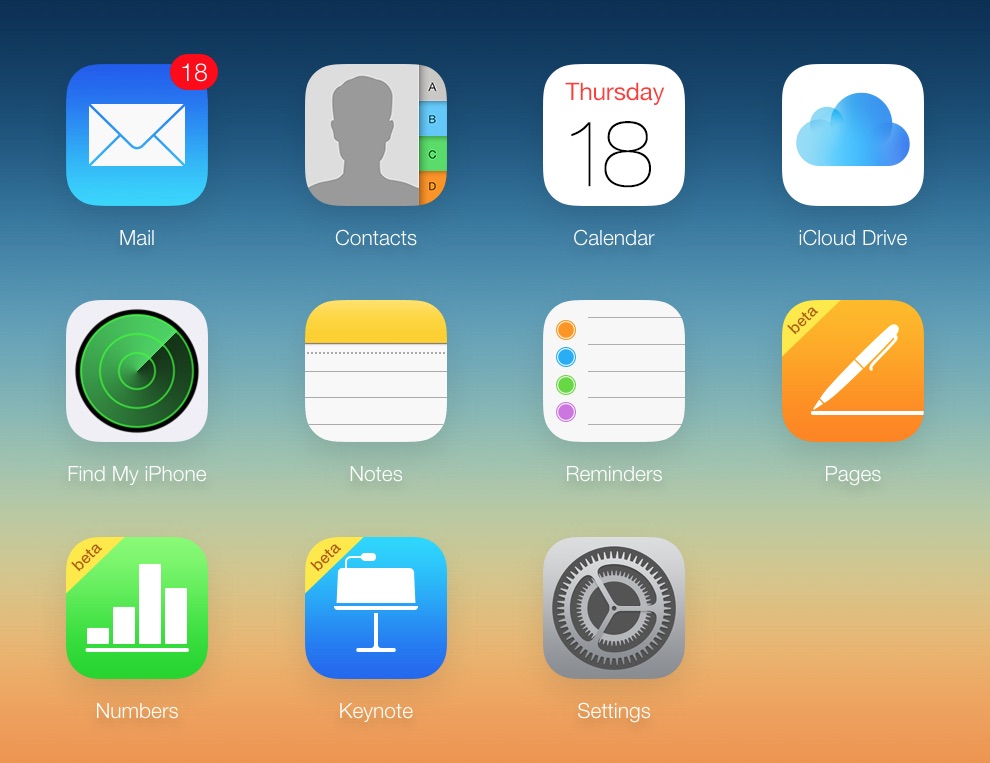
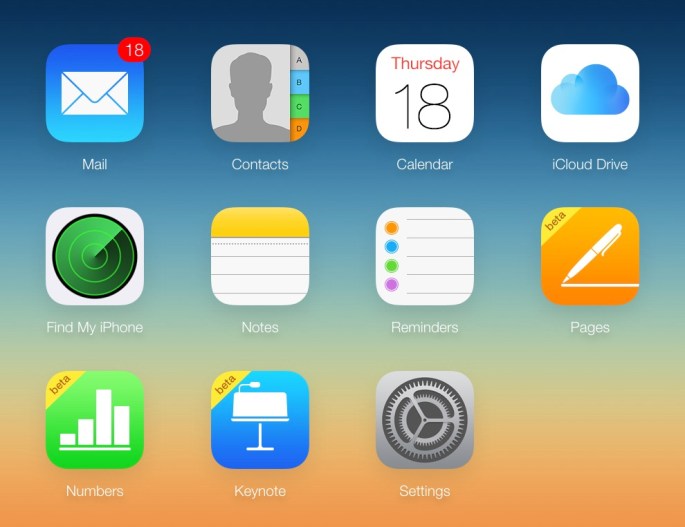
  3. Click on the Find My Phone icon as shown below.
    20141218th-find-my-phone
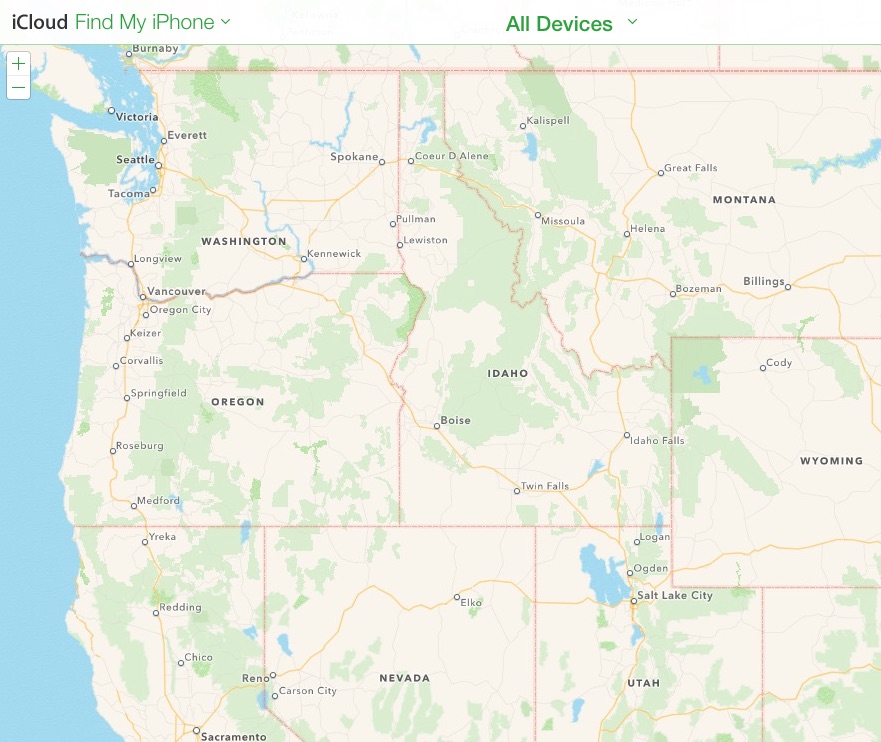
  4. The Find My Phone service will display a map with your device or devices indicated on the map with dots. in the example below there are no devices displayed, but when you use the service hopefully your device will show up. Under the All Devices drop-down menu, your available devices
    20141218th-find-my-phone-apple-iphone-ipad-ipod-macbook

Ubuntu File Sharing with Apple

Ubuntu file sharing with Apple computers over a network is fairly easy. Follow these steps.

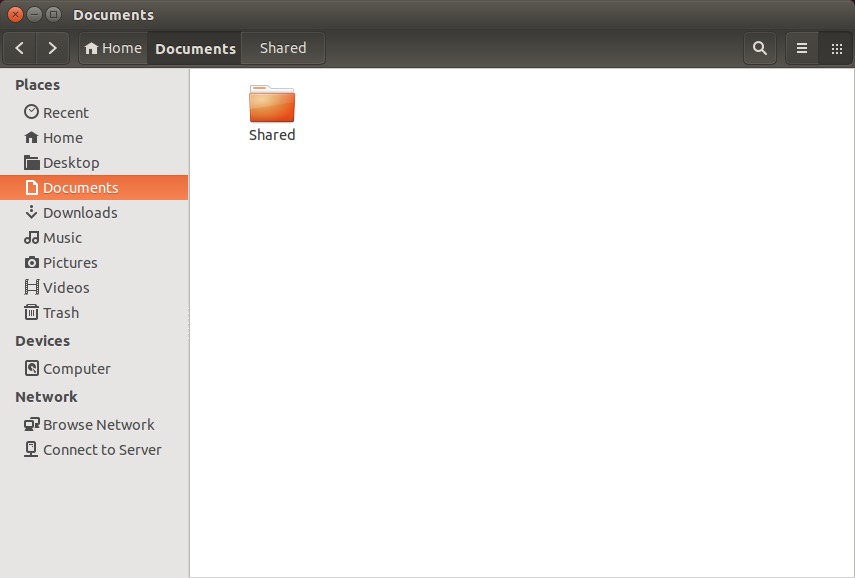
Right click on the folder you’d like to share.

20141108sa-linux-to-apple-file-sharing-001

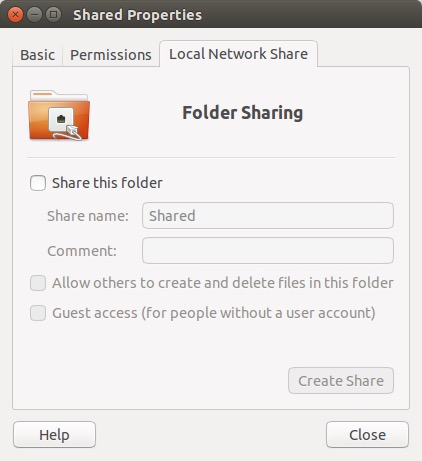
Choose Properties, and then click on the Local Network Share tab.

20141108sa-linux-to-apple-file-sharing-002

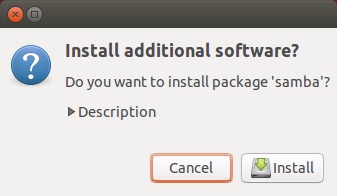
When you click on “Share this folder” (for the first time) you’ll get a message stating “Sharing service is not installed. You need to install the Windows network sharing service in order to share your folders.”

20141108sa-linux-to-apple-file-sharing-003

Confirm to install the additional software.

20141108sa-linux-to-apple-file-sharing-004

Provide your password to Authenticate.

20141108sa-linux-to-apple-file-sharing-005

Wait for installation to complete.

20141108sa-linux-to-apple-file-sharing-006

20141108sa-linux-to-apple-file-sharing-007

Once the installation is complete, you can share the folder.

20141108sa-linux-to-apple-file-sharing-009

Currently, something odd is happening between Ubuntu 14.1 and Apple 10.10 (Yosemite). It’s believed that Apple has implemented a version of SMB (file sharing) that does communicate properly with Ubuntu. Normally it would be possible to setup the folder to be accessible based on user accounts. However, attempting to login using one of the Linux user account names and password will fail. If you click on the bottom two boxes above, sharing will then work properly.

Apple Instructions

Follow these instructions to access the shared Ubuntu folder.

  1. On the Apple computer, press command+k (or from the Go menu in Finder, choose Go to server).
  2. Type in //ServerName/SharedFolder and press Enter.
  3. Choose Connect as Guest access (for some reason entering a username doesn’t work).

The shared folder should now be accessible.

iPhone iOS 8 Contacts Search Results Display Error

When performing a search of your contacts on the iPhone using iOS 8, you may notice that the name at the bottom of the list can’t be seen or selected if the search results fill more than a screen. The last contact in the results will be hidden below the viewable area on the screen.

You can move the search results page up (by pushing it up), but it snaps back again and the last name on the list again returns below the viewable screen area.

In the example below, a search for “wireless” in contacts produces many results. The last few results at the bottom of the list are shown.

By pressing up on the list (scrolling down), the hidden result shows.

The only work-around for this at present would be to create a contact entry that will show up at the very bottom alphabetically for the search result.

Click the image below to enlarge.

20141102su-apple-iphone-search-results-scroll-display-error-1024x768

Yosemite Error – Sign in to Microsoft Lync Failed

Problem Summary

If  you’ve recently upgraded to Apple Mac OS X 10.10 Yosemite, and you attempt to use Microsoft Lync Mac 2001, you may likely get an error stating:

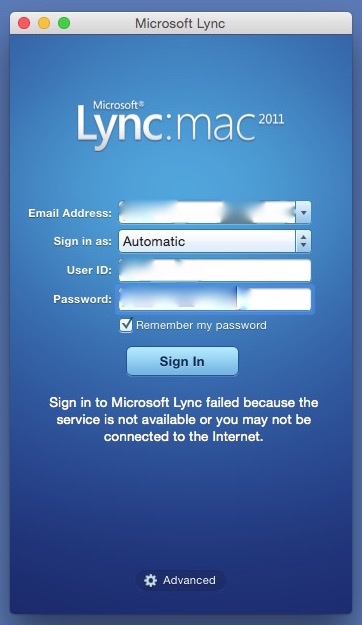
Sign in to Microsoft Lync failed because the service is not available or you may not be connected to the Internet.

This error message is misleading because the cause of it is likely neither of the problems suggested. Instead, it’s very likely due to having an additional language listed in your System Preferences.

Error Message Window

The error message window is like the one shown below.

20141021tu-yosemite-microsoft-lync-lanugage-english-error-fail

Problem Solution

Follow these instructions to fix the problem.

  1. Go to System Preferences – Available from the Apple menu.
  2. Click on Language & Region – It is the flag icon in the top row of icons.
  3. Make sure English is the primary language. If another language is listed, remove it. You need not close Language & Region settings for these modifications to take effect.
  4. Try running Lync again. This time it should work.
  5. You can now add the language(s) back in that you removed in step #3 above. Again, it’s not necessary at this point to close Language & Region settings. Try running Lync again. It should still work.
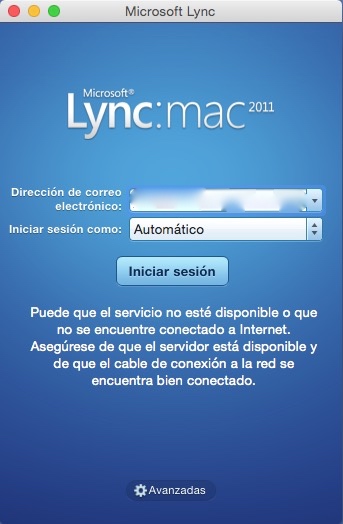
  6. If you have another language selected as primary, such as Spanish, Lync won’t work. It will fail again as shown below.

20141021tu-yosemite-microsoft-lync-lanugage-spanish-error-fail

Other Causes of Error

You may still get the connection error even after using the work-around fix described above. This can happen if your computer has gone into sleep mode, and then you wake it up. Just click the Sign In button again and it should connect.

User Experience Feedback

From Greg Johnson (17 Dec. 2014):

I was unable to start Lync. Here’s what I did:

  1. I checked my default preferred language in settings at it was already set to English.
  2. In an effort to clear out any previous settings, I added French and set it to the default.
  3. I tried starting Lync, but it still wouldn’t load.
  4. Then I removed French and returned to English as the default.
  5. Lync works fine now.

Mactracker Apple Mac Specifications Guide

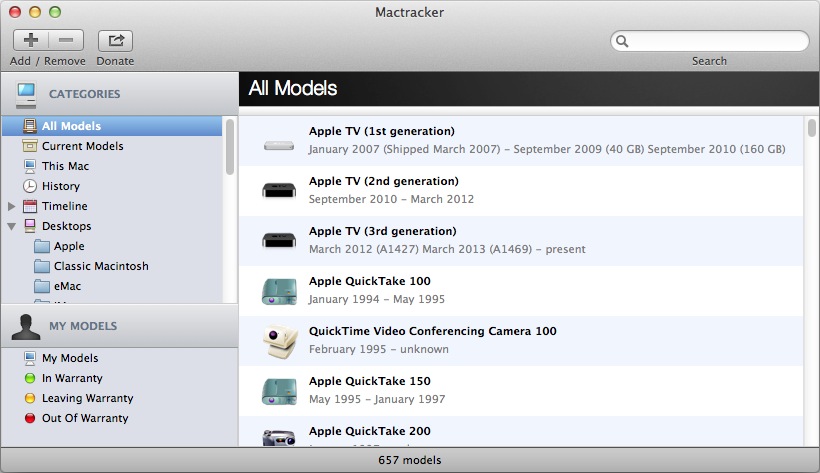
The Mactracker software runs on OSX and iOS platforms, and provides a helpful listing of hardware specifications as well as operating system information. Here’s a description from the developer’s website:

“Mactracker provides detailed information on every Apple Macintosh computer ever made, including items such as processor speed, memory, optical drives, graphic cards, supported OS versions, and expansion options. Also included is information on early Apple systems, Apple mice, keyboards, displays, printers, scanners, speakers, cameras, iPod, Apple TV, iPhone, iPad, Wi-Fi products, Newton, iOS, Mac OS, and OS X versions.”

The latest release, version 7.3.4, has the feature enhancements listed below. Previous versions are also listed.

Please note that this release requires OS X 10.6.8 Snow Leopard or later. Download version compatible with OS X 10.5.8 Leopard.

Version 7.3.4

  • Adds iPhone 6 and iPhone 6 Plus
  • Adds iOS 8
  • Updates Support Status for Apple’s latest Vintage and Obsolete products
  • Other minor changes and additions

Version 7.3.3

  • Adds MacBook Pro (Retina, 13-inch, Mid 2014) and MacBook Pro (Retina, 15-inch, Mid 2014)
  • Adds iMac (21.5-inch, Mid 2014)
  • Adds Apple Lisa and Apple Lisa 2
  • Adds 16 GB configuration to iPod touch (5th generation)
  • Adds details on latest OS X and iOS releases
  • Updates Support Status for Apple’s latest Vintage and Obsolete products
  • Other minor changes and additions

Version 7.3.2

  • Adds MacBook Air (11-inch, Early 2014) and MacBook Air (13-inch, Early 2014)
  • Adds details on latest iOS releases
  • Adds second Wi-Fi ID field to “My Models” for dual-band Wi‑Fi devices
  • Other minor changes and additions

Version 7.3.1

  • Updates iPad (4th generation) and iPhone 5c with latest configurations
  • Adds details on latest OS X and iOS releases
  • Updates Support Status for Apple’s latest Vintage and Obsolete products
  • Other minor changes and additions

Version 7.3

  • Adds Apple I, Apple II, Apple II Plus, Apple III / Apple III Plus, Apple IIe / Apple IIe Enhanced, Apple IIc, Apple IIGS, Apple IIe Platinum, and Apple IIc Plus
  • Adds Apple Monitor III, Apple Monitor II, Apple Monitor IIc, Apple IIc Flat Panel Display, AppleColor Monitor 100, ColorMonitor IIe/IIc and AppleColor Composite Monitor IIe/IIc, AppleColor Composite Monitor, AppleColor RGB Monitor, Apple Monochrome Monitor, and Apple Monochrome Monitor IIe
  • Adds Apple Mouse / Apple Mouse IIc and Apple Mouse II / Apple Mouse IIe
  • Adds typical acoustical performance, where available, to MacBook, MacBook Air, and MacBook Pro models
  • Fixes issue with importing system overview reports created by Apple Remote Desktop to “My Models”
  • Other minor changes and additions

Version 7.2.3

  • Fixes an issue that could cause Mactracker to crash on OS X 10.6.8 Snow Leopard
  • Updates Support Status for Apple’s latest Vintage and Obsolete products

Version 7.2.2

  • Adds Mac Pro (Late 2013)
  • Adds the ability to import system overview reports from Apple Remote Desktop to “My Models”
  • Adds Thunderbolt and 4K display support information to recent Mac models
  • Adds typical acoustical performance, where available, to Mac mini, iMac, and Mac Pro models
  • Fixes issue with importing reports created by System Profiler to “My Models”
  • Other minor changes and additions

Version 7.2.1

  • Adds details on latest iOS releases
  • Other minor changes and additions

Version 7.2

  • Adds MacBook Pro (Retina, 15-inch, Late 2013) and MacBook Pro (Retina, 13-inch, Late 2013)
  • Adds iMac (21.5-inch, Late 2013) and iMac (27-inch, Late 2013)
  • Adds iPad Air (Wi-Fi) and iPad Air (Wi-Fi + Cellular)
  • Adds iPad mini (2nd generation) (Wi-Fi) and iPad mini (2nd generation) (Wi-Fi + Cellular)
  • Adds iPhone 5s and iPhone 5c
  • Adds iOS 7
  • Adds OS X 10.9 Mavericks and OS X Server 3.0
  • Adds additional information on early Mac OS releases
  • Adds case color details to Classic Macintosh, Macintosh Performa, Power Macintosh, and Power Mac G3/G4/G5 models
  • Adds Maximum Battery Cycle Count information to MacBook, MacBook Pro, and MacBook Air models
  • Adds Intelligent Assistant and Processor Architecture information to iPhone and iPad models
  • Adds support for OS X 10.9 Mavericks
  • Updates Support Status for Apple’s latest Vintage and Obsolete products
  • Other minor changes and additions

Version 7.1.5

  • Updates Support Status for Apple’s latest Vintage and Obsolete products
  • Other minor changes and additions

Version 7.1.4

  • Adds MacBook Air (11-inch, Mid 2013) and MacBook Air (13-inch, Mid 2013)
  • Adds AirPort Extreme 802.11ac and AirPort Time Capsule 802.11ac
  • Adds iPod touch 16GB (5th generation)
  • Other minor changes and additions

Version 7.1.3

  • Adds entry to indicate if Power Nap is supported on a particular model
  • Updates name of iPad (4th generation) and iPad mini for consistency with iPhone 5
  • Updates iMac (Late 2012) and iMac (Early 2013) models with new configure-to-order options
  • Fixes an issue where benchmarks were not displayed in Compare
  • Other minor changes and additions

Version 7.1.2

  • Adds iMac (21.5-inch, Early 2013) (Education only model)
  • Includes improvements to “My Models” functionality
  • Adds system requirements to iPod, iPhone, and iPad models
  • Updates Support Status for Apple’s latest Vintage and Obsolete products
  • Other minor changes and additions

Version 7.1.1

  • Updates iPod shuffle (4th generation) with 2012 color lineup
  • Adds pixel density information to Cinema and Thunderbolt display models
  • Fixes an issue that caused Mactracker to crash on launch for some users
  • Fixes an issue with exporting entries in “My Models”
  • Other minor changes and additions

Version 7.1

  • Adds MacBook Pro (Retina, 13-inch, Early 2013) and MacBook Pro (Retina, 15-inch, Early 2013)
  • Adds AppleDesign Powered Speakers, AppleDesign Powered Speakers II, Apple Pro Speakers, and iPod Hi-Fi
  • Updates iPad (4th generation) models with 128 GB configuration
  • Updates Apple TV (3rd generation) with component refresh details
  • Adds the ability to search by serial number for recent models
  • Adds Electromagnetic compatibility (EMC) number for recent models
  • Adds information on maximum number of connected Thunderbolt displays
  • Updates functionality for providing feedback
  • Updates Support Status for Apple’s latest Vintage and Obsolete products
  • Other minor changes and additions

Version 7.0.1

  • Adds iMac (21.5-inch, Late 2012) and iMac (27-inch, Late 2012)
  • System requirements updated to OS X 10.6.8 or later
  • Other minor changes and additions

Version 7.0

  • Adds MacBook Pro (Retina, 13-inch, Late 2012)
  • Adds Mac mini (Late 2012) and Mac mini Server (Late 2012)
  • Adds iPad (4th generation) (Wi-Fi), iPad (4th generation) (Wi-Fi + Cellular) and iPad (4th generation) (Wi-Fi + Cellular Sprint + Verizon)
  • Adds iPad mini (Wi-Fi), iPad mini (Wi-Fi + Cellular) and iPad mini (Wi-Fi + Cellular Sprint + Verizon)
  • Adds iPhone 5 (GSM North America), iPhone 5 (GSM International) and iPhone 5 (CDMA)
  • Adds iPod nano (7th generation) and iPod touch (5th generation)
  • Adds iOS 6
  • Optimized for Retina displays
  • Mactracker is now built with the Cocoa framework
  • Adds marketing tagline, where available, for recent models
  • Adds separate entry for Subscriber Identity Module (SIM) information to iPad and iPhone models
  • Adds environmental requirements to iPad, iPhone and iPod models
  • Fixes an issue that could cause Mactracker to crash on OS X 10.8 Mountain Lion
  • System requirements updated to OS X 10.7 or later
  • Updates Support Status for Apple’s latest Vintage and Obsolete products
  • Other minor changes and additions

20141015we-mactracker-apple-mac-hardware-specifications-operating-systems

Apple Connect to Server Error: The share does not exist on the server.

Introduction

On Apple computers, there’s an option to Connect to Server. This is found in the Go menu of the Apple Finder (file browser). You can also get to this by pressing the Command+K keys. Normally, you would type in a server address, or use a previously saved address to access your files. Sometimes a person will send you a server address to copy and paste into the Server Address box.

Copy and Paste Problem

If in the process of copying and pasting, you mistakenly get additional text, perhaps a line or two of text below the server address, and copy that into the Server Address box, the additional lines won’t be visible.

If you save this pasted address, and it shows up under Favorite Servers, it still will not show that you’ve actually pasted in several lines of text.

Problem Connecting to the Server

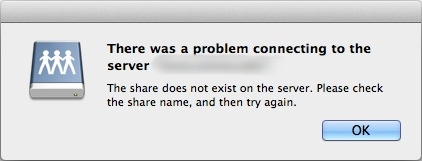
Every time you attempt to Connect to this server address, you will get the following error box:

20141008we-error-there-was-a-problem-connecting-to-the-server-the-share-does-not-exist-on-the-server

Diagnosing the Problem

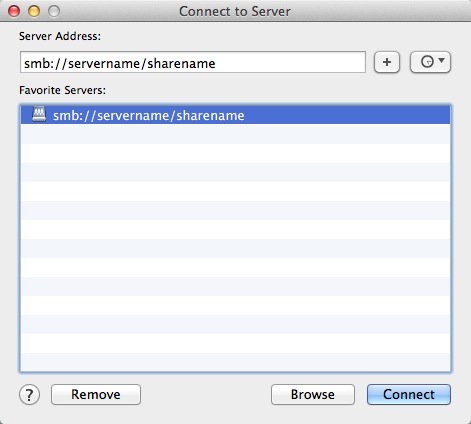
To discover whether or not this has happened to you (additional text was pasted in), open your Connect to Server dialog box as shown below. The Server Address example displayed below actually has two lines of text. There’s a second hidden line of text.

Place your cursor at the end of the typed server address, and press the right arrow key or down arrow key. This will scroll down to additional lines. Alternatively, you can select all (Command+A) and then copy (Command+C) and past (Command+V) into a TextEdit or a Word Processing program to see what’s been previously pasted into the Server Address field.

20141008we-apple-connect-to-server

When attempting to clean up this problem, be sure to select all text in the Server Address field and press delete. Also click / select any saved addresses that don’t work and remove them.

Apple iPod, iPad, iPhone Photo Transfer and Organizing

Summary

Apple iOS devices have several categories of photos:

  1. Photos. This is a presentation of the photos in your device based on date and location.
  2. Shared. If you have iCloud sharing turned on, you can store, backup, and share photos in the cloud, including having a PhotoStream for easy sharing between devices.
  3. Albums. These are collections of photos organized by galleries of your choosing, rather than organized by date or location.

Photo Organizing Overview

It’s best to move photos and images off your device onto your desktop computer for permanent storage and backing up. You can also use your desktop device to organize the pictures you’d like to keep on your mobile device. Keeping lots of photos in the camera roll for sharing later is complicated because the camera roll doesn’t allow for creating and organizing sub-folders.

Photo Transfer Procedure

Follow these steps to transfer and organize your photos:

  1. Image Capture. Use Image Capture to copy your photos to your local drive. After copying, double-check to make sure they all copied properly. If they are really important, you could back them up as well. Then, using Image Capture, choose Select All and Delete them. This is easier than trying to delete photos in your iOS device.
  2. iPhoto. Usually people connect their iOS device and go directly to iPhoto. However, this isn’t a good idea because the folder structure in iPhoto makes it difficult to easily copy, backup, transfer, or work with other programs. So, you’ll want to keep your original images organized in folders on your hard drive before copying them into any image editing program. If you have pictures you’d like to keep on your iOS device, the best way to do that is to use iPhoto and make Photo Albums. Import the photos you’d like to work with into iPhoto. Then make albums. If you’re using iCloud with iPhoto, you could make some photo galleries in iCloud that will show up on your different devices. Otherwise, exit iPhoto and continue to the next step.
  3. iTunes. To get selected photo galleries / albums into your iOS device, you’ll need to use iTunes and synchronize the device. When synchronizing, you can choose what songs, movies, photos, and other content you’d like put on your device. Choose the photo galleries you created in iPhoto (step #2) above.

20141002th-ios-photography-tips-672x372

How to Force Quit a Program on an Apple Mac Computer

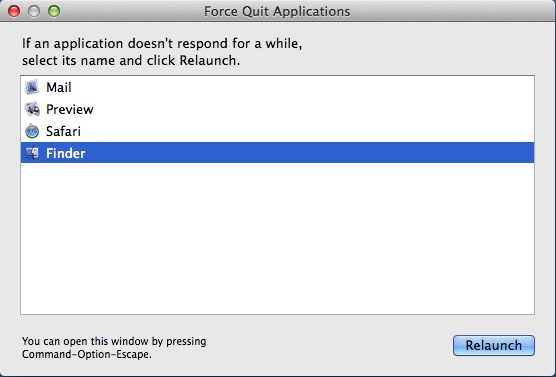
The chart below shows how to force quit a program on an Apple Mac computer. There are two primary ways to do this. You can choose Force Quit from the Apple Menu found in the upper left corner. Or, you can press the alt/option + command + esc keys on the keyboard to bring up the Force Quit menu. Click the image for a larger view.

20140823sa-force-quit-apple-mac-960x540

Apple Mac Force Quit Menu

The Force Quit menu is shown below.

20140823sa-apple-mac-force-quit-menu