Apple iPad Pro Email Signature Duplication Problem

There’s presently an issue that seems to only be happening on the Apple iPad Pro where email signature is duplicated at the bottom of emails when changing the From sending address.

Here’s how to reproduce the error:

  1. Setup multiple send from addresses following the instructions found here: “Using Multiple Send From Email Addresses in Apple iOS.” Keep in mind that this has only been tested for people who have generic IMAP or POP3 email services (like those provided by a website hosting company).
  2. Create a new email message or reply to an existing message.
  3. For the From address, choose an account, and then choose another account. Each time you choose a new account, the signature won’t be replaced (as is normally the case), but instead an additional signature will be placed at the bottom of your message.
  4. If you switch to another app, and return to your in-progress draft email, another email signature will be added again each time you switch away and come back.

If a solution is found, it will be posted here.

Using Multiple Send From Email Addresses in Apple iOS

Introduction

The Apple iOS platform (the operating system for iPhone, iPad, and iPod Touch) let’s you have multiple send from email addresses. This document explains why you’d want to do that, and how to set it up.

Why Multiple Send From Addresses are Helpful

If you have a website, and the website hosting package comes with email service, and if you use a ‘catch all’ email account, you can setup various alias email addresses that forward to a central mail account. Email messages sent to sales@yourwebsite.com or service@yourwebsite.com or billing@yourwebsite.com will all go to the main ‘catch all’ account. Here are some of the benefits:

  • Save Time. A ‘catch-all’ account eliminates having to manage multiple email accounts.
  • Be Spontaneous. You can create an email address in an instant, from anywhere, and know it will work immediately. This is very helpful when standing in line at a store, and wanting to provide an email address that is unique for that vendor.
  • Sort Efficiently. You can setup email rules based on the address a message was sent to.
  • Manage Spam. If you start getting spam at an email address that is unique for a specific vendor, then it may be they are selling your email address to third parties.
  • Keep Organized. If you have several areas of expertise and services you provide, you can have an email for each of them.

How to Setup Multiple Send From Addresses

In the iOS platform (used for iPhone, iPad, and iPod Touch), it’s possible to setup multiple sending addresses. Here’s how this is done:

  • Go to Settings > Mail, Contacts, Calendars > Mail > and selecting an email account.
  • Tap on Account
  • Tap on Email (found below Name)
  • Tap on Add Another Email to create an additional email address you can send from under this same account.
  • You must press the enter/return key after typing the email address to save it. Then you can return back to the main Settings screen, saving as you go.

Computer problems? Time for an upgrade!

Usually when a computer crashes, the first thing people think about is getting it restored to normal operation.

The effort required to restore a computer to working order is significant. Typically replacement parts are needed. The process of reinstalling the operating system, programs, and data files, is hugely time consuming.

If what you end up with is a computer identical to what you had prior to the crash, then you’ve just lost a lot of time and money for no marginal gain in performance.

However, if you take the opportunity to upgrade your computer’s hard drive to an SSD hard drive, then you can have a large performance gain. It’s also a good time to consider upgrading memory since you’ll be inside the computer anyway.

Hard Drive. Here are the steps required to upgrade your computer to an SSD drive. These instructions are for advanced users only.

  1. Purchase an SSD Drive. You’ll want to purchase an internal SSD drive, click here to learn more about the best choice of SSD or something with similar features.
  2. Backup. Make sure you have a good backup of your files.
  3. Install SSD. Remove your old hard drive and install the SSD drive.
  4. Install OS. Install Windows from the original installation discs, or from the recovery USB flash drive created from your computer. If these aren’t available, purchase Windows 10 on a USB. [Available on Amazon]
  5. Follow the Windows Setup instructions to complete the process.

Memory. For memory upgrades, Crucial.com has a system scanner that helps find the most compatible memory for your computer. If possible, it’s good to upgrade to the maximum amount of memory possible for your computer.

If you have questions, feel free to contact us.


Mediacom High Speed Internet MCHSI

Need more internet speed? Is your list of Internet connected devices growing in your home? Then you’re in need of a speed boost!

Take your current Prime 15 Internet to Prime Plus Internet with download speeds up to 50 Mbps* for only $10* more a month for a year (plus modem rental, taxes and fees).

  • No visible loss of speed when multiple users are online
  • Better streaming for music and video – even in HD
  • Faster, almost instantaneous downloads of large files
  • Increased usage allowance from 250 GB to 350 GBa month
  • A better, faster online experience for the whole family
  • Over 3X faster than your current Internet speed
CALL NOW! 866-755-6620

Visit Mobile Website | Visit Full Website

20160223tu2132-mediacom-high-speed-internet-mchsi-service-provider-mbps-fast

__________

Note: The above post is NOT a paid advertisement. We received it by email, and are re-posting it here for those who follow our website and social media. We’ve found Mediacom Internet to be a great solution for residential or business Internet service requiring 50 Mbps or higher speeds.

Using Apple iCloud Email and Alias Addresses

The following is from Apple’s support website as of 22 Feb 2016. It’s being reproduced here for archival purposes, easy reference, centralized searching, and also to be disseminated through our social media and network of followers.


Create or change email aliases

An email alias is an email address that conceals your actual email address from a recipient. You could create an alias to use when buying items from online stores, signing up for mailing lists, and registering online, and reserve your real email address for use with family and friends. In this way, aliases can help you better manage the email you receive and monitor the sources of unwanted messages.

You can also send email using an alias.

You can have up to three active email aliases, and you can delete or turn off an email alias at any time. You might want to turn off an alias if, for example, you use an alias to make a purchase. After you receive the item, you can turn off the alias to avoid follow-up advertisements, then turn it on again when you make another purchase.

Deleting an alias is permanent, so if you think you might want to use the alias again, you should simply turn it off. When an alias is turned off, all email sent to that alias is returned to the sender.

Note: If you had five MobileMe email address aliases when you moved your account to iCloud, you retain the five aliases. However, once you delete one of your five aliases, you can’t create a new one to replace it.

Aliases are not transferable. Only the iCloud account that created the alias can use it as an email address.

You can’t use an alias to sign in to iCloud.com, and you can’t use an alias to create a separate iCloud account.

Create an email alias

  1. In iCloud Mail, click the Action pop-up menu in the sidebar, then choose Preferences.
  2. Click Accounts.
  3. Click “Add an alias.”
  4. Provide the requested information:
    • Alias: The text you provide becomes the email address (alias@icloud.com). An alias must contain between 3 and 20 characters.
    • Full Name: The name you provide appears in the From field of the recipient’s email.
    • Label: iCloud Mail uses the label to categorize messages sent to your account.
    • Label Color: Messages appear in your Inbox with the colored label that you specify.
  5. Click OK, then click Done.

Change, turn off, turn on, or delete an alias

  1. In iCloud Mail, click the Action pop-up menu in the sidebar, then choose Preferences.
  2. Click Accounts.
  3. Select the alias in the Addresses list, then do any of the following:
    • To choose a new color for incoming messages, click a Label Color option. Alias labels appear only in the iCloud Mail app on iCloud.com.
    • To change the name or label, enter a new alias name and label in the fields provided. Alias names must contain between 3 and 20 characters.
    • To turn off an alias, select “Disable alias.”

      When an alias is turned off, all email messages addressed to that alias are returned to the sender.

    • To turn on an alias, deselect “Disable alias.”
    • To delete an alias, click Delete.
  4. Click Done.

Select addresses you can send from

  1. In iCloud Mail, click the Action pop-up menu in the sidebar, then choose Preferences.
  2. Click Composing.
  3. Click the “Set a default address” pop-up menu, then choose the address you usually use.
  4. In the list of addresses, select the ones you want to be able to send from while using iCloud Mail.

    The selected addresses appear in the From pop-up menu when you create a new email message. For instructions, see Send email using an alias.

Set a default address to send from

If you created aliases or you have an @me.com or @mac.com address in addition to your @icloud.com address, you can choose one to use as the default address when sending mail from your iCloud account.

  • In iCloud Mail, follow the instructions in “Select addresses you can send from,” above.
  • On your iOS 8 device, go to Settings > Mail, Contacts, Calendars > iCloud. In the Advanced section, tap Mail, tap Email, then tap the address you usually want to send from.
  • On your iOS 7 device, go to Settings > Mail, Contacts, Calendars > iCloud > Account. Tap Mail, tap Email, then tap the address you usually want to send from.
  • On your Mac, open Mail, then choose Mail > Preferences. In the Composing pane, click the “Send new messages from” pop-up menu, then choose the address you usually want to send from.
  • On your Windows computer, do one of the following:
    • In Outlook 2010, 2013, or 2016, choose File > Info > Account Settings > Account Settings, click the Email tab, select the address you usually want to send from, then click “Set as default.”
    • In Outlook 2007, choose Tools > Account Settings, click the Email tab, select the address you usually want to send from, then click “Set as default.”

What are the basic specifications I need for a new computer?

For people in the process of replacing an old computer, a common question is “What are the basic specifications I need for a new computer?”

That may seem like a fairly simple question, and one that needs to be answered individually for each person’s needs. However, the answer is almost always the same. This is because you don’t need to buy a computer to meet your needs, you need to buy a computer that meets the computer’s needs.

In other words, as new operating systems and software are released, and new updates are installed, the computer needs to be more powerful over time regardless of what you do on the computer there are tasks that the computer needs to do itself, such as running background antivirus and security software that is growing more complex every day.

The Short Answer

The short answer is that you get increasingly good value for your money spent up to a certain point. So, a mid-range or higher computer is usually a good choice for just about anyone. As of February 2016, that means you’d want a computer with a Core i5 or Core i7 processor and 8 or 16 GB of memory. There’s a price jump to go to the faster processor and more memory, but you’ll notice and appreciate the extra responsiveness every day that you’re using it over the next 5 to 7 years.

If you’re a Windows user, visit the Desktop Deals page on Dell’s website to see some good sales, with examples of Core i5 computers that have 8GB of memory and cost about $600 to $700, or Core i7 computers for a bit more money. If you prefer buying an Apple computer, the 21.5″ iMacs are a good value for what you get.

Below are some additional thoughts and considerations.

Getting the Best Value

You want to get the best value for the money spent. At a certain price range, spending a little more money will result in a much better computer, but after a certain point, spending more results in paying a lot more for very little noticeable gain. You want to find the point of diminishing noticeable returns. That’s where the best value is.

When large companies purchase thousands of computers for their employees, it’s not uncommon to buy everyone the same model with the same specifications. This isn’t because everyone does exactly the same kind of work. It’s because there’s a certain computer that ends up being a great value for the money.

A computer that’s unnecessarily fast may be an additional expense you’ll never benefit from. For example, an Apple Pro computer, when fully equipped could cost $10,000. Most people wouldn’t perceive the additional benefits of that computer unless they are doing video editing or other intensive tasks.

Buy for Longevity

Why are you currently in the market for a new computer? Probably because your current computer has become slow over time and it’s no longer economical to upgrade the system. You’d rather just purchase a new one. New computers are more energy efficient. They are faster. They are quieter. They have other advantages. Keep in mind that you’ll be feeling the same way all over again in 3 to 5 years. Over your lifetime, if you can spend a little more money and buy computers that have a longer effective use lifespan, you’ll likely save money since there are other costs to upgrading. In other words, getting ‘cheap’ computers every 3-5 years may be more expensive than getting ‘expensive’ computers every 5-7 years.

A ‘Right-Sized’ Fast Computer Pays for Itself

If you ever need to pay someone work on your computer, installing updates, cleaning viruses, transferring files, or reinstalling the operating system and software, a faster computer (and faster Internet service) can pay for itself in the money you’ll save on labor fees. Given that tech support rates are like other service professions, having a person working on a slow computer becomes very costly. The money you thought you were saving will be gone in the first service call, and what’s worse, you end up having to work on a slow computer. As long as you’re not spending thousands of dollars, it’s generally true that a faster computer will pay for itself over time if you are regularly paying people (technicians or employees) to work on it.

Consider the Alternatives

Other than getting a basic computer, there are some interesting alternatives:

  • Apple iPad Pro. Depending on what work you need the computer for, a tablet device with a keyboard may be all you need. The Apple iPad Pro provides a 12.9 inch display and will do 90% of what most people use computers for. Some households use only iPads, and share a printer, without having any other computers or devices.
  • Laptop Computer. If you anticipate needing some mobility, a laptop computer can be used on its own, or connected to a larger display, keyboard, mouse, and other peripherals to be used like a desktop computer. So, it’s like having two computers in one.
  • Used Computer. Some communities have excellent stores where used computers are sold. In Iowa City, for example, there is a Goodwill Reboot Store. You can typically get a really good value for your money. By adding more memory and a solid state drive, you’ll end up with a computer that’s faster and more reliable than comparable systems costing hundreds more. They do their best to check the systems before selling them, but because of the 3-day exchange policy (in-store-credit only), you’ll want to make sure you test any new equipment thoroughly within the first 72 hours of purchase.
  • Windows All-in-One Touch Screen. The Dell Inspiron 24 3000 Series All-in-One computers are very slim, fast, cable free, and have large sharp touch screen displays. These range in price from about $700 to $900 depending on how they are configured (see the AMD versions or Intel versions). They are also available at Costco.


20160218th0642-computer-purchase-tips-960x540


Apple iPad Pro Pencil Stylus Actually DOES Have a Magnetic Mount

When Apple introduced the iPad Pro and optional Pencil stylus, reviews in the tech media and journals were quick to compare it with the Microsoft Surface. One of the primary criticisms was that the Apple Pencil didn’t magnetically hold to the iPad Pro. The Microsoft Surface Pro was touted as being better because it came with a stylus and the stylus could be held on magnetically:

“The Surface pen docks with strong magnets to the sides of the tablet, which is handier than you might think. … The iPad Pro doesn’t have any such docking feature, perhaps because the Apple Pencil is an optional accessory, but I think this is an oversight. Apple could have at least incorporated a holder on the keyboard.” (Source: LifeHacker, Melanie Pinola, 17 Jan 2016)

This has been a common commentary across multiple reviews.

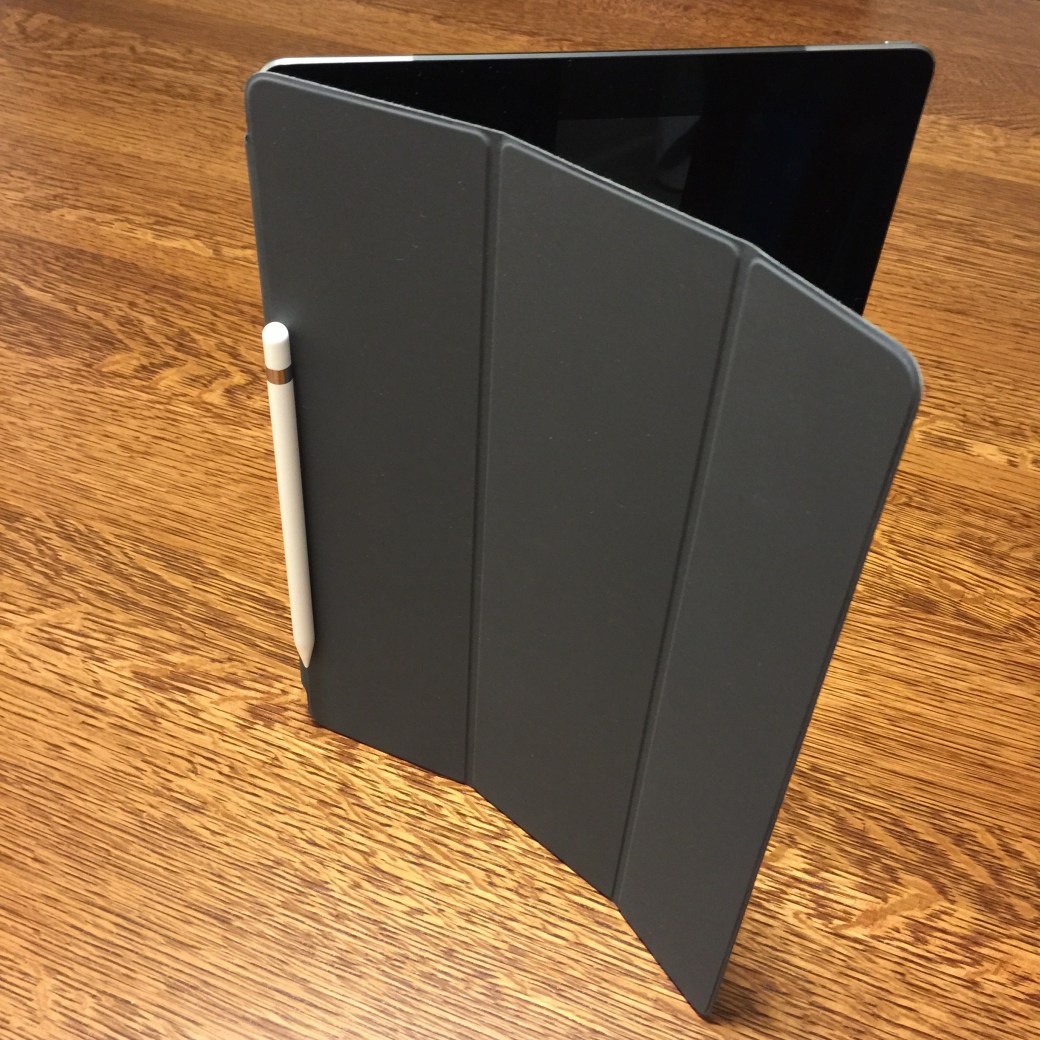
Imagine my surprise this morning when I woke up, and put my Apple Pencil on the edge of my iPad Pro and found that indeed it DOES hold to the case magnetically as shown below.

I’m surprised that the media misreported this. Even more surprising is that Apple never responded to the criticism to set the record straight, nor does Apple mention among the features that the Pencil can be held on magnetically.

It’s a natural inclination to put the pencil on the case at the edge (just like a school notebook and wooden pencil), even if you don’t know it can be held magnetically.

20160205fr0719-apple-ipad-pro-pencil-pen-stylus-magnetic-holder-case-microsoft-surface-IMG_6252

Transfer Windows Live Mail to Microsoft Outlook

If you’ve been using Windows Live Mail and plan to upgrade to a new computer, you may want to follow these instructions to get your email transferred. These instructions assume some advanced knowledge of Microsoft Outlook.

  1. Go to Office365.com to purchase the full Microsoft Office 2016 suite (if you don’t already have Microsoft Outlook).
  2. Setup access to a compatible email account using POP3. This part is important because if you setup a regular Gmail or other IMAP-like synchronizing email account, the system will try to upload (synchronize) your imported emails and that can really slow down the process or cause it to fail.
  3. Open Windows Live Mail.
  4. Open Microsoft Outlook.
  5. From the File Menu in Windows Live Mail, choose Export to Excel.
  6. Choose to export all folders or select the ones you’d like to export.
  7. If the process completes, Microsoft Outlook will now have a folder with your messages in it.
  8. Save your messages to a PST file, or plan on using the default Outlook PST file and copy it to the new computer after the import / transfer is complete.


Enable Speech on iPad or iPhone to Hear Text

When you turn on the Siri text to speech feature, it’s possible to listen to web pages, emails, text messages, and other text. This is a huge time saver and lets you go about your work with hands and eyes free as you listen.

To enable speech on an Apple iPhone, iPad, or iPod, follow these steps:

  1. Go to Settings
  2. Tap on Accessibility
  3. Tap on Speech
  4. Turn on Speak Selection by moving the slide button to the right until it has a green indicator.
  5. Tap on Voices
  6. Tap on English (or your language of choice)
  7. Select a voice to use. The enhanced voices will sound much more natural and may be easier to understand. These require a download.
  8. Once you’re done with the above steps, you can select text in any app on the device, and once the text is selected you’ll see an option to Speak. However, don’t exit the Voices selection yet.
  9. You will want to try out a few of the enhanced voices to see which you prefer. To do so, press the Home key twice to switch to another app. Or, press it once to go to the home screen and start an app such as email or Safari to browse the web. Now you can press home twice to toggle between the two screens — the app you want to read from and the Voices selection screen.
  10. Change to a voice and then switch back to the app to select text and choose Speak. Each time you’ll hear the voice you’ve just selected in settings.
  11. You will also want to adjust the speed of speech to see what speed is best for you. This is found under General > Accessibility > Speech. The Speaking Rate is illustrated by a turtle or a rabbit. When you adjust the speed, the default voice will read a sample. To hear how your selected voice (from step #9) sounds with the speed setting, you can go to a document as described in step #9 above.

Network Solutions and Apple Email Setup for iOS and OS X

Problem Summary

If you’re a Network Solutions website hosting customer with email service, when setting up email on Apple mobile devices, the default folders may not work, and may not coincide with what is used in the Network Solutions web based email or the Apple OS X desktop Mail client. This is because the iOS and OS X mail clients are somewhat different in how they work. As a result, you might end up with emails going into different folders or no folder at all. This is especially a problem for Sent Mail and Archived mail.

Discrepancies in iOS and OS X Mail Clients

As mentioned above, iOS and OS X use different default mail folders on some email services. Additionally, the OS X desktop mail client doesn’t allow you to specify what folders to use . The iOS mail client does let you select what folders to use. Folders such as Drafts, Sent Messages, Deleted Messages, and the Archive Mailbox can be assigned however you wish in the iOS environment.

Another difference between the platforms is that OS X won’t synchronize with Microsoft Hotmail, but iOS will. So, with Apple mobile devices, you can enjoy the convenience and assuance of knowing that when you delete messages or move them to folders on your mobile device, the same will be done on the Microsoft Hotmail server. However, with the desktop mail client, only downloading of messages is possible (using the decades old POP3 standard).

Preliminary – Archive Folder

The Network Solutions email system does not have an Archive folder by default. If you create one under My Folders on the server in the web interface, it will immediately be given an icon and moved to the top level folders under Trash. Other folders you create under My Folders will remain there with a folder icon, but the Archive folder is special so it gets moved to the quick links favorites area.

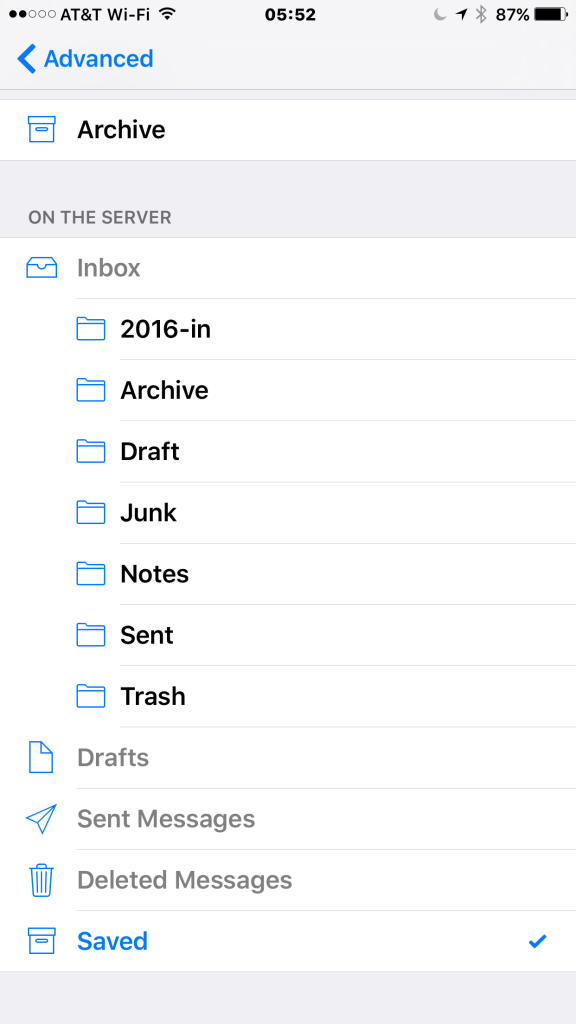
This Archive folder is what iOS can use. It will show up in iOS as a top-level folder called Saved in Advanced Mail settings. This is a little bit confusing since you’d be looking for a folder called Archive .
20160130sa0608-iOS-mail-client-folder-assignment

To get to this setting, on your mobile device, go to Settings > Mail > Choose the mail account you want to configure > Click on the email address next to Account > then click on Advanced.

The Archive Folder is a very useful folder to have since many email systems will have a one-click button to move read messages from the Inbox to the Archive folder. It saves a person from the steps required to move messages to a folder (select message, click move, choose destination folder).

An alternative is to go ahead and use the longer three-click process to manually Archive messages by moving them to a folder.

iOS Alias Folder Renaming

Before folders on the server are assigned to email roles as described below, they will initially appear in the Advanced settings under the On the Server heading below Inbox. Once they are assigned to a role on the iOS device, regardless of what they are called on the server, they will no longer show up under Inbox, but instead they will appear at the top level as an iOS alias name with an icon. The remaining folders available on the server will be listed, but not the ones having been assigned.

Take a look at the image above. Notice the folders under On the Server and Inbox. When you first setup an email account, or before you’ve configured the folder assignment, every folder on the server will show up under Inbox. Once you select the assignment, they won’t show up anymore. So, the top level folders Drafts, Sent Messages, Deleted Messages, are the generic names representing whatever setting /assignment you chose for that folder.

For the remaining instructions, you’ll need to go into the Advanced settings to configure your iOS Mail settings.

For iPhone Running iOS 9.2

Some people will always use a website to check their emails. Other people always use a mail software program to read and compose emails. If you are someone who uses the web interface, you’ll want your folders to be the same on your iOS device. Use these settings on the iOS device to match the Network Solutions default folders.

  • Drafts  — Use Draft folder at the top level On the Server, not the Drafts folder under the inbox tree of subfolders.
  • Sent — Use the Sent folder at the top level On the Server, not the Sent Messages under the inbox tree of subfolders.
  • Deleted — Use the Trash folder at the top level On the Server, not the Deleted Messages under the inbox tree of subfolders.
  • Archive – Use the Saved folder at the top level On the Server, not the Archive folder under the inbox tree of subfolders.
  • Spam – Use the Spam folder under the inbox tree of subfolders.

For iOS 9.2.1 on iPad use the iOS settings above if you’re using the web interface a lot and want the defaults to work, or use the OS X settings described below if you want the Apple Mail client and your iOS devices to be the same. Unlike the iPhone, the folders won’t show up as top level or sub folders in iOS on the iPad. They will all be at the same level so pay attention to the names.

iOS and OS X Incompatibilities

Note that iOS lets you customize server folders for IMAP, but OS X doesn’t allow this. The OS X Mail client creates non-standard folders on the server and forces those to be used. So, in other words, drafts created with OS X will show up in Inbox>Drafts, but drafts created with iOS (or the web interface for the NetSol email) will show up in the top level Drafts folder. The real problem here is created by the fact that Apple Mail on the desktop creates new folders on the server rather than using the existing default server folders. So, the iOS device must be configured accordingly.

OS X Mail Settings for El Capitan

With the desktop Apple Mail program, the following folders will be created on the server and you can’t change or remove them (they will be created again by Mail if you do). It’s important to note that the default settings in Mail may not be correct when you setup a new email account. To check this, go to Mail > Preferences > Accounts > click on the new account > go to Mailbox Behaviors. Be sure to check all boxes in order to save all Drafts, Sent, Junk, and Trash on the server. In this way, all these messages will be available on your various devices.

Here’s an example of what can happen if you don’t store messages on the server. In the morning you might write up an important email and send it out. Then, later in the day, from your phone, you want to see that message again, but you won’t find it in Sent messages because it’s not available on the server, it was just locally stored on your Apple computer.

Here is the folder structure setup on the mail server by the Apple Mail program.

  • Drafts – This will be a folder called Drafts created by Mail on the server under Inbox tree of subfolders.
  • Sent – This will be a folder called Sent Messages created by Mail on the server under Inbox tree of subfolders.
  • Deleted – This will be a folder called Deleted Messages created by Mail on the server under Inbox tree of subfolders.
  • Archive – The Apple OS X Mail Client will use the Archive folder created on the server. It should be setup first on the server so it’s properly recognized at that level in the display of the web interface. Otherwise, it will remain in the tree of subfolders under the My folders heading without an icon in the web interface. If needed, you can move any emails already in the folder to a different folder. Then delete the Archive folder (once you’re certain the emails are moved and backed up). Then when you recreate the folder on the server, it will move to the top-level with an icon.
  • Junk – This will be a folder called Junk created by Mail on the server under Inbox tree of subfolders. This is called Spam in iOS.

Note that in iOS 9.2.1 on the iPad the top level folders may be mixed in with the sub-folders.