News Feed

How to Purchase and Download Microsoft Office 2016 for Apple Mac

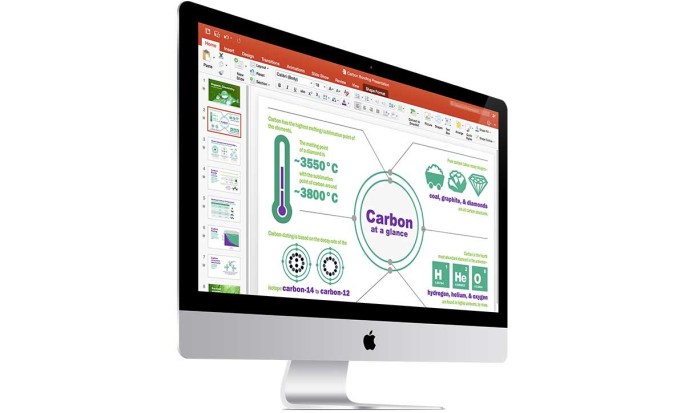
On 31 October 2014, Microsoft announced the release of a new version of Outlook for Apple Mac OS X computers. It’s designed to look like the Windows 8 design Office 2013 Windows applications.

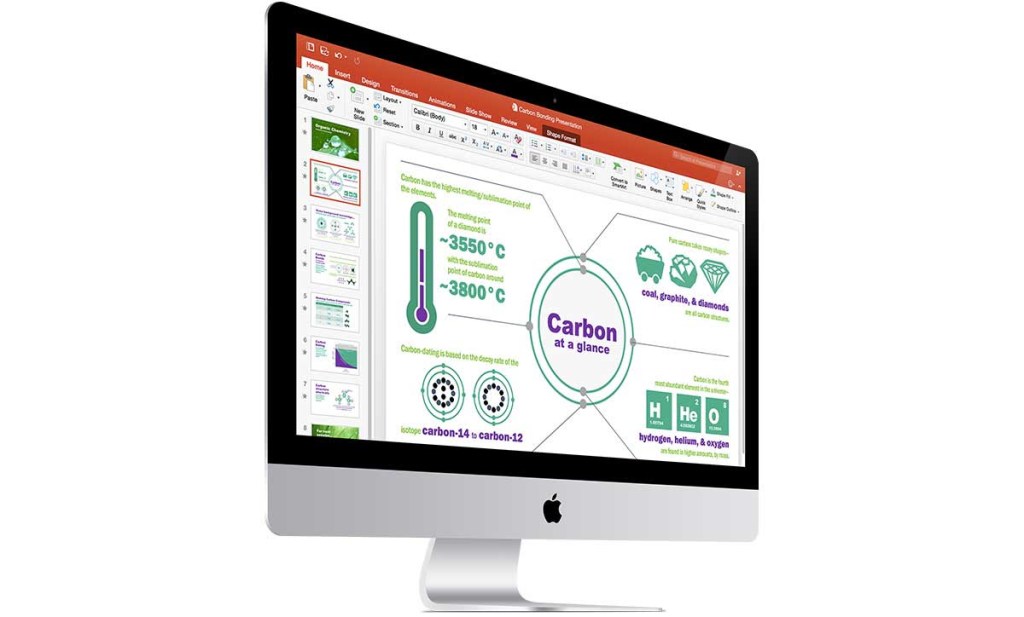
On 9 July 2015, Microsoft released Microsoft Office 2016 for Apple Mac. The new Word, PowerPoint, and Excel apps are similar to Outlook in appearance, and look like their Windows counterparts.

Office 2016 for Windows is only available as a public beta preview.

20150709th-microsoft-office-2016-apple-mac-os-x


Apple Public Beta Website Outage News and Updates

In the past 48 hours, Apple has received exceptional press coverage in technical news blogs for their Public Beta program. It’s a great opportunity for Apple to impress people with their latest desktop and mobile operating systems (El Capitan and iOS9).

These links will take you to the appropriate pages:

Site News

As of 5:30 AM the Public Beta site is working again.

As of 3AM Pacific Time on Friday, July 10, those attempting to get access to the Public Beta will get an error when landing on the page, or if the page loads, when attempting to register by authenticate with their Apple ID.

The error isn’t the expected, “We’re experiencing too many visitors right now. Try again later.” It’s not that. Nor is it the “We’re upgrading our site.”

Instead, the error message below shows up. One of the rules of having a successful Public Beta program is to make sure that the Beta Program isn’t itself a beta version.


We’re sorry, but something went wrong.

We’ve been notified about this issue and we’ll take a look at it shortly.

Information for the administrator of this website

The Phusion Passenger application server encountered an error while starting your web application. Because you are running this web application in staging or production mode, the details of the error have been omitted from this web page for security reasons.

Please read the web server error log to find the details of the error. If you don’t know where the web server error log is, read the troubleshooting documentation below.

Alternatively, you can turn on the “friendly error pages” feature (see below), which will make Phusion Passenger show many details about the error right in the browser.

Phusion Passenger troubleshooting documentation:

To turn on friendly error pages:

Page Screen Shot

Below is a screen shot of the error page. Click the image for a larger view. The URL is for the landing page after entering your Apple ID.

20150710fr-apple-public-beta-website-down

System Crashes: New York Stock Exchange, United Airlines, and Wall Street Journal

With the past few days, there have been multiple coordinated attacks on our national technology infrastructure. According to a report by the Washington Post, “FBI officials believe the attacks required expertise.”

report in USA Today states: “Repeated and successful attacks on fiber-optic cables in California have security experts warning the Internet’s physical infrastructure is ‘basically unsecured’ and vulnerable to both casual and determined attackers.”

The map below, provided by 9 News, shows numerous Comcast outages across the nation.

201530tu-comcast-national-internet-outage

Here’s a video that describes the outages:

[youtube https://www.youtube.com/watch?v=LHnG-n0-o9c?rel=0]

Today, New York Stock Exchange was taken offline, the Wall Street Journal website was taken down, and United Airlines was shut down with flights grounded from coast to coast.

One would hope that it took a sophisticated army of cyber criminals to bring down United Airlines. Yet, United Airlines claims that the nation-wide outage was due to a router failure. If we are to believe them, it’s more troubling is to think that a single point of failure, of a single component, caused a major airline to shut down.

If our infrastructure is so shoddy and fragile that it fails without any human intervention, what would happen if people tried to take it down?

The same can be said for the New York Stock Exchange and the Wall Street Journal website. It would be more comforting to know that those outages were part of a coordinated attack.

Further Reading

Here’s What You Can Do To Help

Given the rise in high-profile attacks, it would be wise for everyone to increase their own security efforts for personal and business computing.

You may think that you’re a much less important target for hackers than an air traffic controller, bank president, or nuclear power plant worker. However, any hacked account or computer is typically only a few relationships removed from a high level target. It’s estimated that we’re all about six degrees of separation from anyone else. Which means that every target is equally important to a hacker. Additionally, hackers work on building aggregate networks of hijacked computers for launching attacks on critical infrastructure.

Here are some resources for proactive security measures you can take:

  • Account Security. Be sure your accounts are setup with complex passwords and two-step authentication. Read our document on Email Safety and Online Account Security.
  • Data Redundancy. Make sure your critical data is in three places: local hard drive, backup hard drive, and cloud storage. Make sure you have a regular backup plan and don’t leave your backup drives connected to any computer since new viruses attack files on all attached drives. Be sure to have more than just a backup of your current files. Keep backup of your file versions in the event that current files become corrupted and then overwrite your only backup.
  • Computer Security. Use a high quality paid subscription antivirus and security program such as Bitdefender or Kaspersky.
  • Credit Card Security. A debit card that pulls directly from your bank account, can leave you with no money in the bank if it’s stolen. That can result in bounced checks and other fees. However a credit card creates a firewall between you and thieves. If your card is stolen, you can report it and have it cancelled.
    • Consider having several credit cards so you can use one for online transactions and higher risk purchasing while traveling. Use one for regular monthly bills. It’s less likely to get stolen if it’s only used for a few recurring monthly bills. That way, if a more exposed travel/high-risk card is stolen. You simply need to cancel it, but won’t need to contact a dozen merchants to provide them with a new number.
    • For an extra measure of security, consider purchasing no-fee American Express Prepaid Reloadable credit card for online purchases. In this way, you won’t need to give out your primary credit card numbers. You can use these cards for one time payments, or refill them for ongoing use.
  • Email Security. Follow best practices with regard to email security. Read our document on Email Safety and Online Account Security.
  • Financial Security. Use a service like Equifax to monitor your credit activity.
  • Identity Security. Use a service like LifeLock to secure your personal identity.
  • Password Safety. Consider using a password manager like 1Password that uses local encrypted storage of your password list. Do not store this in the cloud and do not synchronize through the Internet. Synchronize through your local network only. Maintain a copy of your passwords on your computer and also on a mobile device with biometric security (fingerprint reader). Alternatively, you can write your passwords and account information on paper and store them in a fireproof and waterproof safe. Using a multi-function home copier, you could make a backup copy and leave it in a safe place.
  • Redundancy. Maintain a second computer with a backup of your essential files and contacts. Have it configured to function for printing, network, email, and other functions in the event that your primary computer goes down. Create a non-computer-reliant system for your daily tasks. In other words, for all the tasks you rely on your smartphone or computer, figure out a pen and paper solution.
  • Social Media Security. Be vigilant when using social media. Don’t accept friend requests from people you don’t really know. It would mislead your friends into accepting a friend request from a person they think you know and approve of.

Job Opening: Technology Coordinator at Scattergood Friends Quaker School

Summary of Position

Scattergood seeks a part-time technology coordinator to begin employment on July 1, 2015.

The school is able to consider this position with other part-time work with the school.

The technology coordinator’s duties incorporate three main areas of responsibility:

  • support for student and staff technology use on campus
  • managing and maintaining the campus network
  • managing and maintaining school-owned information technology hardware

Application Contact

Those interested in applying should contact Thomas Weber by email to TWeber@scattergood.org.

About Scattergood

Established in 1890, Scattergood is an extraordinary Iowa City area college prep boarding and day school known for its progressive academics, organic farm, and prairie. [More…]

Mission: Scattergood Friends School challenges students with a college-preparatory curriculum, farm experience, a shared work program, and community living in the spirit of Quaker faith.

Primary Responsibilities:

Develop a system to be responsive to student and staff needs primarily involving the maintenance and management of 60 computers in 1:1 laptop program with Acer laptops running Windows 7 and 8

  • Ability to upgrade and phase-in new software and hardware
  • General troubleshooting
  • repair and rebuild in timely fashion

Maintain campus wireless network to ensure smoothly operating internet access and work to meet demand for increased bandwidth

  • Access-point and router configuration and troubleshooting
  • Working with internet provider to evaluate connections

Configure and maintain Watchguard Firewall

  • updating policies
  • setting up users
  • traffic monitoring

Manage the school’s Google Apps environment

  • Setting up users/groups and troubleshooting as needed

Work with office manager and academic dean to train teachers to use online grade book (RenWeb)

Setup and maintain peripherals like printers, 3D printer and projectors

  • Provide teachers with ideas and support to incorporate innovative technologies into their classroom practices.

Maintain an orderly work environment and technology office

  • Keeping an accurate inventory of supplies
  • purging of old materials
  • ordering of new supplies

Contact and effectively use outside consults/resources.

Develop and utilize with the Head of School a multi-year technology plan and budget

Skills, Qualifications and Experience:

  • Ability (with high levels of social intelligence) to be responsive to diverse constituent requests.
  • General knowledge of local computer networking
  • Basic understanding of computer anatomy/repair
  • Strong organizational skills
  • Self-directed working habits
  • Experience working with technology support in a professional setting

20150622mo-scattergood-friends-quaker-school

iPhone Won’t See and Can’t Setup or Recognize FitBit One Bluetooth

If your iPhone mysteriously can’t find your FitBit One activity tracker, you may think it’s your phone, and you might try restarting the phone, resetting the phone entirely, removing the software, or some other method of fixing the problem.

However, there’s an easier and quicker solution worth trying first.

You simply need to restart the activity tracker device, and you’ll very likely discover that everything starts working again and the phone will recognize the device again.

The restart instructions are found here:

http://help.fitbit.com/articles/en_US/Help_article/How-do-I-restart-my-tracker

There are unique steps for each device, but generally you’ll want to plug it in, and then press and hold a reset button or action button for about 3 to 10 seconds (depending on the device). Follow the instructions linked above for your particular unit.

Setting your device to synchronize throughout the day can help you ensure that your steps and activity will be uploaded regularly. Then, if the unit fails at some point, you won’t loose an entire day’s worth of data. You’ll just be without the data from the time that it failed.

Here are the reset instructions for the FitBit One:

  1. Plug your charging cable into your computer.
  2. Plug your One tracker into the charging cable, making sure that the gold contacts on your tracker align with the gold contacts in the inside of the charger.
  3. Hold down your tracker’s button for 10-12 seconds.
  4. Remove your tracker from the charging cable and press its button until the screen turns on.

Dell XPS 13 Ultrabook Battery Replacement Video and Required Tools List

The Dell XPS 13 battery comes with a 1-year warranty. As a result, many users are finding they need to replace the battery after a year of use. The video below provides a good presentation of how to remove the battery, but details on the specific tools are missing. More details about the tools needed are found below.

Tools Needed

The video states, “You’ll need a philips head screw driver and a size T5 star screwdriver.”

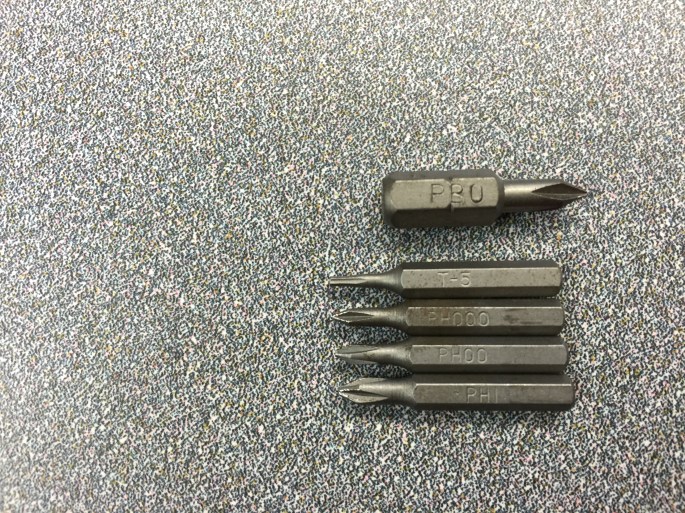
We went through many tips before we found a working phillips tip that would work on screws holding the battery in place. The one that finally worked was marked PB0. It needed to be small, but broad.

The ‘star’ bit is actually a Torx T5.

Other useful tips would be the PH000, PH00, and PH1. These are shown below.

You may also need something to carefully pry the battery and other parts away from the computer.

20150615mo-screwdriver-tips-torx-t5-phillips-ph000-ph00-ph1-IMG_8413

Tool Kits Available on Amazon

Here are some useful tool kits for this and other projects:

__________

Thanks to Makur for contributing to this article.

Find Your Dell Computer Service Tag Serial Number to Lookup System Configuration Information and Drivers

This is a simple and useful process for obtaining your Dell computer service tag (serial number) and lookup your system configuration.

Obtain the Service Tag (Serial Number)

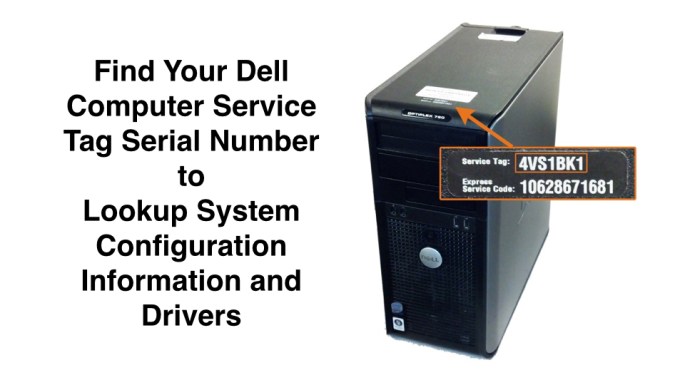
The Service Tag (serial number) should be printed on the bottom of your computer. If it is missing, scratched off, or not readable, there’s an automatic way to look it up.

With any computer purchased used on eBay, Craig’s List, from a pawn shop, or other source with unknown history, it’s possible that the Service Tag may be incorrect. If the system board (mother board) has been swapped out, you won’t know the Service Tag number for sure unless you run this process.

  1. From the Start Menu type CMD and press Enter.
  2. From the Command Prompt, type: wmic bios get serialnumber
  3. Press Enter
  4. The serial number should be displayed.

Lookup the System Configuration

On the Dell website, you can lookup the system configuration based on the computer serial number. A quick lookup will reveal the original system configuration. There’s also a utility on Dell’s website that will scan your system and give you the latest configuration information.

  1. Go to http://www.dell.com/support/
  2. Look for this text “Enter a Service Tag or Express Service Code” and enter your Service Tag there.
  3. Click Submit.
  4. On the resulting page there is a lot of information available by clicking on the various tabs and links.

__________

Note: Thanks to Makur for assisting with the above article.

Apple ID Two-step Verification

Two-step verification is now available for Apple ID account holders. The information below is an overview from the Apple website. You need to sign-in to see these instruction on the Apple site, which you probably can’t do if you’re having trouble with logging in.

Two-step verification for Apple ID.

With two-step verification, your identity will be verified using one of your devices before you can make changes to your account, sign in to iCloud, or make iTunes or App Store purchases from a new device.

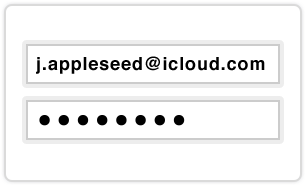
(1) You enter your Apple ID and password as usual.

step 1

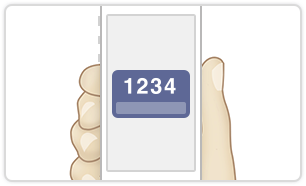
(2) We send a verification code to one of your devices.

step 2

(3) You enter the code to verify your identity and complete sign in.

step 3

You will also get a Recovery Key for safekeeping which you can use to access your account if you ever forget your password or lose your device.

Simple and more secure.

Once enabled, the only way to make changes to your account will be to sign in with two-step verification.

  • There will be no security questions for you to remember or for other people to guess.
  • Only you will be able to reset your password.
  • If you forget your password, you can reset it with a trusted device and your Recovery Key.

For more information, read the FAQ.

Important things to remember.

Please make sure you understand the important security policies below before you turn on two-step verification.

  • With two-step verification enabled, you will always need two of the following to manage your Apple ID:
    • Your password
    • A trusted device
    • Your Recovery Key
  • If you forget your password, you will need your Recovery Key and a trusted device to reset it. Apple will not be able to reset your password on your behalf.
  • App-specific passwords will be required to use iCloud with any third party mail, contacts, or calendar apps.

Recording Television Shows to DVD with a Digital Video Recorder DVR DVD System

Here are a few of the options available for recording television shows to DVD:

  • TiVo. For about $12 a month, the TiVo subscription service provides a sophisticated user interface and intelligent content searching system making it easy to find and record all of your favorite shows to hard drive media system.
    • A TiVo Roamio DVR deck is required. The basic Roamio system is $200 and records up to 500 hours of programming. The Roamio Plus is $400 and records 1,000 hours of programming along with the ability to watch recorded videos on your mobile device while away from home.
    • To record to DVD, you’ll need Roxio Media Creator (for Windows) or Roxio Toast (for Apple). However, compatibility with TiVo has diminished over the years, and support seems to be nonexistent with only user support forums as a resource.
  • Panasonic DMR-EH69 DVR. A Panasonic DVR system doesn’t have the intelligent channel guide and show searching features of TiVo, but that also means there’s no monthly subscription fee. Once you determine which channel your shows are on, you can program the deck to record them. The 320GB deck is the best choice and can be purchased from Amazon ($450) or World Import ($439). So, it’s similar in price to the TiVo Roamio Plus deck, yet with fewer hours of recording capacity. Read more on Amazon.
  • Magnavox MDR557H/F7. At $326, the Magnavox DVR system with 1,000 GB of storage is by far the best value and offers about 3X the storage of a Panasonic desk. Read more on Amazon.

TiVo to DVD Instructions

Creating a DVD on a PC

To create DVDs on a PC, you will need to install Roxio Creator.

Visit the Roxio Creator 2012 home page for more information or to purchase Roxio Creator 2012.

Hide the steps
  1. Before you begin, make sure that you have transferred your shows to your computer using TiVo Desktop software for PC.
  2. Watch the video tutorial or download step-by-step instructions.

Creating a DVD on a Mac

To create DVDs on a Mac, you will need to install Toast 10 Titanium. To burn Blu-ray discs or HD DVDs of your high-definition TiVo recordings, you will also need the optional HD/BD Plug-in.

Visit www.roxio.com/mactivotogo for more information or to purchase Roxio Toast Titanium software.

Hide the steps
  1. Before you begin, make sure that you have transferred your shows to your Mac using Roxio Toast Titanium software.
  2. Launch Roxio Toast Titanium.
  3. Select the “Video” category, then select the “DVD-Video” project type from the left navigation window.
  4. If not already visible, open the Toast Media Browser by clicking the pull-down “Window” menu and selecting “Show Media Browser.”
  5. From the pull-down menu in the Media Browser, select “TiVo.”
  6. Select the show(s) you want to add, and drag them to the Toast window. Your selected shows will be added to your DVD-Video project.
  7. In the DVD-Video left navigation window, choose a menu style.
  8. To title your DVD, select “More” and enter a DVD title in the “Disc Name” field. Then click “OK.”
  9. Click the red button on the bottom right of the screen to burn your DVD.
  10. In the dialog box, set your DVD burning options and click “OK.”

    Note: If you have Toast Titanium and the HD/BD Plug-in, you can also create Blu-ray discs and High-Definition DVDs from your high-definition TiVo recordings.

See the Toast Titanium User Guide for more about creating DVDs.