Apple iPad Pro Pencil Stylus Actually DOES Have a Magnetic Mount

When Apple introduced the iPad Pro and optional Pencil stylus, reviews in the tech media and journals were quick to compare it with the Microsoft Surface. One of the primary criticisms was that the Apple Pencil didn’t magnetically hold to the iPad Pro. The Microsoft Surface Pro was touted as being better because it came with a stylus and the stylus could be held on magnetically:

“The Surface pen docks with strong magnets to the sides of the tablet, which is handier than you might think. … The iPad Pro doesn’t have any such docking feature, perhaps because the Apple Pencil is an optional accessory, but I think this is an oversight. Apple could have at least incorporated a holder on the keyboard.” (Source: LifeHacker, Melanie Pinola, 17 Jan 2016)

This has been a common commentary across multiple reviews.

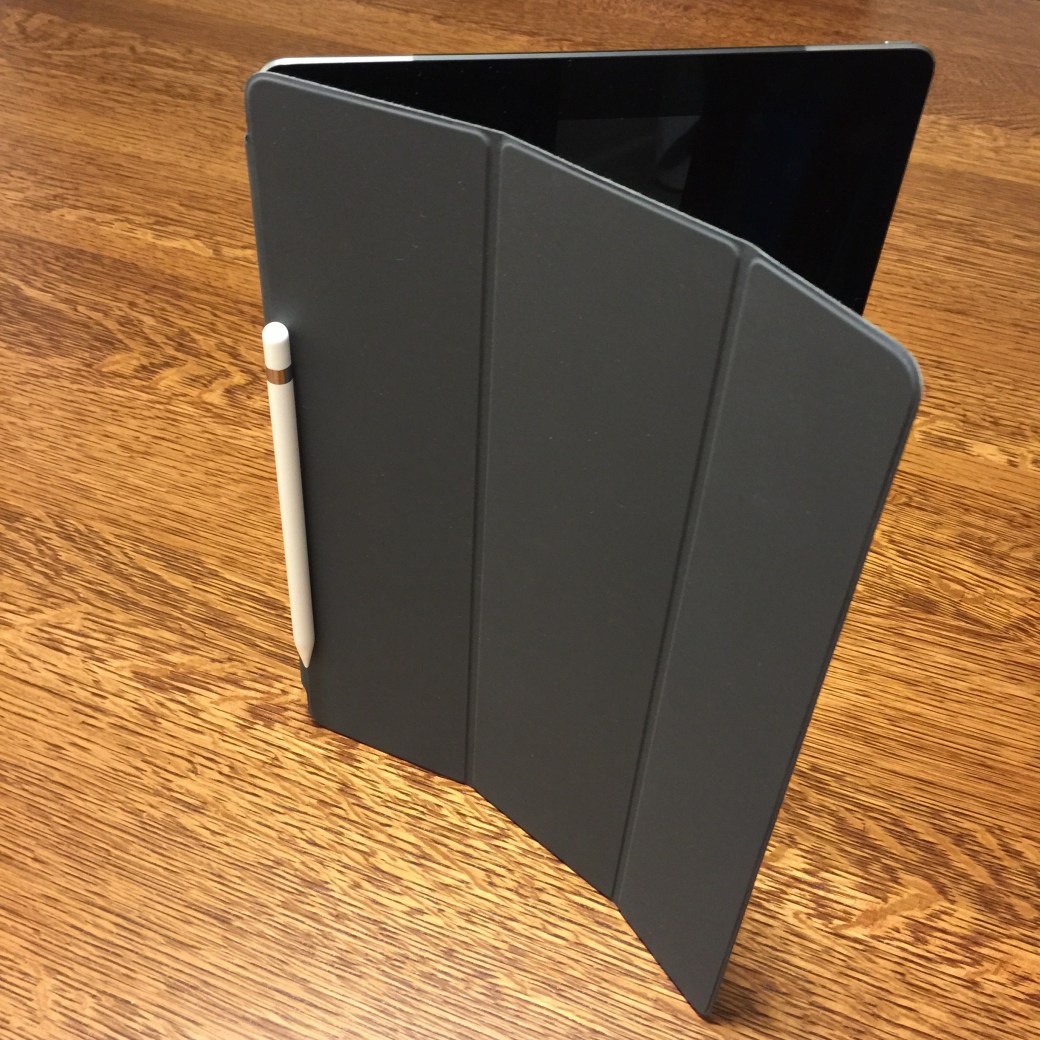
Imagine my surprise this morning when I woke up, and put my Apple Pencil on the edge of my iPad Pro and found that indeed it DOES hold to the case magnetically as shown below.

I’m surprised that the media misreported this. Even more surprising is that Apple never responded to the criticism to set the record straight, nor does Apple mention among the features that the Pencil can be held on magnetically.

It’s a natural inclination to put the pencil on the case at the edge (just like a school notebook and wooden pencil), even if you don’t know it can be held magnetically.

20160205fr0719-apple-ipad-pro-pencil-pen-stylus-magnetic-holder-case-microsoft-surface-IMG_6252

How to Adjust Brightness on Secondary Apple Mac Display

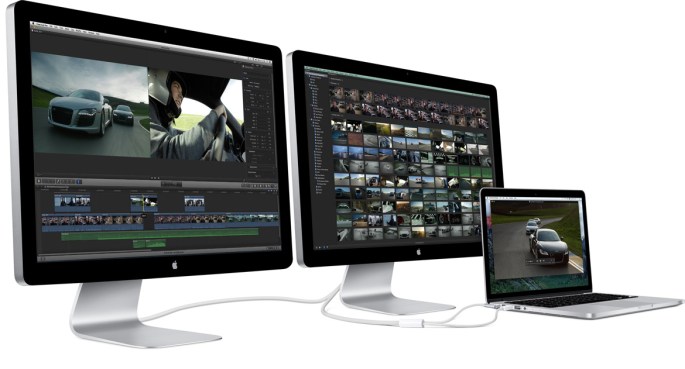
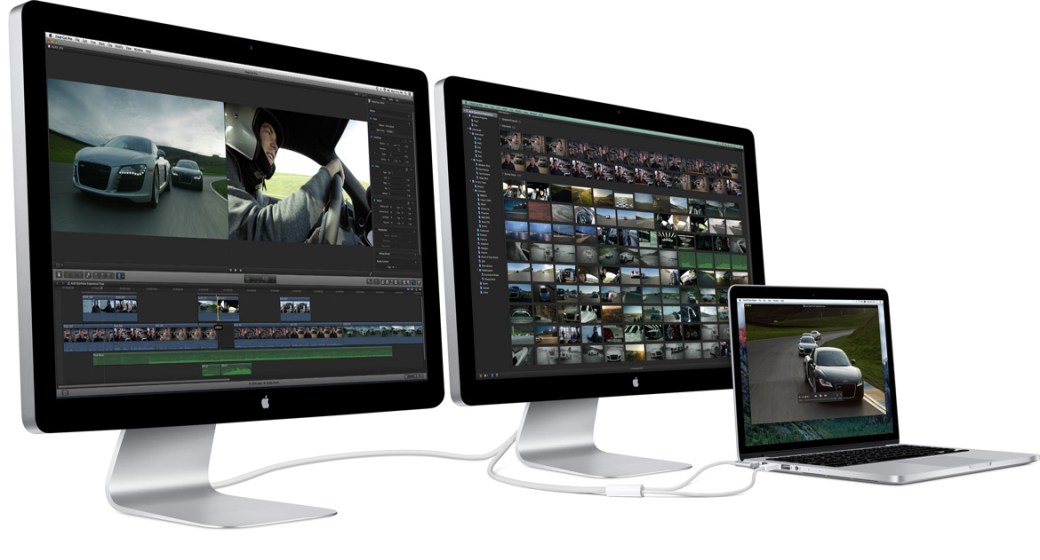
If you have an Apple Mac computer with a second Apple display attached, you can adjust the brightness using the following keyboard key combination on an Apple keyboard:

Hold the control key while pressing the brightness up or down keys (F1 / F2)

This only works with Apple displays and may not work on all Apple computers. This is typically an issue for people with MacBook laptop computers since the common configuration is to use the built-in display and also an external Apple display.

20160118mo0801-adjust-brightness-on-secondary-apple-mac-cinema-27-inch-display

Fix Solution When iTunes Doesn’t Recognize or Find iPhone in Microsoft Windows 10

A recent Windows update causes iTunes to not recognize any connected iPhone, iPad, or iPod. Although iTunes doesn’t see the iOS device, Windows will acknowledge that it’s been plugged in (with the sound alert for connected devices). Windows Explorer also shows the iOS device listed, and the DCIM folder with pictures is viewable. This may also be a problem with Windows 7 and Windows 8.

Fix for Windows iTunes not Identifying iPhone or iPad

The fix for this problem is quite simple. Follow these instructions:

  1. Administrator. Make sure you’re logged into your computer as an Administrator. The username you usually login with may be an administrator account, but if it isn’t, you’ll need to login using a different account such as a Maintenance account.
  2. Device Manager. Once logged in, go to the Device Manager by right clicking on your Computer icon and choosing Properties. Then click on Device Manager. Or, instead, you can get to Device Manager by going to Control Panel > System and Security > System > Device Manager.
  3. iPhone Drivers. From the list of devices, click on Portable Devices. You’ll see Apple iPhone listed. Right click and then from the pop-up menu click on Update Driver Software.
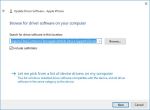
  4. Browse Computer. The driver currently being used for the iPhone (by default) is a Microsoft driver that prevents iTunes from accessing the iPhone. So, you’ll need to browse your computer for the correct iTunes compatible driver. Click on the option to “Browse my computer for driver software.”
  5. Select Apple Drivers Folder. In the browse window, click on the Browse button and then navigate to the Apple Drivers folder found in the following location:
    C:\Program Files\Common Files\Apple\Mobile Device Support\Drivers
  6. Finish. Click the Next button to finish the driver installation update process.

Screen Shots

The images below show the above process. Click any image for a larger gallery view.

Apple Mac OS X Keyboard Shortcuts and Key Combinations

[Source: Apple]

Mac keyboard shortcuts

By pressing a combination of keys, you can do things that normally need a mouse, trackpad, or other input device.

To use a keyboard shortcut, hold down one or more modifier keys while pressing the last key of the shortcut. For example, to use the shortcut Command-C (copy), hold down Command, press C, then release both keys. Mac menus and keyboards often use symbols for certain keys, including the modifier keys:

  • Command ⌘
  • Shift ⇧
  • Option ⌥
  • Control ⌃
  • Caps Lock ⇪
  • Fn
If you’re using a keyboard made for Windows PCs, use the Alt key instead of Option, and the Windows logo key instead of Command. Some Mac keyboards and shortcuts use special keys in the top row, which include icons for volume, display brightness, and other functions. Press the icon key to perform that function, or combine it with the Fn key to use it as an F1, F2, F3, or other standard function key.

To learn more shortcuts, check the menus of the app you’re using. Every app can have its own shortcuts, and shortcuts that work in one app may not work in another.

Cut, copy, paste, and other common shortcuts

          Shortcut Description
Command-X Cut: Remove the selected item and copy it to the Clipboard.
Command-C Copy the selected item to the Clipboard. This also works for files in the Finder.
Command-V Paste the contents of the Clipboard into the current document or app. This also works for files in the Finder.
Command-Z Undo the previous command. You can then press Command-Shift-Z to Redo, reversing the undo command. In some apps, you can undo and redo multiple commands.
Command-A Select All items.
Command-F Find: Open a Find window, or find items in a document.
Command-G Find Again: Find the next occurrence of the item previously found. To find the previous occurrence, press Command-Shift-G.
Command-H Hide the windows of the front app. To view the front app but hide all other apps, press Command-Option-H.
Command-M Minimize the front window to the Dock. To minimize all windows of the front app, press Command-Option-M.
Command-N New: Open an new document or window.
Command-O Open the selected item, or open a dialog to select a file to open.
Command-P Print the current document.
Command-S Save the current document.
Command-W Close the front window. To close all windows of the app, press Command-Option-W.
Command-Q Quit the app.
Command-Option-Esc Force Quit: Choose an app to force quit. Or press Command-Shift-Option-Esc and hold for 3 seconds to force just the front app to quit.
Command–Space bar Spotlight: Show or hide the Spotlight search field. To perform a Spotlight search from a Finder window, press Command–Option–Space bar. If you use multiple input sources to type in different languages, these shortcuts change input sources instead of showing Spotlight.
Space bar Quick Look: Use Quick Look to preview the selected item.
Command-Tab Switch apps: Switch to the next most recently used app among your open apps.
Command-Shift-Tilde (~) Switch windows: Switch to the next most recently used window of the front app.
Command-Shift-3 Screenshot: Take a screenshot of the entire screen. Learn more screenshot shortcuts.
Command-Comma (,) Preferences: Open preferences for the front app.

Sleep, log out, and shut down shortcuts

               Shortcut Description
Power button Tap to turn on your Mac or wake your Mac from sleep.
Hold for 1.5 seconds while your Mac is awake to display a dialog asking if you want to restart, sleep, or shut down.
Hold for 5 seconds to force your Mac to turn off.
Command–Control–Power button Force your Mac to restart.
Command–Option–Power button Put your Mac to sleep.
Shift–Control–Power button Put your displays to sleep.
Command–Control–Power button Quit all apps, then restart your Mac. If any open documents have unsaved changes, you’ll be asked whether you want to save them.
Command–Option–Control–Power button Quit all apps, then shut down your Mac. If any open documents have unsaved changes, you’ll be asked whether you want to save them.
Command-Shift-Q Log out of your OS X user account. You’ll be asked to confirm.
Command-Shift-Option-Q Log out of your OS X user account immediately, without being asked to confirm.

Document shortcuts

               Shortcut Description
Command-B Boldface the selected text, or turn boldfacing on or off.
Command-I Italicize the selected text, or turn italics on or off.
Command-U Underline the selected text, or turn underlining on or off.
Command-T Show or hide the Fonts window.
Command-D Select the Desktop folder from within an Open dialog or Save dialog.
Command-Control-D Show or hide the definition of the selected word.
Command-Shift-Colon (:) Display the Spelling and Grammar window.
Command-Semicolon (;) Find misspelled words in the document.
Option-Delete Delete the word to the left of the insertion point.
Control-H Delete the character to the left of the insertion point. Or use Delete.
Control-D Delete the character to the right of the insertion point. Or use Fn-Delete.
Fn-Delete Forward delete on keyboards that don’t have a Forward Delete   key. Or use Control-D.
Control-K Delete the text between the insertion point and the end of the line or paragraph.
Command-Delete Select Delete or Don’t Save in a dialog that contains a Delete or Don’t Save button.
Fn–Up Arrow Page Up: Scroll up one page.
Fn–Down Arrow Page Down: Scroll down one page.
Fn–Left Arrow Home: Scroll to the beginning of a document.
Fn–Right Arrow End: Scroll to the end of a document.
Command–Up Arrow Move the insertion point to the beginning of the document.
Command–Down Arrow Move the insertion point to the end of the document.
Command–Left Arrow Move the insertion point to the beginning of the current line.
Command–Right Arrow Move the insertion point to the end of the current line.
Option–Left Arrow Move the insertion point to the beginning of the previous word.
Option–Right Arrow Move the insertion point to the end of the next word.
Command–Shift–Up Arrow Select the text between the insertion point and the beginning of the document.
Command–Shift–Down Arrow Select the text between the insertion point and the end of the document.
Command–Shift–Left Arrow Select the text between the insertion point and the beginning of the current line.
Command–Shift–Right Arrow Select the text between the insertion point and the end of the current line.
Shift–Up Arrow Extend text selection to the nearest character at the same horizontal location on the line above.
Shift–Down Arrow Extend text selection to the nearest character at the same horizontal location on the line below.
Shift–Left Arrow Extend text selection one character to the left.
Shift–Right Arrow Extend text selection one character to the right.
Shift–Option–Up Arrow Extend text selection to the beginning of the current paragraph, then to the beginning of the following paragraph if pressed again.
Shift–Option–Down Arrow Extend text selection to the end of the current paragraph, then to the end of the following paragraph if pressed again.
Shift–Option–Left Arrow Extend text selection to the beginning of the current word, then to the beginning of the following word if pressed again.
Shift–Option–Right Arrow Extend text selection to the end of the current word, then to the end of the following word if pressed again.
Control-A Move to the beginning of the line or paragraph.
Control-E Move to the end of a line or paragraph.
Control-F Move one character forward.
Control-B Move one character backward.
Control-L Center the cursor or selection in the visible area.
Control-P Move up one line.
Control-N Move down one line.
Control-O Insert a new line after the insertion point.
Control-T Swap the character behind the insertion point with the character in front of the insertion point.
Command–Left Curly Bracket ({) Left align.
Command–Right Curly Bracket (}) Right align.
Command–Shift–Vertical bar (|) Center align.
Command-Option-F Go to the search field.
Command-Option-T Show or hide a toolbar in the app.
Command-Option-C Copy Style: Copy the formatting settings of the selected item to the Clipboard.
Command-Option-V Paste Style: Apply the copied style to the selected item.
Command-Shift-Option-V Paste and Match Style: Apply the style of the surrounding content to the item pasted within that content.
Command-Option-I Show or hide the inspector window.
Command-Shift-P Page setup: Display a window for selecting document settings.
Command-Shift-S Display the Save As dialog, or duplicate the current document.
Command–Shift–
Minus sign (-)
Decrease the size of the selected item.
Command–Shift–
Plus sign (+)
Increase the size of the selected item. Command–Equal sign (=) performs the same function.
Command–Shift–
Question mark (?)
Open the Help menu.

Finder shortcuts

          Shortcut Description
Command-D Duplicate the selected files.
Command-E Eject the selected disk or volume.
Command-F Start a Spotlight search in the Finder window.
Command-I Show the Get Info window for a selected file.
Command-Shift-C Open the Computer window.
Command-Shift-D Open the desktop folder.
Command-Shift-F Open the All My Files window.
Command-Shift-G Open a Go to Folder window.
Command-Shift-H Open the Home folder of the current OS X user account.
Command-Shift-I Open iCloud Drive.
Command-Shift-K Open the Network window.
Command-Option-L Open the Downloads folder.
Command-Shift-O Open the Documents folder.
Command-Shift-R Open the AirDrop window.
Command-Shift-T Add selected Finder item to the Dock (OS X Mountain Lion or earlier)
Command-Shift-Control-T Add selected Finder item to the Dock (OS X Mavericks or later)
Command-Shift-U Open the Utilities folder.
Command-Option-D Show or hide the Dock. This often works even when you’re not in the Finder.
Command-Control-T Add the selected item to the sidebar (OS X Mavericks or later).
Command-Option-P Hide or show the path bar in Finder windows.
Command-Option-S Hide or show the Sidebar in Finder windows.
Command–Slash (/) Hide or show the status bar in Finder windows.
Command-J Show View Options.
Command-K Open the Connect to Server window.
Command-L Make an alias of the selected item.
Command-N Open a new Finder window.
Command-Shift-N Create a new folder.
Command-Option-N Create a new Smart Folder.
Command-R Show the original file for the selected alias.
Command-T Show or hide the tab bar when a single tab is open in the current Finder window.
Command-Shift-T Show or hide a Finder tab.
Command-Option-T Show or hide the toolbar when a single tab is open in the current Finder window.
Command-Option-V Move: Move the files in the Clipboard from their original location to the current location.
Command-Option-Y View a Quick Look slideshow of the selected files.
Command-Y Use Quick Look to preview the selected files.
Command-1 View the items in the Finder window as icons.
Command-2 View the items in a Finder window as a list.
Command-3 View the items in a Finder window in columns.
Command-4 View the items in a Finder window with Cover Flow.
Command–Left Bracket ([) Go to the previous folder.
Command–Right Bracket (]) Go to the next folder.
Command–Up Arrow Open the folder that contains the current folder.
Command–Control–Up Arrow Open the folder that contains the current folder in a new window.
Command–Down Arrow Open the selected item.
Command–Mission Control Show the desktop. This works even when you’re not in the Finder.
Command–Brightness Up Turn Target Display Mode on or off.
Command–Brightness Down Turn display mirroring on or off when your Mac is connected to more than one display.
Right Arrow Open the selected folder. This works only when in list view.
Left Arrow Close the selected folder. This works only when in list view.
Option–double-click Open a folder in a separate window and close the current window.
Command–double-click Open a folder in a separate tab or window.
Command-Delete Move the selected item to the Trash.
Command-Shift-Delete Empty the Trash.
Command-Shift-Option-Delete Empty the Trash without confirmation dialog.
Command-Y Use Quick Look to preview the files.
Option–Brightness Up Open Displays preferences. This works with either Brightness key.
Option–Mission Control Open Mission Control preferences.
Option–Volume Up Open Sound preferences. This works with any of the volume keys.
Command key while dragging Move the dragged item to another volume or location. The pointer changes while you drag the item.
Option key while dragging Copy the dragged item. The pointer changes while you drag the item.
Command-Option while dragging Make an alias of the dragged item. The pointer changes while you drag the item.
Option-click a disclosure triangle Open all folders within the selected folder. This works only when in list view.
Command-click a window title See the folders that contain the current folder.

Other shortcuts

Learn more

Last Modified: Oct 1, 2015

Here’s Why Apple Makes the Best Windows Computer

Apple computers have the ability to run Windows, Linux, and Apple operating systems. Here are some reasons why purchasing an Apple laptop or desktop computer is a good decision for Windows users.

  1. Design. Apple computers are known for their beautiful design. This makes them pleasant to interact with.
  2. Displays. Apple has always had nice computer displays and the latest computers include Retina display technology in their laptop and high-end desktop computers. With ambient light sensors and keyboard controlled brightness, you can personalize the display making it very easy on your eyes.
  3. Keyboard. The Apple wireless or wired keyboards are excellent for those working long hours on the computer. The keys have short travel, and entry errors are almost non existent. Apple keyboards feature short-travel keys, which means your fingers don’t need to push the keys down as far, and you can type faster with less effort.
  4. Multiple Operating Systems. Using a product like VMWare Fusion, you can run multiple operating systems on an Apple computer. You can have Apple, Windows, and Linux. If you’re a computer and technical support professional, you’ll likely need to support Apple and Windows computers. With virtual computing, you could have Windows 7, Windows 8, and Windows 10 running at the same time.
  5. Portability. The newer MacBook computers are thiner and lighter than previous models. The new MacBook, MacBook Air, and MacBook Pro computers are very thin and light.
  6. Security. Although Apple computers aren’t entirely impervious to viruses, they are much more secure than Windows computers.
  7. Space Savings. Apple iMac computers are slim and accommodate an aluminum wireless keyboard that takes up very little desk space.
  8. Touch Pad. For those concerned about repetitive stress injuries, the Apple touchpad is essential. It’s highly accurate, easy to use, and with multiple gestures that require a very light touch.
  9. Voice Dictation. Apple uses the same Siri voice recognition technology in their desktop/laptop operating system as with the iPhone. It’s quite accurate in a quiet environment.

20150225we-apple-computer-renewable-energy-santa-monica

Rename a Bluetooth Wireless Device on Apple

New Bluetooth devices from Apple may initially have a broadcasted name of their MAC address. This is a uniquely identifiable serial number given to every Bluetooth device. Usually once a device is paired, it’s then given a generic name such as Keyboard.

Follow these instructions to rename a device:

  1. On your Apple computer, from the Apple Menu choose System Preferences > Bluetooth.
  2. With a keyboard for example, presuming it’s not Paired yet, it should be viewable in the list of available devices. Click on the Pair button and type the number displayed on the keyboard. It should then be Paired.
  3. Right click on the device and choose rename from the pop-up context sensitive menu.
  4. Rename and click the Rename button.
  5. To pair it with another device, right click on the item in the list and choose Remove. You’ll be told that to use it again you will need to Pair again. Confirm this message.
  6. If it’s a keyboard, the green light above the CD eject button will blink rapidly. If it doesn’t, push and hold the power button to turn the green light off.
  7. Then, press and hold the Power button as well as the Esc key for about 5 seconds and let go. The green light should begin to blink. This means the keyboard is ready to be paired with a new device. It will connect using the new name.

Note that when a device is paired to an iOS device, renaming isn’t an option. Only through the desktop computer can you rename it.

Considerations for iOS Devices

You may notice that a renamed device still shows up under the old name. Here are the conditions when this will happen and how to correct for it.

  1. On an iOS device, click the information link for a specific Bluetooth device, and click Forget This Device. Then follow the instructions above to rename the device.
  2. After you’ve renamed the device on a desktop Apple computer, your iOS device may still recognize it by the old name because the Bluetooth address (a MAC address serial number) is still the same.
  3. Pair the device.
  4. Use the ‘Forget This Device’ option to remove it.
  5. Pair it again.
  6. This time the new name should be showing up.

Apple Public Beta Website Outage News and Updates

In the past 48 hours, Apple has received exceptional press coverage in technical news blogs for their Public Beta program. It’s a great opportunity for Apple to impress people with their latest desktop and mobile operating systems (El Capitan and iOS9).

These links will take you to the appropriate pages:

Site News

As of 5:30 AM the Public Beta site is working again.

As of 3AM Pacific Time on Friday, July 10, those attempting to get access to the Public Beta will get an error when landing on the page, or if the page loads, when attempting to register by authenticate with their Apple ID.

The error isn’t the expected, “We’re experiencing too many visitors right now. Try again later.” It’s not that. Nor is it the “We’re upgrading our site.”

Instead, the error message below shows up. One of the rules of having a successful Public Beta program is to make sure that the Beta Program isn’t itself a beta version.


We’re sorry, but something went wrong.

We’ve been notified about this issue and we’ll take a look at it shortly.

Information for the administrator of this website

The Phusion Passenger application server encountered an error while starting your web application. Because you are running this web application in staging or production mode, the details of the error have been omitted from this web page for security reasons.

Please read the web server error log to find the details of the error. If you don’t know where the web server error log is, read the troubleshooting documentation below.

Alternatively, you can turn on the “friendly error pages” feature (see below), which will make Phusion Passenger show many details about the error right in the browser.

Phusion Passenger troubleshooting documentation:

To turn on friendly error pages:

Page Screen Shot

Below is a screen shot of the error page. Click the image for a larger view. The URL is for the landing page after entering your Apple ID.

20150710fr-apple-public-beta-website-down

Multiple Security Vulnerabilities in Apple Mac OS X and Apple Safari

From: State of Iowa – Information Security Office

Date Issued:  May 5, 2015

Maximum Risk Rating/Severity:  High

Brief Summary: All Apple computers (prior to v10.10.3) are vulnerable to the 46 security exploits described below. Update to the latest version of Yosemite immediately.

Overview:

Multiple vulnerabilities have been discovered in Apple MAC OS X and Apple Safari. Mac OS X is an operating system for Apple computers. Apple Safari is a web browser available for Mac OS X and Microsoft Windows. These vulnerabilities can be exploited if a user visits or is redirected to a specially crafted webpage, or opens a specially crafted file, including an email attachment, using a vulnerable version of OS X.

Successful exploitation could result in an attacker gaining the same privileges as the logged on user, remote code execution within the context of the application, and bypass of security systems. Failed attacks may cause a Denial of Service condition within the targeted delivery method. Depending on the privileges associated with the user, an attacker could then install programs; view, change, or delete data; or create new accounts with full user rights. 

Affected Software:

Apple Mac OS X Yosemite prior to v10.10.3

Apple Mac OS X Mavericks v10.9.5

Apple Mac OS X Mountain Lion v10.8.5

Apple Safari v8.0.5, 7.1.5, and 6.2.5

Description:

Multiple remote code execution vulnerabilities have been discovered in Mac OS X that could allow remote code execution. These vulnerabilities can be exploited if a user visits or is redirected to a specially crafted webpage or opens a specially crafted file. Details of these vulnerabilities are as follows:

  • Apple Mac OS X Yosemite prior to v10.10.2 is prone to privilege escalation due to an issue with checking XPC entitlements (CVE-2015-1130).
  • Apple Mac OS X Yosemite prior to v10.10.2, OS X Mountain Lion v10.8.5, and OS X Mavericks v10.9.5 have multiple vulnerabilities in Apache prior to versions 2.4.10 and 2.2.29 including one that may allow a remote attacker to execute arbitrary code (CVEs 2015-1066, 2013-5704, 2013-6438, 2014-0098, 2014-0117, 2014-0118, 2014-0226, and 2014-0231).
  • Apple Mac OS X Yosemite prior to v10.10.2, OS X Mountain Lion 10.8.5, and OS X Mavericks v10.9.5 ATS (Apple Type Services) are prone to multiple input validation issues in fontd which may allow a local user to execute arbitrary code with system privileges (CVEs 2015-1131, 2015-1132, 2015-1133, 2015-1134, and 2015-1135).
  • Apple Mac OS X Yosemite prior to v10.10.2 is prone to a cross-domain cookie issue which may result in cookies belonging to one origin may be sent to another origin (CVE-2015-1089).
  • Apple Mac OS X Yosemite prior to v10.10.2 is prone to a cross-domain HTTP request issue which may result in authentication credentials being sent to a server on another origin (CVE-2015-1091).
  • Apple Mac OS X Yosemite prior to v10.10.2 is prone to an input validation issue which may result in the execution of arbitrary code by visiting a maliciously crafted website (CVE-2015-1088).
  • Apple Mac OS X Yosemite prior to v10.10.2, OS X Mountain Lion v10.8.5, and OS X Mavericks v10.9.5 are prone to a use-after-free issue in CoreAnimation which may result in the execution of arbitrary code by visiting a maliciously crafted website (CVE-2015-1136).
  • Apple Mac OS X Yosemite prior to v10.10.2, OS X Mountain Lion v10.8.5, and OS X Mavericks v10.9.5 are prone to multiple memory corruption issues in the processing of font files, which may result in the execution of arbitrary code by processing a maliciously crafted font file (CVE-2015-1093).
  • Apple Mac OS X Yosemite prior to v10.10.2 and OS X Mavericks v10.9.5 are prone to an issue with NVIDIA graphics driver’s handling of certain IOService userclient types, which may allow a local user to execute arbitrary code with system privileges (CVE-20215-1137).
  • Apple Mac OS X Yosemite prior to v10.10.2 is prone to an input validation issue in the hypervisor framework which may allow a local application to cause a denial of service (CVE-2015-1138).
  • Apple Mac OS X Yosemite prior to v10.10.2, OS X Mountain Lion v10.8.5, and OS X Mavericks v10.9.5 are prone to a memory corruption issue in the handling of .sgi files which may result in the execution of arbitrary code by processing a maliciously crafted .sgi file (CVE-2015-1139).
  • Apple Mac OS X Yosemite prior to v10.10.2 is prone to a memory corruption issue which may allow a malicious HID (Human Interface Device) to cause arbitrary code execution (CVE-2015-1095).
  • Apple Mac OS X Yosemite prior to v10.10.2, OS X Mountain Lion v10.8.5, and OS X Mavericks v10.9.5 are prone to a buffer overflow issue which may allow a local user to execute arbitrary code with system privileges (CVE-2015-1140).
  • Apple Mac OS X Yosemite prior to v10.10.2 is prune to a kernel memory content disclosure issue which may allow a local user to determine kernel memory layout (CVE-2015-1096).
  • Apple Mac OS X Mountain Lion v10.8.5 and OS X Mavericks v10.9.5 are prone to a heap buffer overflow in the IOHIDFamily’s handling of key-mapping properties which may allow a malicious application to execute arbitrary code with system privileges (CVE-2014-4404).
  • Apple Mac OS X Mountain Lion v10.8.5 and OS X Mavericks v10.9.5 are prone to a null pointer deference issue in the IOHIDFamily’s handling of key-mapping properties which may allow a malicious application to execute arbitrary code with system privileges (CVE-2014-4405).
  • Apple Mac OS X Mountain Lion v10.8.5 and OS X Mavericks v10.9.5 are prone to an out-of-bounds issue in the IOHIDFamily driver which may allow a use to execute arbitrary code with system privileges (CVE-2014-4380).
  • Apple Mac OS X Yosemite prior to v10.10.2 is prone to an issue in the handling of virtual memory operations within the kernel which may allow a local user to cause unexpected system shutdown (CVE-2015-1141).
  • Apple Mac OS X Yosemite prior to v10.10.2, OS X Mountain Lion v10.8.5, and OS X Mavericks v10.9.5 are prone to a race condition in the kernel’s setreuid system call which may allow a local user to cause a system denial of service (CVE-2015-1099).
  • Apple Mac OS X Yosemite prior to v10.10.2, OS X Mountain Lion v10.8.5, and OS X Mavericks v10.9.5 are prone to setreuid and setregid system calls not dropping privileges permanently which may allow a local application to escalate privileges (CVE-2015-1117).
  • Apple Mac OS X Yosemite prior to v10.10.2 ICMP redirects were enabled by default, which may allow an attacker with a privileged network position to redirect user traffic to arbitrary hosts (CVE-2015-1103).
  • Apple Mac OS X Yosemite prior to v10.10.2 is prone to an issue processing TCP headers which may allow an attacker with a privileged network position to cause a denial of service (CVE-2015-1102).
  • Apple Mac OS X Yosemite prior to v10.10.2, OS X Mountain Lion v10.8.5, and OS X Mavericks v10.9.5 are prone to an out of bounds memory access issue which may allow a local user to cause unexpected system termination or read kernel memory (CVE-2015-1100).
  • Apple Mac OS X Yosemite prior to v10.10.2, OS X Mountain Lion v10.8.5, and OS X Mavericks v10.9.5 are prone to improper treatment of some IPv6 packets which may allow a remote user to bypass network filters (CVE-2015-1104).
  • Apple Mac OS X Yosemite prior to v10.10.2, OS X Mountain Lion v10.8.5, and OS X Mavericks v10.9.5 are prone to a memory corruption issue in the kernel which may allow a local user to execute arbitrary code with kernel privileges (CVE-2015-1101).
  • Apple Mac OS X Yosemite prior to v10.10.2 is prone to a state inconsistency issue in the handling of TCP out of band data which may allow a remote attacker to cause a denial of service (CVE-2015-1105).
  • Apple Mac OS X Yosemite prior to v10.10.2 is prone to an input validation issue in LaunchService’s handling of application localization data which may allow a local user to cause the Finder to crash (CVE-2015-1142).
  • Apple Mac OS X Yosemite prior to v10.10.2, OS X Mountain Lion v10.8.5, and OS X Mavericks v10.9.5 are prone to a type confusion in LaunchService’s handling of localized strings which may allow a local user to execute arbitrary code with system privileges (CVE-2015-1143).
  • Apple Mac OS X Yosemite prior to v10.10.2 is prone to a memory corruption issue in the handling of configuration profiles which may allow the processing of a maliciously crafted configuration profile to cause unepxted application termination (CVE-2015-1118).
  • Apple Mac OS X Yosemite prior to v10.10.2 is prone to weak key generation in ntpd when an authentication key is not configured which may allow a remote attacker to brute force ntpd authentication keys (CVE-2014-9298).
  • Apple Mac OS X Yosemite prior to v10.10.2, OS X Mountain Lion v10.8.5, and OS X Mavericks v10.9.5 are prone to multiple input validation issue in OpenLDAP which may allow a remote unauthenticated client to case a denial of service (CVEs 2015-1545 and 2015-1546).
  • Apple Mac OS X Yosemite prior to v10.10.2, OS X Mountain Lion v10.8.5, and OS X Mavericks v10.9.5 are prone to multiple vulnerabilities in OpenSSL 0.9.8zc, including one that may allow an attacker to intercept connections to a server that supports export-grade ciphers (CVEs 2014-3569, 2014-3570, 2014-3571, 2014-3572, 2014-8275, and 2015-0204).
  • Apple Mac OS X Yosemite prior to v10.10.2 and OSX Mavericks v10.9.5 are prone to an Open Directory Client issue which may allow an unencrypted password to be sent over the network when using Open Directory from OS X Server (CVE-2015-1147).
  • Apple Mac OS X Yosemite prior to v10.10.2, OS X Mountain Lion v10.8.5, and OS X Mavericks v10.9.5 are prone to multiple vulnerabilities in PHP, including one which may lead to arbitrary code execution (CVEs 2013-6712, 2014-0207, 2014-0237, 2014-0238, 2014-2497, 2014-3478, 2014-3479, 2014-3480, 2014-3487, 2014-3538, 2014-3587, 2014-3597, 2014-3668, 2014-3669, 2014-3670, 2014-3710, 20214-3981, 2014-4049, 2014-4670, 2014-4698, and 2014-5120).
  • Apple Mac OS X Yosemite prior to v10.10.2, OS X Mountain Lion v10.8.5, and OS X Mavericks v10.9.5 are prone to a memory corruption issue in the handling of iWork files which may allow an opened, maliciously crafted iWork file to execute arbitrary code (CVE-2015-1098).
  • Apple Mac OS X Mountain Lion v10.8.5 is prone to a heap buffer overflow which may allow viewing a maliciously crafted Collada file to lead to arbitrary code execution (CVE-2014-8830).
  • Apple Mac OS X Yosemite prior to v10.10.2 is prone to an issue that may allow a user’s password to be logged to a local file (CVE 2015-1148).
  • Apple Mac OS X Yosemite prior to v10.10.2, OS X Mountain Lion v10.8.5, and OS X Mavericks v10.9.5 are prone to an issue that may allow tampered applications to launch (CVEs 2015-1145 and 2015-1146).
  • Apple Mac OS X Yosemite prior to v10.10.2 is prone to a memory corruption issue in WebKit that may result in arbitrary code execution after visiting a maliciously crafted website (CVE-2015-1069).
  • Apple Mac OS X Yosemite prior to v10.10.2, OS X Mountain Lion v10.8.5, and OS X Mavericks v10.9.5 are prone to an issue in Safari that may allow users to be tracked by malicious websites using client certificates (CVE-2015-1129).
  • Apple Mac OS X Yosemite prior to v10.10.2, OS X Mountain Lion v10.8.5, and OS X Mavericks v10.9.5 are prone to an issue in Safari that may allow user’s browsing history in private browsing mode to be revealed (CVE-2015-1128).
  • Apple Mac OS X Yosemite prior to v10.10.2, OS X Mountain Lion v10.8.5, and OS X Mavericks v10.9.5 are prone to an issue in Safari that will cause the incomplete purging of a user’s browsing history (CVE-2015-1112).
  • Apple Mac OS X Yosemite prior to v10.10.2, OS X Mountain Lion v10.8.5, and OS X Mavericks v10.9.5 are prone to multiple memory corruption issues in WebKit that may result in unexpected application termination or arbitrary code execution after visiting a maliciously crafted website (CVEs 2015-1119, 2015-1120, 2015-1121,2015-1122, and 2015-1124).
  • Apple Mac OS X Yosemite prior to v10.10.2, OS X Mountain Lion v10.8.5, and OS X Mavericks v10.9.5 are prone to a state management issue that may result in a user’s browsing history in private mode being indexed (CVE02015-1127).
  • Apple Mac OS X Yosemite prior to v10.10.2, OS X Mountain Lion v10.8.5, and OS X Mavericks v10.9.5 are prone to a an issue in WebKit’s credential handling for FTP URLs that may result in resources of another origin being accessed after visitng a maliciously crafted website (CVE-2015-1126).
  • Security Update 2015-004 (available for OS X Mountain Lion v10.8.5 and OS X Mavericks v10.9.5) also addresses an issue caused by the fix for CVE-2015-1067 in Security Update 2015-002. This issue prevented Remote Apple Events clients on any version from connecting to the Remote Apple Events server. In default configurations, Remote Apple Events is not enabled.

Successful exploitation could result in an attacker gaining the same privileges as the logged on user, remote code execution within the context of the application, and bypass of security systems. Failed attacks may cause a Denial of Service condition within the targeted delivery method. Depending on the privileges associated with the user, an attacker could then install programs; view, change, or delete data; or create new accounts with full user rights.

Solution/Recommendations:

We recommend the following actions be taken:

  • Upgrade to Apple Mac OS X Yosemite 10.10.3 immediately after appropriate testing.
  • Apply appropriate updates provided by Apple to vulnerable systems immediately after appropriate testing.
  • Run all software as a non-privileged user (one without administrative privileges) to diminish the effects of a successful attack.
  • Remind users not to download, accept, or execute files from un-trusted or unknown sources.
  • Remind users not to visit un-trusted websites or follow links provided by unknown or un-trusted sources.

Apple References:

20140226we-apple-computer-security-500x500

Apple Notes Program Undo Delete or Recycle Bin

The Problem

Most programs have a built-in trash or recycle bin so that deleted items can be recovered. It’s very disconcerting if you’re using a program that doesn’t have an undo feature or trash/recycle folder where deleted items can be recovered from. The Apple Notes program is an example of a program without an undo feature or trash/recycle folder.

The Solution

The solution to this problem is to create a folder called trash and instead of deleting items, move them to the trash folder.

Setup and Use Apple Mac Handoff in iOS and OS X Yosemite

Handoff is one of the new Continuity features introduced in iOS 8 and OS X Yosemite, letting users begin a task on one device and seamlessly pick it up on another.

To use Handoff, you must login to iCloud on your Apple computer and iOS device first and have the feature turned on. On Apple computers, this is found under Settings > General. On Apple mobile devices, this is found under Settings > General > Handoff & Suggested Apps.

Handoff may already be on by default. If so, you may have noticed alerts for incoming phone calls on your computer screen or you may have noticed a small icon in the lower left corner of your iPhone (or iPad/iPod) lock screen. This icon indicates that a supported app/program is running on your desktop Apple computer and you can access the same app and whatever file or task you were doing in the identical spot. On the desktop computer, you may notice an additional icon to the left of the Dock.

There are probably many specialized programs on either your computer or iOS mobile device. The Handoff feature only works with selected programs that are on both systems such as Pages, Keynote, Numbers, and the Safari or Chrome browsers (for example).

Video

Below is a video by MacRumors showing how to setup and use Handoff.